

 Deutsch
 Español
 Français
 Hrvatski
 Italiano
 Polski
 Português (BR)
Restrict Ticket Report Templates to Specific Projects
Overview
Choose in which projects a ticket report template should be available.
Access & Permissions
How to access Ticket Report Templates
- Click Templates
- Click Ticket Reports
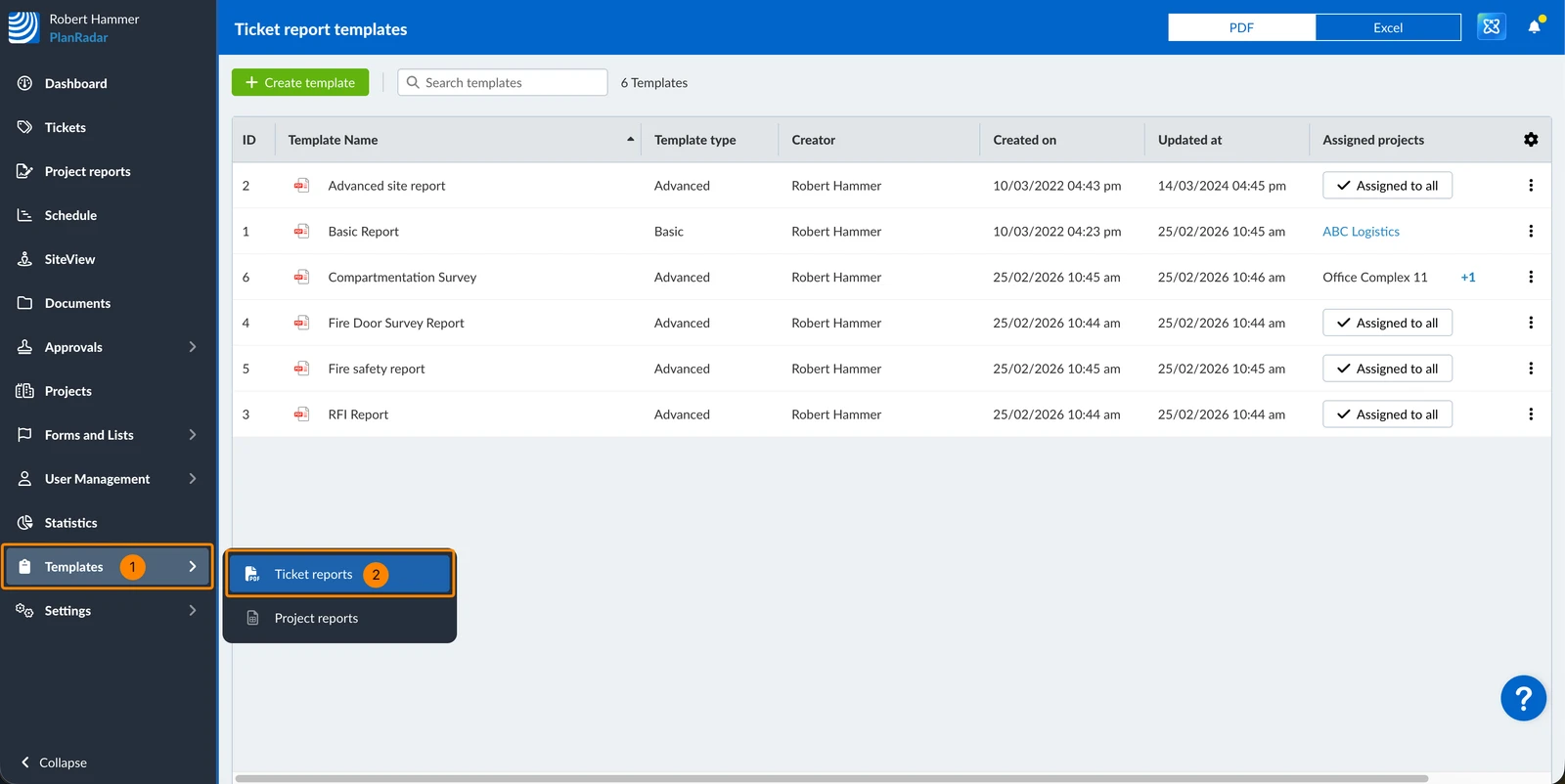
Assign Template to Projects
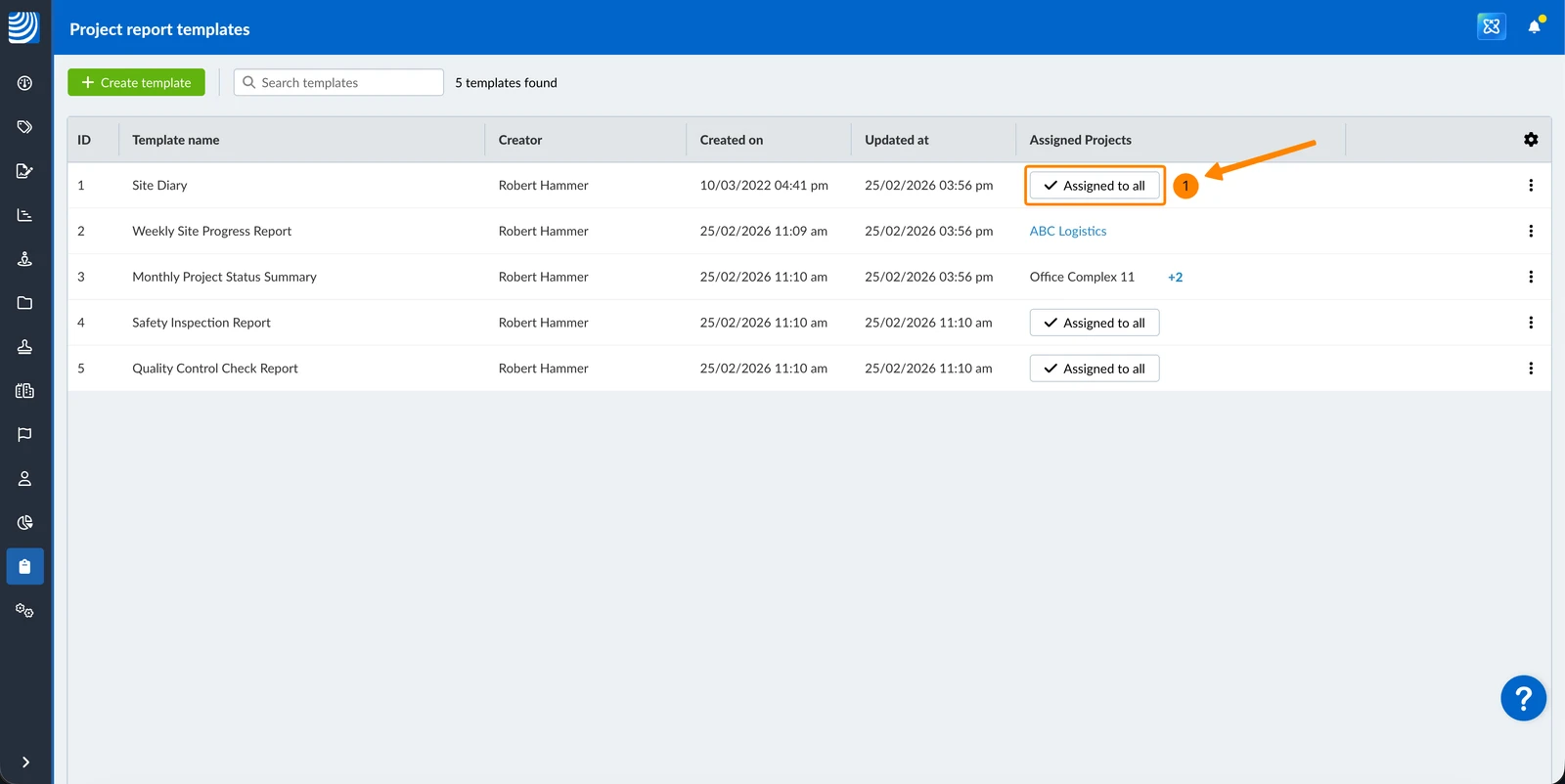
To choose in which projects the template should be available:
- Click ✔ Assigned to all in the Assigned projects column
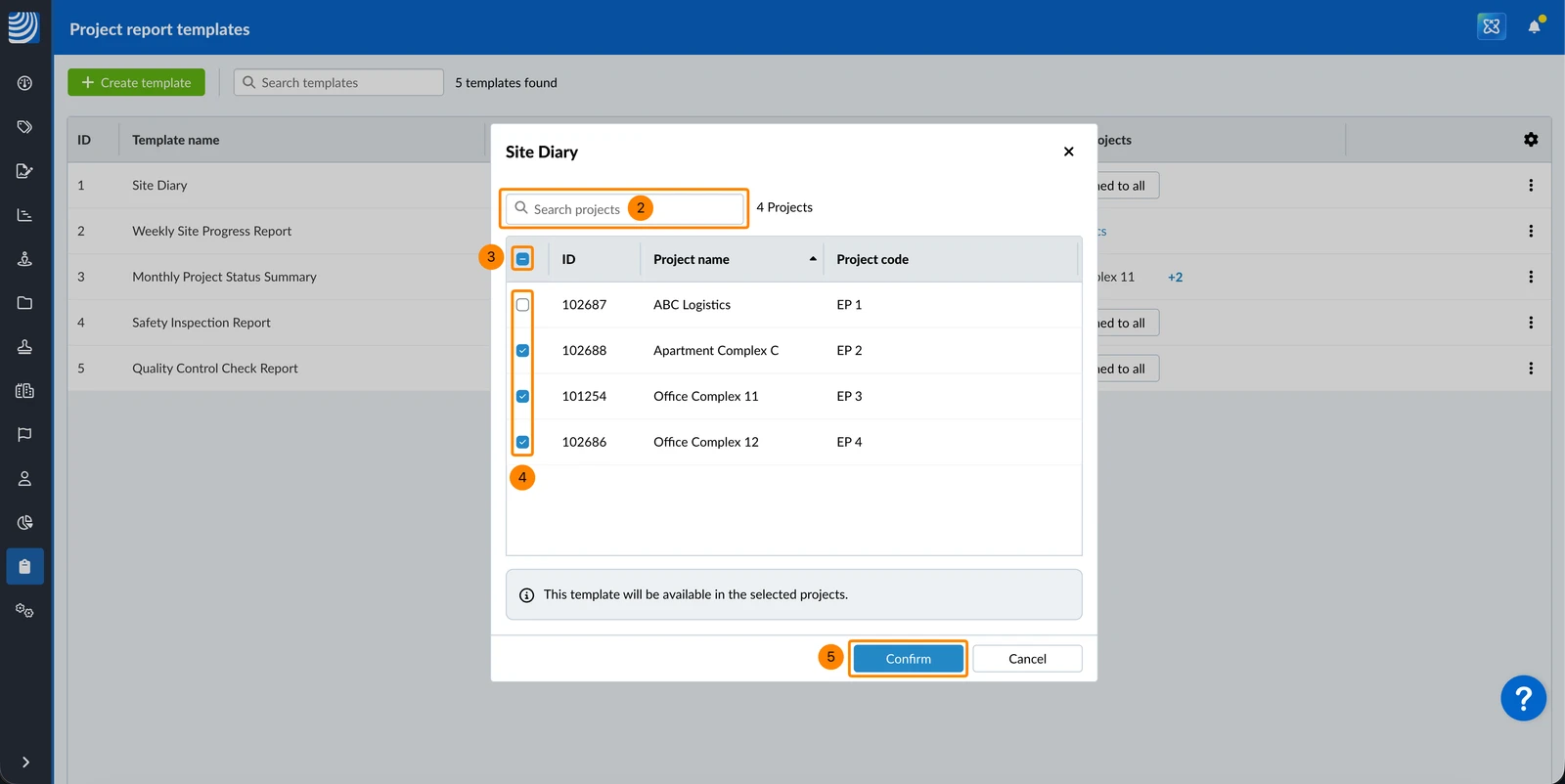
- Optional: Search projects
- Optional: Click the Select/Deselect all checkbox
- Select or deselect the projects where the template should be available.
- Click Confirm
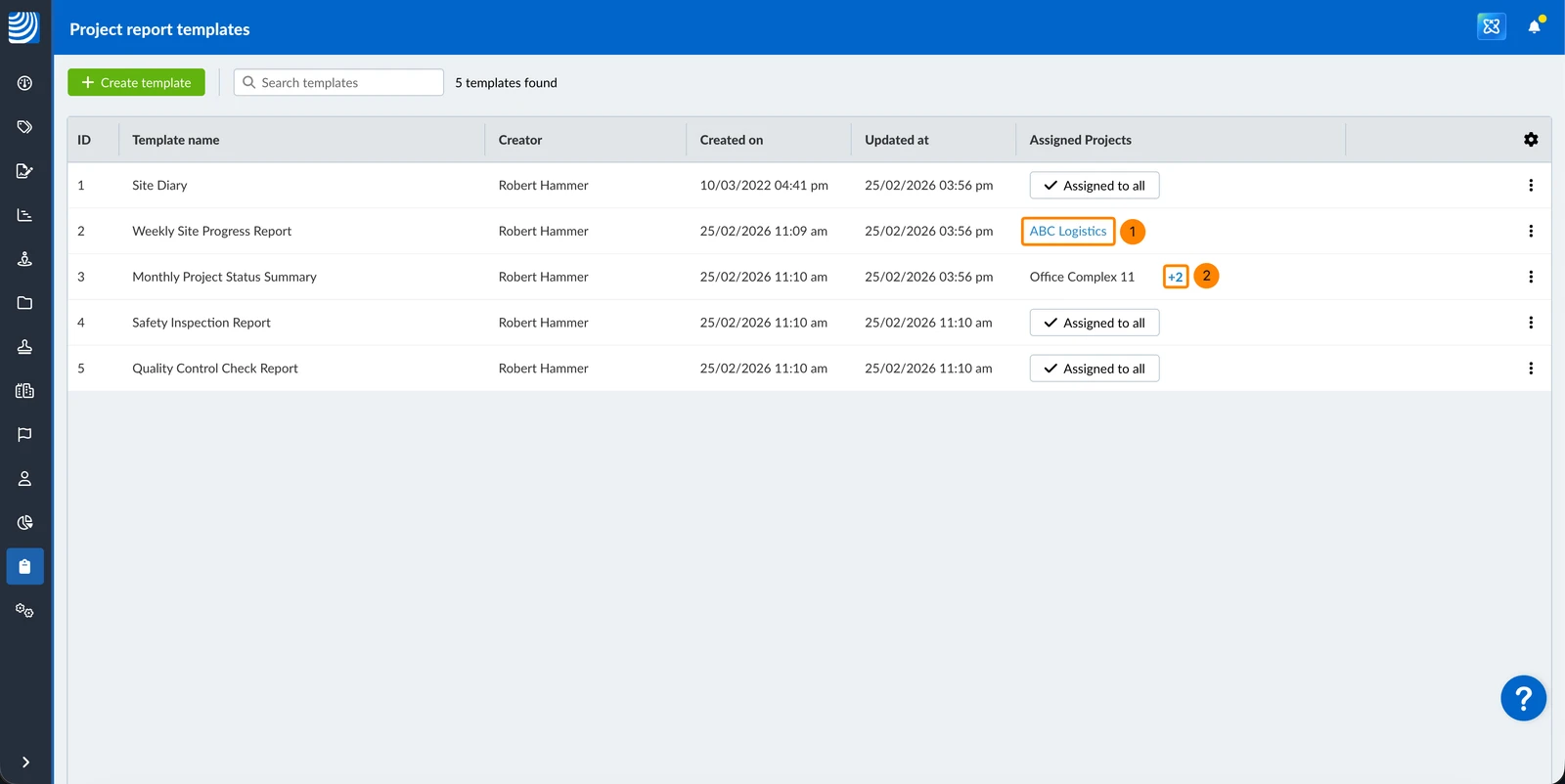
In the Assigned projects column you see the:
- Project name if only one project is assigned
- The name of the first project and the number of additional assigned projects
To change the assigned projects:
- Click the single project name e.g. ABC Logistics
- OR Click the number e.g. +2
Updated March 5, 2026