

 Deutsch
 Español
 Français
 Hrvatski
 Italiano
 Polski
 Português (BR)
Document Management
Overview
Document Management allows you to manage all documents, plans, and other files that are relevant for your projects within PlanRadar.
The following key use cases are possible with PlanRadar:
- Document Storage & Organisation – Upload, organise and store all documents in PlanRadar, like how you would store in other file sharing software, and benefit from having access to them in the same PlanRadar platform as all other project data. Documents and files can be accessed from the PlanRadar mobile app even in offline mode.
Read more below and in Add & Manage Files/Folders and in View & Find Files/Folder. - Document Versioning & Approvals - Ensure your team is always working off the latest version. Upload new versions of documents and see version history, to track all changes and updates throughout your project. If you need to sign-off on a document, you can send it to team members for approval.
Read more in Create & Manage File Versions and in Approvals > Document Approvals - Plan Approvals - Similar to documents, when you upload plans and new plan versions, you can send them for review and approval.
Read more in Approvals > Plan Approvals - File/Folder Access Control - Define which users, roles or groups can access specific files or folders.
Read more in File/Folder Access Control.
Access & permissions
Only Enterprise accounts created after February 2022 are eligible for Document Versioning.
*Only Pro and Enterprise accounts created after February 2022 are eligible to use the Document Management feature. If you have an older Pro or Enterprise account you can continue to use Documents by Location or contact us to upgrade your account.
If your PlanRadar account was created before the release of the new Document Management feature (i.e. you could manage documents under Tickets > Document view) you can still access this functionality via Documents by Location. Attaching documents to tickets is not affected by these changes.
How to access Document Management
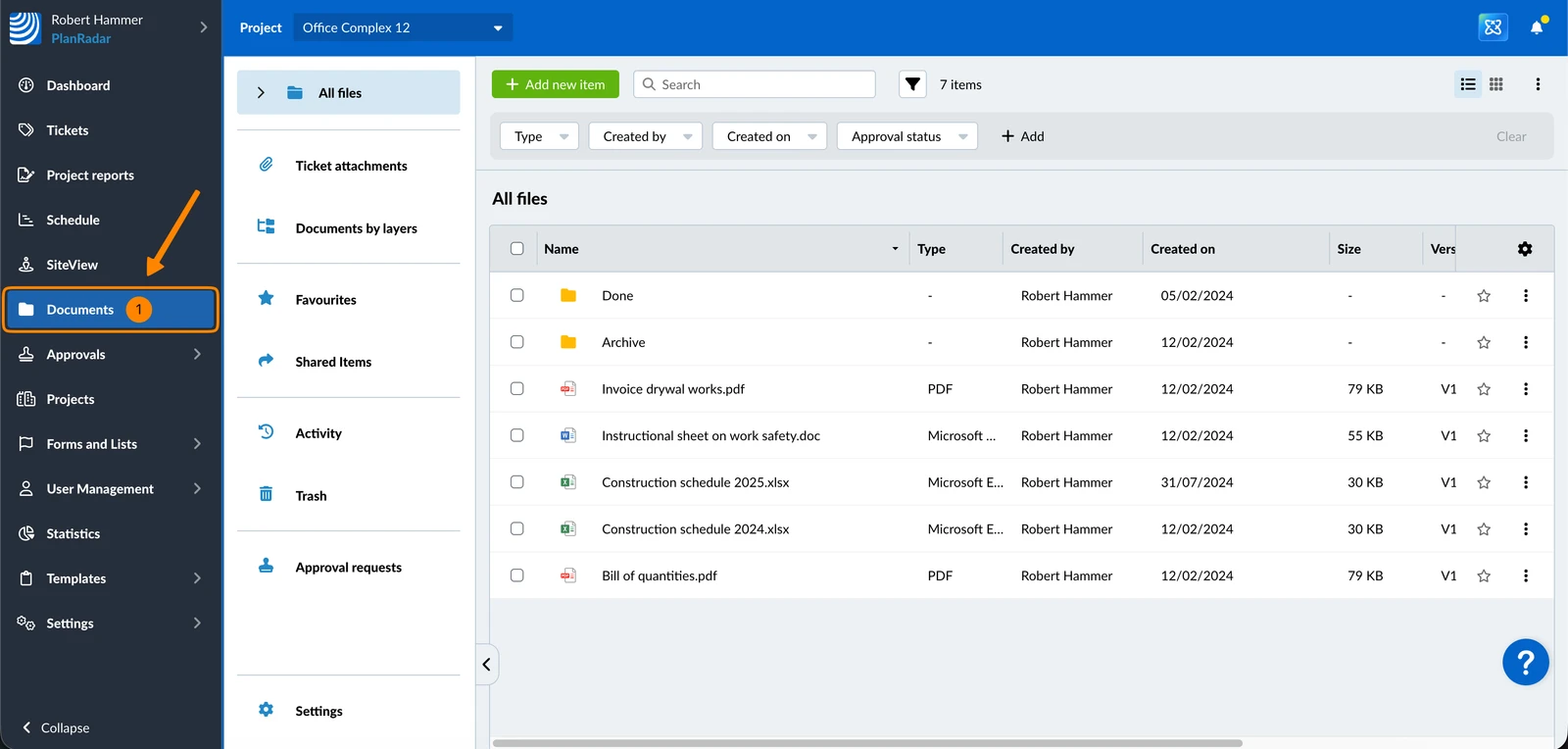
- Click Documents
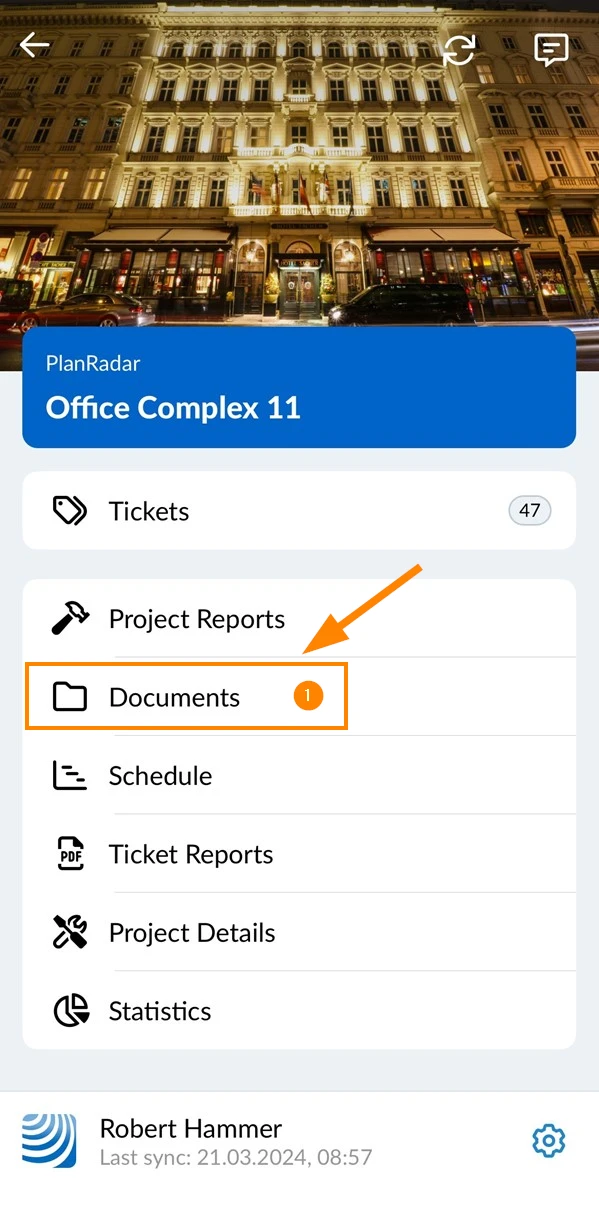
- Tap Documents in the main menu
Sidebar Sections
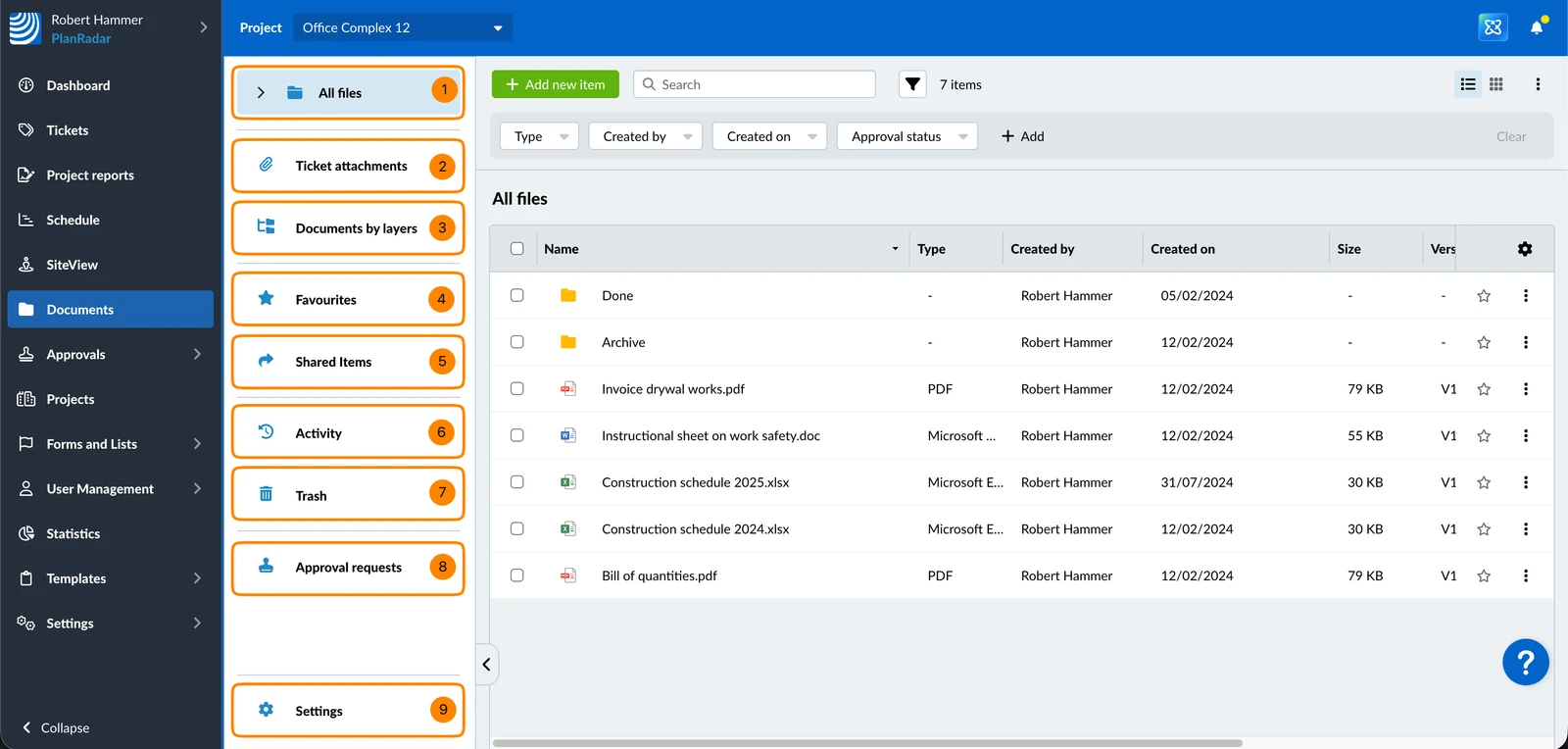
On the left side you find a sidebar which contains several sections:
- All files is the place where you can manage all your documents and files in a folder structure similar to your local filesystem or other cloud drives. Read more in View & Find Files/Folders and in Add & Manage Files/Folders.
- Ticket attachments – read more in View & Filter Attachments of All Tickets in the Webapp.
- SiteView Data lets you browse, preview and download your SiteView captures — videos and 360° images — organised by location and run. It is only visible on SiteView-enabled accounts, to users who have SiteView access. Read more in Access SiteView Data in Document Management.
- Documents by Location is only visible to PlanRadar accounts created before February 2022 and covers how documents could be managed in PlanRadar in the past. Read more in: Documents by Location
- Favourites: You can add and remove files and folders to Favourites for quick access. Read more in View & Manage Favourite Files/Folders.
- Shared Items: View files that somebody shared with you. Read more in File/Folder Access Control
- Activity – read more in View Activity Log for Files & Folders in the Webapp.
- Trash: You can view and restore files which have been moved to trash. Read more in Add & Manage Files/Folders > Delete & Restore Files/Folders.
- Approval requests got moved to Approvals > Document Approvals. Read more in View & Manage Approvals.
- Settings to add approval workflows to this project. Read more in Manage Approval Workflows of a Project > Manage Workflows of Documents.
Supported file types
There is no restriction on the types of files that can be uploaded.
The following file types can be previewed in PlanRadar:
- PDFs
- Images (JPG, PNG, GIF, BMP, HEIC)
- 360° panoramas
- Audio files
- Videos
Maximum File Size
The maximum size of a single file is limited to 2 GB.
Daily Update Email
Receive daily email updates about which files were uploaded or updated in the Documents section of all your projects, as well as which files were approved or rejected. Read more in Configure E-Mail Notifications > Document Management Notifications.
Document Versioning
For each file it is possible to store multiple versions in PlanRadar. Each file has a name which can be changed and for each version metadata is maintained including:
- Version index
- Original filename
- Creator
- Creation date
- Size
Versioning is only available for files in All files (it is not available for files in Documents by Location).
Current Version
For each file there is a current version, which is the file version that is opened when the file is clicked or downloaded. Metadata in the files list and in the file details tab is always referring to the current version.
The current version is the
- latest approved version, if there is any approved version, otherwise it is the
- most recent version.
File Operations and Versioning
When moving a file to another folder, into trash or when restoring it from trash, the whole file with all its versions is moved.
When a file with versions is deleted permanently from trash, all its versions are deleted as well. Instead of deleting the whole file, it is also possible to delete a specific file version.
When duplicating a file with versions only the current version is used for the new file ignoring any other version.
Document Versioning and Approvals
Read more in Approvals > Approvals and Current Version.
Updated August 26, 2026