

 Deutsch
 Español
 Français
 Hrvatski
 Italiano
 Polski
 Português (BR)
[PRC] LREC-005 | Project report submit => Save it in OneDrive
1 Overview
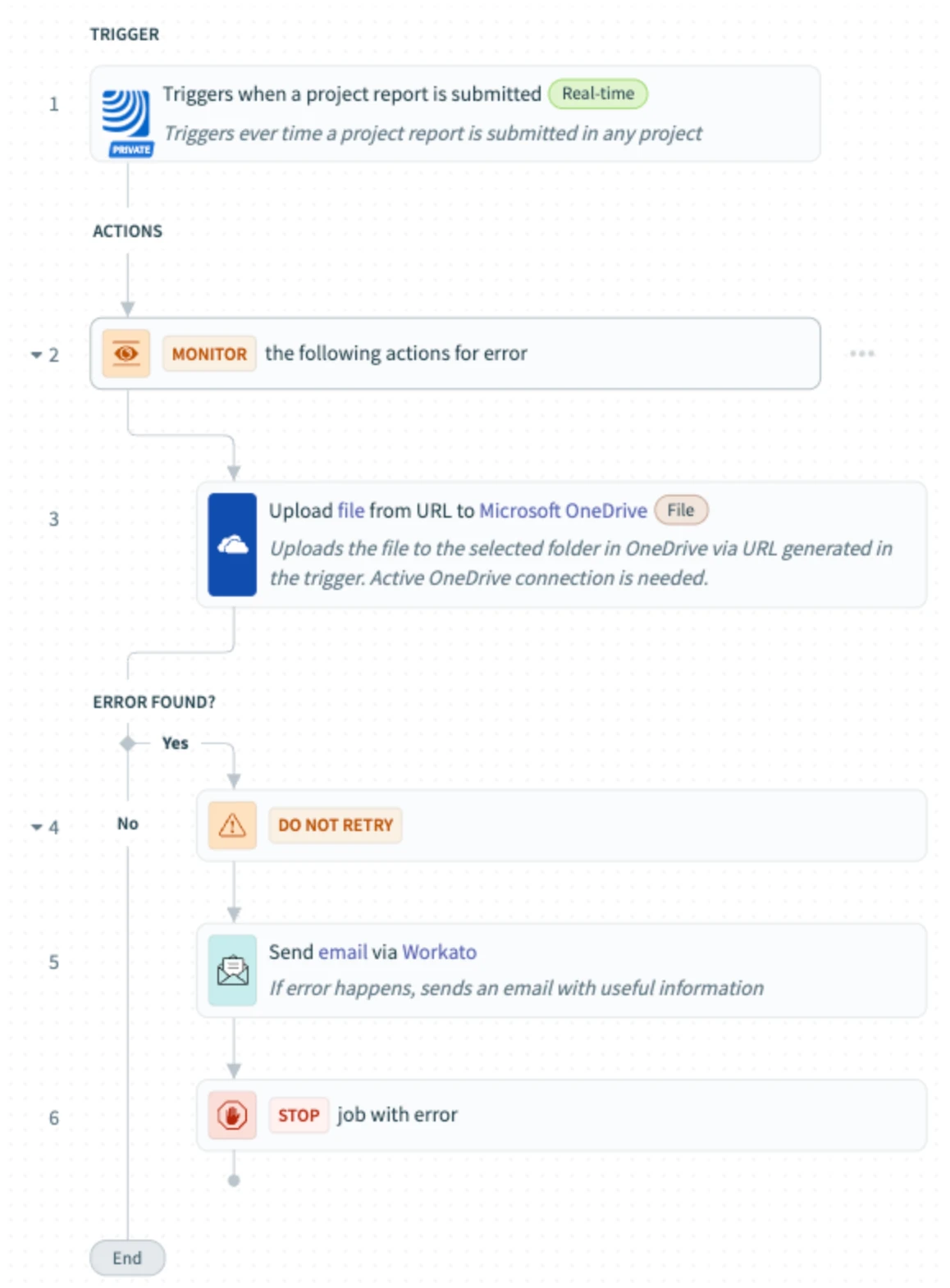
This recipe saves submitted project reports directly into a specified OneDrive folder. It helps centralize archived documents and enables further sharing or post-processing.
2 Access & Prerequisites
Ensure the following before using the recipe:
-
PlanRadar and OneDrive connectors are authorised
-
The OneDrive connection has access to the target folder
-
The integration user is part of the project(s) where reports are submitted
3 Use the Recipe from the Library
-
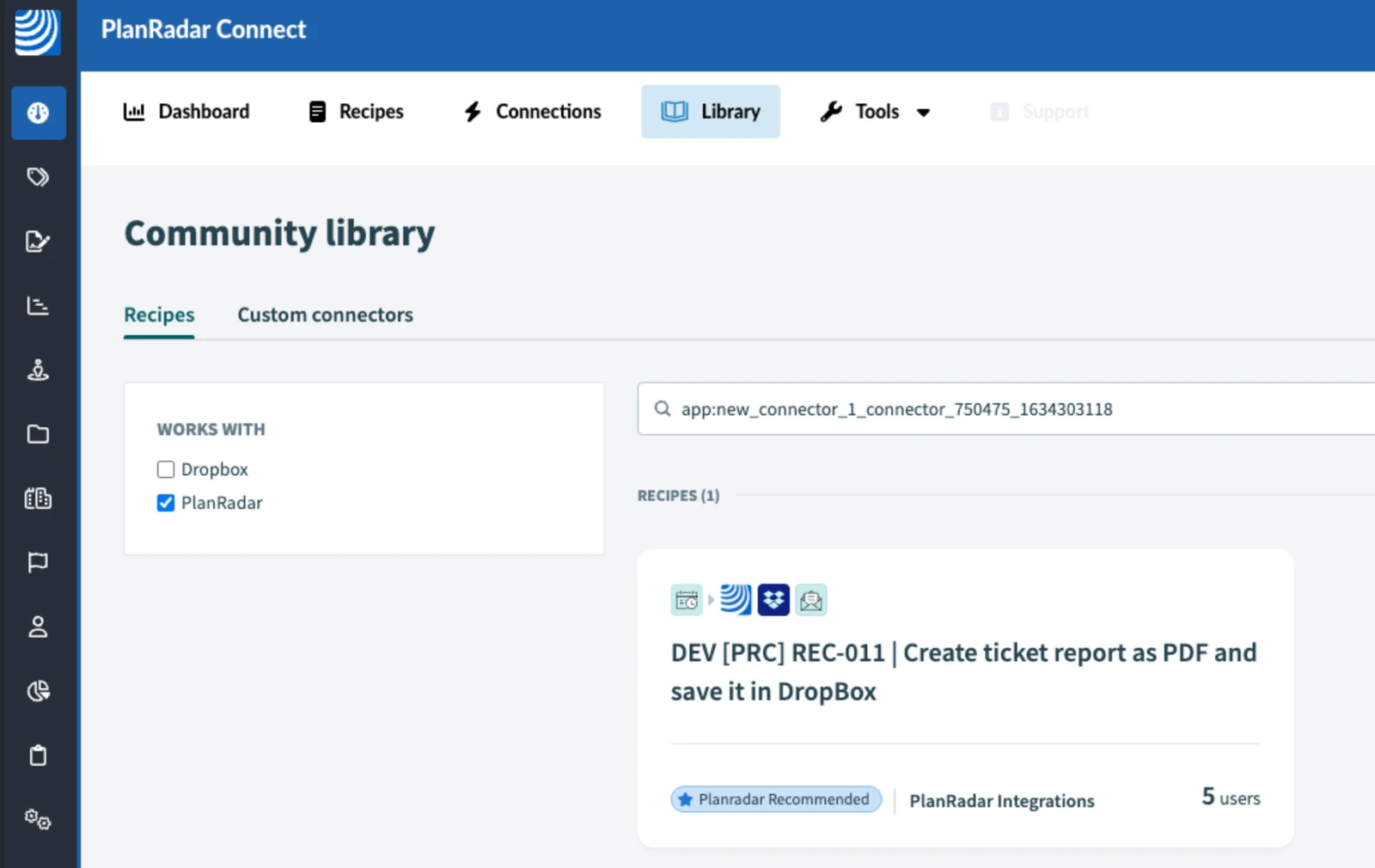
Open the PlanRadar Connect Library
-
Search for 'PlanRadar'
-
Locate: [PRC] LREC-005 | Project report submit ⇒ Save it in OneDrive
-
Click Use this recipe
-
Select your workspace
4 Configure the Recipe
-
Click Edit
-
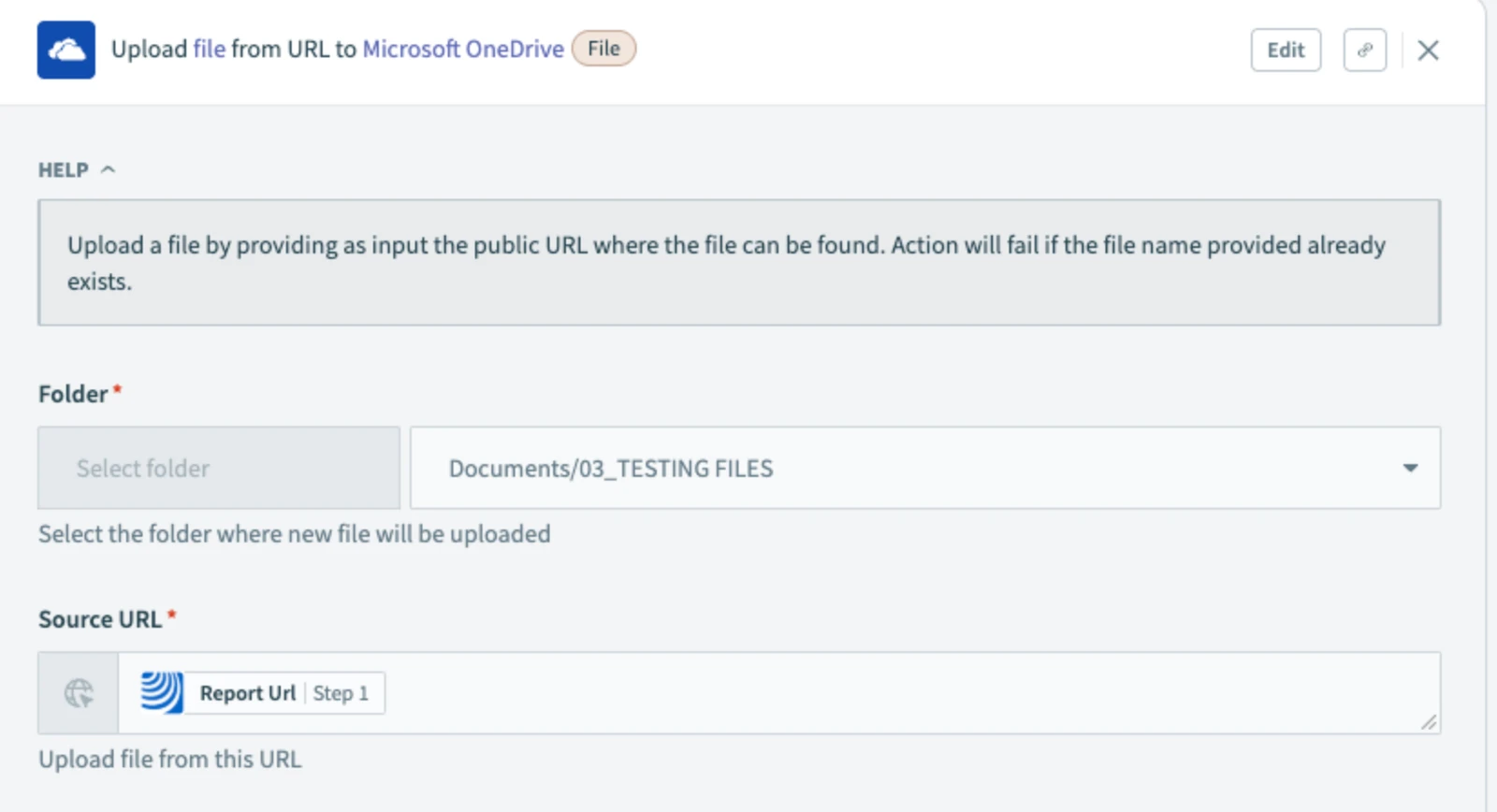
In Upload file from URL to Microsoft OneDrive, map the report file and folder path
-
Click Save → Test recipe
-
After testing, Exit and Start recipe
5 What Happens Next
Each time a project report is submitted in PlanRadar, the recipe uploads it to OneDrive.
6 Further Exploration
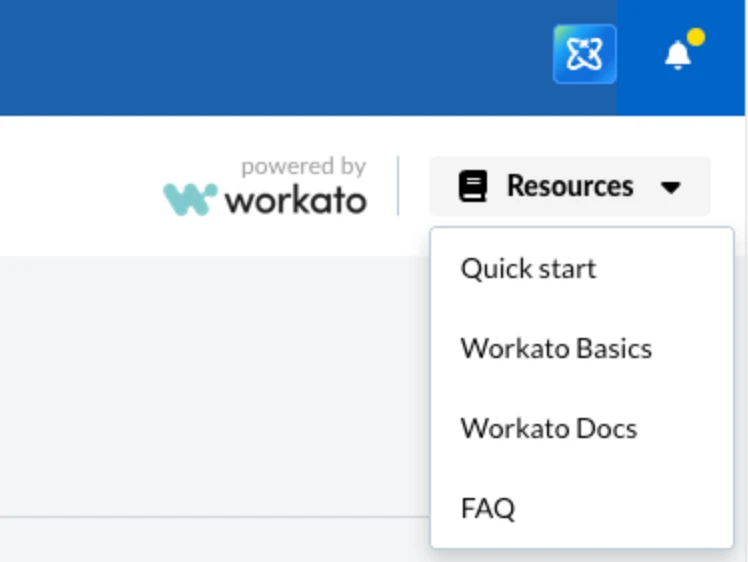
Use the Resources tab in PlanRadar Connect to learn more about file management workflows.
Updated May 12, 2026