

 Deutsch
 Español
 Français
 Hrvatski
 Italiano
 Polski
 Português (BR)
[PRC] LREC-002 | Upload plan in GDrive => Update PlanRadar Layer
1 Overview
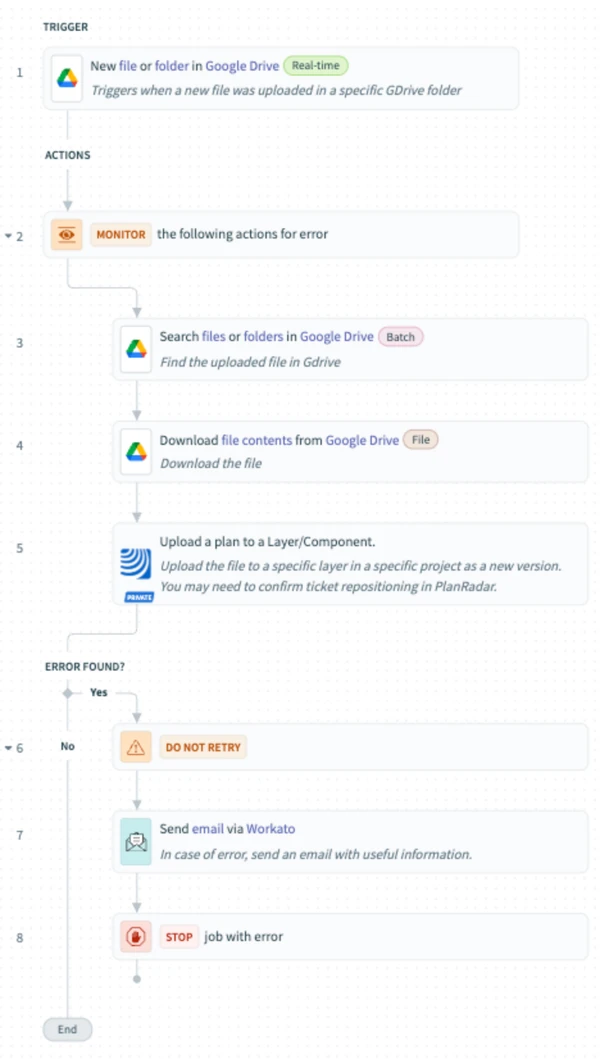
This PlanRadar Connect recipe automates the process of uploading files from a specific Google Drive folder into a specific plan in PlanRadar. When a new file is added in Google Drive, the recipe searches for the file, downloads its contents, and uploads it as a new version of the plan — the connector step is called Upload a plan to a Layer/Component.
If anything goes wrong, a custom error email is sent, and the recipe stops automatically.
2 Access & Prerequisites
Before using this recipe, make sure:
-
You have authorised PlanRadar and Google Drive connectors using the Personal Access Token of your integration user
-
The integration user has access to the destination plan in PlanRadar
-
You have identified the specific Google Drive folder for monitoring
3 Use the Recipe from the Library
-
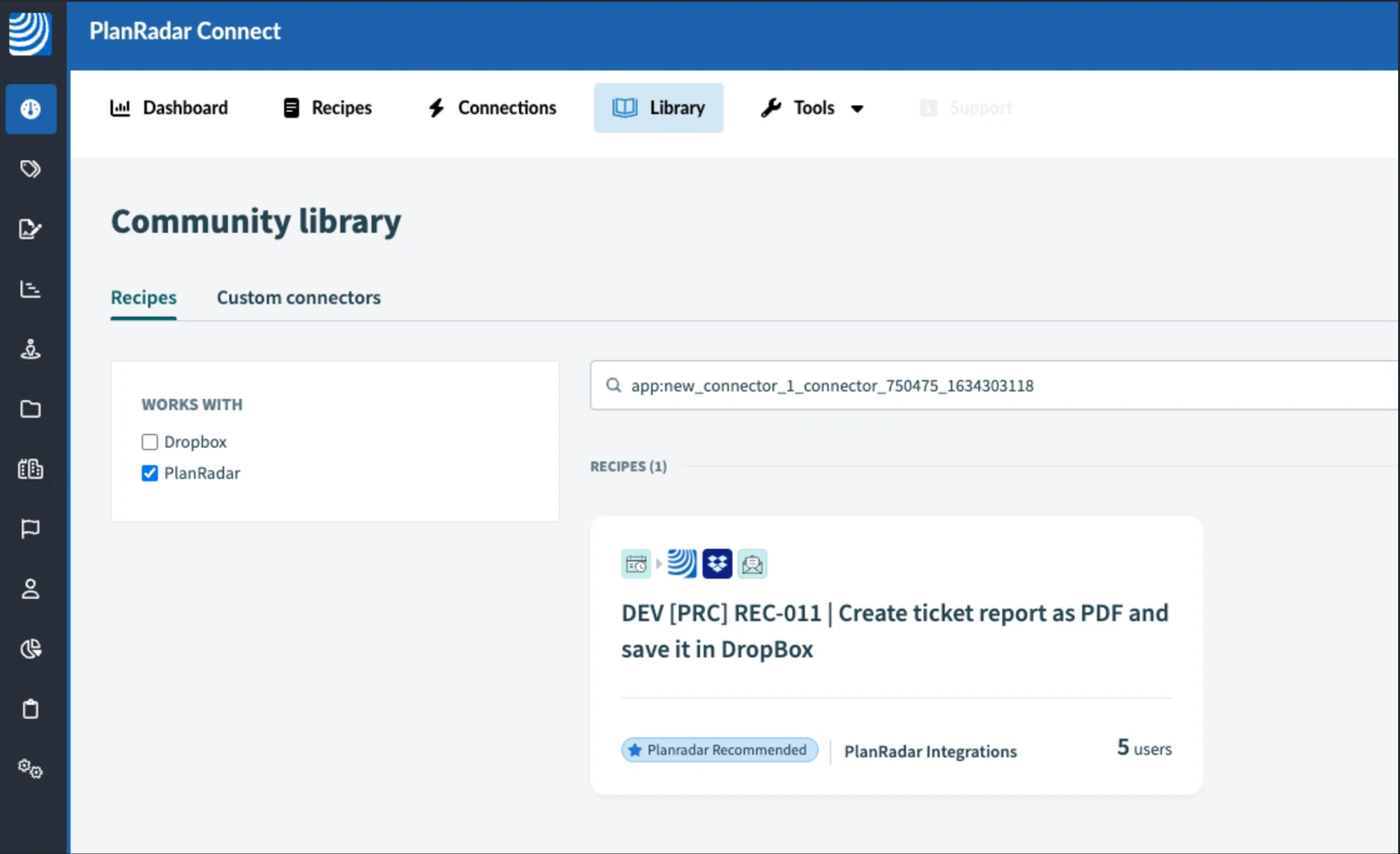
Go to the PlanRadar Connect Library
-
Search for 'PlanRadar' and click the PlanRadar logo
-
Find the recipe: [PRC] LREC-002 | Upload plan in GDrive ⇒ Update PlanRadar Layer
-
Click Use this recipe
-
Choose where to save the recipe copy
4 Configure the Recipe
-
Click Edit to open the recipe
-
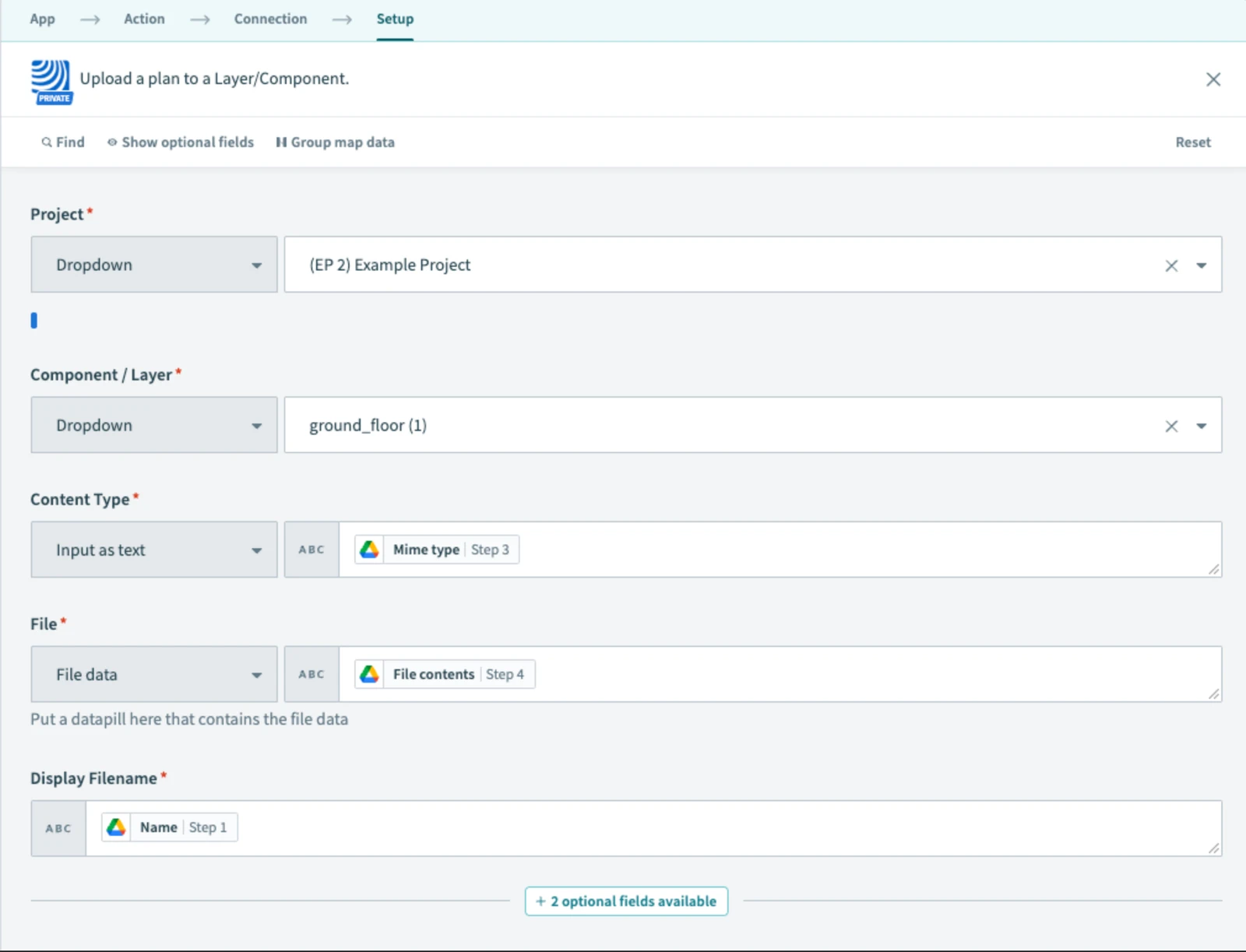
Fill in mandatory fields in the Upload a plan to a Layer/Component step
-
Please note that the file to upload should be a single page PDF file
-
Specify the destination plan in the Layer/Component field
-
Please note that if the plan being updated has tickets positioned on it, you need to manually confirm the repositioning on the new plan in the PlanRadar app
-
Fill in the email address to receive error notifications in Step 7
-
Press Save
-
Click Test recipe to validate
-
After testing, click Exit and then Start recipe
5 What Happens Next
Once active, every time a file is uploaded to the selected Google Drive folder, the recipe will fetch the file and upload it as a new version of the specified plan in PlanRadar.
If any step fails, a custom email alert is sent and the job stops.
6 Further Exploration
Explore additional templates or advanced flows in the Resources tab of PlanRadar Connect.
Updated May 12, 2026