

 Deutsch
 Español
 Français
 Hrvatski
 Italiano
 Polski
 Português (BR)
Create, Edit or Delete a Phase
Overview
Phases and sub-phases are the basic building blocks of schedules.
Access & permissions
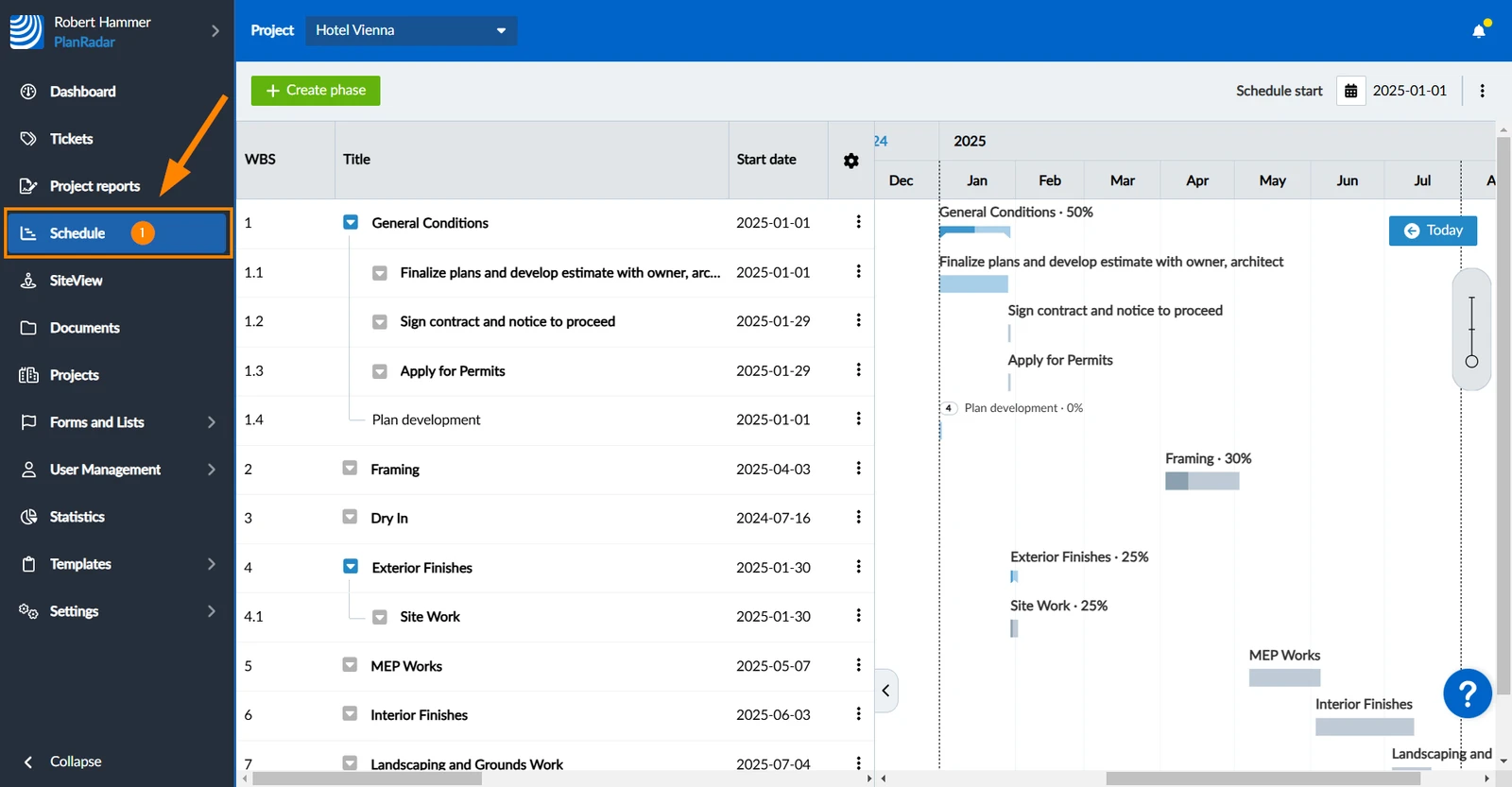
How to access Schedule
- Click Schedule
Create a Phase
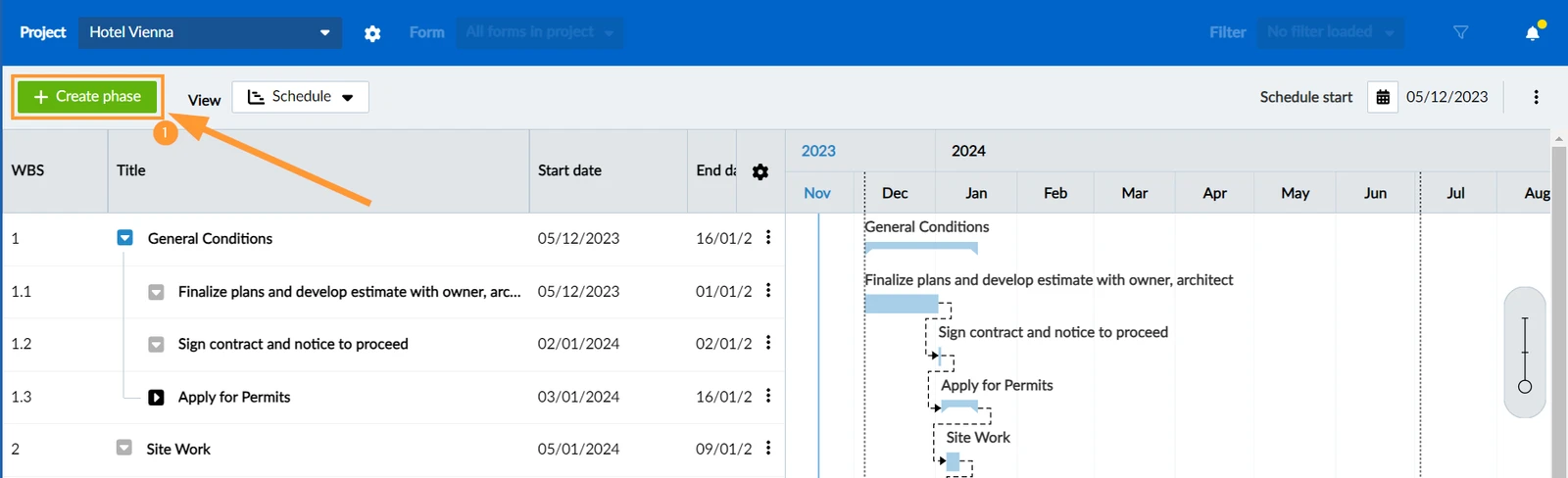
To create a phase:
- Click + Create phase
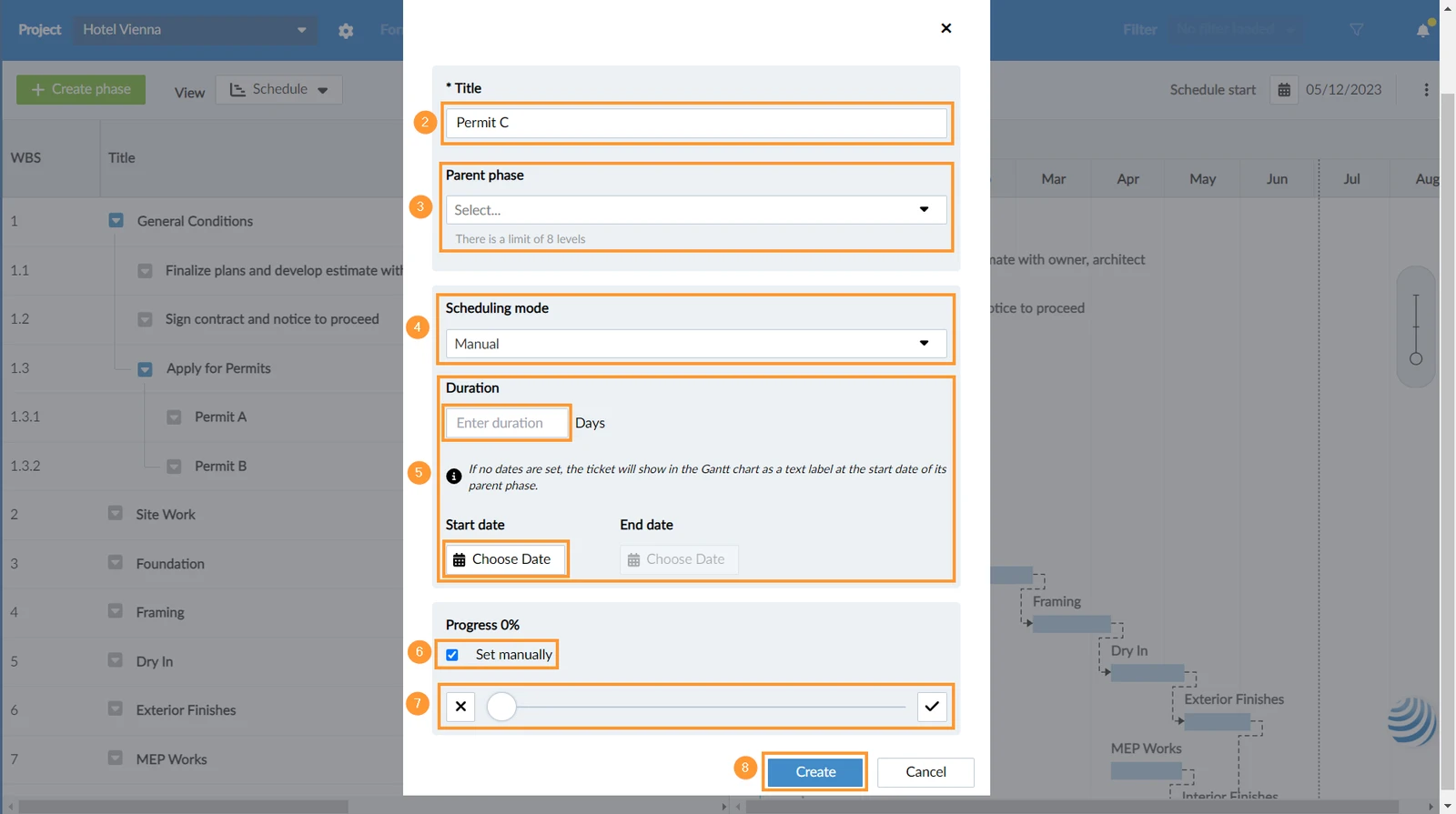
- Enter a title (mandatory for all phases)
- Select the Parent phase to create a sub-phase, or leave it blank if the new phase should be on the first level of the work breakdown structure (WBS).
- Select Scheduling mode, e.g. Manual
- Select a Start date and an End date or enter the Duration (changing one will update the others).
Read more in Schedules > Duration, Start Date & End Date - If you want to set the progress manually, select Set manually.
- Optional: Set the progress with the slider as needed.
- Click Create.
Use Automatic Scheduling Mode & Automatic Progress
Create a Sub-Phase
It is possible to create sub-phases as described above in Create a Phase. But there is a faster way where the parent phase gets pre-filled:
- Hover over the parent phase in the WBS and click +.
- OR open the more menu
- Click + Create sub-phase
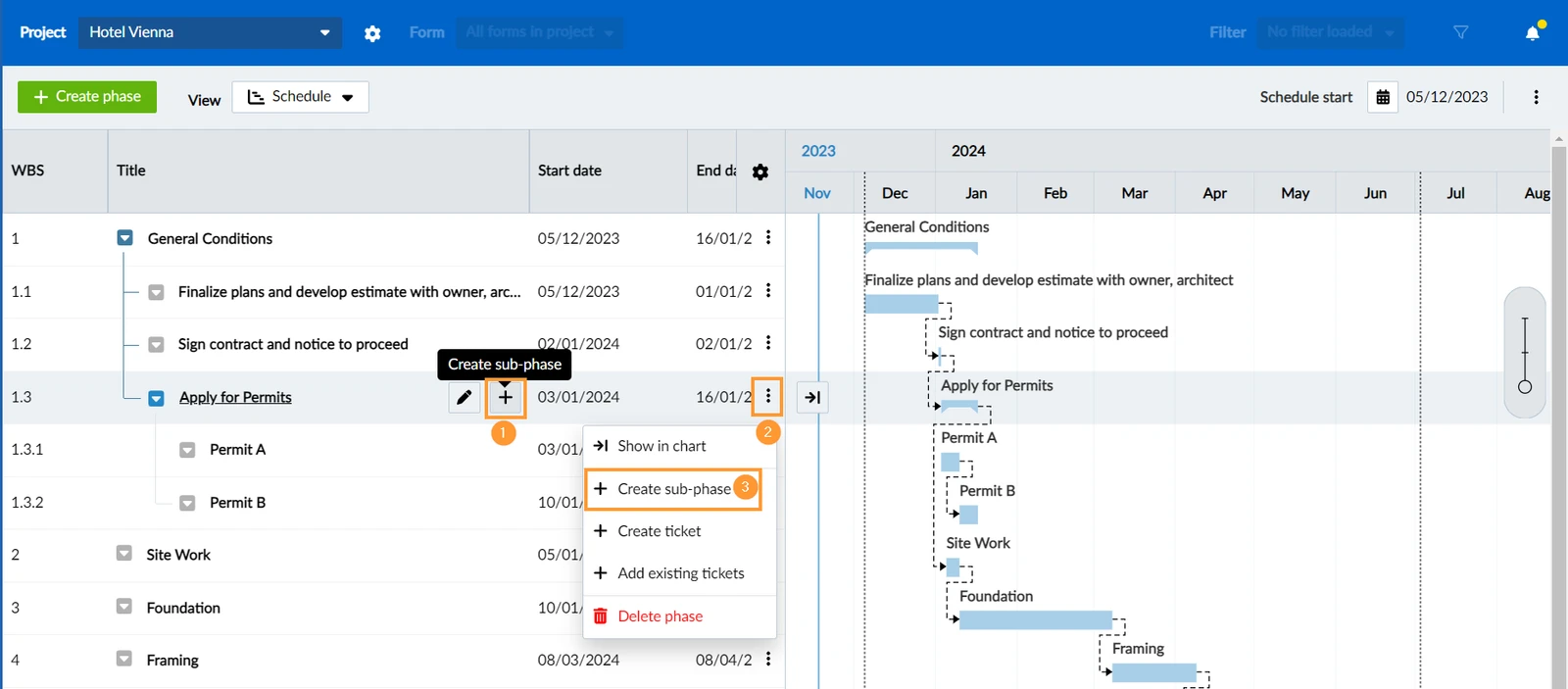
The rest works the same like described above.
Edit a Phase
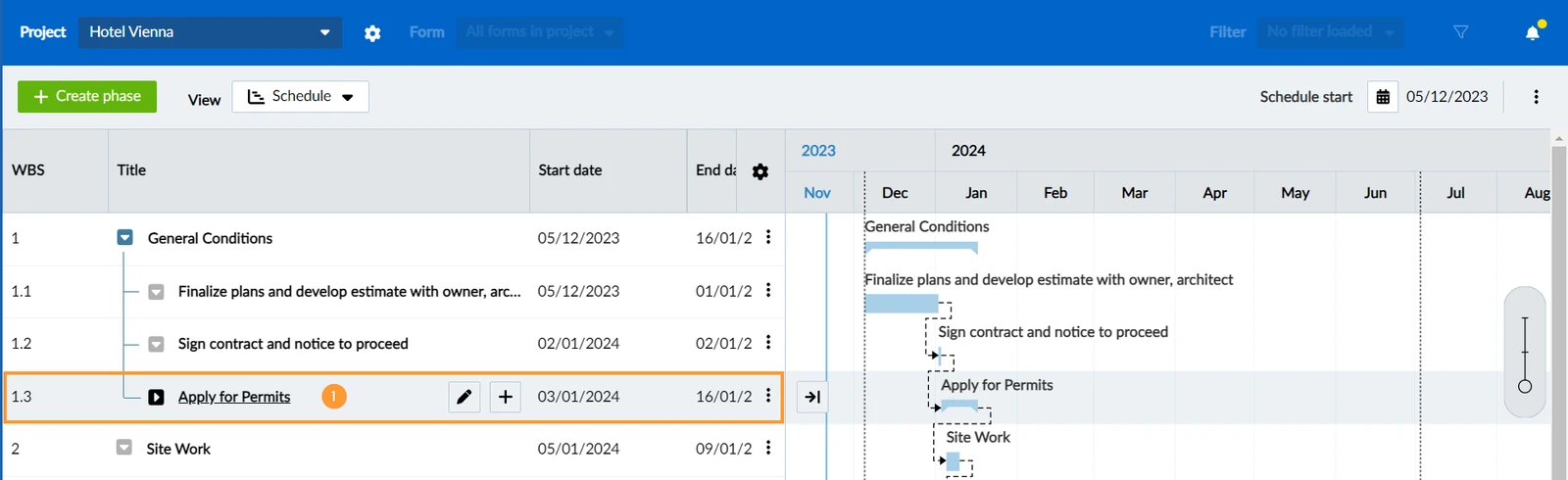
To open and edit a phase:
- Click the phase in the WBS
- Make your changes and click Save
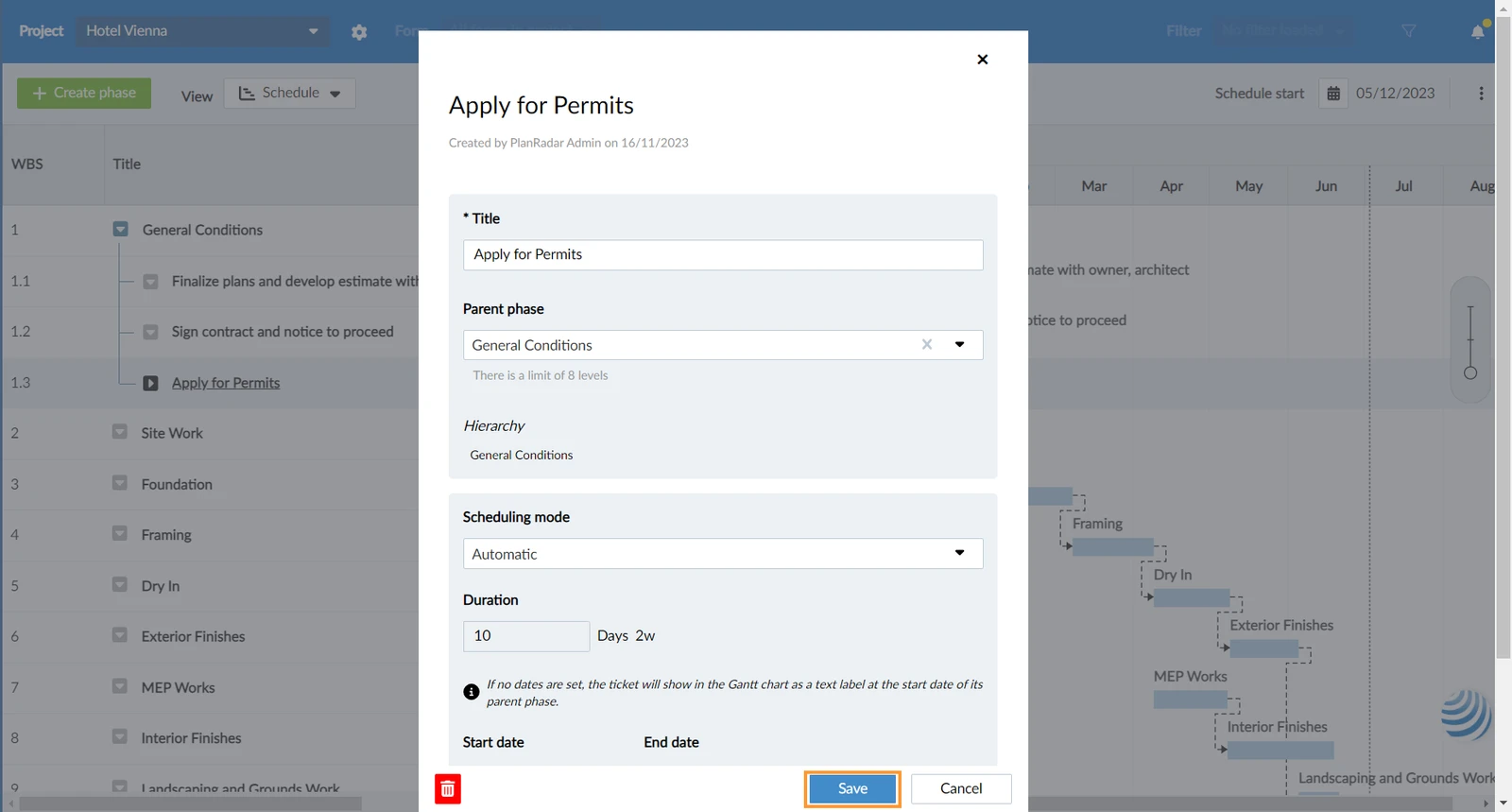
You can change the scheduling mode and progress of a phase this way. You can also change all the other information of a phase, however, there are faster ways as well:
Restructure Phases in the WBS
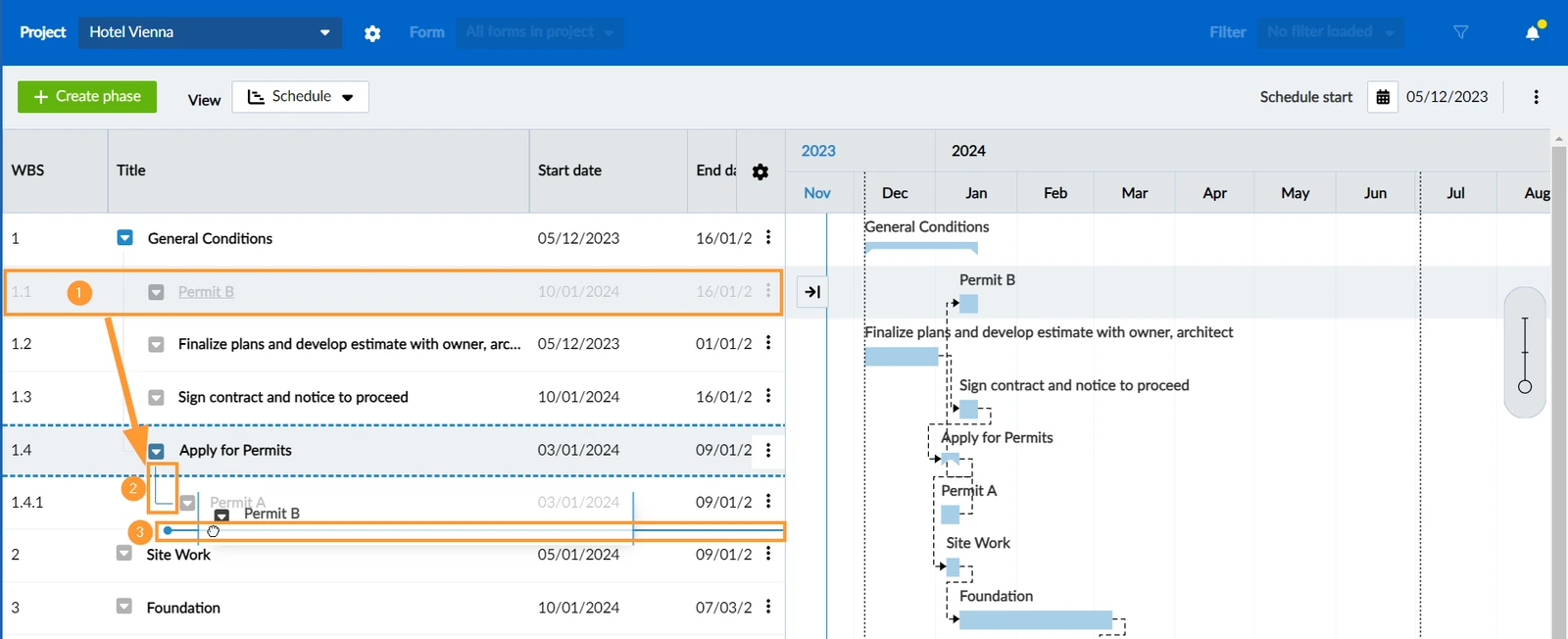
Use Drag & Drop to move a phase or ticket in the hierarchy of the WBS:
- Click and hold the phase or ticket you want to move.
- Move it to the area of the lines that indicate the hierarchy.
- Notice the line with the blue dot to see where it will be placed after you release the mouse button.
Reschedule Phases in the Gantt Chart
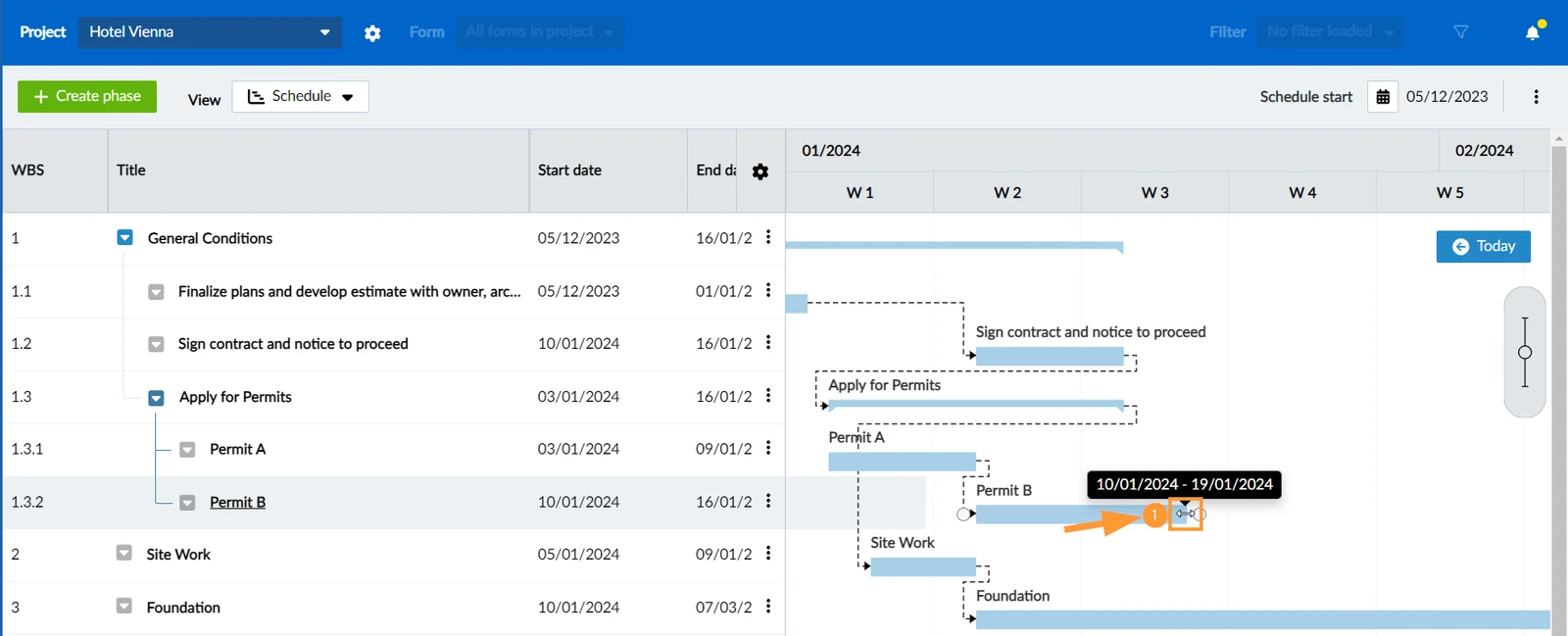
To change the duration of a phase or ticket:
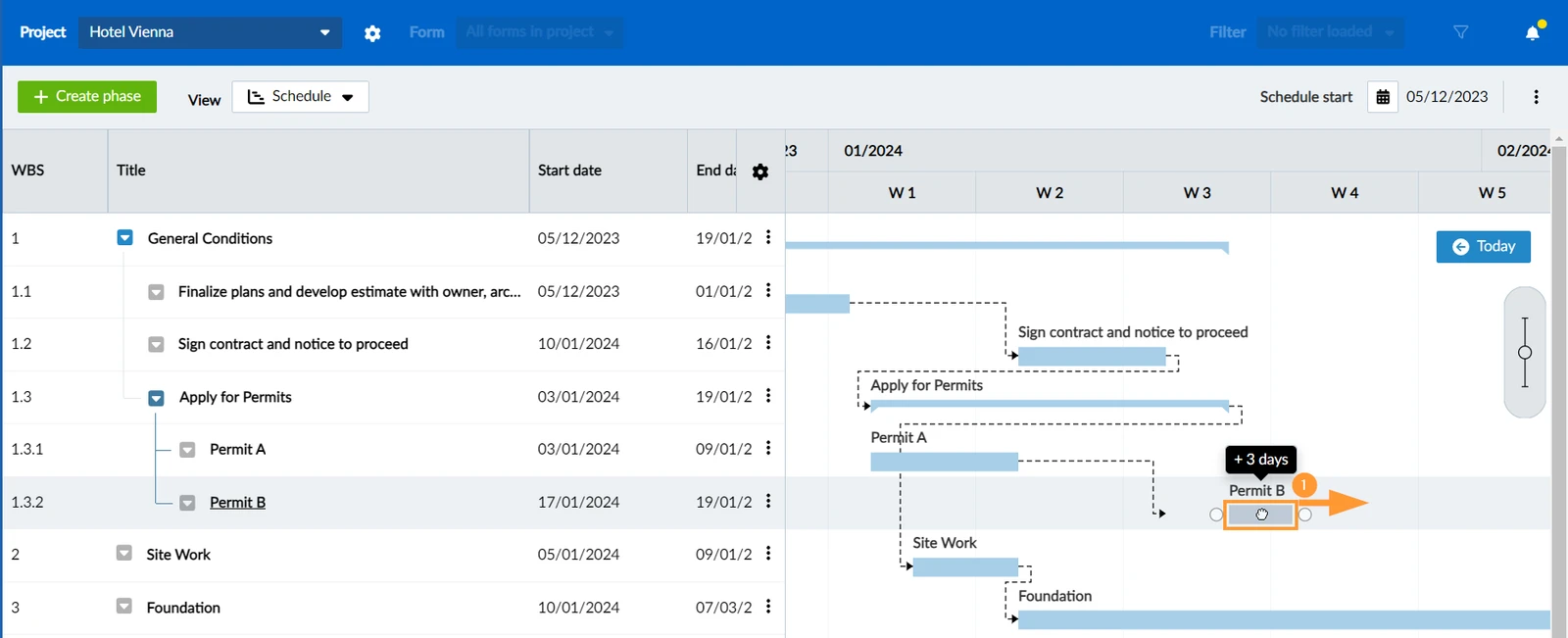
- Drag & Drop the right end of the bar of a phase in the Gantt Chart
To move the start date (and end date) while keeping the duration (works only with manually scheduled phases/tickets):
- Drag & Drop the bar of a manually scheduled phase/ticket in the Gantt Chart
Rename a Phase
Quickly rename a phase inline instead of opening the phase and changing the title:
- Hover over the phase in the WBS and click Rename Phase.
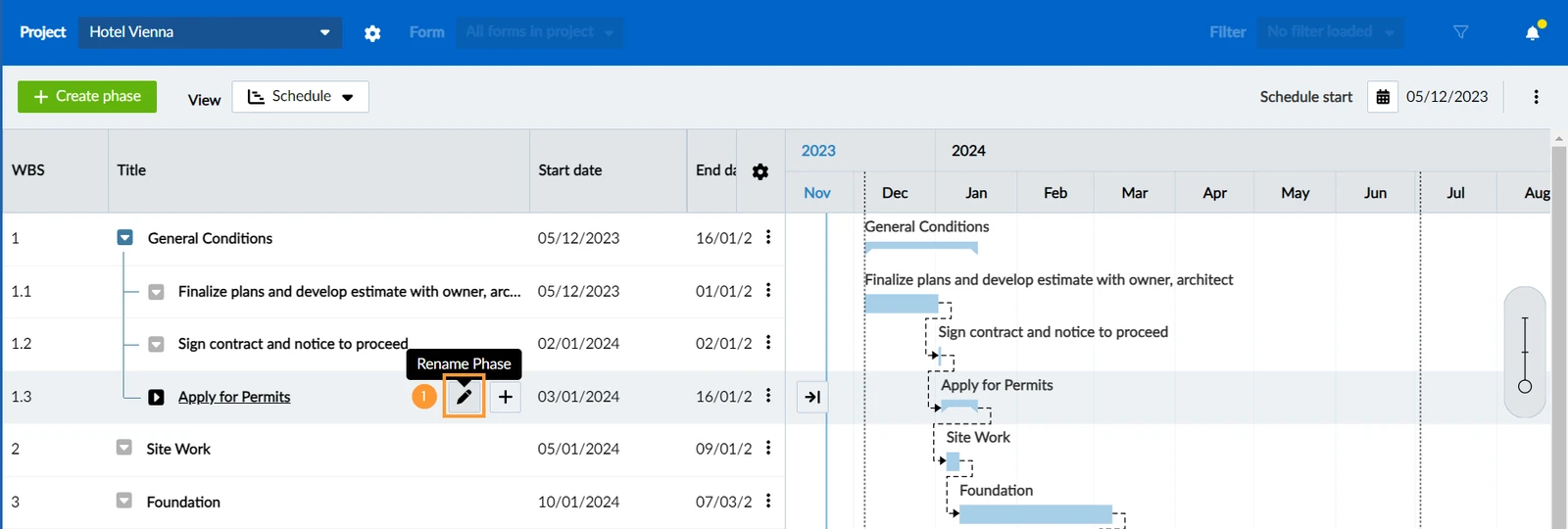
- Enter new title
- Click ✔ to save

Delete a Phase
When you delete a phase, all its sub-elements will also be deleted. Tickets linked to phases will be removed from the schedule, but not deleted.
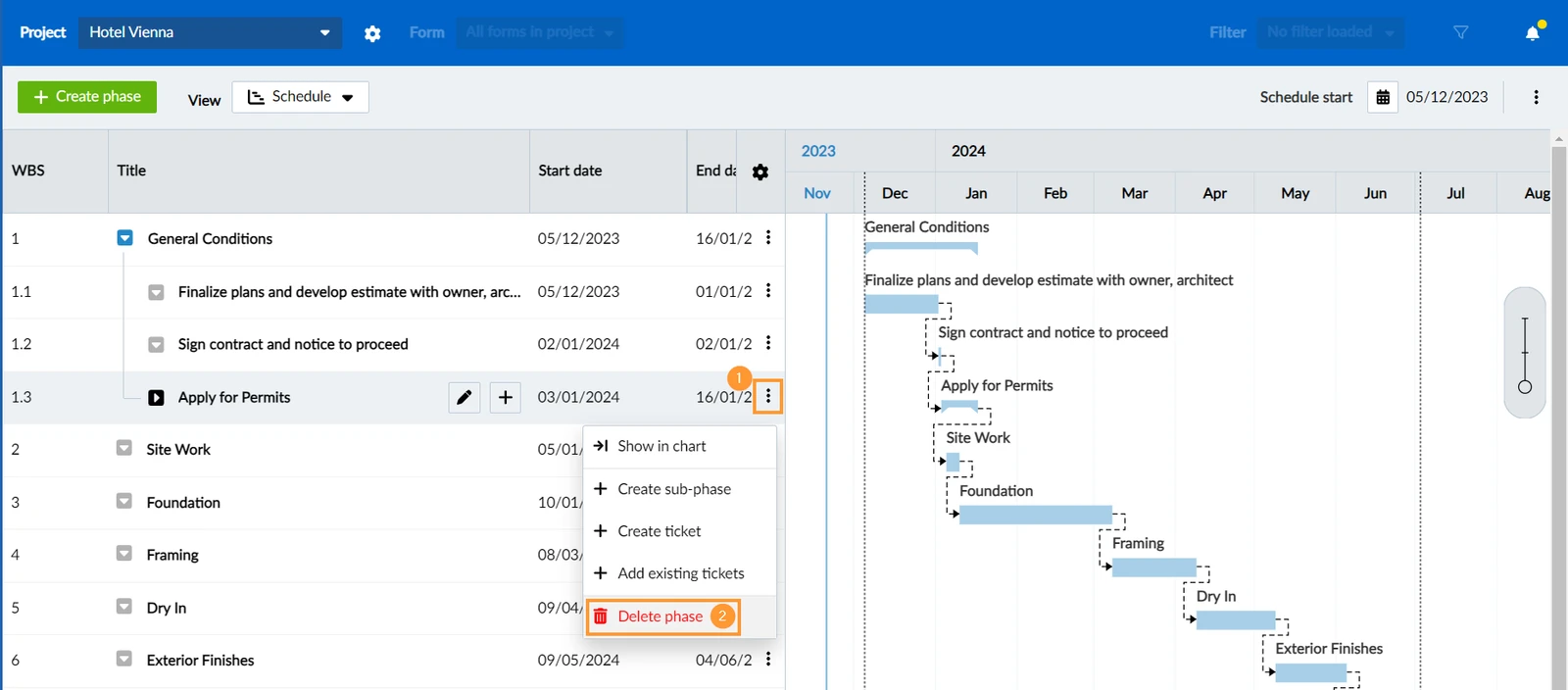
To delete a phase in the WBS:
- Open the more menu of the phase
- Click Delete phase
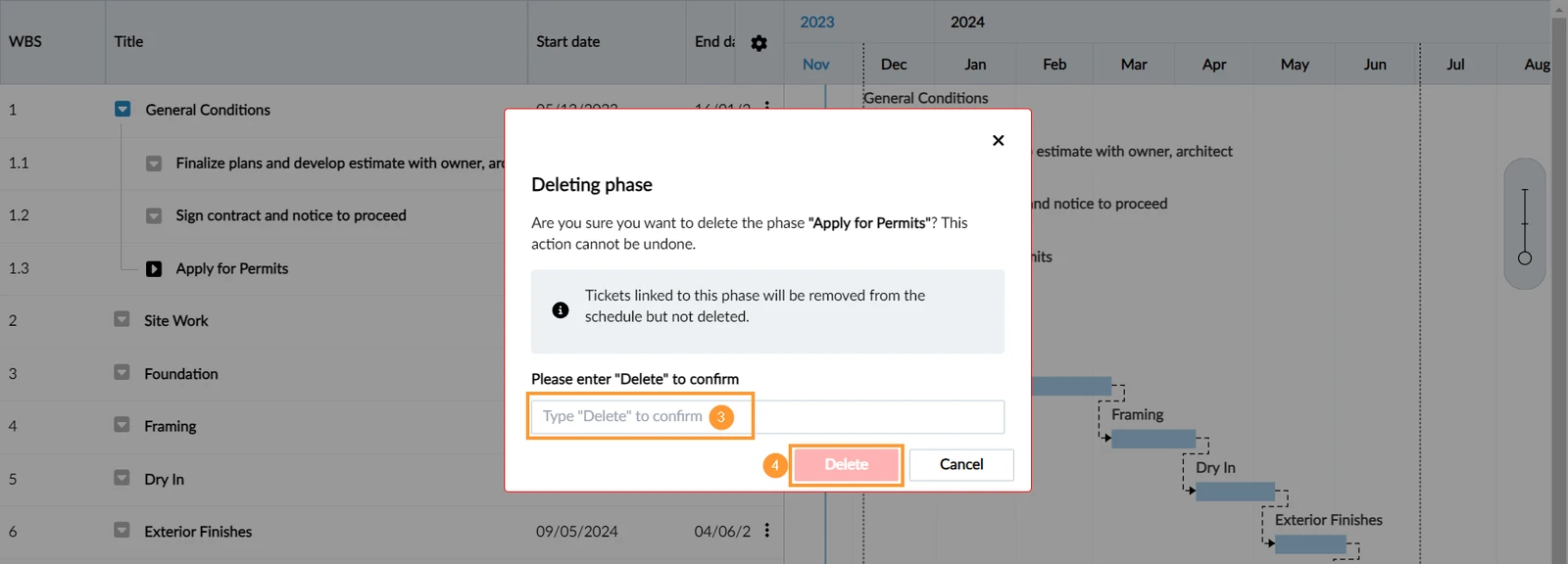
- Type 'Delete' in the confirmation text box in case the phase has sub-elements.
- Click Delete to confirm
Updated June 12, 2026