

 Deutsch
 Español
 Français
 Hrvatski
 Italiano
 Polski
 Português (BR)
Forms
Overview
Learn about forms in PlanRadar and how forms relate to tickets.
What is a Form?
A form defines the input fields and other information that can be captured with tickets. You can create forms that are tailored to your specific use cases and processes.
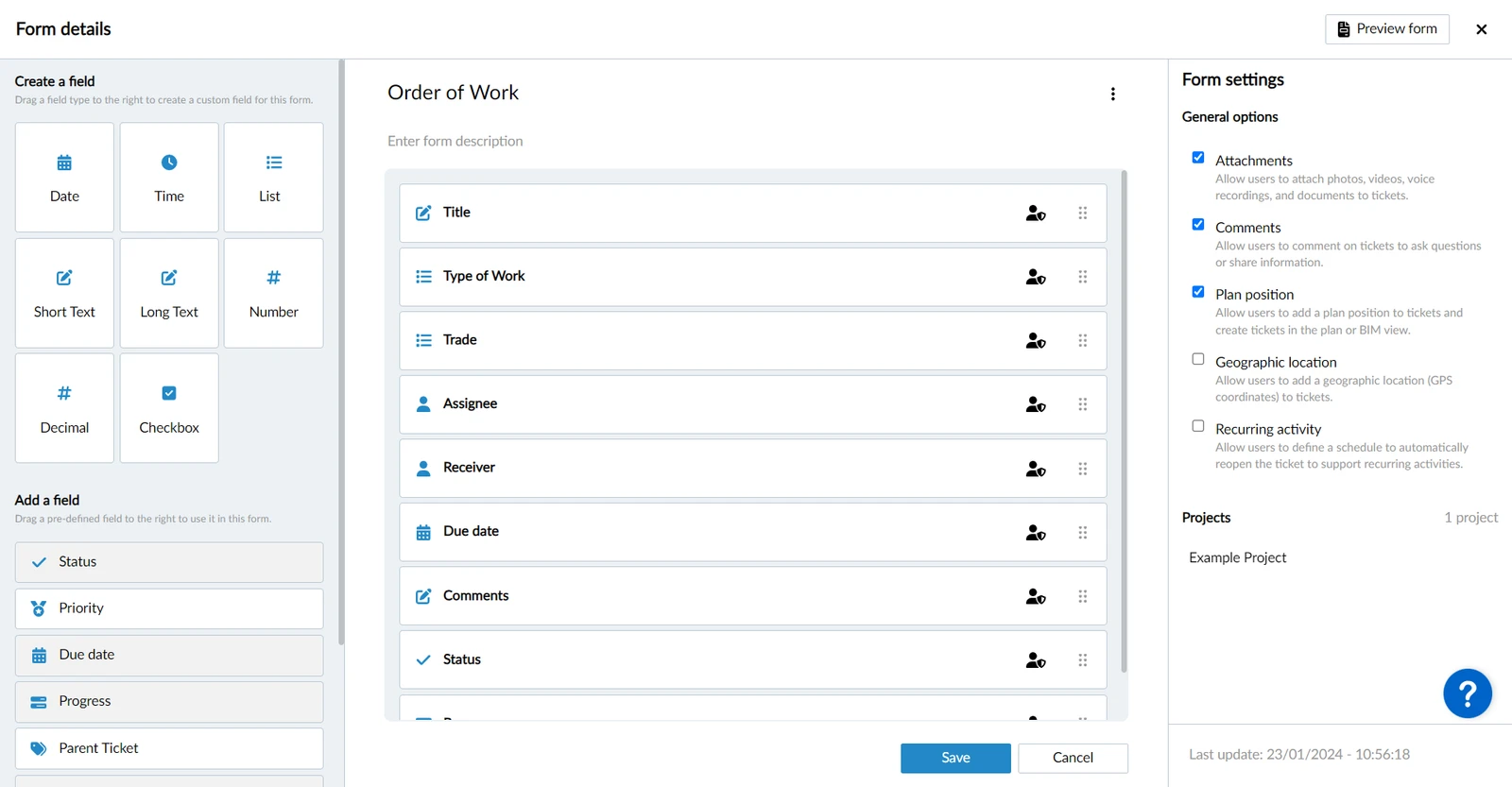
Example of form builder for the 'Order of Work' form:
Create Forms
Creating and editing forms is only possible in the Webapp.
With the form builder you define which fields you want to use and their order.
You can also define which user role can view or edit each field when working with tickets.
Field Types
Fields fall into three categories:
- Predefined fields are predefined by PlanRadar and come with special functionality (for example Title, Status, Assignee and Due date). They are available on any form.
- Custom fields are fields you create on a form, using any field type to define what they capture. A custom field belongs to the form you create it on.
- Shared fields are fields you create once at account level, using any field type, and reuse across many forms — so the same field stays consistent everywhere.
Form Settings
Form settings define additional functionality that tickets using the form can have. You turn each setting on or off per form.
The available form settings are:
- Attachments
- Comments
- Plan position
- Geographic location
- Recurring activity
- Locking
- Signatures
- Numbering sequence
- Approval workflows
- Ticket completion bar
Add Forms to Projects
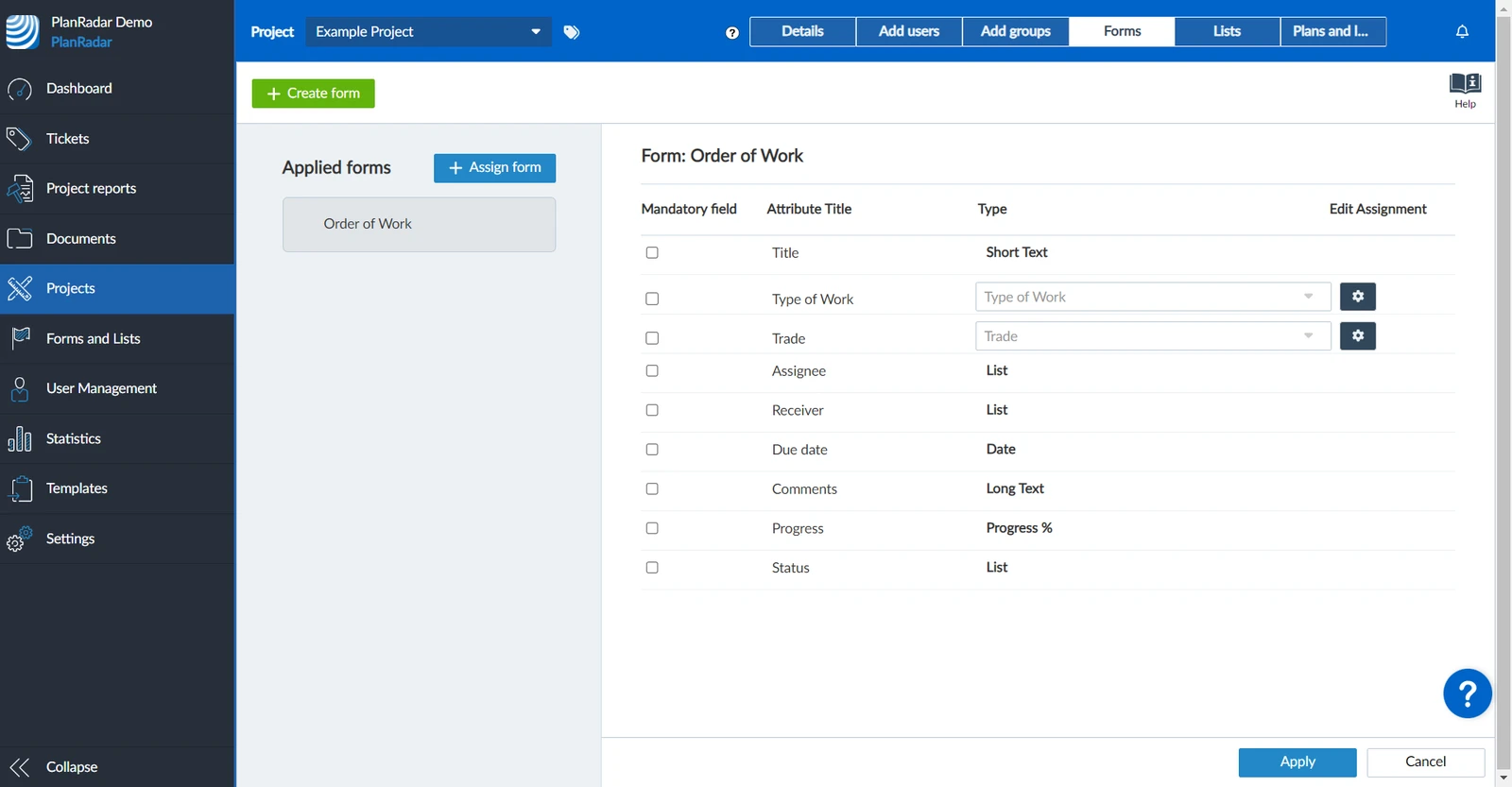
Each form can be used in multiple projects. First you create the form and then access the project > forms and add the form to your project.
Example of managing forms of a project:
Updated August 20, 2026