

 Deutsch
 Español
 Français
 Hrvatski
 Italiano
 Polski
 Português (BR)
Plans & Folders
Overview
Plans are the drawings your project works on, and folders are how you organise them. Both live in the Plans section of a project, and together they decide where a ticket sits, which drawing your team sees on site, and what appears in SiteView.
This article explains the model. The step-by-step jobs — uploading, updating, organising, approving — each have their own article in Plan Management.
Plans or Documents?
Both sections hold files, so it is worth knowing which one a file belongs in:
- Plans is for the drawings and models your team works on. PlanRadar processes PDF files, JPEG or PNG images for the plan viewer and IFC files for the BIM viewer. Only processed plans and BIM models can be selected in Tickets and SiteView.
- Documents is for every other project document — any file type, stored as it is. It is also where you find and download the project's assets, such as ticket attachments and SiteView runs as videos. Read more in Document Management.
Folders
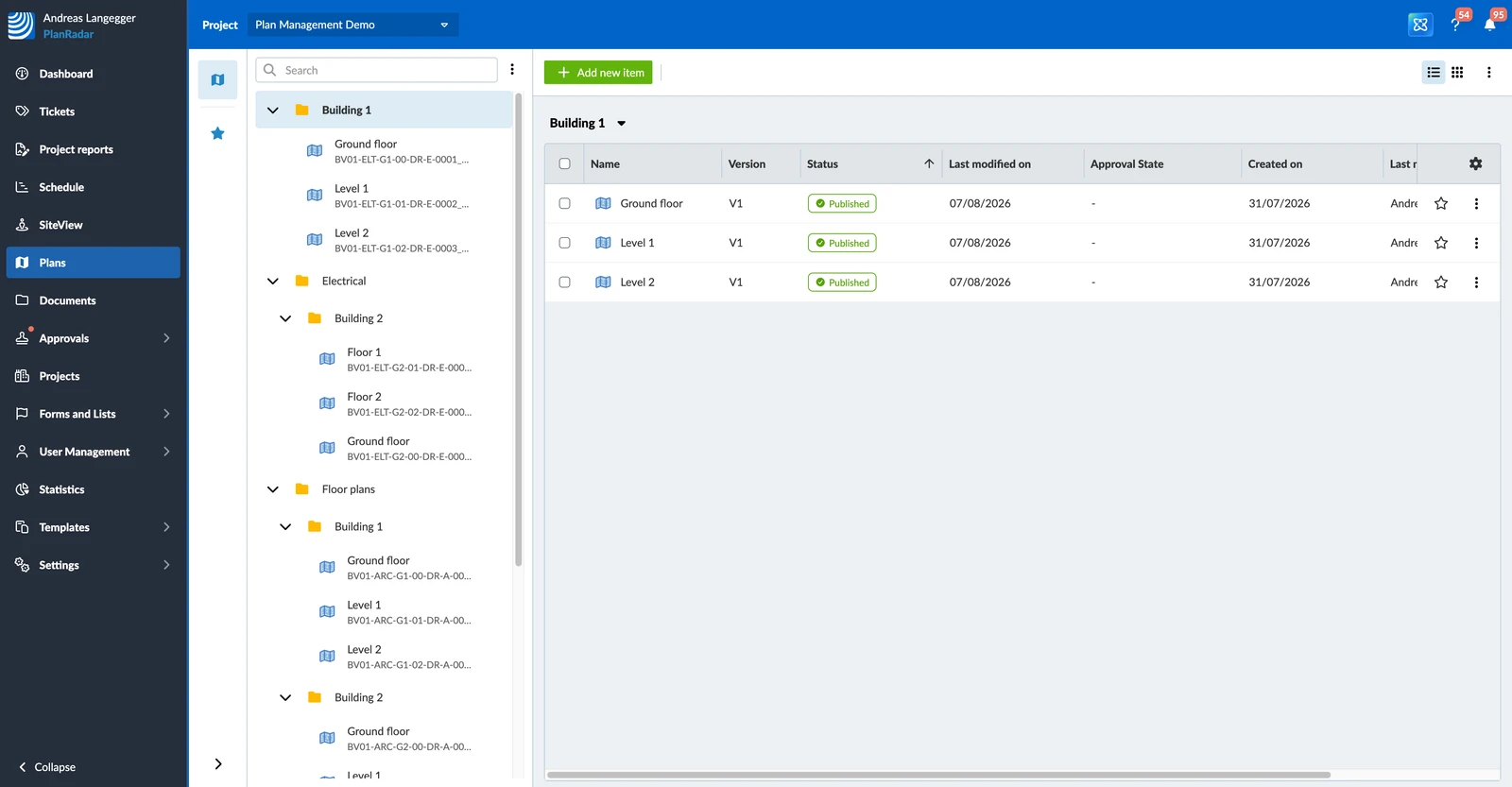
A folder is a container. It holds plans, BIM models and other folders, so you can mirror the way your project is really organised.
For a large construction project you might create one folder per building, a subfolder per block, and inside that a subfolder per floor. Tickets and plans then sit where people expect to find them.
Plans and BIM Models
A folder holds two kinds of item:
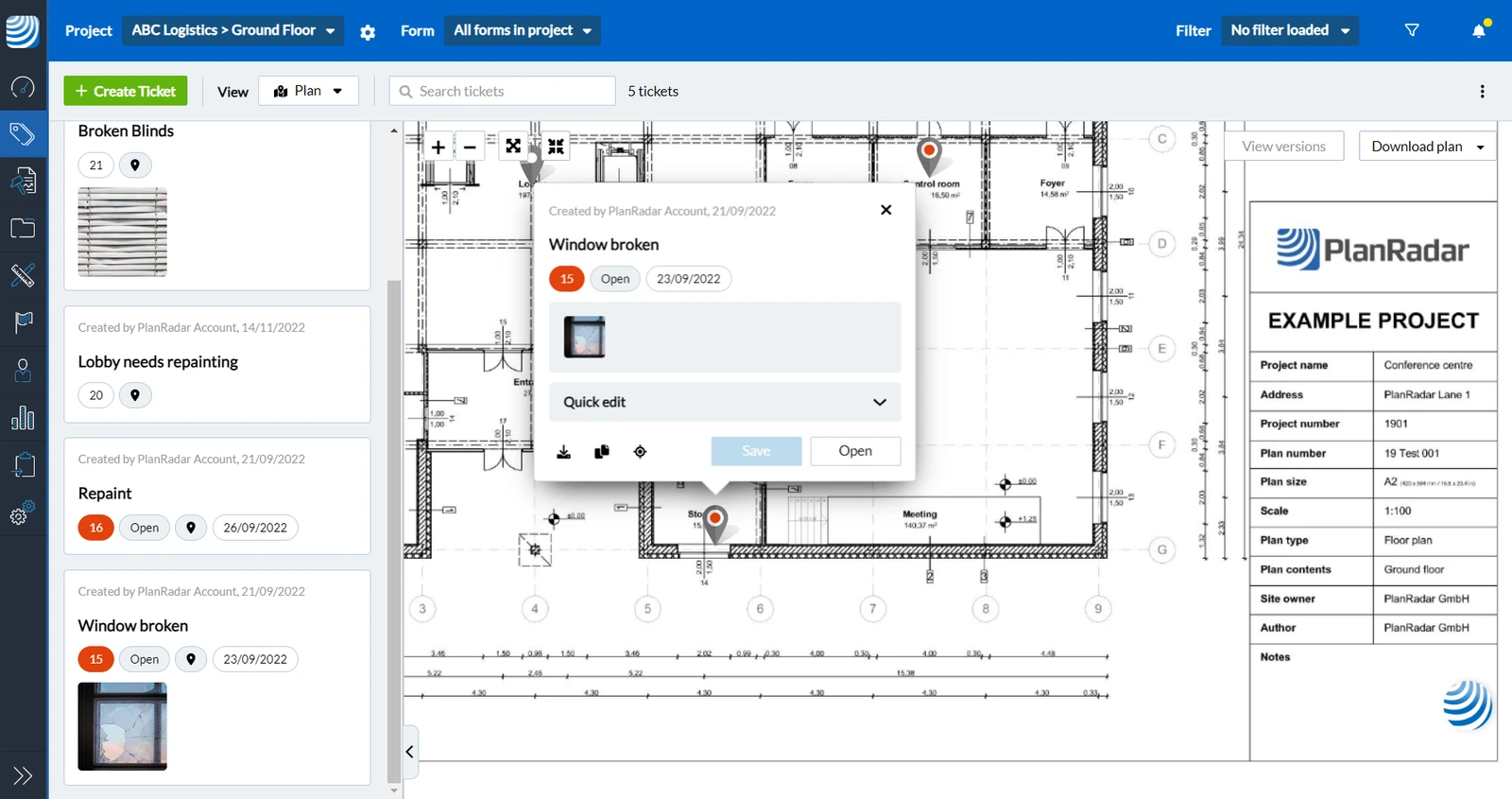
- A plan is created from a PDF or image you upload. PlanRadar processes it for the plan viewer; your team can zoom into it online and offline, place ticket pins on it, and always sees the current version.
- A BIM model is created from IFC uploads. Up to 10 of them can be federated into one BIM model, and that model counts as a single item in the folder. Read more in BIM Support in PlanRadar.
Every plan and BIM model keeps its own name, the original filename it was uploaded with, and its version number, so you can tell two similar drawings apart.
Because a ticket can be saved to a folder just as well as to a plan, the ticket attribute that says where the ticket belongs is called Location. Read more in Change the Location of a Ticket.
Example of a plan with a ticket
Plan Versions
When a drawing is revised, you upload it as a new version of the same plan instead of adding a second plan. Versions are numbered V1, V2 and so on, the older ones stay available, and tickets stay on the plan.
Every version counts towards your account's plan quota, so a plan with three versions uses three of your plans. You can free up quota again by deleting the old ones.
An account administrator can switch versioning off under Settings > Account > Account settings (Enable plan versioning). A new upload then replaces the plan and the older version is deleted — and plans can no longer be sent for approval, because an approval always concerns a new version. Read more in Account Settings.
A plan version can require approval before anyone sees it. Once a plan has been through approval, the current version is the latest approved one — not necessarily the newest upload.
Using Folders Without Plans
Plans are optional. If your team only wants tickets organised by building, floor or trade, build the folder structure and stop there — every folder can take tickets without holding a single plan.
Tickets in a folder behave like any other ticket. The only difference is that they have no pin position, so you work with them in the list view rather than on a plan.
Plan States and What "Published" Means
A plan shows one of these states:
- Processing — PlanRadar is preparing the plan for the plan viewer. This runs automatically after an upload.
- Repositioning required — a new version was uploaded. The drawing may sit differently on the sheet, so the ticket pins could be in the wrong place and need to be checked against it.
- Processing failed — the plan could not be prepared. Upload it again; if that fails too, contact Support.
- Published — the plan is live: it appears in Tickets, in SiteView and on mobile devices.
- Unpublished — the plan is not live, because a version is waiting for approval or was rejected.
Only published plans can be used for work. A plan is published once it is processed and either approved or never needed approval.
Plan Uploads & Quality
Upload plans as PDFs or as images. PDFs with several pages are split, and you choose which pages to keep — every page you keep becomes a plan of its own.
PlanRadar uses a tiling mechanism so plans stay sharp and fast when your team zooms in. Upload plans in high quality — if the original is too low in quality, the detail is not there to show.
Updated September 3, 2026