

 Deutsch
 Español
 Français
 Hrvatski
 Italiano
 Polski
 Português (BR)
Access SiteView Data in Document Management
Overview
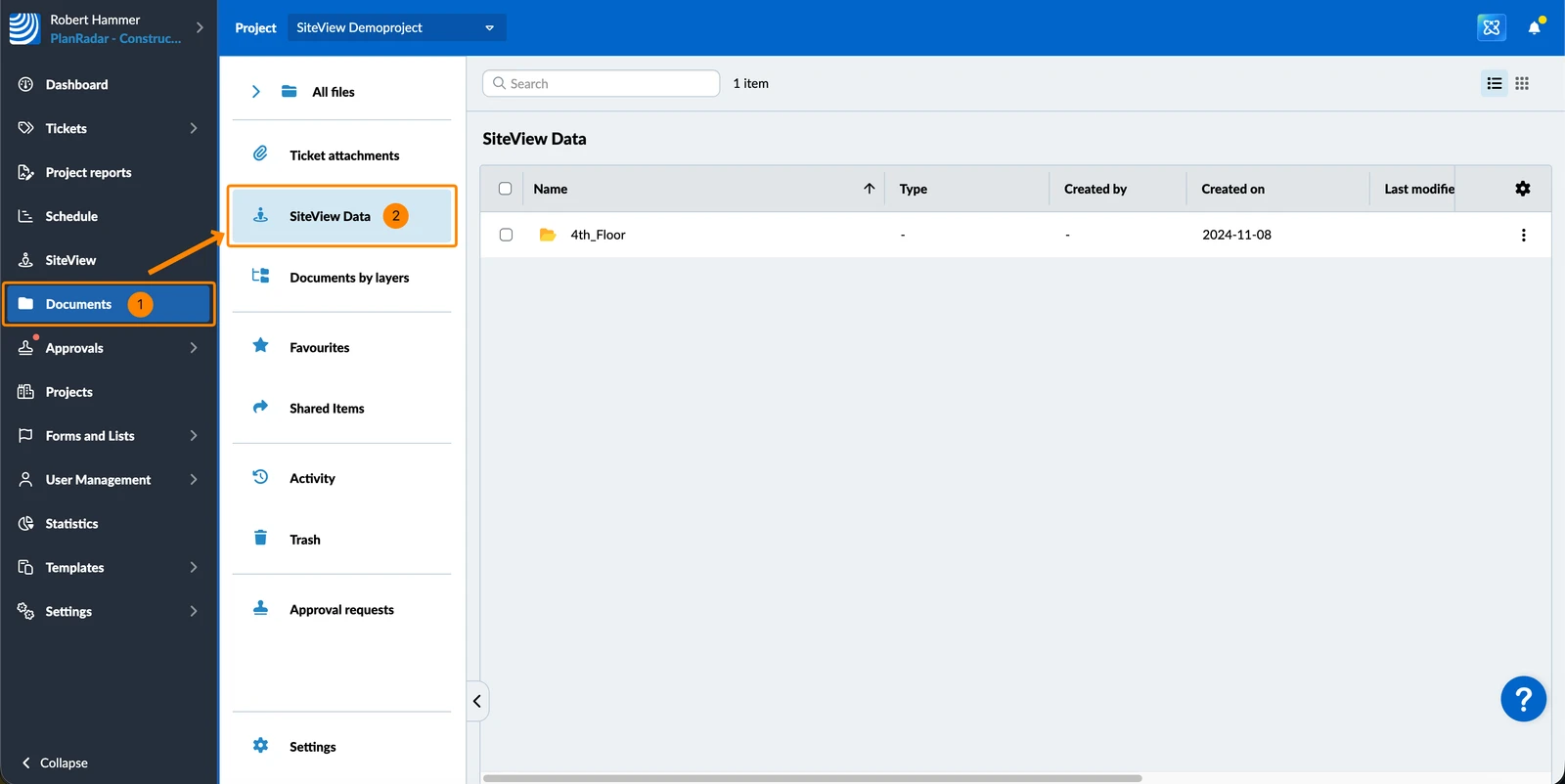
Access all your captured SiteView videos, 360° images and run photos via Document Management > SiteView Data.
There you can browse the images and videos through a generated folder structure that mirrors the project's plans: folder → plan → run → asset type (video / 360° images / attachments). Preview or download images. Download videos to your computer to play them locally.
Access & Permissions
How to access SiteView Data
- Click Documents.
- Click SiteView Data.
Browse Captures
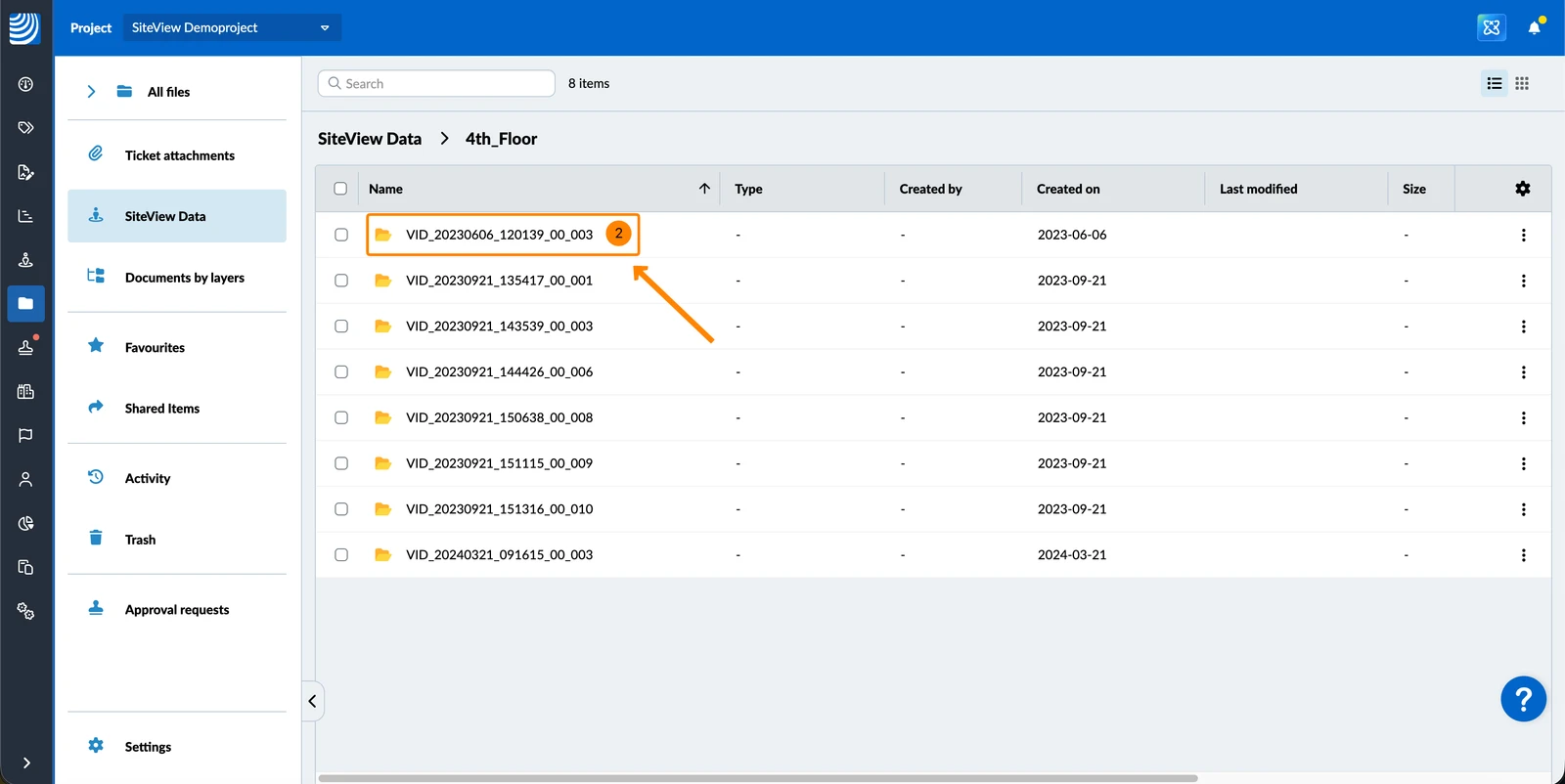
SiteView Data mirrors the project's folder structure from the Plans section. Inside a plan you find its runs, along with any manually captured 360° still images, which are grouped into folders by date. The breadcrumb shows the real folder path, so you always know where you are.
To open the images and video of a capture:
- Open the folders down to the plan to see its runs and still-image groups.
- Click a run or a date group to open it.
- Open the Video, 360° Images or Attachments folder to see its assets.
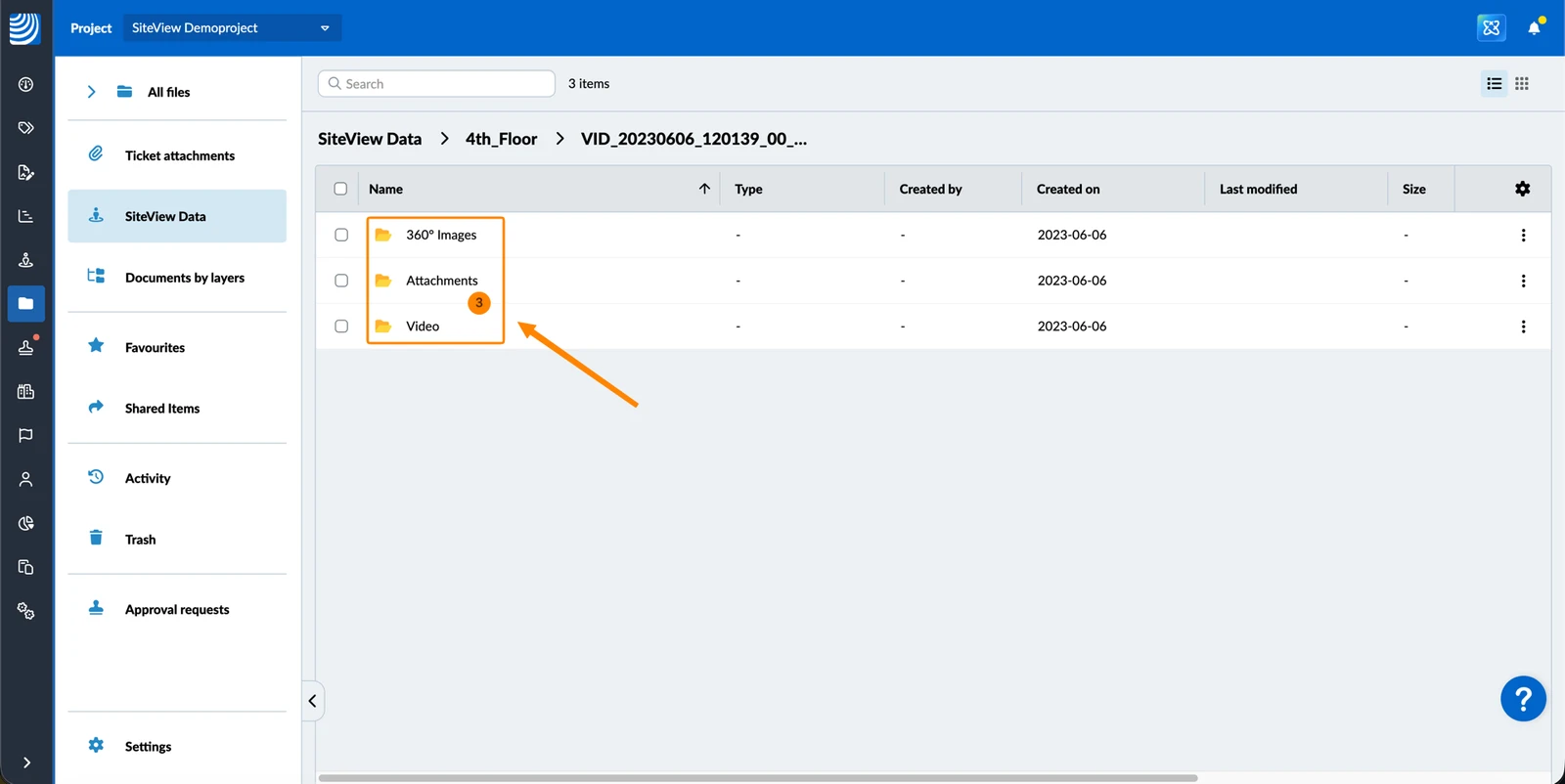
| Folder | Contains |
| Video | A run's original and stitched video. |
| 360° Images | The 360° images of the capture — a run's keyframes, or the manually captured 360° still images in a date group. |
| Attachments | The run photos taken with a phone camera while the run was recorded. |
Preview and Download Assets
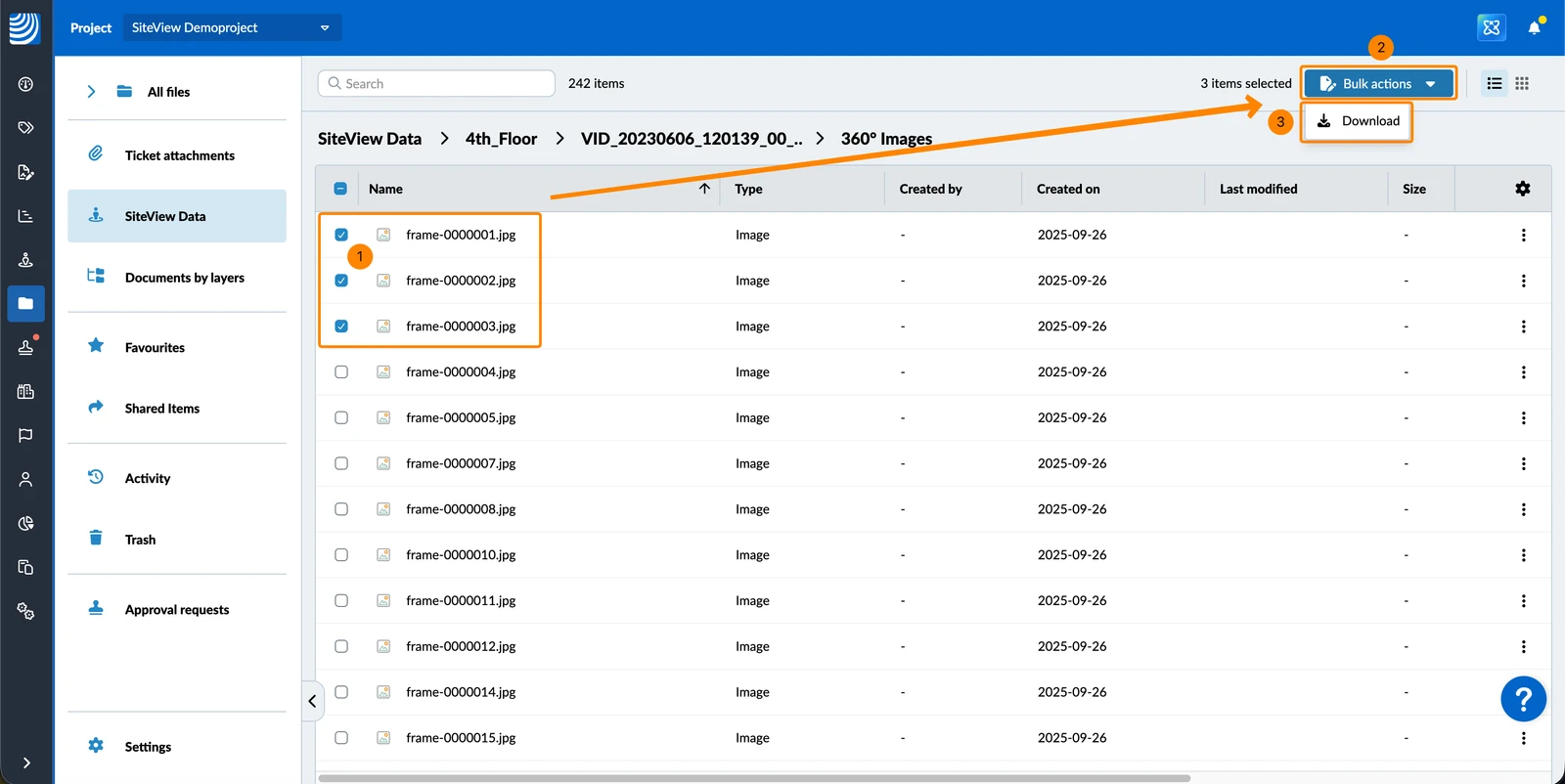
Click a 360° image or a run photo to preview it. Videos cannot be played in the browser — open a video and click Download to save it on your computer.
To download assets:
- Select one or more assets.
- Click Bulk actions.
- Click Download.
Keep in Mind
SiteView data is read-only in Document Management. You can view, download, sort, search and filter it, but you cannot rename, move, copy, delete or upload SiteView files, and you cannot send them for approval.
Updated August 12, 2026