

 Deutsch
 Español
 Français
 Hrvatski
 Italiano
 Polski
 Português (BR)
Configure User Permissions
Overview
User permissions are configured per user and they define which features a user can access in the PlanRadar account.
Read more about User Permissions and also about Role Permissions in Permissions.
Access & Permissions
How to access Users
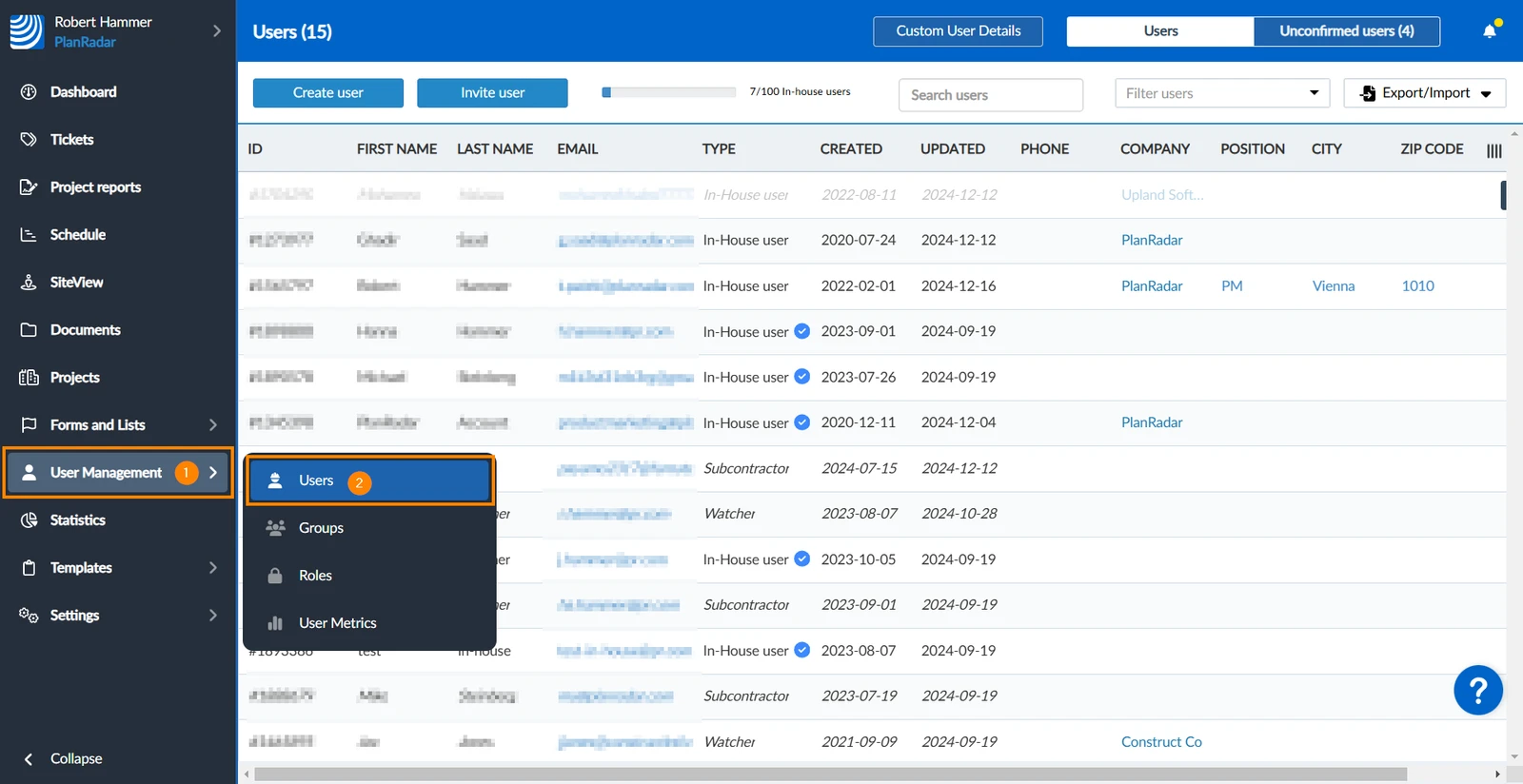
- Hover over User Management
- Click Users
Change User Permissions
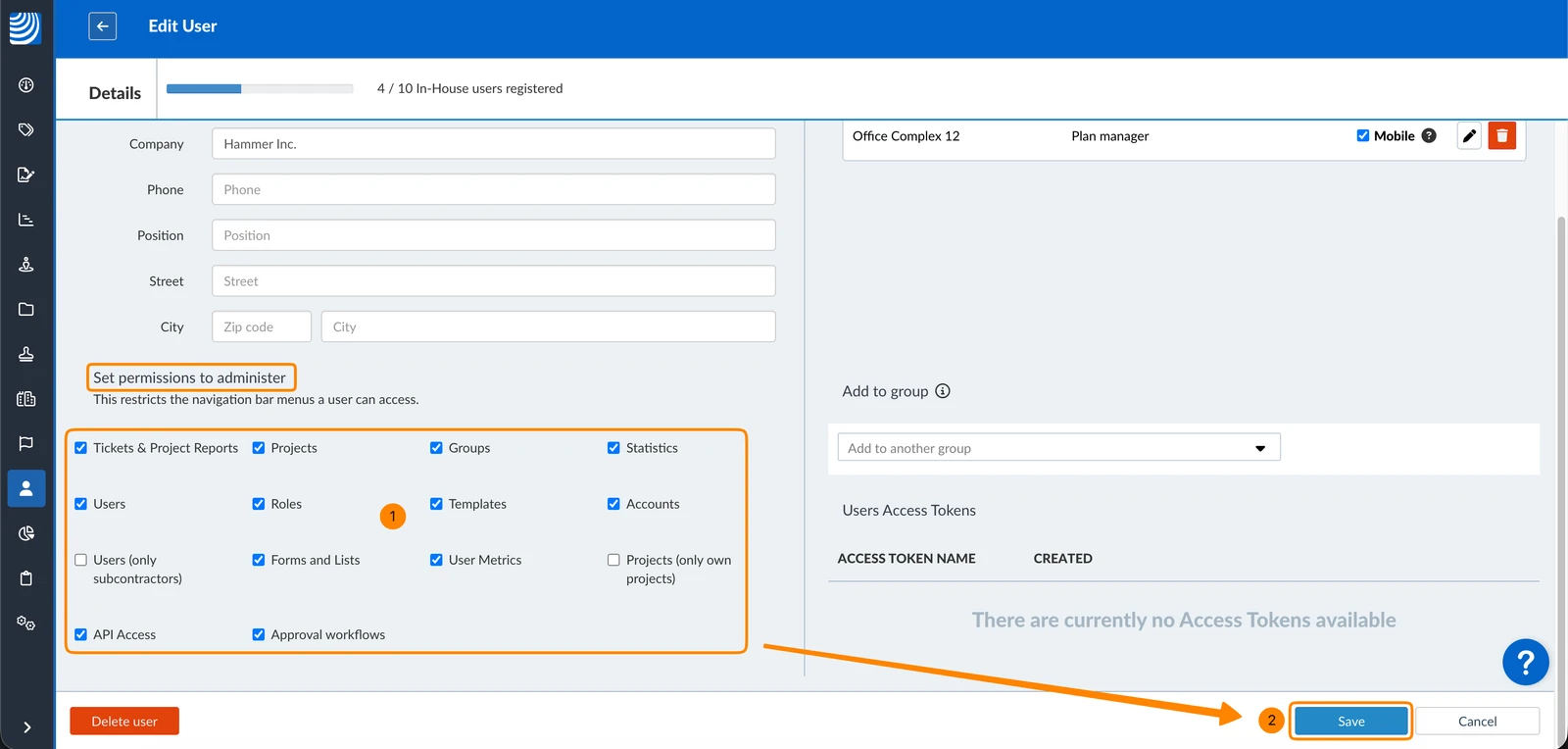
You can configure user permissions when you Create & Invite Users or change them when you edit a user as described in Manage Users on your Account.
To edit user permissions:
- Edit a user and select or clear the checkboxes under Set permissions to administer
- Click Save
Updated September 4, 2026