

 Deutsch
 Español
 Français
 Hrvatski
 Italiano
 Polski
 Português (BR)
AI Usage Limits and Upgrades
Overview
Learn how AI usage limits work, what counts toward the limit, and how to get AI Plus access.
Your account has one shared AI usage limit for all AI features. This limit is consumed when you or other in-house users on your account use AI features such as ticket search, document insights, or filter creation, and whenever an AI agent runs.
When the limit is reached, AI features become unavailable. You can request AI Plus access to remove the limit.
Access & Permissions
What Counts Toward the Limit
The following AI features consume your AI usage limit (see linked articles for details):
-
Detect Rooms on Plans with AI, including the automatic detection of new plan versions
-
- Live runs and test runs
- Rewrite with AI, in an agent's instructions and in the account's global instructions
-
Any other AI-powered feature in PlanRadar
What Does Not Count Toward the Limit
HelpCenter queries are always available and unlimited.
You can ask the AI Assistant questions like:
- "How do I create a ticket?"
- "Where do I upload plans?"
- "How do I add users to my project?"
These questions do not consume your AI usage limit.
Shared Usage Limit
The AI usage limit is shared by all in-house users on your account.
- All users draw from the same usage pool
- If one user consumes a large portion of the limit, all other users see the same remaining usage.
- Usage is tracked at the account level, not per user
Check Your Usage Limit
In the AI Assistant
Progress Bar
A progress bar appears at the bottom of the AI Assistant panel once your account has used more than 20% of the limit. The bar shows the percentage used and changes color as usage increases.
| Usage Level | What You See |
|---|---|
| 0–19% | Progress bar hidden |
| 20–84% | Progress bar visible (default color) |
| 85–99% | Progress bar visible (yellow/orange) |
| 100% | Progress bar hidden; limit message shown instead |
Source Indicator
Next to the chat input, you will see a small indicator showing your current mode:
| Indicator | Meaning |
|---|---|
| Full Access | All AI features are available |
| HelpCenter | Limit reached; only HelpCenter questions are available |
When your account reaches 100% usage, the indicator automatically changes from Full Access to HelpCenter.
In Account Settings (Webapp only)
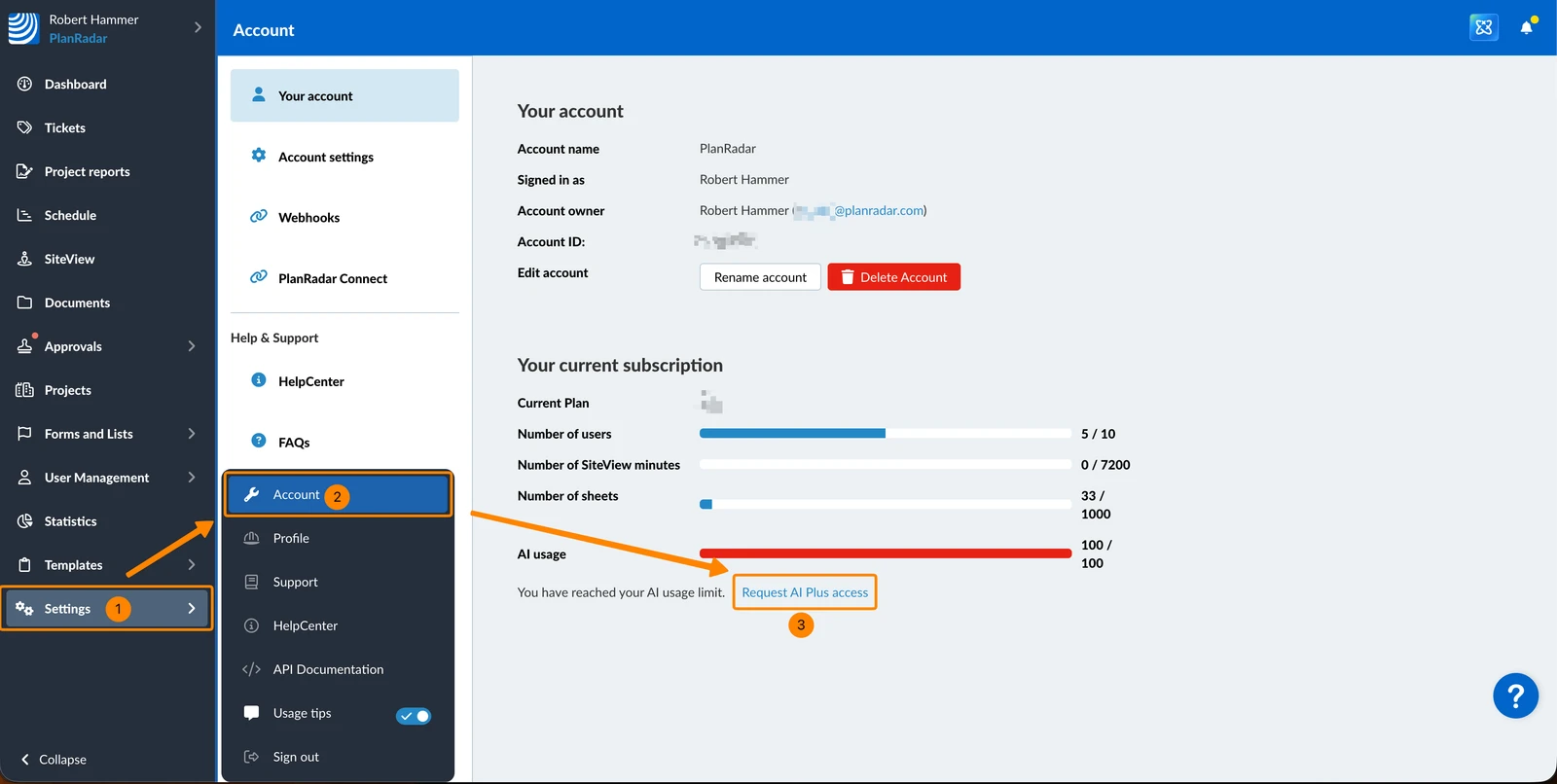
Account owners and users with the Account user permission can view AI usage in Account Settings. The usage percentage appears alongside other account limits such as Users, SiteView, and Sheets.
What Happens at the Limit
When your account reaches 100% usage:
- AI features become unavailable
- The source indicator changes to HelpCenter
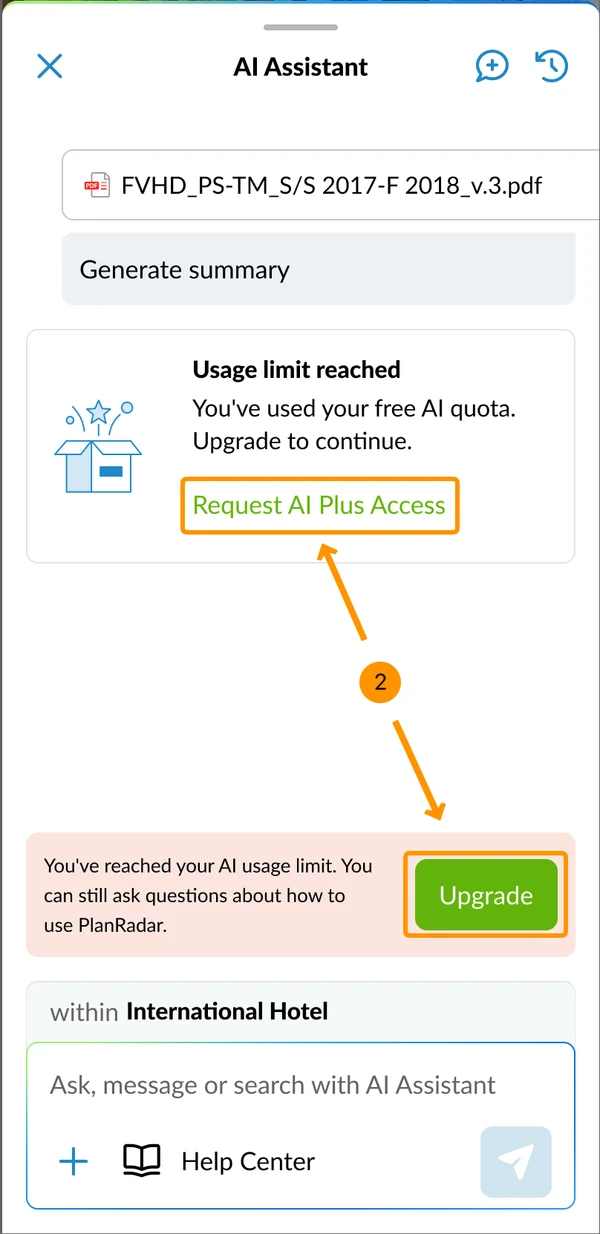
- An in-chat message explains that the limit has been reached
- You can still ask questions about how to use PlanRadar
- Account owners and users with the Account user permission can request AI Plus access
- AI agent runs are blocked
- Each AI agent pauses itself the next time one of its triggers fires
Does the Limit Reset?
The AI usage limit does not reset automatically.
To continue using AI features after reaching the limit, request AI Plus access.
How to Get AI Plus Access
Early Access (Webapp only)
Account owners and users with the Account user permission can access the request option at any time through Account Settings in the Webapp, even before reaching the usage limit. This allows you to plan ahead if your team expects high AI usage.
Request AI Plus Access
Account owners and users with the Account user permission can request AI Plus access once the usage limit is reached.
To request AI Plus access in the Webapp:
- Click Settings
- Click Account
- Click Request AI Plus Access
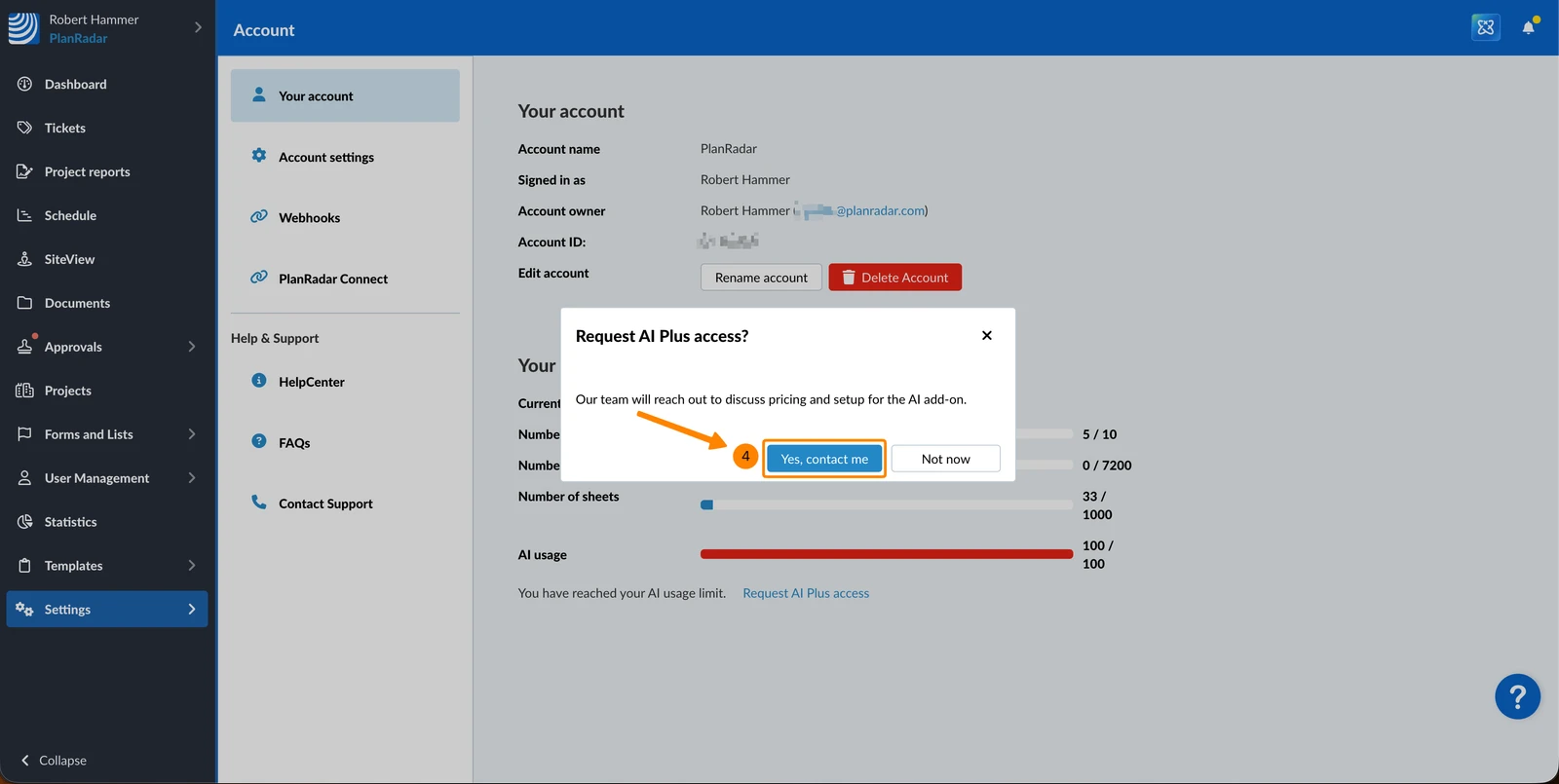
- Click Yes, contact me
To request AI Plus access in the mobile app:
- Open the AI Assistant.
- Tap Upgrade in the usage bar, or tap Request AI Plus Access in the usage-limit message in the chat.
- Tap Confirm.
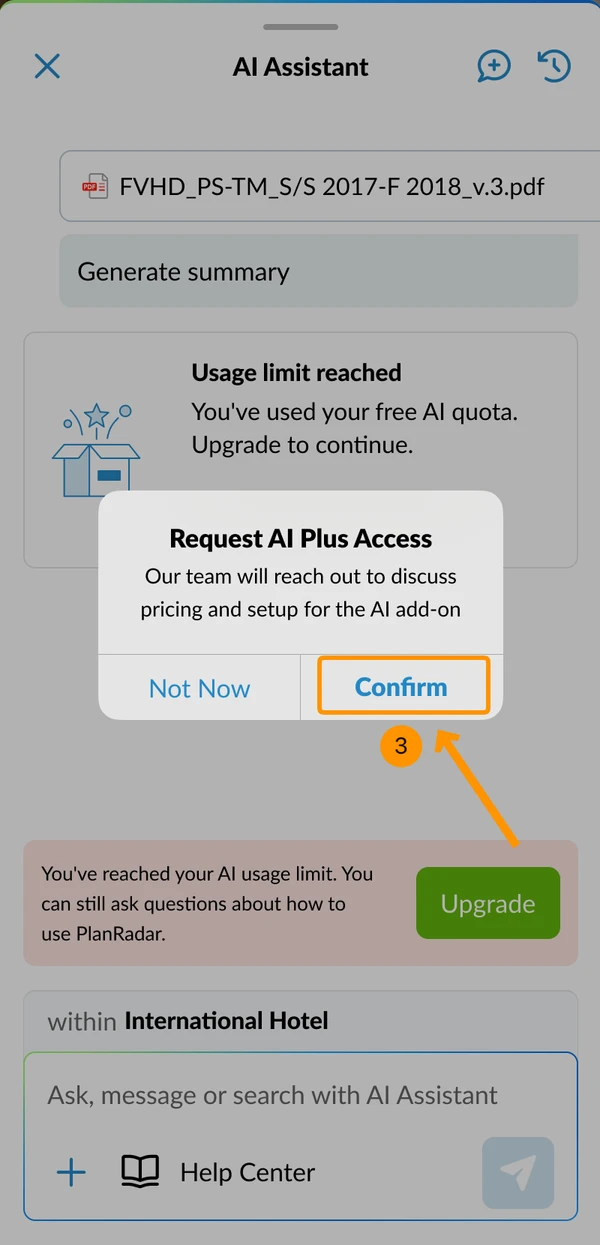
After submission, the request CTA is replaced with a "Request submitted" confirmation, and other users on the account see "Your request to upgrade is being processed." Only one request is needed per account.
If you cannot request AI Plus access:
- Standard users without account permission cannot request AI Plus access directly.
- In the Webapp, you will see a message directing you to contact the account owner or administrator.
- On mobile, you will see "Contact your account owner or admin to request AI Plus access" — no request button is shown.
After Getting AI Plus Access
Once AI Plus access is activated:
- The usage limit is removed
- The progress bar and limit messages disappear
- The source indicator shows Full Access
- All in-house users on your account get AI Plus access
- Agents that paused because of the limit stay paused — the person who created each agent has to activate it again
- A fair-use policy applies
FAQ
Why is there a limit?

AI features have operational costs. The usage limit ensures fair access for all accounts. Accounts that need more can request AI Plus access.
I barely used AI but hit the limit. Why?
Usage is shared across all in-house users on your account. Another user may have consumed a larger portion of the limit.
Can I see exactly how much I used?
No. Usage is shown as a percentage only.
I am a subcontractor. Why can I not use AI features?
AI features are available to in-house users only. Subcontractors and watchers can ask questions about how to use PlanRadar, but cannot use ticket search, document insights, or other AI features.
Why can I only ask questions about how to use PlanRadar?
Either your account has reached its usage limit, or AI access is turned off for your user. Ask your account owner or administrator. They can turn AI access on in your user permissions.
I am on the Basic plan. Can I use AI features?
Yes. AI features are available on all plans: Basic, Starter, Pro, and Enterprise. The usage limit applies to all plans.
I clicked the request button. What happens next?
Our team will contact your account owner to discuss AI Plus access options.
Can multiple people request AI Plus access?
Only one request is needed per account. After someone submits a request, the button disappears to prevent duplicate requests. Other users on the account will see a message confirming the request is in progress.
I have AI Plus access but still see the limit. What should I do?
Close and reopen the AI Assistant. If the issue persists, contact support.
What does "HelpCenter" mode mean?
When you see the HelpCenter indicator, your account has reached its usage limit. You can still ask questions about how to use PlanRadar, but AI features like ticket search and document insights are unavailable until AI Plus access is activated.
Can I request AI Plus access before reaching the limit?
Yes. Account owners and users with account permission can access the request option through Account Settings at any time.
Updated August 26, 2026