

 Deutsch
 Español
 Français
 Hrvatski
 Italiano
 Polski
 Português (BR)
Set a Due Date or Extension Date for a Ticket
Overview
Assigning due dates to tasks is a main factor in efficient time management and task prioritisation, offering a clear timeline for task completion. With PlanRadar, you can set due dates for ticket resolutions, and should the need arise, you can easily extend these dates by adding an extension date to the tickets.
Access & Permissions
Set a Ticket Due Date
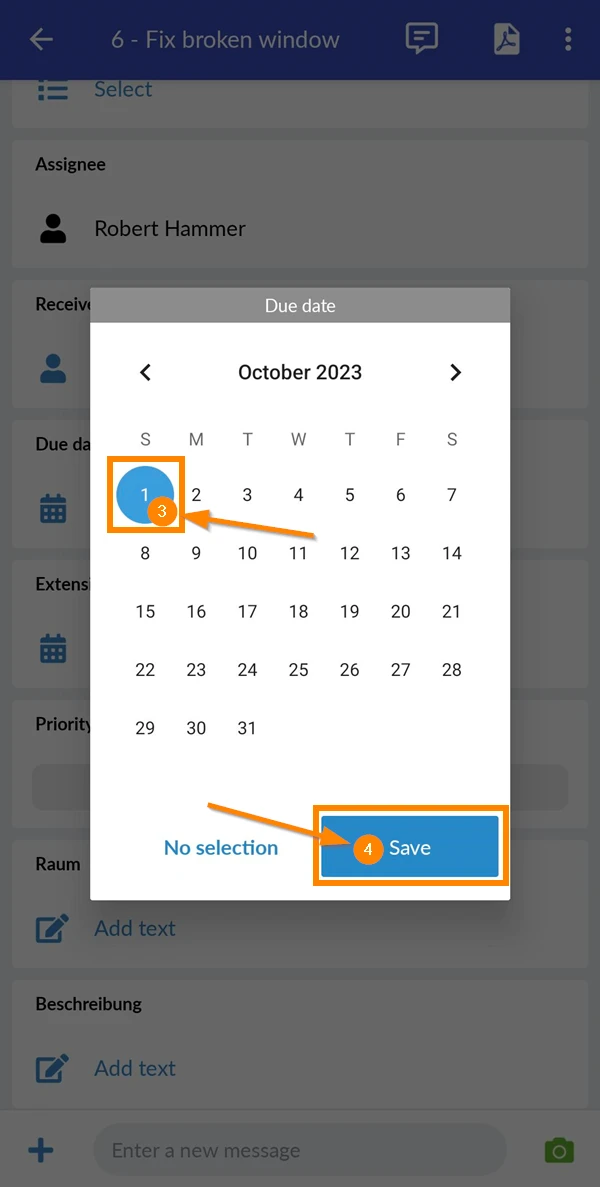
To set a ticket due date:
- Open a ticket OR continue when you Create a Ticket.
- Select a Due date, using the date picker.
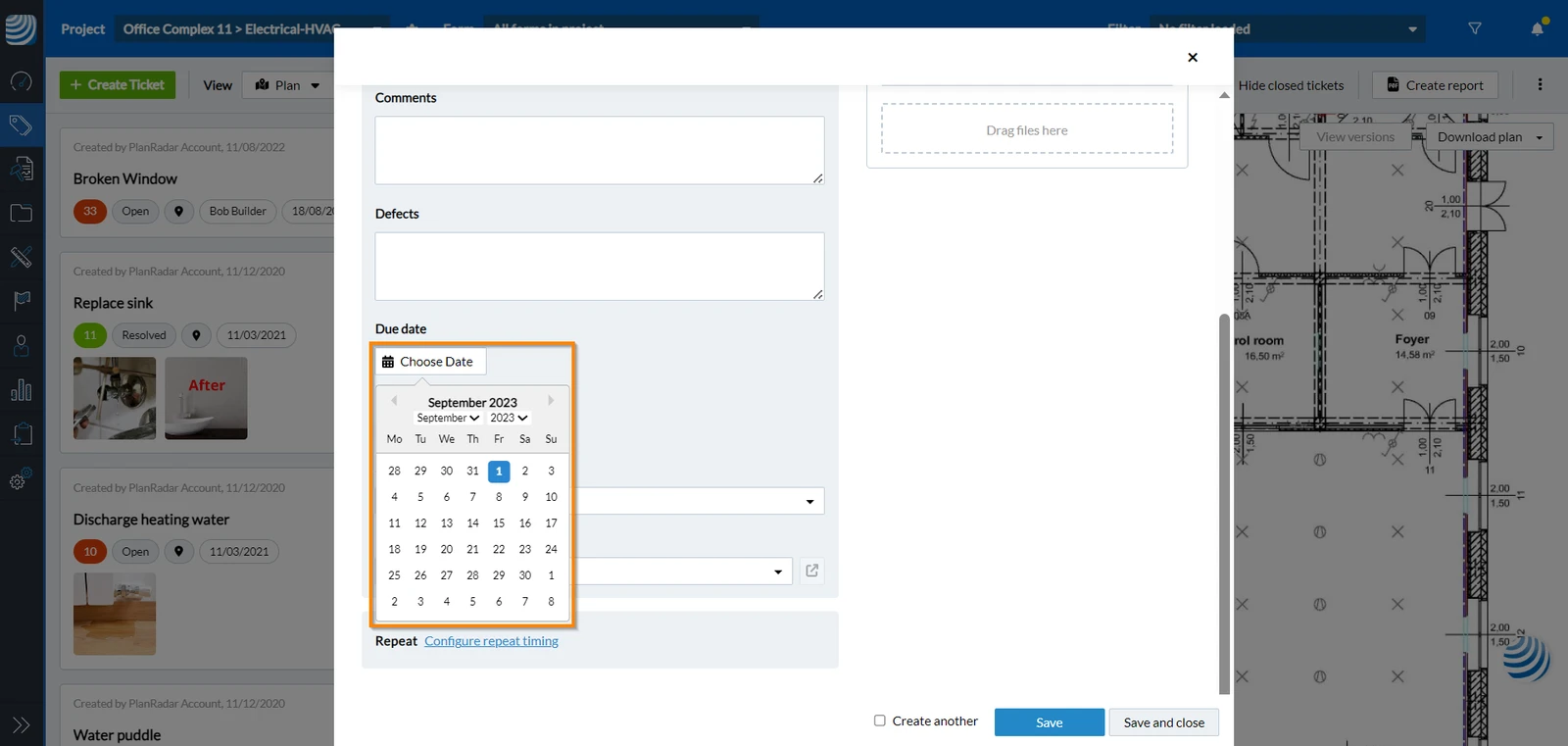
- Click Save
- Open a ticket OR continue when you Create a Ticket.
- Tap Set date under Due Date
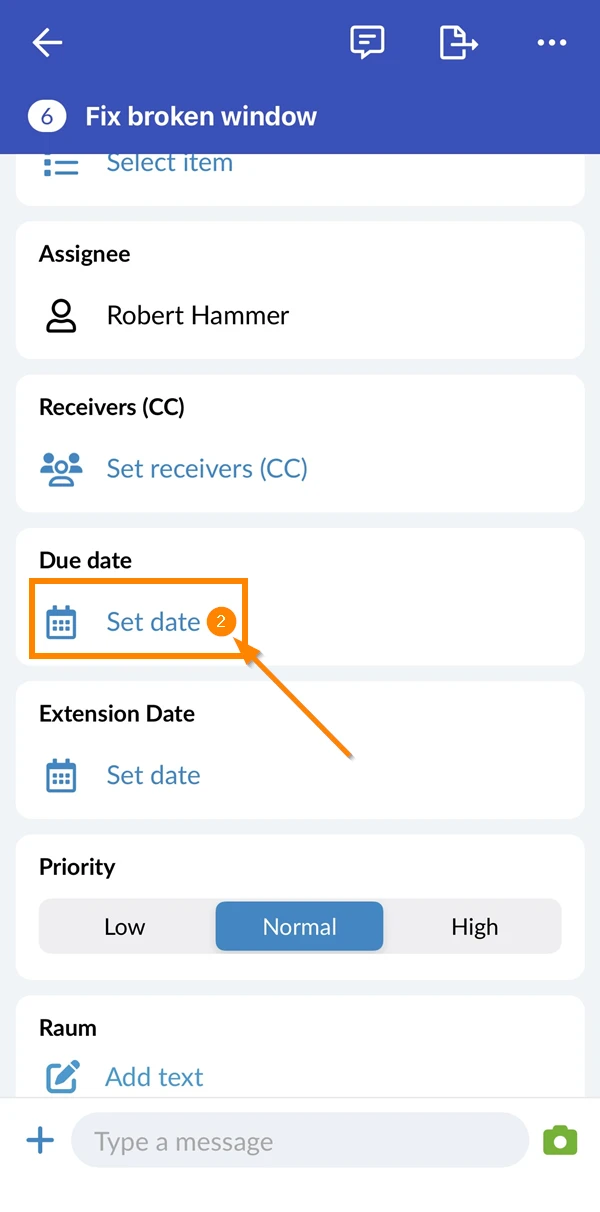
- Select a date
- Open a ticket OR continue when you Create a Ticket.
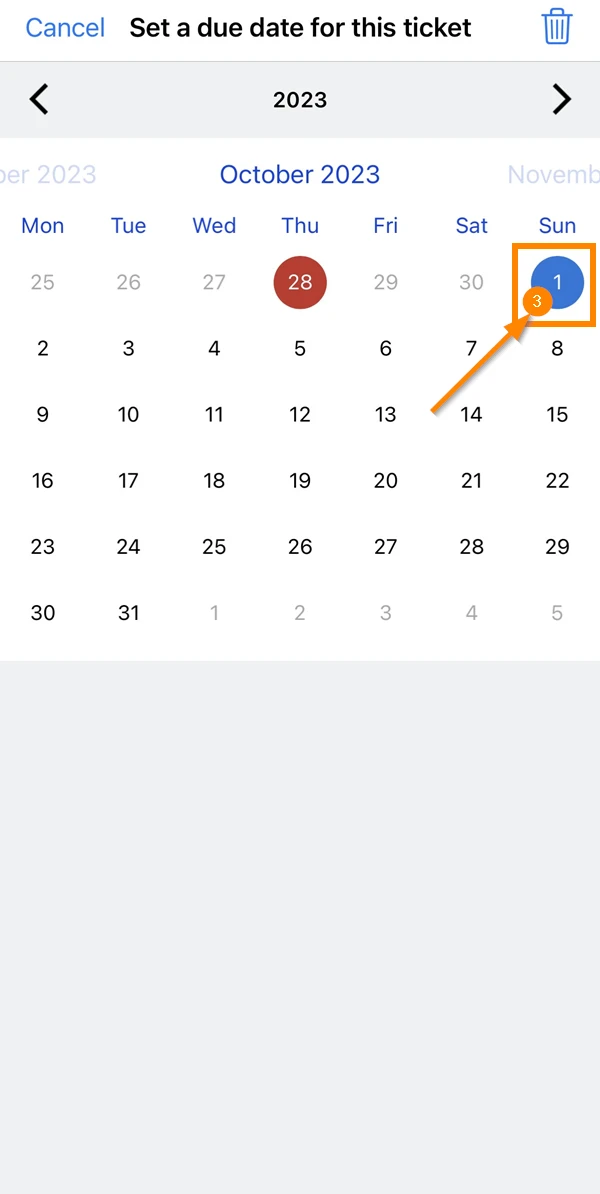
- Tap Set date under Due Date
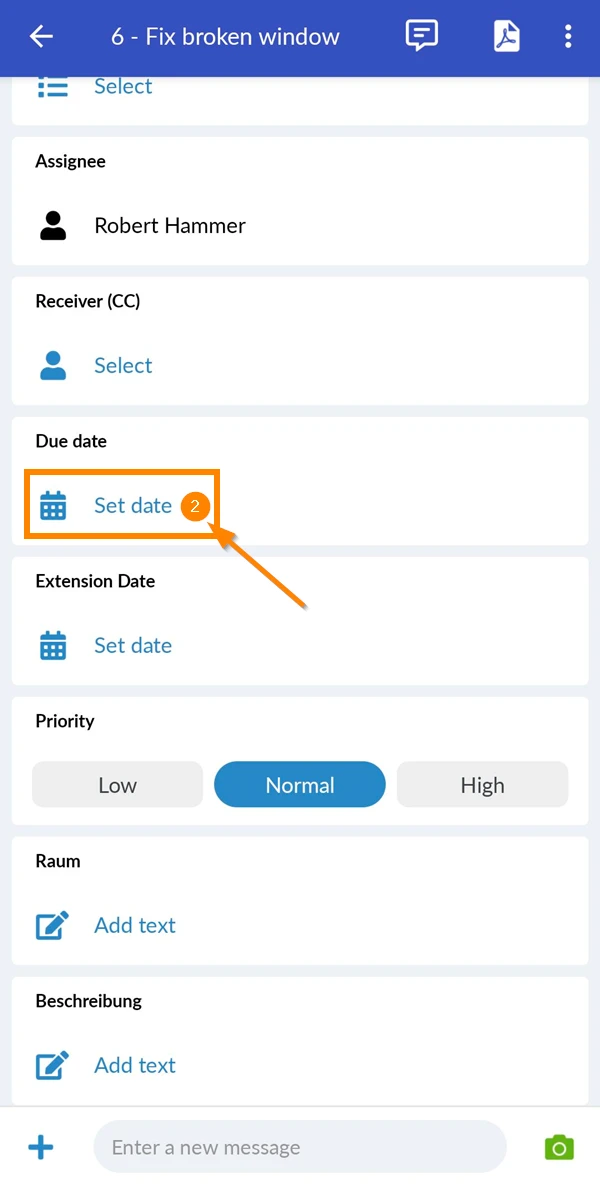
- Select a date
- Tap Save
Set Ticket Extension Date
For tasks that are granted a grace period, there's no need to change their due date. Instead, you can set an extension date for them.
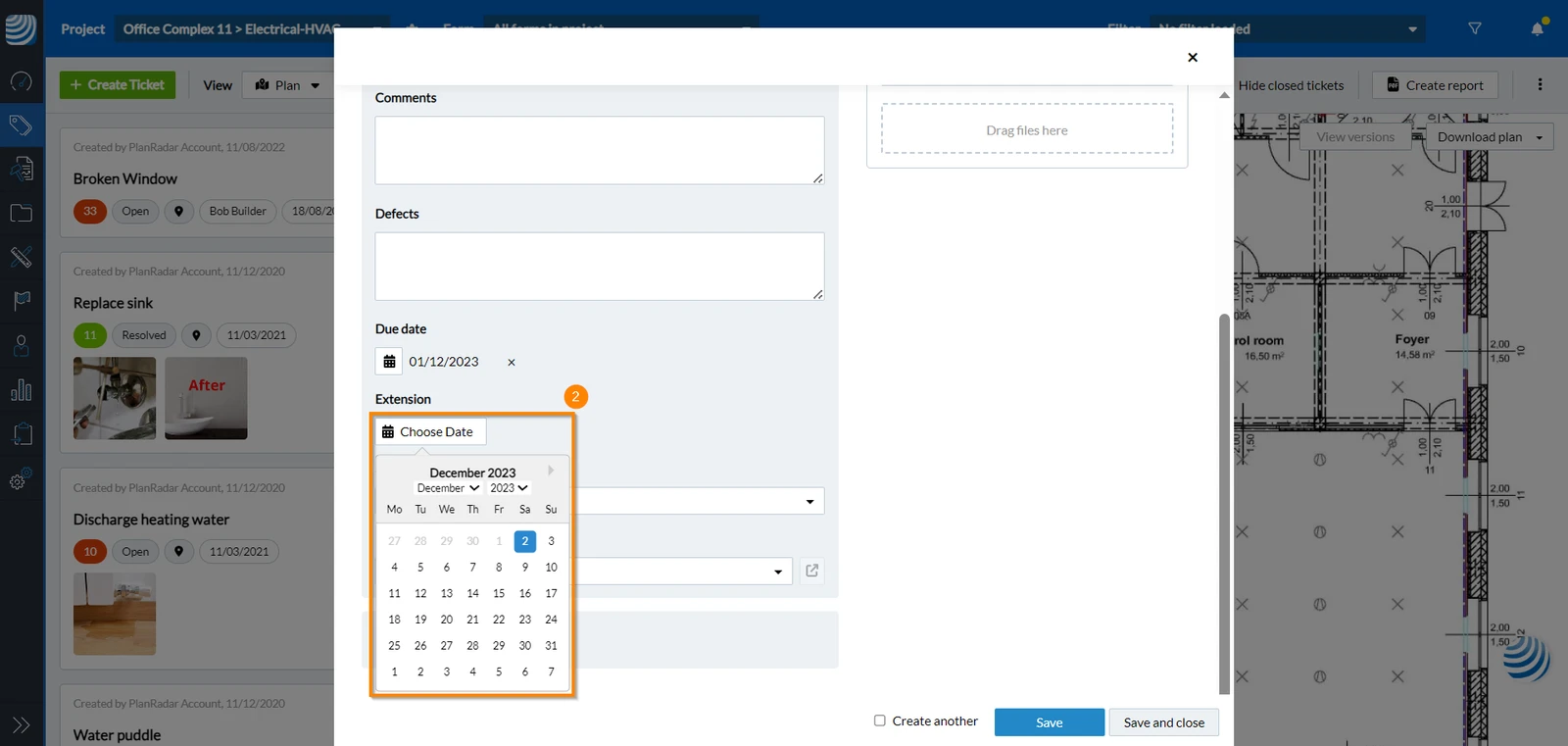
To set an extension date:
- Open a ticket OR continue when you Create a Ticket.
- Tap Set date under Extension
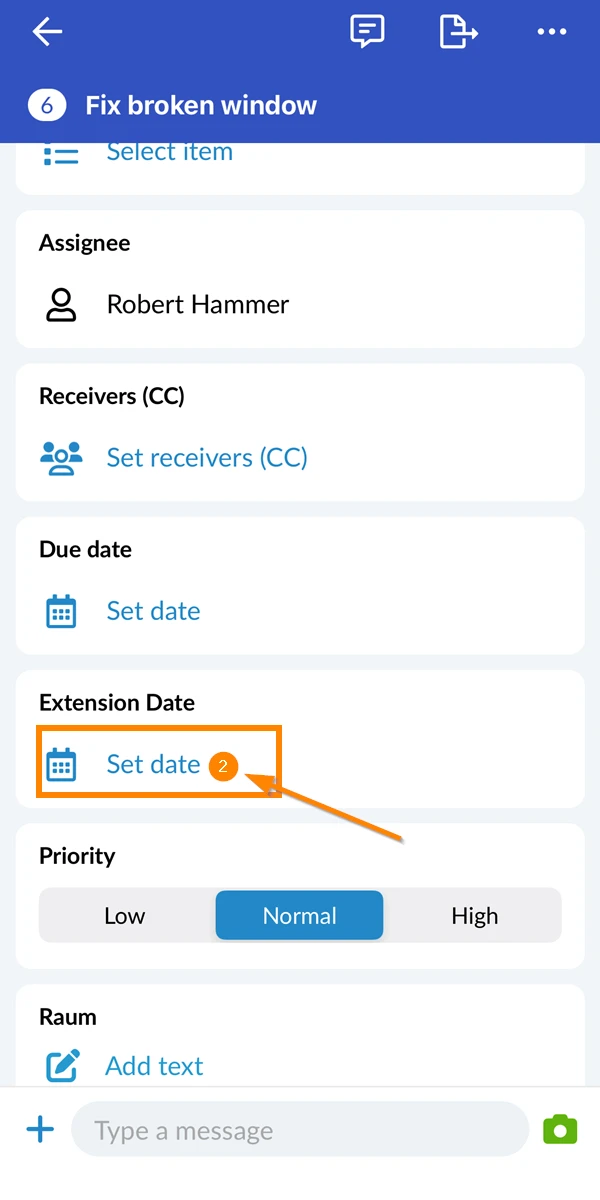
- Open a ticket OR continue when you Create a Ticket.
- Tap Set date under Extension Date
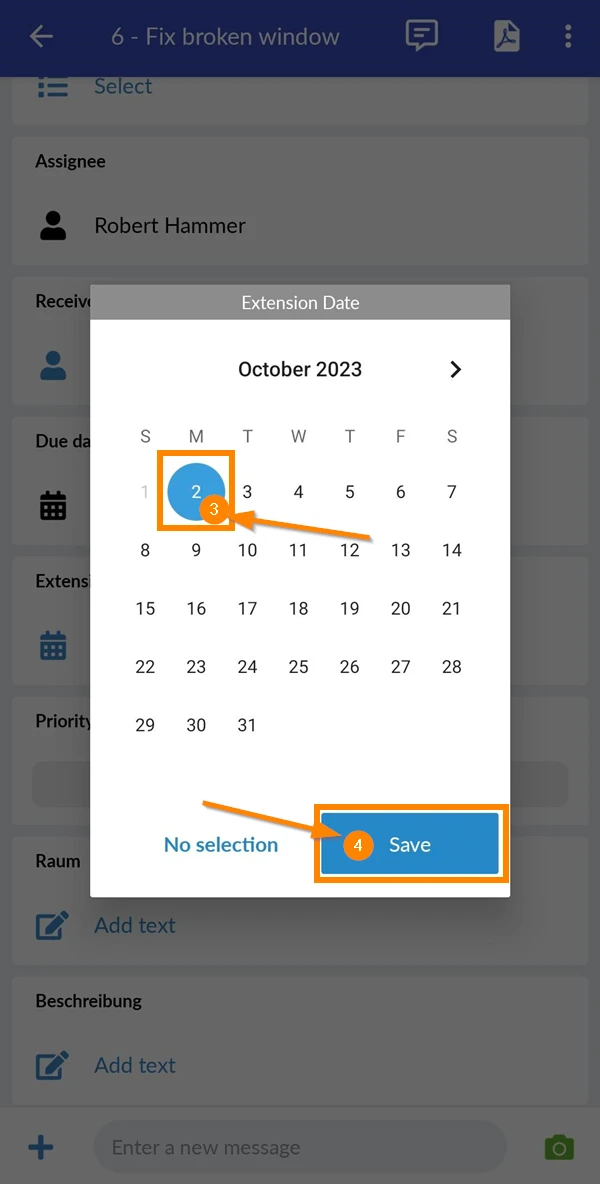
- Select a date
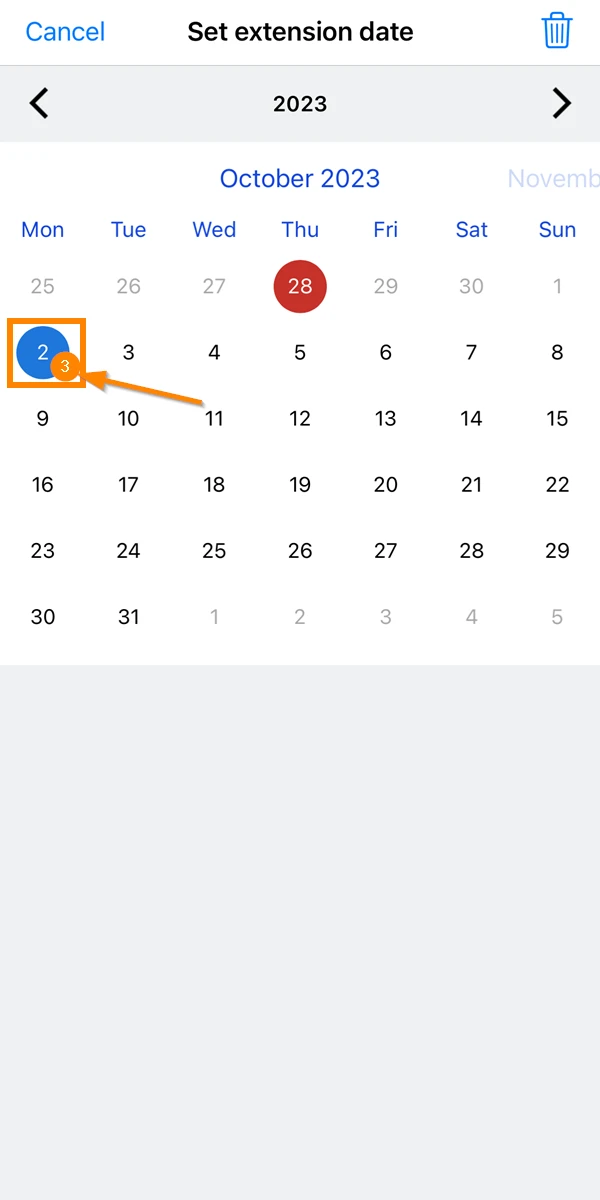
- Open a ticket OR continue when you Create a Ticket.
- Tap Set date under Extension Date
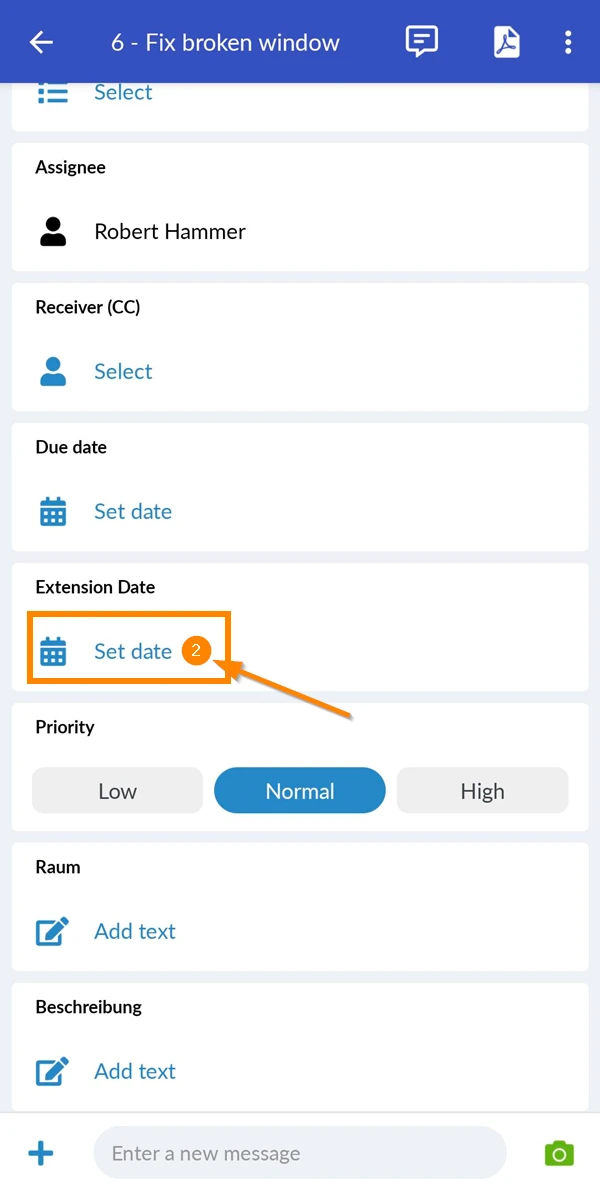
- Select a date
- Tap Save
Due date notification
Both assignees and receivers get notifications in advance of the ticket's due date to prevent any missed deadlines. The time of the notification depends on each users notifications configurations. Users can specify the notification period before the due date by clicking to Settings > Profile.
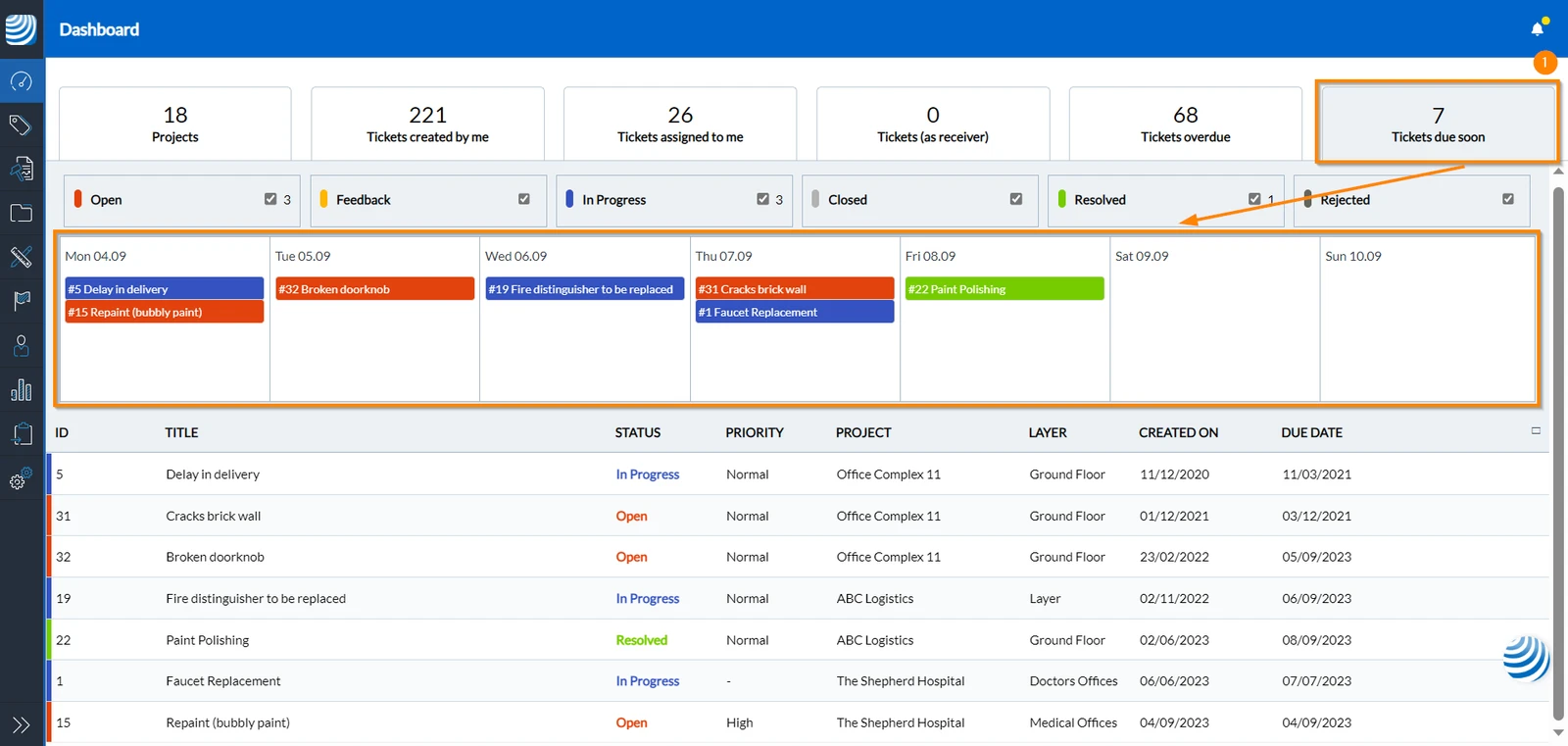
Furthermore to prevent missing your ticket's deadline, PlanRadar conveniently displays all soon-to-be-due tickets within a predefined filter on your dashboard. Within this filter, you can easily find tickets scheduled for the current day and those set to be due within the next six days.
To see the tickets that are due soon:
- On the dashboard, click Tickets due soon
Updated February 17, 2025