

 Deutsch
 Español
 Français
 Hrvatski
 Italiano
 Polski
 Português (BR)
Change the Location of a Ticket
Overview
Every ticket is saved to a Location — the term PlanRadar uses for a folder or a plan. Changing it is what you do when a ticket ended up in the wrong place, or when work moved to another floor or building.
A location can be a folder as well as a plan. A ticket on a folder has no pin position, so you work with it in the list view rather than on a plan.
Access & Permissions
Change the Location
To change the location of a ticket:
- Open the ticket.
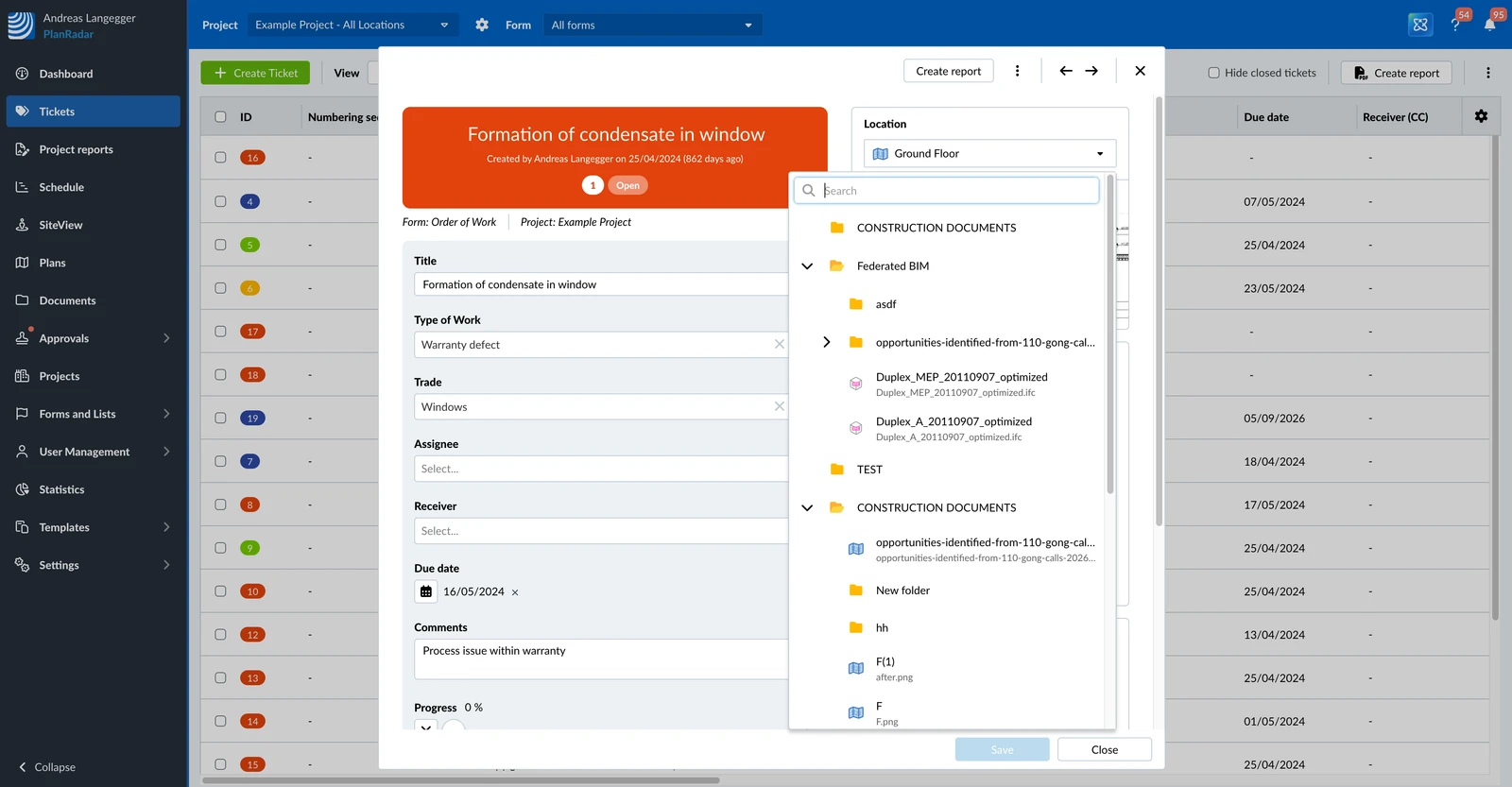
- Open the Location drop-down.
- Select the folder or plan the ticket belongs to.
- Click Save or Save and close.
- Open the ticket.
- Tap Add plan position, or the preview of the plan position if one is set already.
- Tap Change Location.
- Tap Change Location to confirm. The plan position is lost.
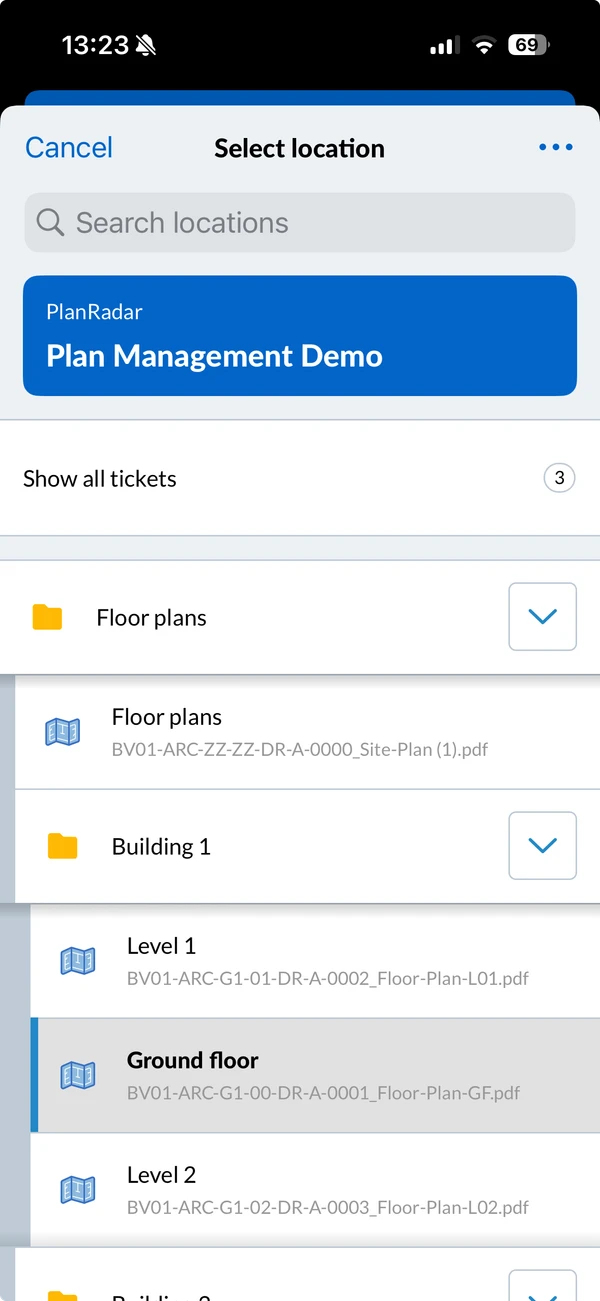
- Select the folder or plan the ticket belongs to.
- Open the ticket.
- Tap Add plan position, or the preview of the plan position if one is set already.
- Tap the + icon.
- Tap Change location.
- Select the folder or plan the ticket belongs to.
- Tap Save.
Find a Location in the Selector
The selector shows the project's whole structure, so you can pick any folder or plan without knowing where it sits.
- Type at least three characters into the search to find a location anywhere in the project. Each result shows the folder path it belongs to.
- The number next to an item is how many tickets are on it.
- Icons tell you what an item is: a folder, a plan — green once its scale is calibrated — or a BIM model.
- On a plan, hover over the item for a shortcut into its list view or plan view.
Selecting a folder saves the ticket straight away. Selecting a plan lets you set the plan position afterwards, which is optional.
Updated September 3, 2026