

 Deutsch
 Español
 Français
 Hrvatski
 Italiano
 Polski
 Português (BR)
Connect a BCF Server to Sync with BIMcollab
Overview
Connect a project to a BCF server to keep tickets in sync with BIMcollab in both directions. Site teams keep working in PlanRadar, BIM coordinators keep working in BIMcollab, and both sides see the same information. BIMcollab is currently the only supported BCF server.
A connection links one BIMcollab project to one BIM model in a PlanRadar project. From then on, tickets that use the "BIMcollab issue" form and sit on that BIM model are synced. You can configure one connection per PlanRadar project.
What is synced:
- Title, Description, Status and Due date are synced in both directions and stay editable in PlanRadar.
- BCF Assignee, Type, Priority, Labels, Area and Milestone are filled by BIMcollab and are read-only in PlanRadar.
- Tickets created in the BIM viewer also send their model position, the viewpoint and a snapshot.
- Comments, notes and custom fields are not synced, in either direction.
Changes you make in PlanRadar reach BIMcollab immediately — from mobile, once the app has synced to PlanRadar. Changes made in BIMcollab arrive every 4 hours, or as soon as someone runs a manual sync.
This article covers the connection: how to connect a project to BIMcollab, manage the connection and disconnect again.
Read more about working with synced tickets in Create & Sync Tickets with BIMcollab.
Access & Permissions
Connecting, editing and disconnecting a BCF server is only possible in the webapp. Creating and viewing the synced tickets also works on iOS and Android.
Prerequisites
Before you connect a project to BIMcollab, make sure that:
- The PlanRadar project has at least one uploaded BIM model.
- The BIMcollab user you sign in with has full edit and delete permissions in BIMcollab.
- The BIMcollab project you want to connect is not yet linked to another PlanRadar project.
How to Access the BCF Server Configuration
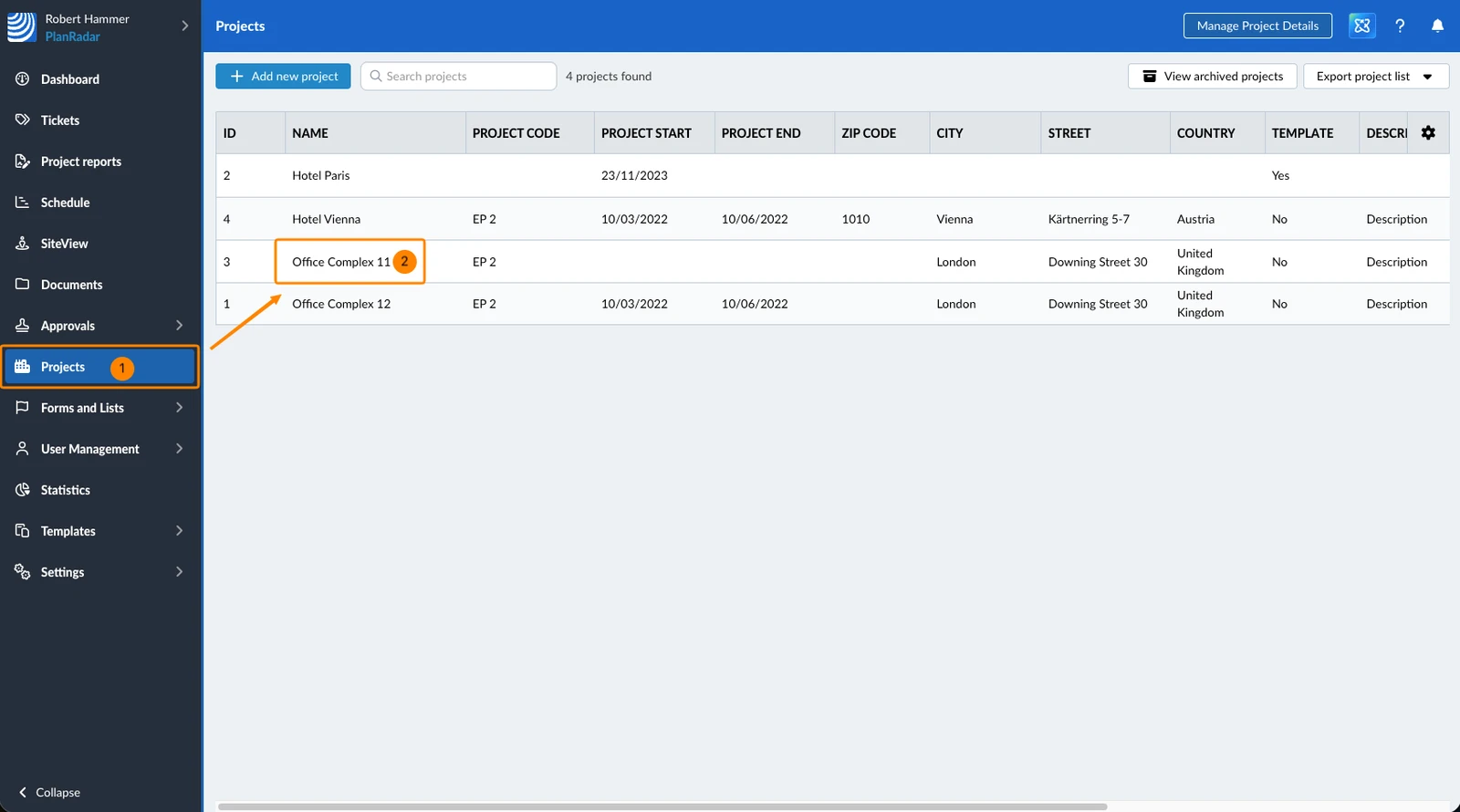
The connection is managed on the project's Details page. To open it:
- Click Projects
- Click the project
- You see the BCF server card:
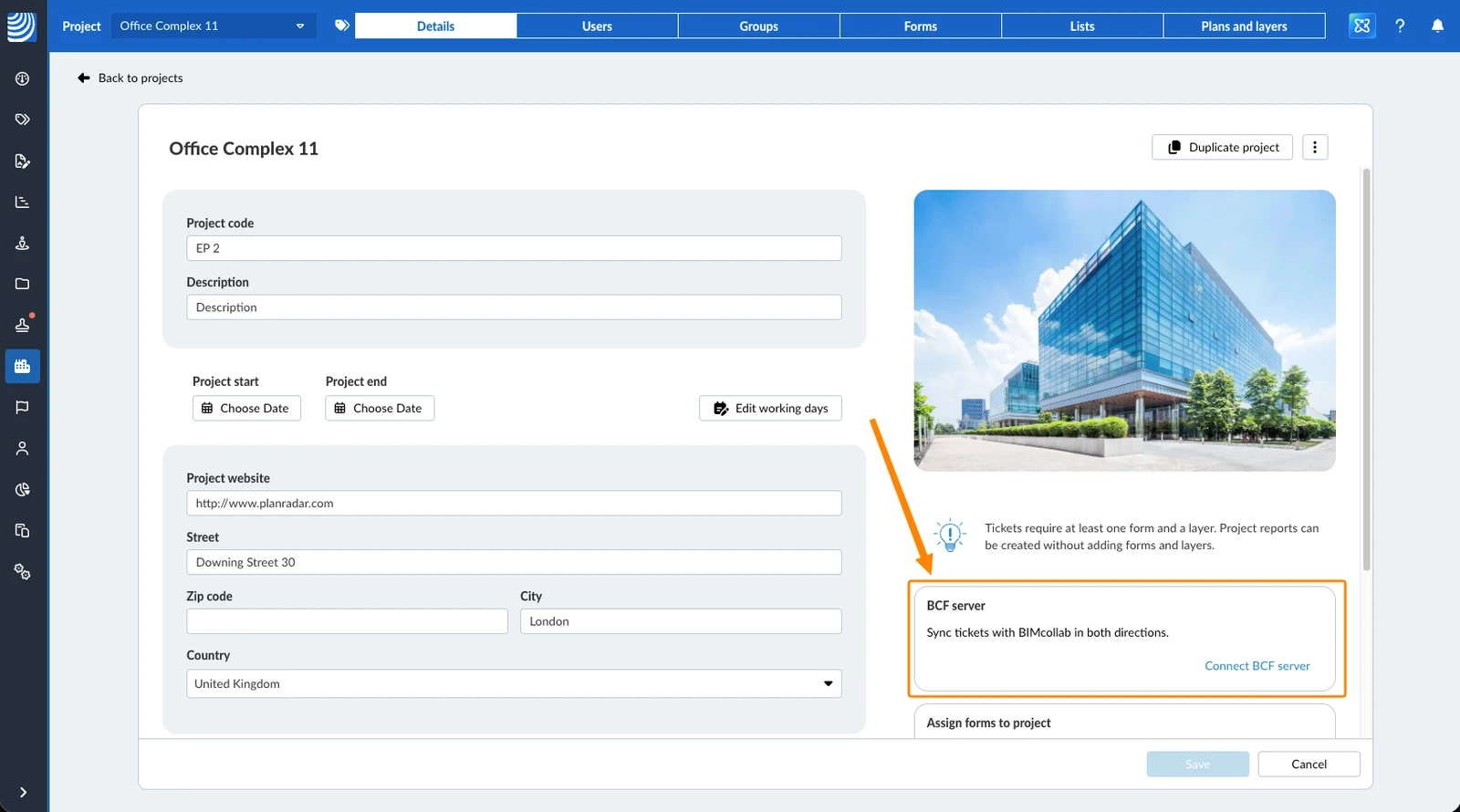
Connect a BCF Server
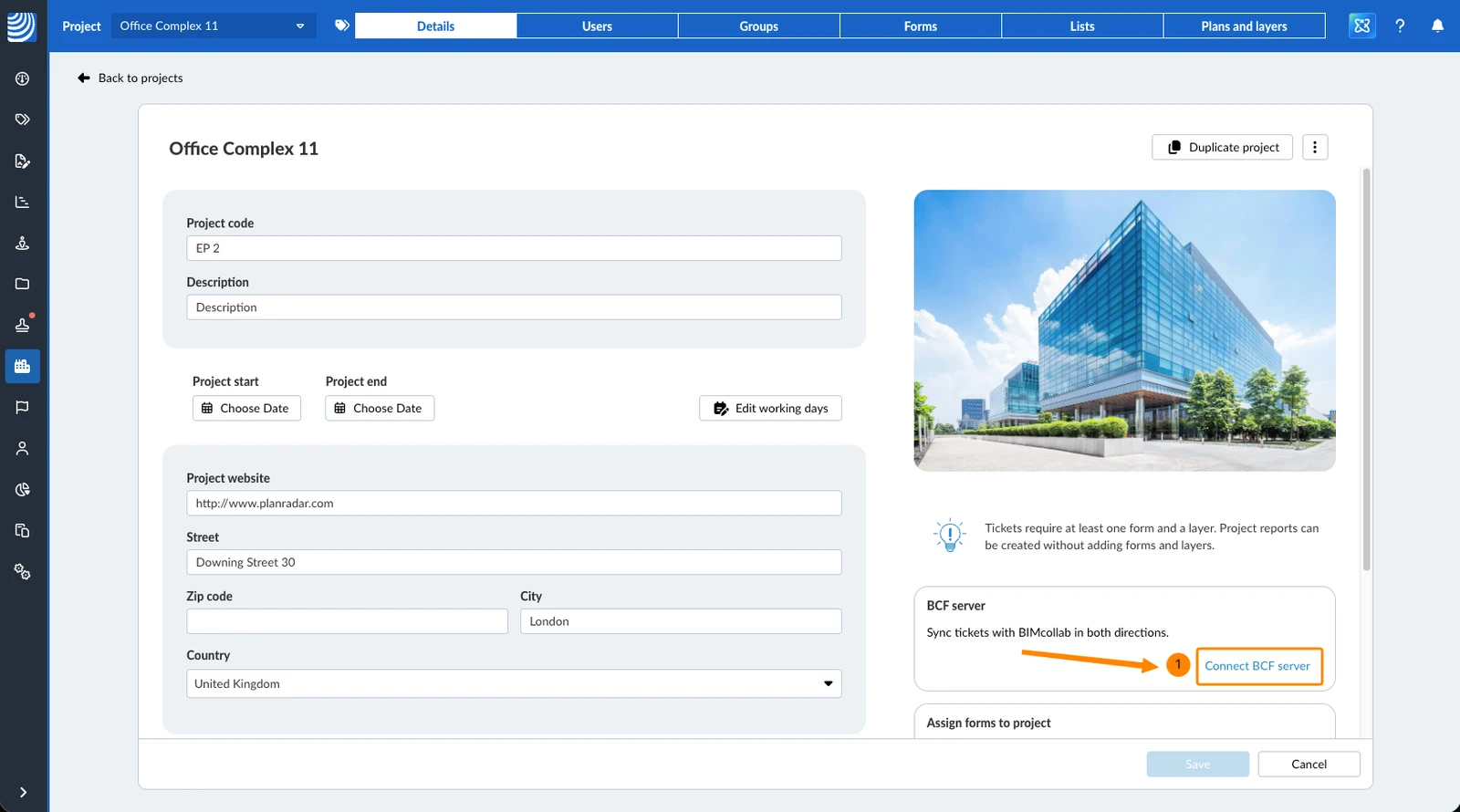
To connect the project to BIMcollab:
- Click Connect BCF server
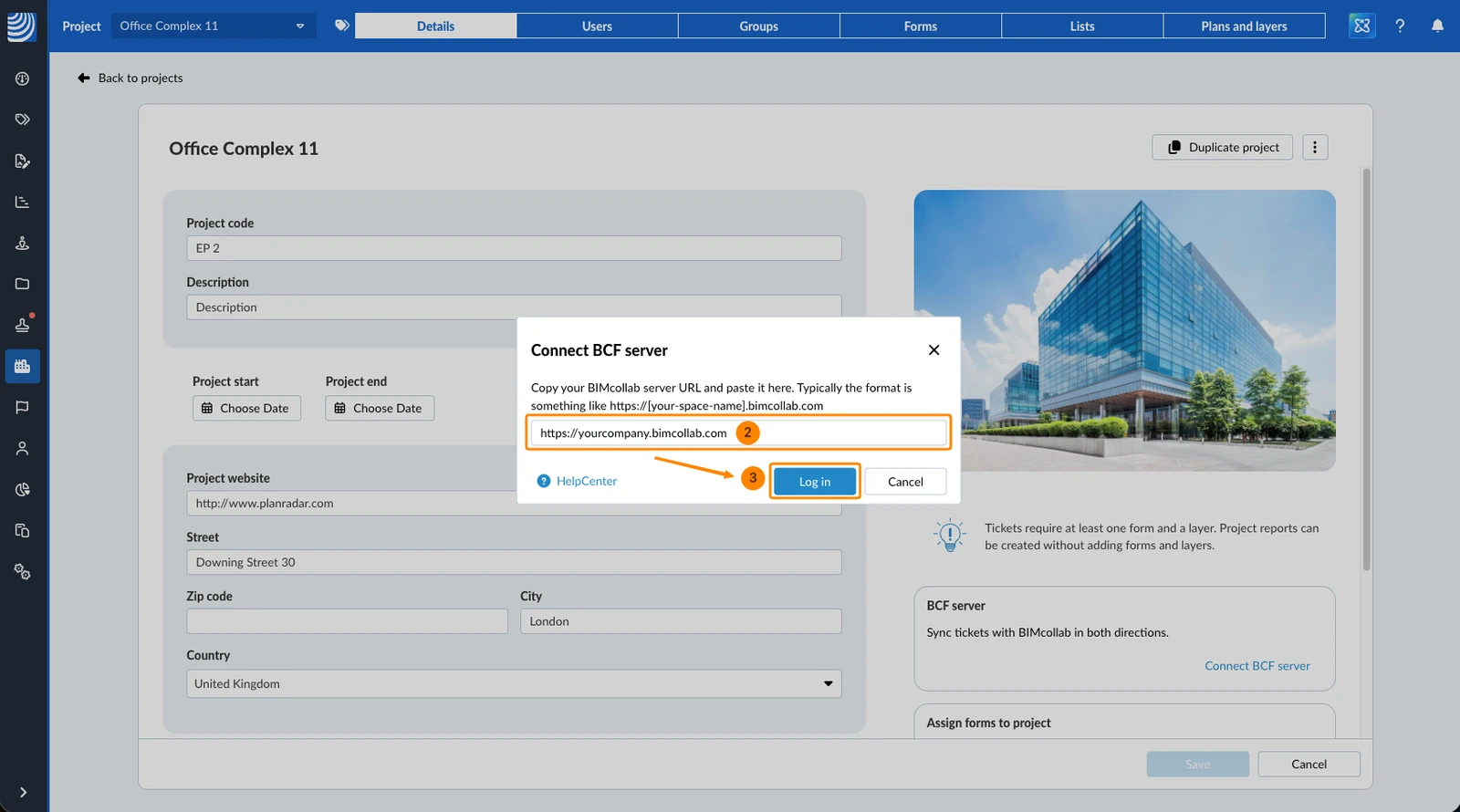
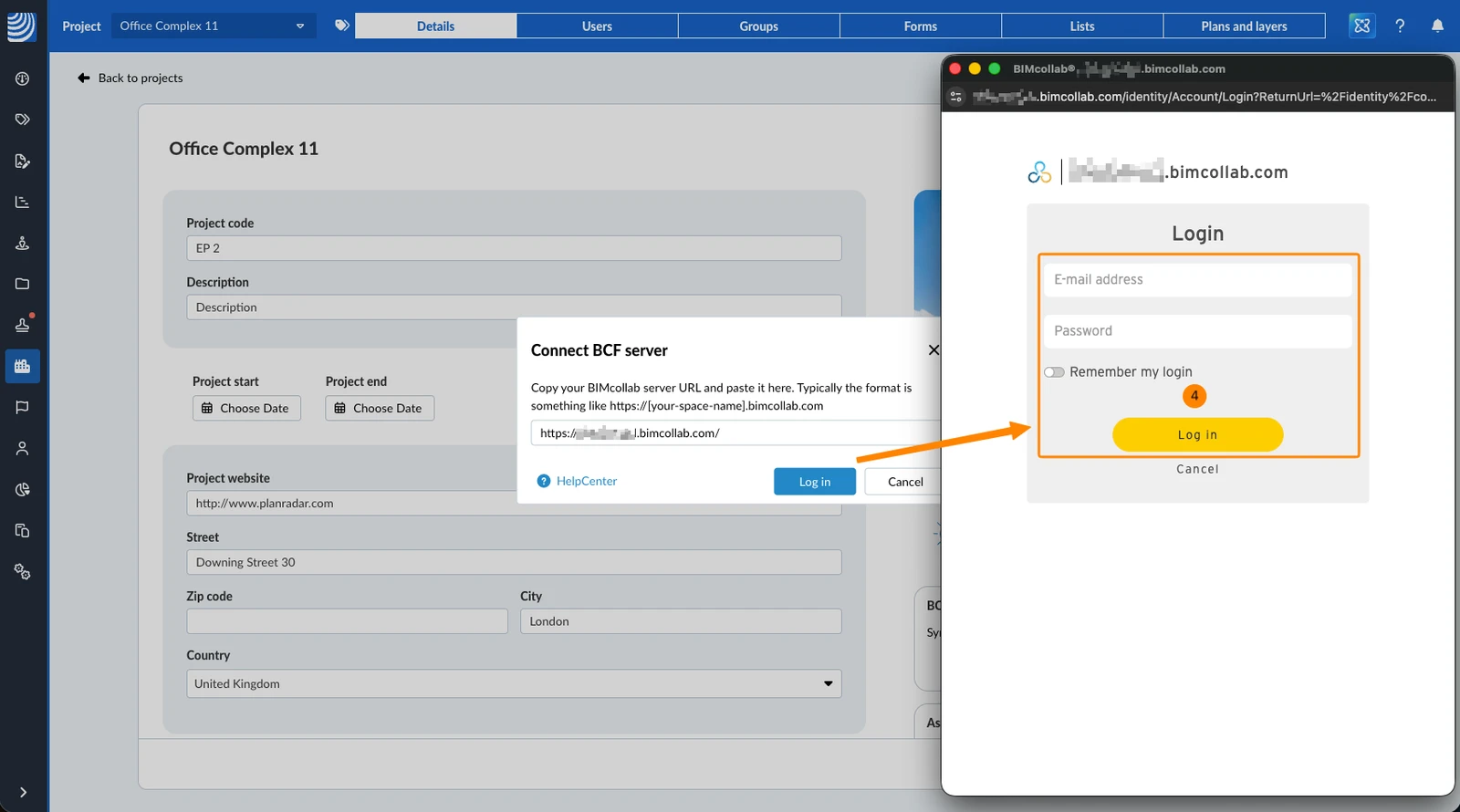
- Enter the web address of your BIMcollab account, for example https://yourcompany.bimcollab.com
- Click Log in
- Sign in to BIMcollab in the new browser tab
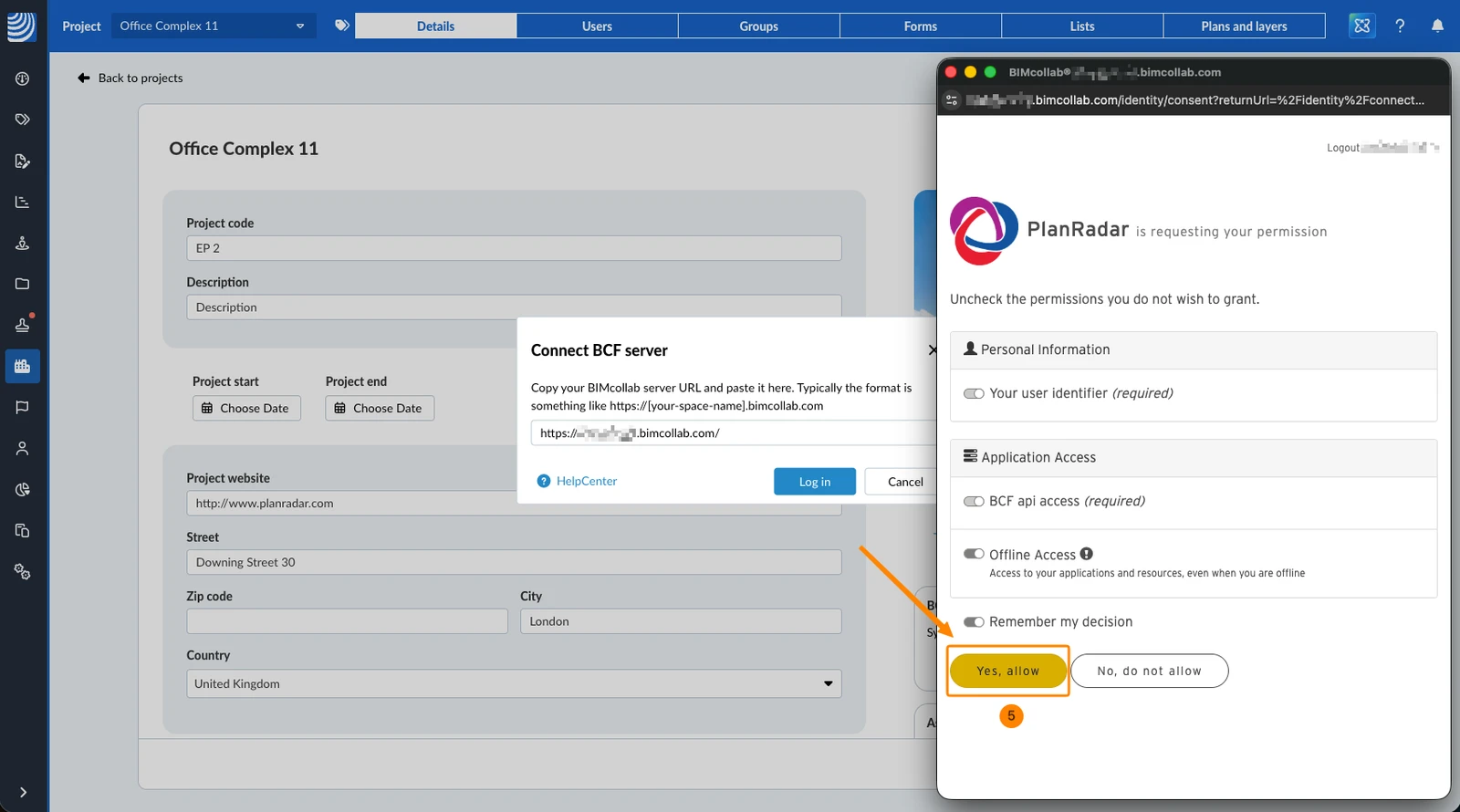
- Click Yes, allow to grant the required permissions
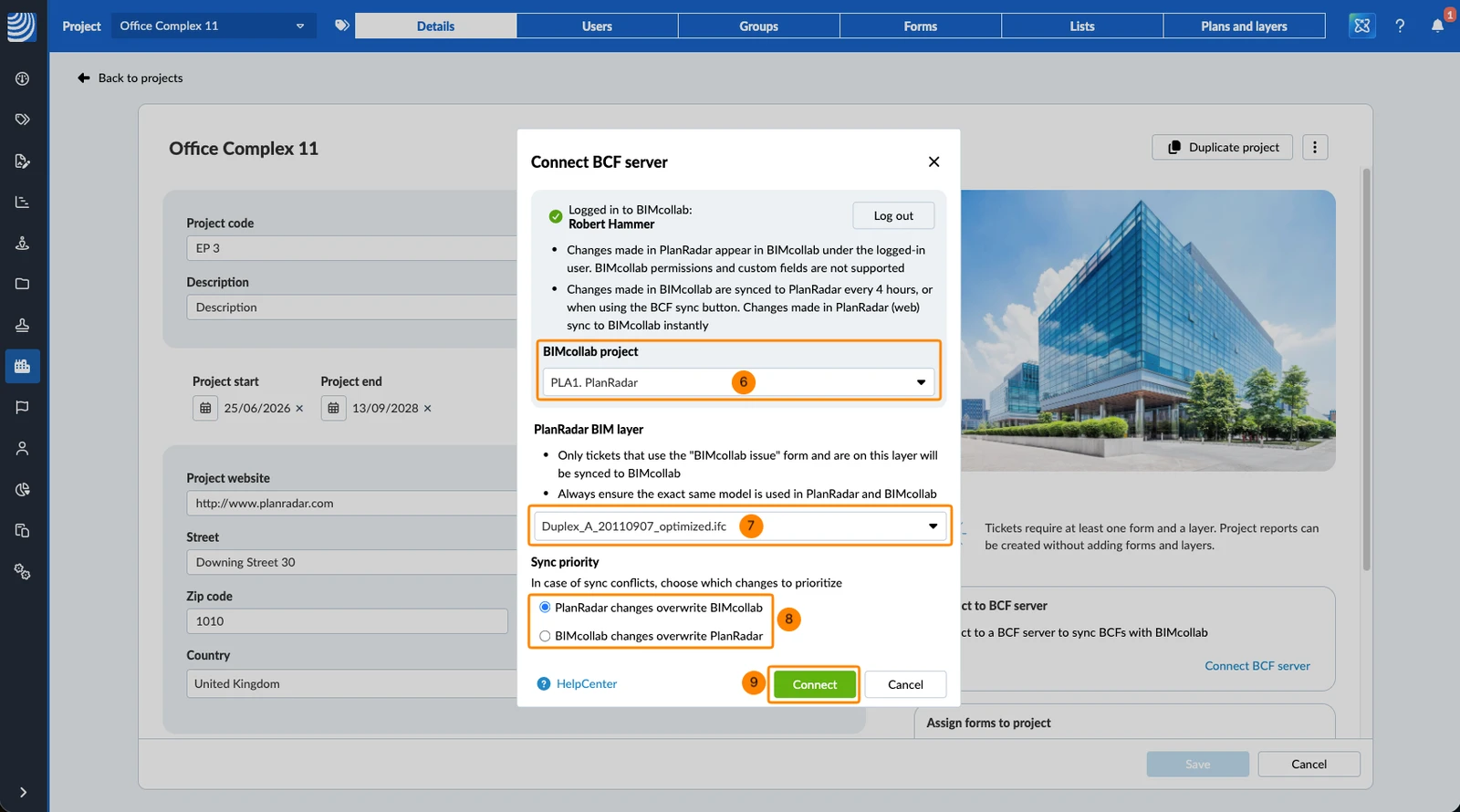
- Select the BIMcollab project
- Select the PlanRadar BIM layer — the dropdown lists the BIM models in the project
- Select the Sync priority for conflicts - choose PlanRadar changes overwrite BIMcollab or BIMcollab changes overwrite PlanRadar. Read more below in Sync Priority and Conflicts.
- Click Connect
Tickets from an Earlier Connection
If the BIM model you select already holds tickets from an earlier BIMcollab connection, the Existing BIMcollab issues prompt appears before the connection is completed, with the number of tickets it found. Choose how these tickets are handled:
- Skip existing — the tickets stay in PlanRadar but are not synced to BIMcollab.
- Sync — the tickets are included in the sync.
Sync Priority and Conflicts
The sync priority decides which side wins in a sync conflict. You choose it when you connect, and you can change it at any time.
- PlanRadar changes overwrite BIMcollab (default)
- BIMcollab changes overwrite PlanRadar
A sync conflict only occurs when both sides changed the same ticket since the last sync. If only one side changed, that change is a normal update and is applied. Two systems simply holding different values is not a conflict either. In a real conflict, the side with priority wins and the other change is discarded.
The "BIMcollab issue" Form
The first connection in your account automatically creates one form named "BIMcollab issue". Every project that connects afterwards reuses the same form — there is only ever one per account.
The form name is always the English "BIMcollab issue", in every language. You cannot rename, duplicate or deactivate it. You can only delete it, or remove it from a project, when no connection is active and no ticket was created with it.
Apart from that, it behaves like any other form: you can assign it to other projects, favourite it and use it in filters, statistics and ticket reports.
BIMcollab Fields
BIMcollab fields in that form are managed by the integration.
- You can change the order of the fields.
- You cannot rename or delete them.
- You can recognise them by the BIMcollab label in the form builder and in the ticket details.
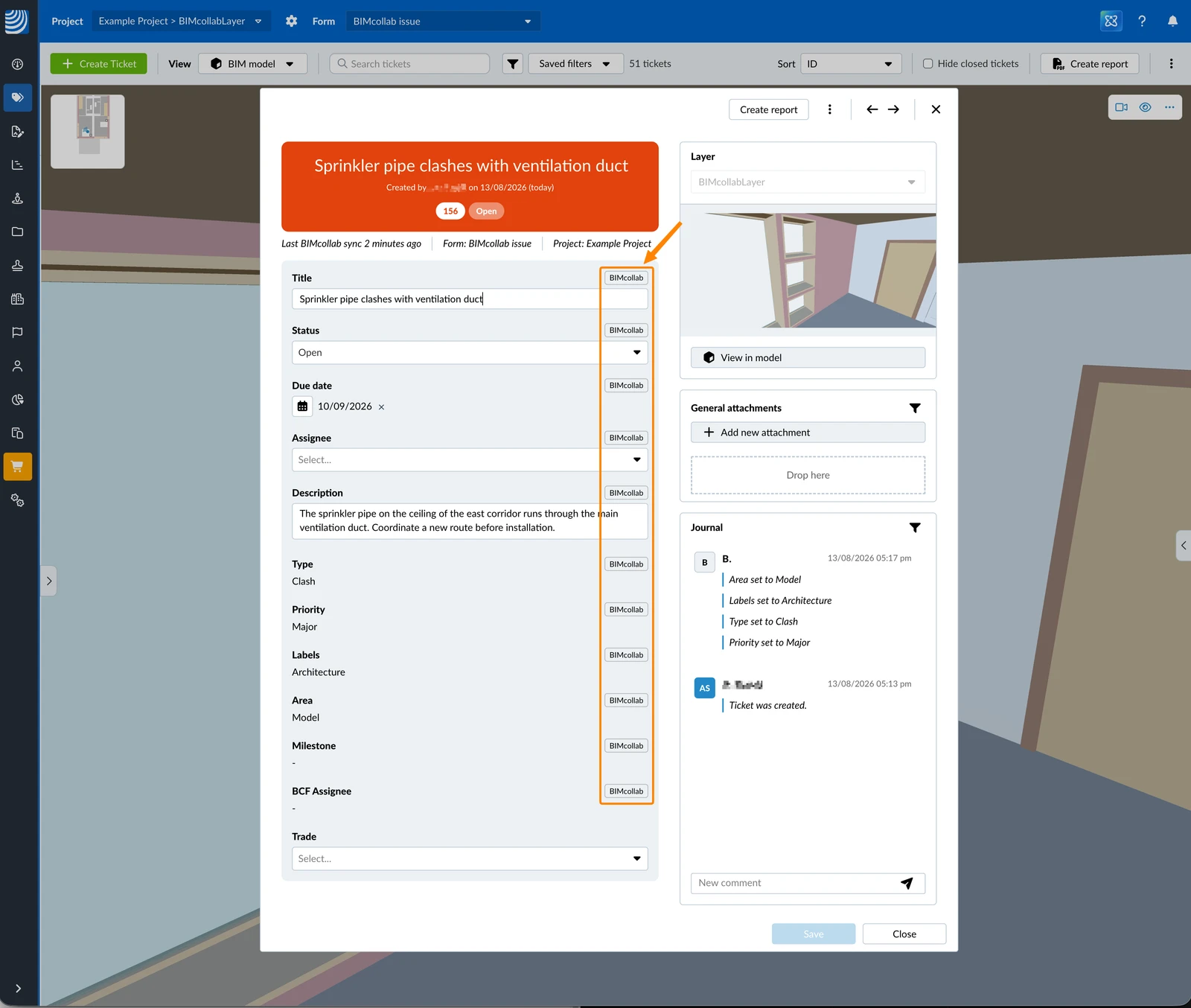
Fields:
- BIMcollab fields editable in PlanRadar: Title, Status, Due date, Assignee, Description
- BIMcollab fields not editable PlanRadar: Type, Priority, Labels, Area, Milestone, BCF Assignee
- PlanRadar fields added to the form are not synced: Trade in this example
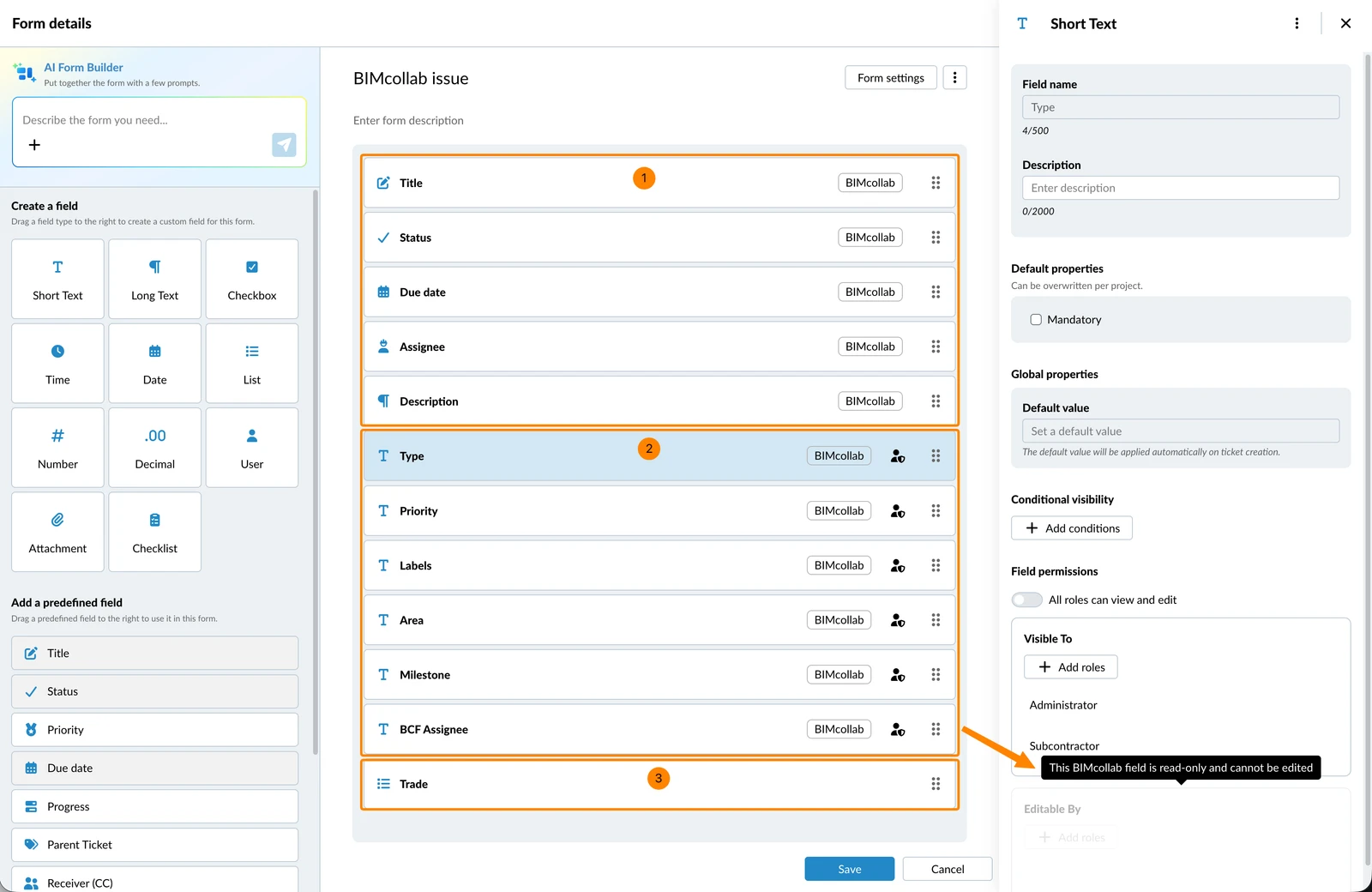
The Assignee in PlanRadar is only updated according to changes in BCF Assignee, if the email address of the users on both sides matches. The BCF Assignee never gets updated in BIMcollab, if the Assignee is changed in PlanRadar. The PlanRadar Assignee is not visible in BIMcollab.
The Due date in PlanRadar is mapped to the Deadline in BIMcollab. The other fields have the same names.
Field Properties
For all fields you can change:
- Description
- Field permissions: Visible To
- Conditional visibility
For BIMcollab fields that are editable in PlanRadar you can also change:
- Mandatory
- Default value
- Field permissions: Editable By
Sync with BIMcollab Manually
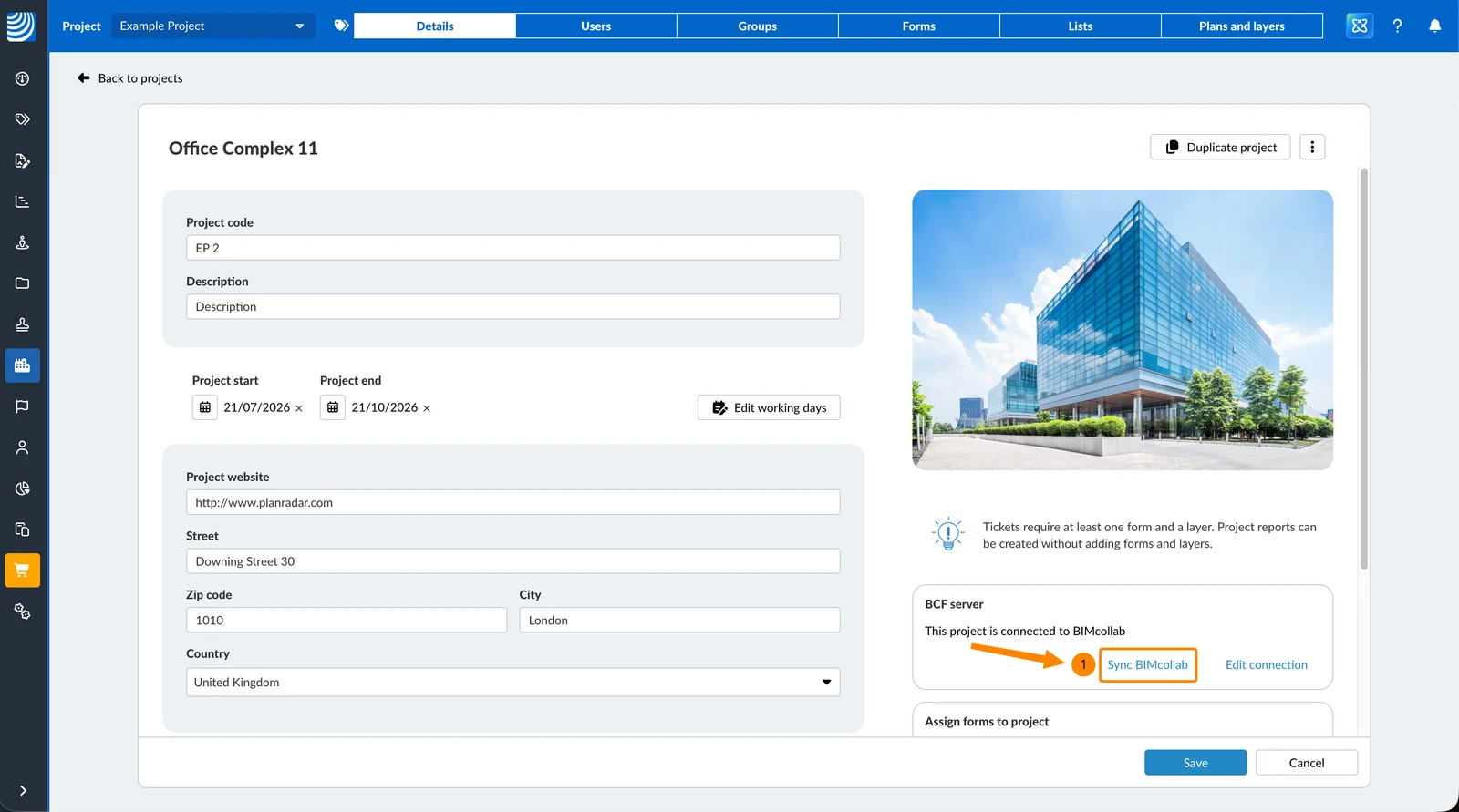
Changes made in BIMcollab arrive in PlanRadar every 4 hours. To bring them in right away:
- Click Sync BIMcollab
Edit the Connection
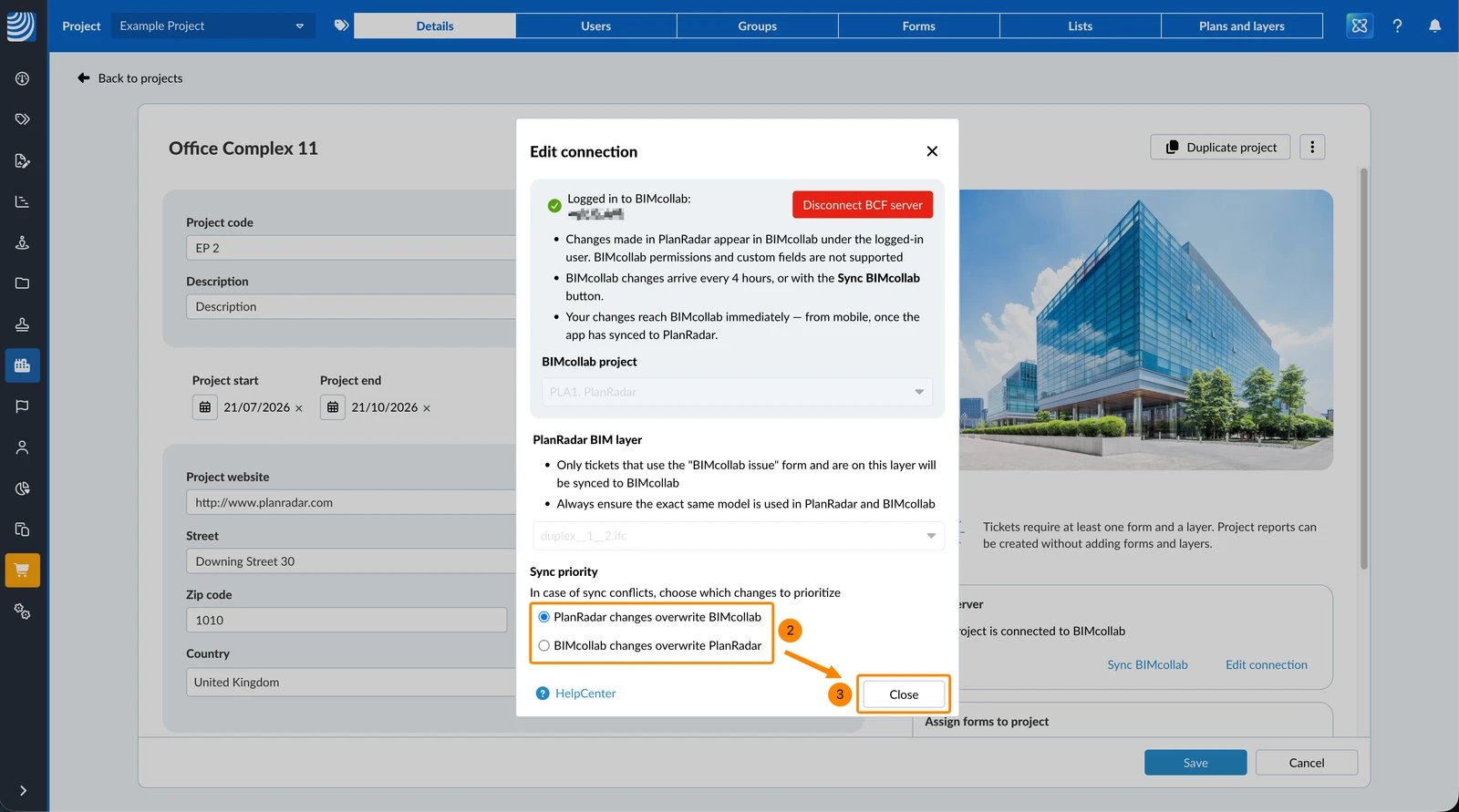
While a project is connected, only the sync priority can be changed. The BIMcollab project and the linked BIM model are locked.
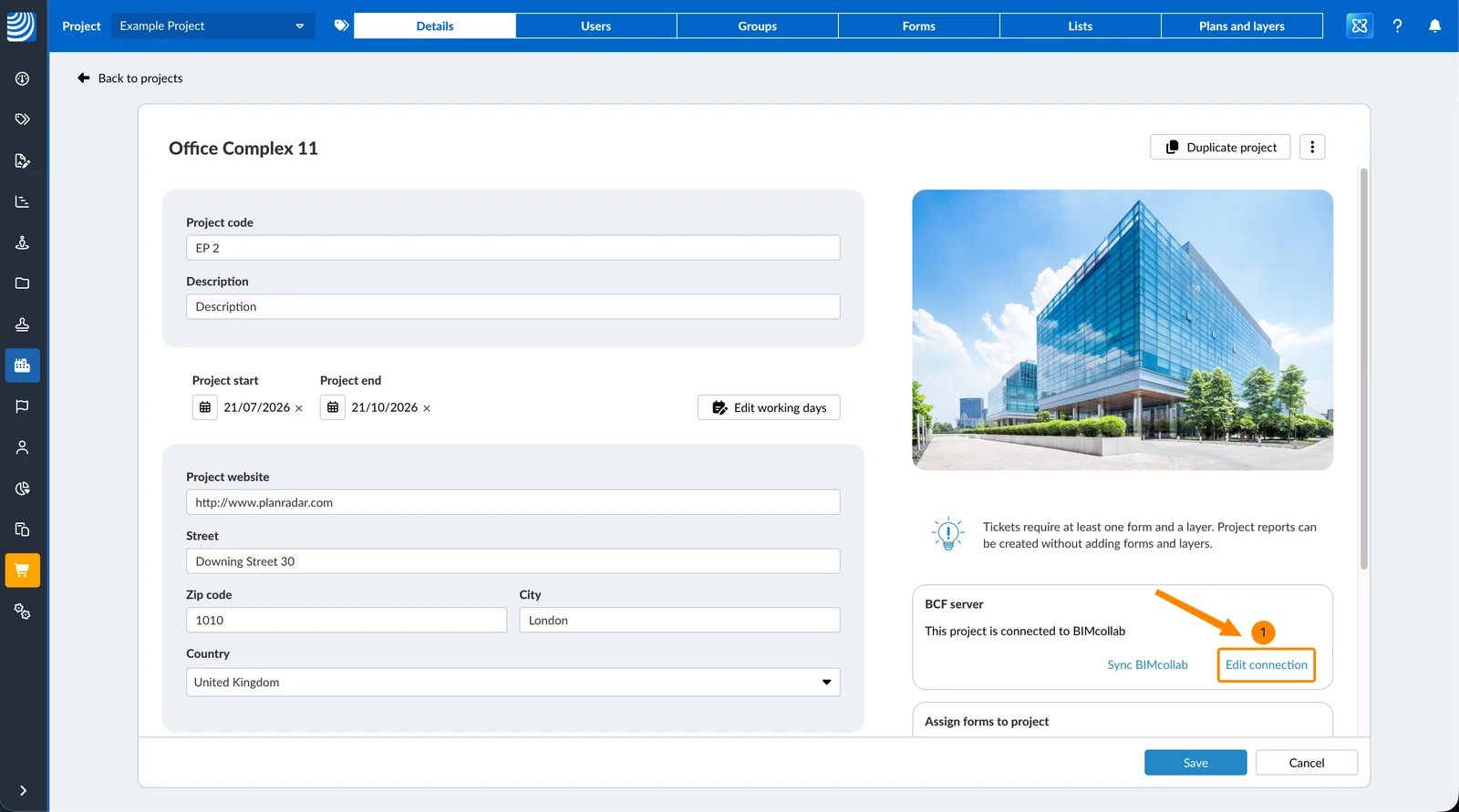
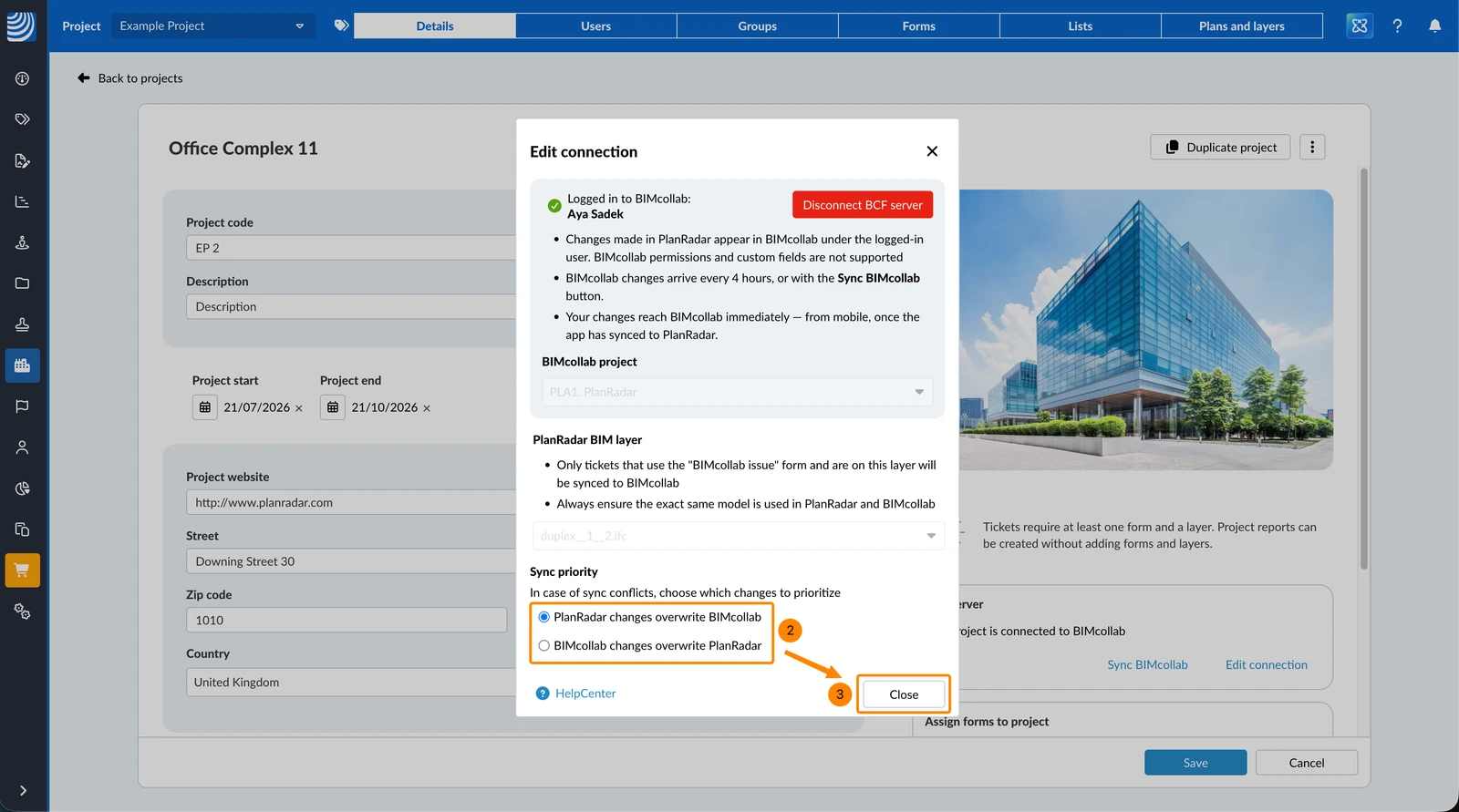
To change the sync priority:
- Click Edit connection
- Select the Sync priority
- Click Close
Disconnect a BCF Server
To stop syncing a project with BIMcollab:
- Click Edit connection
- Click Disconnect BCF server
- Click Disconnect to confirm
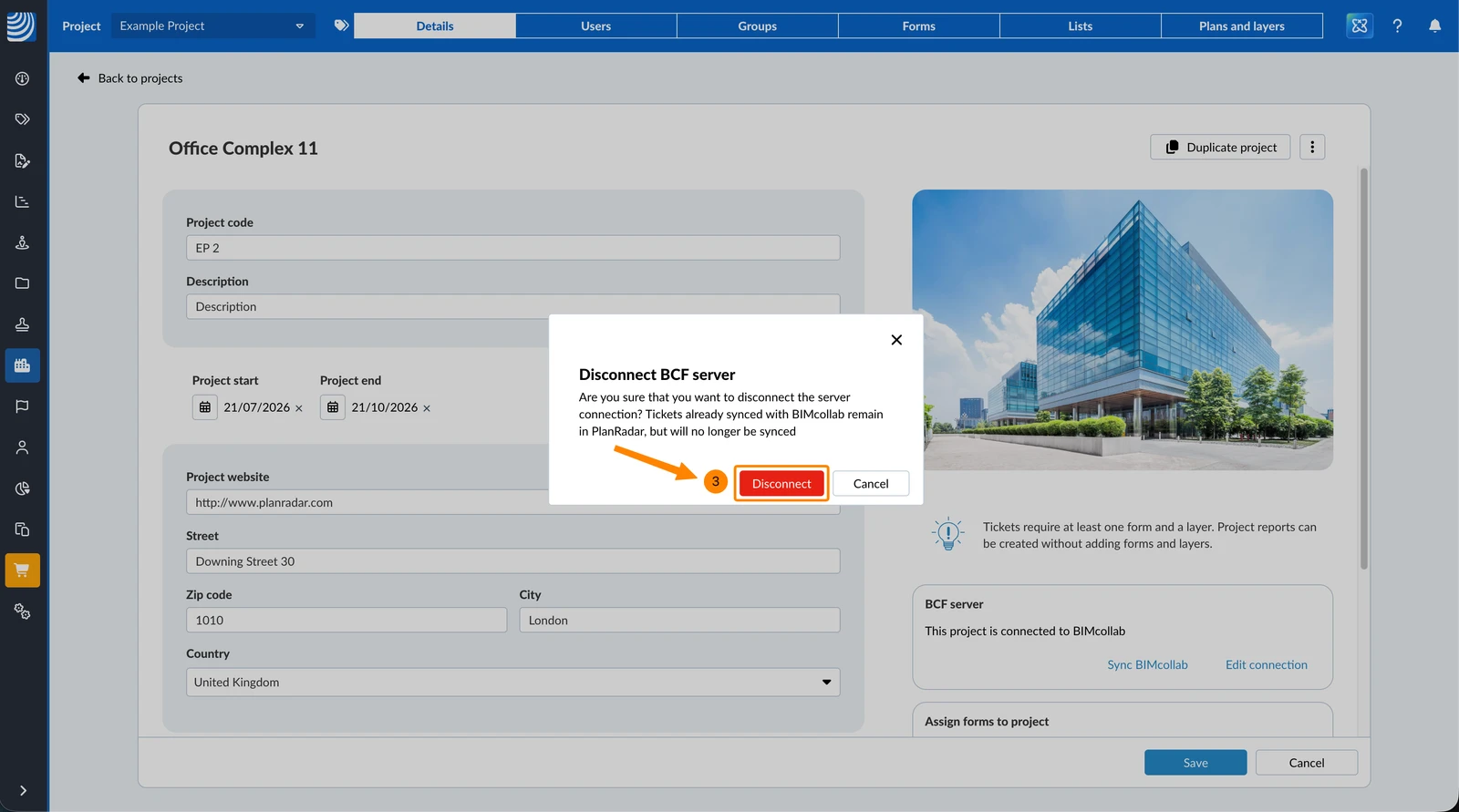
Only the syncing stops. The "BIMcollab issue" form, all tickets created with it and all values that were already synced are kept, including the read-only BIMcollab values.
Updated August 24, 2026