

 Deutsch
 Español
 Français
 Hrvatski
 Italiano
 Polski
 Português (BR)
Creating Boards for Statistics
Overview
Every chart lives on a board, so you create a board first and then add charts to it. Each statistics board can have up to 10 full-width charts or 20 half-width charts.
There are two kinds of board:
- Project boards belong to one project and are only shown while that project is selected.
- Account boards are available in every project, and are the only boards shown while Show all projects is selected.
When your list holds both kinds, they are grouped under Project boards and Account boards. With statistics access through a project role, account boards are marked with an Account-level badge.
Access & Permissions
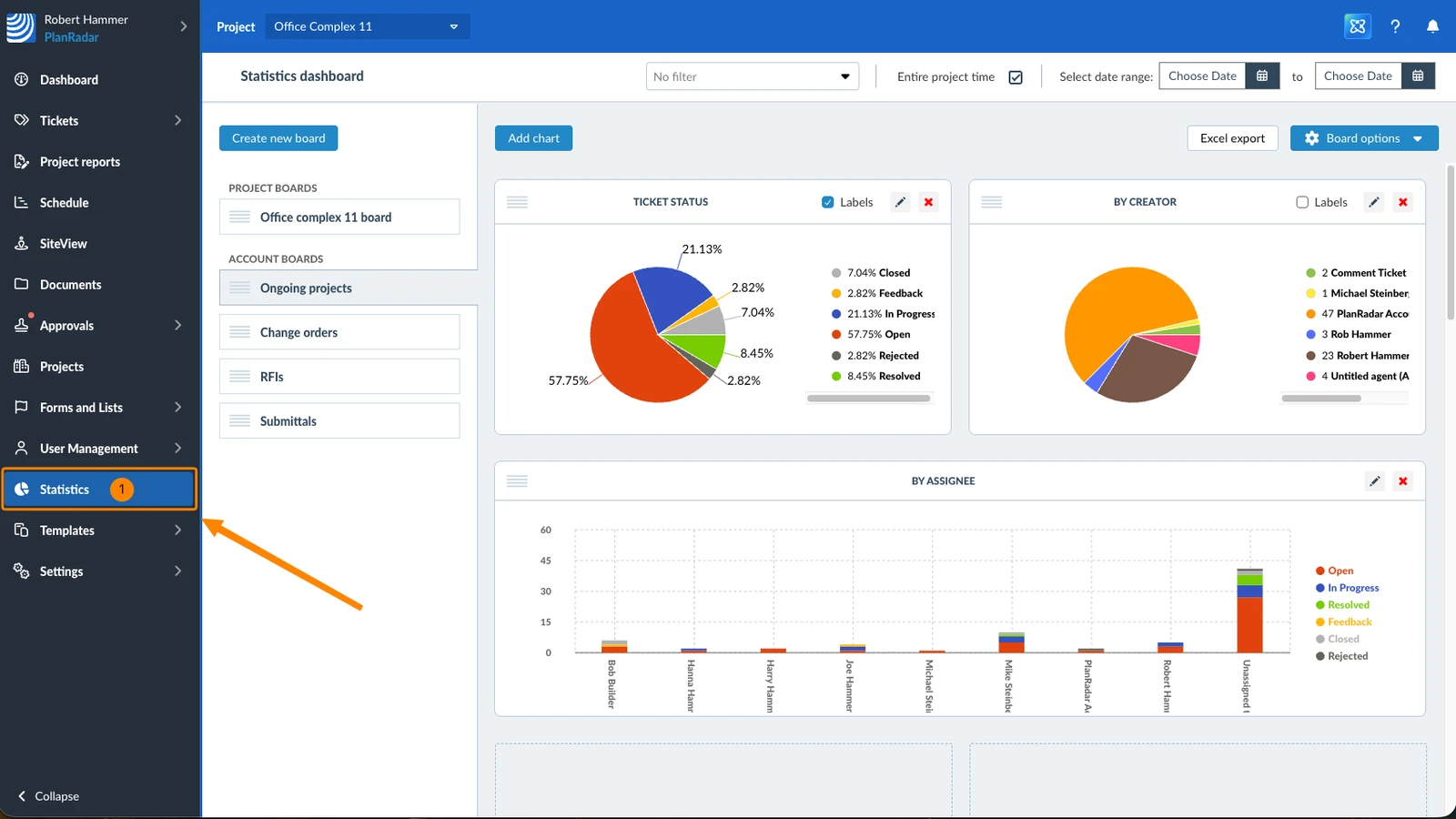
How to access Statistics
- Click Statistics
Create a Board
To create a board:
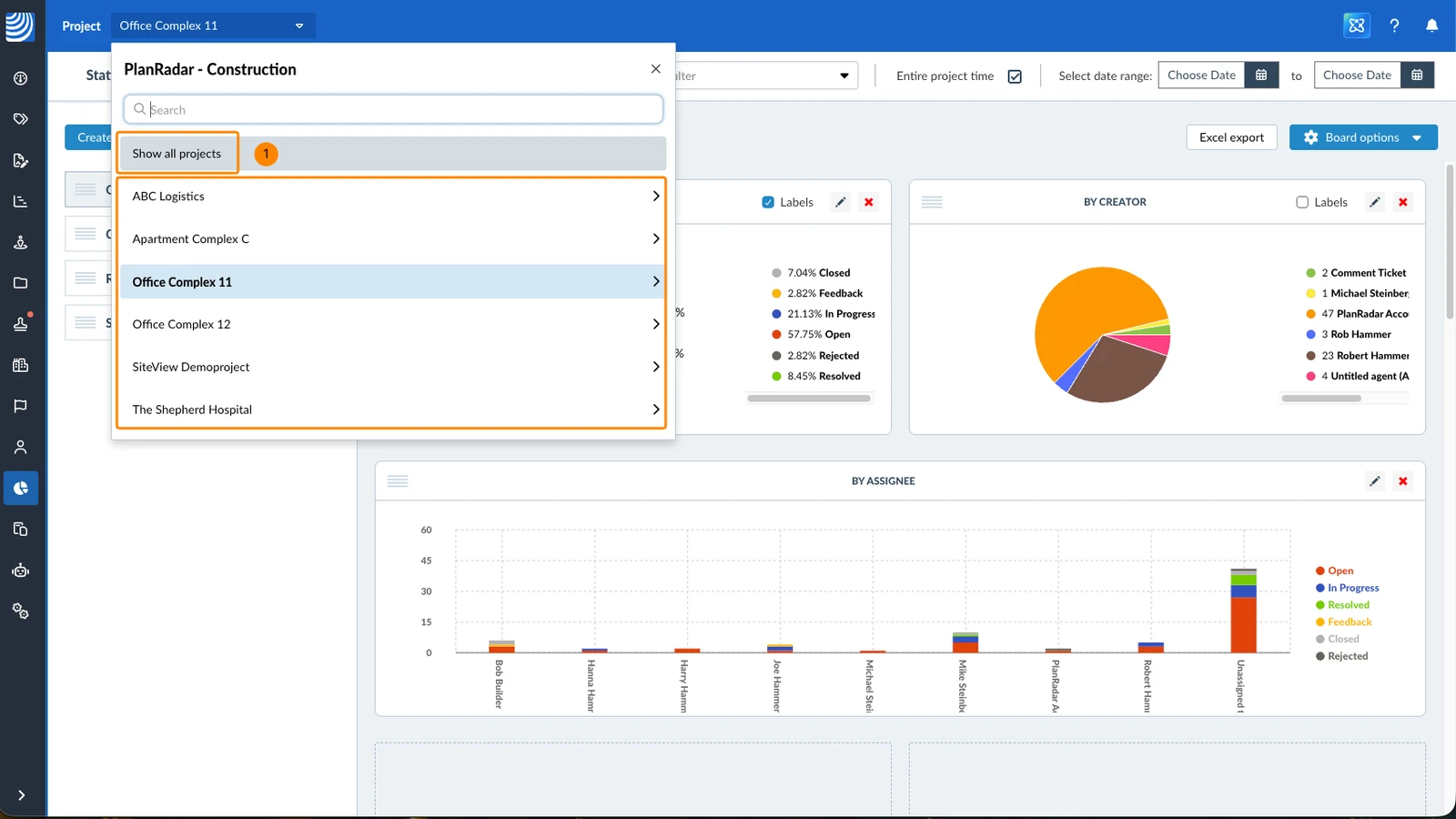
- Select a project from the Project drop-down to create a project board
OR select Show all projects to create an account board
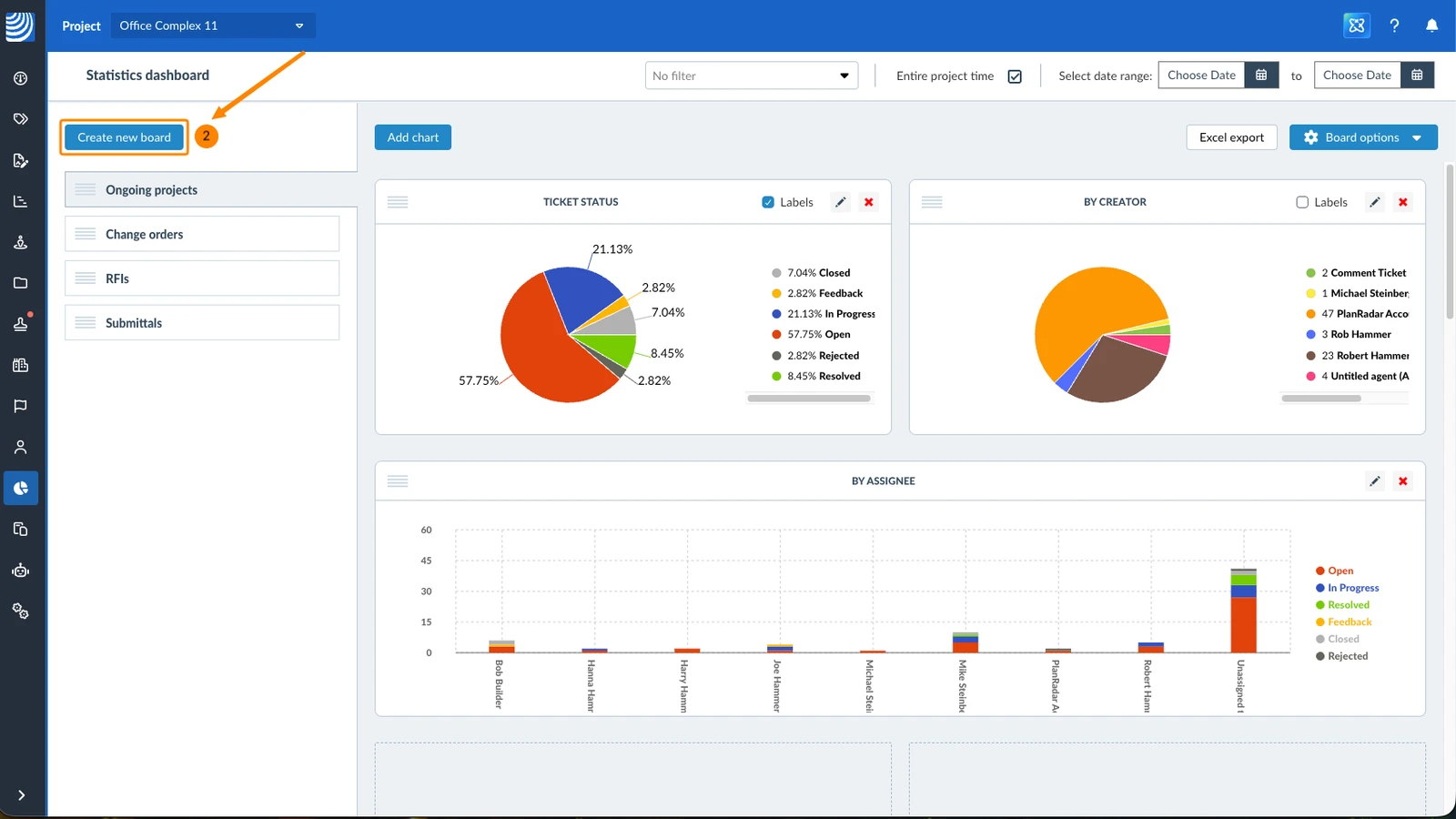
- Click Create new board
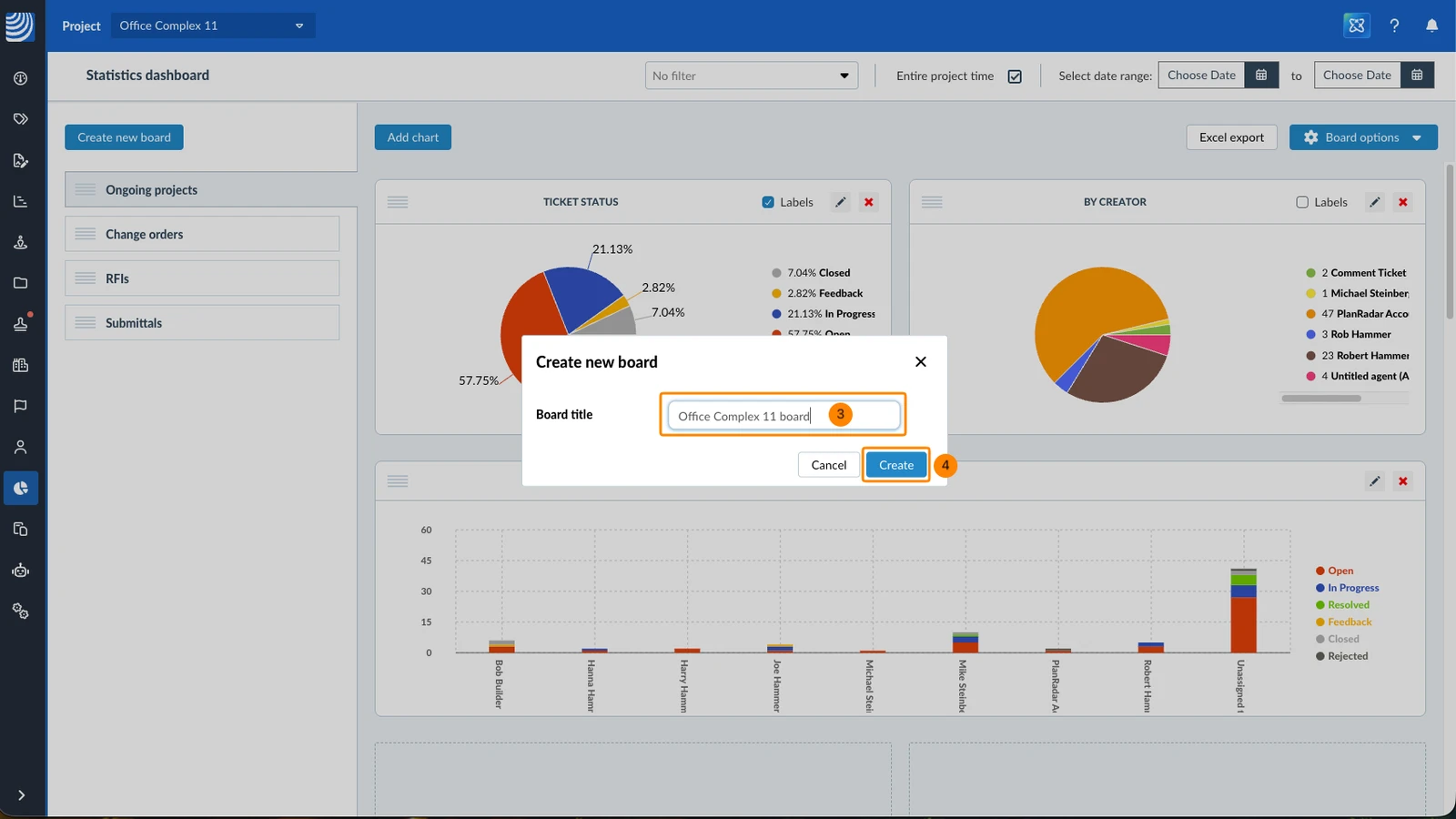
- Enter the board title
- Click Create
Rename a Board
To change the title of a board:
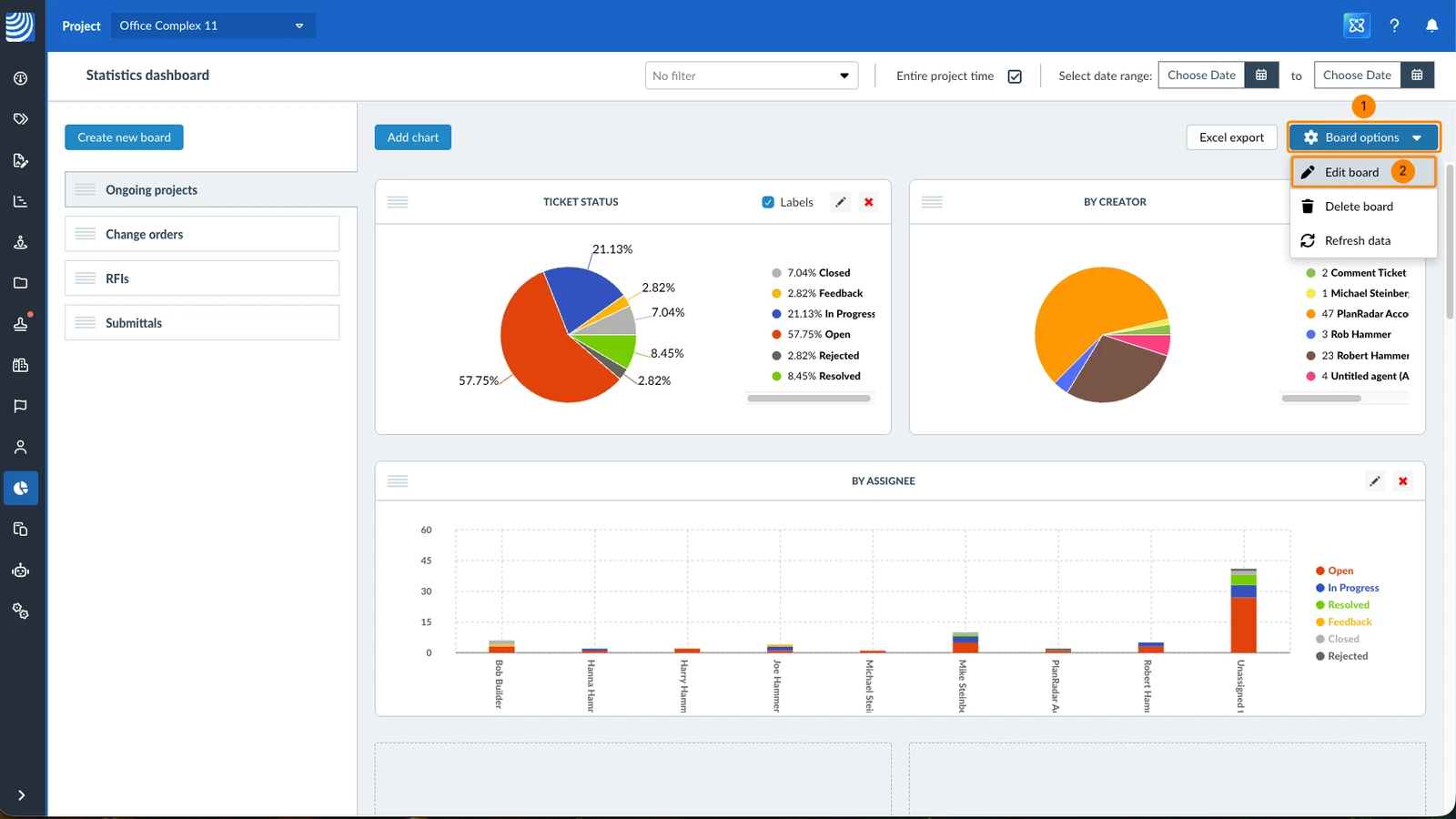
- Click Board options
- Click Edit board
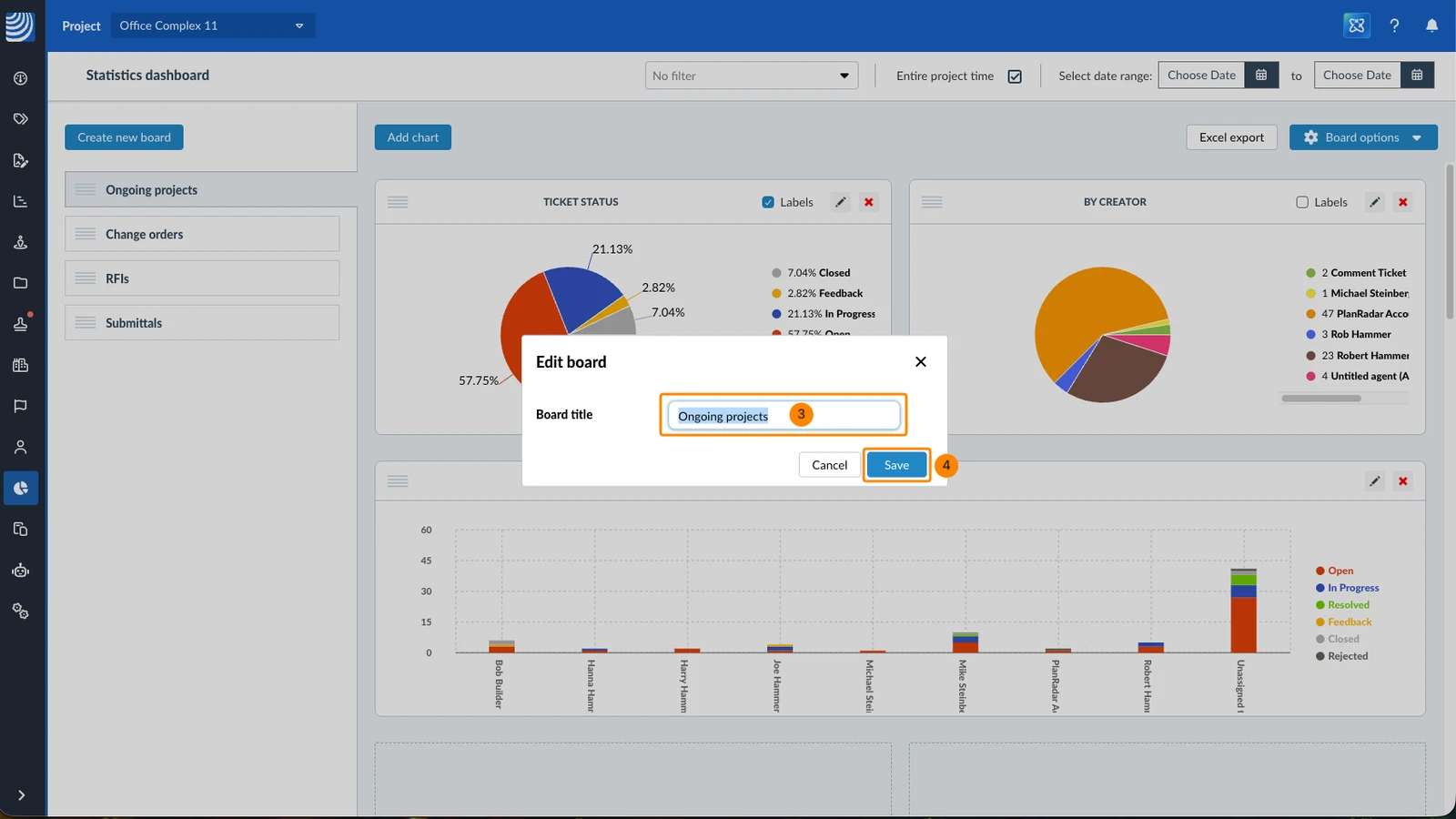
- Edit the title
- Click Save
Reorder Boards
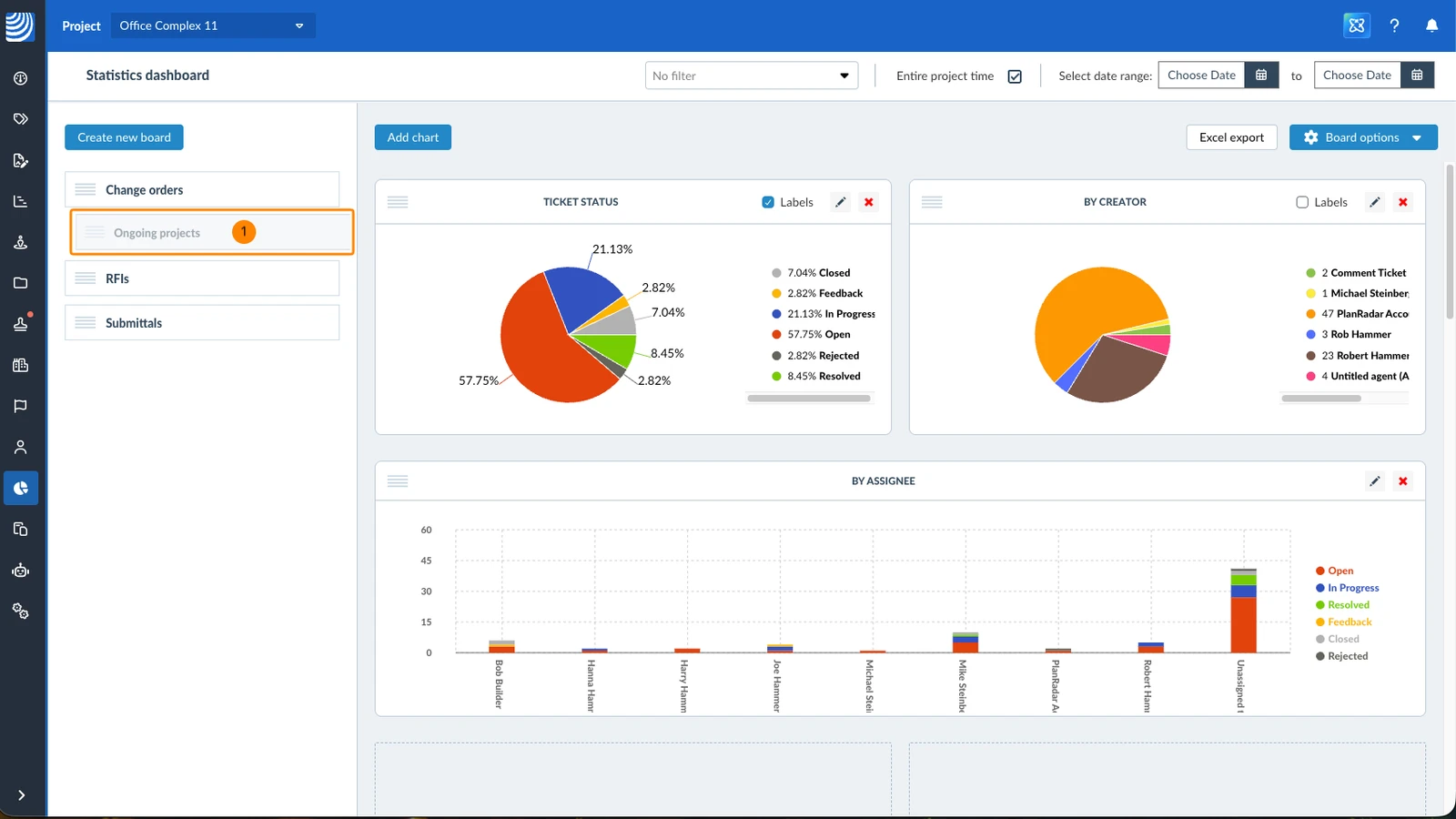
To change the order of the boards in the list:
- Drag the board to its new position
Rearrange Charts on a Board
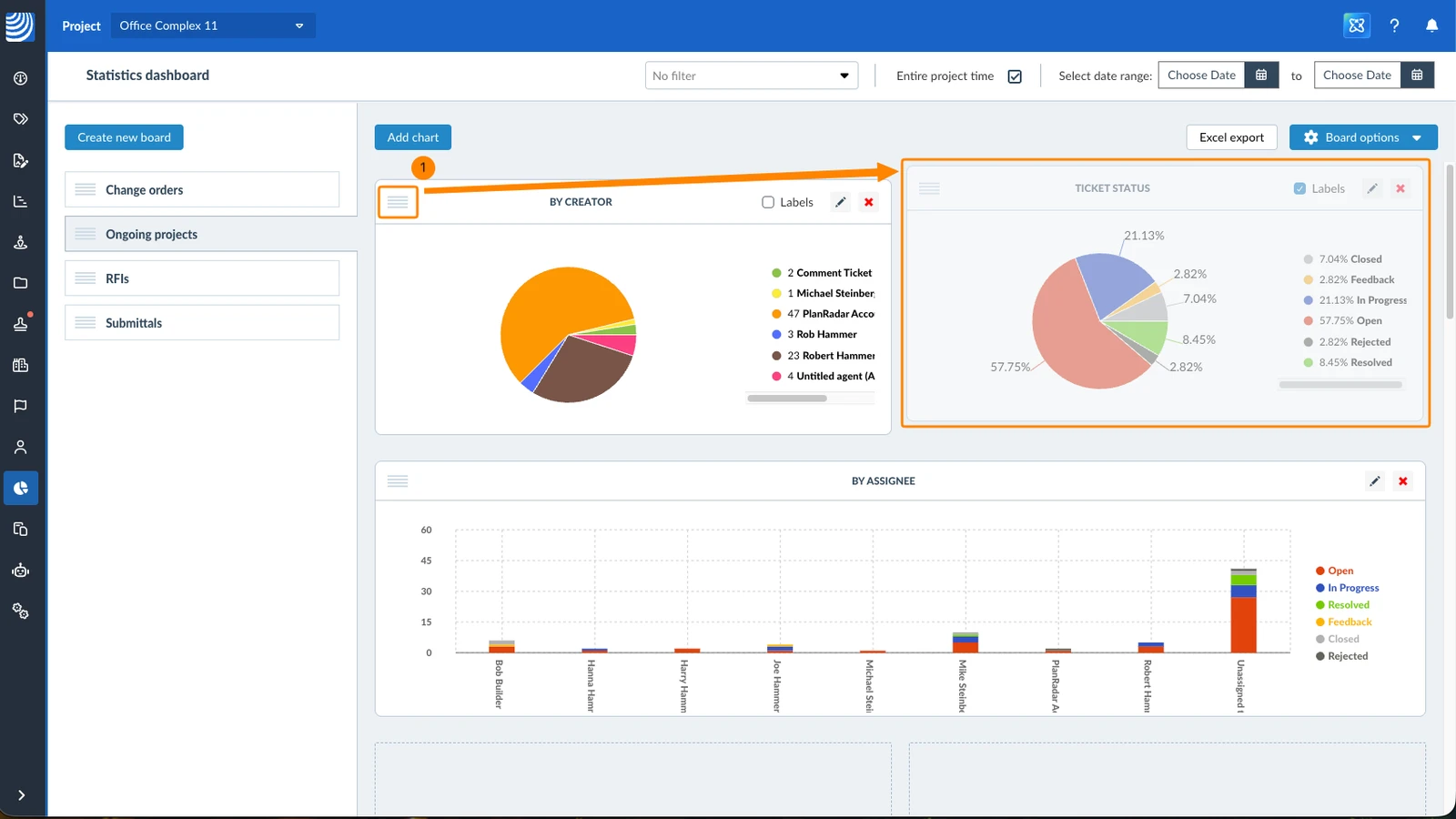
To move a chart to a different position on the board:
- Drag the chart to its new position
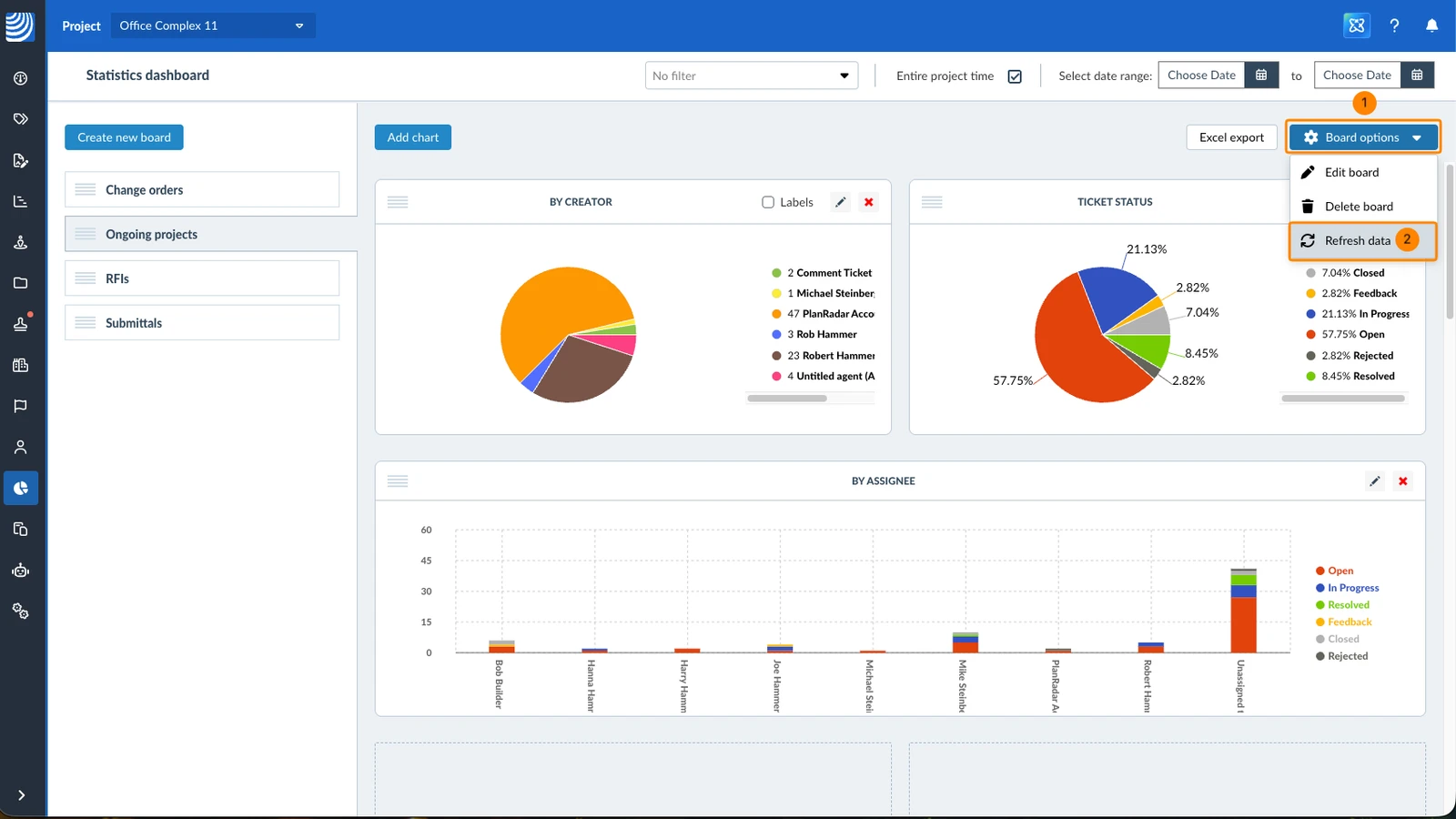
Refresh a Board
The statistics data might be cached for a few minutes to improve the user experience. To see the latest data, refresh the board:
- Click Board options
- Click Refresh data
Delete a Board
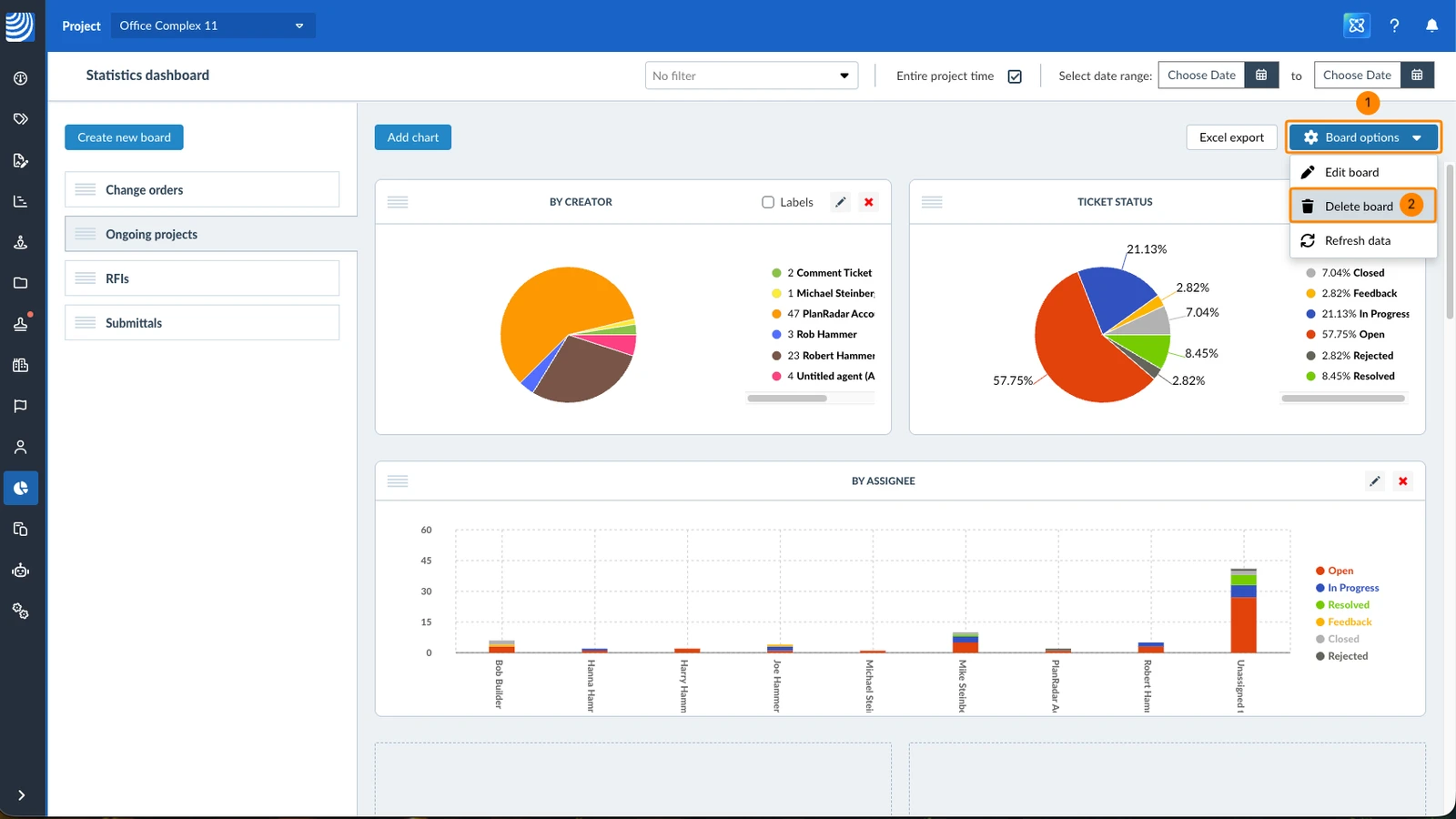
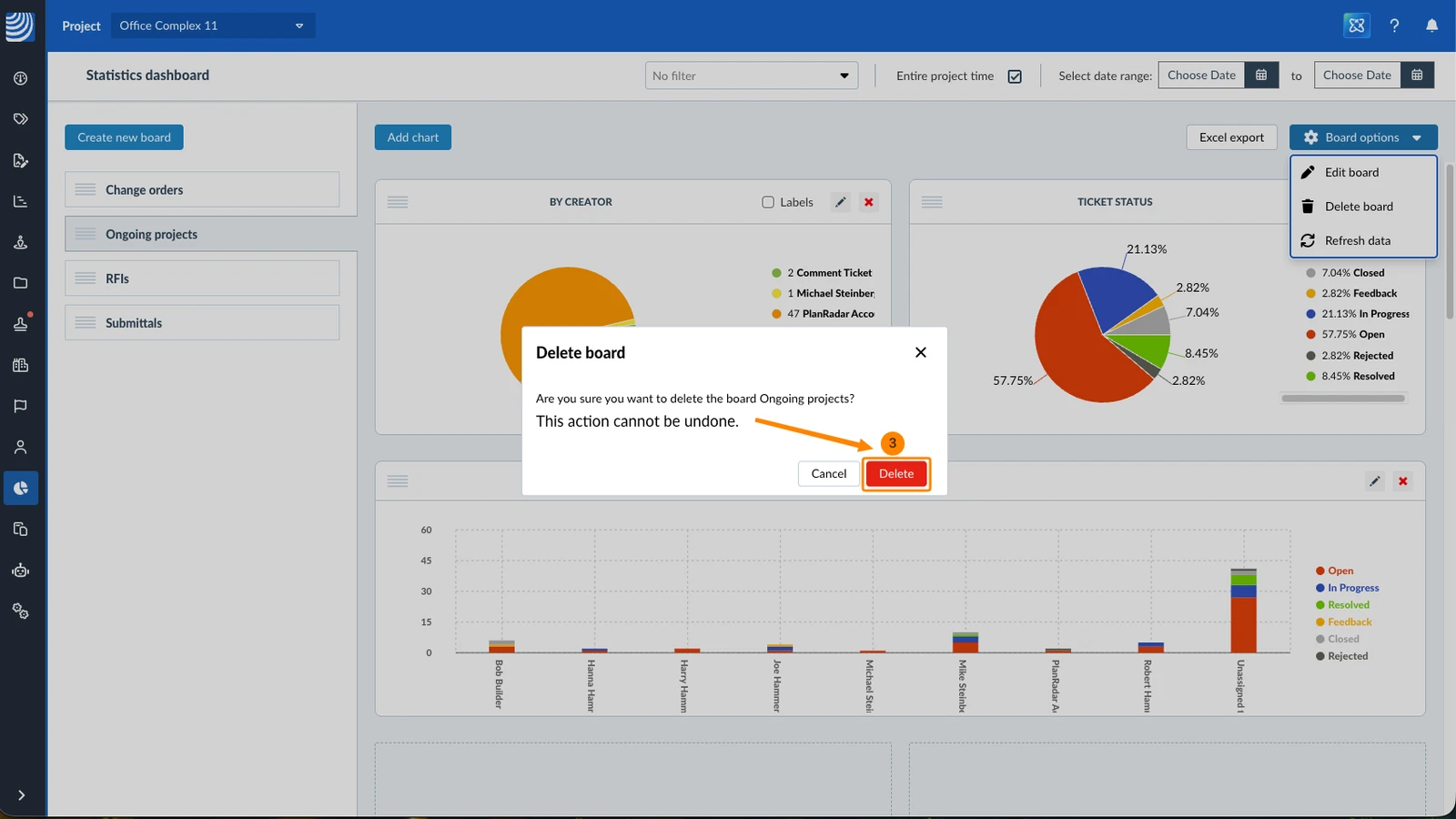
To delete a board:
- Click Board options
- Click Delete board
- Click Delete to confirm
Updated September 4, 2026