

 Deutsch
 Español
 Français
 Hrvatski
 Italiano
 Polski
 Português (BR)
Duplicate a Project in the Webapp
Overview
Use the duplicate feature to create a copy of a project which can be helpful if you want to create templates to derive from. When you copy a project, you can choose which data you want to include.
Access & Permissions
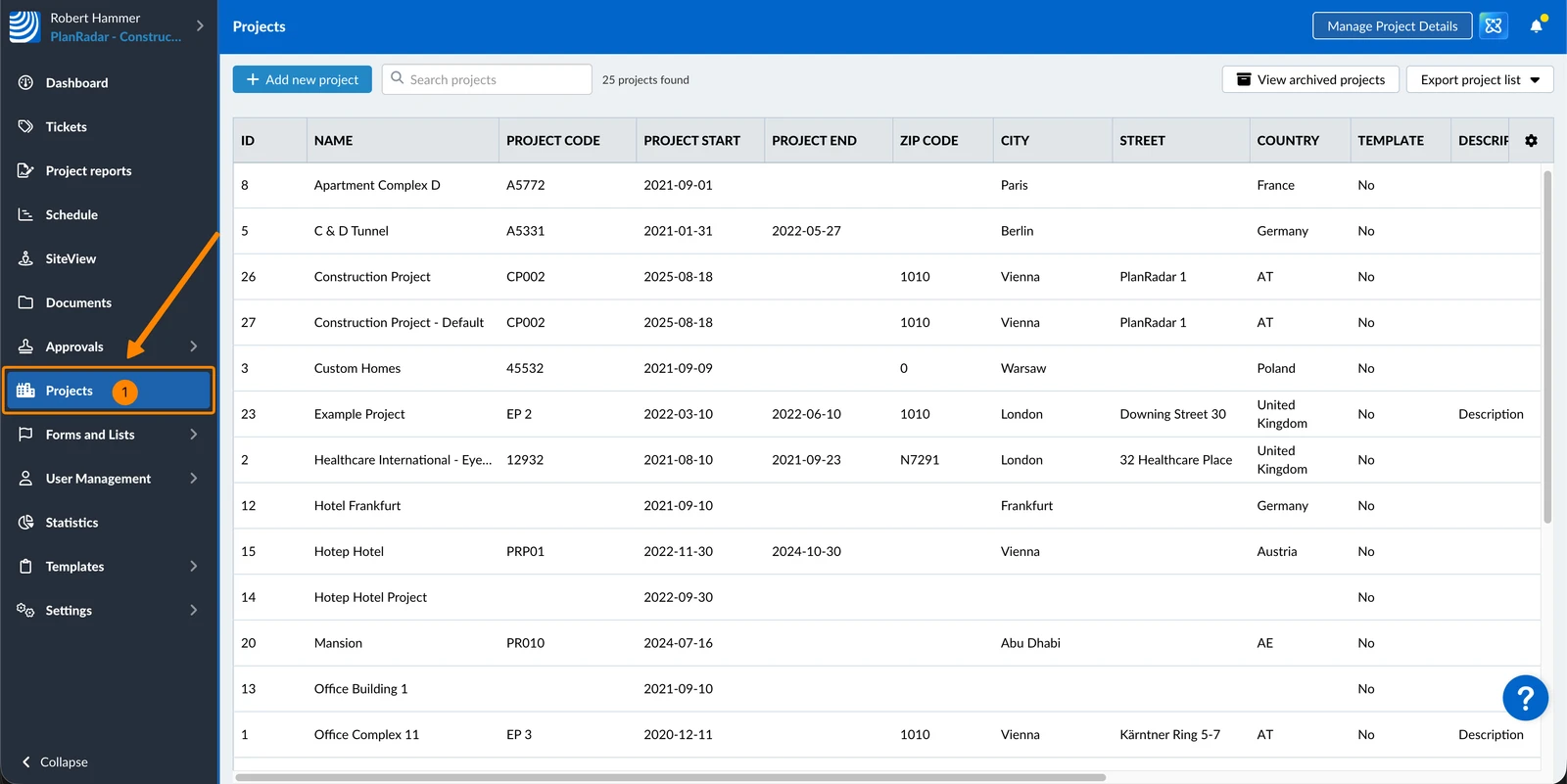
How to access Projects
- Click Projects
Duplicate a Project
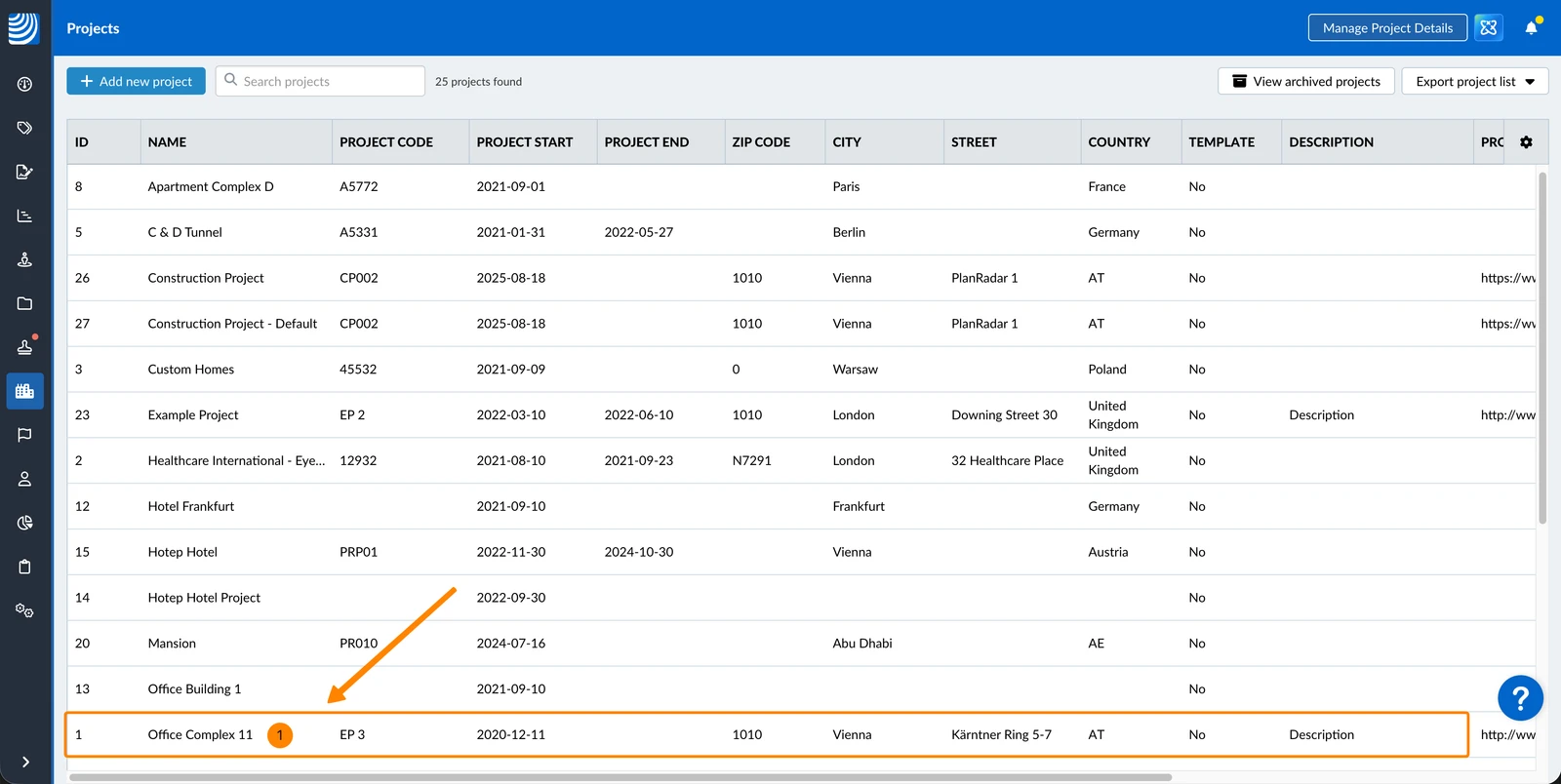
To duplicate a project:
- Select the project
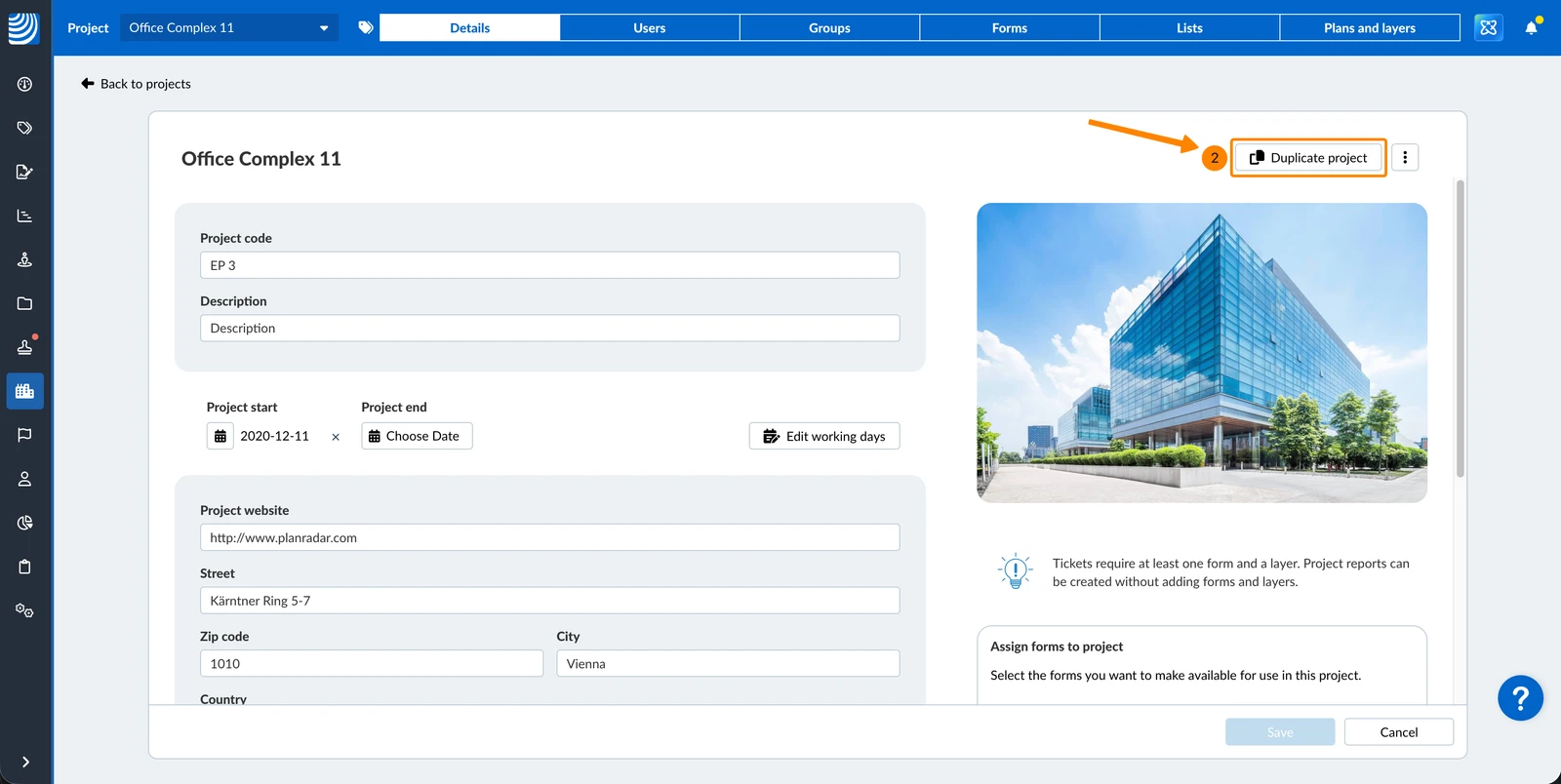
- Click Duplicate project
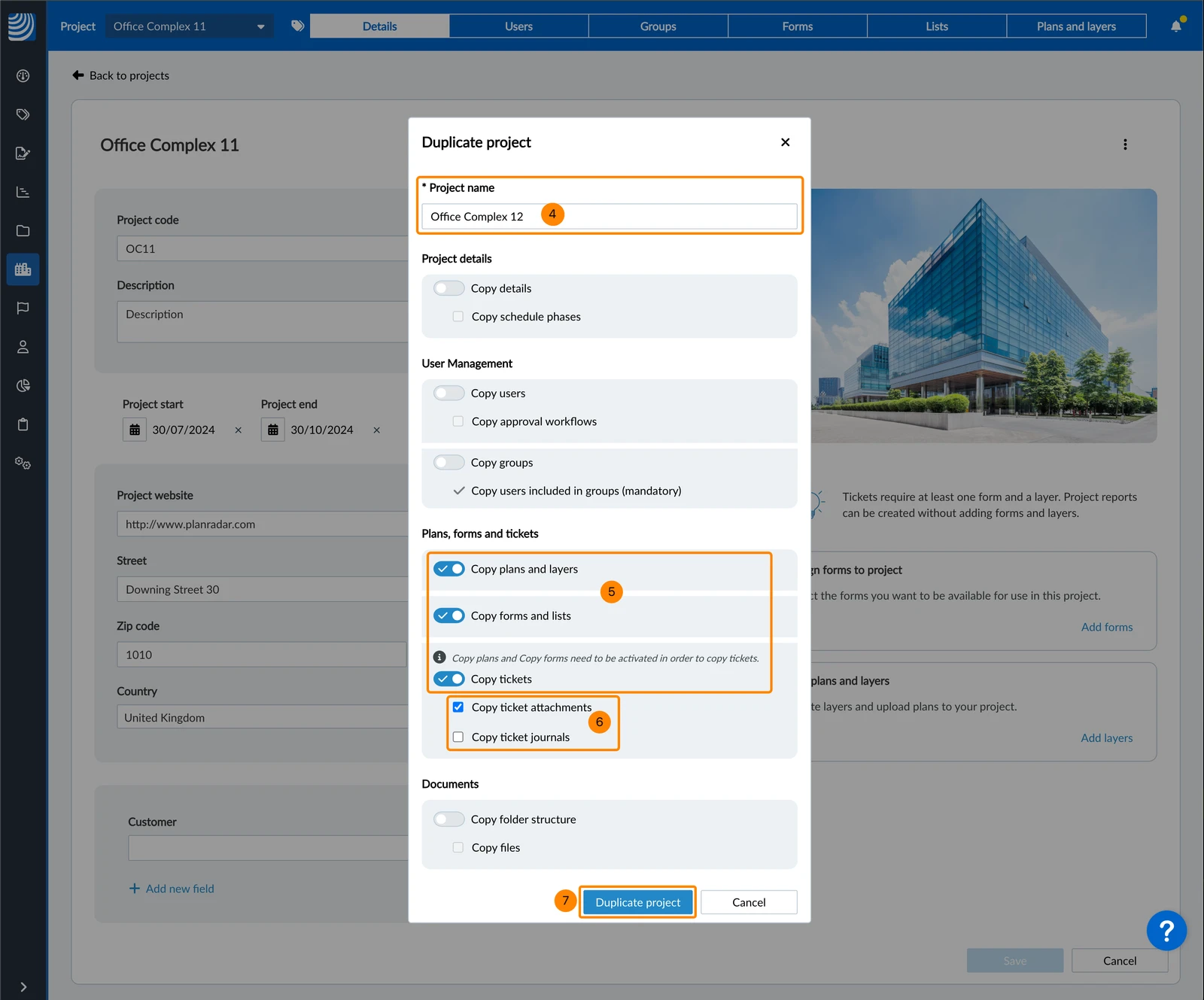
- Enter a new project name
- Activate the toggles for the data you want to copy
- Optional: Select the checkboxes below activated toggles to include data with dependencies.
e.g. to copy ticket attachments you need to copy tickets
Checkboxes are disabled until the associated toggle is activated. - Click Duplicate project
Excluded Data
The following data is never copied:
-
Project reports
-
Documents:
- Activity log
- Approval requests
- Favorites
-
SiteView runs
What Happens to Plans and Folders
The dialog has a Plans section with a Copy folder structure toggle, and a Copy plans and models checkbox to bring the files along as well.
- Versions. Every version of a plan is copied, and the copies are numbered again from V1.
- Calibration and plan markups travel with the plans, and the copied plans can be viewed straight away — they are not processed again.
- Approvals depend on the Copy users option: with users copied, the approval requests and their states come along; without them, every plan arrives as Published.
- Favourites are personal, so a copied project starts with none.
- SiteView runs are never copied.
- The plan quota is not checked while copying, so a copy can take you over your limit. Delete plans or old versions to get back under it.
Updated September 3, 2026