

 Deutsch
 Español
 Français
 Hrvatski
 Italiano
 Polski
 Português (BR)
Manage Attributes of a Project
Overview
Add attributes to a project so that its plans can carry them — for example the discipline, the floor or the plan type. The attributes come from your account's library, which an admin sets up as described in Create & Manage Global Attributes for Plans.
For a List attribute, the project can use the account list or a list of its own — for example its own buildings or units.
Access & Permissions
How to Access the Attributes of a Project
- Click Projects.
- Click the project.
- Click Attributes.
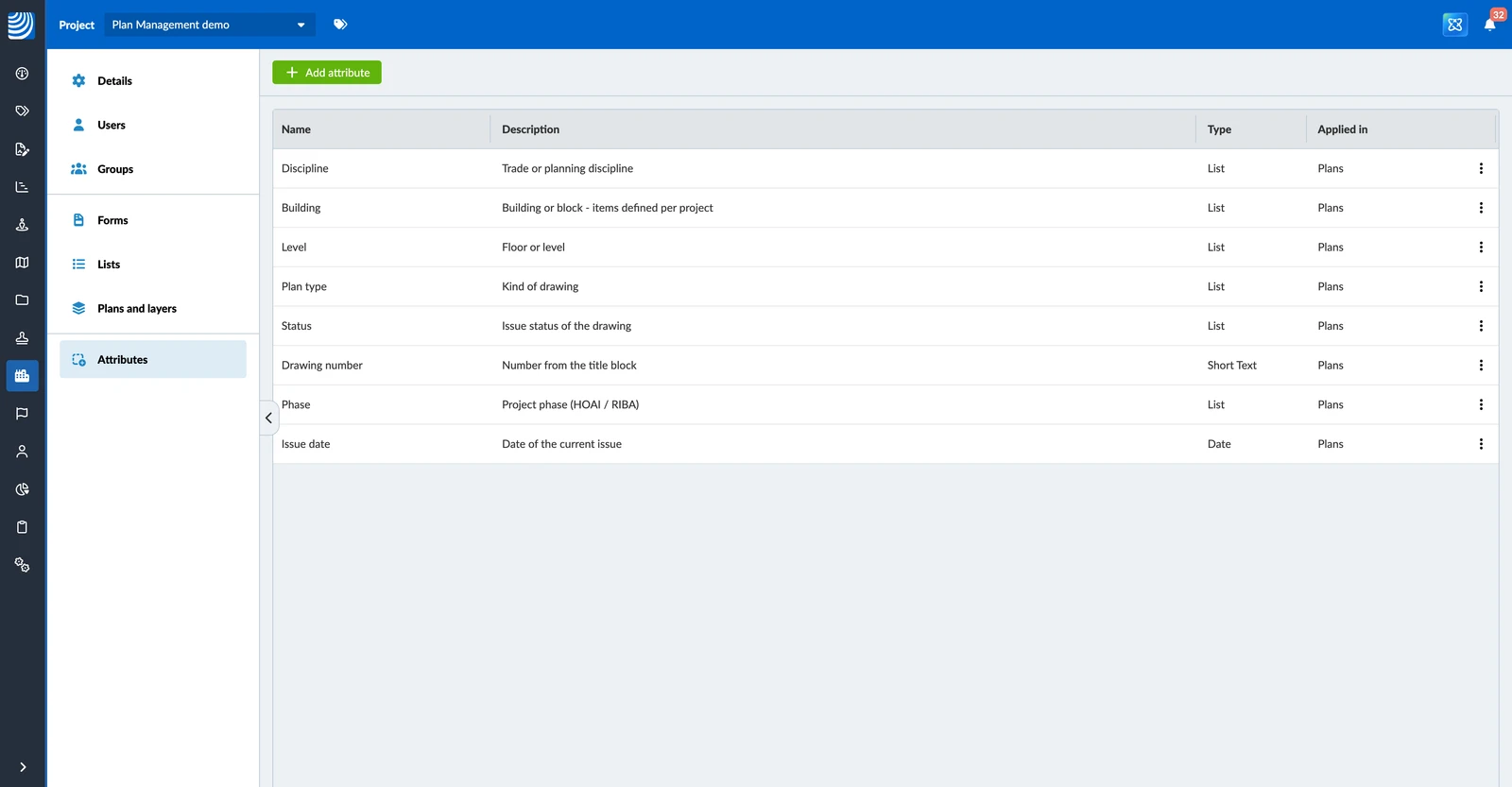
The page lists the attributes of the project with their Name, Description, Type and where they are Applied in. They appear in the order they were added, and plans show them in the same order.
Add Attributes to a Project
To add attributes from the library:
- Click Add attribute.
- Click Global attributes.
- Click + next to each attribute you want to add.
- Click Create.
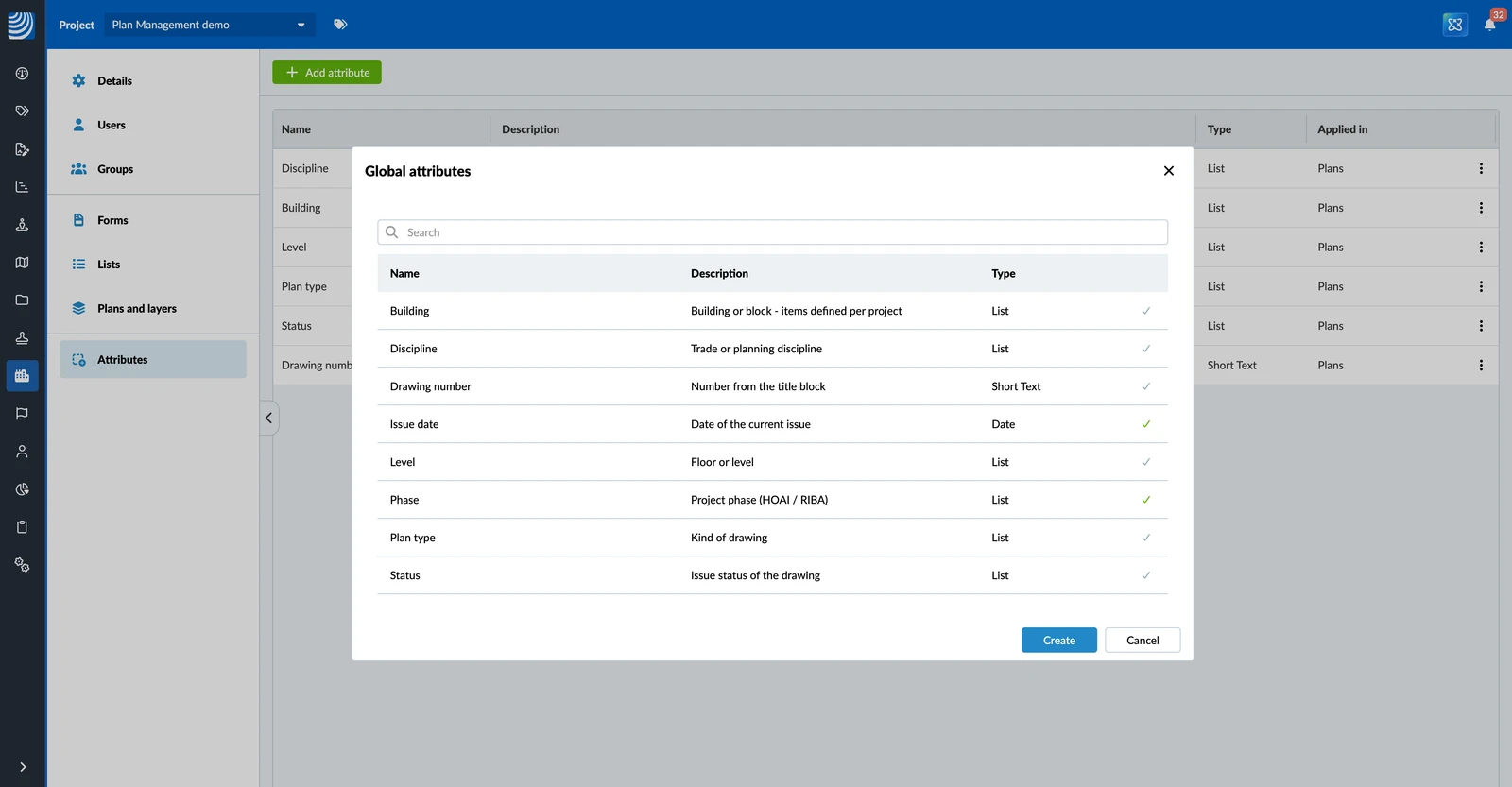
The attributes are now available on all plans of the project. Their name, type and Applied in come from the library and cannot be changed in the project.
Use the Account List or a Project List
A List attribute uses the account list by default. If your project needs other items, define a project list. It replaces the account list in this project only.
To define a project list:
- Open the More menu on the attribute, then click Configure list.
- Click Define project list. The project list starts as a copy of the account list.
- Add, rename or remove items, and select the default item, in the same way as for the account list. Read more in Create & Manage Global Attributes for Plans.
- Click Save.
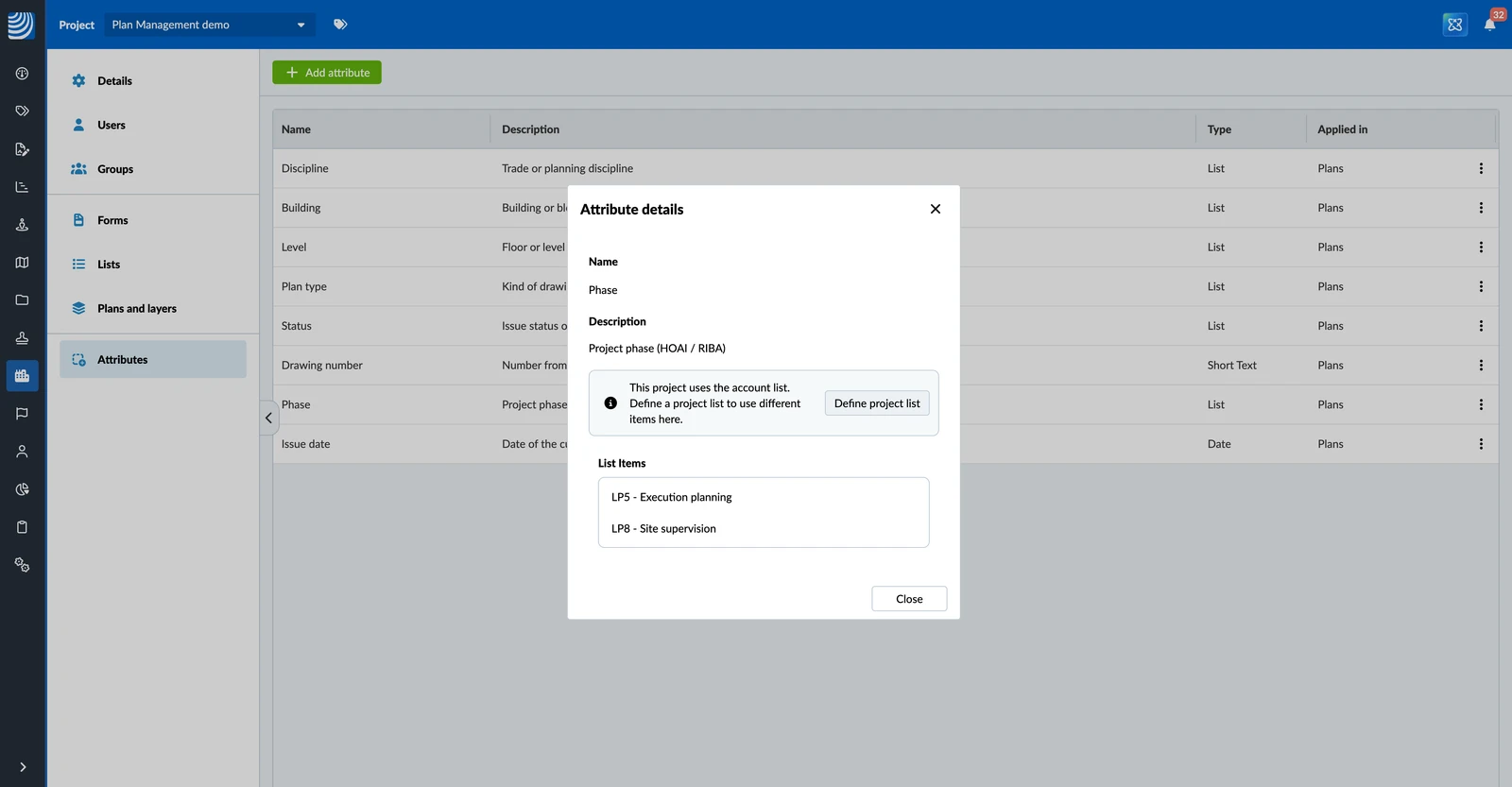
Changes to the account list do not affect a project with its own list.
Set Up a List That Has No Items
If a List attribute has no items, neither in the account nor in the project, it shows a warning icon and Not applied yet. Plans do not show the attribute until its list has at least one item.
To set up the list, click the warning icon and add the items as described above.
Remove an Attribute From a Project
To remove an attribute from a project:
- Open the More menu on the attribute, then click Remove from project.
- Click Remove from project to confirm.
The attribute and its values no longer show on the plans of this project. The attribute stays in the library and in other projects. If the project had its own list for the attribute, that list is deleted.
The dialog tells you how many items in the project have a value for the attribute, so you can check before you remove it.
Updated October 21, 2026