

 Deutsch
 Español
 Français
 Hrvatski
 Italiano
 Polski
 Português (BR)
File/Folder Access Control
Overview
Control which users, roles or groups can access specific files or folders in Document Management. Define what they can do by giving them viewer, contributor or manager permission.
Access & Permissions
- The role permission 'Document Management: Admin' can be granted to make sure there is always someone who has full access to every file and folder, overruling individual access settings to certain files or folders.
- Subcontractors can be granted viewing permissions, but they can never modify or create new files or folders.
- Watchers can view all files and folders while access control is disabled. Once access control is enabled, they can only view the files and folders they were given access to — individually or through a group. Like subcontractors, they can never modify or create files or folders.
How Access Control Works
- Granting access to a role or group gives every member the selected permission.
- If a user has access through more than one source — as an individual, through a role, or through a group — the highest permission level applies.
- When a user's group or role membership changes, their access updates automatically.
- Folder access settings are inherited by all sub-folders and files. You can change or restore this, see Inherited Access Settings.
- Subcontractors and watchers are always limited to viewing, even when the group or role they belong to has contributor or manager permission.
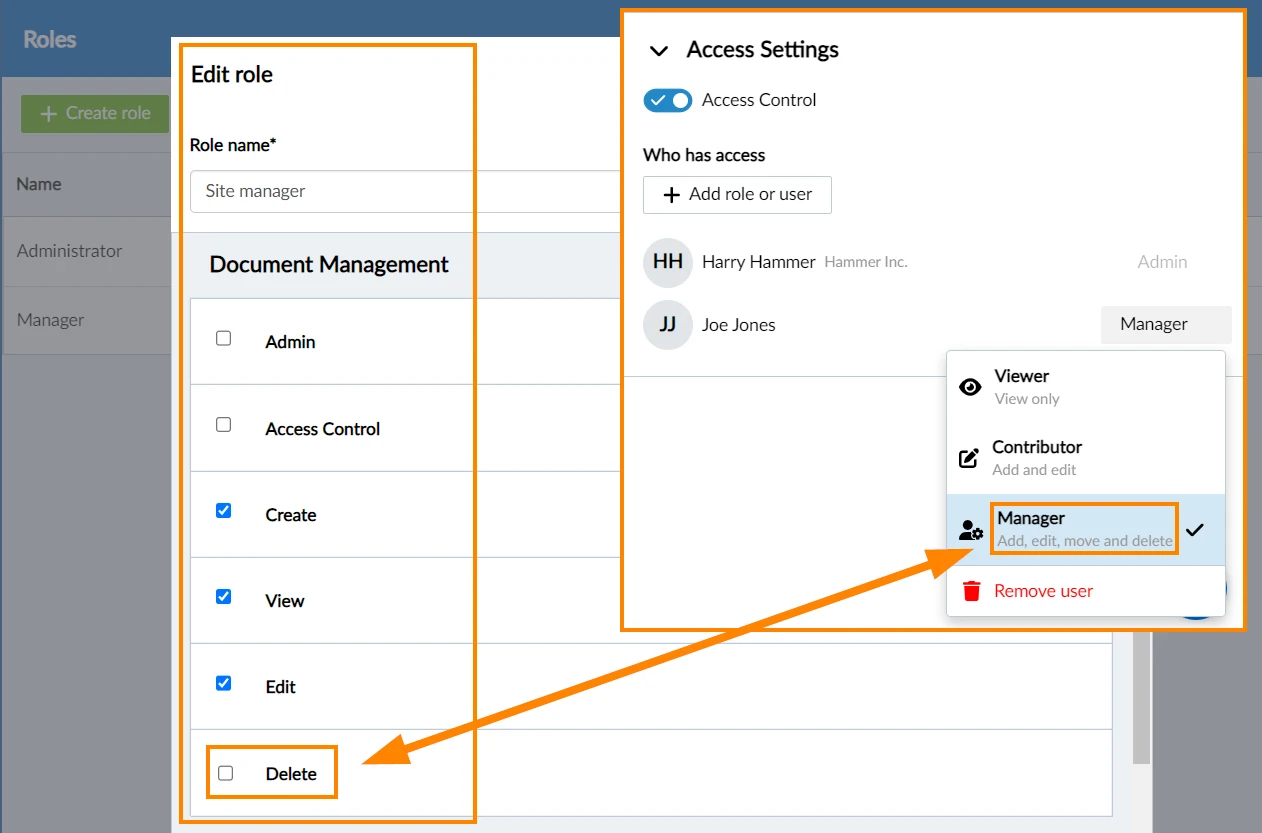
For example if a user doesn't have the role permission to delete items in Document Management, but has Manager permission for an item, then the user can delete the file.
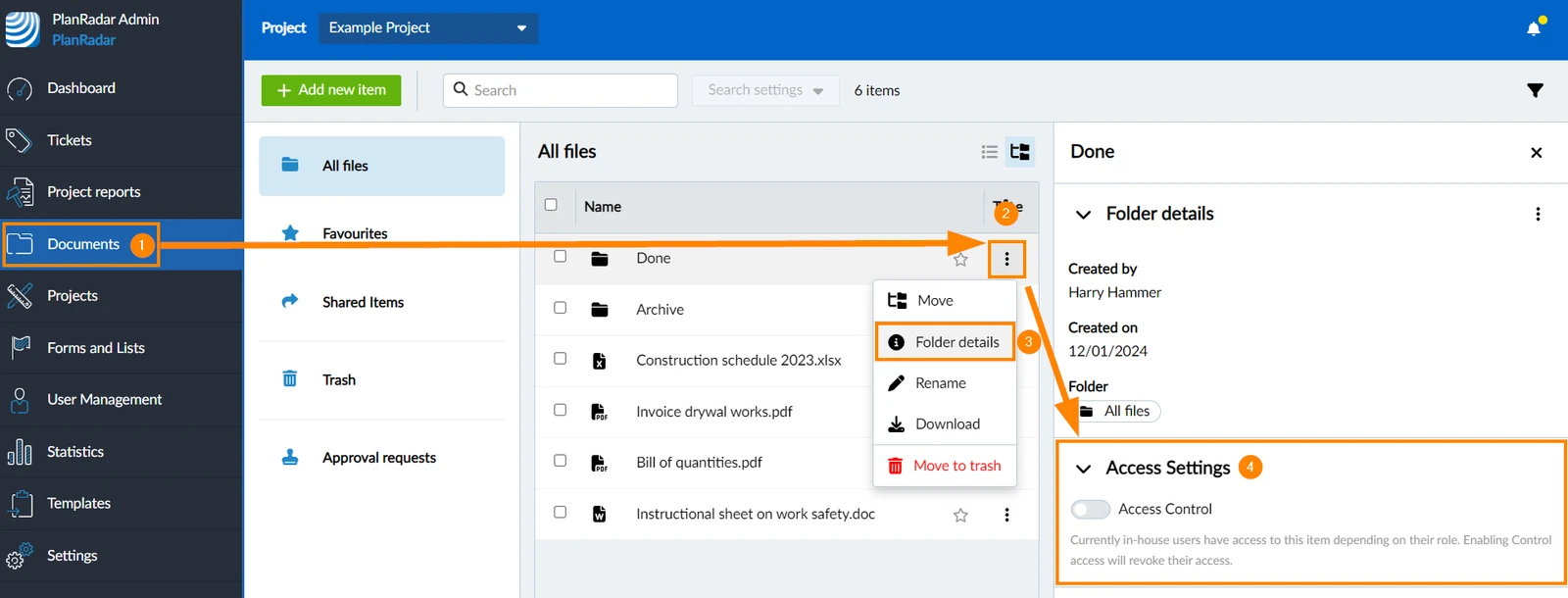
How to Access Document Management Access Settings
- Click Documents
- Open the more menu of a file or folder
- Click Folder details (or File details)
- See Access settings
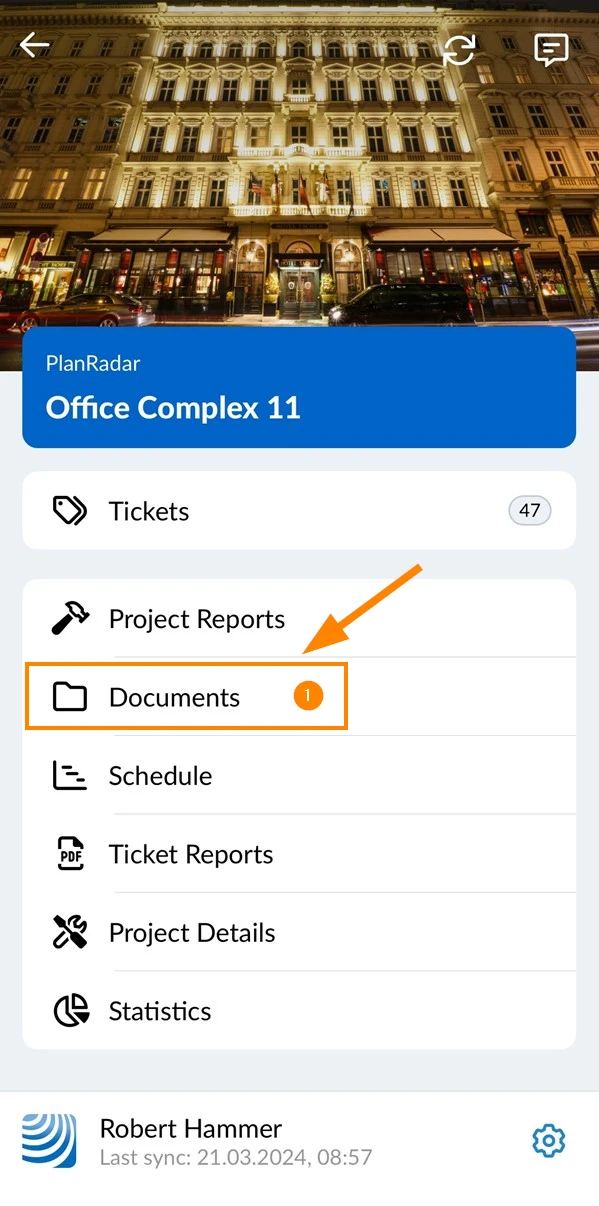
- Tap Documents
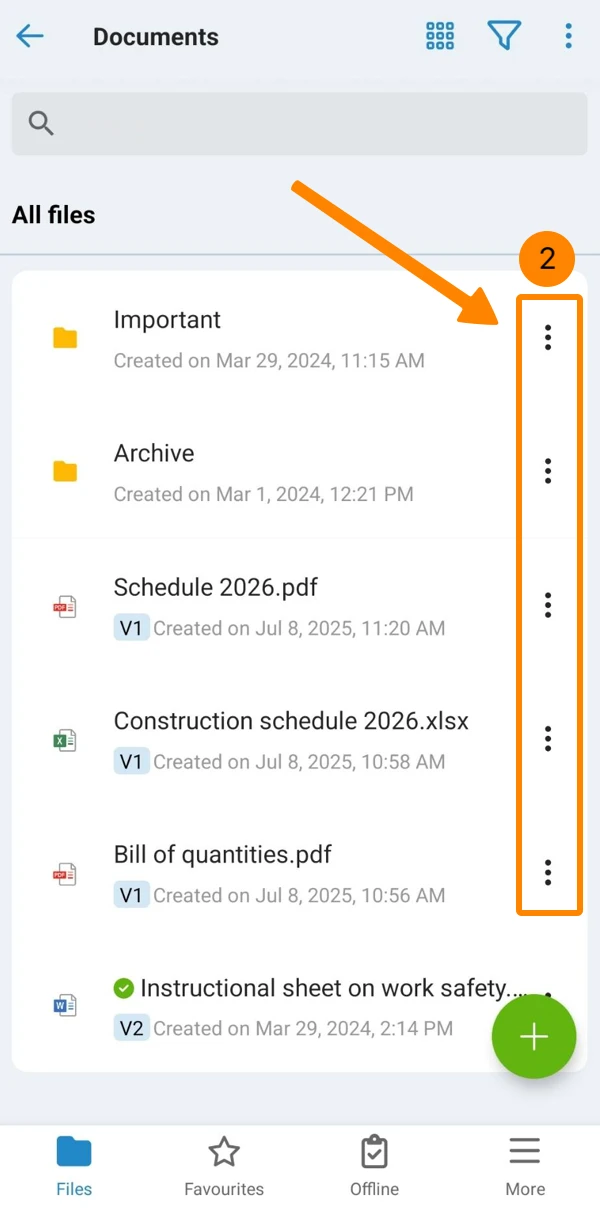
- Open the More menu of a file or folder
- Tap Details
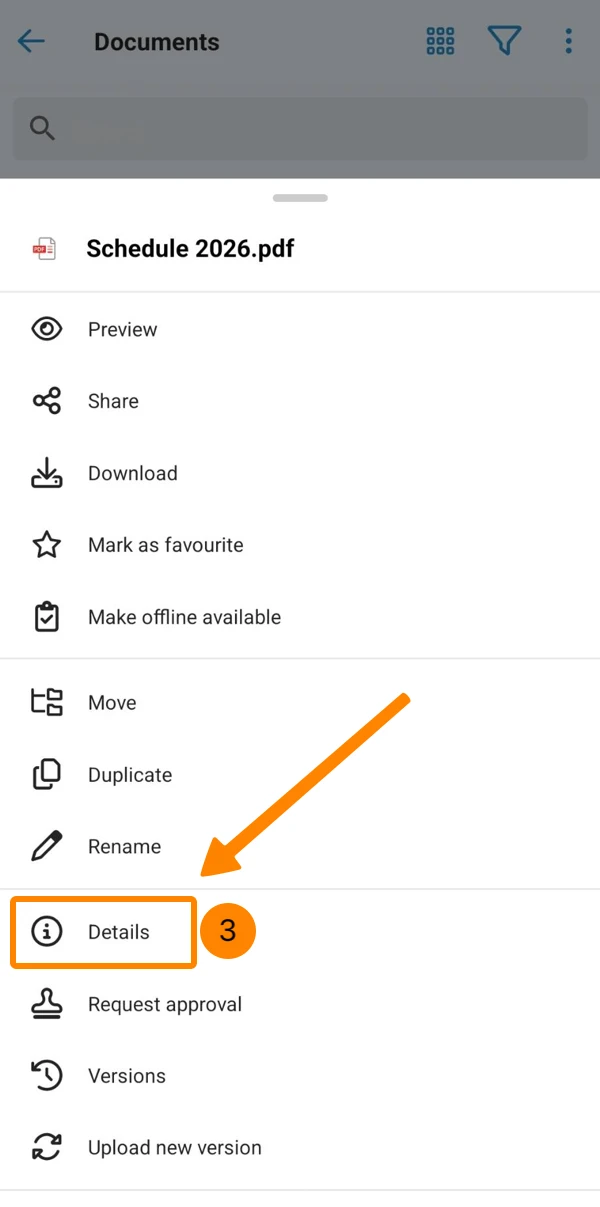
- See Access settings
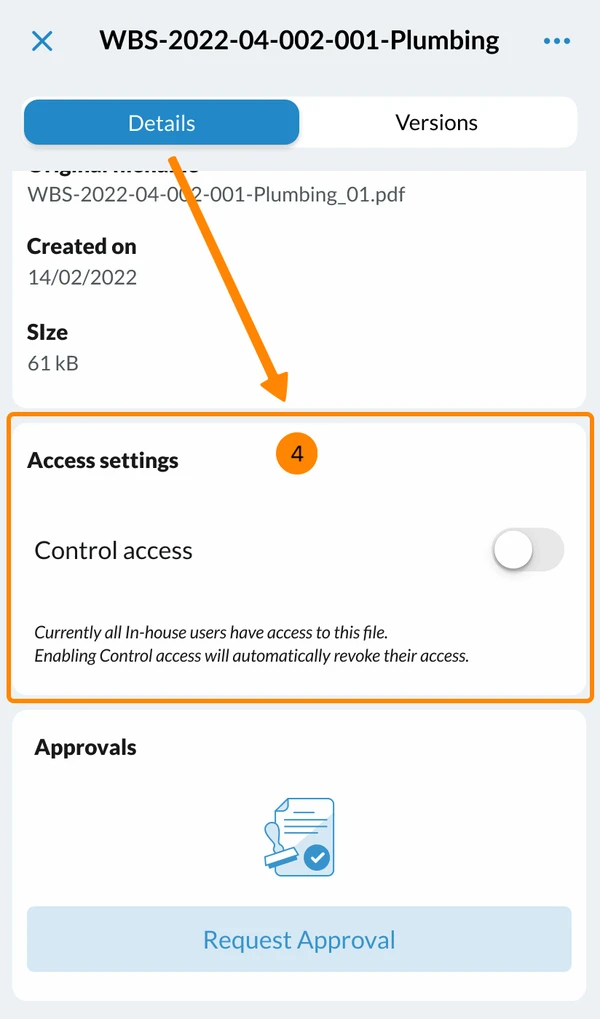
Enable Access Control
To define access permissions for specific files or folders, you first need to enable access control. Go to access settings as described above in How to Access Document Management Access Settings:
- Activate Access Control toggle
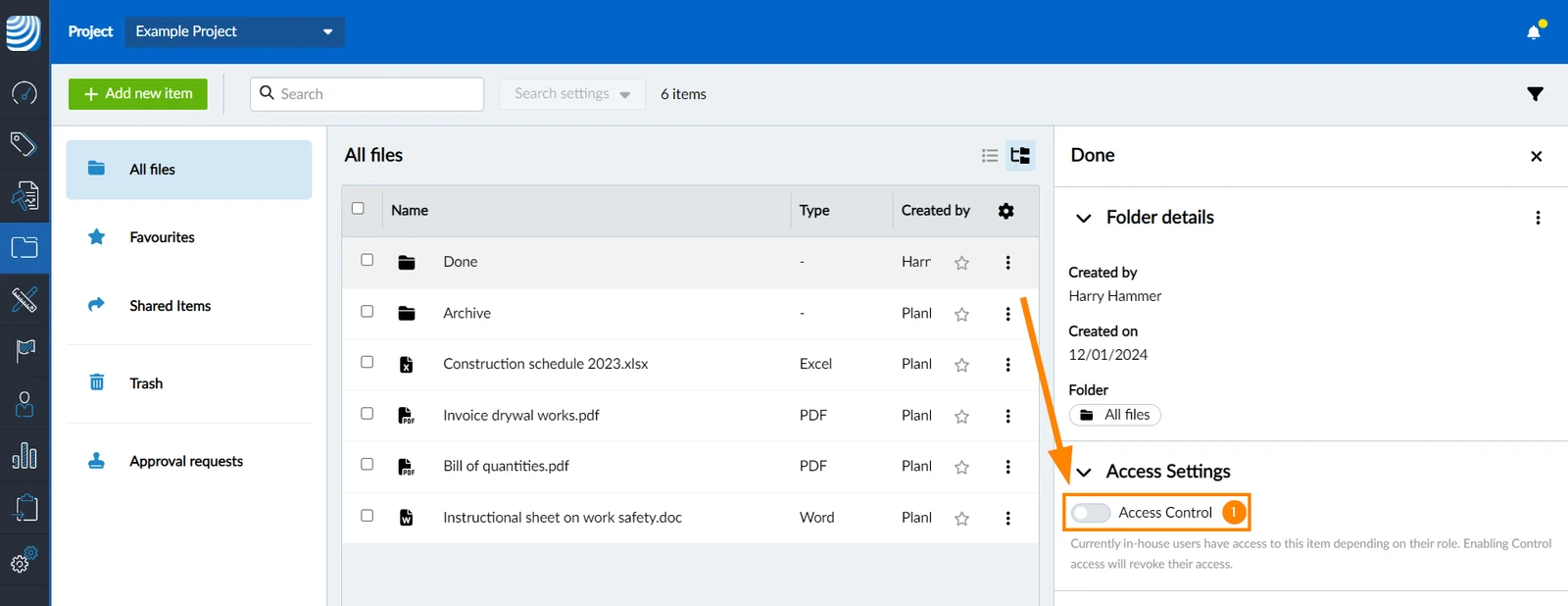
- Activate Access Control toggle
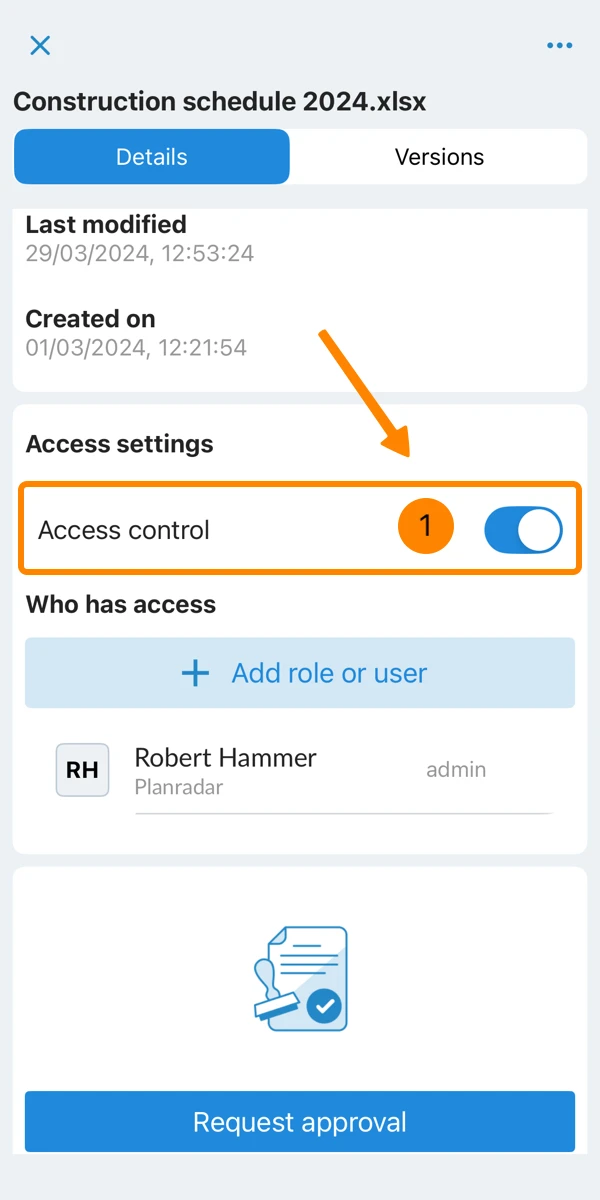
You as the one who activated the toggle will automatically get added as a user with 'Manager' permission. Anyone else will not have access to this file or folder until you add them as described in the next steps.
The only exception are users with the role permission 'Document Management: Admin' which gives them unconditional access to every file and folder as described above in Access & Permissions.
Add a Group, Role or User
When access control is enabled, you can specify who can access the file or folder.
To add a group, role or user:
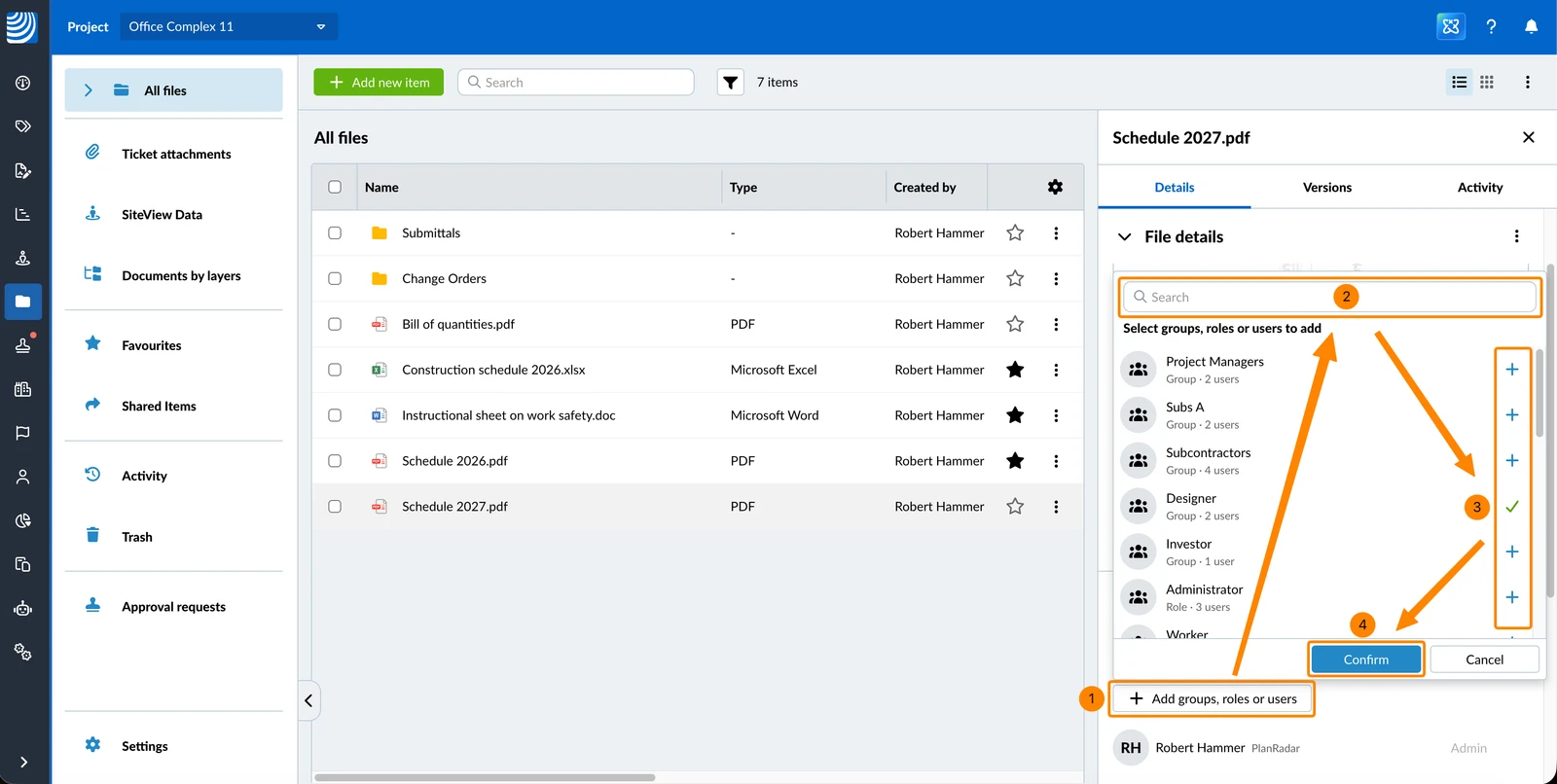
- Click + Add groups, roles or users
- Optional: Use the search field
- Click + next to the group, role or user (repeat if needed)
- Click Confirm
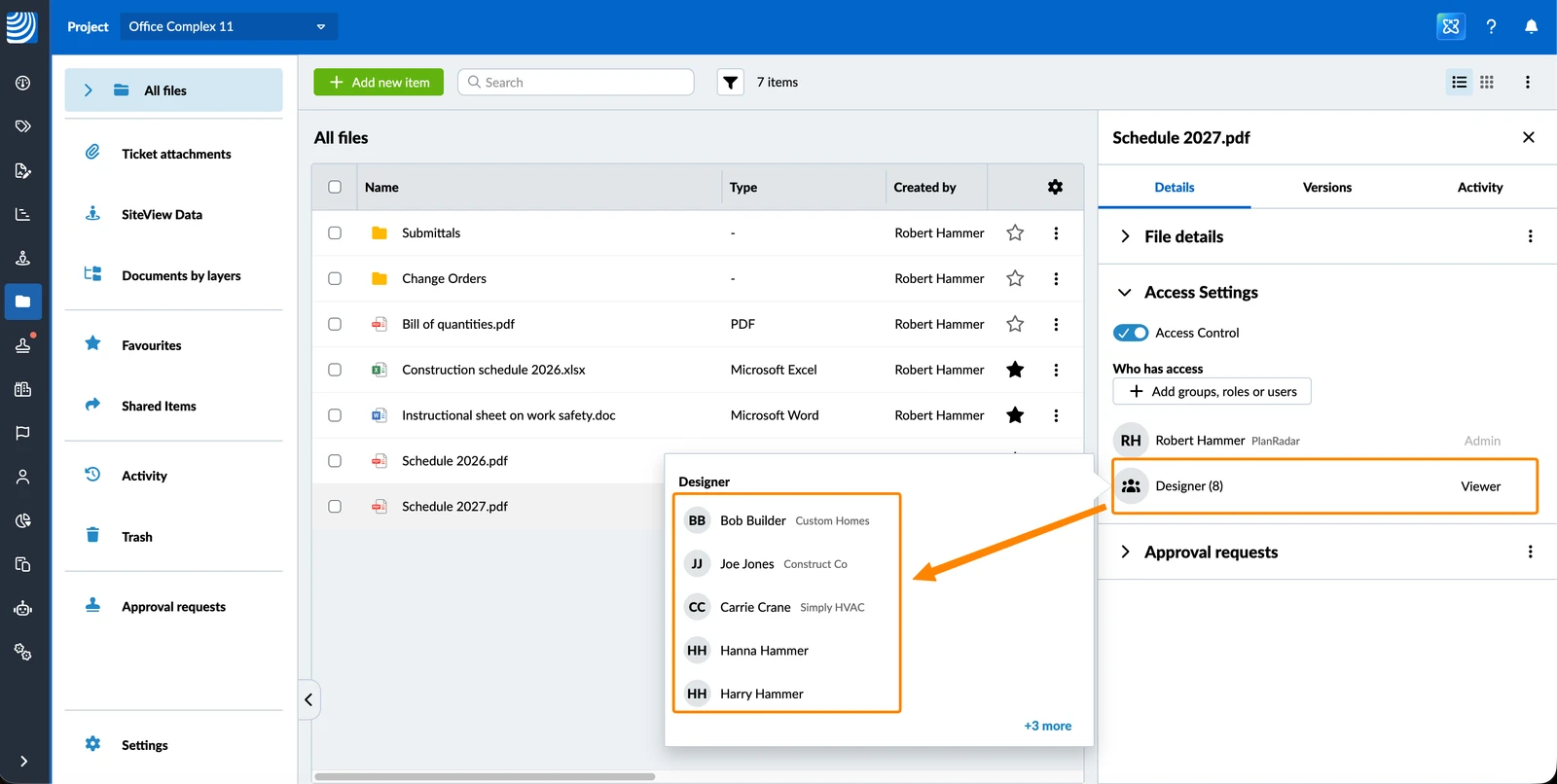
To view the first 5 users of a group or role:
- Hover over the group or role under Who has access.
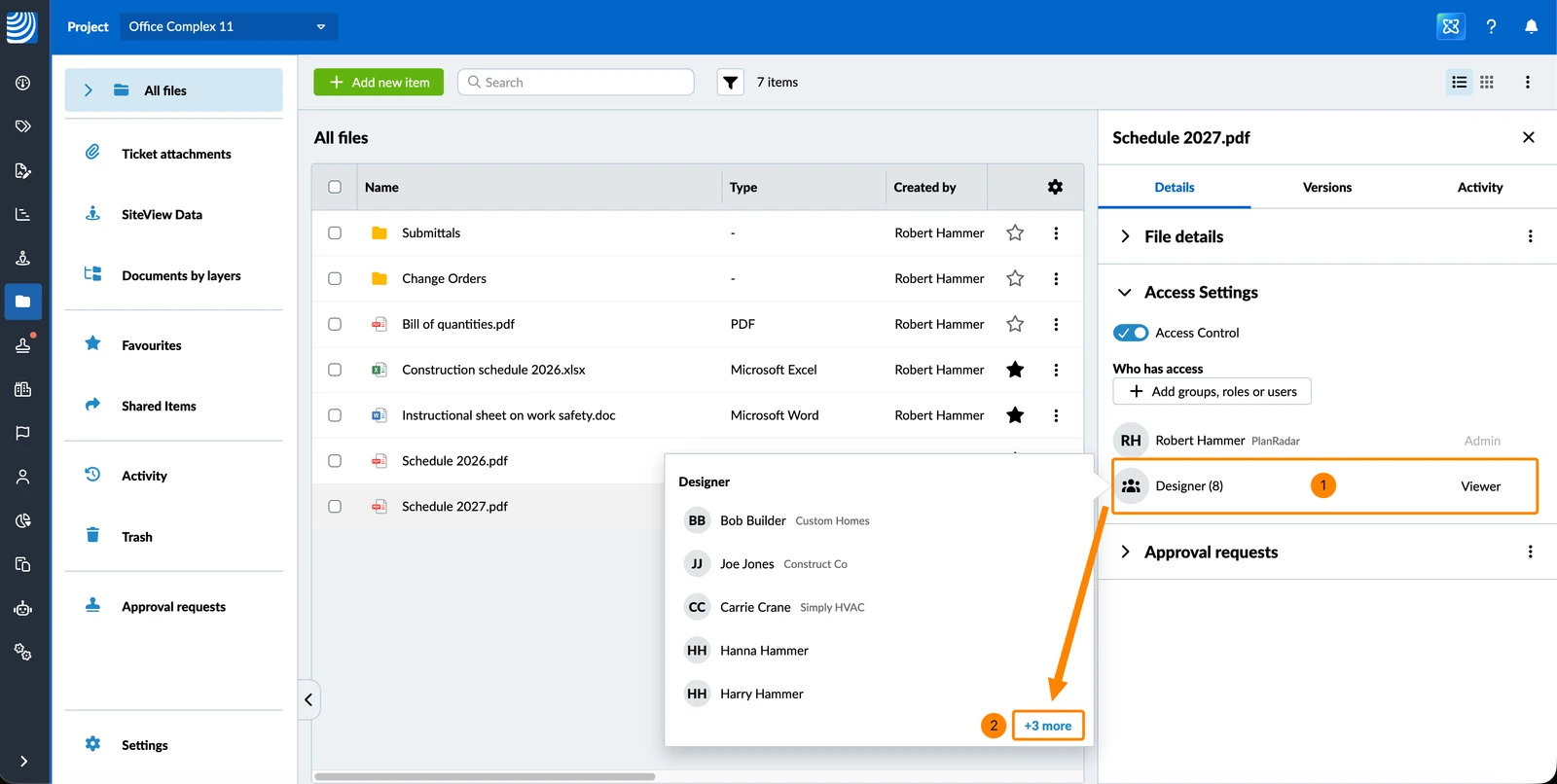
To view all users of a group or role:
- Hover over the group or role under Who has access.
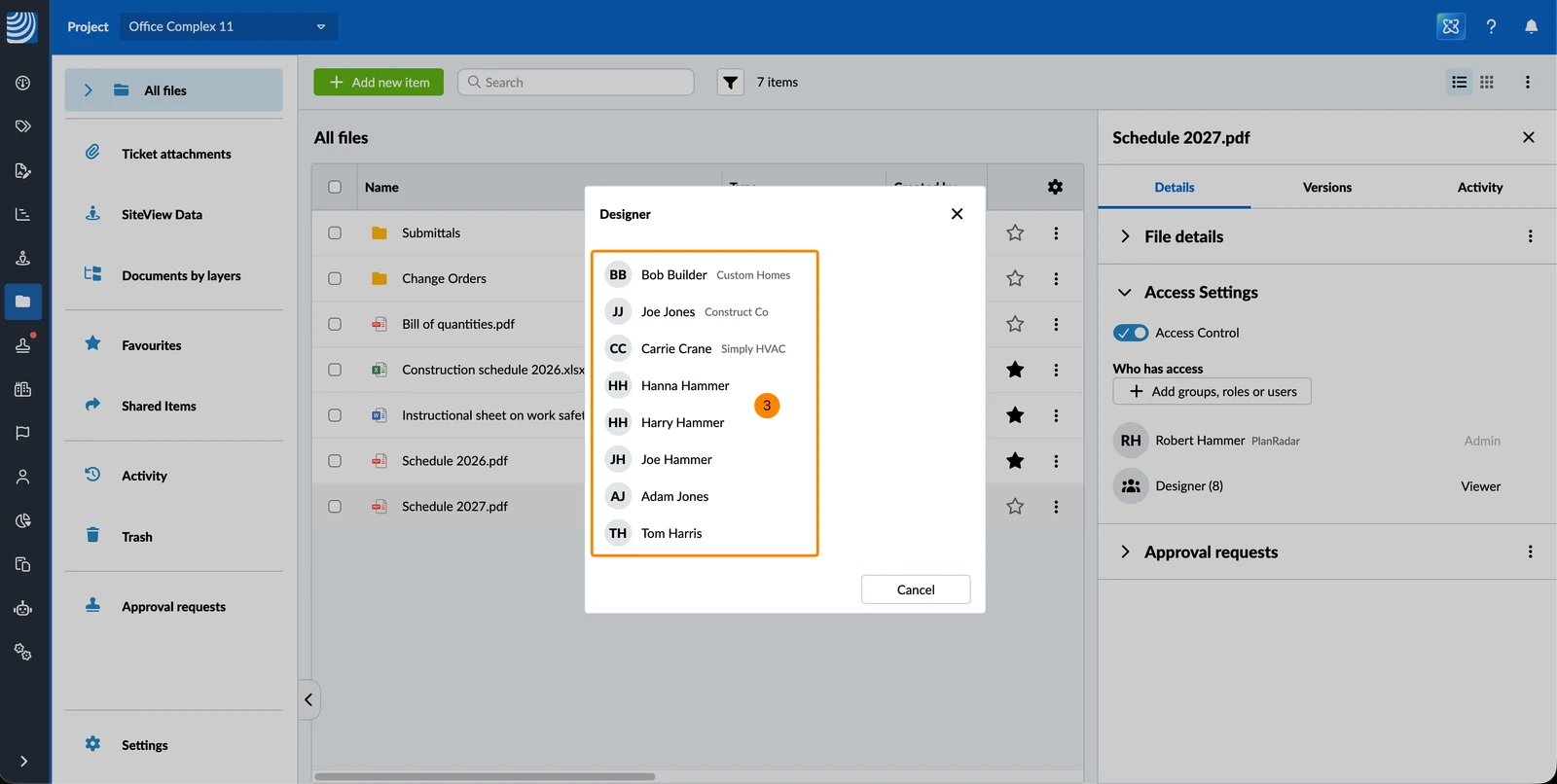
- Click + 3 more (the number varies with how many more members there are).
- You see all members
- Tap + Add a role or user
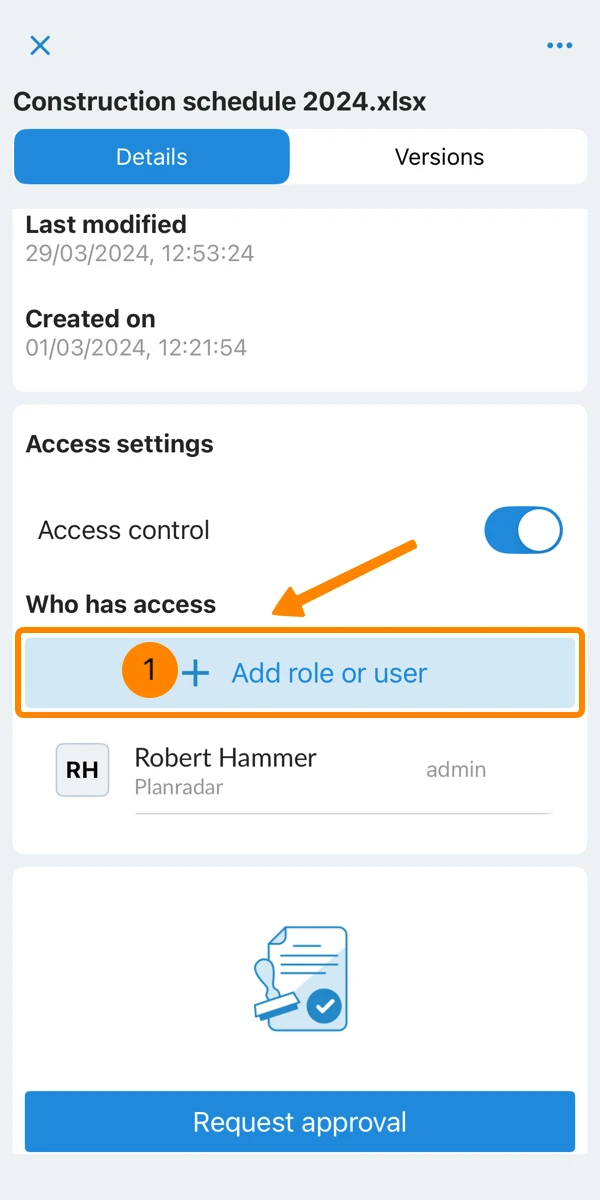
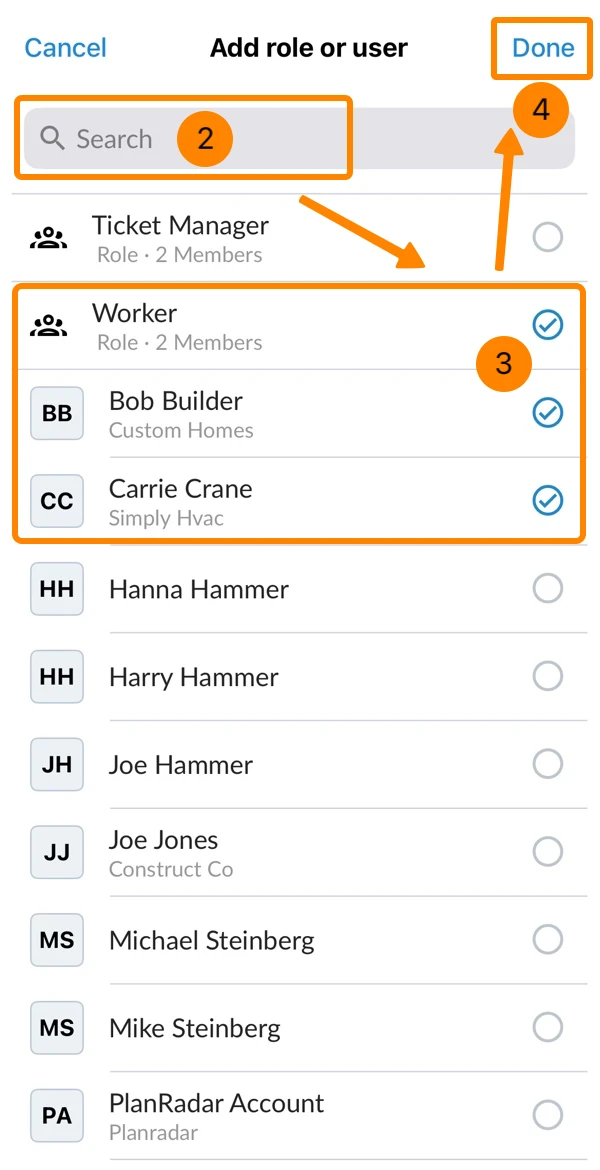
- Optional: Use the search field
- Select the roles and users
- Tap Done
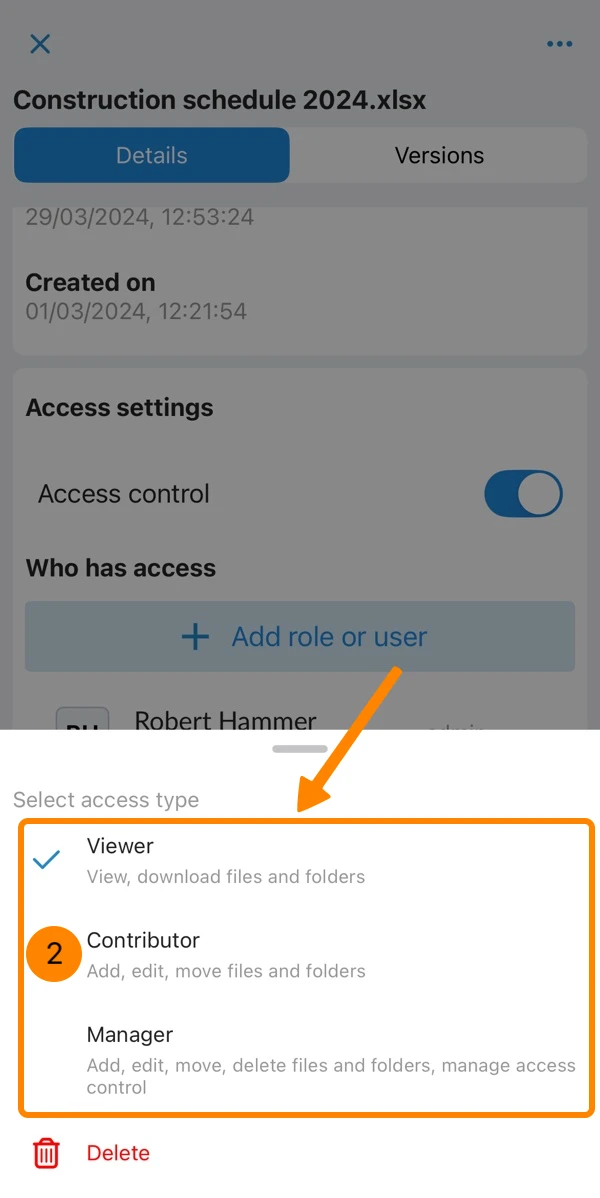
Change Permission for a Group, Role or User
The following permissions are available:
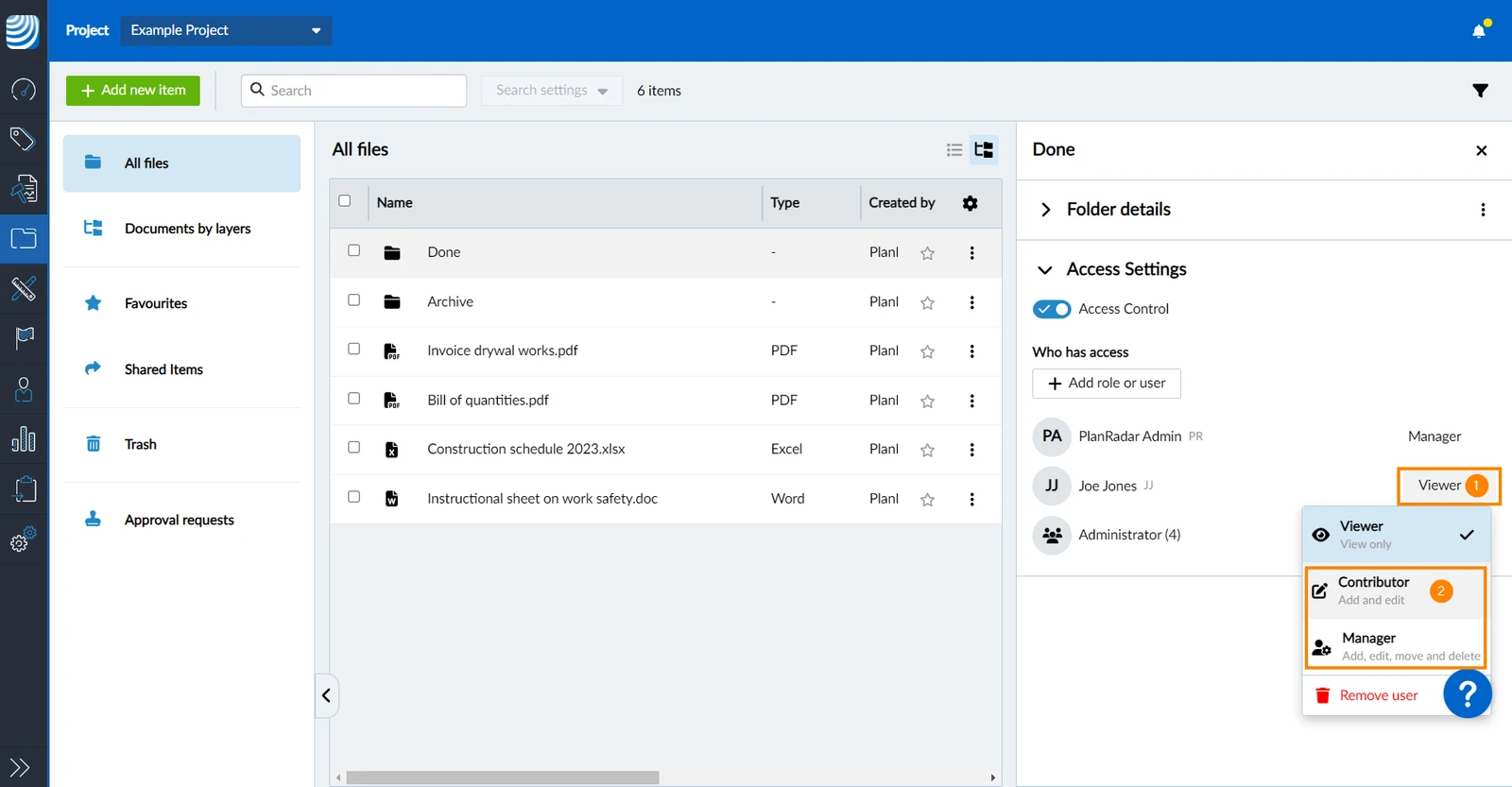
- Viewer = Only view (gets automatically assigned to added groups, roles and users)
- Contributor = Add, edit and move files and folders
- Manager = Add, edit, move, delete files and folders, manage access control
To change the permission for a group, role or user:
- Open the drop down menu which shows the current permission e.g. Viewer
- Select the new permission e.g. Contributor or Manager
- Open the More menu of the corresponding role or user
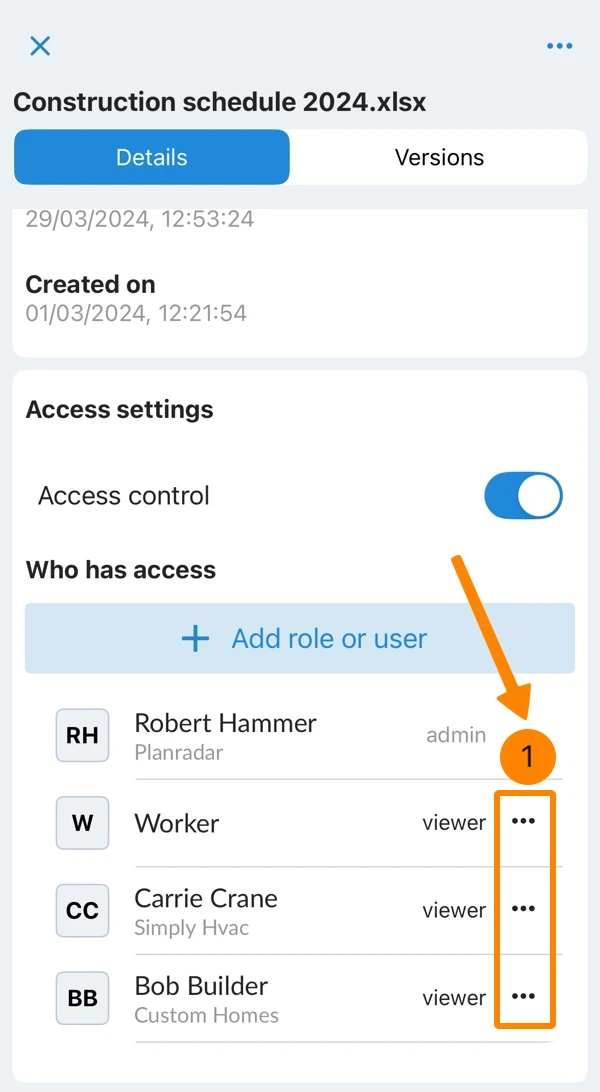
- Select the new permission Manager, Contributor or Viewer
Remove Permission for a Group, Role or User
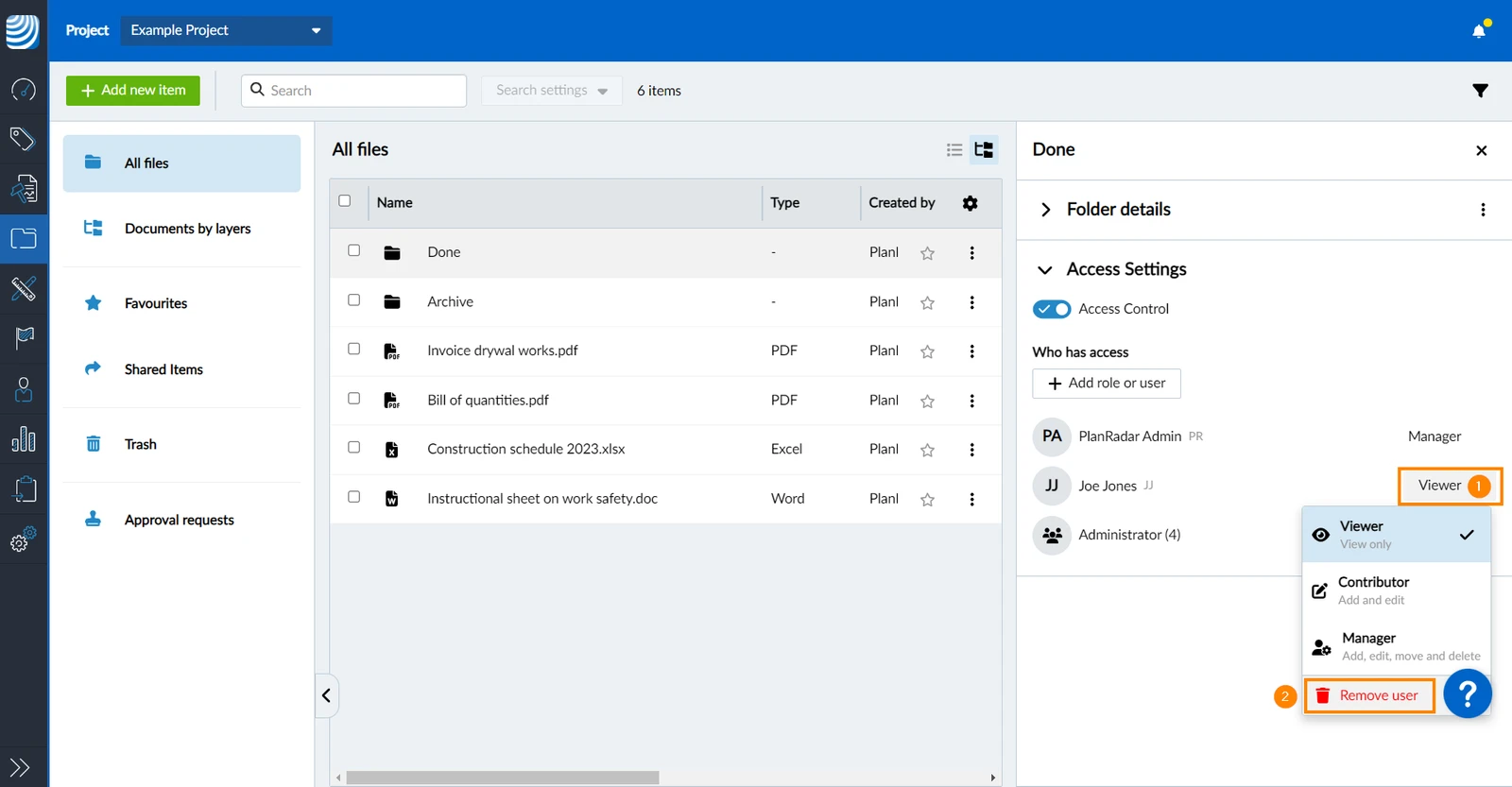
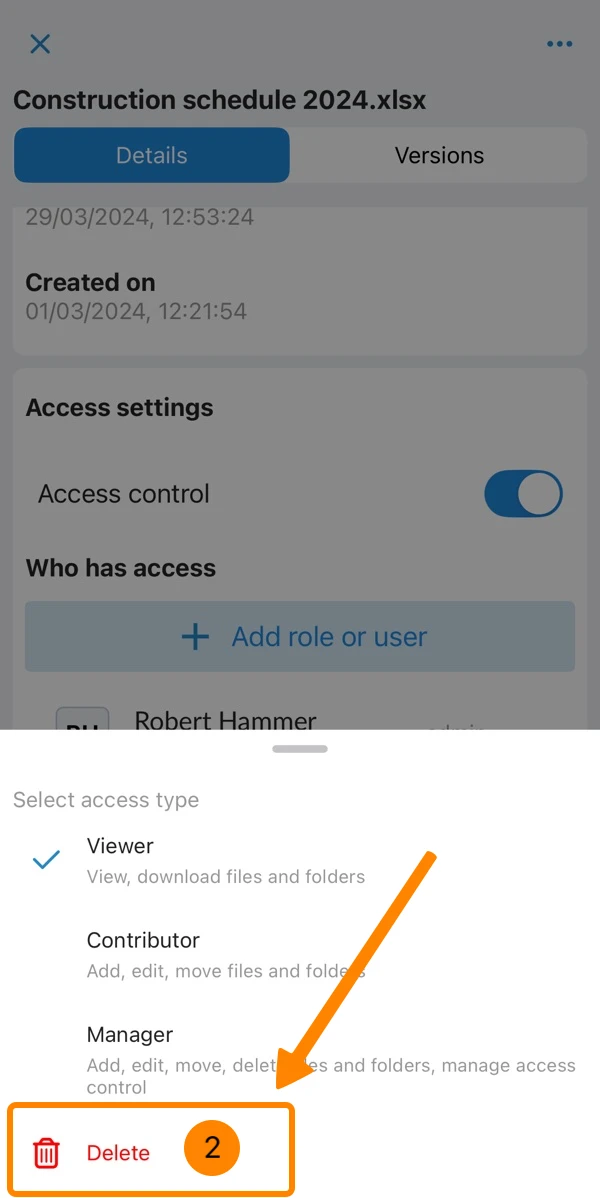
To remove a group, role or user and their permission for the selected file or folder:
- Open the drop down menu which shows the current permission e.g. Viewer
- Click Remove user
- Open the More menu of the corresponding role or user
- Tap Delete
Disable Access Control
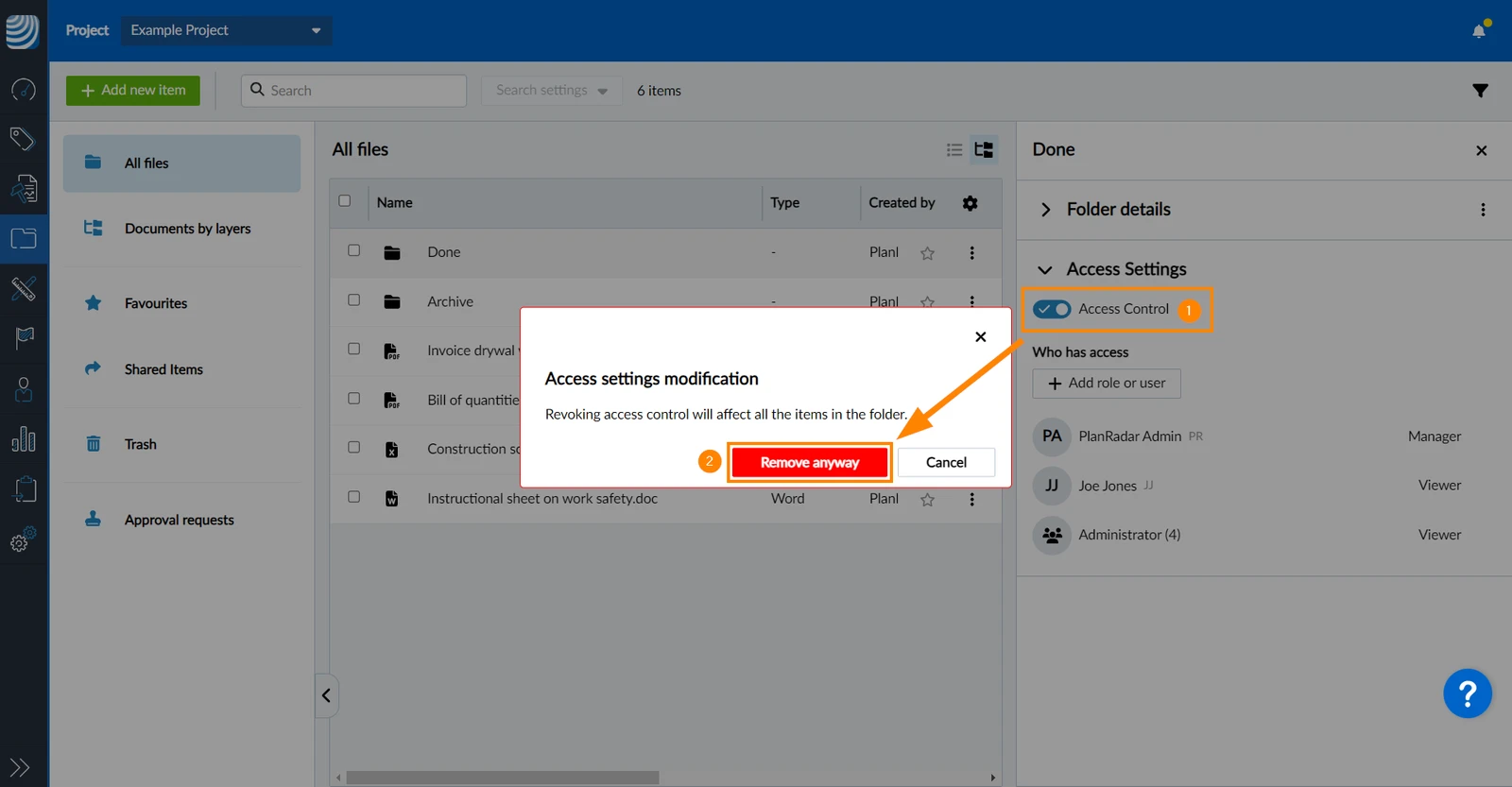
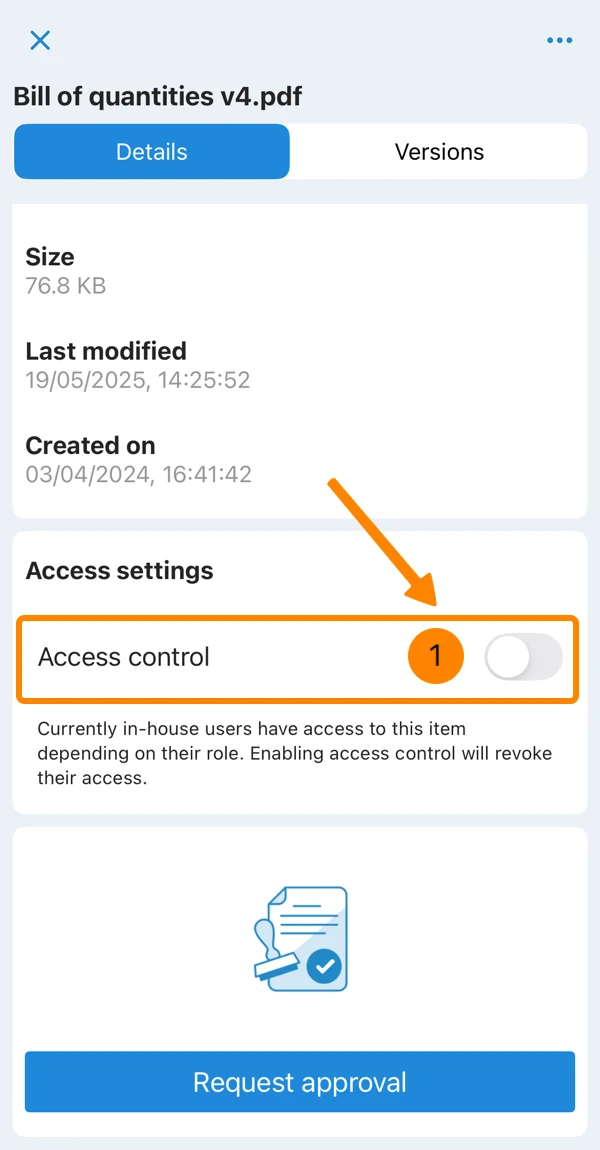
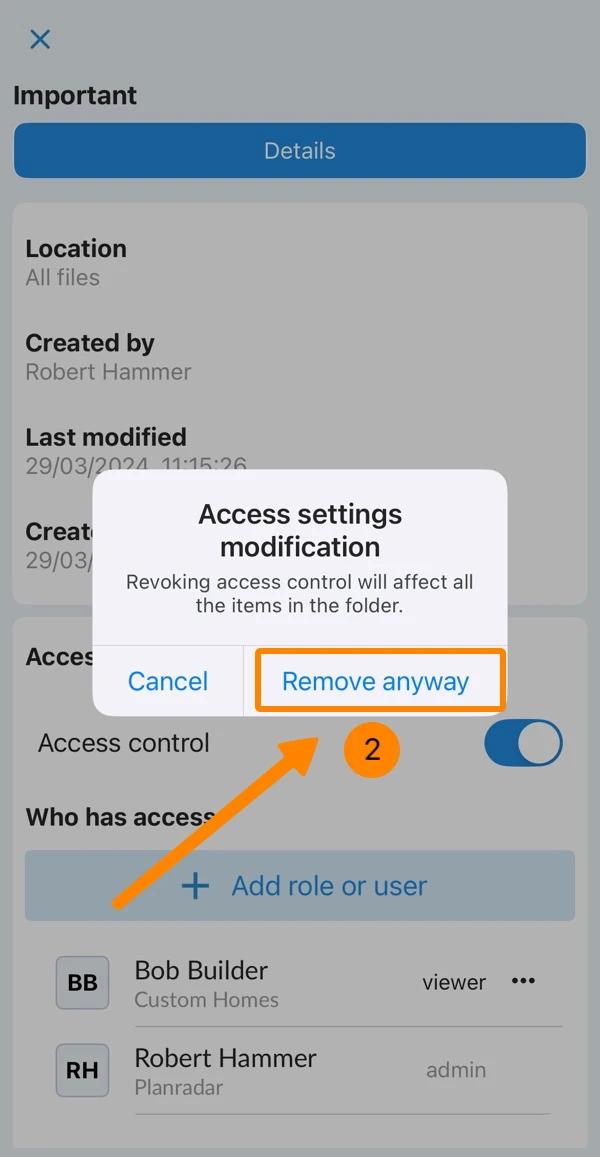
Disable access control to deactivate all access settings and make the file or folder available for everyone again.
- Deactivate Access Control toggle
- Click Remove anyway
- Deactivate Access Control toggle
- Tap Remove anyway
Inherited Access Settings
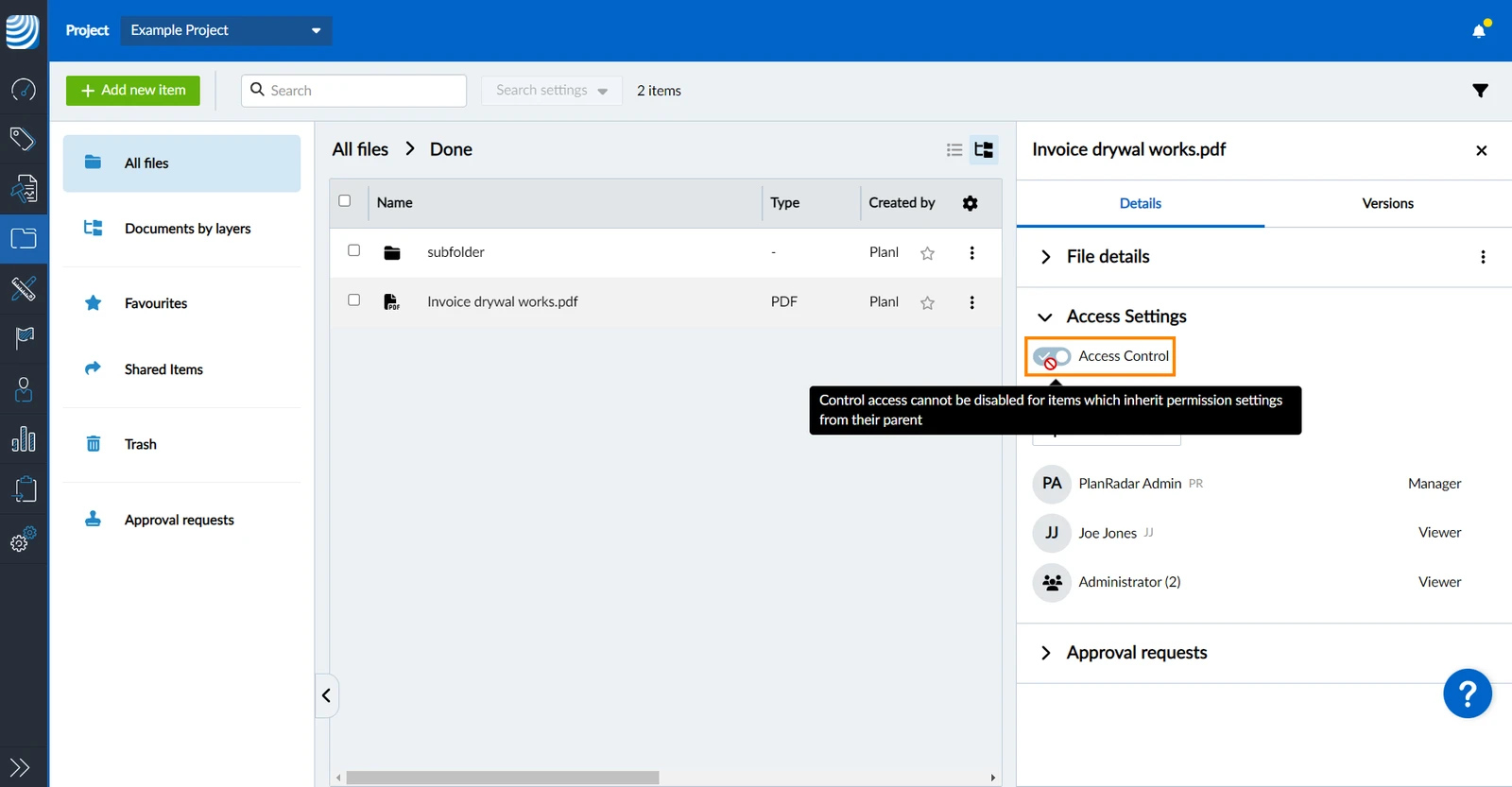
Folder Access settings are automatically inherited by all sub-folders and files.
When you open the access settings of an item that has inherited access settings, the Access Control toggle is enabled but greyed out because it cannot be disabled.
Change
It is not possible to disable access control for items with inherited access settings, but you can change them as described above in:
- Add a Group, Role or User
- Change Permission for a Group, Role or User
- Remove Permission for a Group, Role or User
Restore
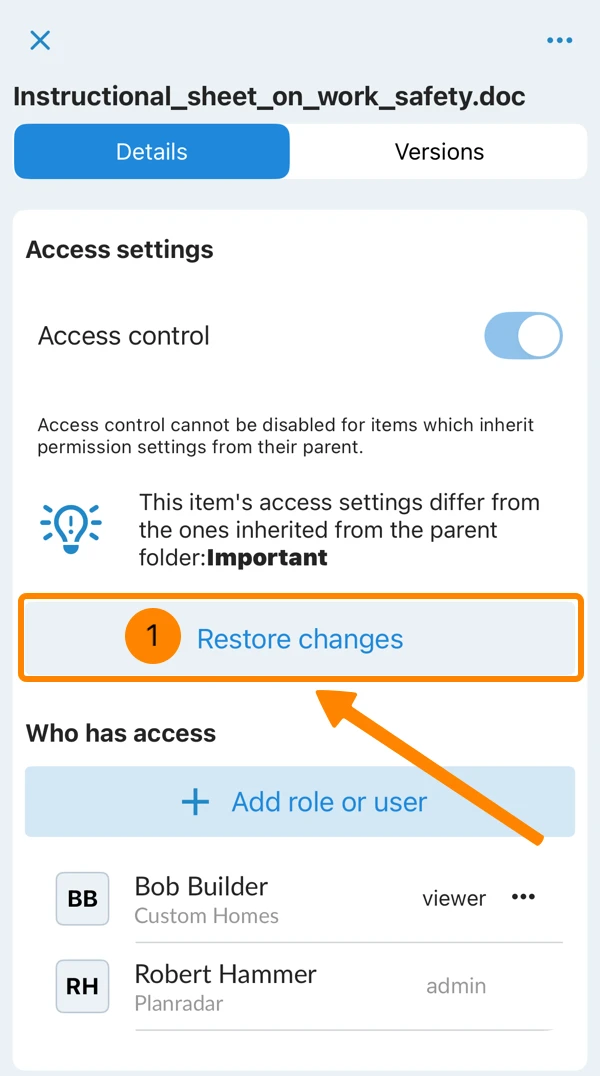
Once you made changes to the permissions, the inheritance gets deactivated for that item.
To delete your changes and activate inheritance again:
- Click Restore changes
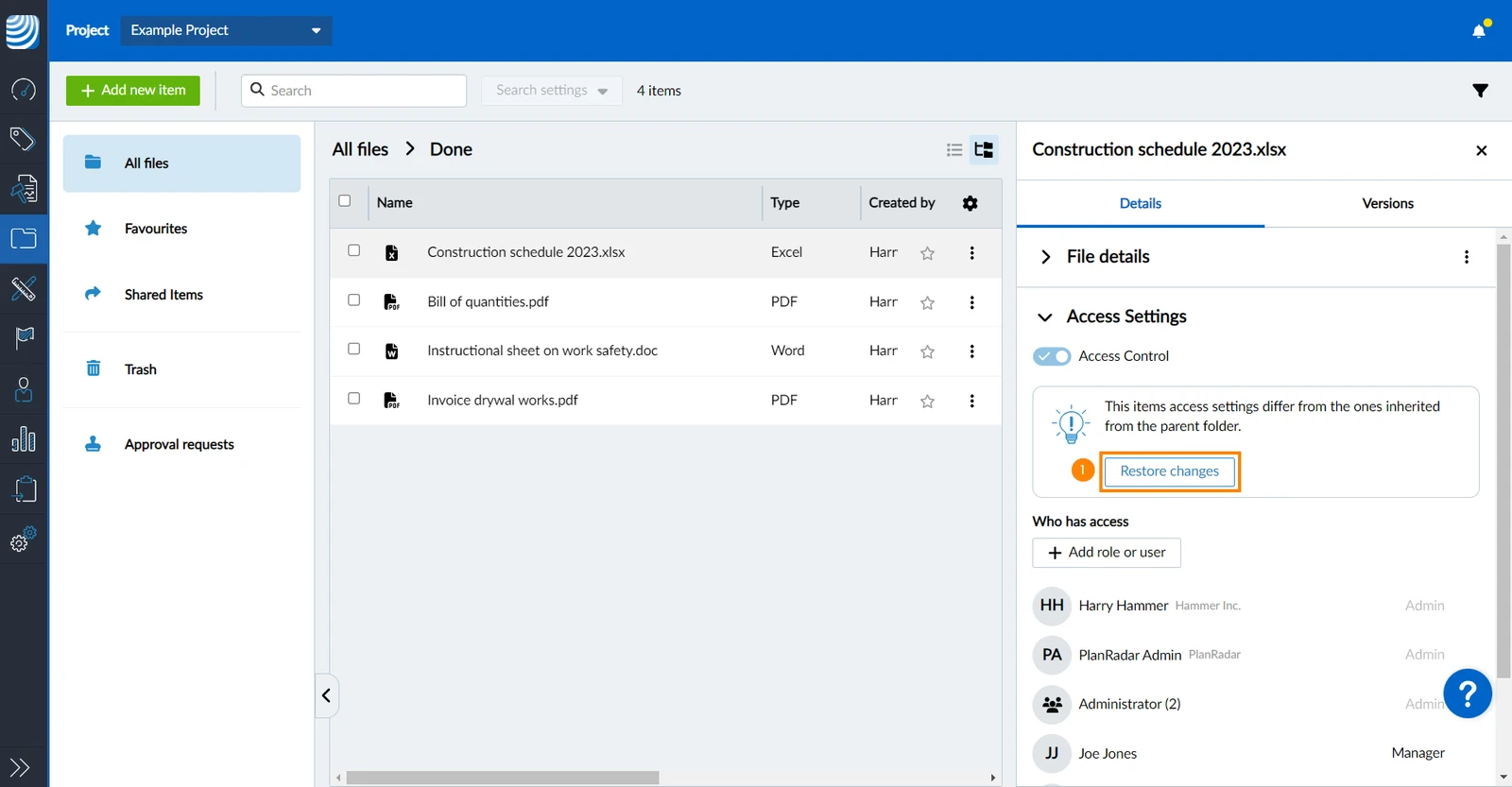
- Tap Restore changes
Move Files/Folders with Access Settings
You can move files and folder as described in Add & Manage Files/Folders > Move Files/Folders.
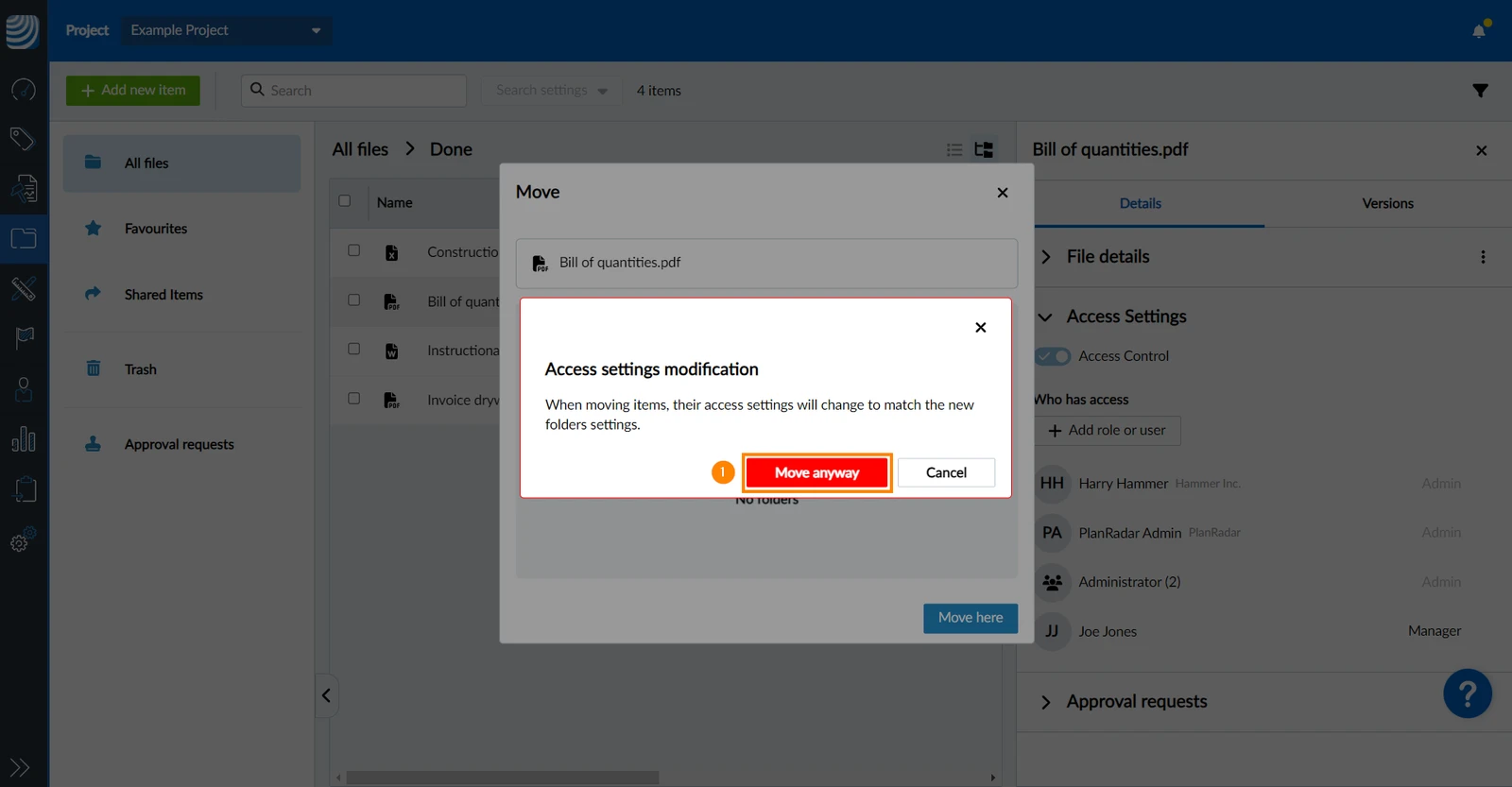
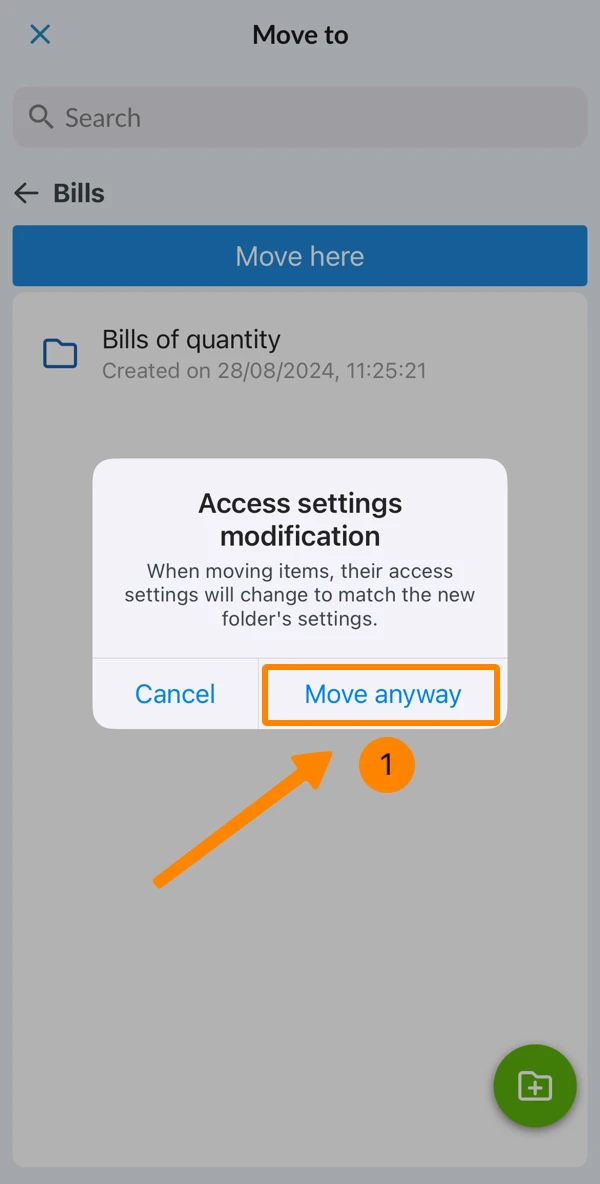
You get an additional confirmation message in case the moved item has inherited access settings and/or the target folder has (inherited) access settings:
'When moving items, their access settings will change to match the new folder's settings.'
- Click Move anyway
- Tap Move anyway
View Shared Items
To view a list of all files and folders that are shared with you by access settings:
- Click Documents
- Click Shared items
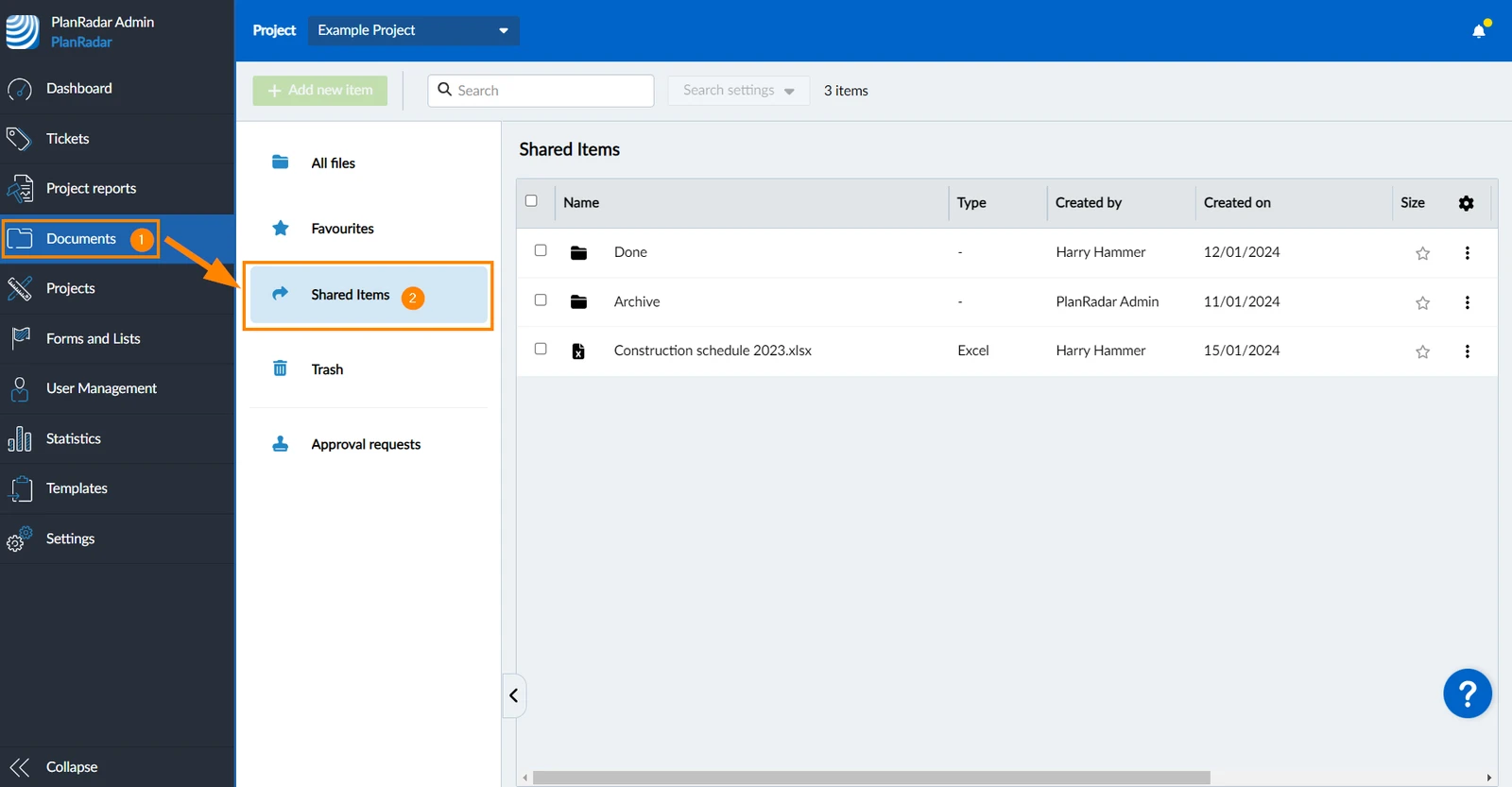
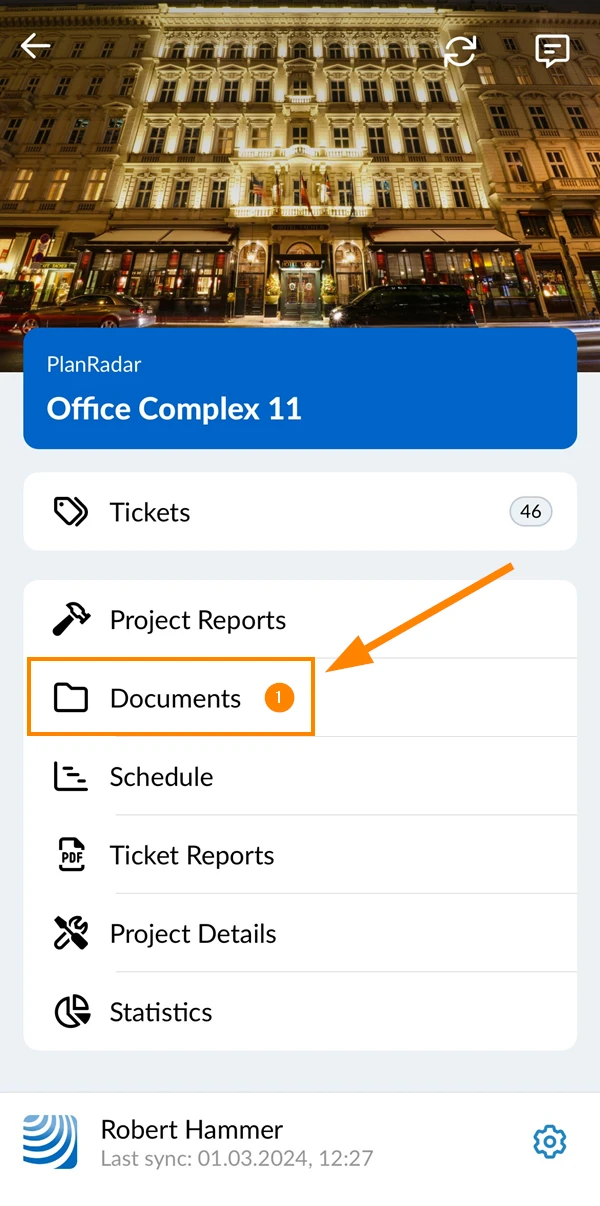
- Tap Documents
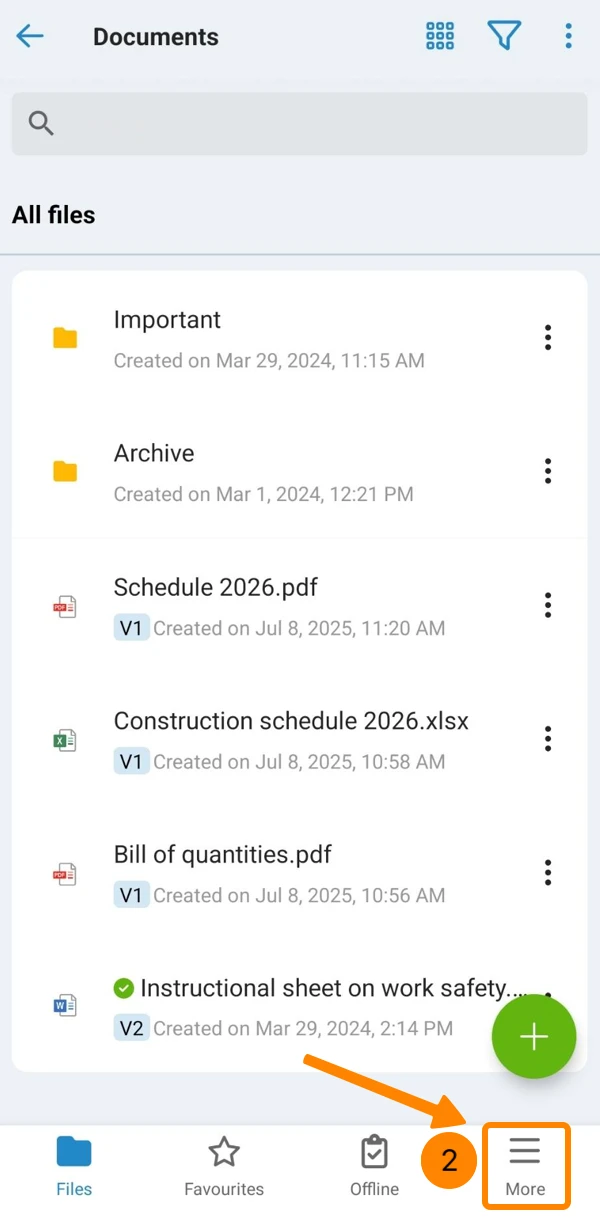
- Open the More menu
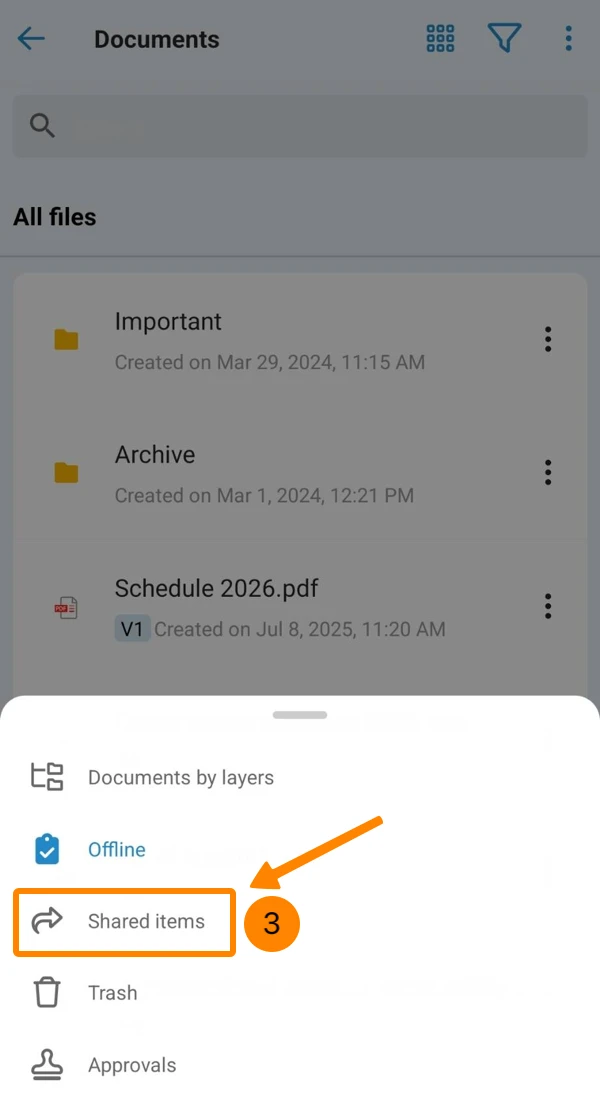
- Tap Shared items
Updated August 26, 2026