

 Deutsch
 Español
 Français
 Hrvatski
 Italiano
 Polski
 Português (BR)
Mobile App Navigation
Overview
Navigating the PlanRadar mobile app works the same way on iOS and Android. Read more about how to select an account, project and location, switch between plan view and list view and how to access all mobile features.
Access & Permissions
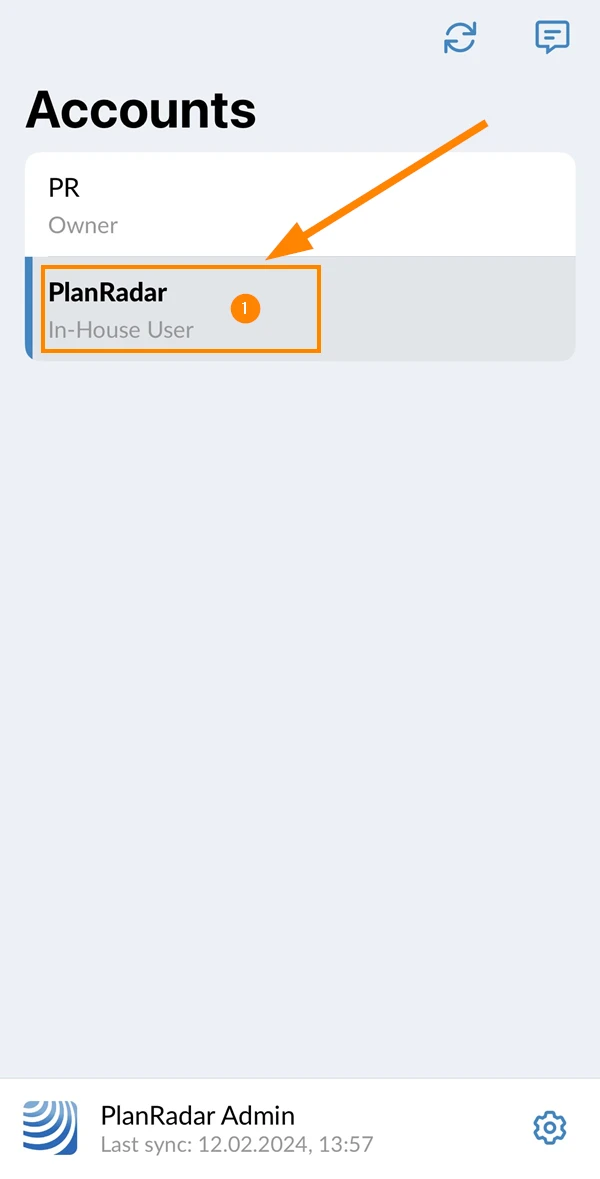
Select an Account
PlanRadar users can be invited to multiple PlanRadar accounts.
If your user is a member of more than one account, you must first select the account in which you wish to work.
To select an account:
- Tap the account name e.g. PlanRadar
Select a Project
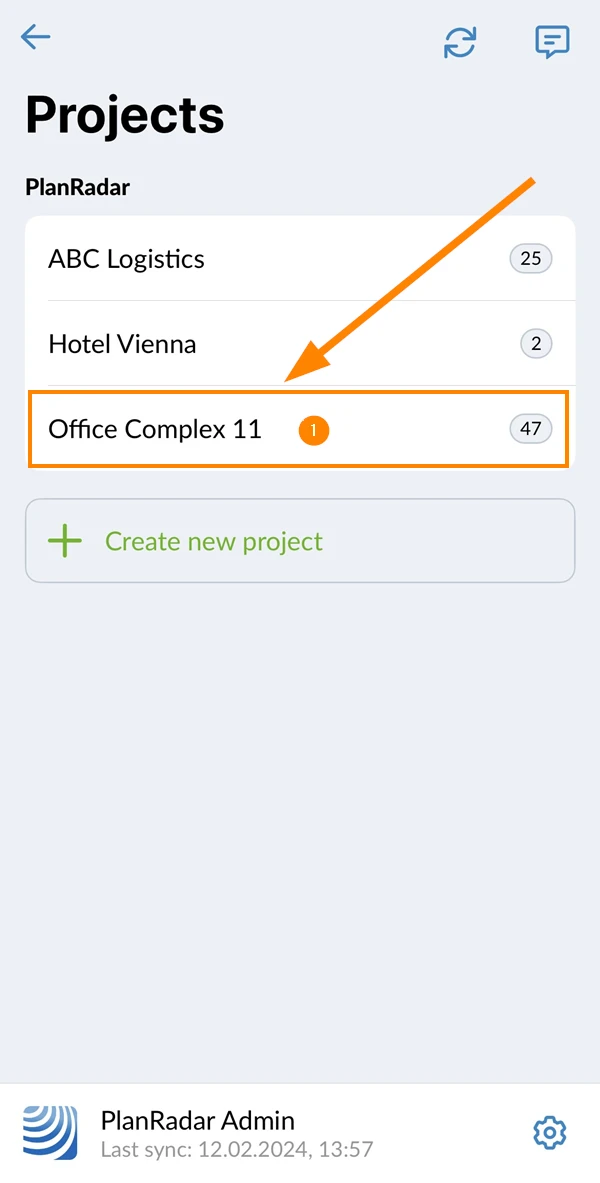
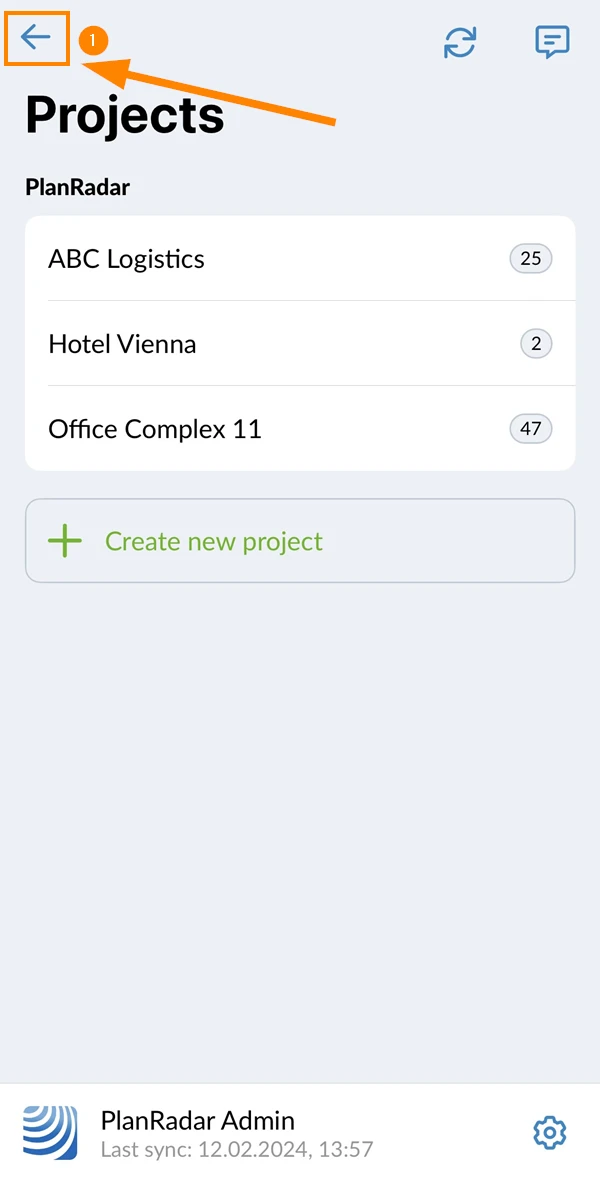
Once you have selected an account, the project selection screen will appear, allowing you to choose which project you want to work on.
To select a project:
- Tap the project name e.g. Office Complex 11
Select a Feature in the Main Menu
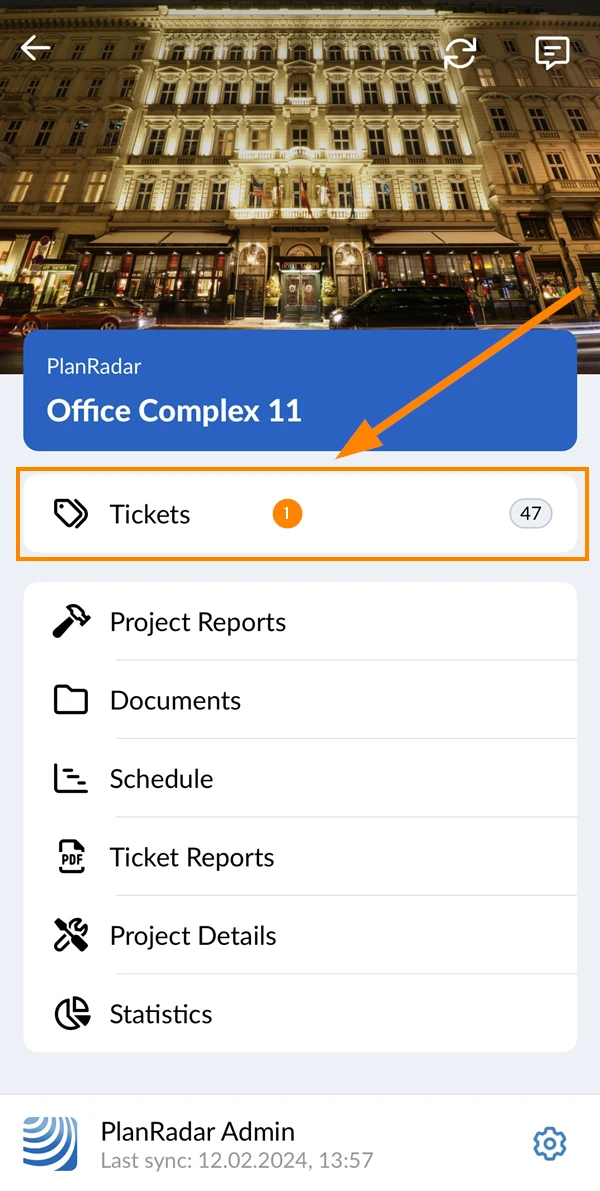
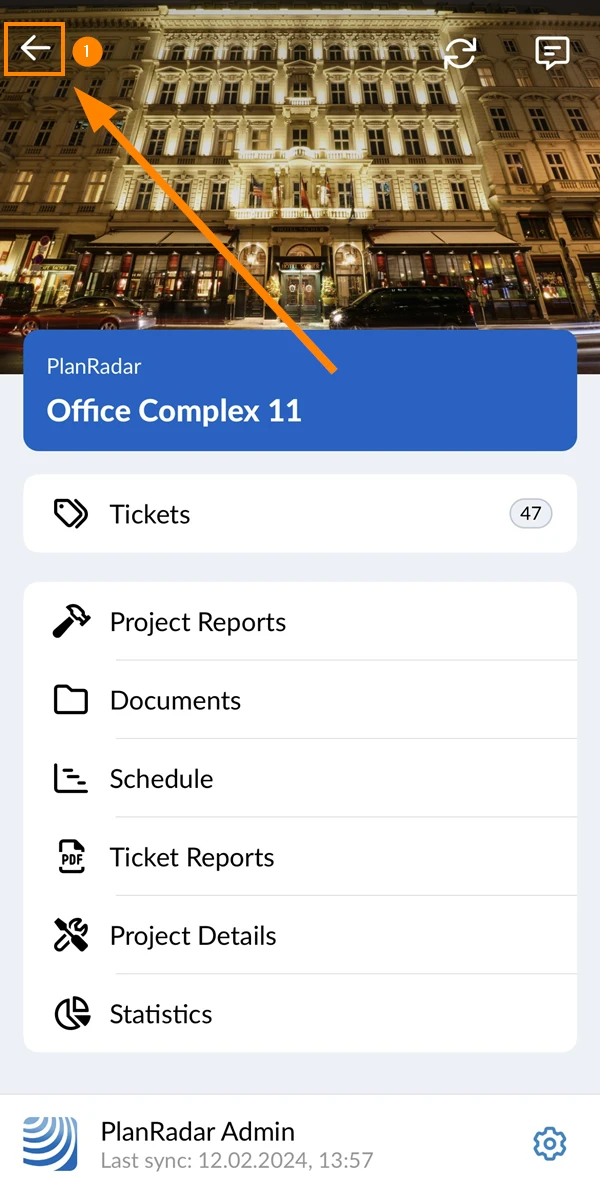
Once you have selected a project, the main menu will appear, allowing you to choose which feature you want to use.
To select a feature:
- Tap the feature name e.g. Tickets
Available Mobile Features
-
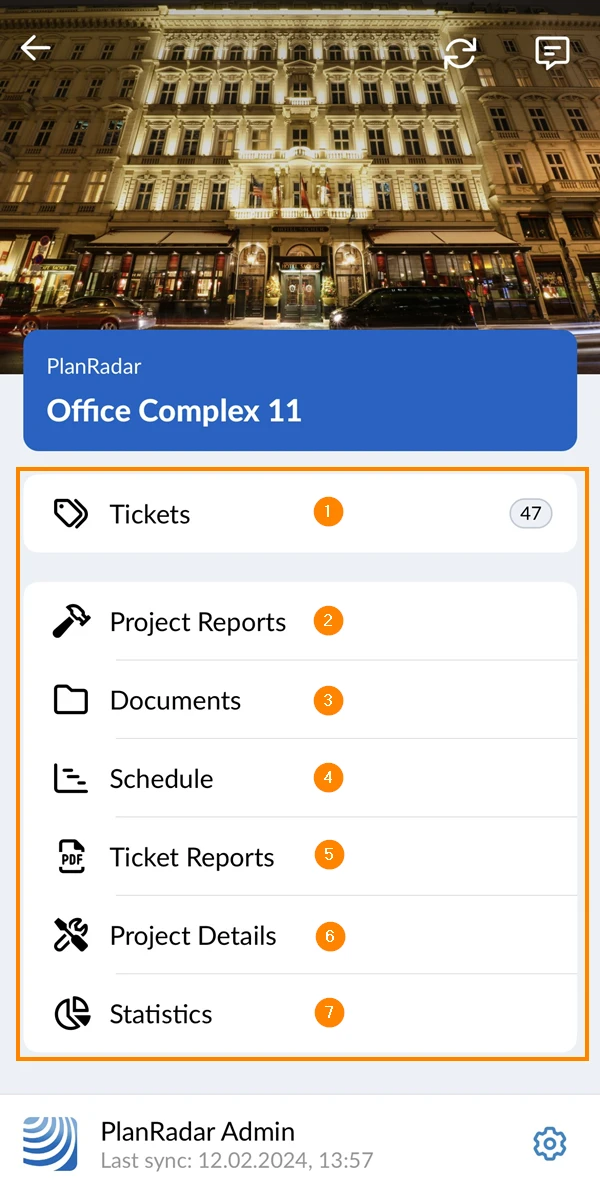
Tickets: Read more in Tickets.
-
Project reports: Read more in Project Reports.
-
Documents: Read more in Document Management.
-
Schedule: Read more in Schedules.
-
Ticket reports: Read more in Ticket Reports.
-
Project details: View project details including address, start date and more. Subcontractors cannot see project details.
-
Project statistics: This just gives you a quick overview of the number of tickets you have access to and their status, similar to the Webapp Dashboard and some additional information about the number of users and attachments. This is not related to the custom Statistics in the Webapp.
Change Feature/Project/Account
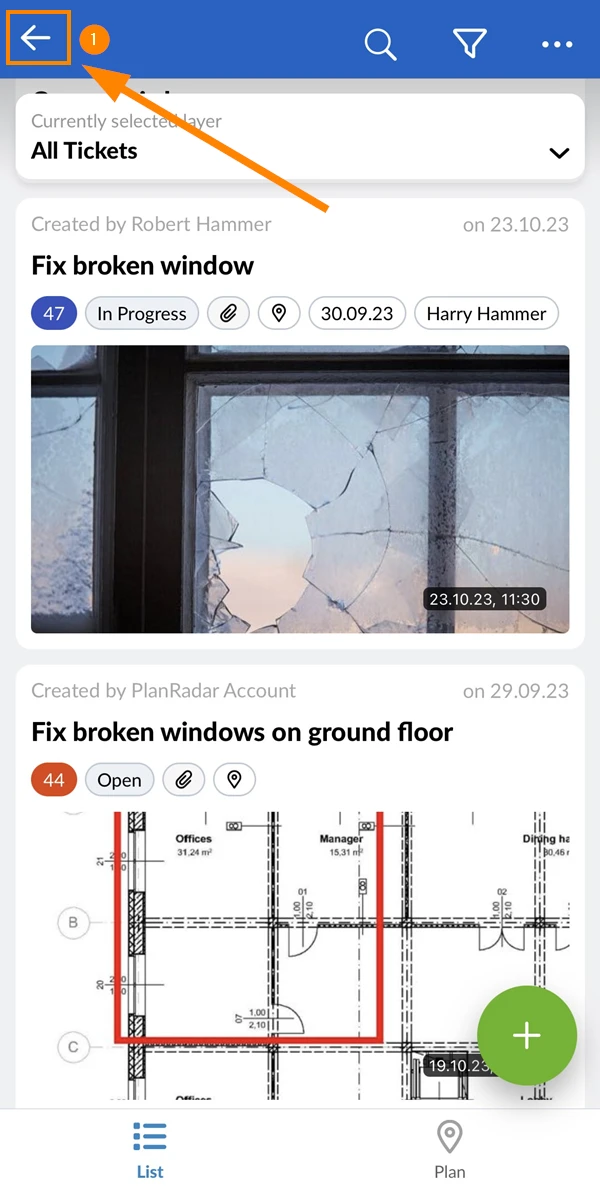
When you are in a feature and want to go to the main menu:
- Tap the Back button
When you are in the main menu and want to go to the project selection screen:
- Tap the Back button
When you are in the project selection screen and want to go to the account selection screen:
- Tap the Back button
Ticket Views
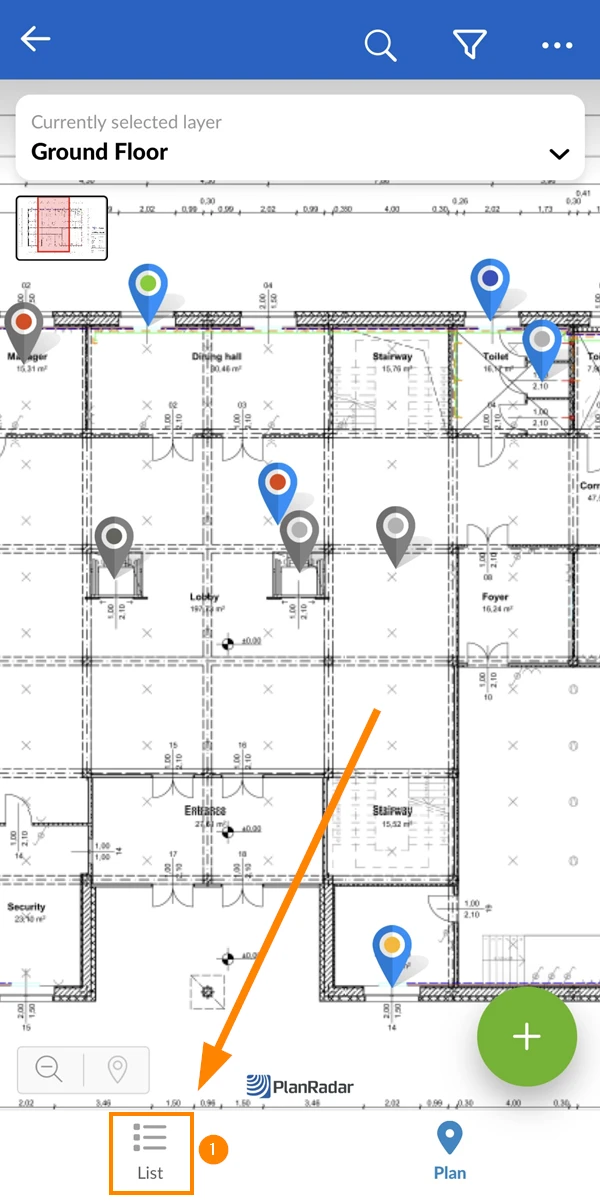
Once you selected the tickets feature (as described above) you see a list of all tickets in the project that you have access to.
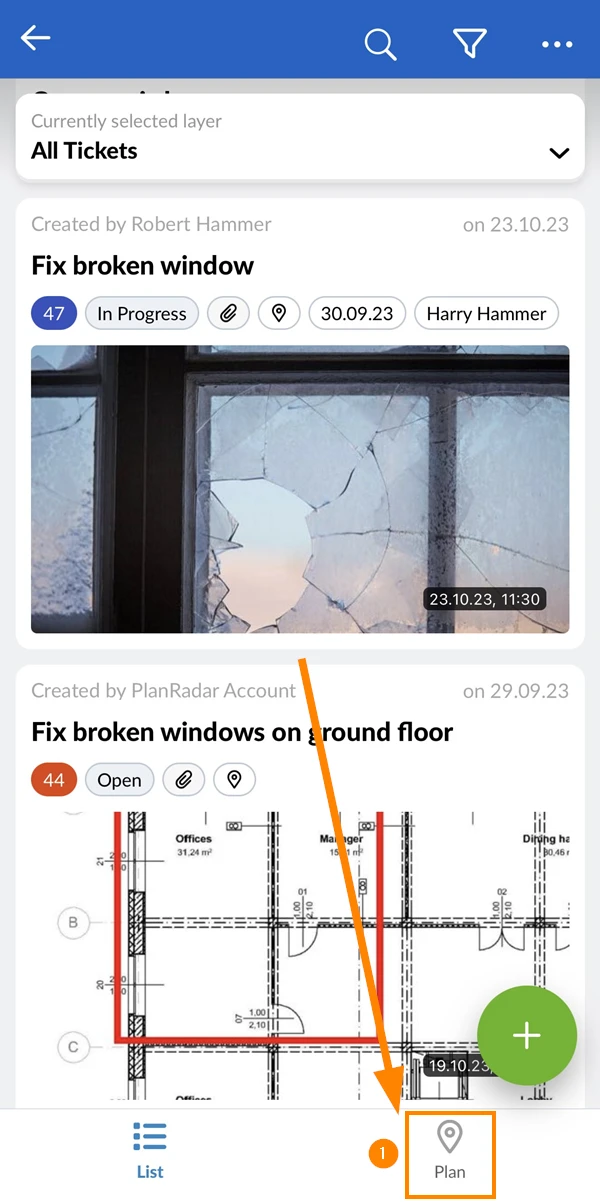
Plan View
To switch to plan view:
- Tap Plan
List View
To switch to list view:
- Tap List
Location Selection
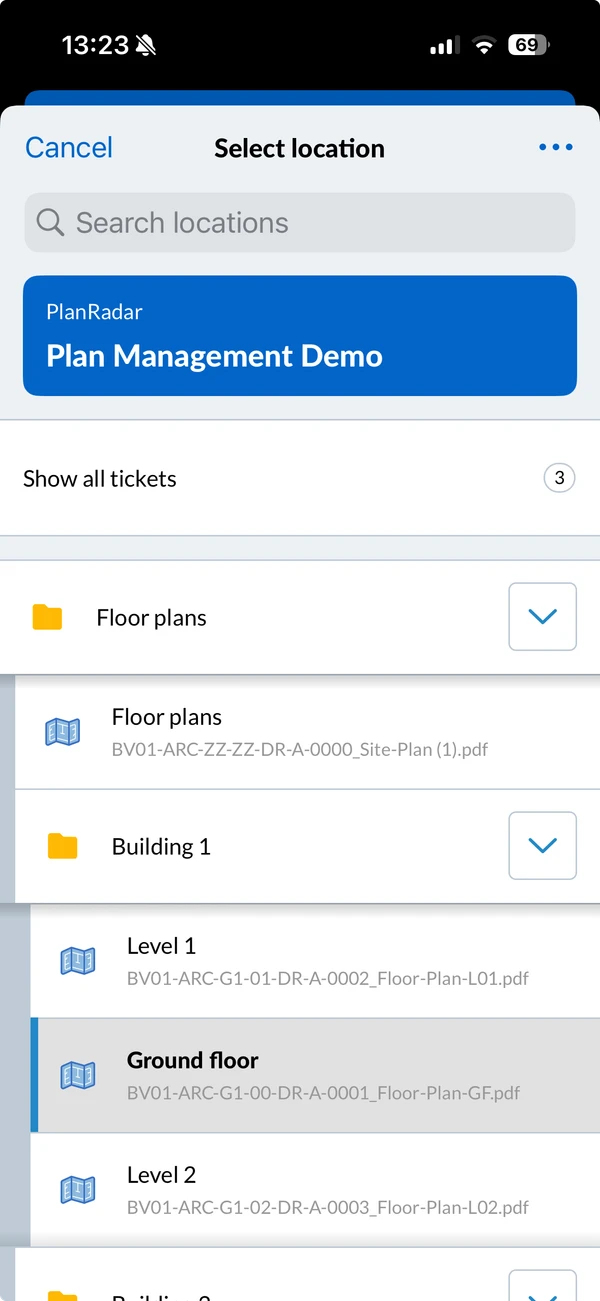
The location selection works like a filter to show only the tickets of that folder or plan. It works in the same way for ticket list and plan views. Initially no location is selected and you see all tickets of the current project.
To select a location:
- Tap the location selector
- Tap the folder or plan you want, e.g. Ground Floor
Create a Ticket
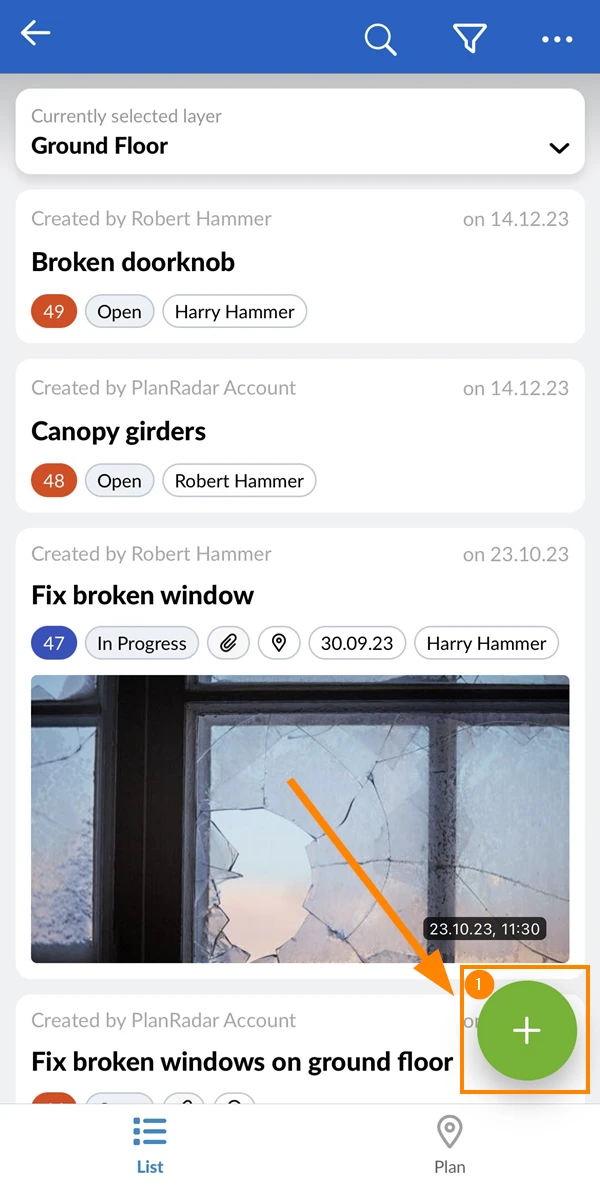
Creating a ticket works the same way in the ticket plan view or list view. Also see Ticket Views above.
To create a ticket:
- Tap the green + button
Manage Locations
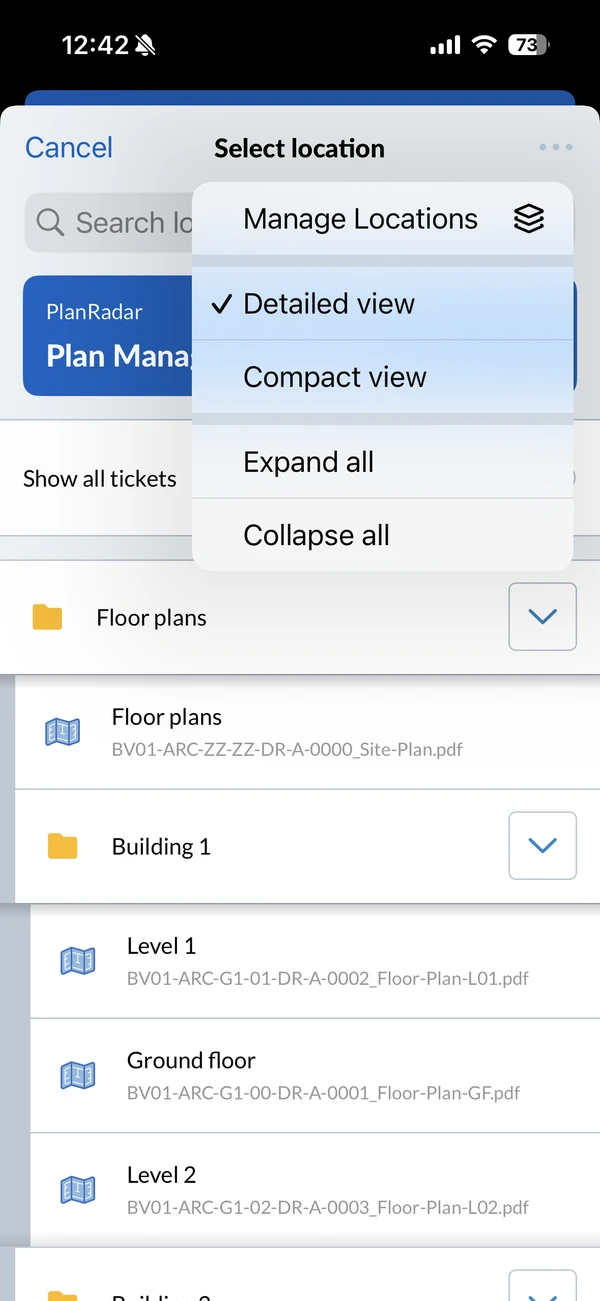
To add, rename, move or delete the plans and folders of the current project:
- Tap the location selector
- Open the More menu
- Tap Manage Locations
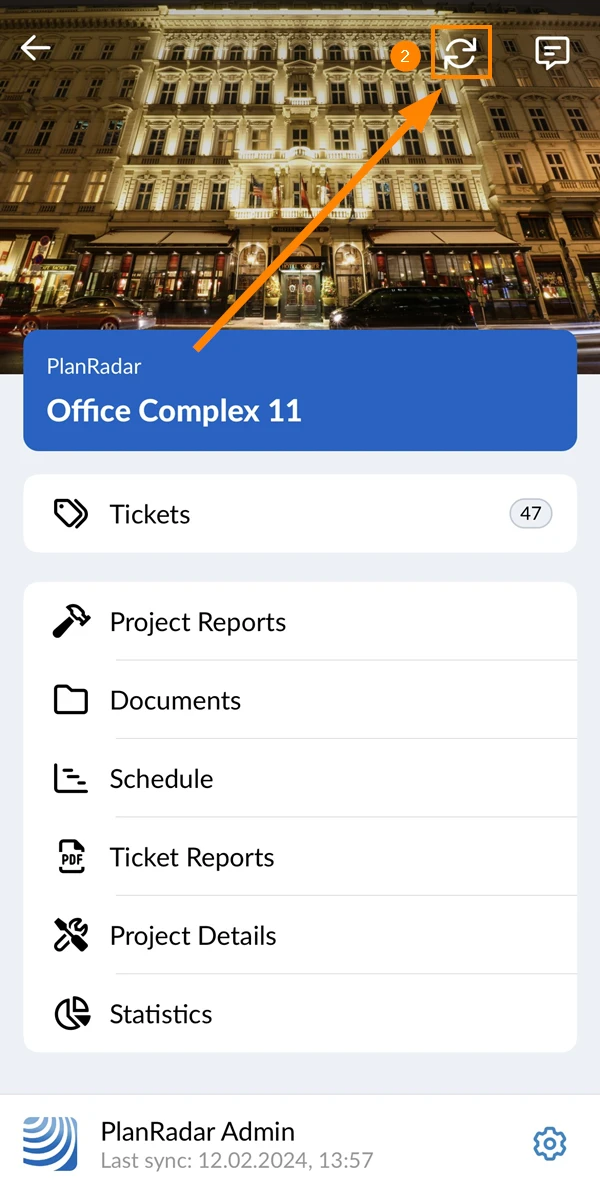
Start Sync
To start synchronisation of your mobile device with the PlanRadar server:
- Go to the main menu (as described above)
- Tap the Sync button
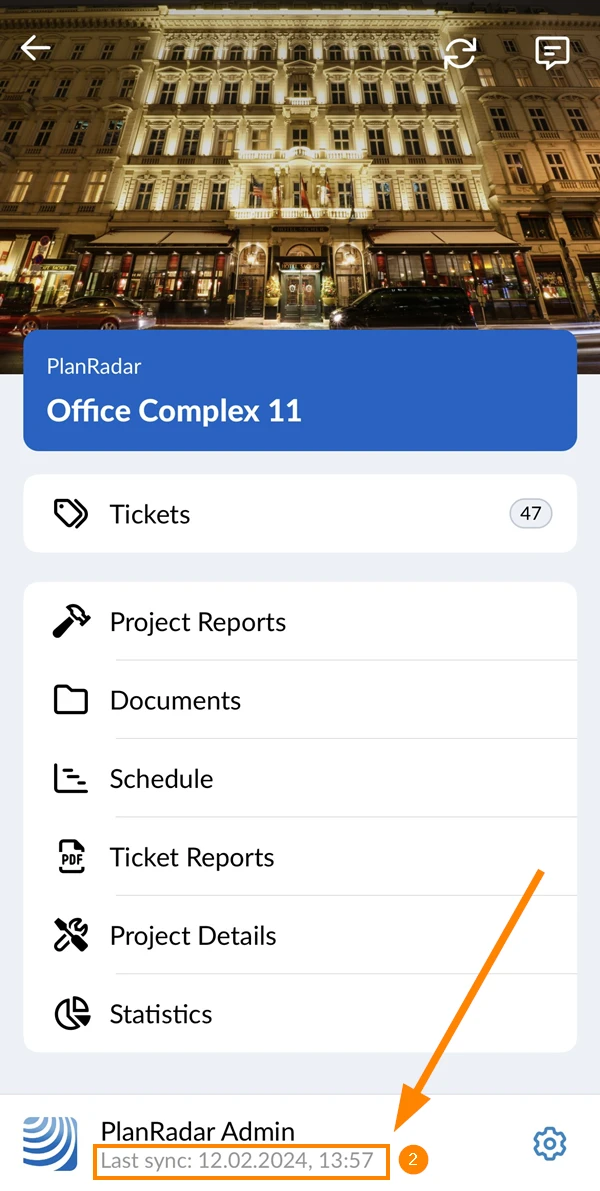
To see when you last synced your device:
- Go to the main menu (as described above)
- See the Last sync time stamp under your user name
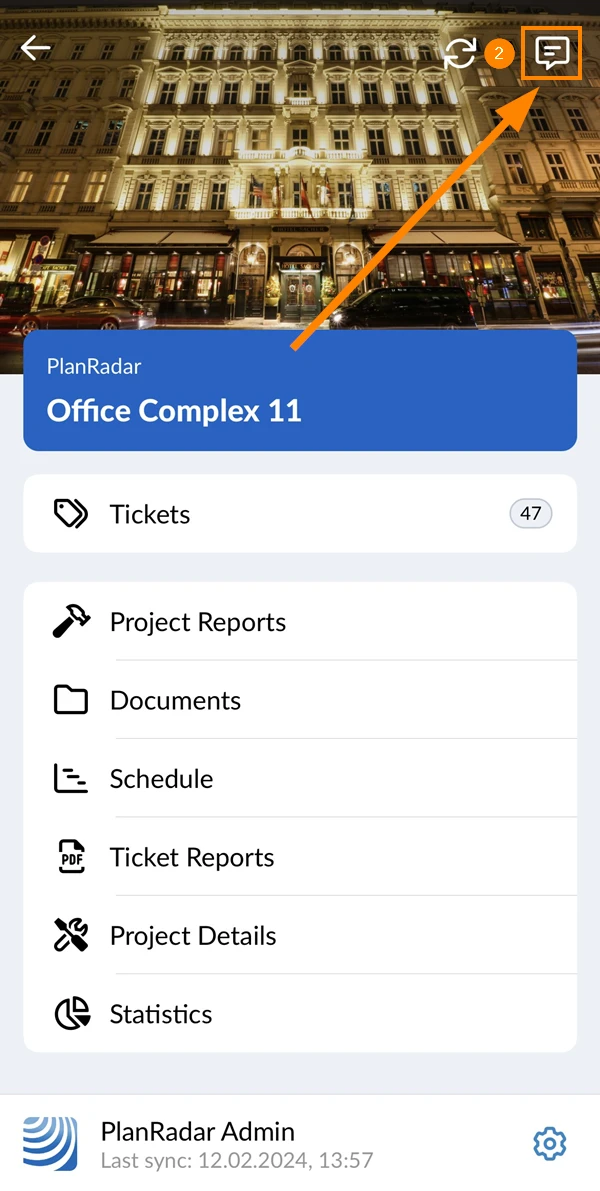
View Messages
Messages inform you about any changes related to tickets that you have access to in all projects of your selected account.
To view all messages of your selected account:
- Go to the main menu (as described above)
- Tap the Messages button
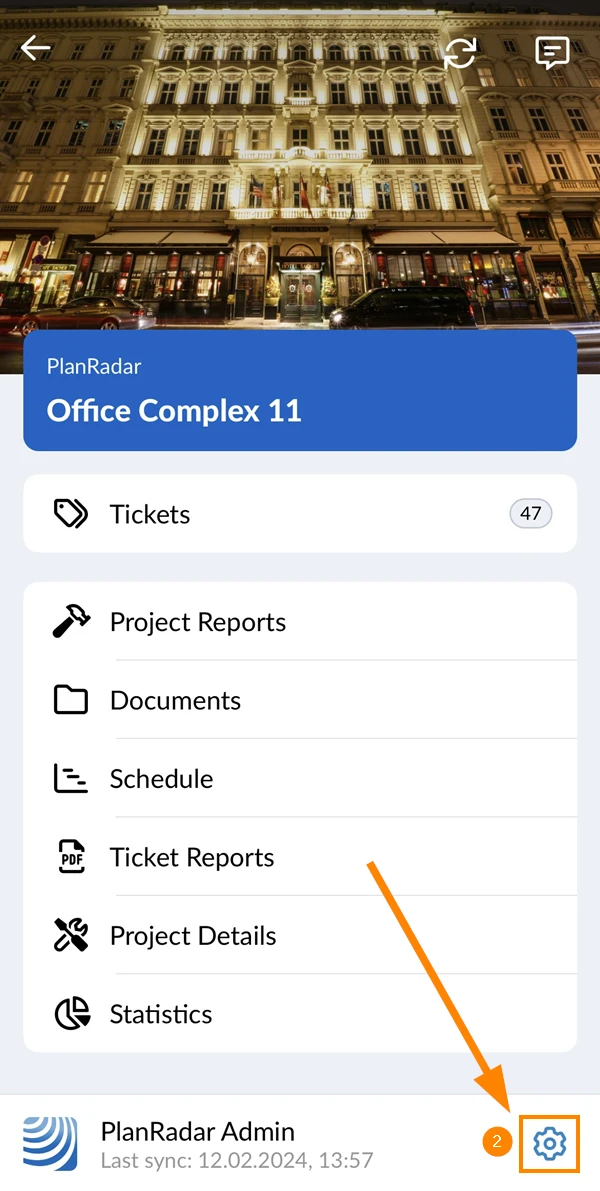
Change Settings
To change your settings:
- Go to the main menu (as described above)
- Tap the Settings button
Related Video
This feature is also mentioned in this product update video.
Updated January 14, 2025