

 Deutsch
 Español
 Français
 Hrvatski
 Italiano
 Polski
 Português (BR)
Documents by Location
Overview
Access & permissions
Since this feature is outdated, we encourage you to use the new Document Management feature and move all your files from Documents by Location into All files to access additional functionality. Please note, All Files is only available to Pro and Enterprise customers, with accounts activated from February 2022.
Using Documents by Location
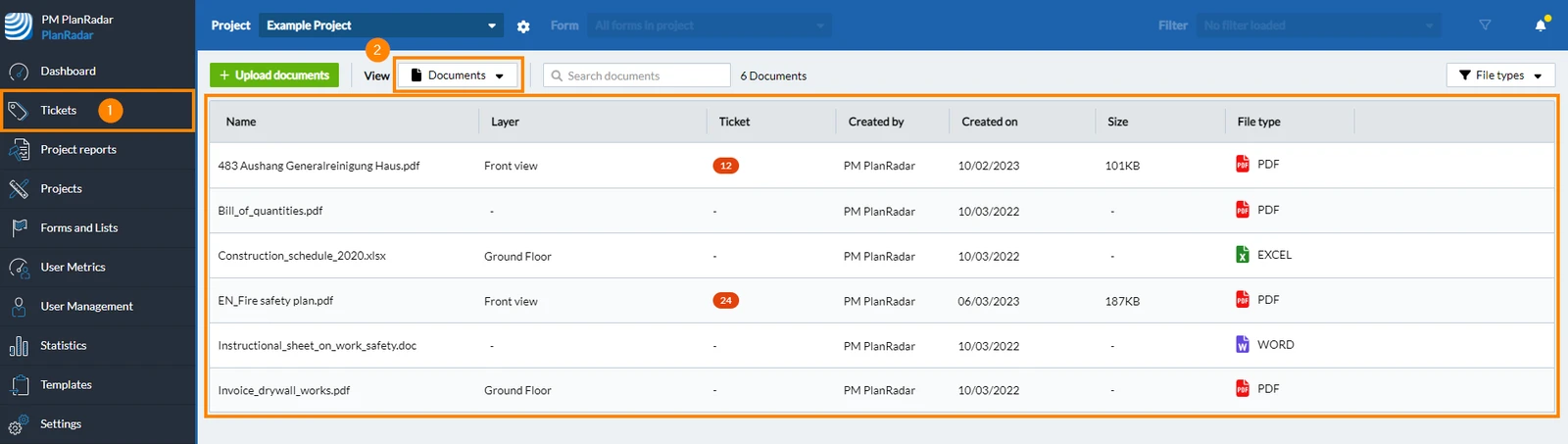
With the release of the new Documents Management System in March 2023, the Documents view under Tickets:
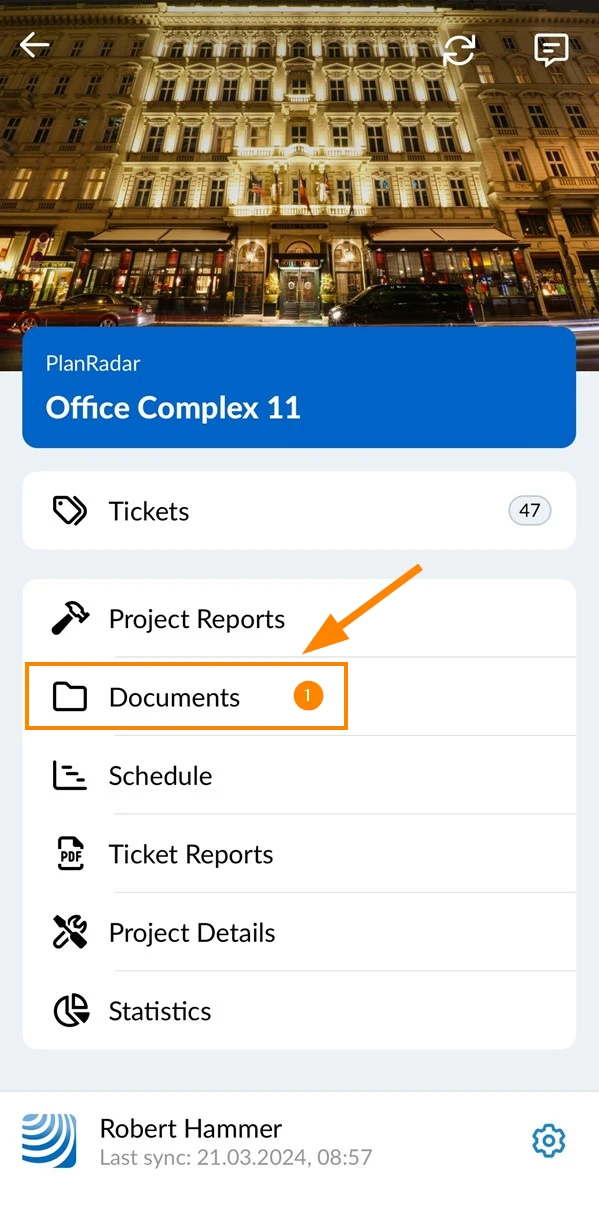
has been replaced with Documents by Location, accessible via the main navigation under Documents:
- Tap Documents
- Open the More menu
- Tap Documents by Location
Documents attached to a project
All documents you have previously uploaded to a project appear in the root folder of Documents by Location.
Documents attached to locations
For each location of your project — every folder and plan — a folder is shown here. Those folders contain the documents that you attached to it.
Documents attached to tickets
You can access documents that are attached to tickets. Go into the folder of a location with such tickets.
To show all documents attached to tickets:
- Open the More menu
- Activate the Show ticket documents toggle
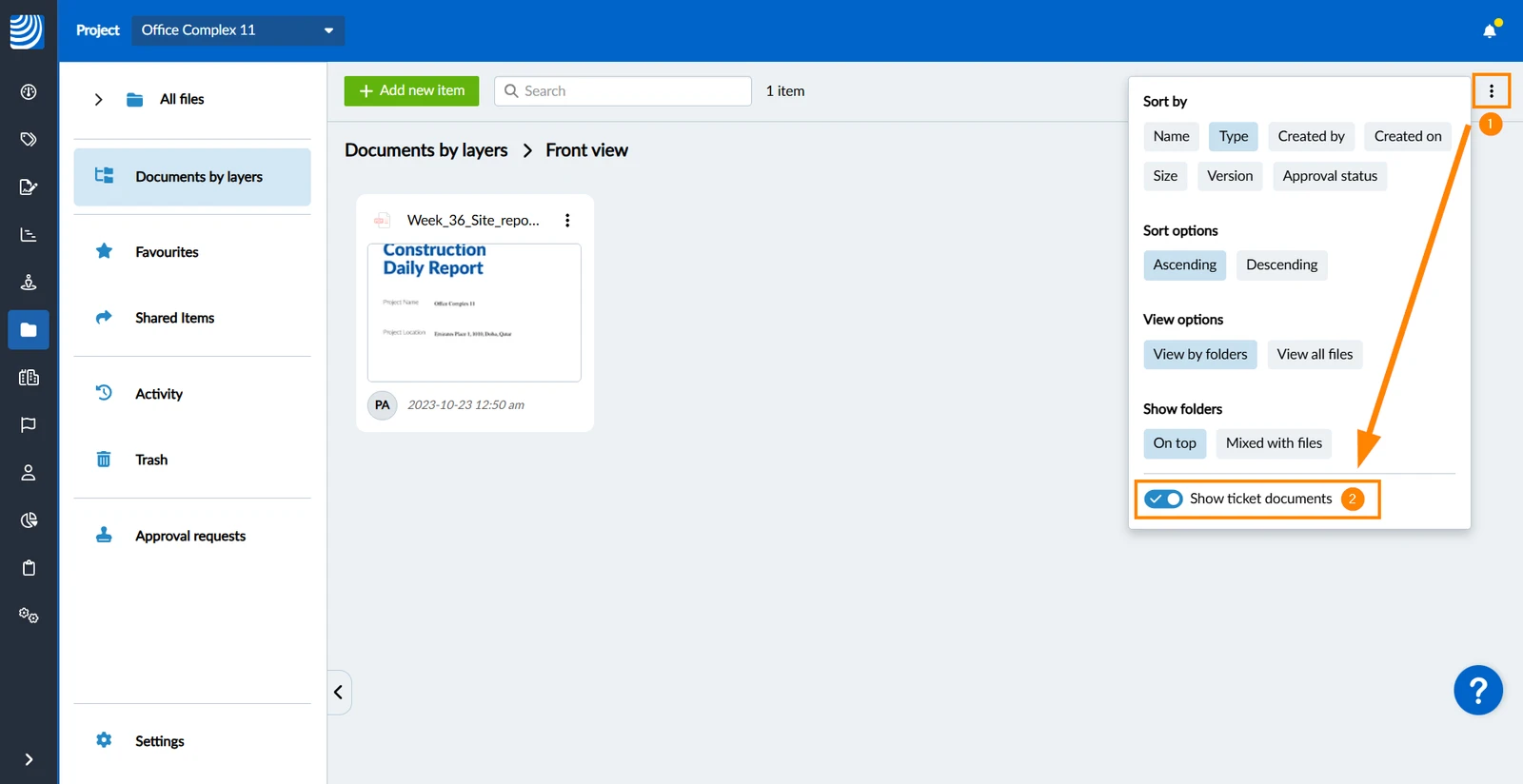
- Open the More menu
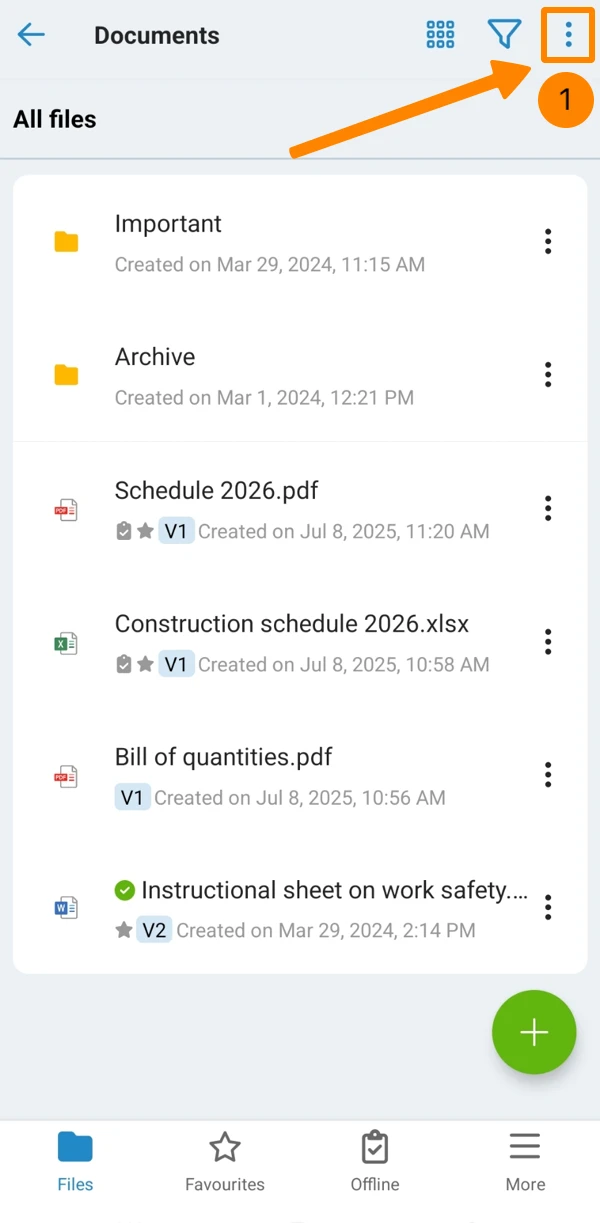
- Tap Show Ticket Documents
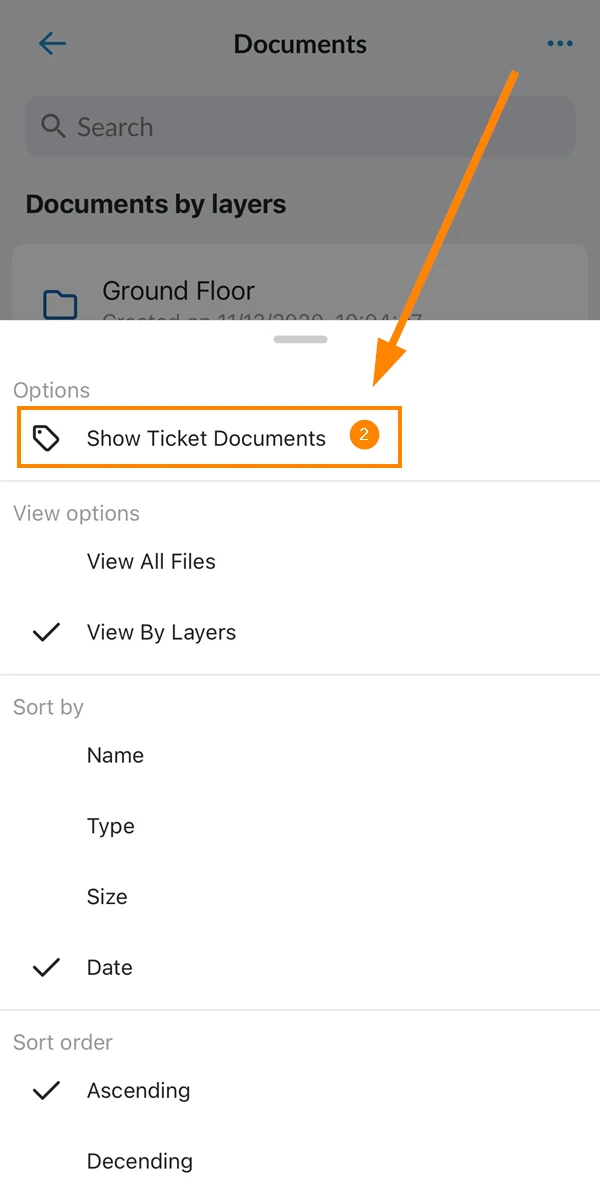
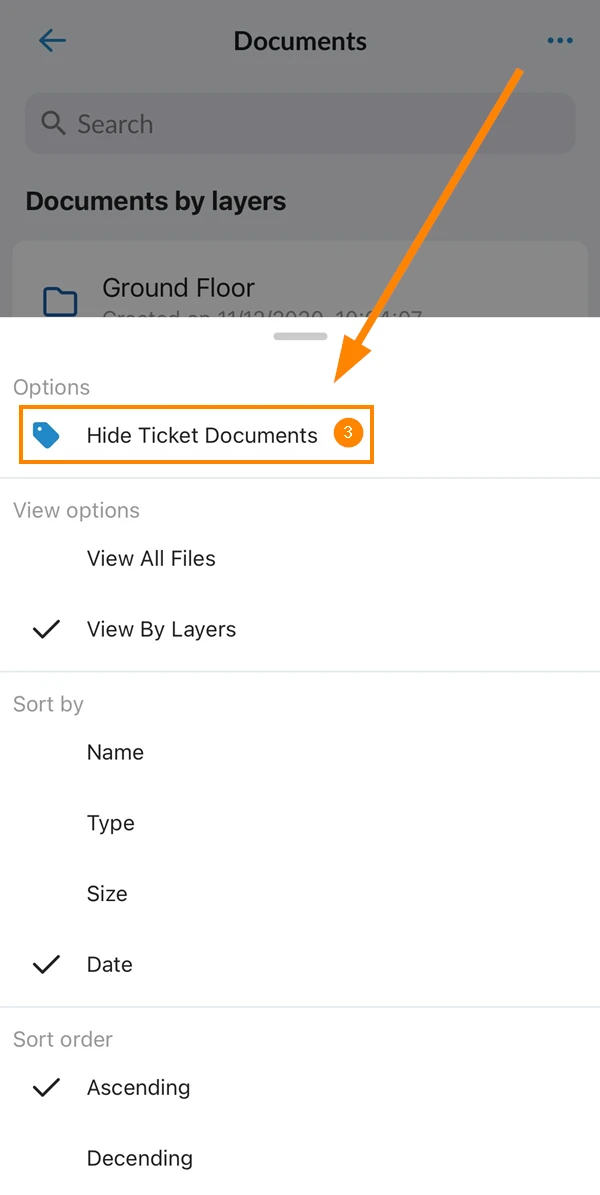
- Optional: Tap Hide Ticket Documents to hide them again.
File operations and limitations
You can upload and download documents and move and delete documents as before. Read more about managing files and folders in Document Management.
Compared to the new Document Management functionality, the following limitations apply:
- You cannot create custom folders.
- Only the following document file types are supported: pdf, xls, xlsx, ods, csv, doc, docx, odt, dwg, dxf, eml, msg.
- Trash is not supported.
- Document versioning is not supported.
- Document approvals are not supported.
- Moving files into All files is a one-way operation. You cannot move files from All files into Documents by Location.
- The maximum file size is 100 MB.
Permissions
-
Create with two options:
- Documents in tickets only.
- Documents in tickets and in Documents by Location.
-
View with two options:
- Documents attached to tickets only.
- Documents attached to tickets and in Documents by Location.
-
Edit: User can modify documents attached to tickets and in Documents by Location.
-
Delete: User can delete documents attached to tickets and in Documents by Location.
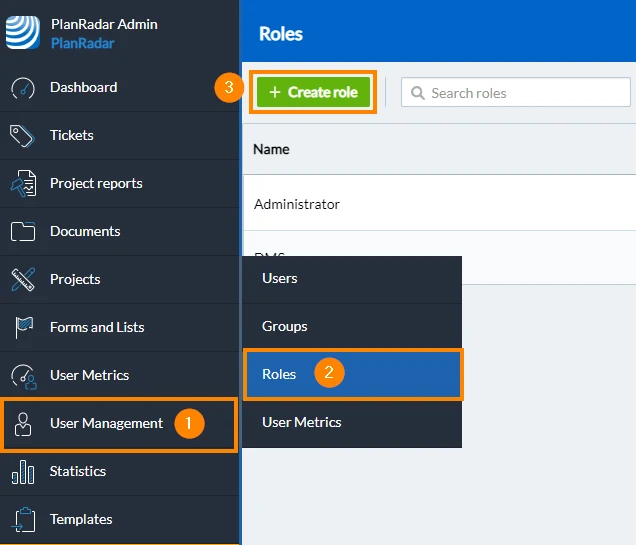
- Click User Management
- Click Roles
- Click + Create role (or click on an existing role to edit it)
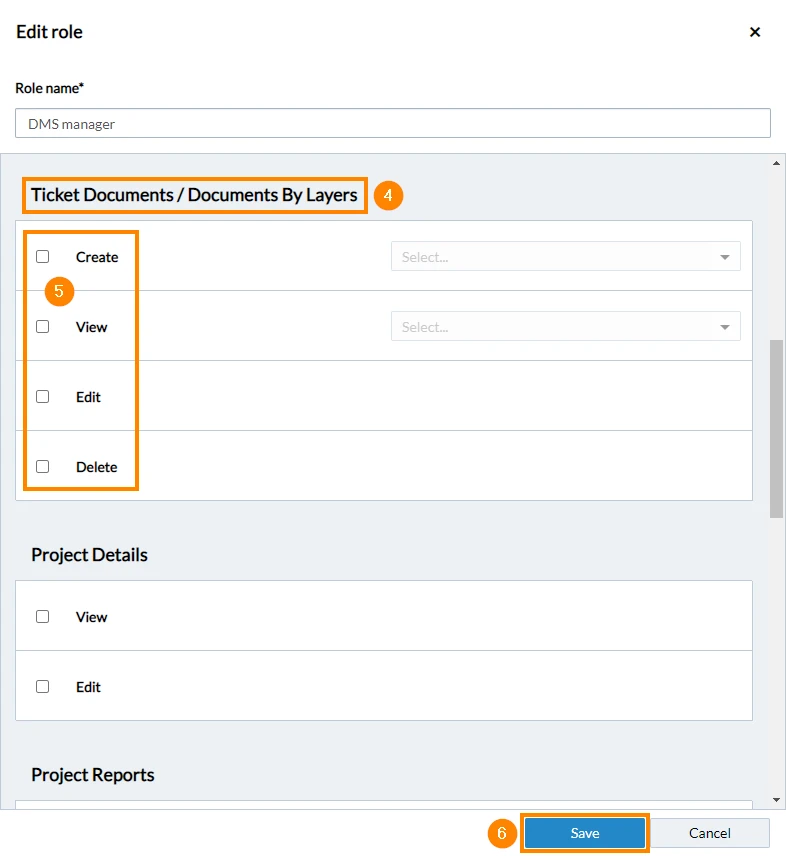
- Scroll down to Ticket Documents / Documents by Location
- Select the checkboxes Create, View, Edit and/or Delete and available options to grant those permissions.
- Click Save
Updated September 3, 2026