

 Deutsch
 Español
 Français
 Hrvatski
 Italiano
 Polski
 Português (BR)
Permissions
Overview
You can fully customize the access privileges of your in-house users.
- User permissions define which features they can access in the PlanRadar account.
- Role permissions define what they can do in each feature (create/view/edit/delete) per project.
- Field permissions define which role can view or edit each single ticket form field per project.
Access & Permissions
User Permissions
User permissions limit a user's access to features in the main menu. Therefore, they are set when creating/inviting a new user or when editing users. They work independently from roles and projects.
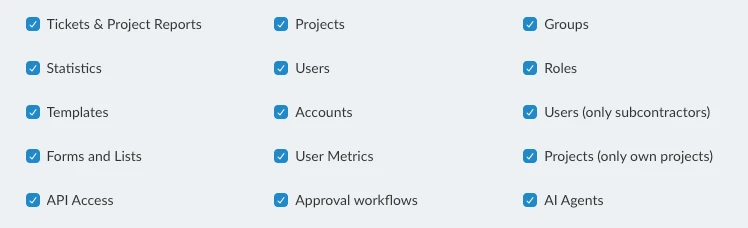
These are the user permissions, in the order they appear:
- Tickets & Project Reports
- Projects
- Groups
- Statistics
- Users
- Roles
- Templates
- Accounts
- Users (only subcontractors) — allows creating, inviting and managing subcontractors, but no in-house users
- Forms and Lists
- User Metrics
- Projects (only own projects) — allows creating and editing own projects, but not projects created by others
- API Access
- Approval workflows
- AI Agents — allows building and running AI agents in the Webapp. Account owners always have this permission. Read more in Create & Manage Your AI Agents
Role Permissions
Roles are used to define what users can do exactly within each single project.
First, you create a role to define detailed permissions for each feature e.g. whether this role can view/edit/create/delete tickets.
When adding a user to a project you must choose one of the roles that were created before.
Role permissions are available for the following features:
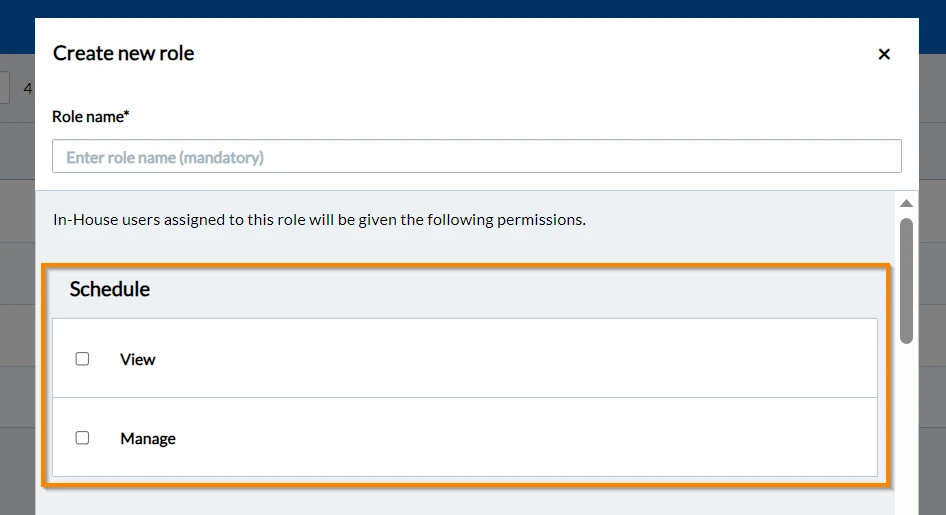
Schedule
- View: view project's schedule.
- Manage: includes all: create, view, edit, delete anything within a project's schedule.
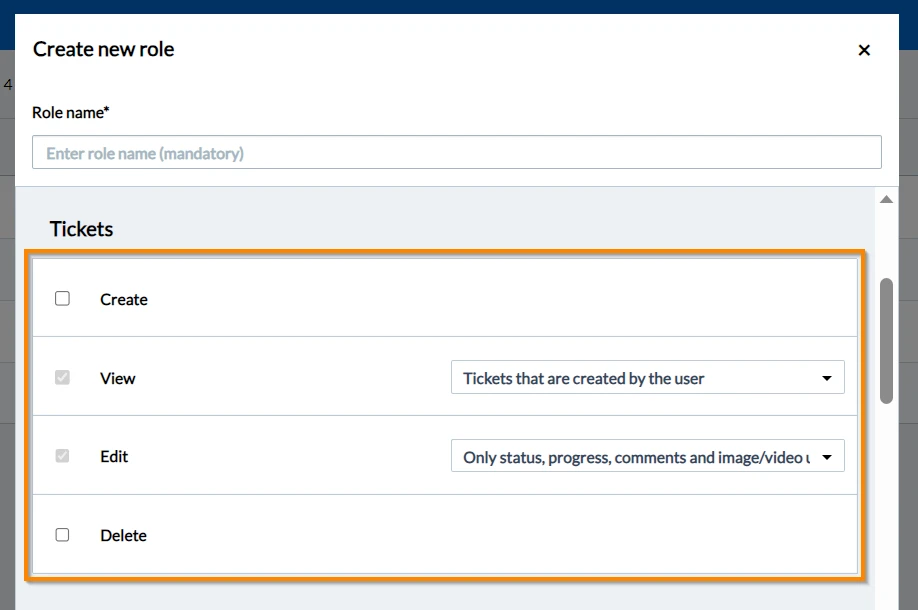
Tickets
-
Create: Create tickets in the project
-
View: This determines which tickets the user can view.
Drop-down menu options:- All tickets
- Tickets that are assigned to the user or to the groups they belong to
This includes tickets created by the user, but NOT all tickets created by other members of the group(s) to which the user belongs. - Tickets that are created by the user
This does NOT include tickets assigned to the user. - Tickets that are assigned to the user
This includes tickets created by the user, but NOT all tickets created by other members of the group(s) to which the user belongs. - Tickets that are created by or assigned to the user or a group they belong to
This also includes tickets created by a member of their group(s).
-
Edit: This determines which fields on which tickets the user can edit.
Drop-down menu options:- All tickets that the user can view
- Only status, progress, comments and image/video uploads
The user cannot edit other ticket fields. Same like subcontractors. - Only tickets created by or assigned to the user
This does NOT include tickets created by or assigned to their groups(s). - All tickets, but only the ticket author can set the status to closed
The user can edit all other ticket fields and set the status to everything except to closed, if the ticket is assigned to them, but not created by them.
-
Delete: Delete tickets.
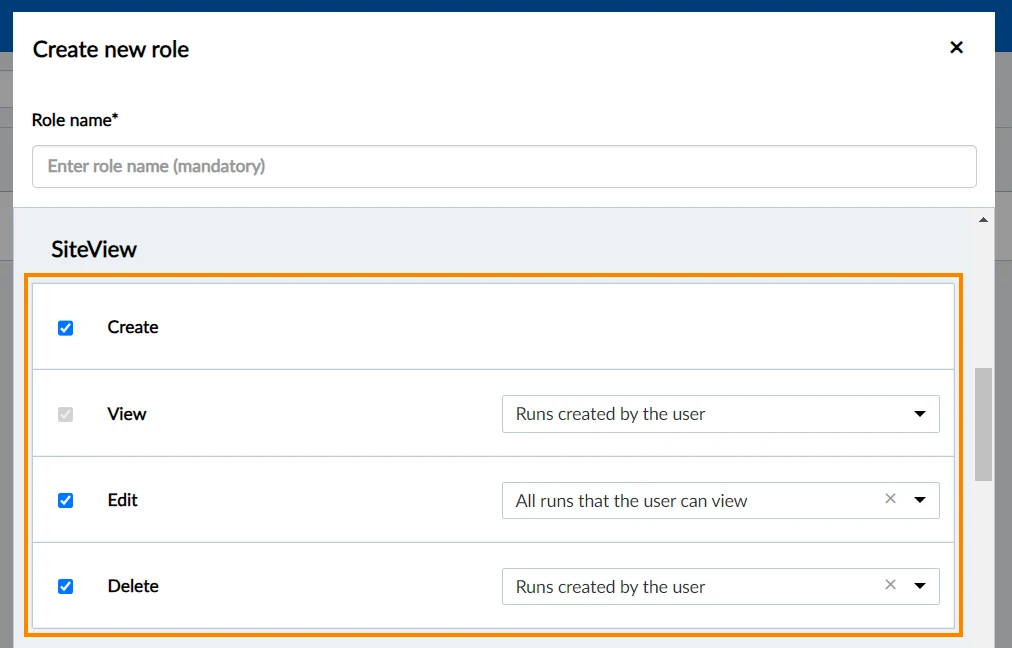
SiteView
- Create: Create and upload runs in SiteView, and add or delete run photos.
- View: View runs, run photos and tickets attached to 360° images in SiteView. Available options are 'All runs' and 'Runs created by the user'.
- Edit: Edit, manage or rename runs and add tickets to 360° images and manage them in SiteView. Available options are 'All runs that the user can view' and 'Runs created by the user'.
- Delete: Delete runs in SiteView. Available options are 'All runs that the user can view' and 'Runs created by the user'.
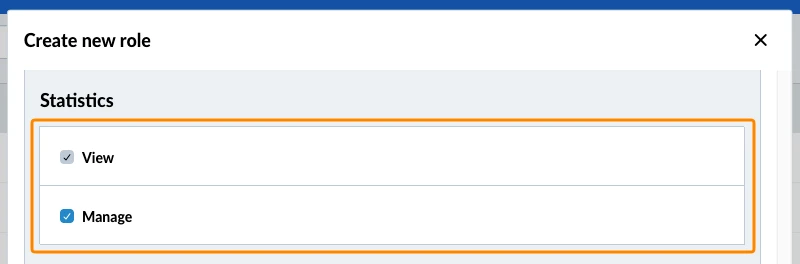
Statistics
- View: View the statistics boards and charts of the project.
- Manage: Create, edit, delete and rearrange the project's own statistics boards and charts.
Ticket Documents/Documents by Location
This section is only applicable to users subscribed to PlanRadar before March 2023.
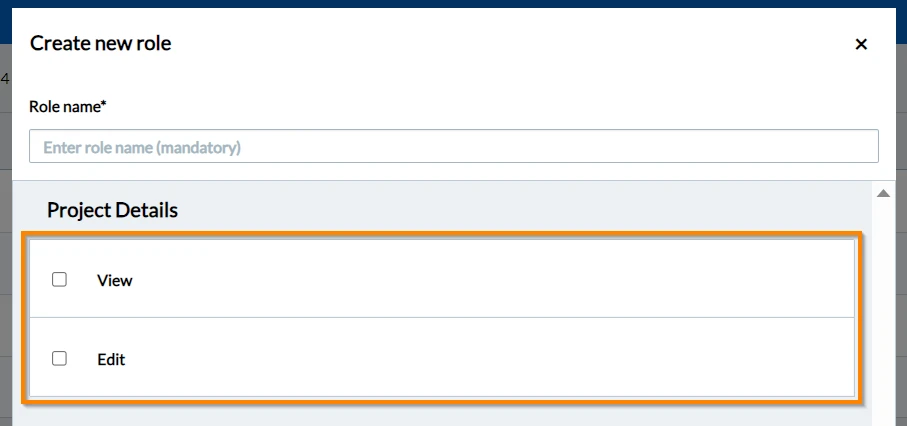
Project Details
For in-house users that are not granted the user permission "Projects", you can allow them to view or edit project details using role permissions.
- View: this permission allows the user to view project details, users, user groups, forms, lists, as well as plans and folders.
- Edit: edit project details.
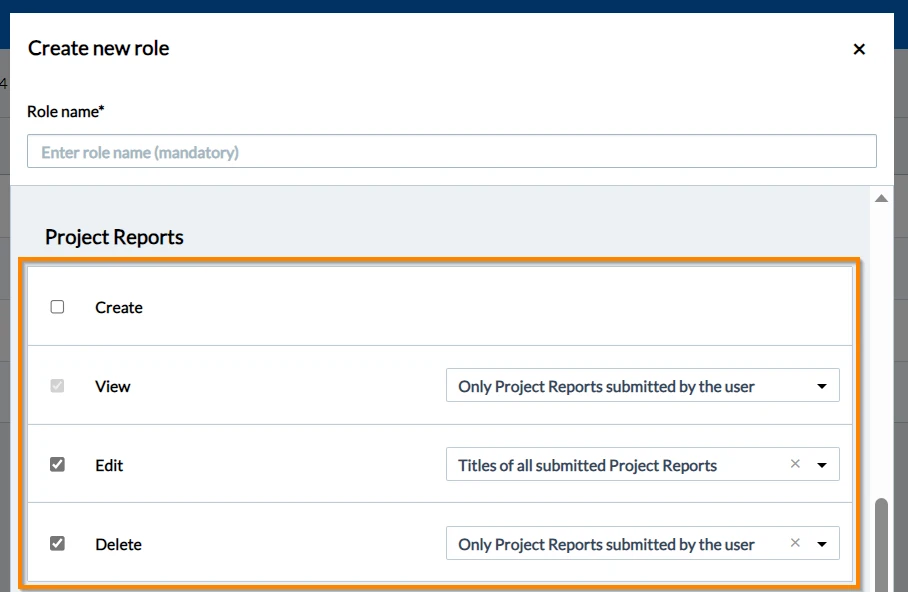
Project Reports
- Create: create project reports.
- View: Viewing project reports is by default included in all created roles. However, you can control what project reports the in-house user can view by selecting from the options available in the drop-down menu.
- Edit: edit project reports titles. You have to restrict this permission by selecting from the options available in the drop-down menu.
- Delete: delete reports. Use the drop-down menu to define which project reports the user can delete.
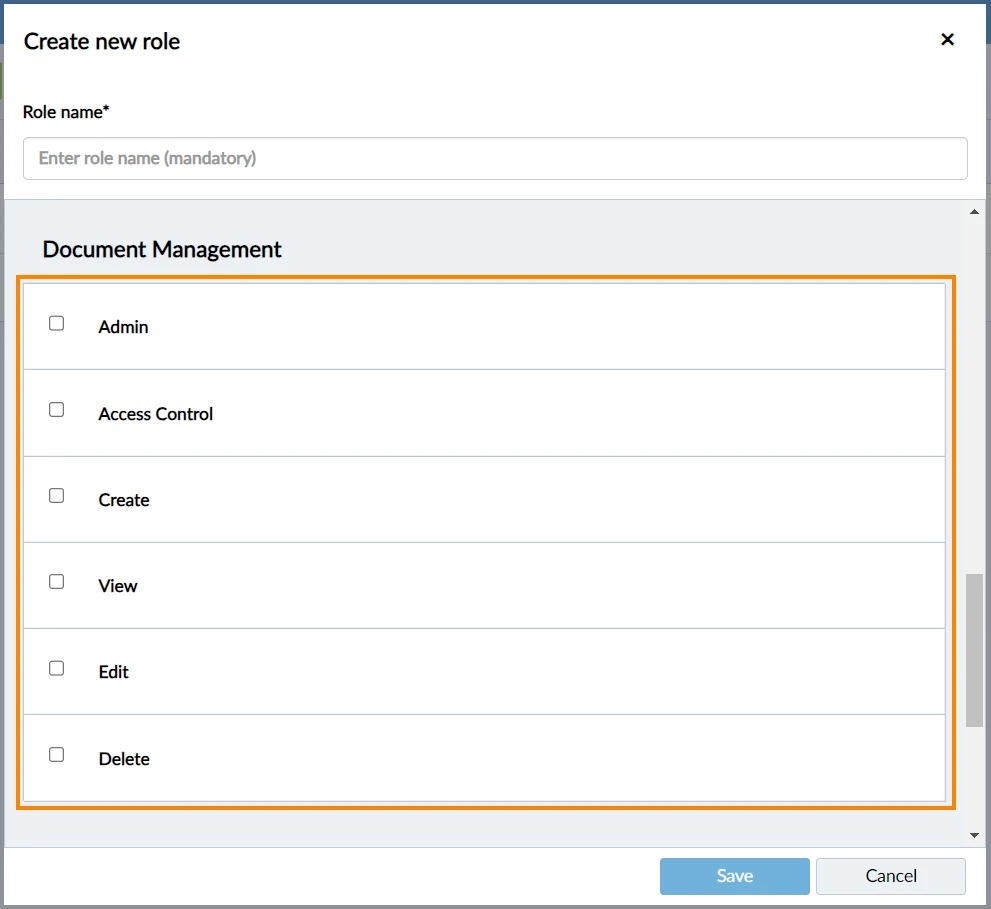
Document Management
- Admin: Full access to every file and folder overriding individual file/folder access settings.
- Access control: Allows user to enable access control per file/folder.
Read more in File/Folder Access Control. - Create: create documents in the project
- View: view documents in the project
- Edit: edit documents in the project
- Delete: delete documents in the project
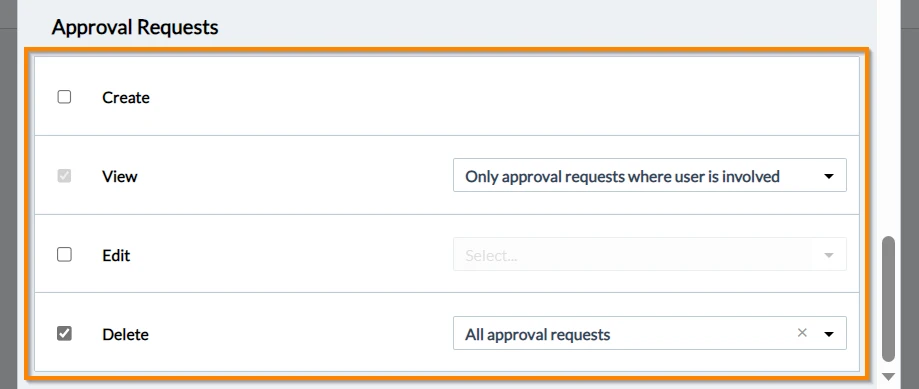
Approval Requests
Approval Request access can be controlled with specific role permissions to define which in-house users can view, create, edit or delete approval requests in their projects in Documents, for plans and for tickets.
- Create: user can create approval requests
- View: user can view either all or only approval requests he is involved in
- Edit: user can edit (i.e. cancel or add steps to) all or only approval requests created by himself
- Delete: user can delete all or only approval requests created by himself
Plan Markups
- Manage Public Markups: user can create and manage public markups (including those created by other users)

Field Permissions
Roles are also used in forms to define which fields users can view or edit.
Updated September 4, 2026