

 Deutsch
 Español
 Français
 Hrvatski
 Italiano
 Polski
 Português (BR)
Configure AI Agents for your Account
Overview
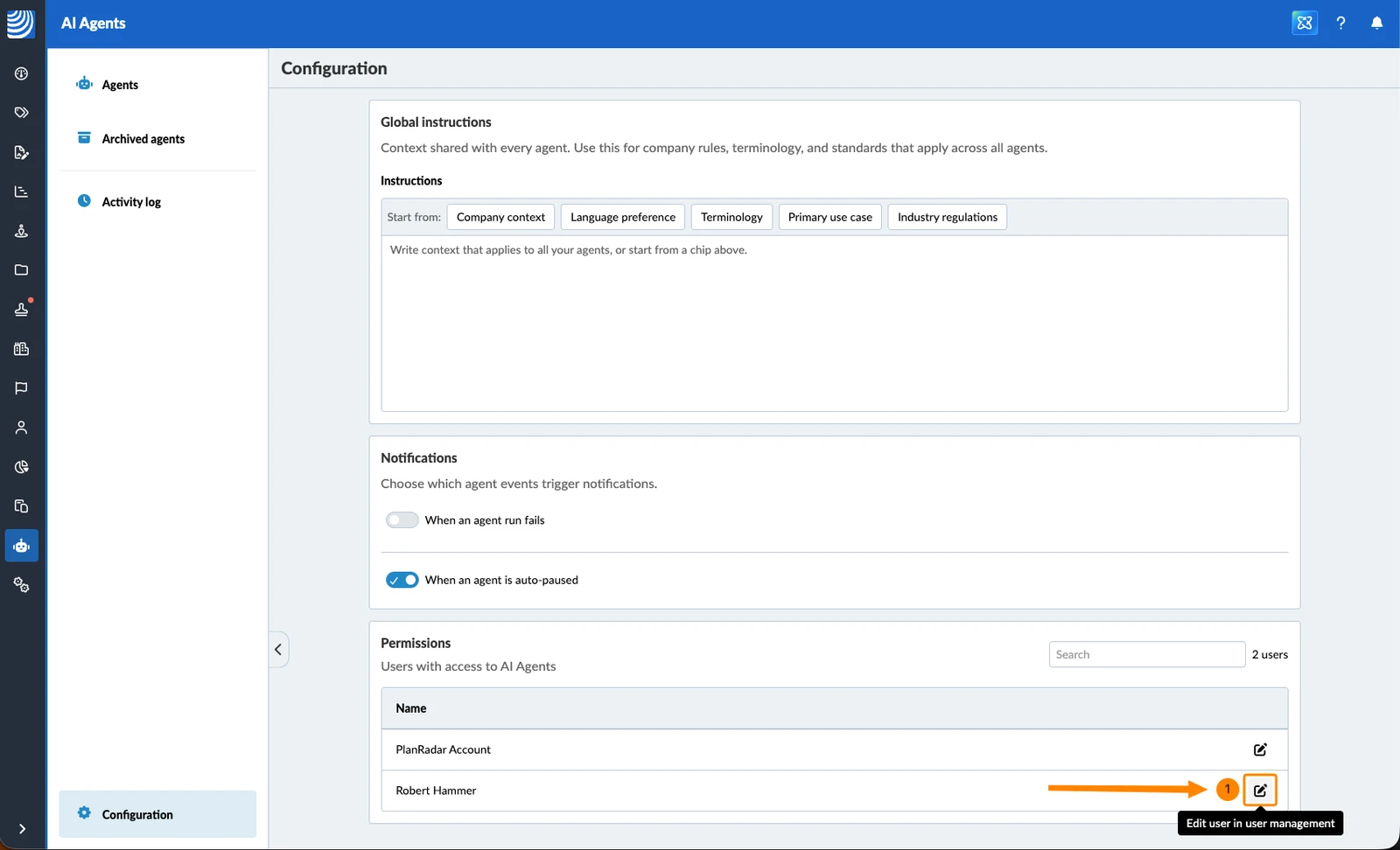
The Configuration page holds the settings that apply to every AI agent on your account, no matter who created it.
It has three sections:
- Global instructions — context that every agent gets on top of its own instructions, for example your company's terminology or standards.
- Notifications — whether agent owners are told when a run fails or an agent is paused automatically.
- Permissions — who on your account can build agents.
Access & Permissions
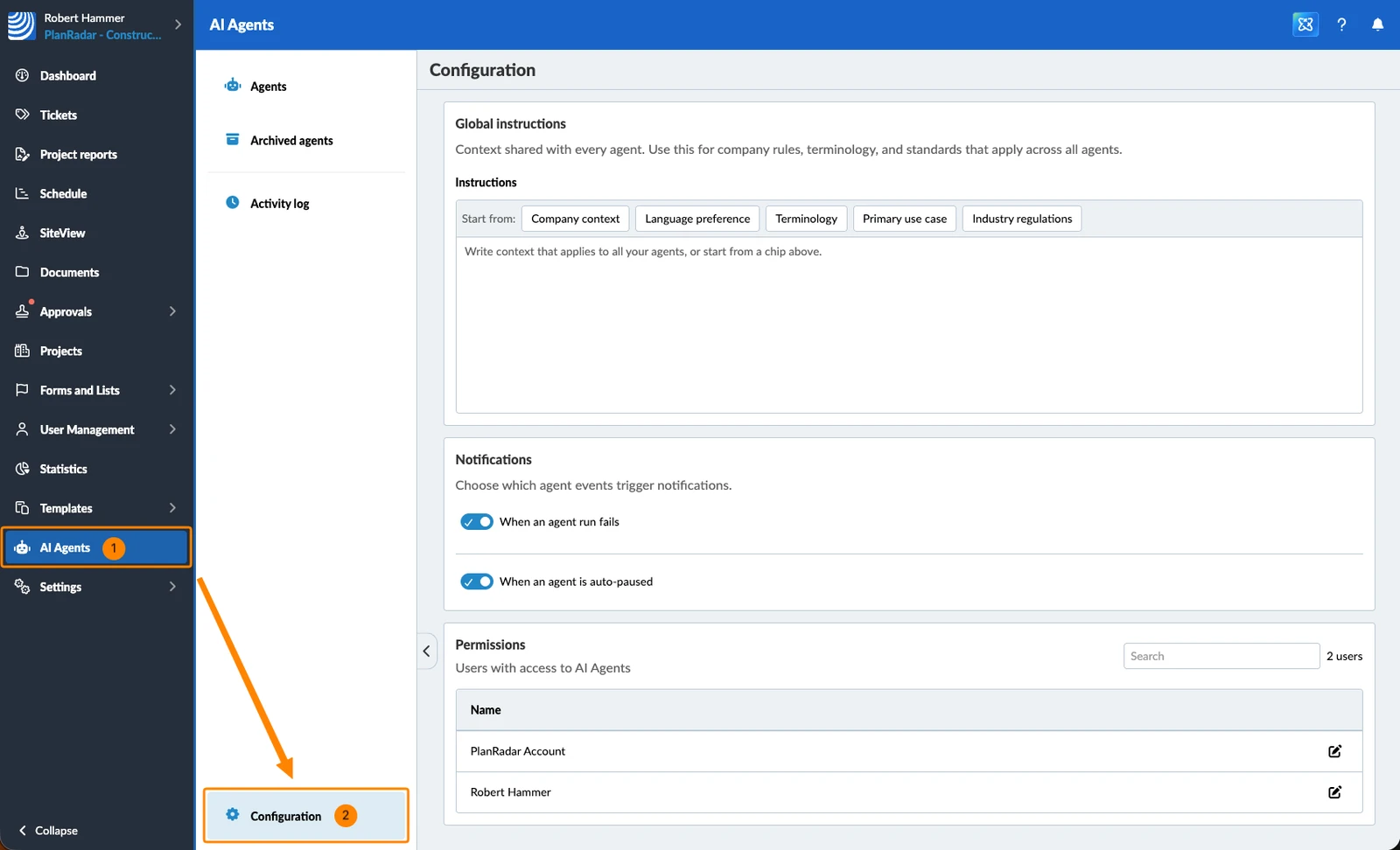
How to Access AI Agents Configuration
- Click AI Agents
- Click Configuration
Set Global Instructions for All Agents
Global instructions are context you write once for the whole account. Every agent reads them in addition to its own instructions, so this is the place for company rules, terminology and standards you would otherwise repeat in every agent.
For example:
- "We are a general contracting company based in Vienna."
- "Always respond in German, using a formal tone."
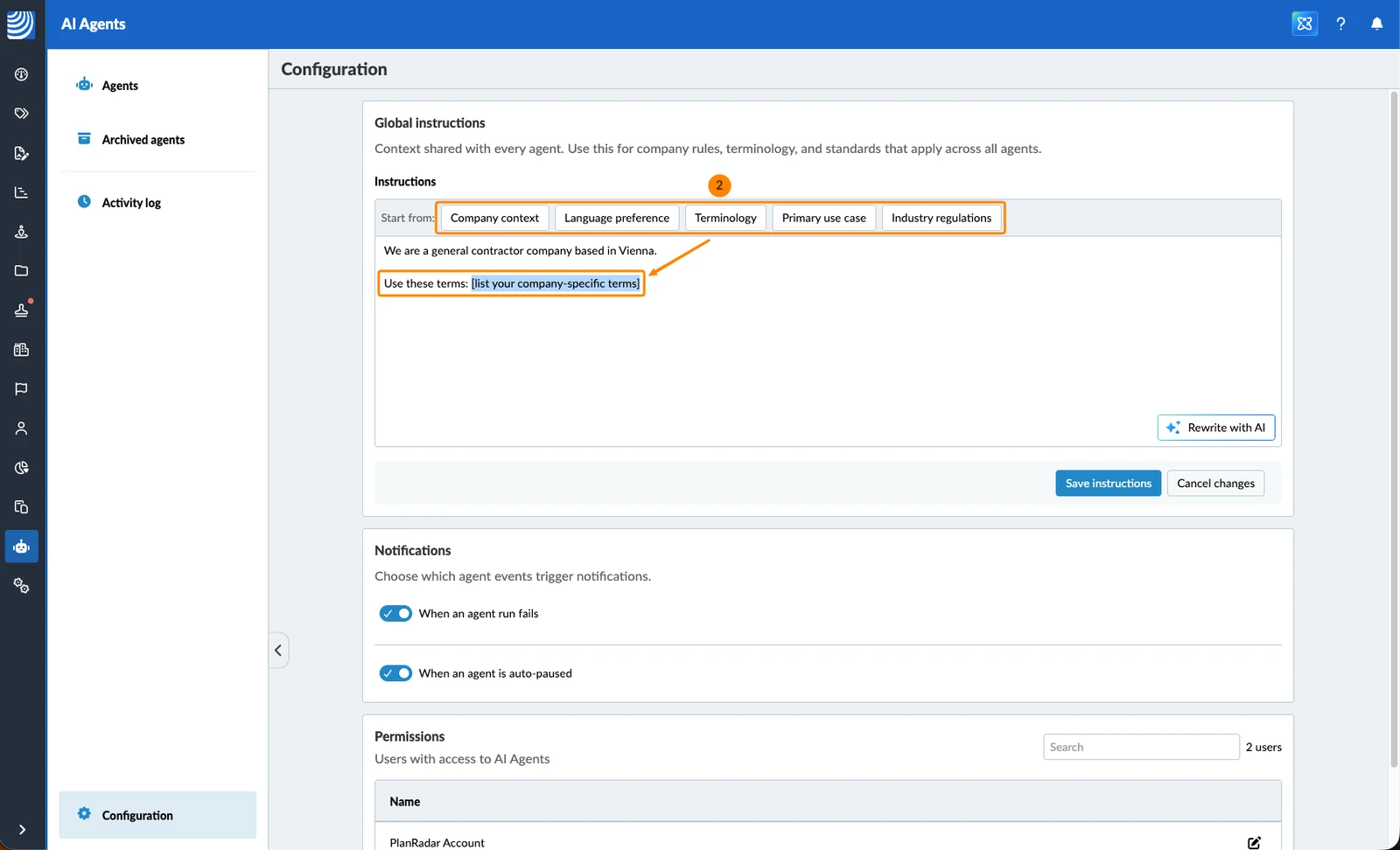
You can also start from one of five ready-made sentences:
- Company context
- Language preference
- Terminology
- Primary use case
- Industry regulations
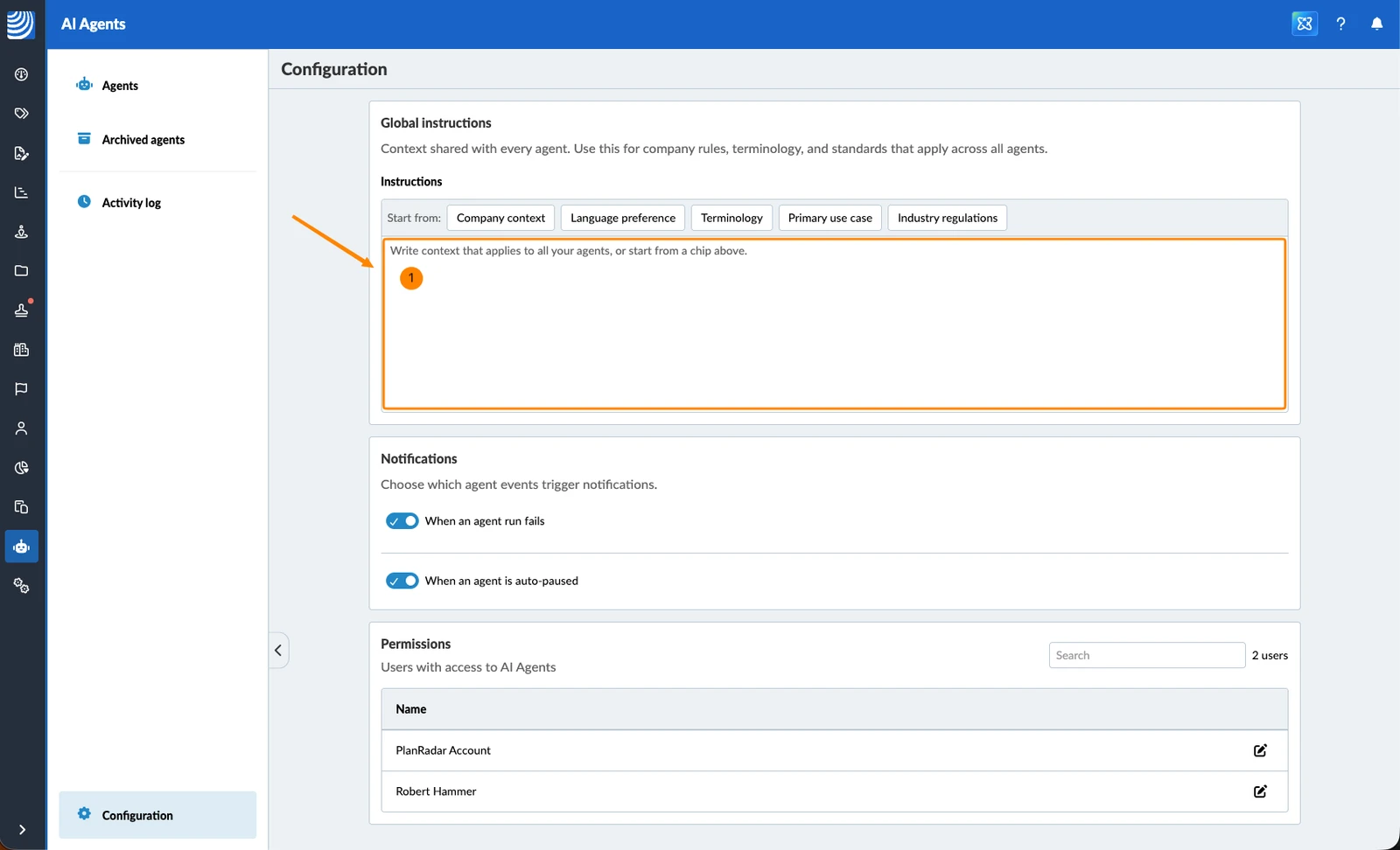
To set the global instructions:
- Under Global instructions, write the context that applies to all your agents.
- Optional: Click one of the sentences next to Start from: and complete it. Each one is added at the end of what is already written, so you can use several.
- Optional: Click Rewrite with AI to get an AI suggestion with clearer phrasing.
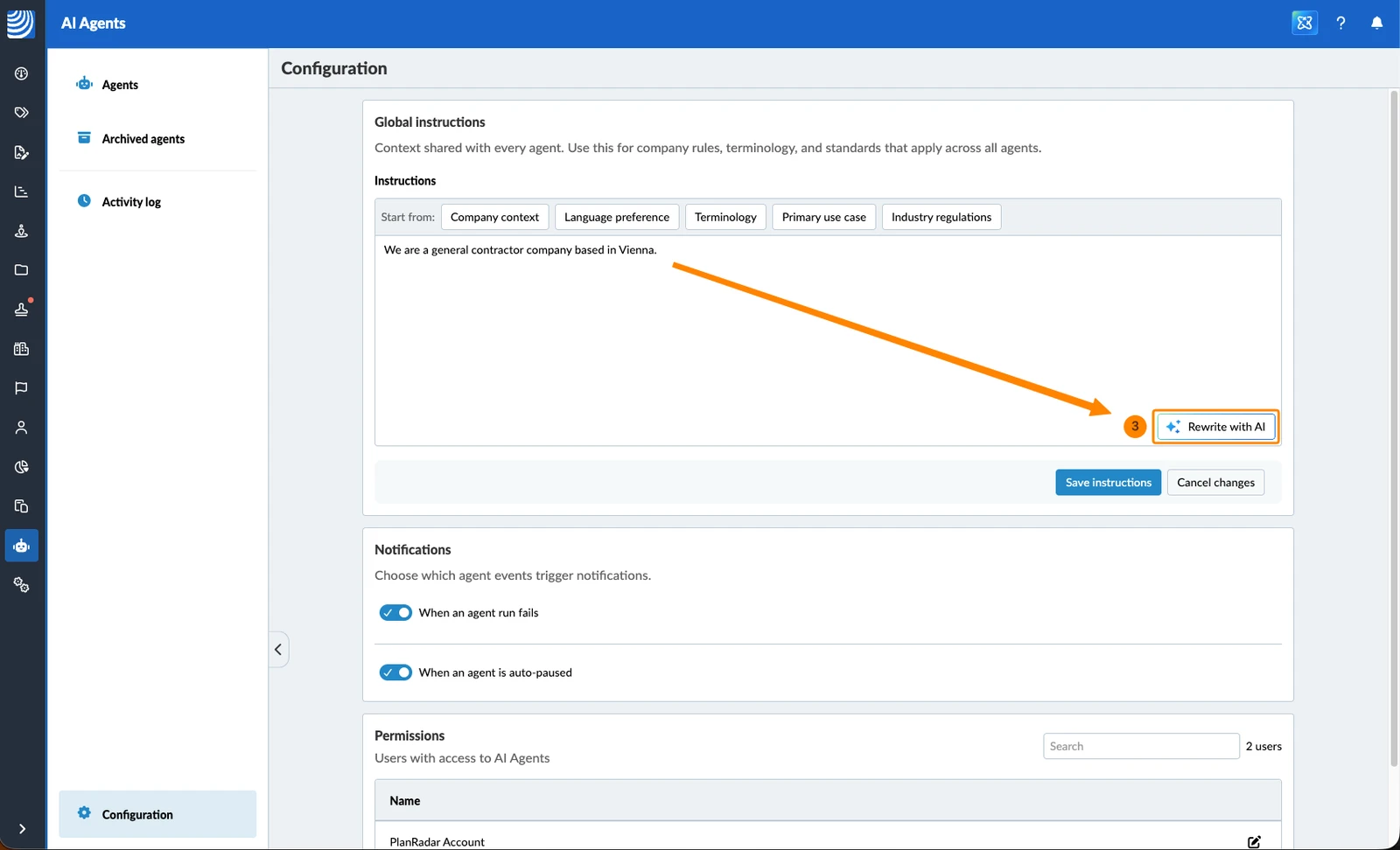
- Optional: You can keep the suggestion, Undo it, or write your own version instead.
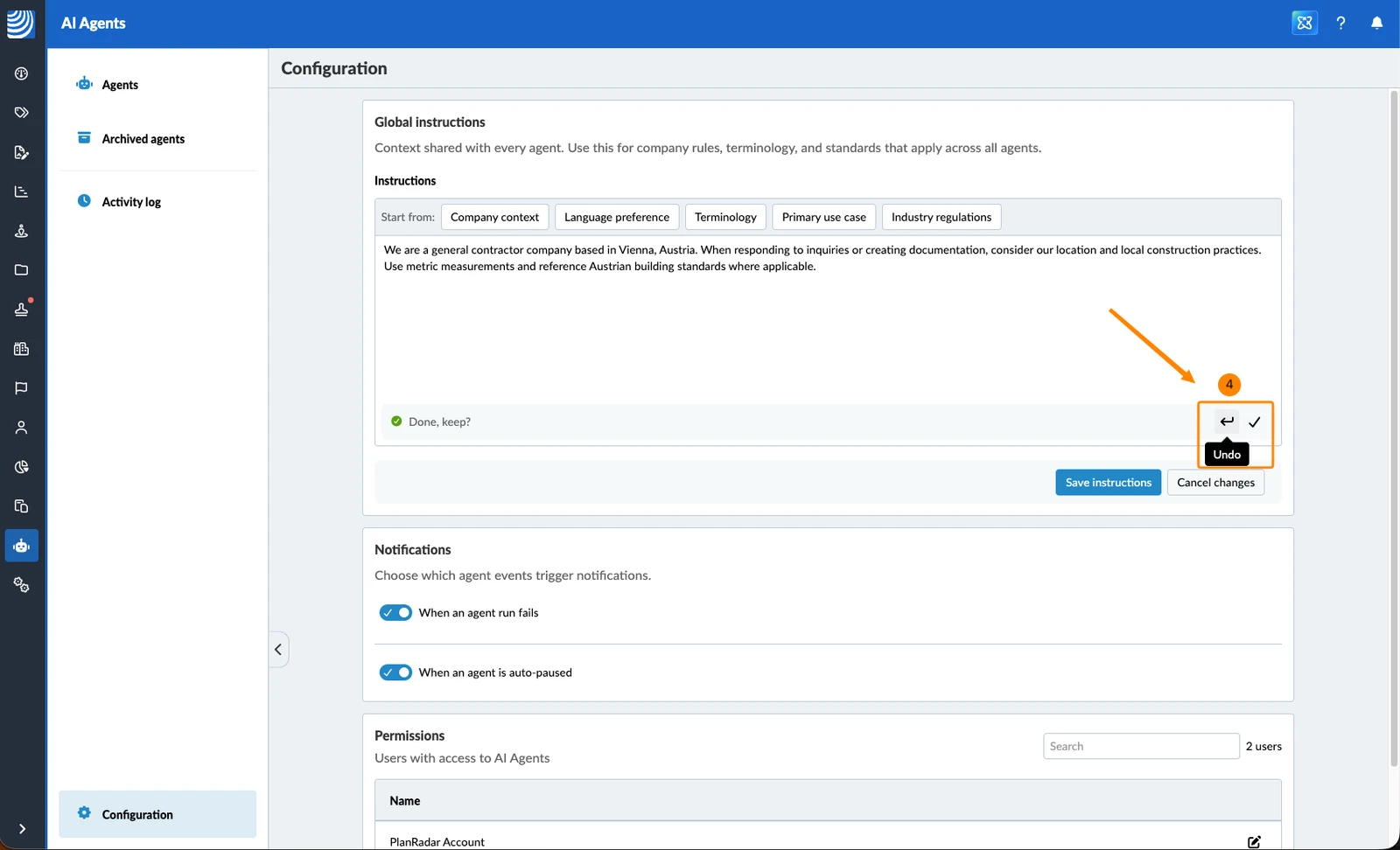
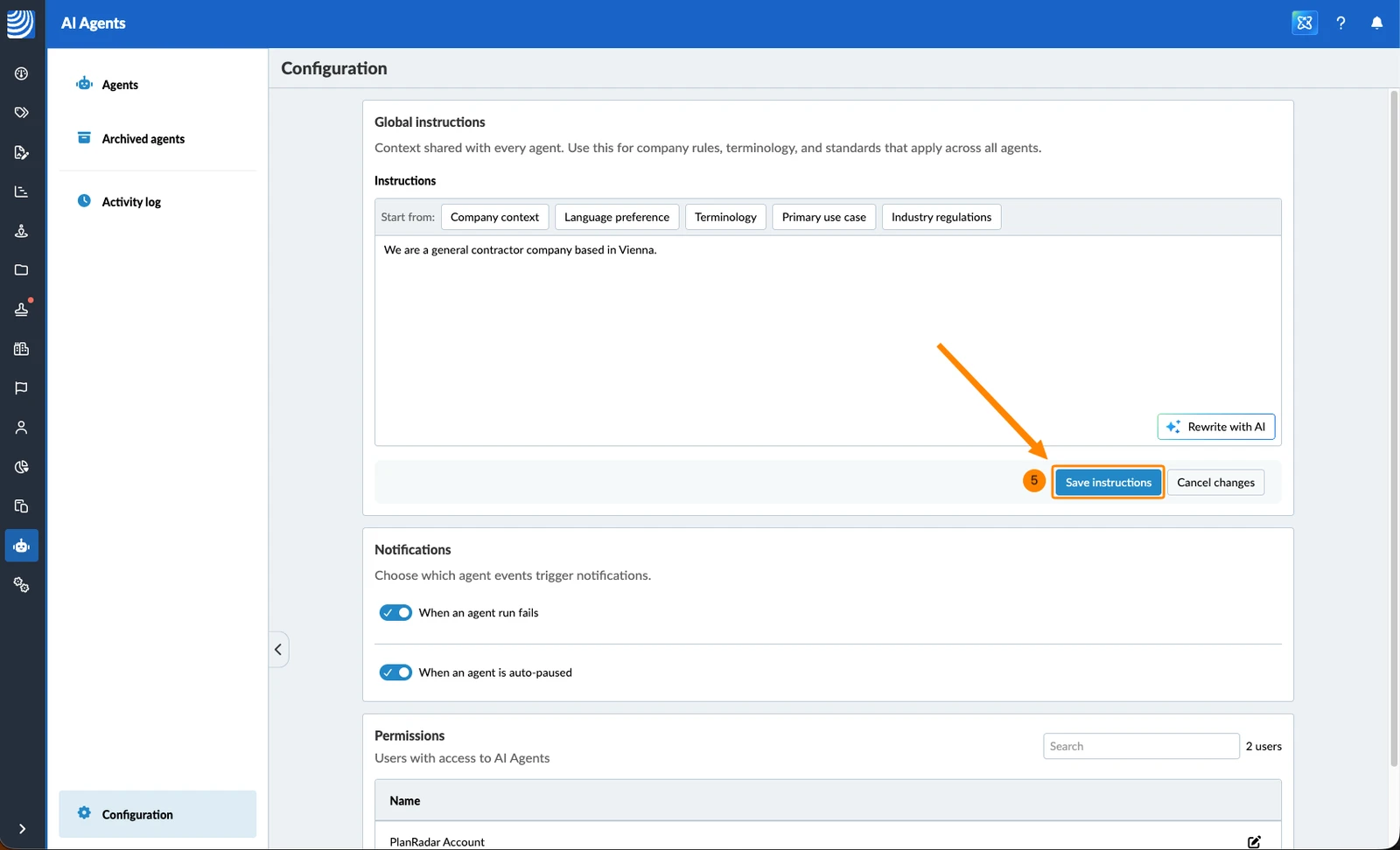
- Click Save instructions
Choose Which Agent Notifications Are Sent
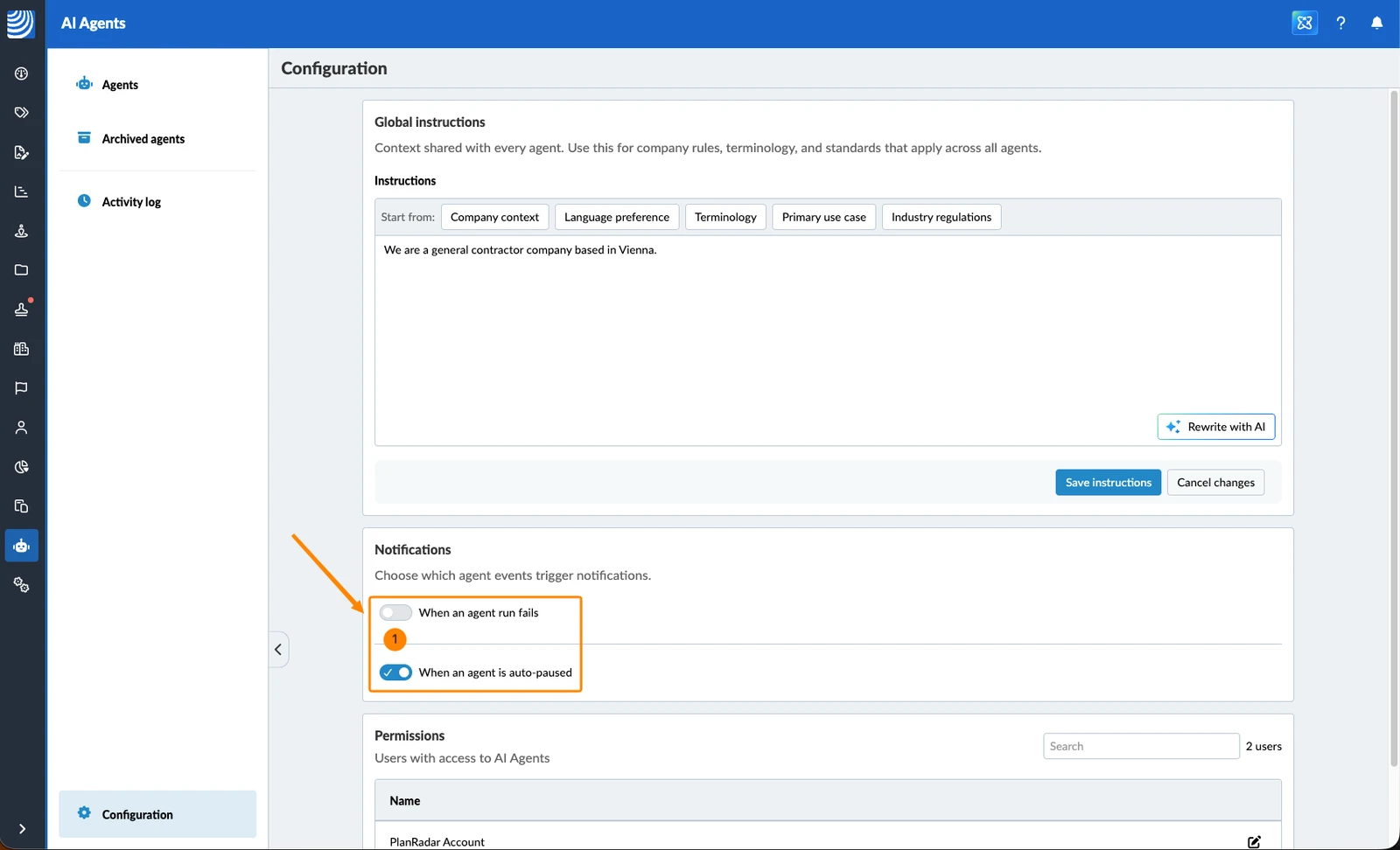
Agent owners are told when something goes wrong with one of their agents. The two settings here switch those messages on or off for the whole account — they are not personal settings, so a change affects every agent owner.
Both are on by default:
- When an agent run fails — a run ended without the agent finishing its work.
- When an agent is auto-paused — the agent stopped itself and needs to be activated again.
To switch a notification off:
- Under Notifications, click the toggle next to the event.
See Who Has Access to AI Agents
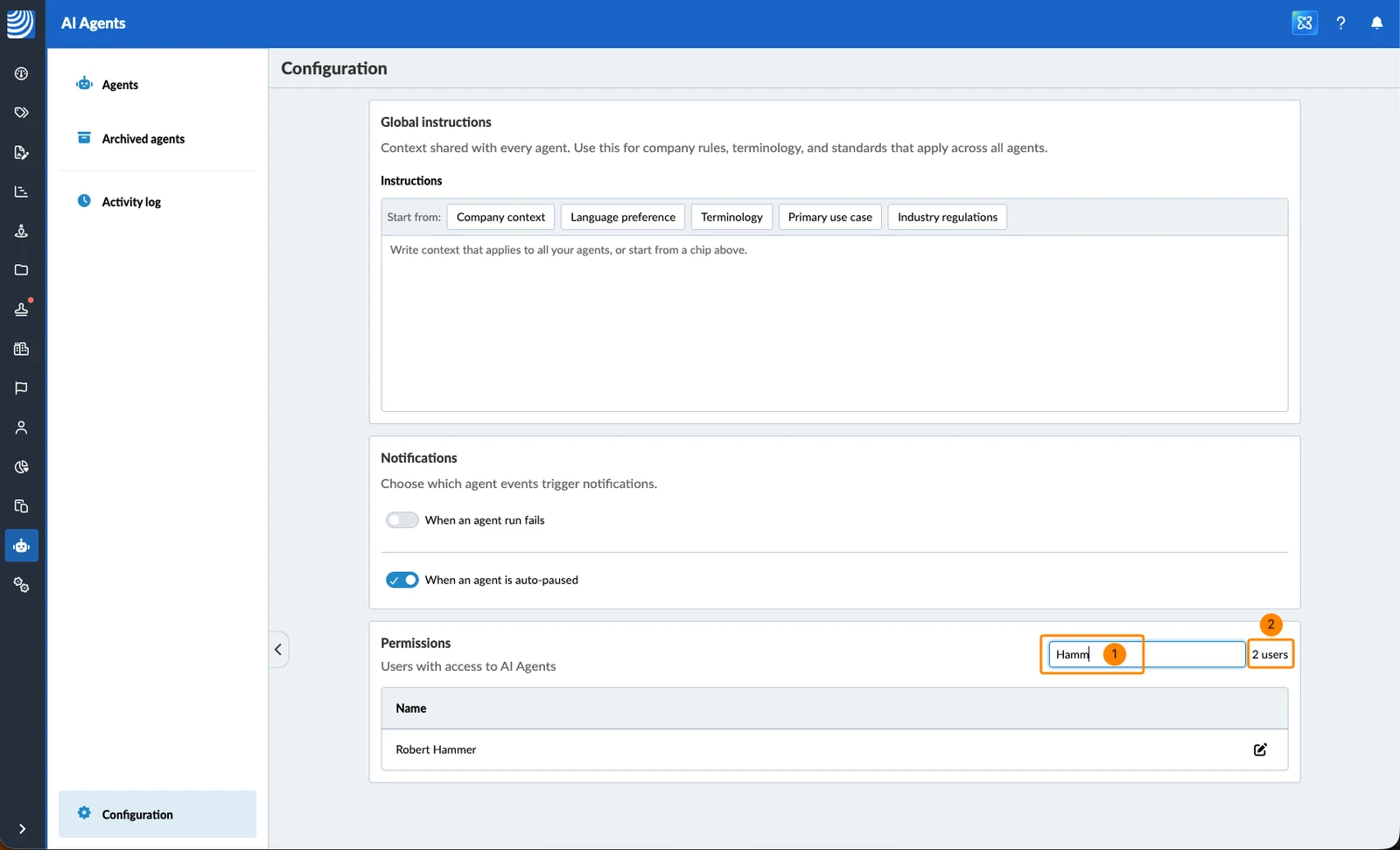
Permissions lists everyone on your account who holds the user permission AI Agents.
To search for users in the list:
- Enter their name
- Next to the search field you see the number of all users with the permission.
The permission itself is granted in user management, not here. To open a user's settings:
- Under Permissions, click the Edit user in user management icon next to the user.
Updated August 21, 2026