

 Deutsch
 Español
 Français
 Hrvatski
 Italiano
 Polski
 Português (BR)
Recognise Work Done by AI Agents
Overview
An AI agent works on its own: it creates tickets, writes comments and sends emails when something happens in the project it watches. Everything it does is labelled with the agent's name and with the person who created the agent, so you can always tell agent work apart from a colleague's.
Access & Permissions
How Agent Work Is Labelled
Wherever an agent writes something, you see two names instead of one: the agent, and the person the agent acted for.
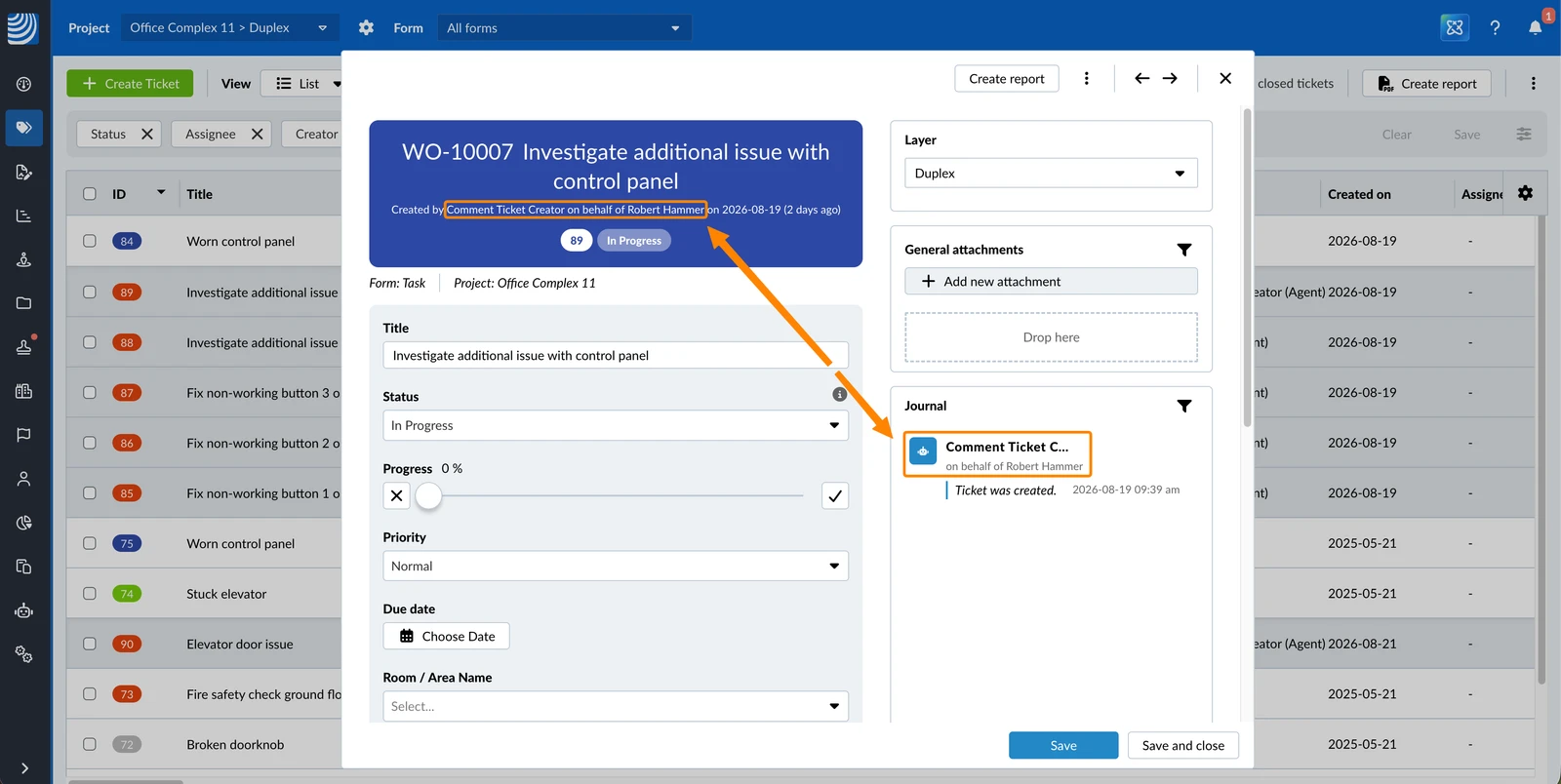
Created by {Agent name} on behalf of {User} on {date}
The second name is the person who created the agent and owns it. They wrote the instructions the agent works from, and they are the only one who can change, pause or delete it. In the agents list they are shown as Created by.
You meet the label in these places:
| Where | What you see |
| Ticket | The label in place of the name of the person who created the ticket. |
| Comment | The label in place of the name of the person who wrote the comment. |
| Ticket journal | The label on every entry the agent created. |
| The label with the time and the time zone added to the date. |
A ticket created by an AI agent:
Emails Sent by an Agent
An agent can email people about what it found. The message is a standard PlanRadar notification email, not free text written by the agent.
It contains:
- The label naming the agent and the person it acted for, with the date, time and time zone.
- The ticket number and title for a ticket event, or the folder details for a document event.
- A View ticket or View Folder button that opens the item in PlanRadar.
You can switch these emails off for yourself. The setting covers every agent in the account, and the person who owns an agent cannot override it. A run that would have emailed you skips you and emails everyone else as normal.
If you own an agent, its run record names everyone an email was skipped for, so you can see why someone did not receive it. The run still counts as completed.
Filter for Tickets Created by an Agent
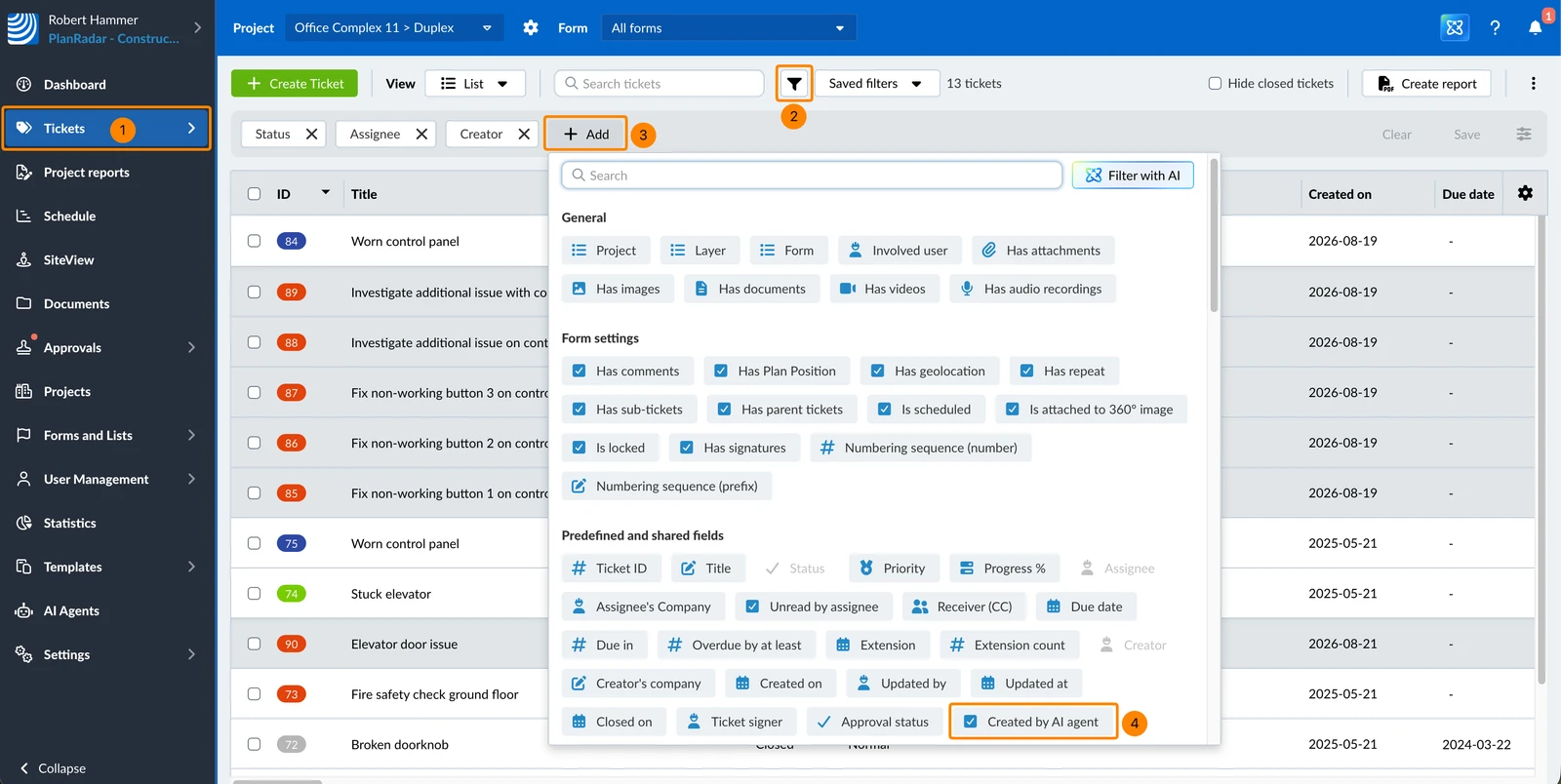
To filter for tickets created by agents:
- Click Tickets
- Click the Filter icon
- Click + Add
- Click Created by AI agent
Updated September 1, 2026