

 Deutsch
 Español
 Français
 Hrvatski
 Italiano
 Polski
 Português (BR)
Monitor AI Agents in the Activity Log
Overview
The Activity log records every run of every AI agent on your account: which agent ran, in which project, what it did step by step, and whether it finished. This is where you look when an agent did something you did not expect, or did nothing when you expected it to act.
Access & Permissions
How to Access the Activity Log
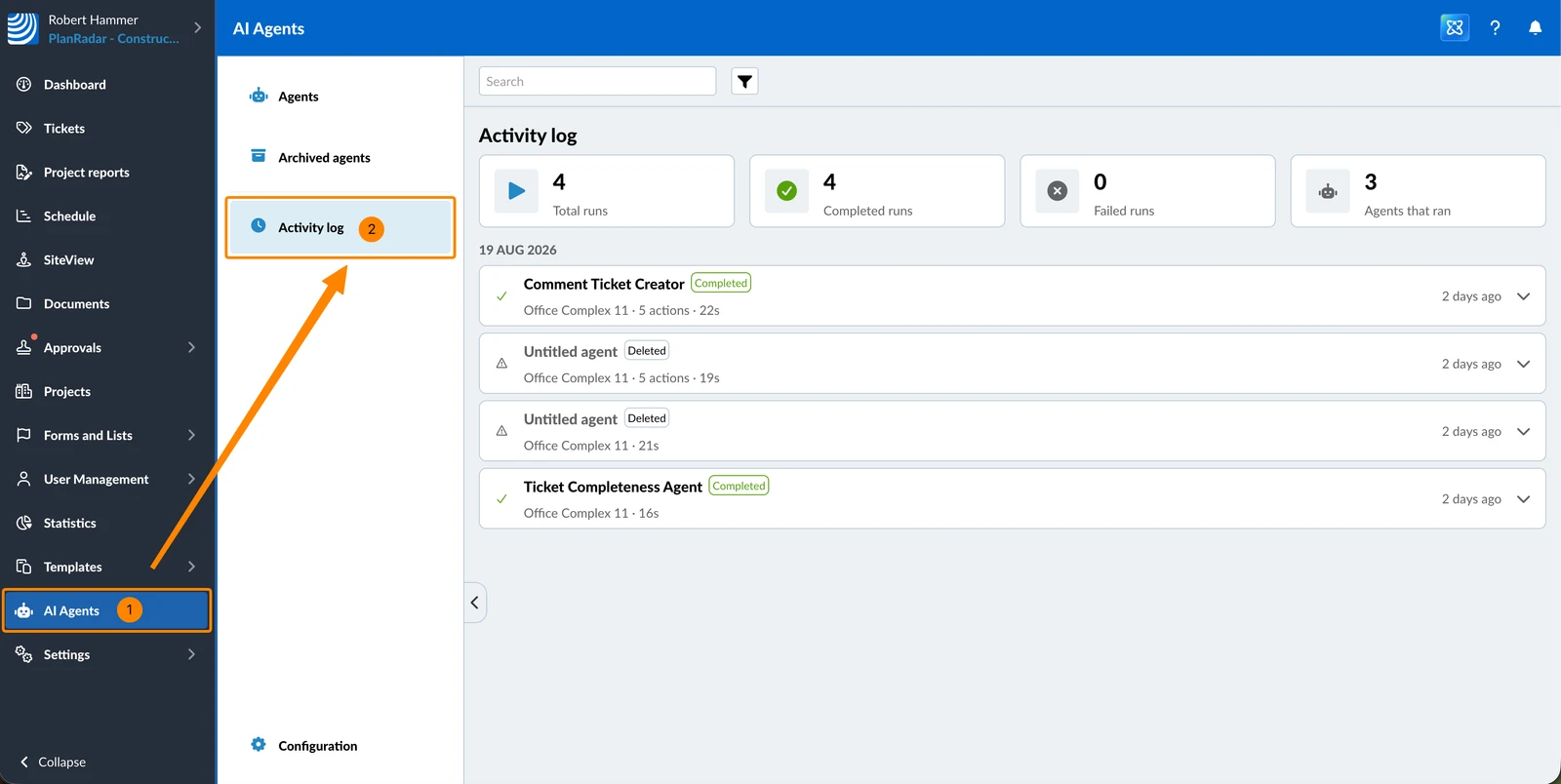
To see the runs of all agents:
- Click AI Agents
- Click Activity log
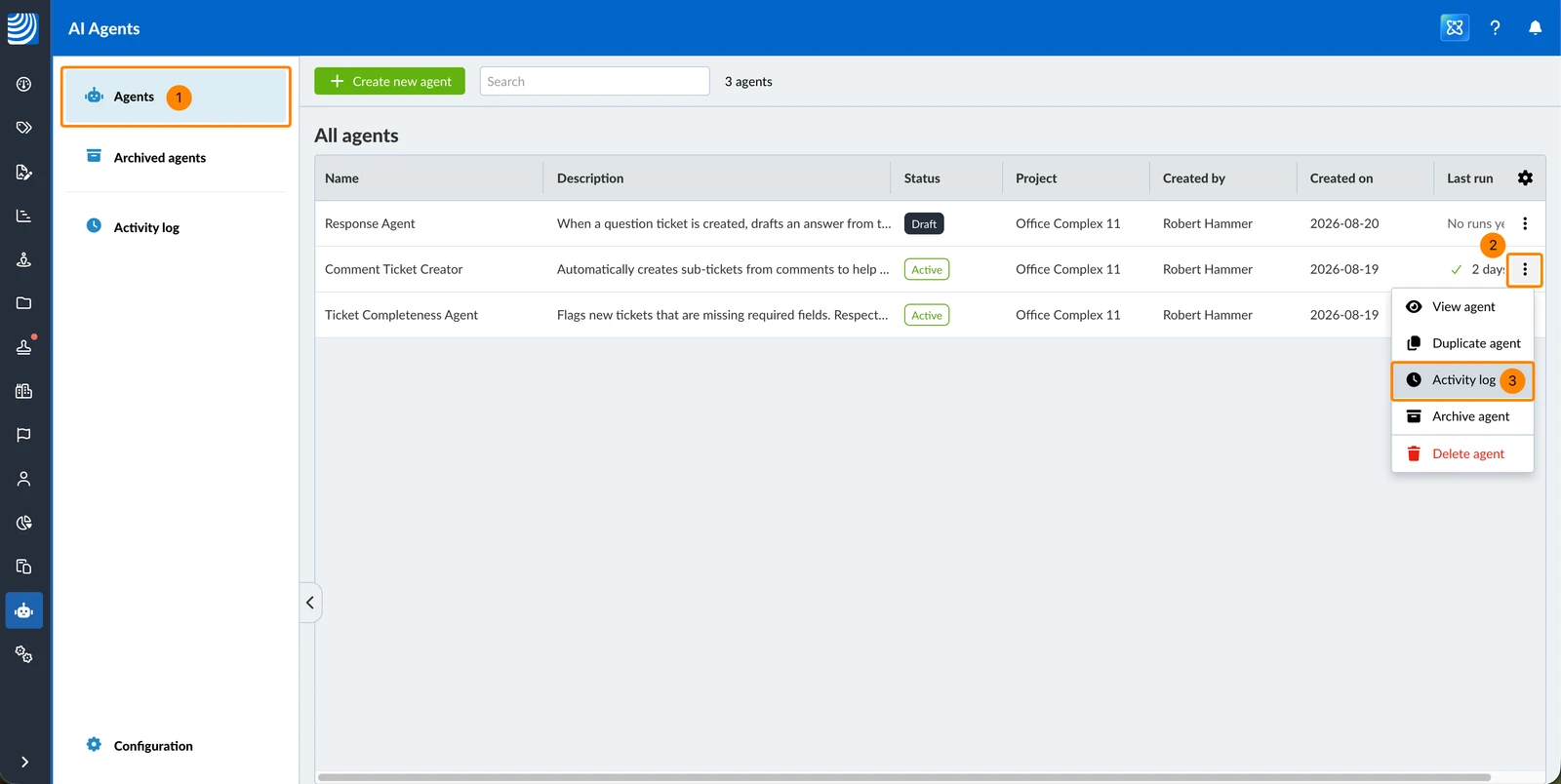
To see the runs of one agent from the agent list:
- Click Agents (if you are not there already)
- Open the More menu of the agent
- Click Activity log
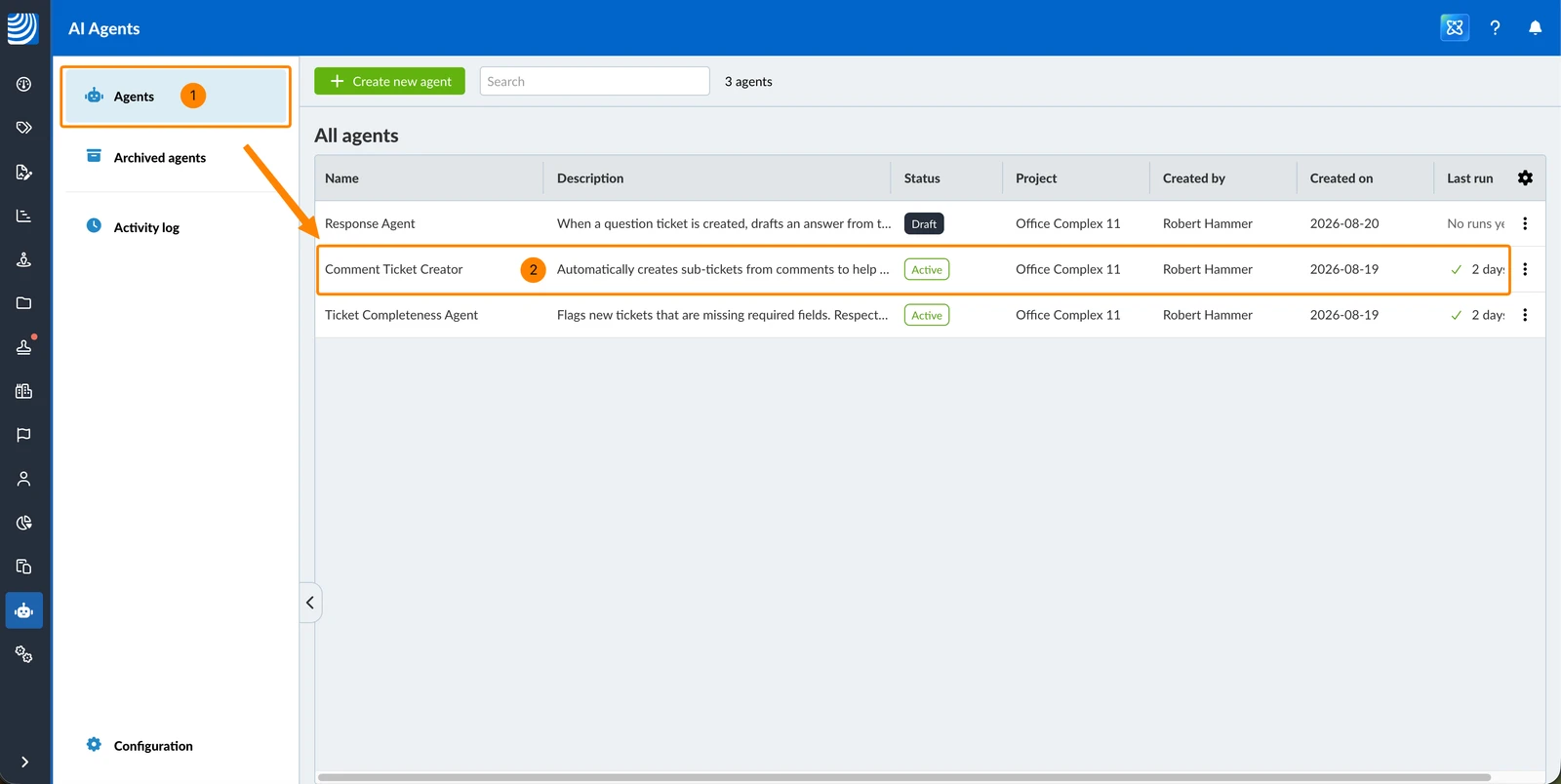
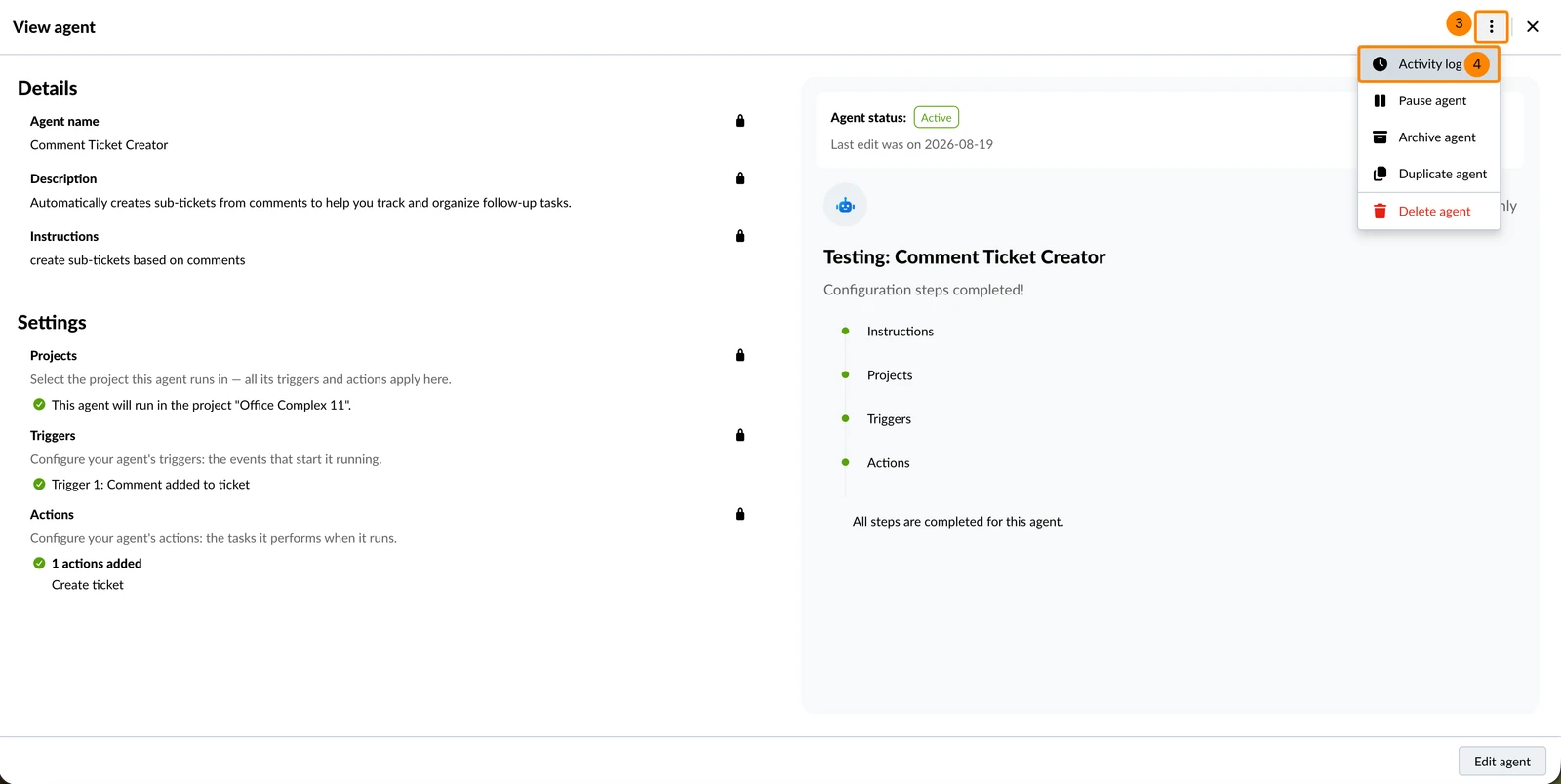
To see the runs of one agent from the agent screen:
- Click Agents (if you are not there already)
- Click the agent (if you are not there already)
- Open the More menu
- Click Activity log
Read the Activity Log
You see the runs of every agent that runs in a project you have access to, including agents a colleague created.
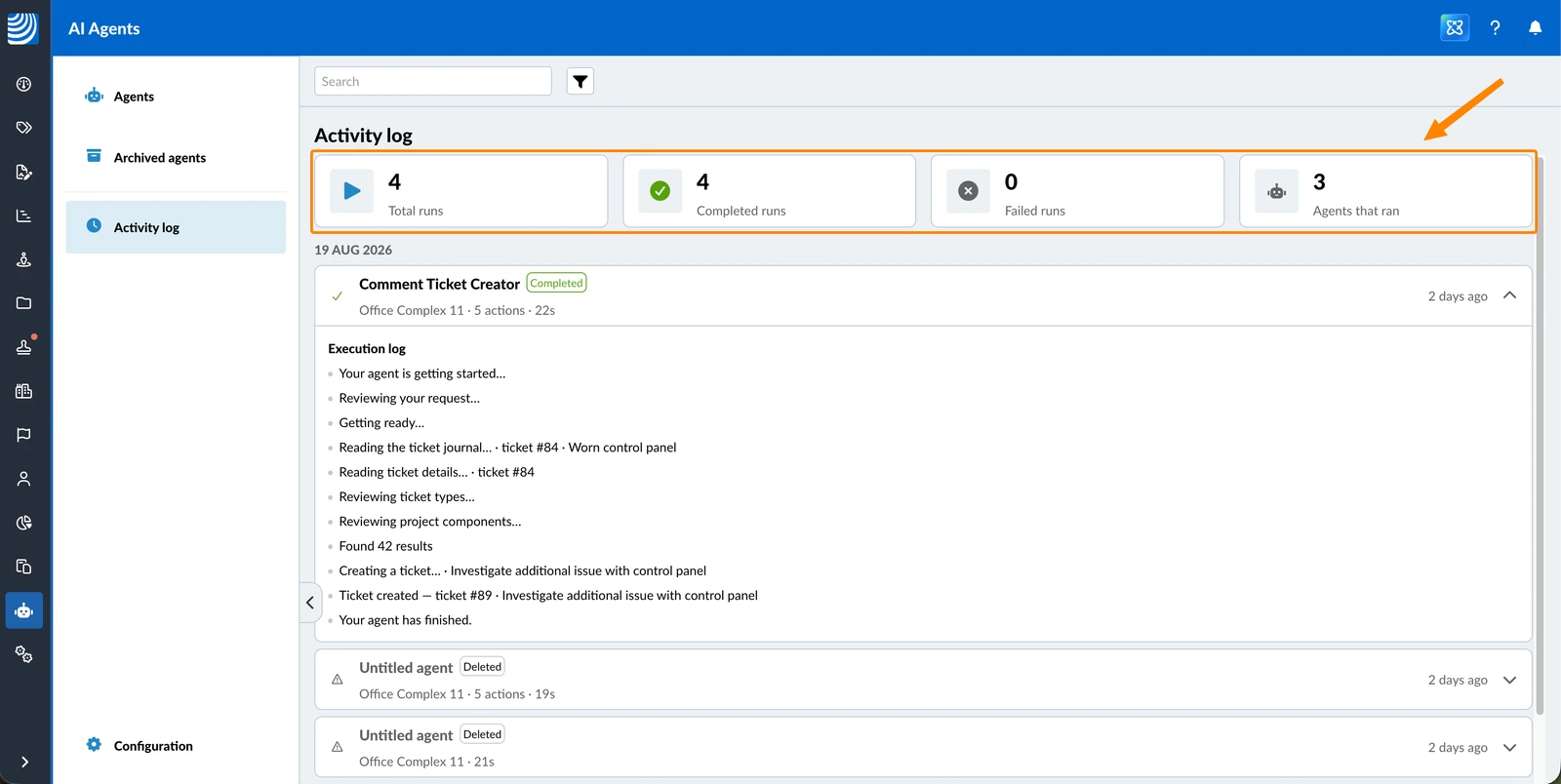
At the top of the page, four tiles summarise the runs currently listed: Total runs, Completed runs, Failed runs and Agents that ran:
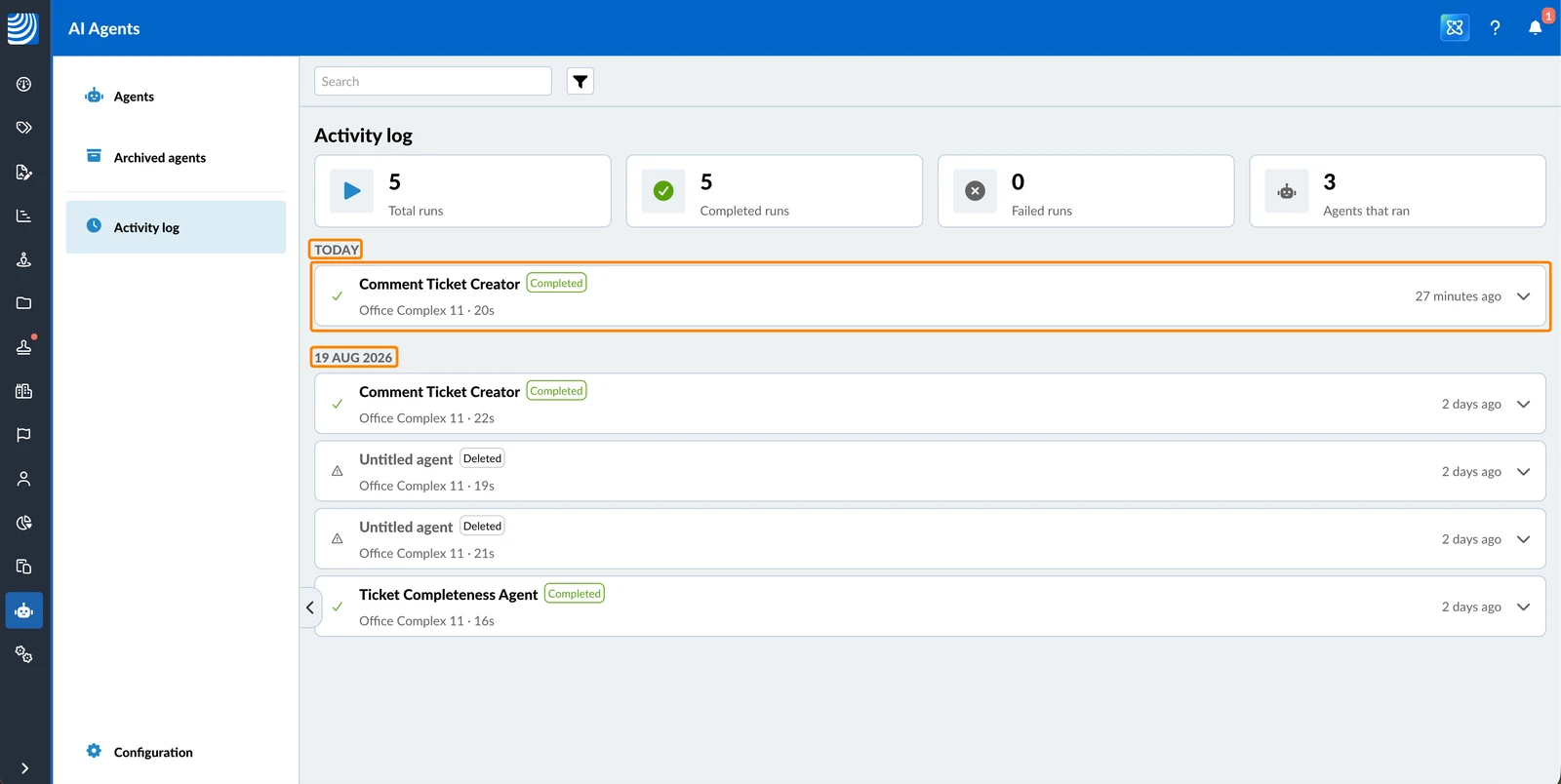
Runs are listed newest first and grouped by day, under TODAY, YESTERDAY and then by date. Each row names the agent, its outcome, the project it ran in, how long it took and when it ran:
Every run carries one of four outcomes:
| Outcome | What it means |
| Completed | The agent finished the run. It may have created something, or decided that nothing was needed — both are completed runs. |
| Failed | The run stopped before the agent finished its work. |
| Running | The run is still in progress. |
| Deleted | The agent that made this run has been deleted. The row shows the name it had before. |
A run that reaches a limit, or that the security policy stops, is also a Failed run. Open the run to see which step was stopped.
A run that skipped email recipients because they have switched off emails from AI agents is also Completed. There is no separate outcome or badge for it.
A run stays in the log after its agent is archived or deleted.
Filter the Activity Log
To filter the list:
- Click the Filter icon
- Select an Agent, a Status or a Date
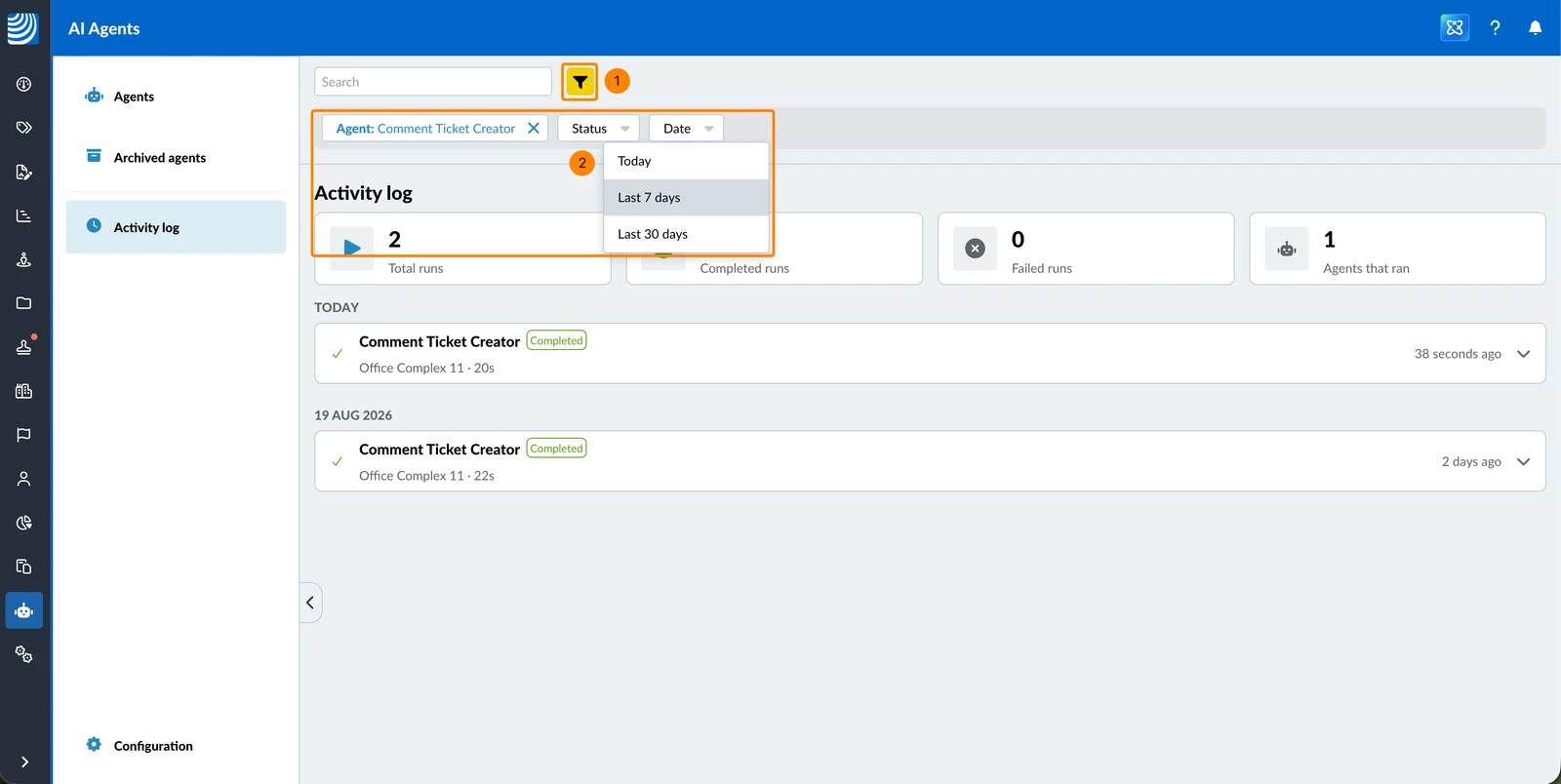
These are the Date options:
- Today
- Last 7 days
- Last 30 days
These are the Status options:
- Completed
- Failed
- Running
Runs of a deleted agent carry a Deleted badge but cannot be filtered for.
Each filter you set is shown as a chip above the list, and the four tiles recount for the filtered runs only.
Read the Execution Log of a Run
Every run keeps a step-by-step record of what the agent read, what it decided and what it created.
Only the person who created the agent and the account owner can open a run's Execution log. Everyone else sees that the run happened — the agent, the outcome, the project and when it ran — but cannot open it. The Account user permission does not grant access.
To see what an agent did in a run:
- Click the run
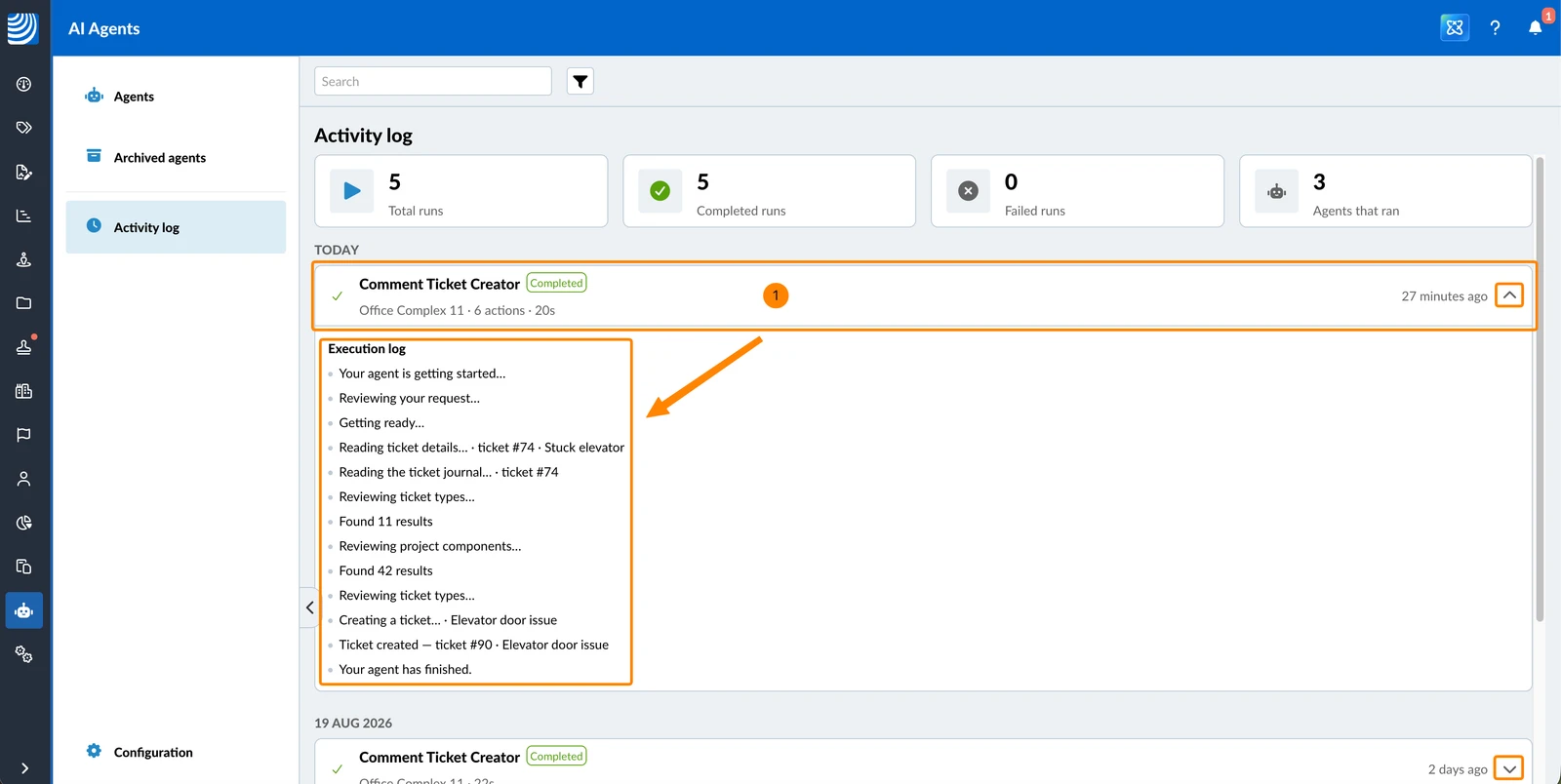
Under Execution log each step is written in plain language and names the real tickets and documents involved — the ticket the agent read, what it looked for, how many results it found, and the ticket or comment it created at the end.
A run can end without the agent doing anything. The log then closes with a line saying that the agent reviewed the event and decided no action was needed. This is a normal result, not a failure.
If the agent sent an email, the log names anyone it was not sent to. People can switch off emails from AI agents for themselves, and the agent skips them.
Updated September 1, 2026