

 Deutsch
 Español
 Français
 Hrvatski
 Italiano
 Polski
 Português (BR)
Update Plans in the Webapp
Overview
When a drawing is revised, upload it as a new version of the plan you already have. The plan keeps its name, its place in the folder tree, its tickets and its attribute values, and your team keeps the history of what the drawing looked like before.
Upload a second plan instead only when it is a different drawing — a new floor, a different trade — rather than a newer state of the same one.
Access & Permissions
Upload a New Version
To upload a new version of a plan:
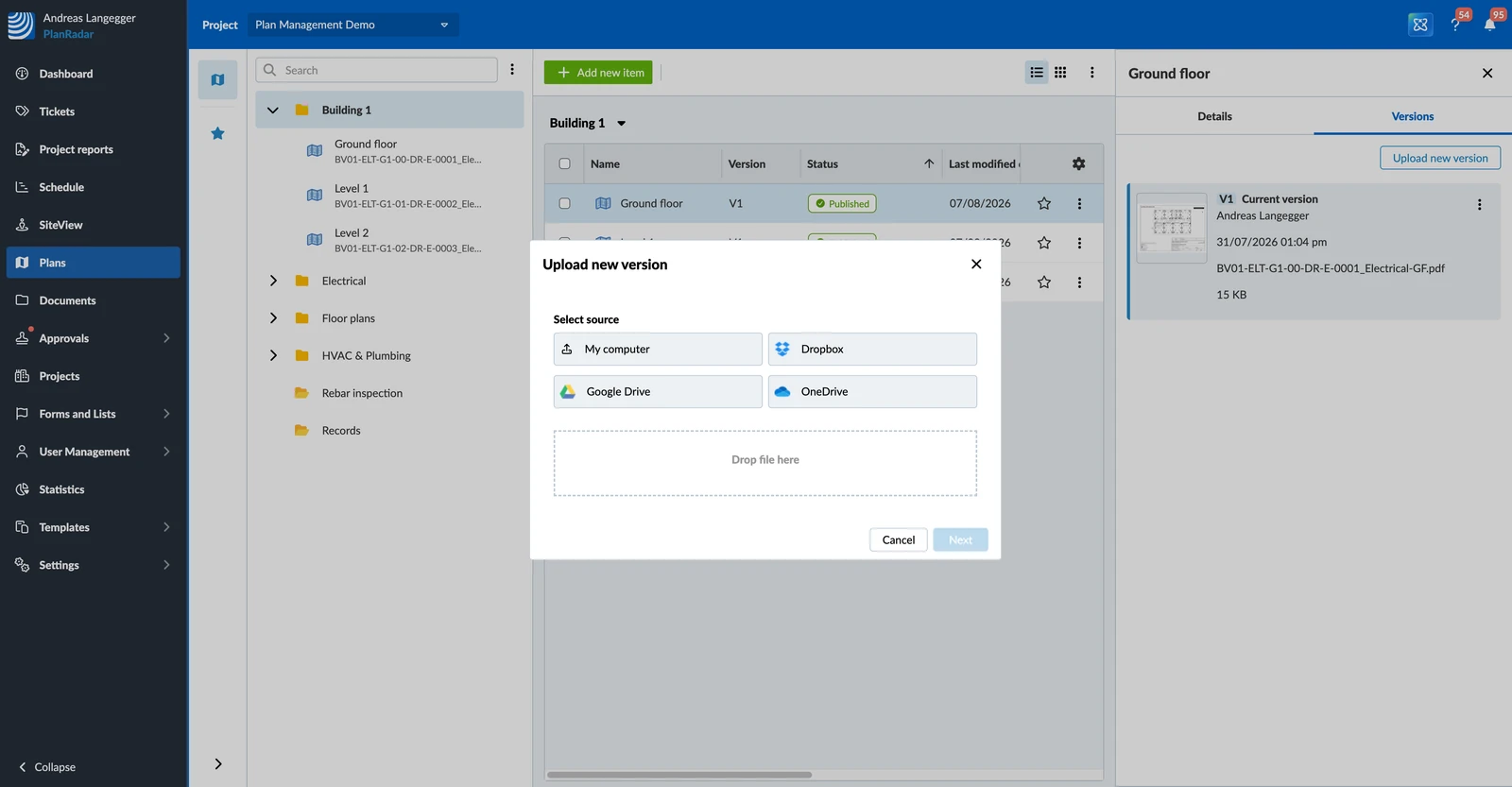
- Open the More menu on the plan.
- Click Upload new version.
- Click My computer and select the file, or drop it into the dialog.
- Click Next.
- Check the plan name and the publish options. To rename the plan, type the new name in the Plan name field.
- Click Upload.
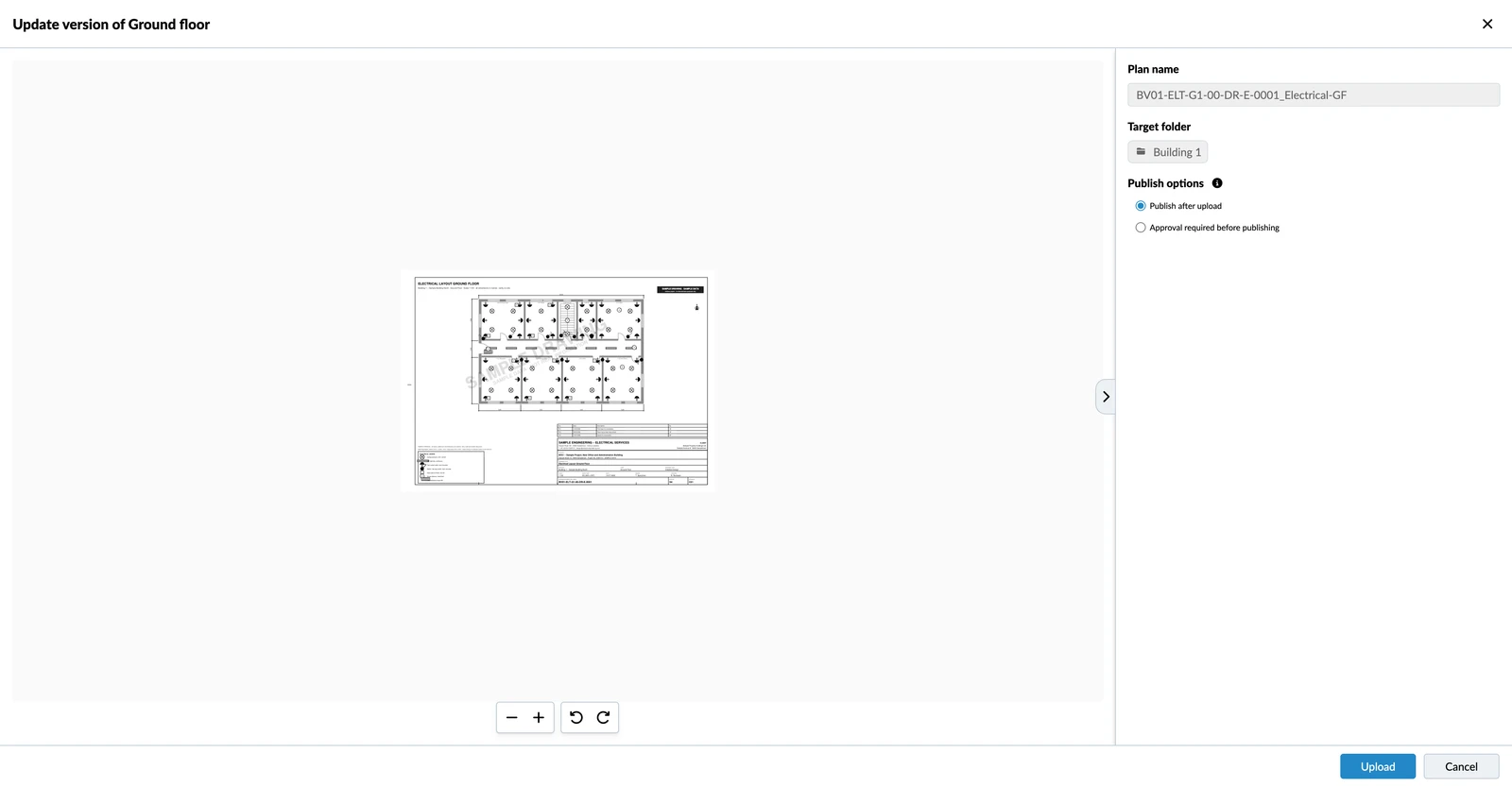
The Plan name field shows the plan's current name. Change it only if the plan should get a new name with this version — the new version and the new name are saved together. The original filename of each version stays as it was.
You can start the same flow from the Versions tab of the plan details, where the button is called Upload new version. Only one file goes into a version — to upload several drawings at once, upload them as plans of their own.
Review Ticket Positions
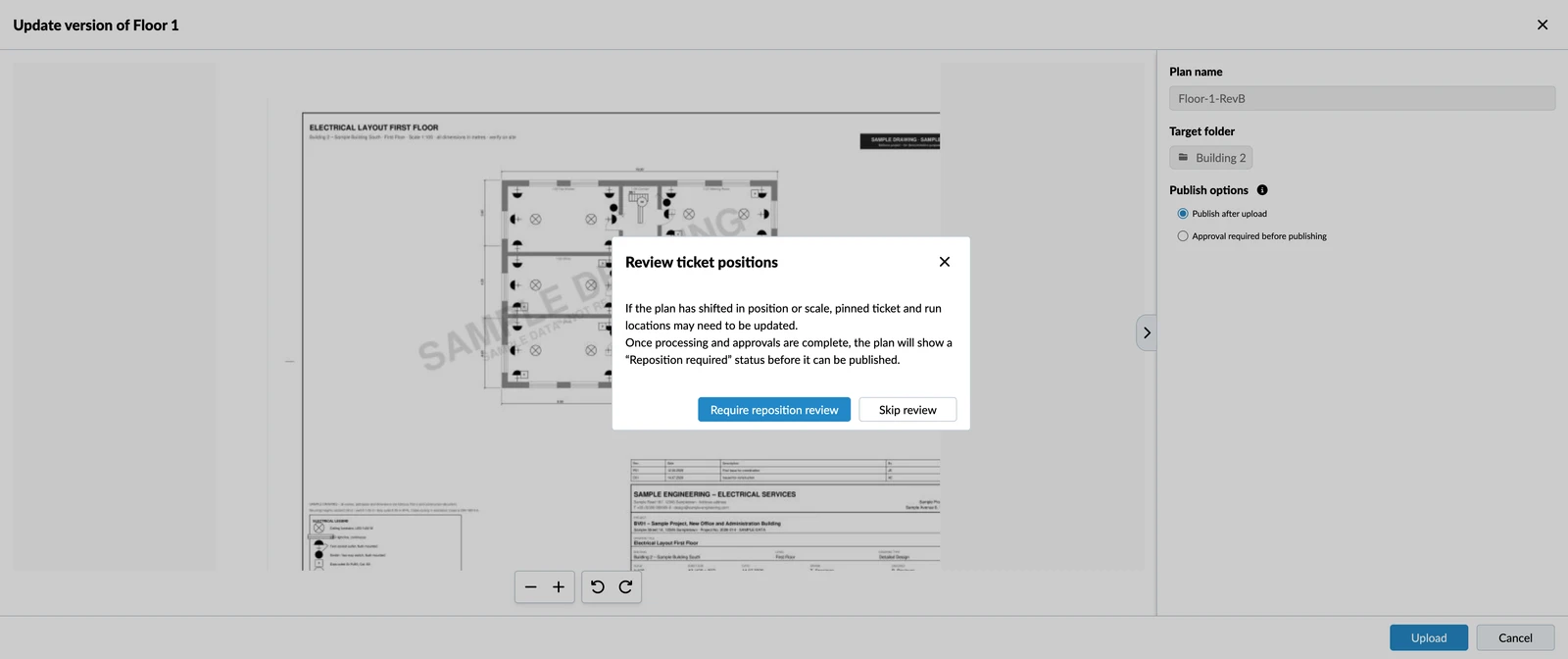
If the plan already has tickets on it, PlanRadar asks what should happen to their pins:
- Require reposition review — the pins are kept where they are and marked for checking. Choose this whenever the drawing may have shifted, been rescaled or re-cropped.
- Skip review — the pins stay where they are and the plan goes live straight away. Choose this only when you know the drawing lines up exactly with the old one.
After the upload the plan is processed and then shows Repositioning required in place of the drawing until the review is done.
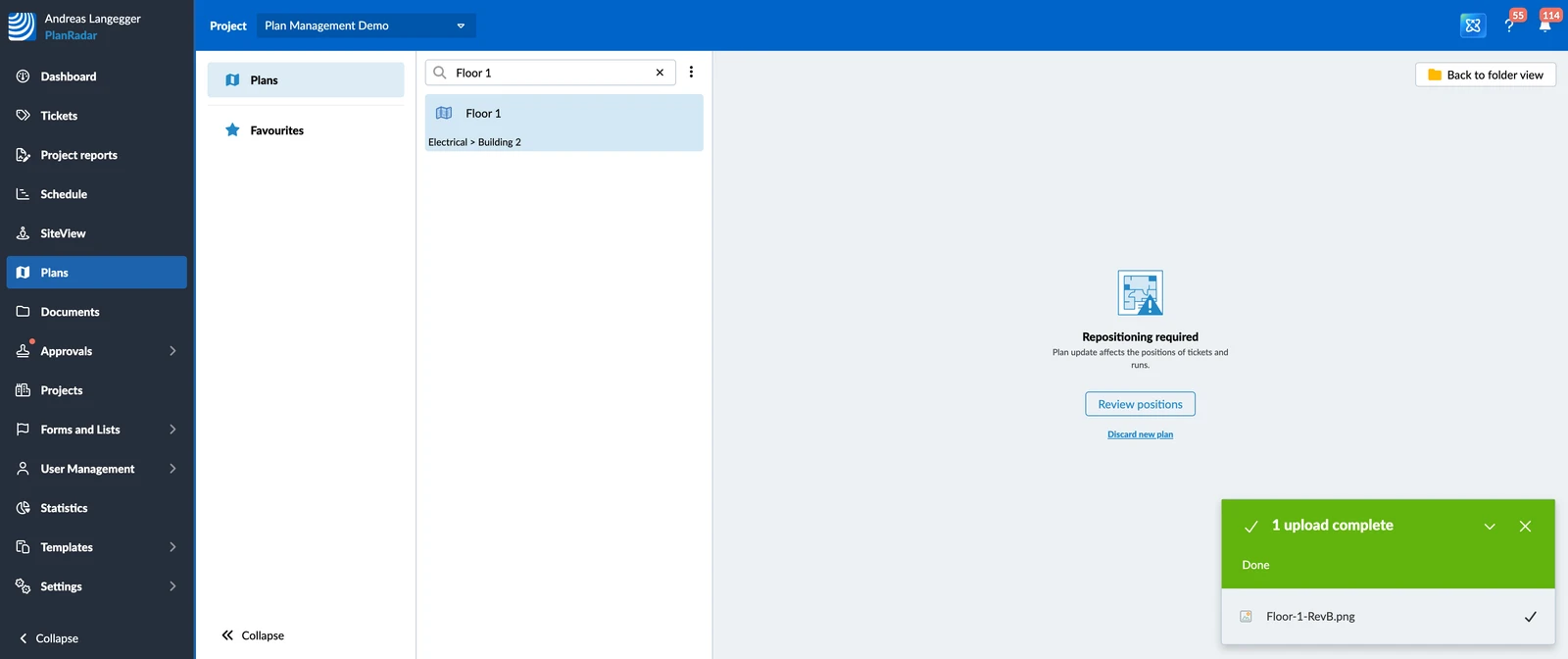
To reposition the tickets:
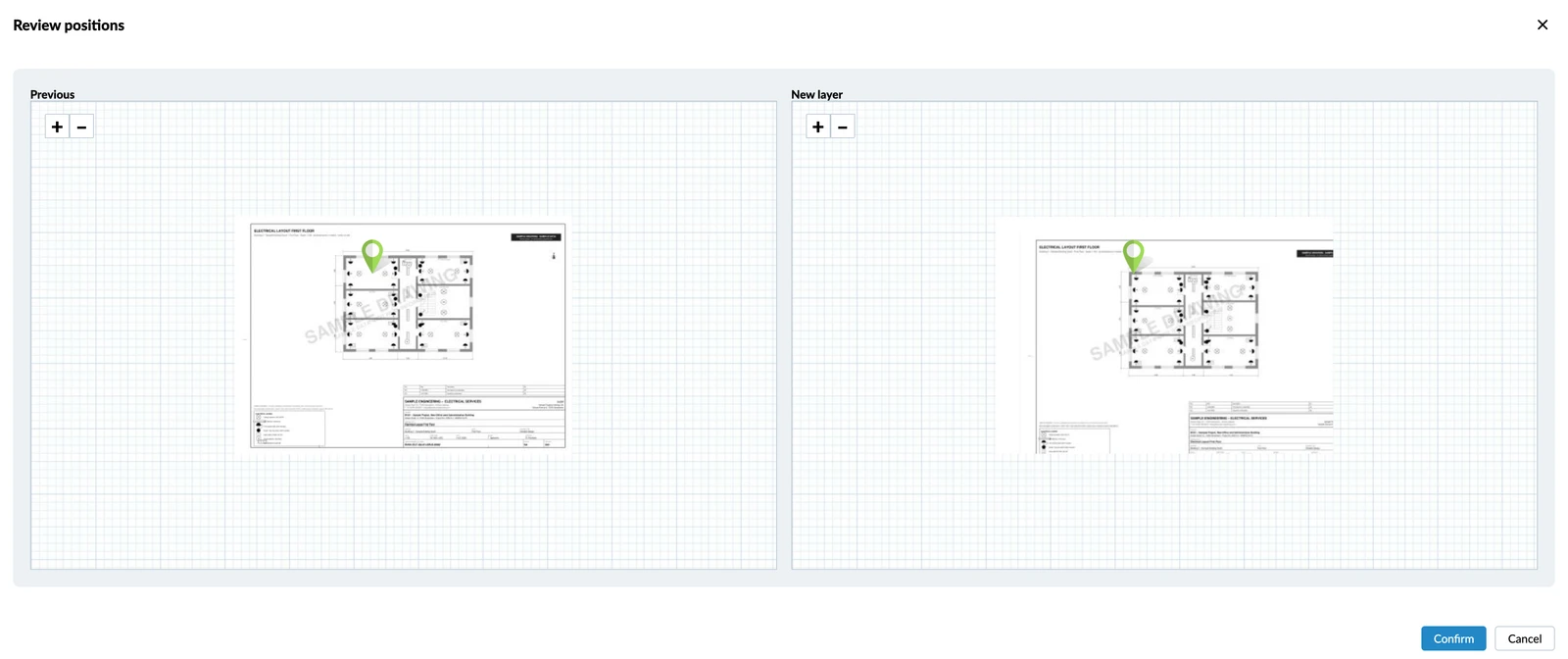
- Open the plan and click Review positions. The previous version and the new one appear side by side, with the ticket pins on both.
- Drag each pin on the new version to where it belongs on the new drawing. Zoom in with + and − to place it precisely.
- Click Confirm.
If the new drawing turns out to be the wrong file, click Discard new plan to drop the version and keep the one you had.
Which Version People See
The version your team works with is the plan's current version, and it is marked as such in the version list.
As long as a plan has never needed approval, the newest upload becomes the current version as soon as it is processed. Once a plan has been through approval, the current version is the latest approved one: a version that is waiting for approval or was rejected never becomes current, so V2 stays live while V3 is still with the reviewer.
When You Cannot Upload a New Version
- While a version is waiting for approval, the plan is locked. Wait for the decision, or cancel the request.
- When your account has used up its plan quota. Every version counts towards it, so delete plans or old versions to make room. Read more in Delete Old Plan Versions in the Webapp.
- From the mobile app, once a version of the plan has been approved. A new version would need approval as well, which means it is unpublished — and unpublished plans are hidden on mobile, so the plan would disappear from your own device. Use the webapp for those plans. Plans that never required approval can be updated from mobile as usual. Read more in Manage Plans & Folders in the Mobile App.
Updated September 3, 2026