

 Deutsch
 Español
 Français
 Hrvatski
 Italiano
 Polski
 Português (BR)

Application Settings in the Mobile App
Overview
Configure the PlanRadar mobile app to suit the way you work. Settings are grouped into categories, each on its own screen. They apply to this device only, except for read receipts, which are saved to your user.
How to Access Settings
- Tap the gear icon in the profile bar at the bottom of the project list or the main menu.
- Tap a category to open its settings.
Your name and email address are shown at the top. Tap them to open Account. Tap Done to close the settings.
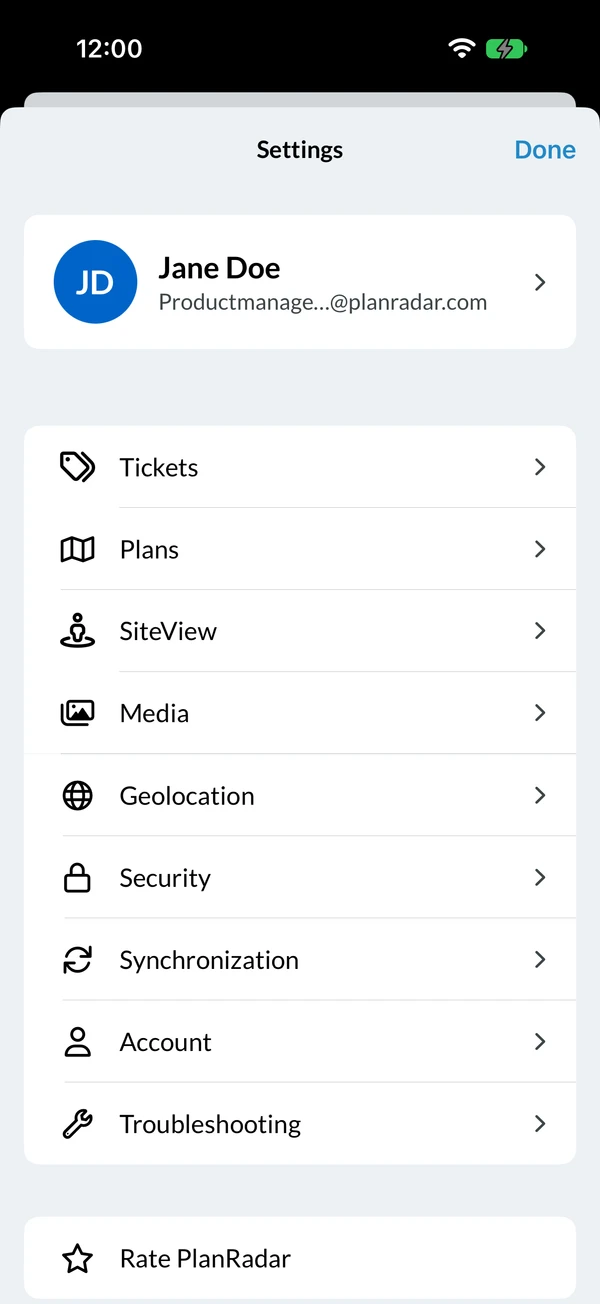
- Open the main menu, or go to the account or project selection.
- Tap the gear icon next to your name.
- Tap a category to open its settings.
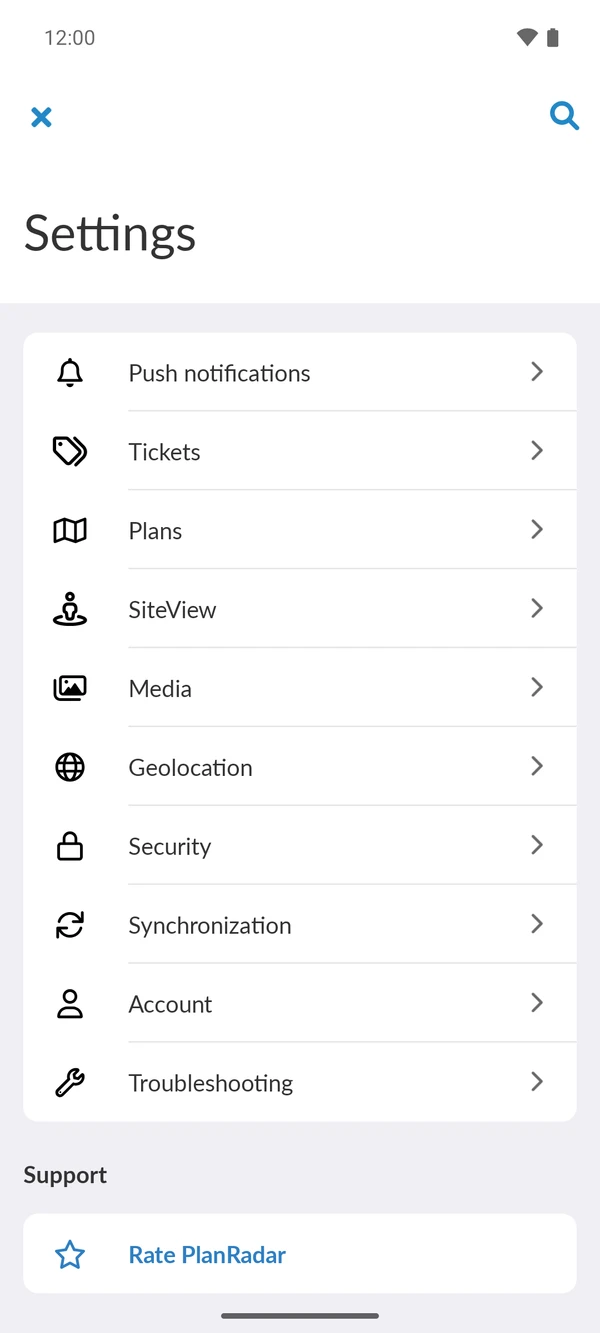
Tap the search icon to find a setting by name. Tap the back arrow to return to the categories, and X to close the settings.
Categories
Both apps use the same categories, in this order:
- Push Notifications (Android only)
- Tickets
- Plans
- SiteView
- Media
- Geolocation
- Security
- Synchronization
- Account
- Troubleshooting
Below the categories you find Rate PlanRadar, Acknowledgements, Privacy Policy and Terms of Use.
Some settings only exist in one app, and a few have different names. The tables below show both names where they differ.
Push Notifications
In the Android app, choose whether you get push notifications.
| Setting | What it does |
|---|---|
| Enable push notifications | Get push notifications on this device. Notifications must also be allowed for PlanRadar in the Android settings. |
| Notify only when involved | Only get notifications for tickets you are involved in. |
Tickets
| Setting | What it does |
|---|---|
| Read receipts (iOS) / Ticket read receipts (Android) | Show the creator of a ticket when you have opened a ticket assigned to you. Read more in View Read Receipts of Tickets. |
| Show pictures in list (iOS) / Show photos in ticket list (Android) | Show a photo for each ticket in the ticket list. |
| Set progress automatically (iOS only) | Set the progress of resolved and closed tickets to 100%. |
| Show form field descriptions | Show the descriptions of form fields in the ticket. |
| Show project name | Show the project name at the top of a ticket. |
| Enable NFC Feature | Link tickets to NFC tags and open them by scanning the tag. Only on devices with NFC. Read more in Use NFC Tags to Link & Open Tickets. |
| Enable QR code feature | Link tickets to QR codes and open them by scanning the code. Read more in Use QR Codes to Link & Open Tickets. |
| Hide closed tickets | Hide tickets with the status Closed in the list and on the plan. Read more in Hide Closed Tickets. |
| Enable auto-suggestions (Android only) | Pre-select list fields in new tickets based on similar tickets. Suggestions appear once the title is set. |
| Text suggestions: Limit to project (Android only) | Suggest text from the current project only, instead of all your projects. |
| Text suggestion: Sort order (Android only) | Sort text suggestions alphabetically or by last update. |
Show Form Field Descriptions
If Show form field descriptions is on, a ticket shows the descriptions that the author of the form added to its fields. Use them for extra guidance when you fill in a ticket.
Sort Tickets & Users
Under Sort Settings, choose the order of tickets in the list and of users (for example assignees and receivers) when you fill in tickets:
- Tap Tickets.
- Tap Sort Settings.
- Tap Order tickets by and select the order: last updated, ticket ID, create date or due date. The iOS app also sorts by status and priority.
- Tap Sort tickets and select ascending or descending.
- Tap Order users by and select first name, last name or company.
- Tap Sort users and select ascending or descending.
Plans
| Setting | What it does |
|---|---|
| Show plan overview | Show a small overview of the plan in the top left when you zoom in, so you know where you are. |
| Move plan while positioning (iOS only) | Pan and zoom the plan while you position a ticket. Drag the pin to move it. |
SiteView
| Setting | What it does |
|---|---|
| Preferred Resolution | Record 360° images in 4K or 8K. If the camera does not support 8K, 4K is used. |
| Show visors (iOS only) | Show visors in the 360° view: markers at the edge of the screen that point to tickets and markups outside the visible area. |
Media
| Setting | What it does |
|---|---|
| Save photos to camera roll (iOS) / Save photos in gallery (Android) | Also save the photos you take in PlanRadar to your device's photos. |
| Disable photo editor (Android only) | Skip the photo editor after you take a photo. |
| Always use system-camera (Android only) | Use your device's camera app instead of the PlanRadar camera. |
| Enable selection of video camera when using system camera (Android only) | Choose the camera app for videos. Only available with Always use system-camera. |
| Save uploaded videos for offline availability | Keep videos on your device after they are uploaded. |
| Remove uploaded videos | Delete uploaded videos from your device to free up space. They stay available online. |
Geolocation
To add GPS positions to tickets and to photos, switch on Enable geolocation (iOS) or Enable geolocation for tickets (Android), and allow PlanRadar to use your location.
Security
| Setting | What it does |
|---|---|
| Secure app with pin-code | Ask for a PIN code when you open the app. If your company requires a PIN code, you cannot switch it off. Read more in Setup a PIN Code and Biometric Security. |
| Ask before closing PlanRadar (Android only) | Ask for confirmation before the back button closes the app. |
Synchronization
| Setting | What it does |
|---|---|
| Background sync (iOS only) | Keep syncing while the app is in the background. Only on devices that support it. |
| Check for unsynced items | Check whether there are changes that are not uploaded yet. |
| Sync history (Android only) | See the past syncs of this device. |
| Alternative syncing (Android only) | Use another sync mode. Only switch it on when our Support Team asks you to. |
| Resync projects | Delete the data of selected projects from your device and download it again. |
| Resync all data | Delete all data from your device and download it again. |
| Delete synced data | Log out and delete all PlanRadar data from your device. |
The app asks you to confirm before it deletes data, and shows how many items are not synced yet.
Account
Tap Log out to log out of the app. The data stays on your device. We do not recommend logging out unless you want to log in with a different user. Read more in Login to PlanRadar > Log Out.
In the iOS app, you may also see Delete account and all data. It deletes your PlanRadar account after you confirm it with a code sent to your email address.
Troubleshooting
| Setting | What it does |
|---|---|
| Get support (iOS) / Contact support team (Android) | Write an email to our Support Team. |
| App Version | See the installed app version. On iOS, tap it to copy the version. |
| Send diagnosis file | Send log files to our Support Team so they can look into a problem. |
| Send debug assets (Android only) | Send further files to our Support Team, when they ask you to. |
Updated December 18, 2024