

 Deutsch
 Español
 Français
 Hrvatski
 Italiano
 Polski
 Português (BR)
Create & Manage Markups on PDFs
Overview
PDF markups allow you to add signatures, drawings, shapes, stamps, and comments directly to PDF files. On editable PDFs, you can also fill in form fields.
This improves review clarity, speeds up approvals, and supports real-time collaboration.
Read more in Review & Approve Documents and in Review & Approve a Ticket.
Currently, PDF markups are available for:
- PDFs saved in Documents > All files including File Approvals, Favorites, and Shared Items. Read more in View & Find Files/Folders.
- PDFs attached to tickets. Read more in View Ticket Attachments.
- PDFs in Documents, in the iOS and the Android app.
PDFs attached to tickets open in the regular PDF viewer. Read more in PDF Viewer.
PDF markups are not yet available for Project reports. There you still cannot save markups directly. Read more in PDF Viewer > Sign Document / Add Annotations.
Access & Permissions
Collaboration and Visibility
- Markups appear instantly for all users, enabling real-time collaboration.
- Markups can be edited or deleted by any user with edit permissions, even if they were created by someone else. This changes while an approval is running — read more below in Markups During Approvals.
- Markups on PDFs in Documents are saved automatically in the current version of the PDF. Markup changes are recorded in the file activity log, which you view in the Webapp. Read more in View Activity Log for Files & Folders in the Webapp.
- During and after document approvals, markups can only be created and edited by the reviewers of the active approval step. Read more below in Markups During Approvals and in Review & Approve Documents.
- Every markup shows who created it and when. To see this, click Annotations in the top left of the PDF viewer: it lists all markups in the PDF. Markup changes are also recorded in the file activity log in Documents and, for PDFs attached to tickets, in the ticket journal.
- In the file list of Documents, there is a column called Last modified markups and you can filter for files with markups. Read more in View & Find Files/Folders > Filter.
- For PDFs attached to tickets:
- Markup changes are recorded in the ticket journal. Read more in Track Activity on a Ticket in the Journal.
- There is a column called Last modified markups in the ticket attachment gallery list view (View Ticket Attachments > Attachment Galleries > View Options) and in the ticket attachments list view in Documents, where you can also filter for tickets with markups (View & Filter Attachments of All Tickets in the Webapp).
- During and after ticket approvals, markups can only be created and edited by the reviewers of the active approval step. Locked tickets prevent other users from creating or editing markups. Read more below in Markups During Approvals, in Review & Approve a Ticket and in Lock a Ticket.
- In Documents, files with markups show a markup icon in the list and grid view.
- Sort the files by Last modified markups, or filter for Has markups.
Markups During Approvals
As soon as an approval request is created, all markups and filled-in form fields that already exist are locked. Nobody can change them anymore, not even the user who created them.
While an approval step is running, the reviewers of that step can:
- Add new markups
- Edit and delete their own markups
- Fill in form fields that are still empty
Markups created by another reviewer of the same step are locked and marked in the markup list.
When a step is completed, the markups and form field entries created during that step are locked as well. They stay locked for the following steps and after the approval request is finished.
If the approval request is cancelled, all markups and form fields can be edited again.
How to access
To view a PDF in Documents:
- Click Documents
- Select a Project
- Click All files or Favorites or Shared Items
- Click the PDF
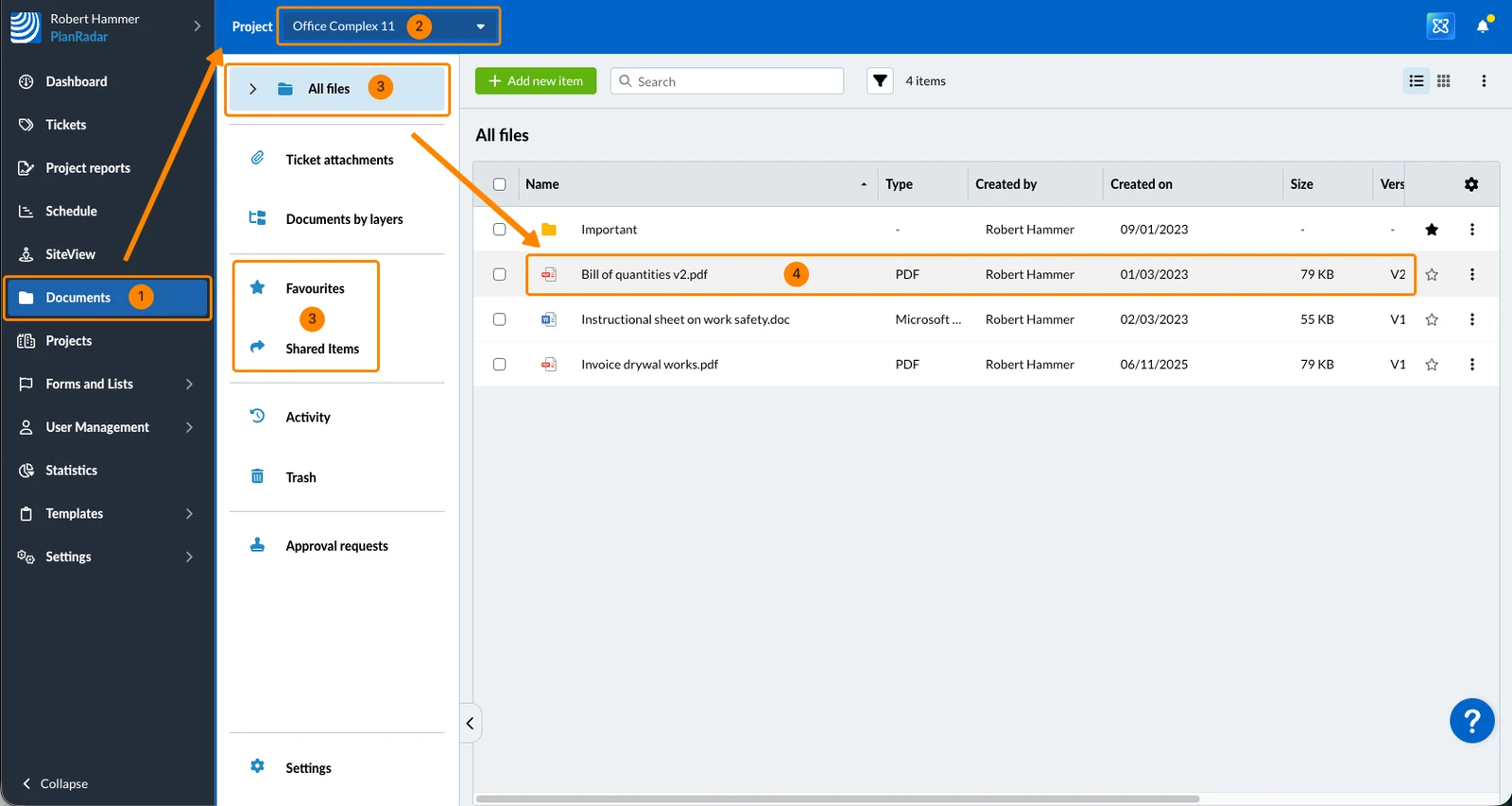
To view a PDF attached to a ticket:
- Click Tickets
- Click the ticket
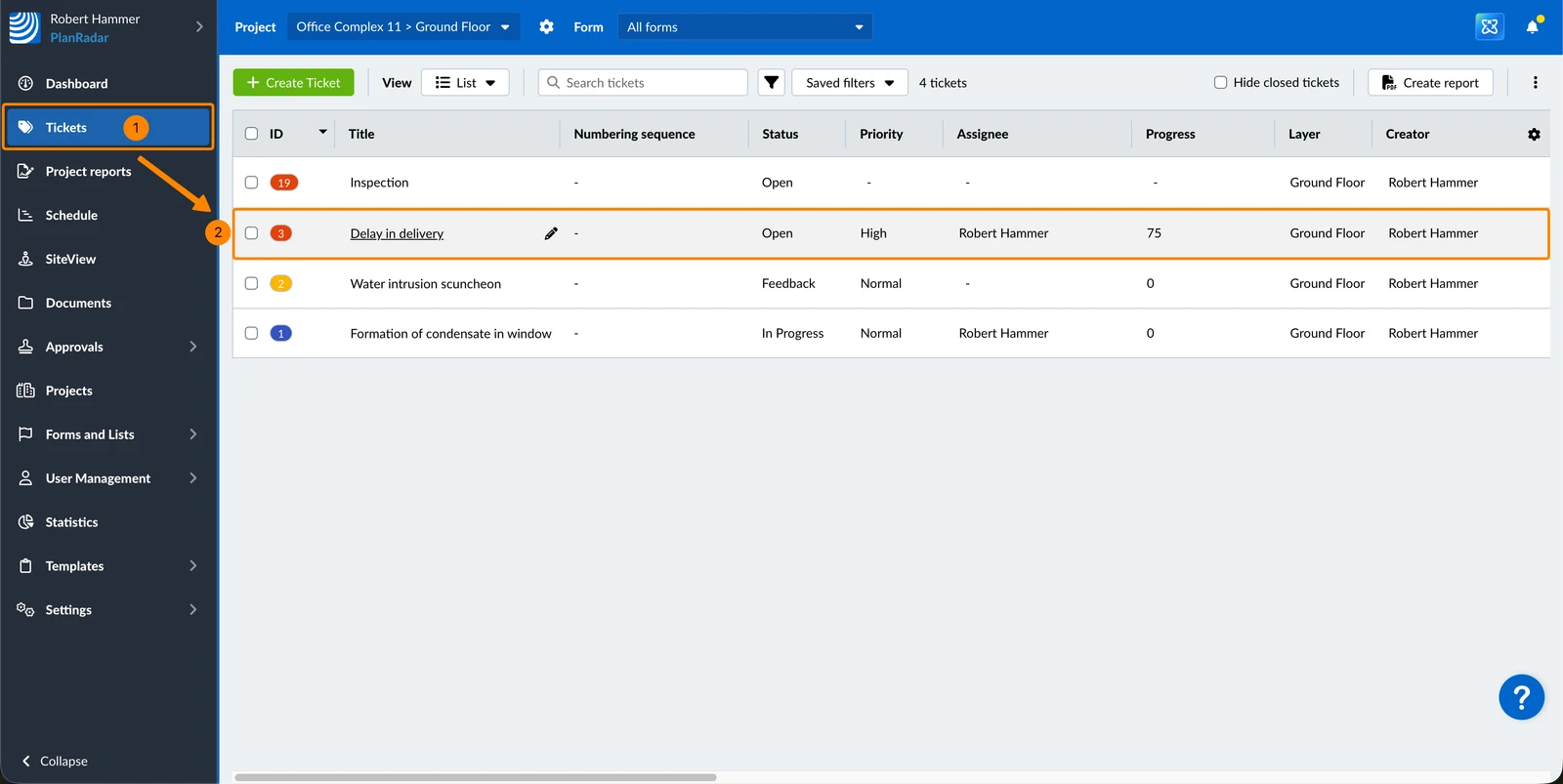
- Click the PDF
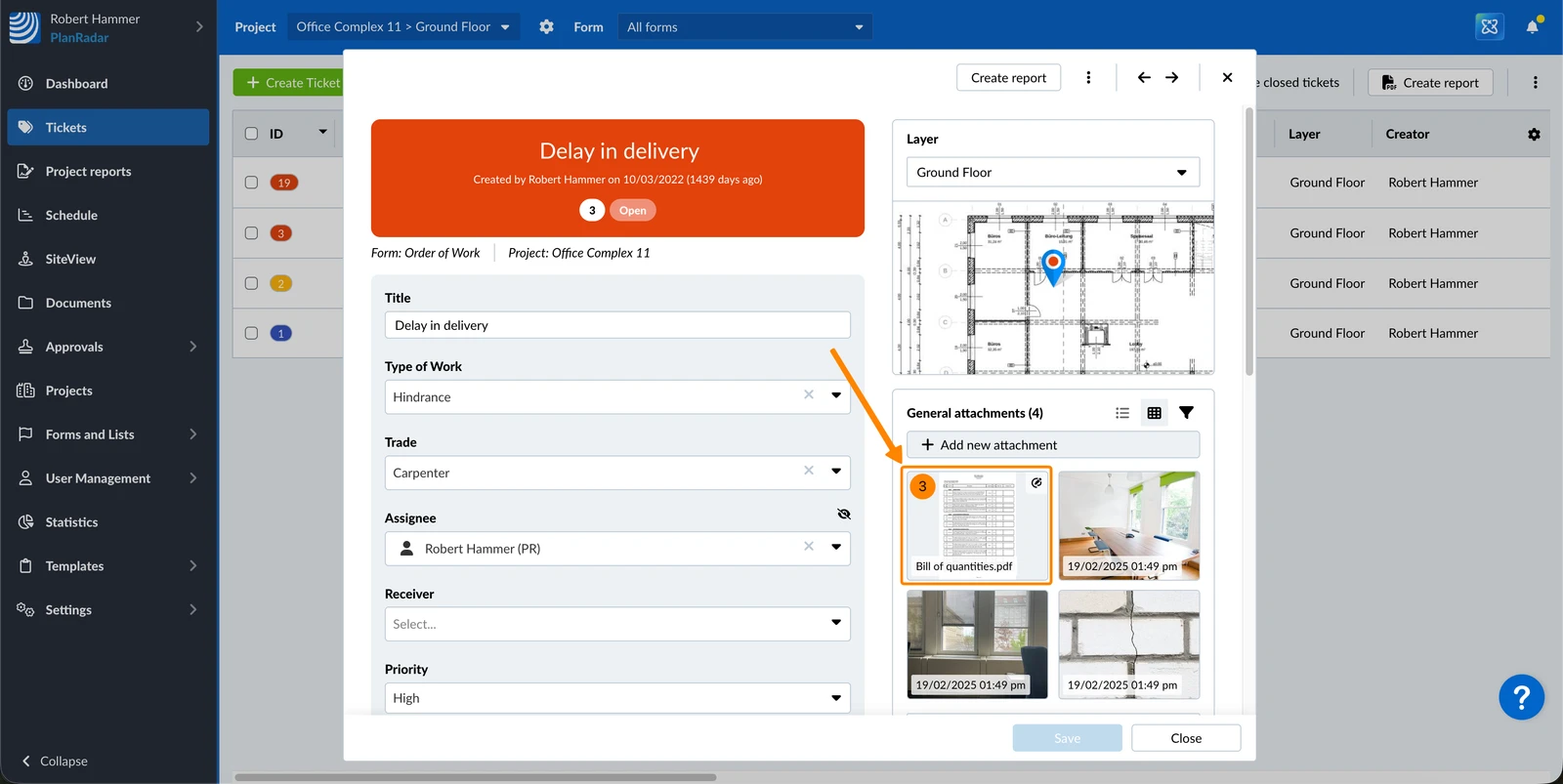
To view a PDF in Documents:
- Tap Documents in the main menu
- Open the folder and tap the PDF
You need an internet connection to edit markups in the app. Read more below in Markups Offline in the Mobile App.
Create Markups
There is a limit of 500 markups per PDF. Markups are saved automatically.
To add markups in a PDF:
- Enable the Edit markups toggle
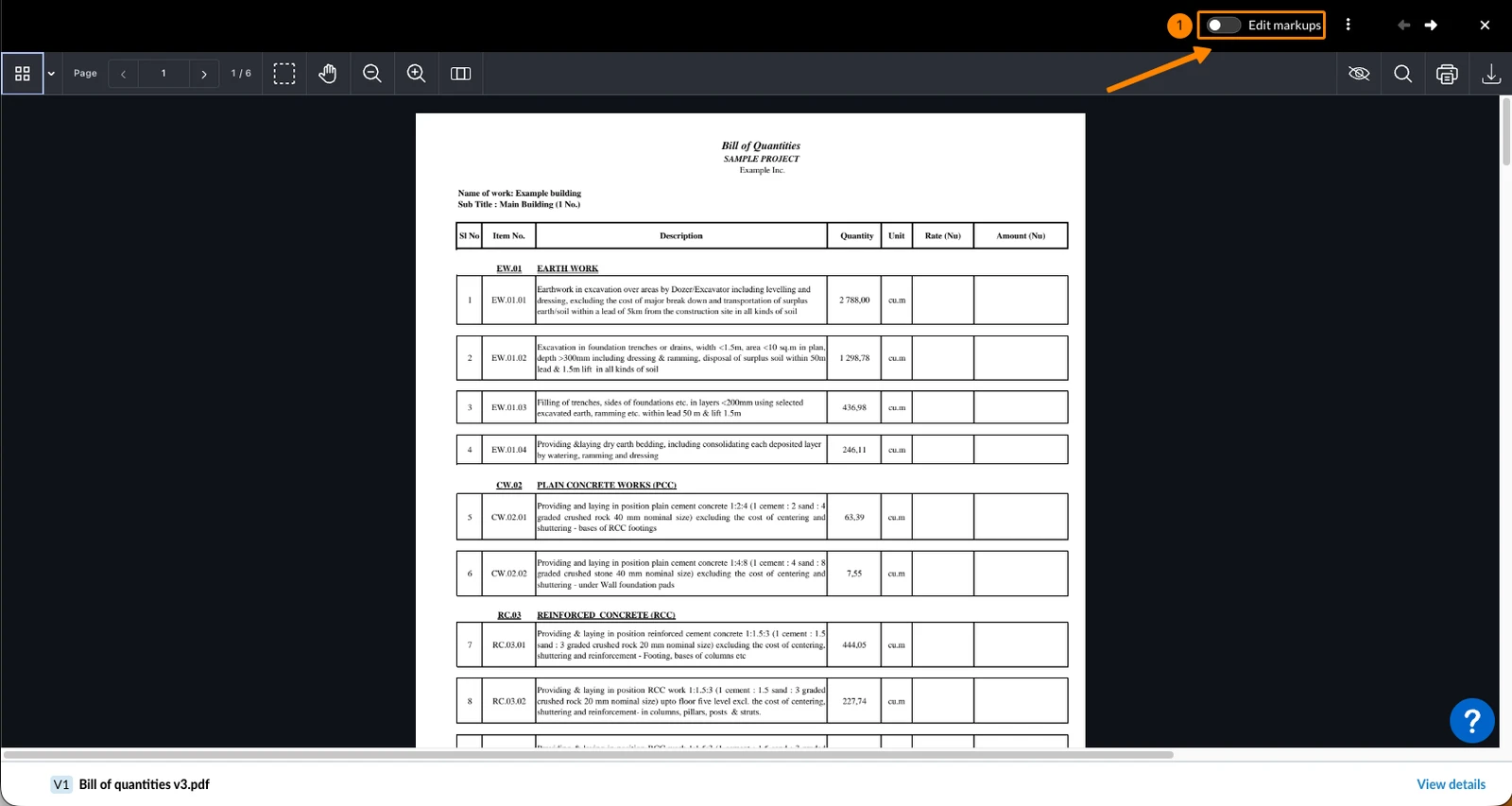
- Click on one of the markup tools. Read more below in Markup Tools & Options.
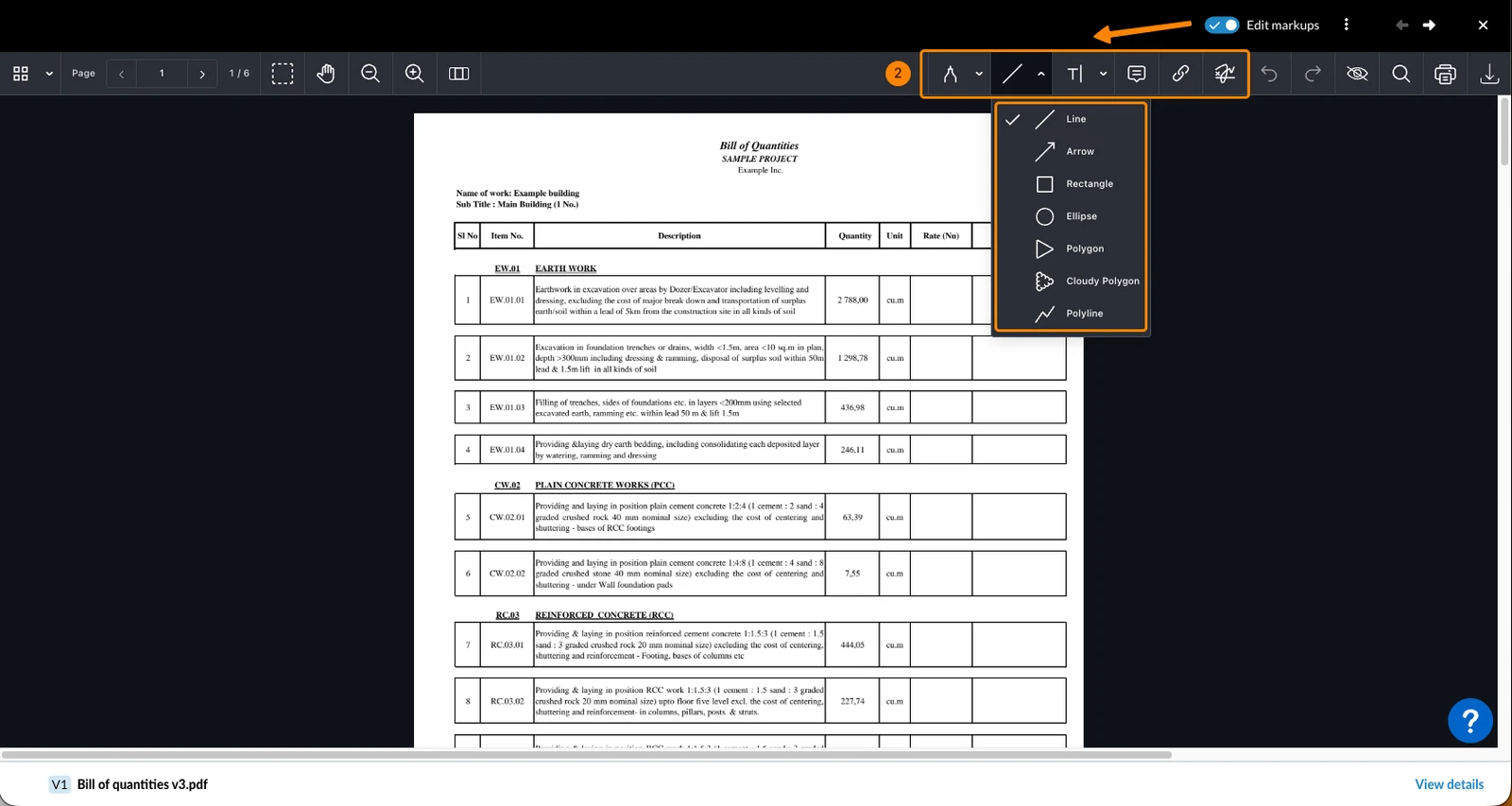
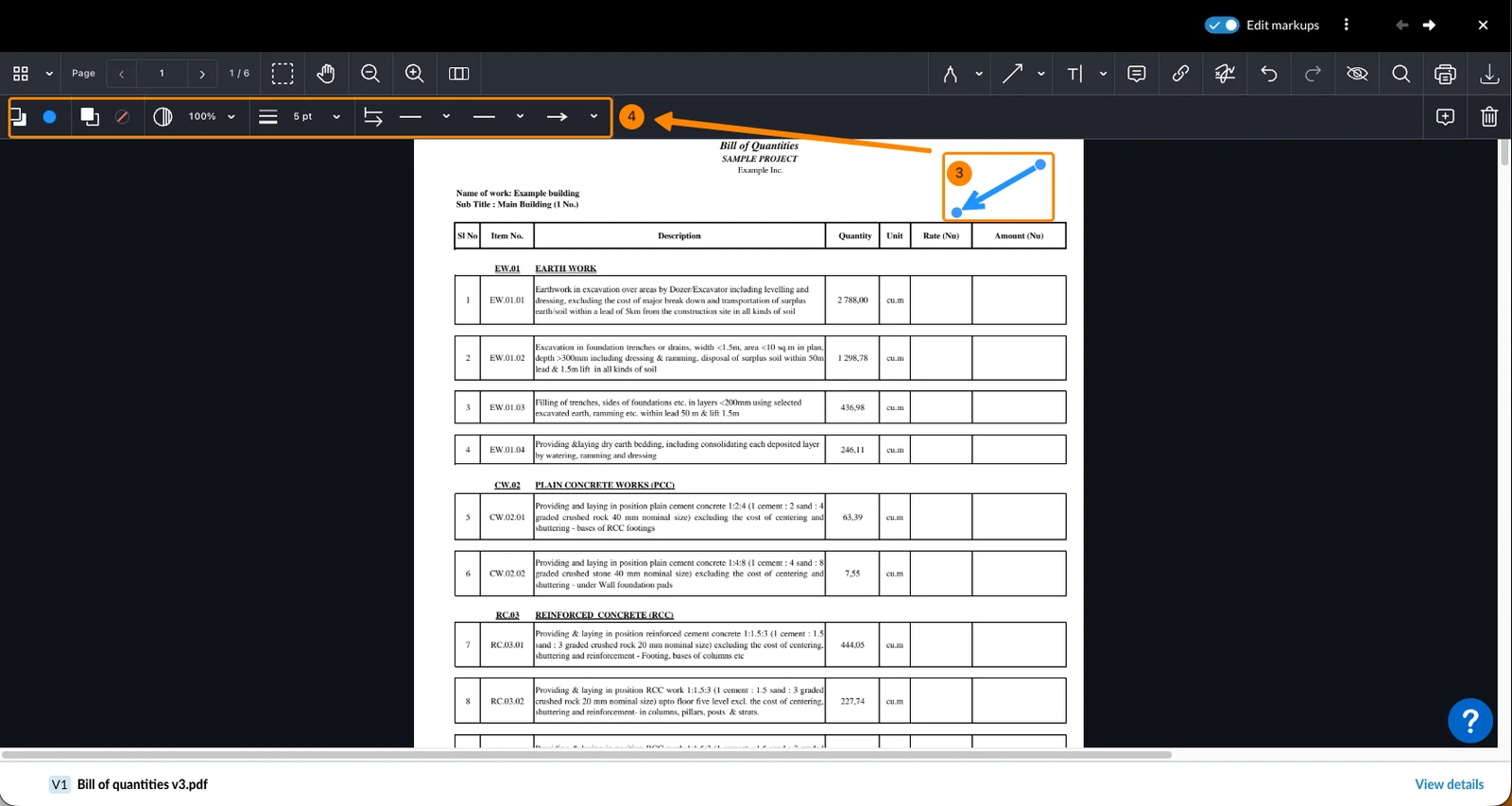
- Click or draw anywhere in the PDF to add the markup there
- Optional: Adjust the markup options
- Tap the pencil icon in the top bar
- Select a tool in the markup toolbar on the right
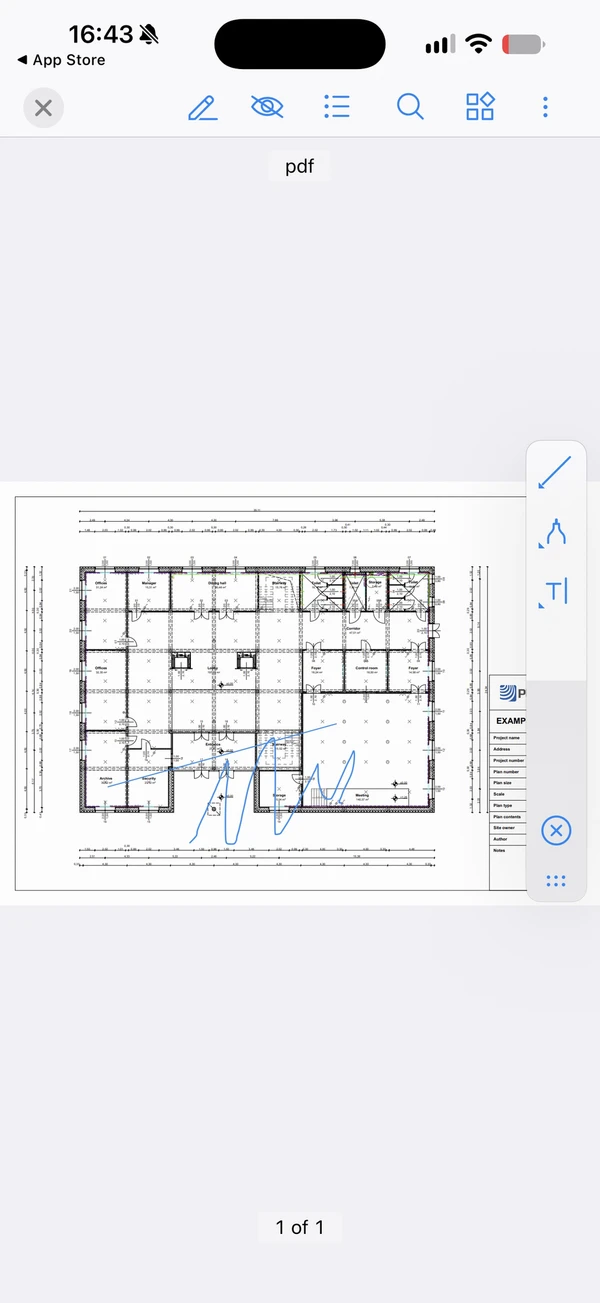
- Tap or draw on the PDF
Without the permission to edit, the pencil icon is greyed out and tapping it does nothing. Subcontractors and watchers do not see it.
When the PDF reaches 500 markups, the app shows 500 markups limit reached and does not add the new markup.
- Tap the pencil icon in the top toolbar
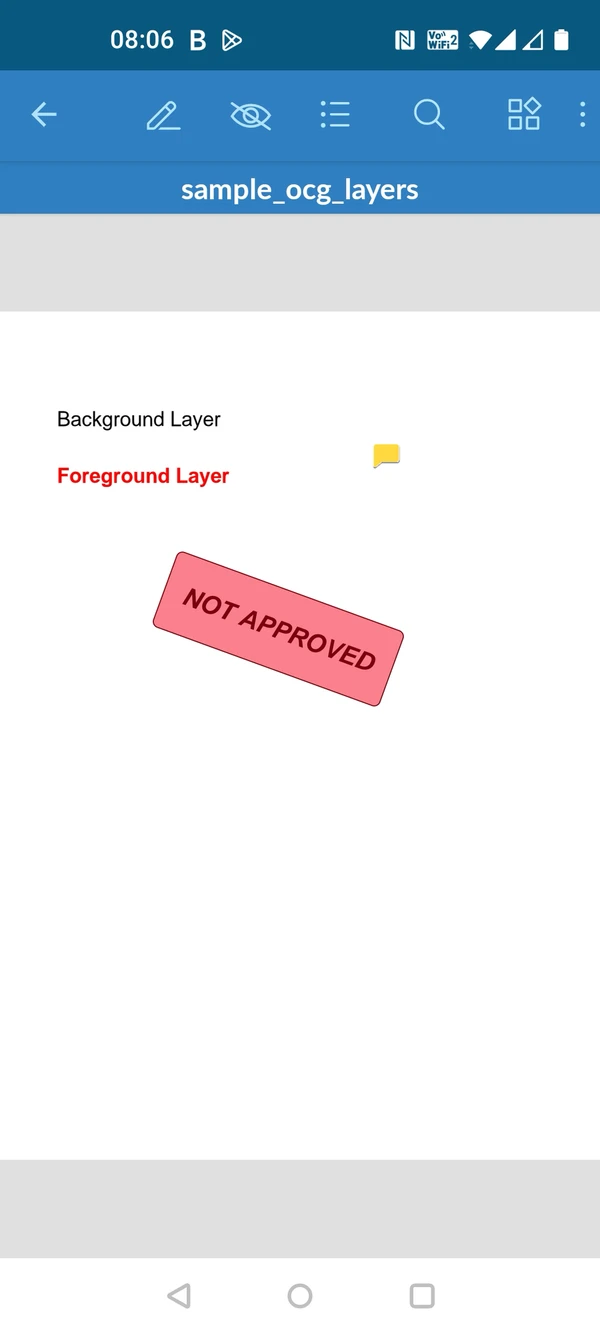
- Select a tool in the markup toolbar
- Tap or draw on the PDF
Without the permission to edit, the pencil icon is greyed out and tapping it shows You do not have the permission for this action.. Subcontractors and watchers do not see it.
When the PDF reaches 500 markups, the app shows 500 markups limit reached and does not add the new markup.
Markup Tools & Options
There are several markup tools that allow you to add and customize markups. All tools offer formatting options depending on the selected tool, e.g. to change the line thickness or colour.
Some of the markup tools offer additional tools in the drop-down menus.
- Select the tool e.g. Drawing
- Select a tool from the drop-down e.g. Freeform Highlighter
- Adjust the formatting options in the left panel

Drawing: draw a freeform line.

Freeform Highlighter: draw a thick transparent line to highlight areas.

Eraser: remove parts of freehand drawings.

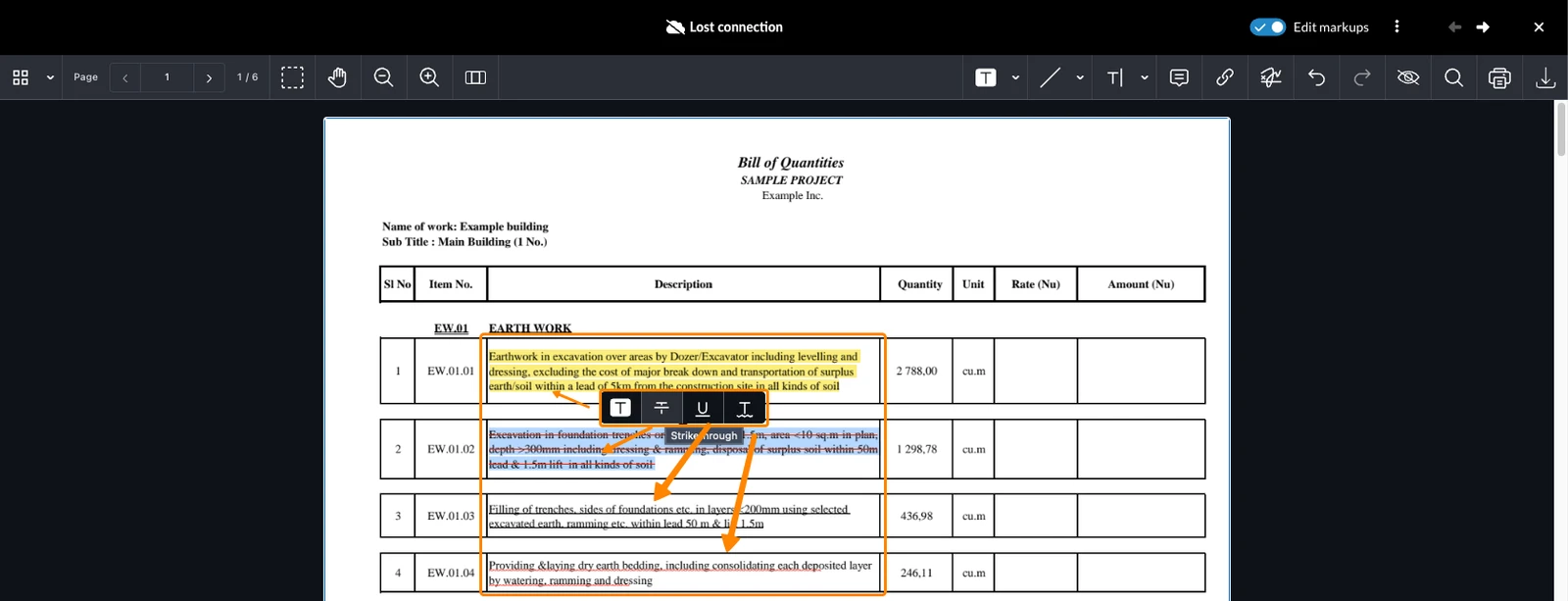
Text Highlighter: select text and highlight it.

Strikethrough & underline: when you select text, the inline options also offer strikethrough, underline and red wavy underline.
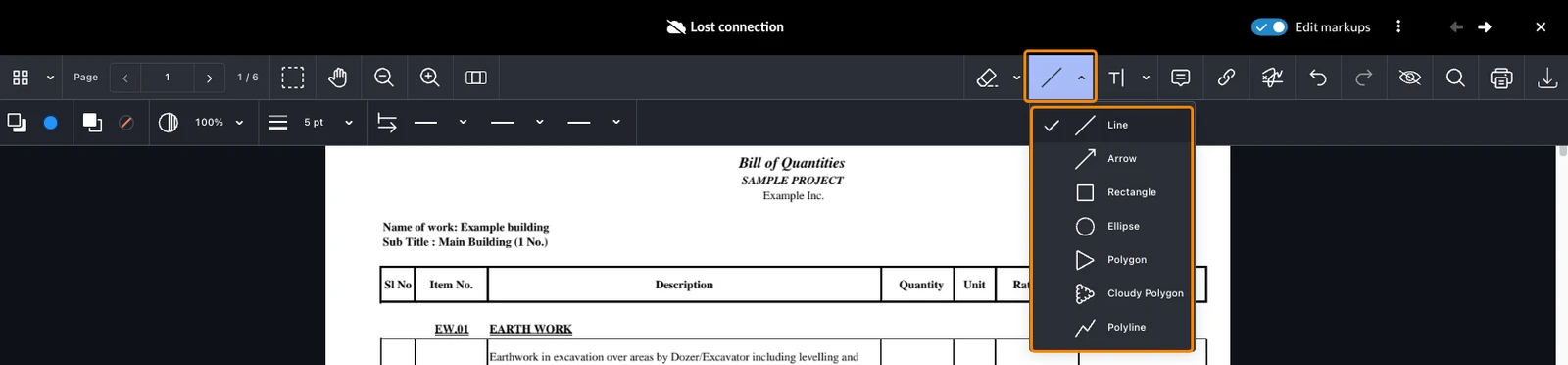
Lines & Shapes: add a line or shape including:
- Line
- Arrow
- Rectangle
- Ellipse
- Polygon
- Cloudy Polygon
- Polyline
Text & Callout: add text or a callout. A callout is a textbox with a flexible arrow.

Note: place an icon that shows your text when clicked.

Link: link to a page within the PDF or to an external website. Links are transparent, so you can place them on top of other markups. To select or edit a link, use the selection tool — see Edit Markups below. Links are not counted as markups: they do not make a PDF show as containing markups, and markup filters ignore them.

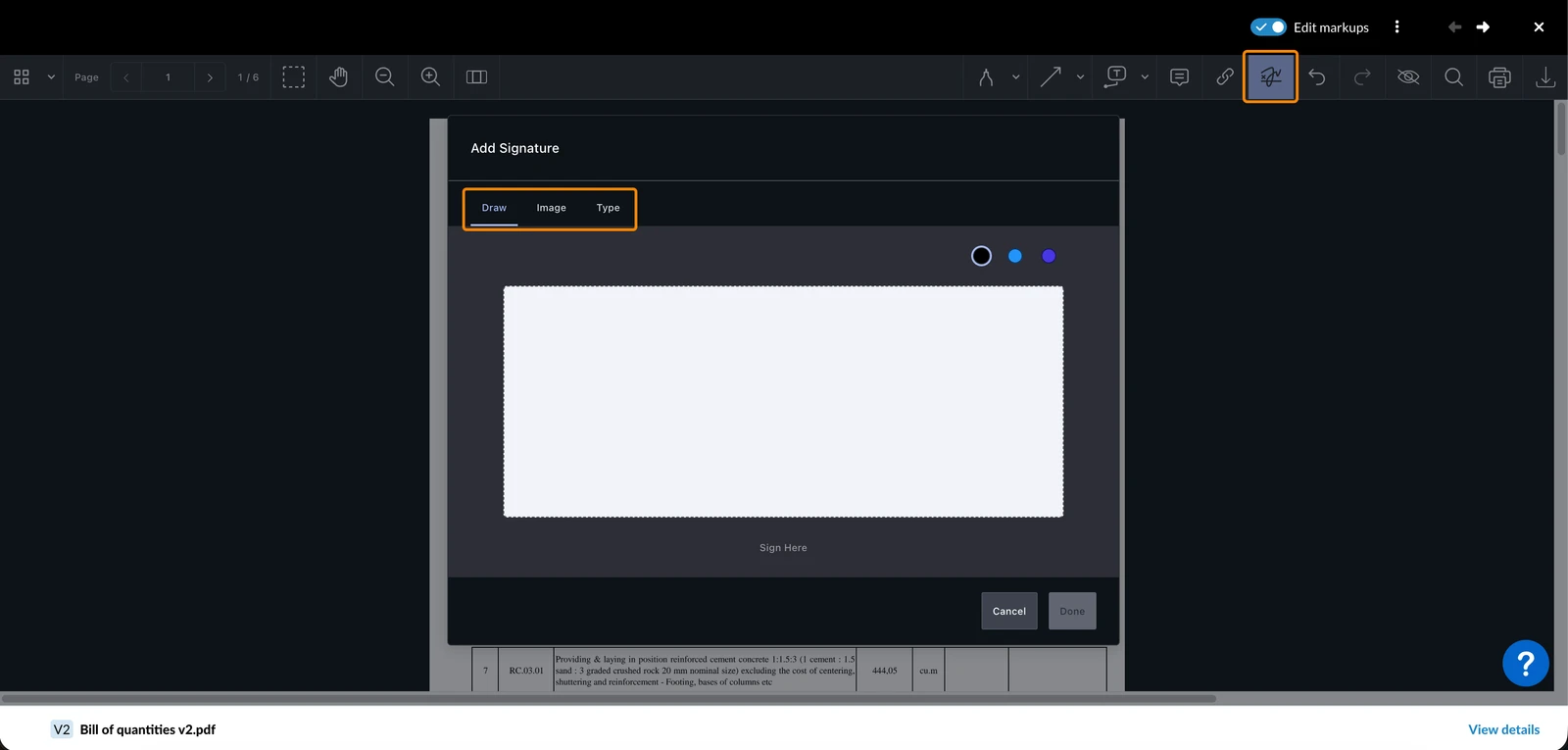
Signature: add a signature by freehand drawing.
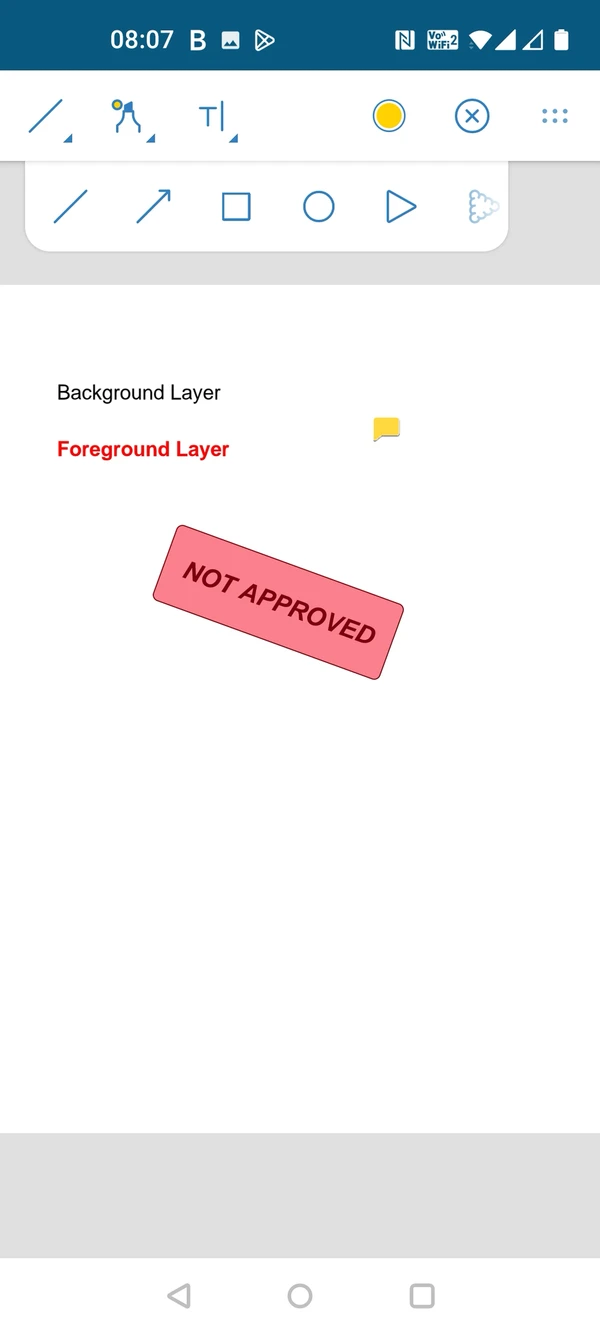
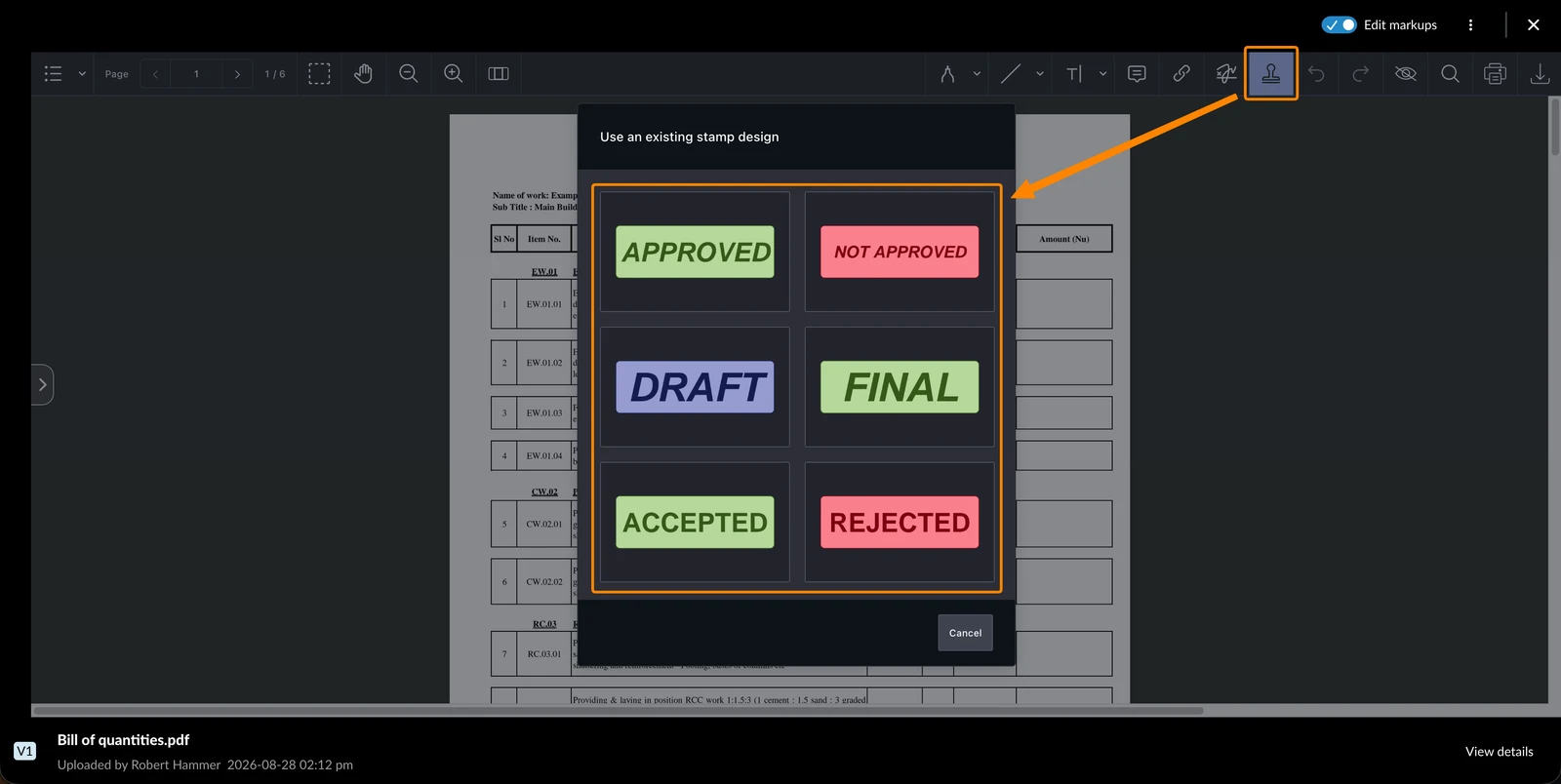
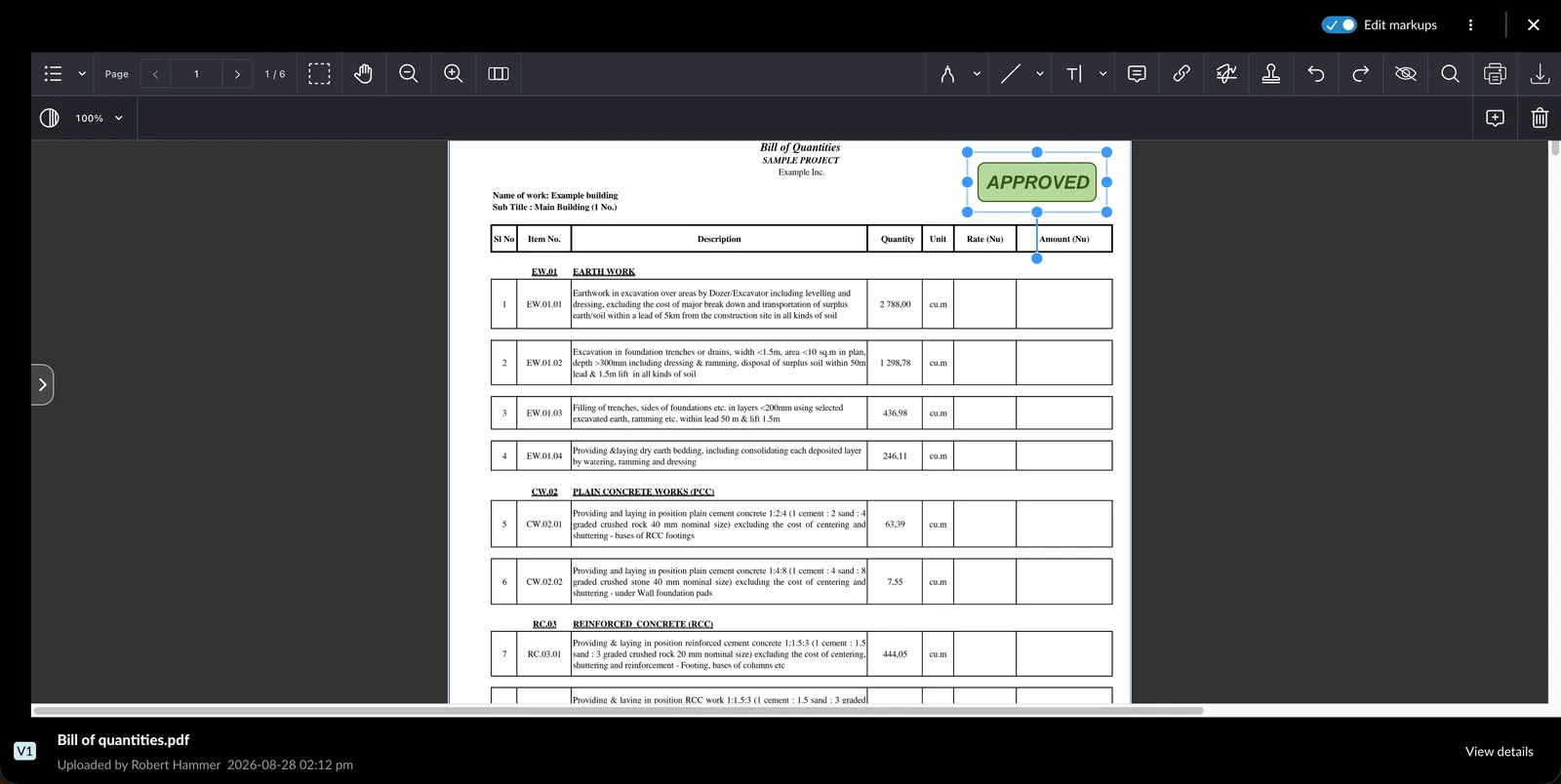
Stamp: add a pre-defined stamp to show a document’s status. Choose one of the six stamps:
- APPROVED
- NOT APPROVED
- DRAFT
- FINAL
- ACCEPTED
- REJECTED
You cannot create, upload or edit stamp designs. A placed stamp can also be resized and rotated: click it, then drag a corner handle to resize it, or the rotation handle to turn it.
The markup toolbar groups the tools. Tap a group, then the tool:
- drawing: pen, freeform highlighter, text highlighter, eraser
- lines and shapes: line, arrow, rectangle, circle, polygon, cloud, polyline
- text: free text, callout, note, link, signature (drawn)
When you select text, you can highlight it. Strikethrough, underline and stamps are not available in the iOS app.
The markup toolbar groups the tools. Tap a group, then the tool:
- drawing: pen, freeform highlighter, text highlighter, eraser
- lines and shapes: line, arrow, rectangle, circle, polygon, cloud, polyline
- text: free text, callout, note, signature (drawn)
When you select text, you can highlight it, strike it through or underline it. On phones, the toolbar also has Undo and Redo. Links and stamps are not available in the Android app.
Form Fields
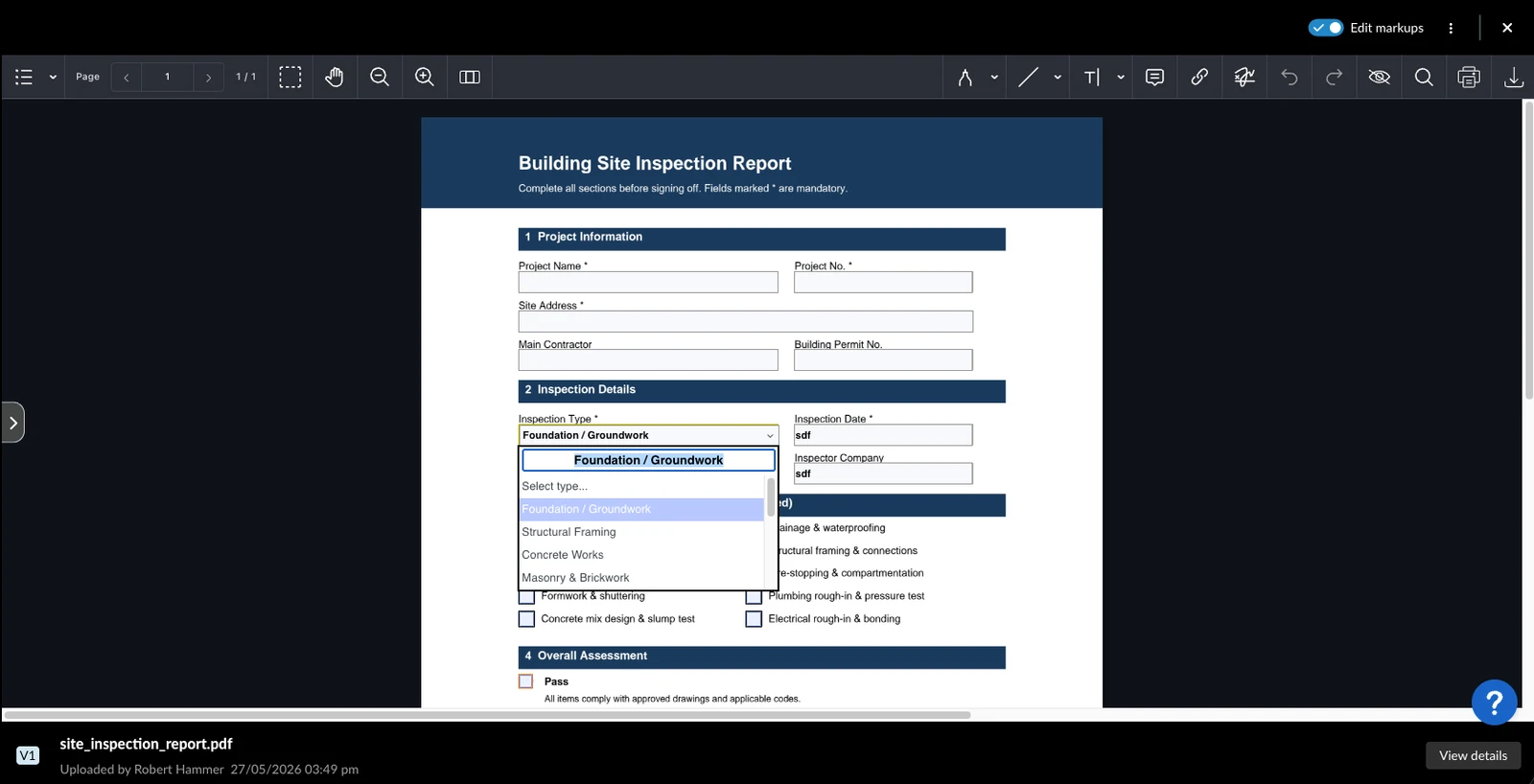
Fill in interactive form fields on editable PDFs. Supported field types include:
- Text field
- Checkbox
- Radio button
- Dropdown
When edit mode is active, click on a form field to interact with it — type text, check a box, select a radio button, or choose a value from a dropdown.
While you are online, tap a form field to interact with it — type text, check a box, select a radio button, or choose a value from a dropdown.
Edit Markups
To edit a markup:
- Click on the markup
- Apply your changes using the formatting options as described above
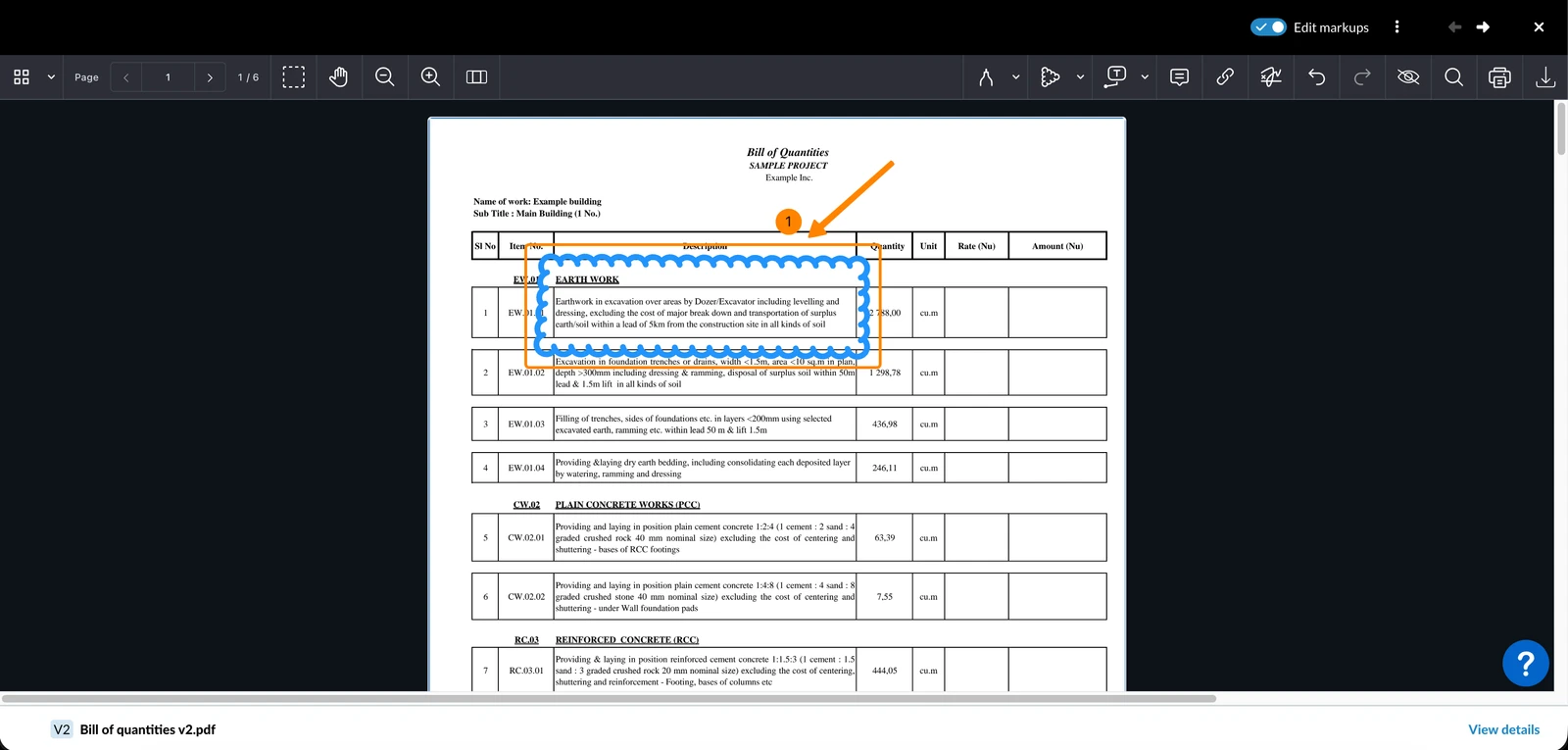
To select several markups at once:
- Click on the Select Multiple Annotations icon
- Select an area by holding the mouse button
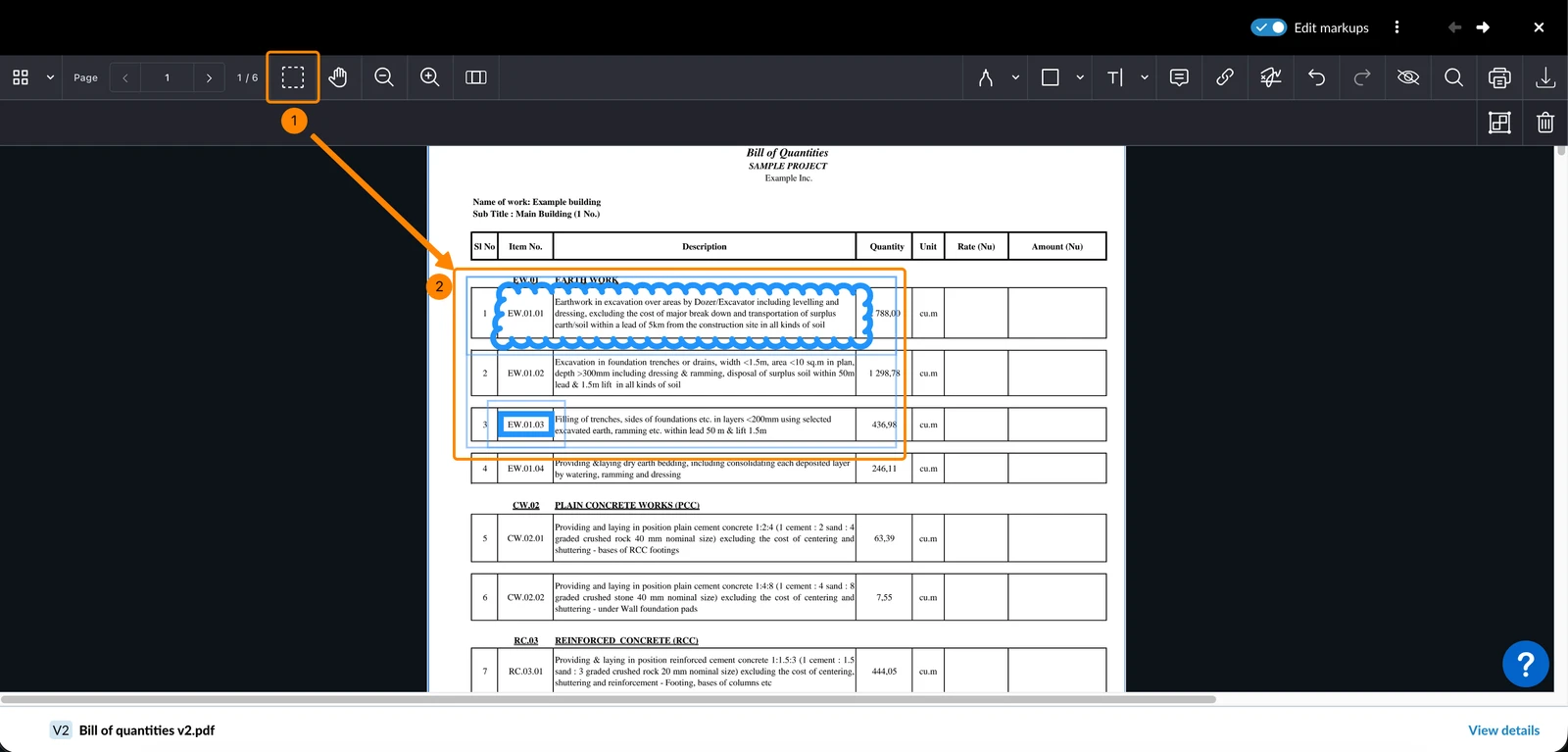
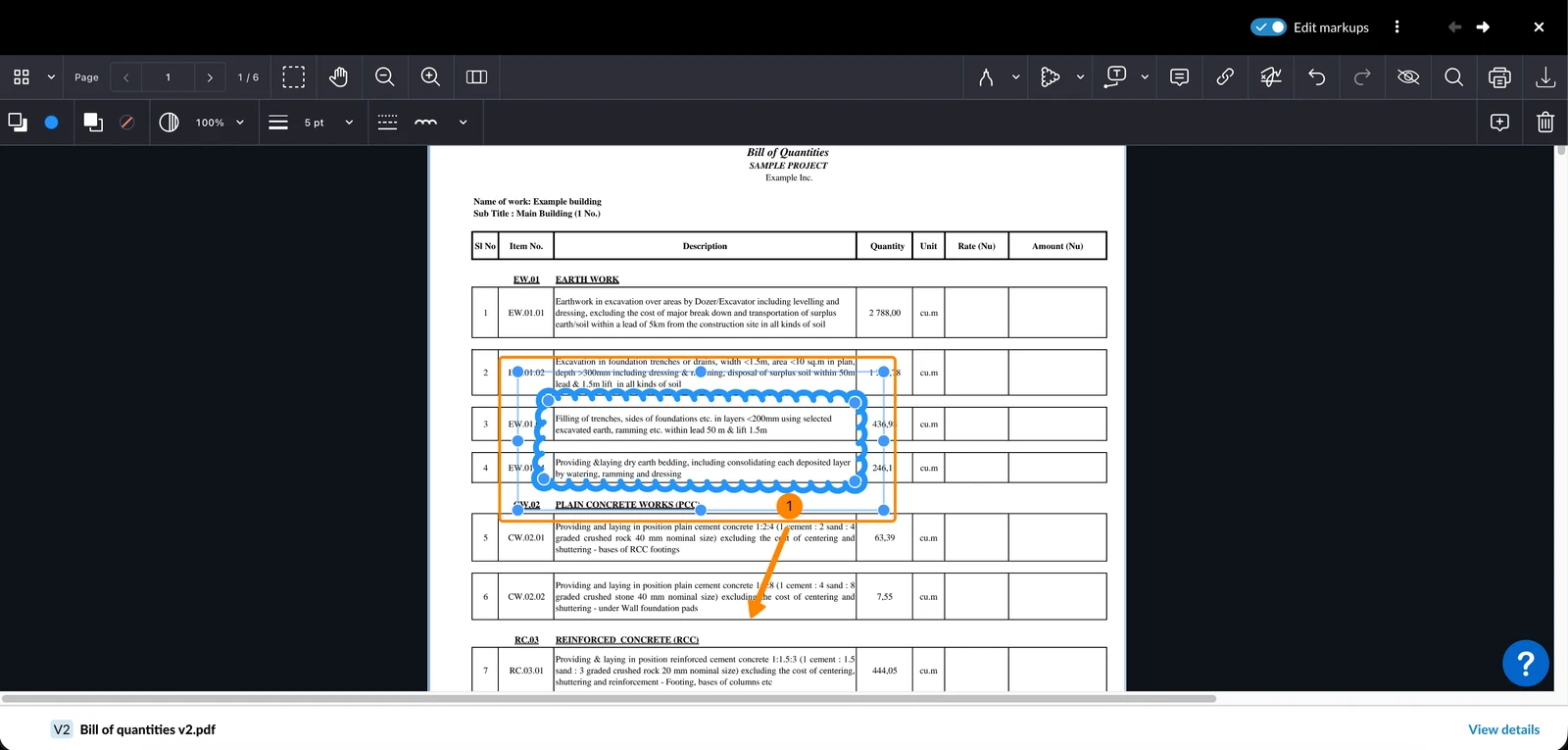
To move a markup, drag it to the desired position.
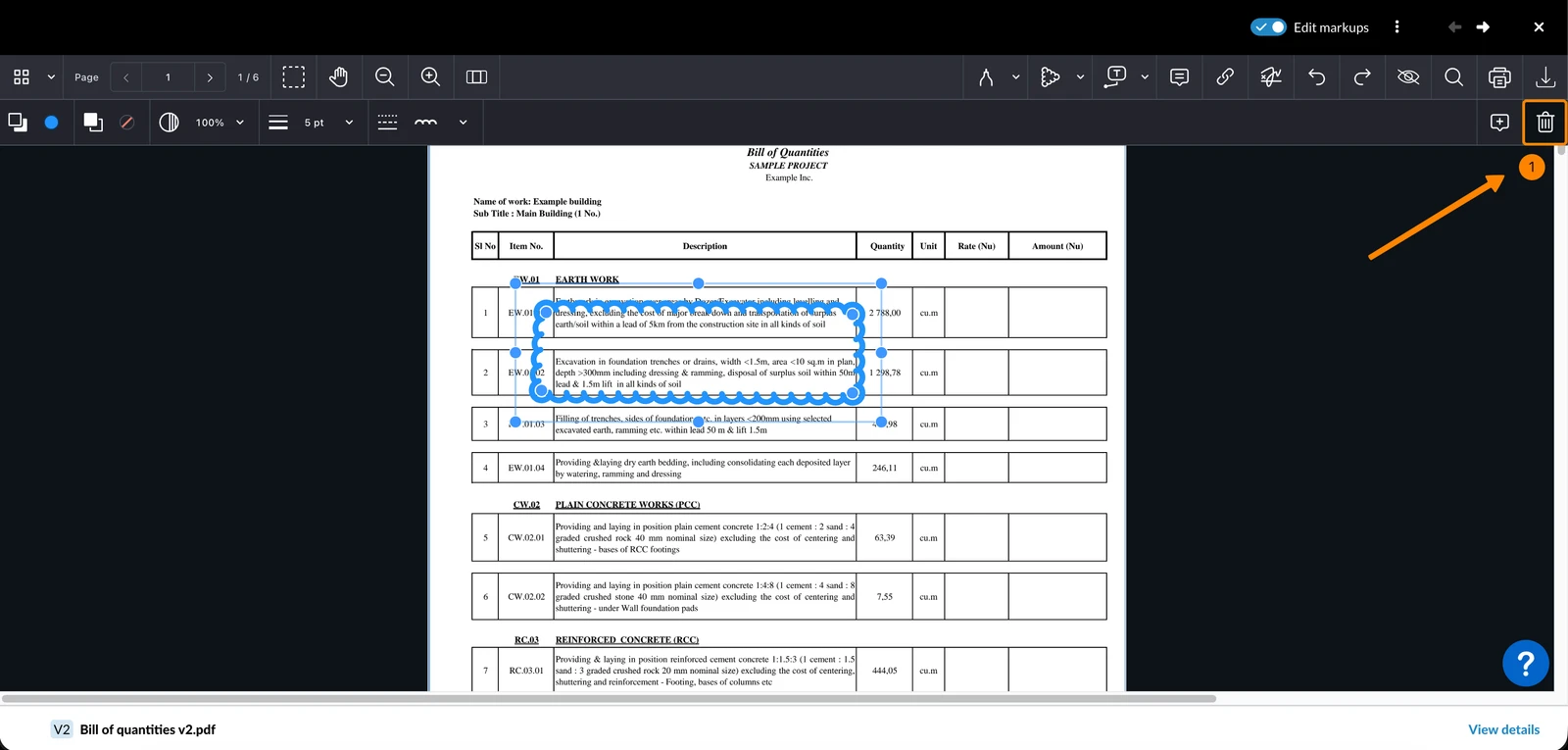
To delete a markup, click the Trash icon, or press Del or Backspace on your keyboard.
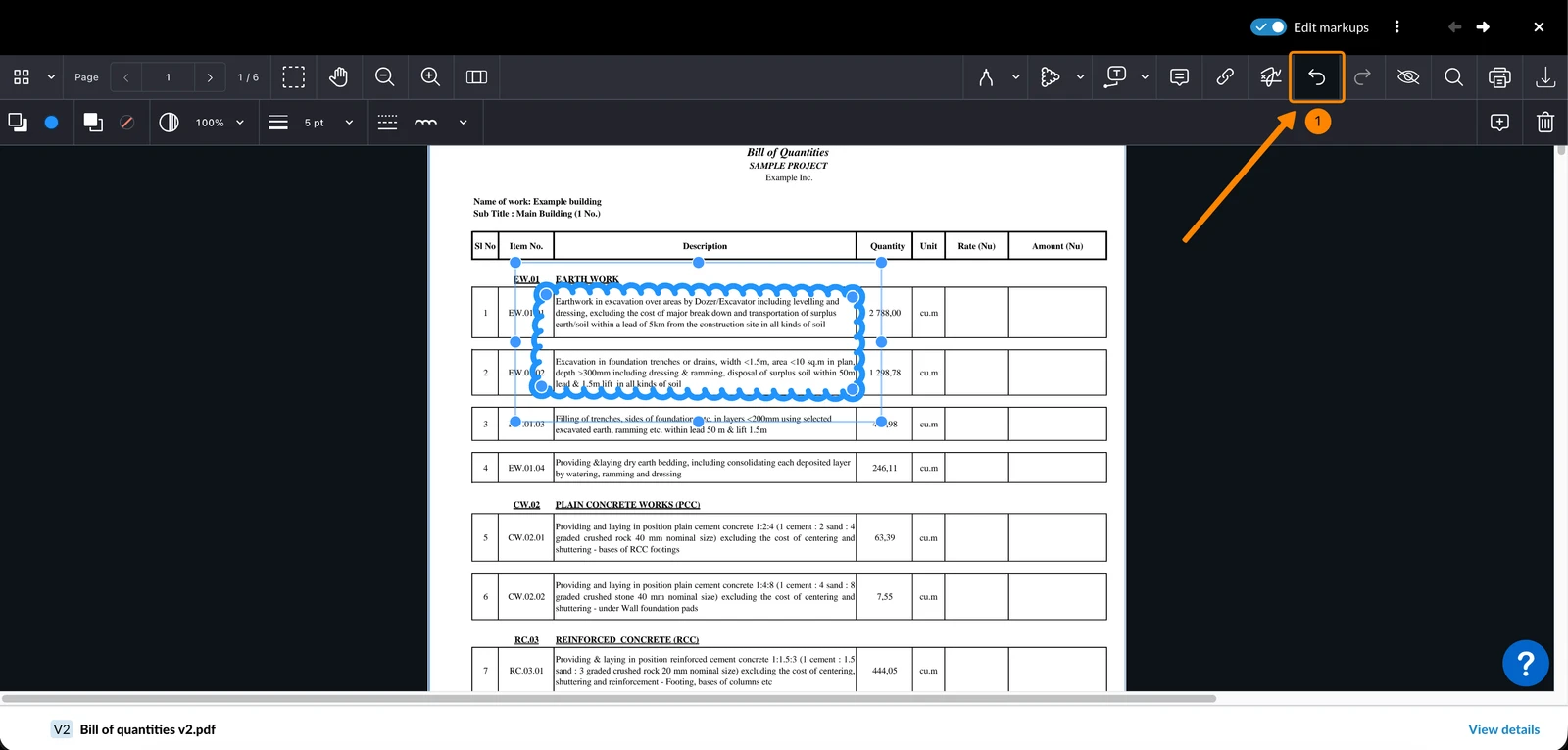
You can undo or redo changes while you are in a markup-editing session: click the Undo or Redo icon.
- Open the markup toolbar as described above
- Tap the markup to select it
- Change it with its options, drag it to move it, or delete it
You can also delete markups from the list of all markups in the PDF. You can select only one markup at a time.
- Open the markup toolbar as described above
- Tap the markup to select it
- Change it with its options, drag it to move it, or delete it
You can also delete markups from the list of all markups in the PDF. You can select only one markup at a time. On phones, tap Undo or Redo in the markup toolbar.
Show/Hide Markups
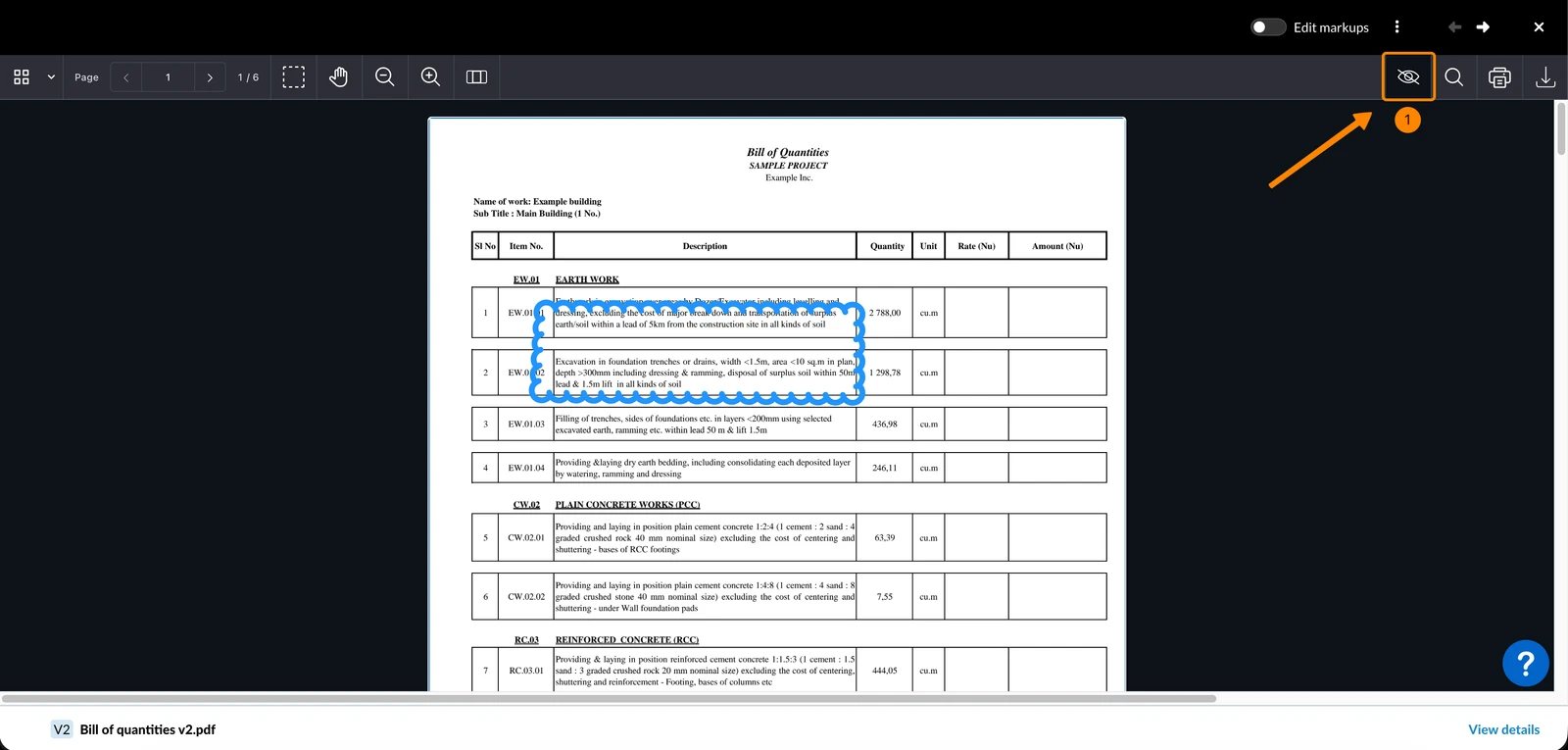
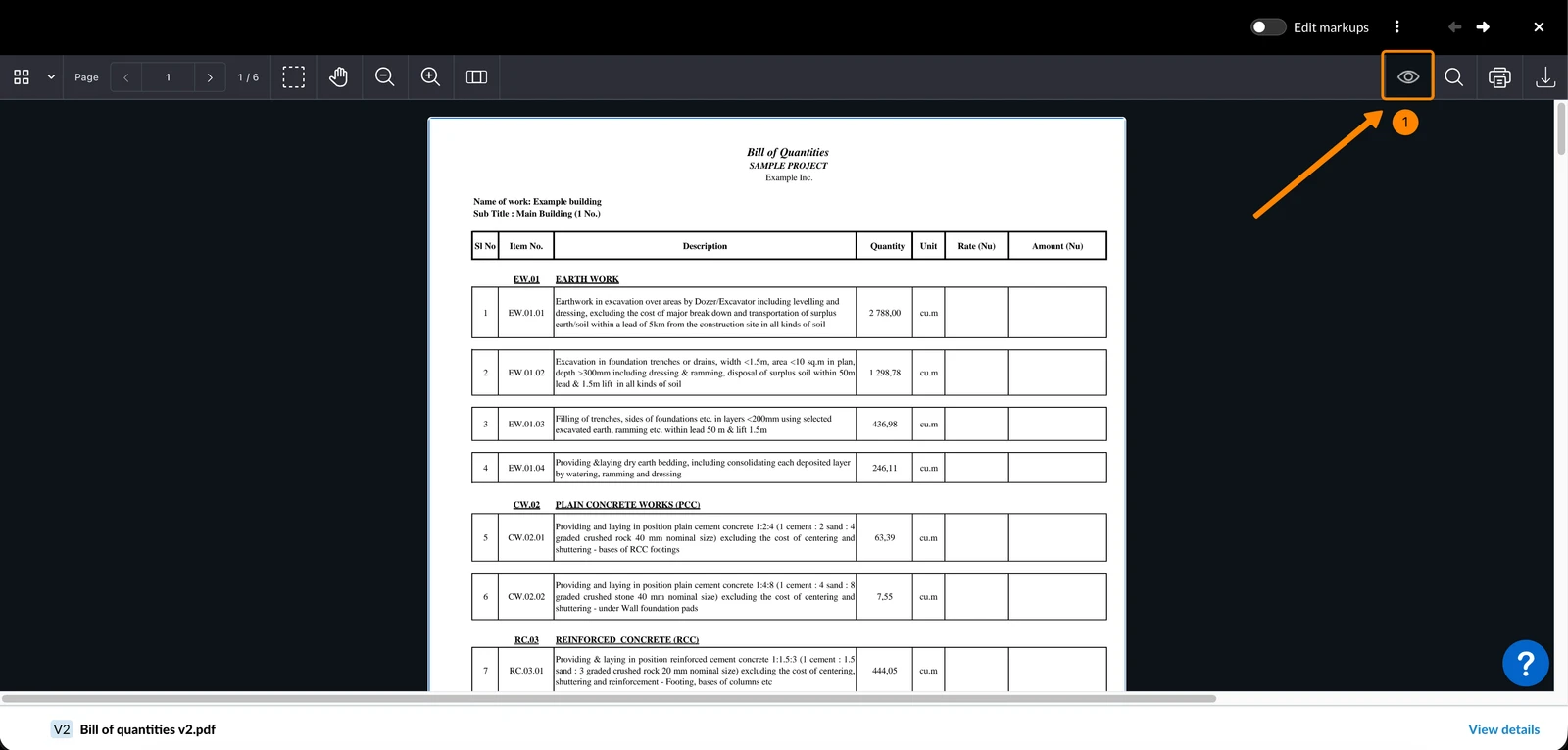
Showing or hiding markups only applies to your current viewer session. This setting is not saved and does not affect what other users see. When you open a PDF, markups are shown by default.
To hide all markups:
- Click the Hide markups icon
To show all hidden markups:
- Click the Show markups icon
Tap the eye icon to hide the markups, and tap it again to show them.
You cannot edit markups while they are hidden.
Print & Download
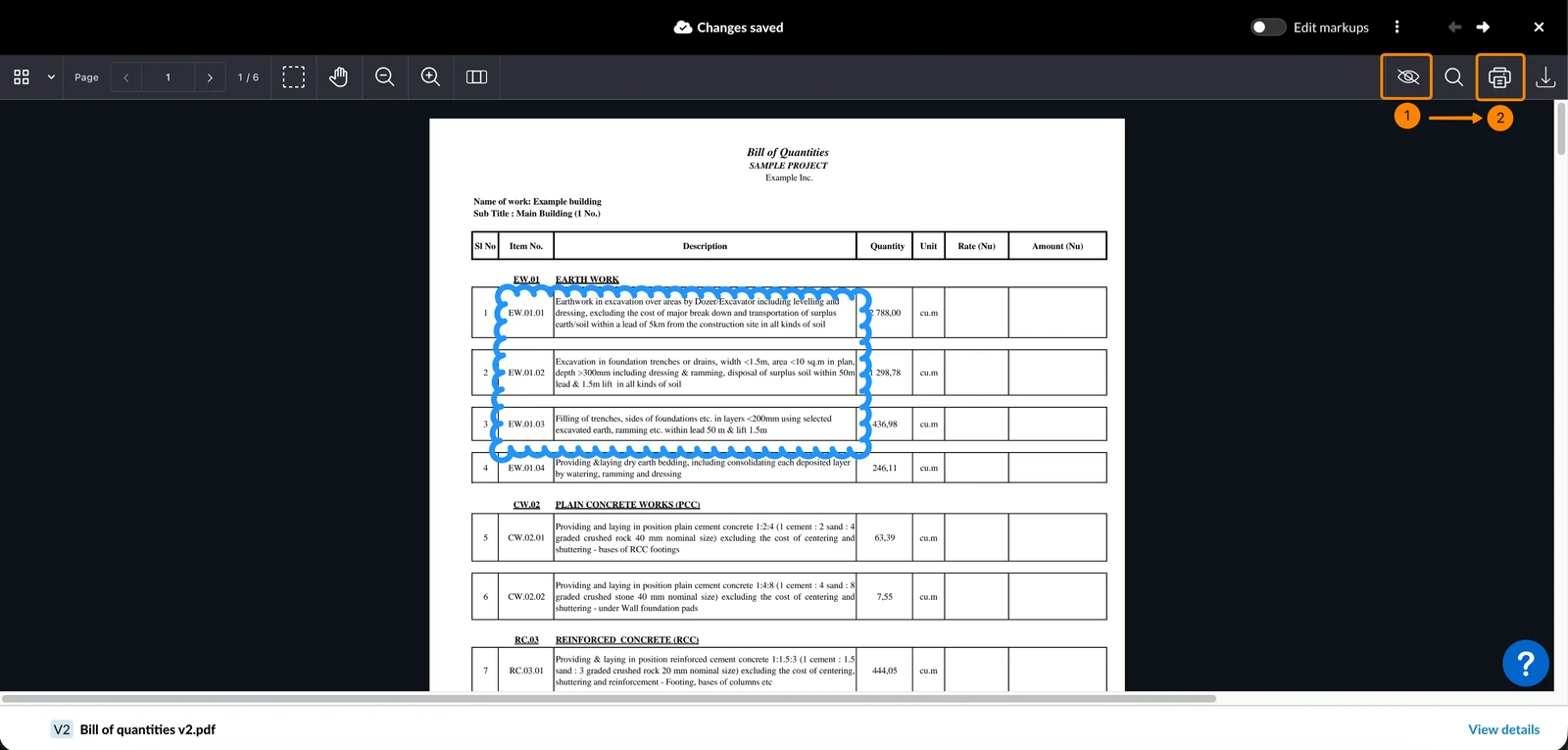
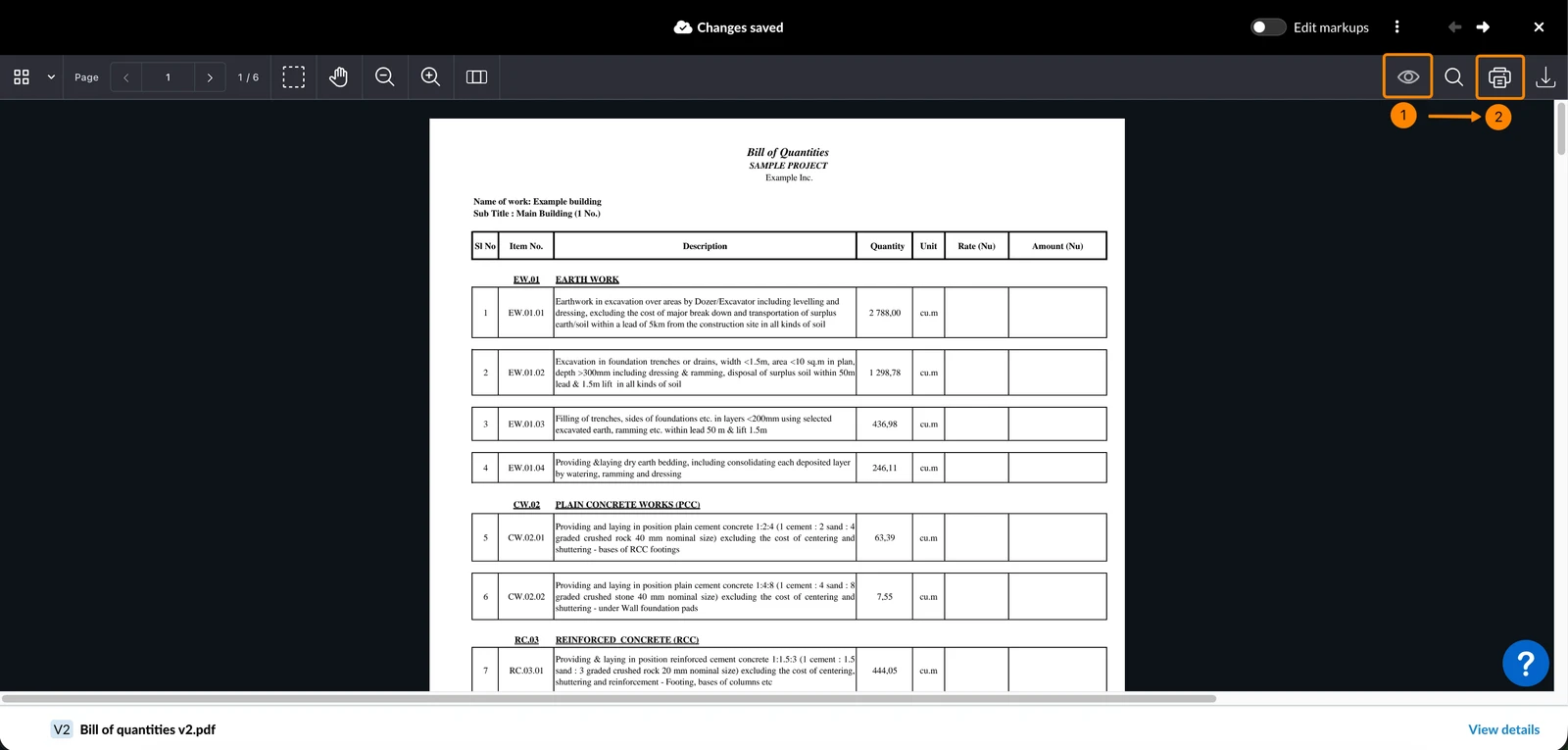
Markups are only included in the printed PDF if they are visible. When saving a PDF to your computer, export it to include markups or download it to exclude markups.
To print a PDF including markups:
- Click the Show markups icon
- Click the Print icon
To print a PDF excluding markups:
- Click the Hide markups icon
- Click the Print icon
To export a PDF including markups:
- Click the Export PDF icon
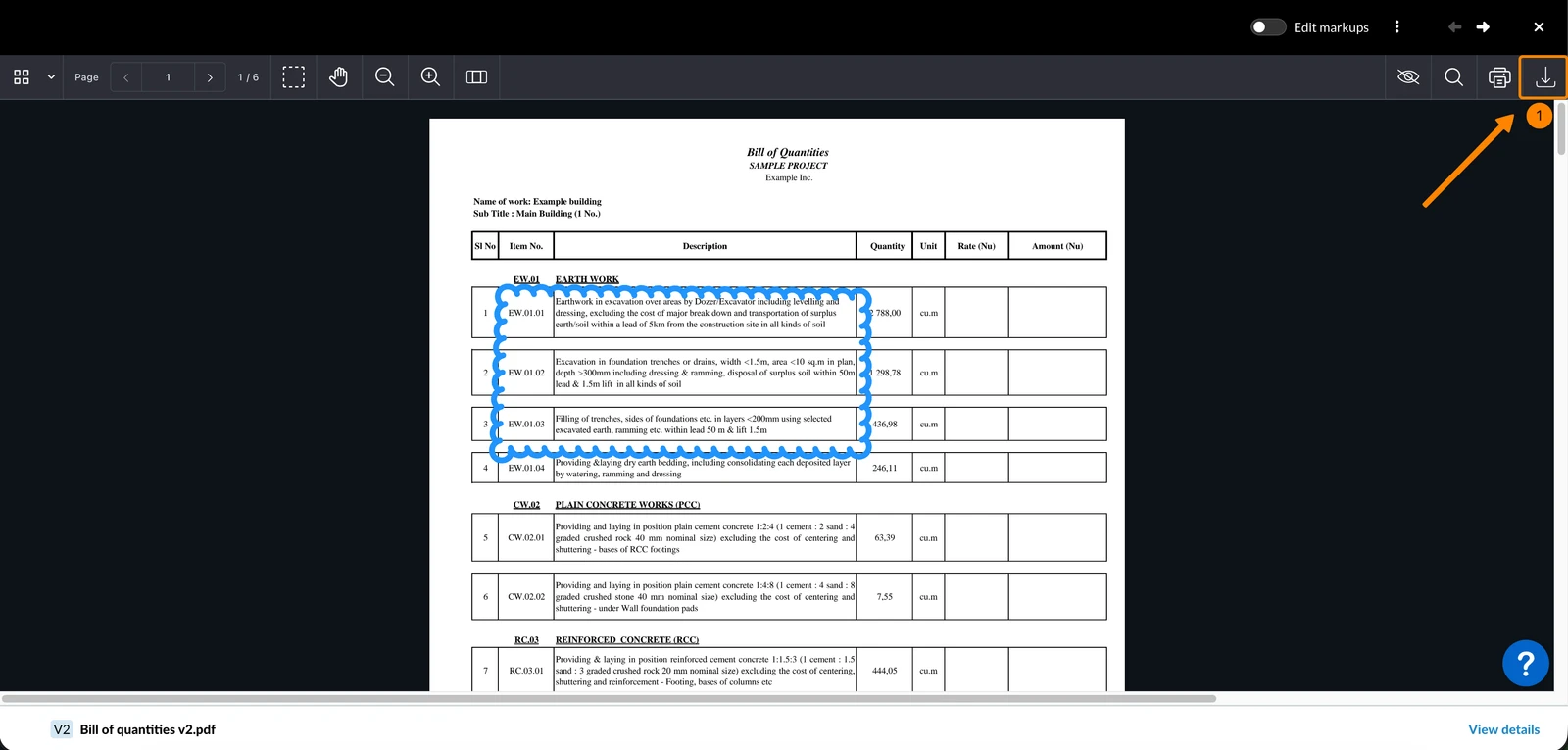
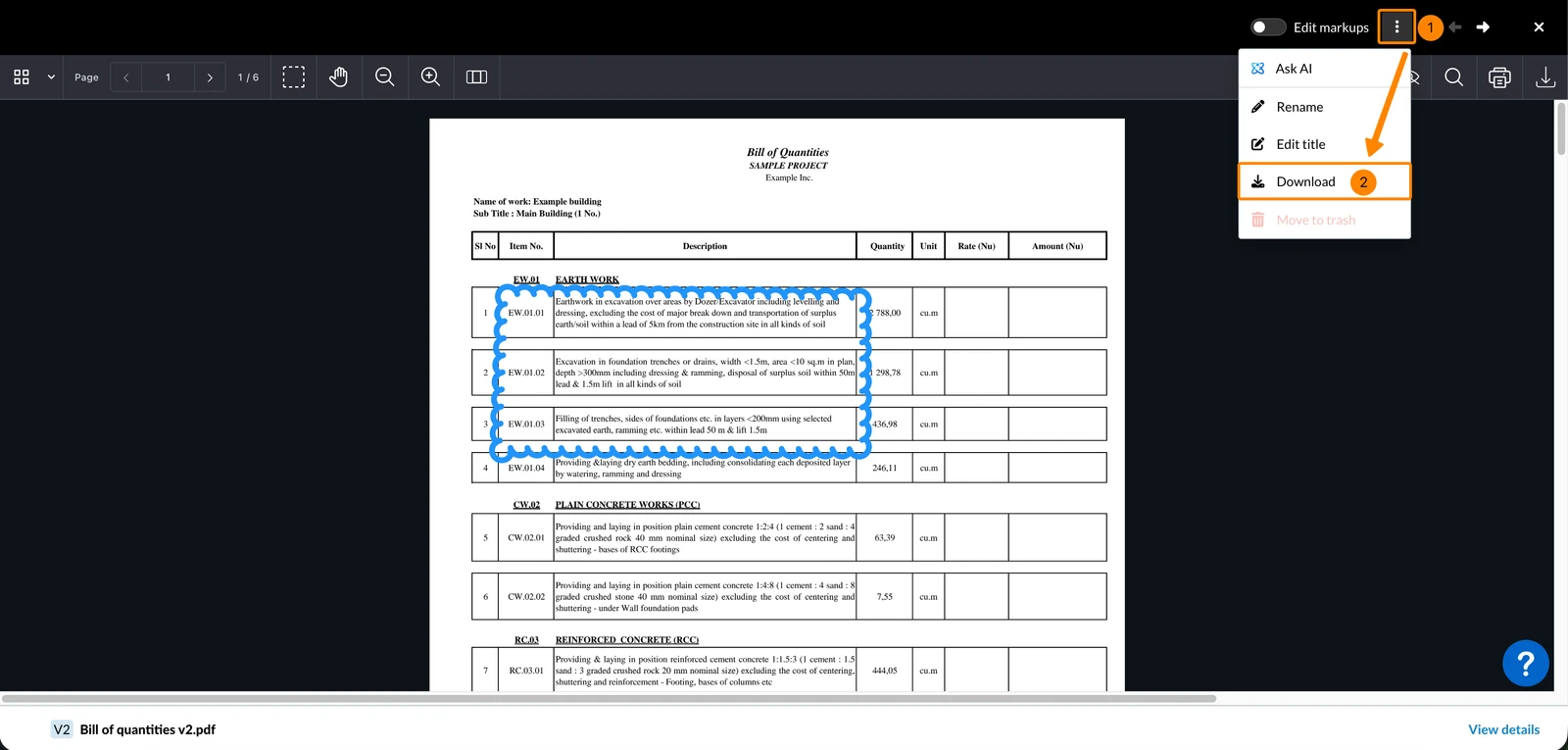
To download a PDF without markups:
- Open the More menu
- Click Download
- Open the More menu (…)
- Tap the share icon
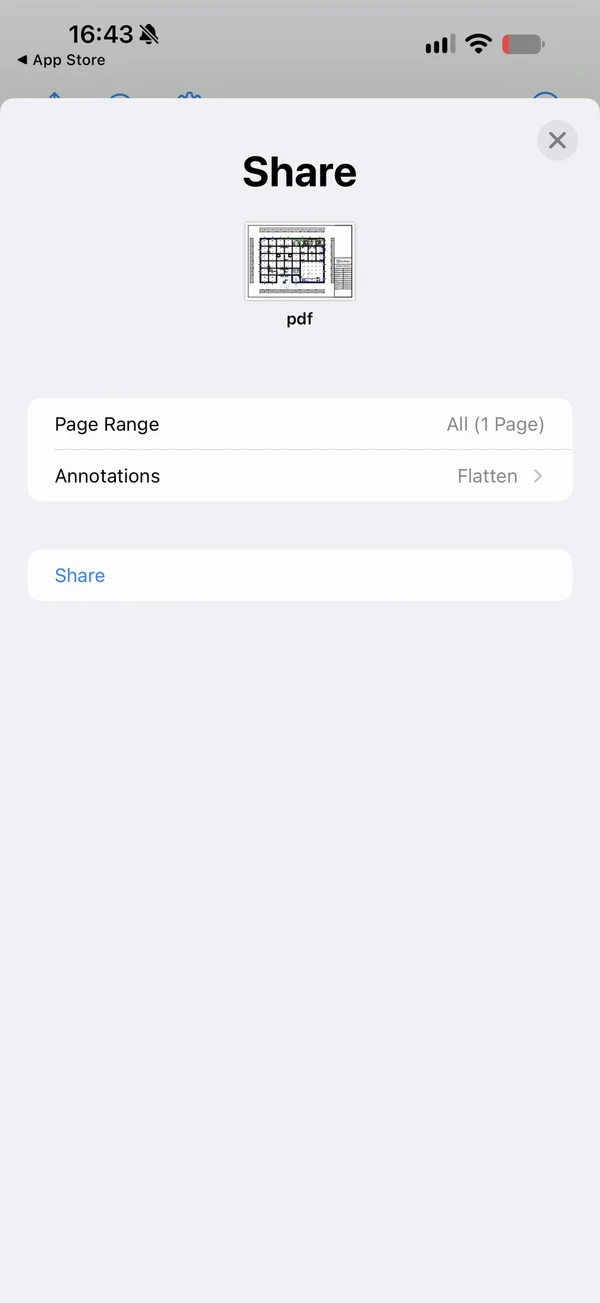
- Under Page Range, choose which pages to share
- Tap Annotations and select:
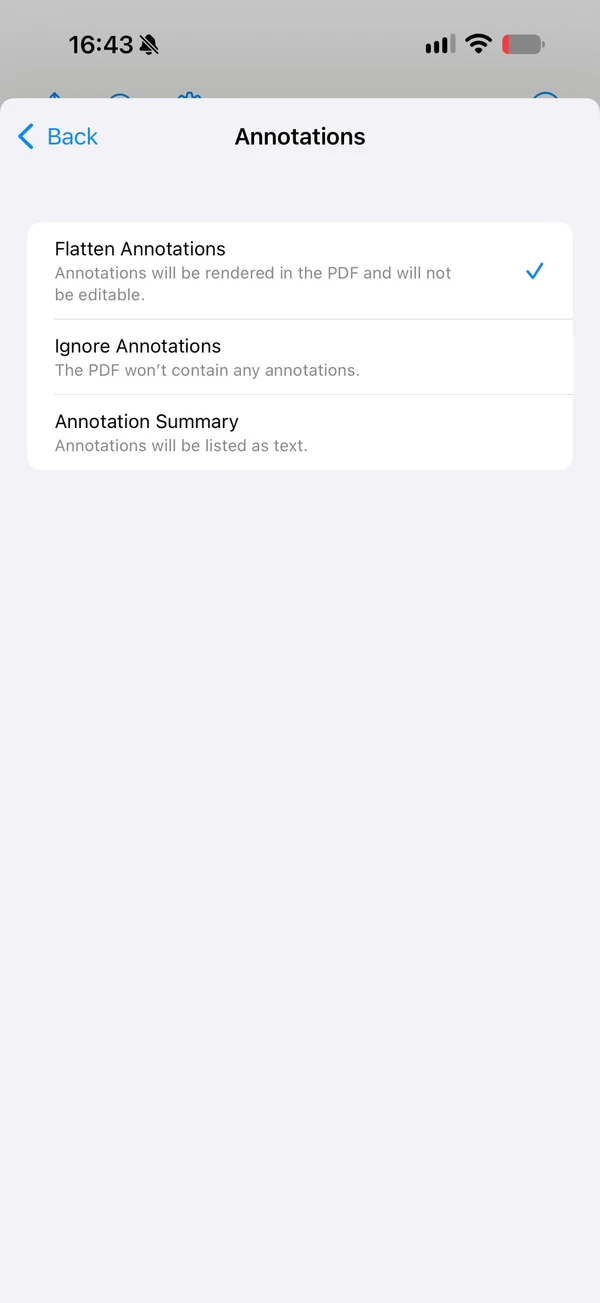
- Flatten Annotations to include the markups. They can no longer be edited in the shared file.
- Ignore Annotations to share the PDF without them
- Annotation Summary to list the markups as text
- Tap Share and continue in the share sheet of your device, e.g. to print or save the PDF
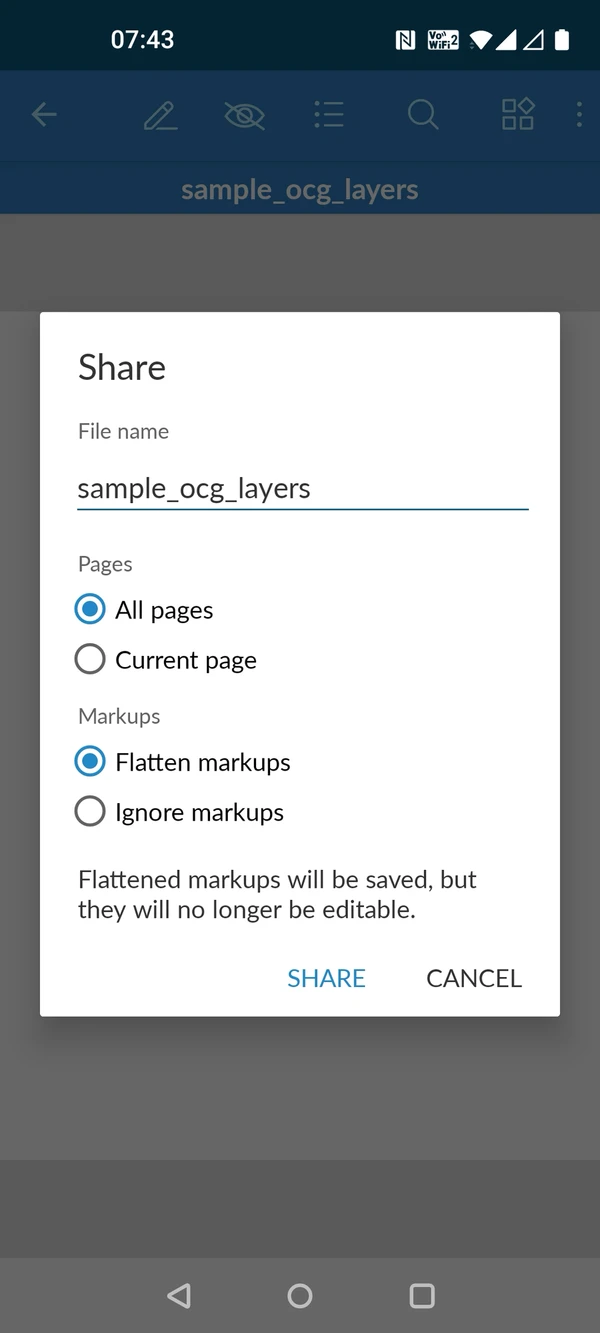
- Tap the share icon
- Enter a File name
- Under Pages, select All pages or Current page
- Under Markups, select:
- Flatten markups to include them. They can no longer be edited in the shared file.
- Ignore markups to share the PDF without them
- Tap Share and continue in the share sheet of your device
Markups Offline in the Mobile App
Markups need an internet connection: to load them when you open a PDF, and to edit them.
- If you lose the connection while a PDF is open, the app shows Lost connection. You can still see the markups, but you cannot edit or share the PDF until you are back online.
- If you open a PDF that you made available offline without a connection, it opens without its markups and the app shows Markups visible only online. Read more in Make Files Available Offline in the Mobile App.
Find PDFs with Markups
Find PDFs with markups by filtering. Read more in View & Find Files/Folders > Filter.
In Documents:
- Files with markups show a markup icon in the list and grid view.
- Sort the files by Last modified markups.
- Filter for Has markups.
Updated September 11, 2026