

 Deutsch
 Español
 Français
 Hrvatski
 Italiano
 Polski
 Português (BR)
Manage Plans & Folders in the Mobile App
Overview
You can manage a project's plans and folders from your phone or tablet, on site: add a plan, create a folder, rename and move things, and check plan details and versions. The screen is called Manage Locations and works the same way on iOS and Android.
It is the mobile counterpart of Manage Plans & Folders in the Webapp. Two jobs stay in the webapp — see What to Do in the Webapp Instead.
Access & Permissions
How to Access Manage Locations
To open the screen:
- Open a project and tap Tickets.
- Open the location selector at the top.
- Open the More menu.
- Tap Manage Locations.
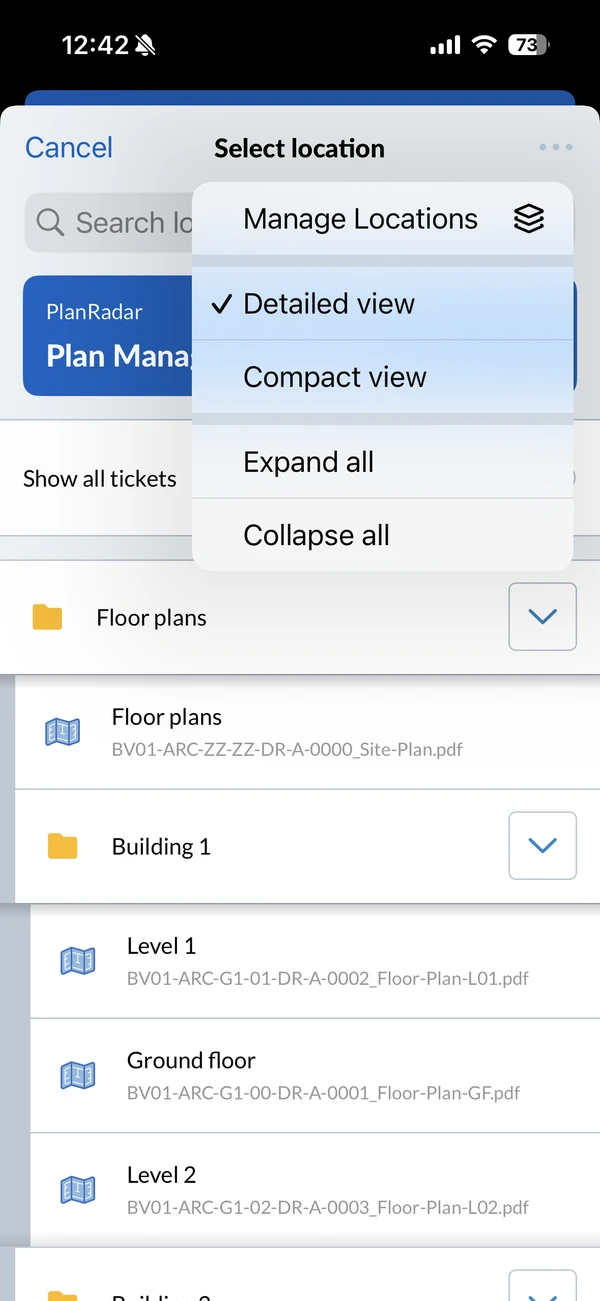
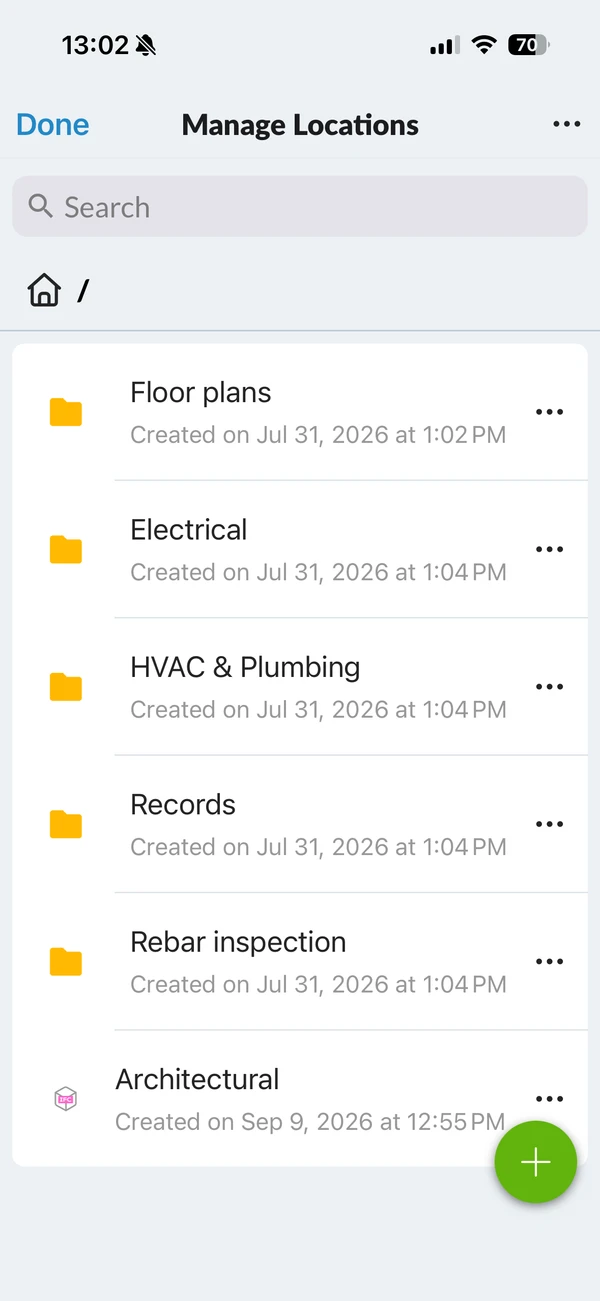
Tap Done in the top left to go back to the selector.
Move through the project with the breadcrumb at the top: tap a folder to open it, and the breadcrumb to go back up. The search field filters the folder you are currently in.
Add a Plan or a Folder
To upload a plan:
- Open the folder the plan should go into.
- Tap +.
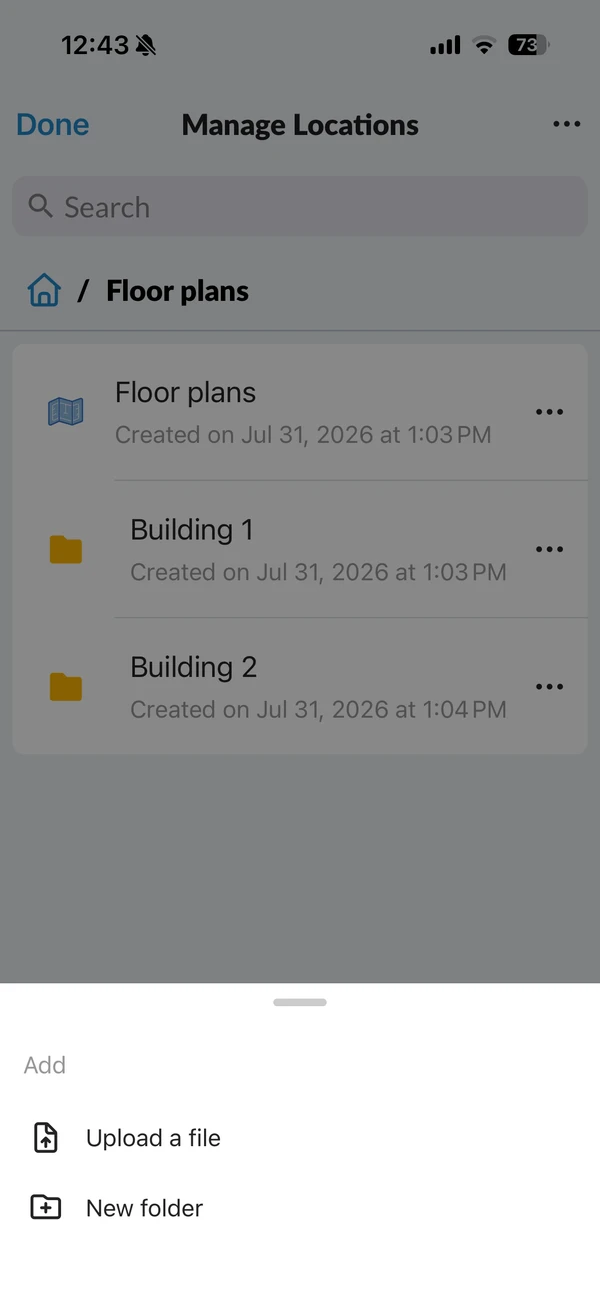
- Tap Upload a file.
- Select a PDF, JPEG or IFC file.
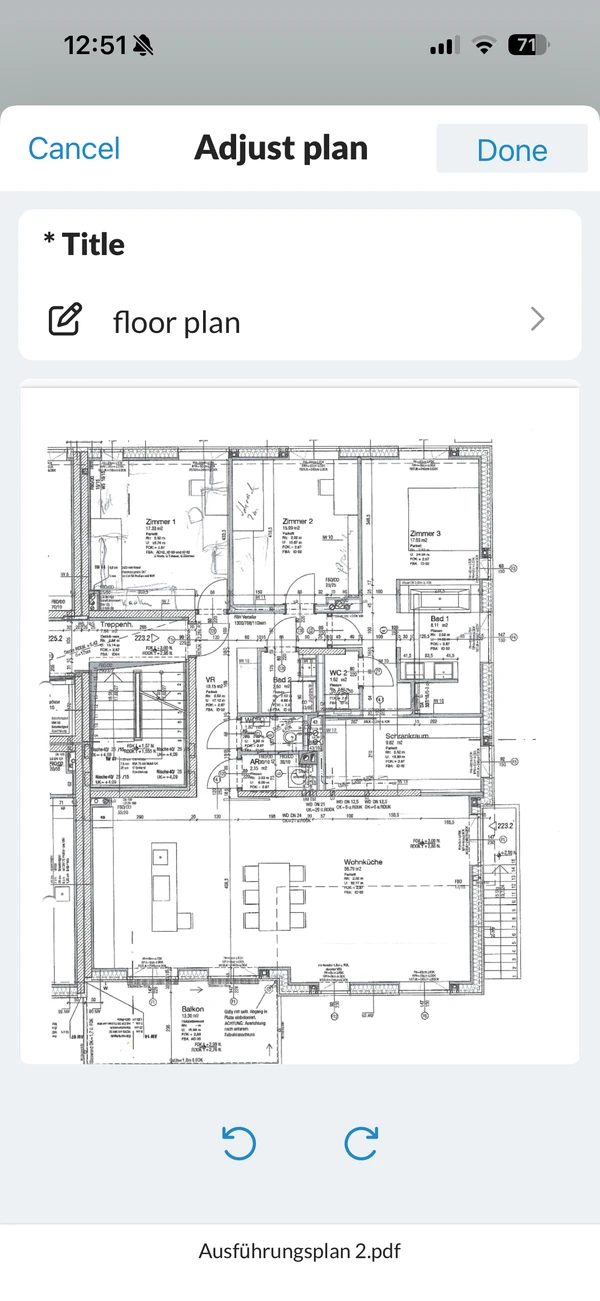
- Check the Title and edit it if needed.
- Optional: Rotate the plan in the preview.
- Tap Done.
The plan appears in the list and shows Uploading, then Processing your plan... while PlanRadar prepares it. IFC files are uploaded straight away, without a preview.
To create a folder:
- Open the folder it should go into.
- Tap +.
- Tap New folder.
- Type the name.
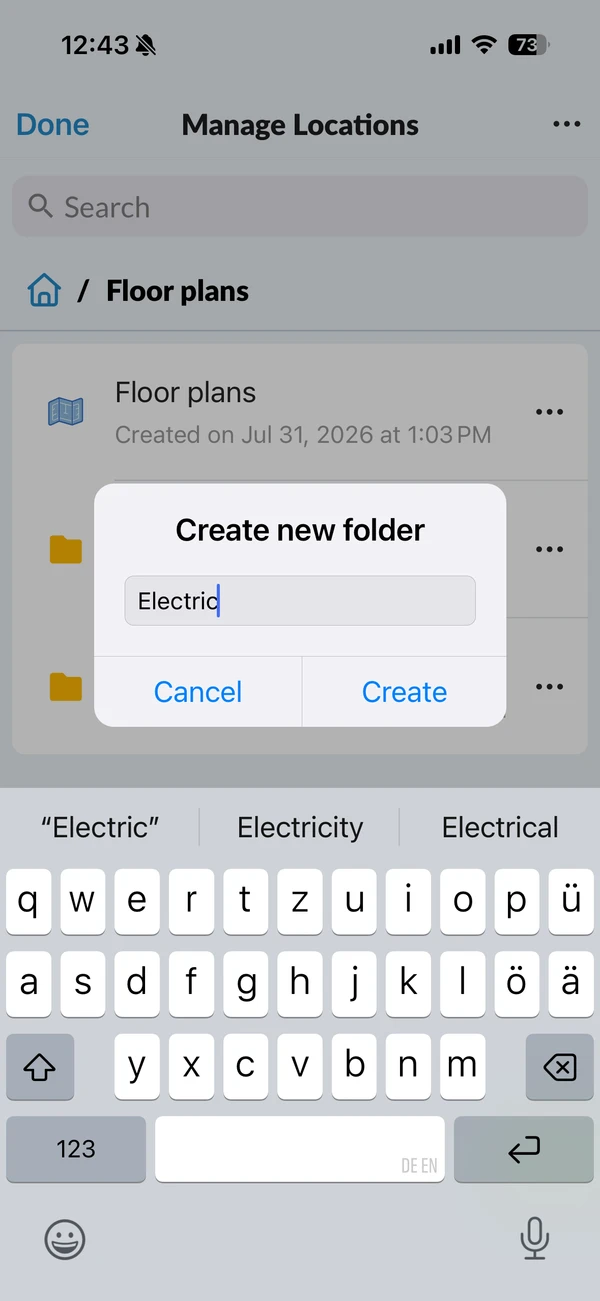
- Tap Create.
Two folders may have the same name.
Manage Plans and Folders
Open the More menu on an item for what you can do with it:
- A plan: Details, Download, Rename, Move, Versions, Upload new version, Delete.
- A folder: Details, Rename, Move, Delete.
- A BIM model: Details, Download, Rename, Move, IFC models, Add IFC model, Delete.
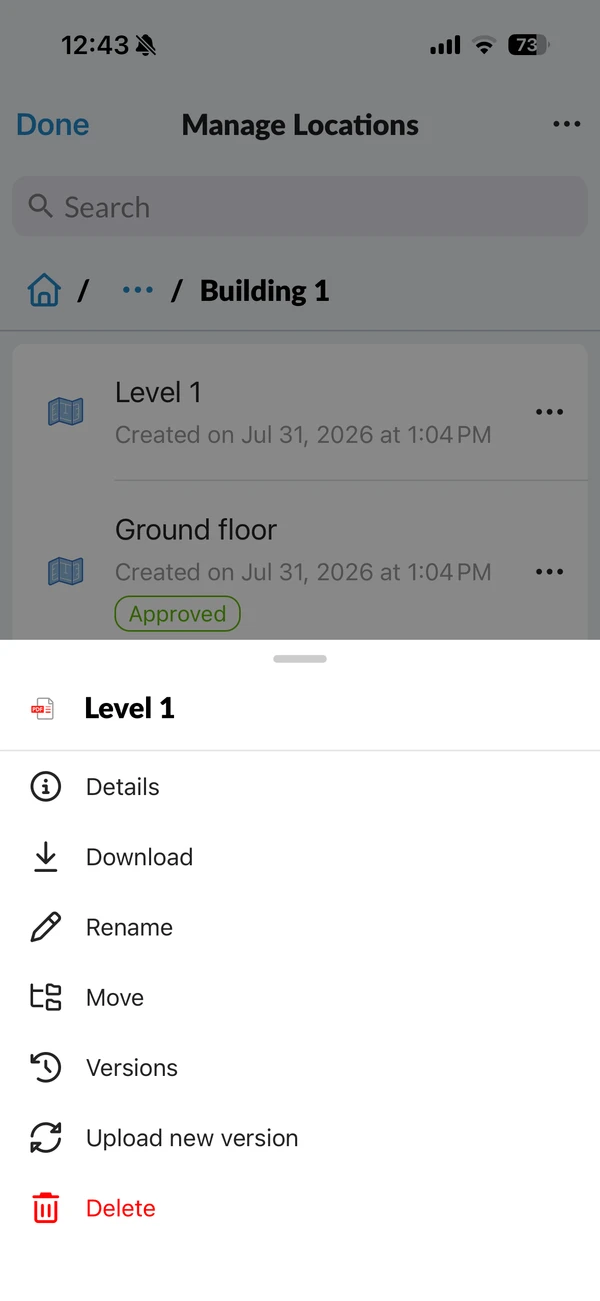
To move an item:
- Open the More menu on the item.
- Tap Move.
- Open the folder it should go to.
- Tap Move here.
Tickets travel with the plan or folder you moved.
To delete an item:
- Open the More menu on the item.
- Tap Delete.
- Tap Delete to confirm.
View Plan Details and Versions
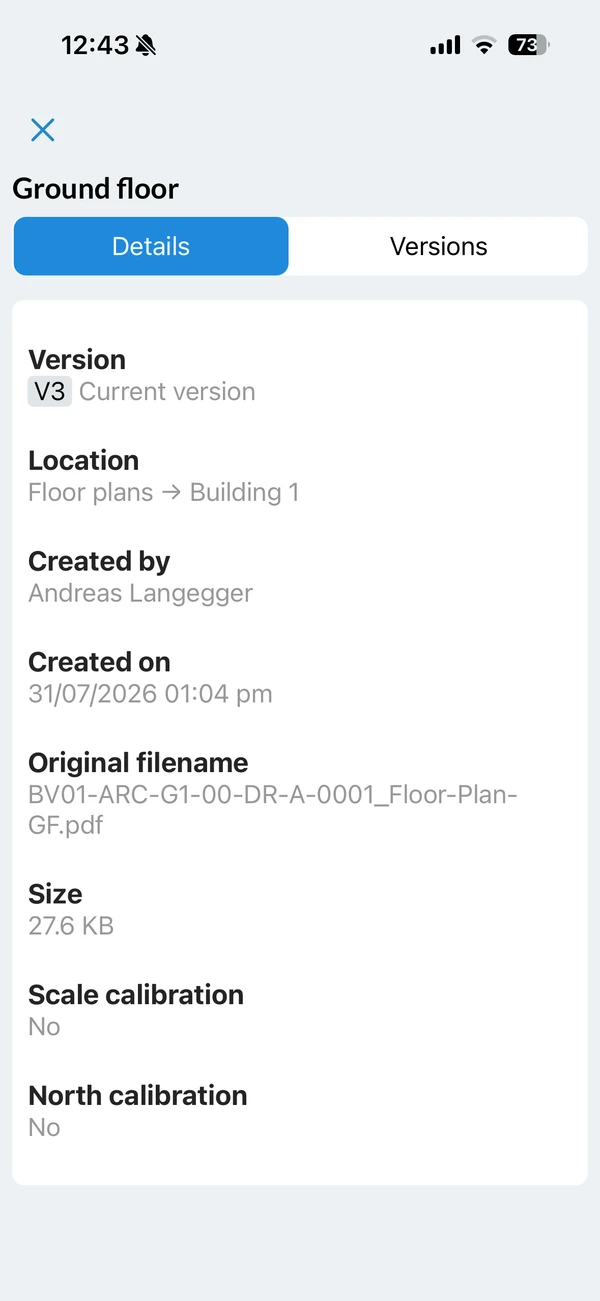
To see what a plan is and where it came from:
- Open the More menu on the plan.
- Tap Details.
Details shows the version, the folder it sits in, who created it and when, the original filename, the file size, and whether the scale and north are calibrated. Versions lists the plan's versions.
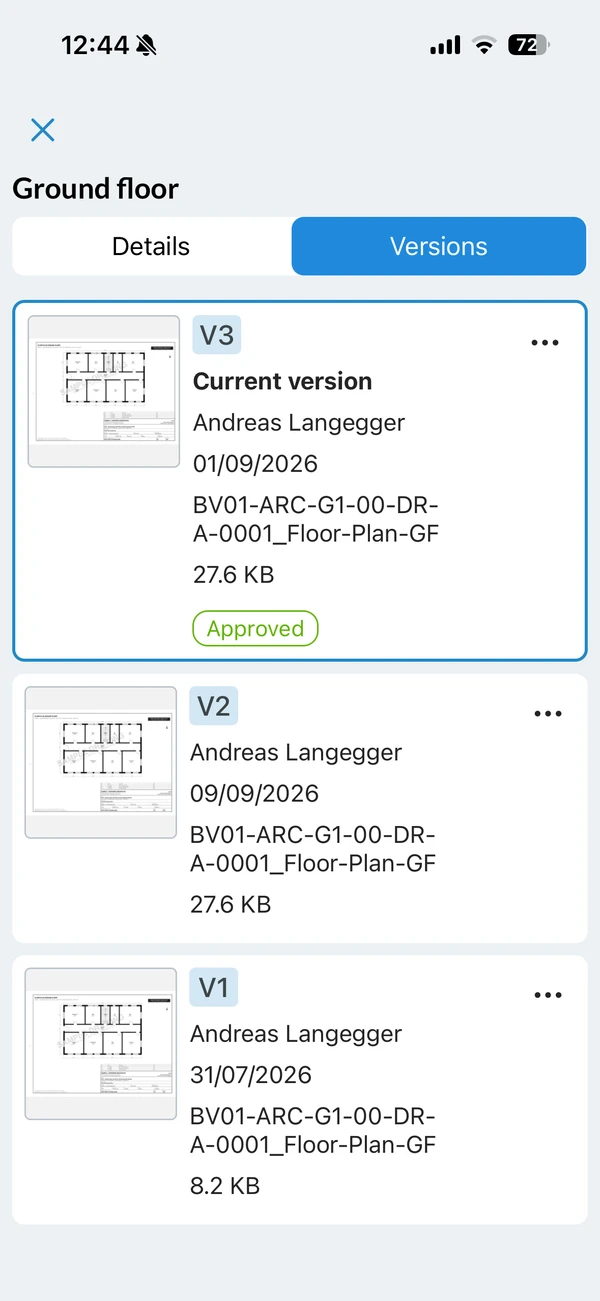
To delete an old version:
- Open the Versions tab.
- Open the More menu on the version.
- Tap Delete.
- Tap Delete to confirm.
A deleted version stays in the list as Deleted on {date} by {name}, so the history stays readable. The current version cannot be deleted.
Reorder the Contents of a Folder
The order you set here is the order everyone on the project sees.
To reorder a folder's contents:
- Open the folder.
- Open the More menu and tap Rearrange items.
- Drag the items into the order you want.
- Tap Done.
What to Do in the Webapp Instead
- Requesting approval for a plan. Read more in Request Approval for Plans.
- Updating a plan whose current version is approved. The new version would need approval as well, which means it is unpublished — and unpublished plans are hidden on mobile, so the plan would disappear from your device. Read more in Update Plans in the Webapp. Plans that never required approval can be updated here as described above.
Updated September 3, 2026