

 Deutsch
 Español
 Français
 Hrvatski
 Italiano
 Polski
 Português (BR)
Review & Approve Plans
Overview
As a reviewer you decide whether a new plan version goes live. Until you approve it, your team keeps working with the version that was approved before.
You can work through your plans in the Plan approvals section, or decide straight from the plan while you are looking at it.
Access & Permissions
How to Access Plan Approvals
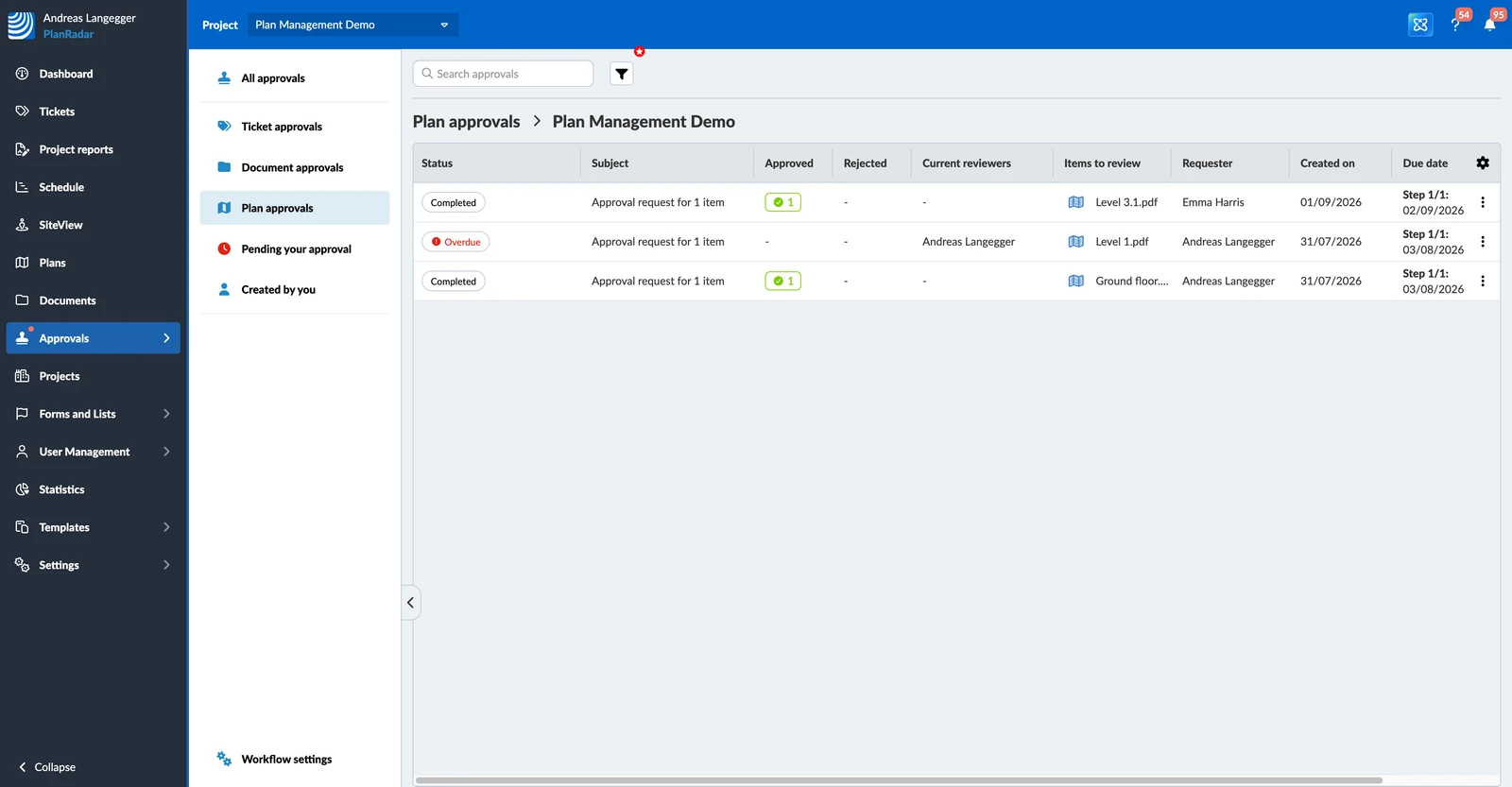
To see the plans waiting for you:
- Click Approvals.
- Click Plan approvals.
- Optional: Select a project or All projects in the Project drop-down.
The table shows every request with its status, the reviewers it is waiting for and the plans to review. Pending your approval in the sidebar filters it down to the ones that need your decision.
Approve or Reject From the Queue
To decide on a plan:
- Click the approval request.
- Click the plan listed under Items to review.
- Click Approve or Reject.
- Optional: Enter a comment.
- Click Approve Item or Reject Item to confirm.
- Tap the pending approval request.
- Optional: Tap the plan to look at it.
- Open the More menu of the plan.
- Tap Approve or Reject.
- Optional: Enter a comment.
- Tap Approve item.
To decide on everything in a request at once, click Approve all items or Reject all items and confirm.
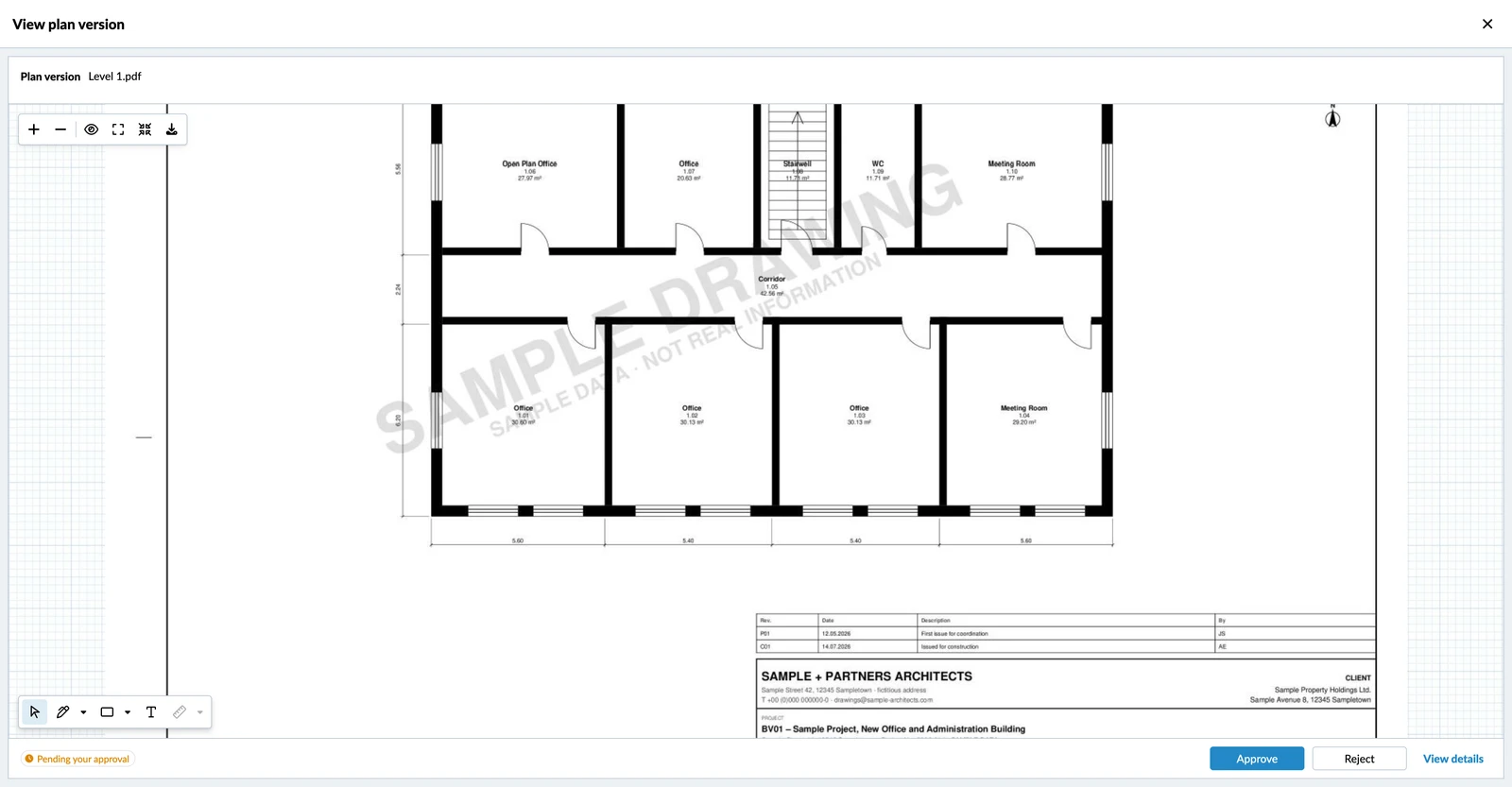
Approve or Reject From the Plan Viewer
If you are already looking at the plan, you do not have to go back to the queue. Open the plan from the request and use Approve or Reject in the footer. The badge next to them tells you that the plan is Pending your approval, and View details takes you to the request.
What Happens After You Decide
- Items you have decided on show a green checkmark under Items to review.
- In a multi-step request, the step stays active until every reviewer in it has responded, and only then does the next step open. Read more in Request Approval for Documents > Add Steps to an Approval Request.
- One rejection is enough: a rejected version does not go live, whatever the other reviewers decide.
- An approved version becomes the plan's current version and appears in Tickets, in SiteView and on mobile.
Updated September 3, 2026