

 Deutsch
 Español
 Français
 Hrvatski
 Italiano
 Polski
 Português (BR)
Request Approval for Plans
Overview
A plan can be signed off before your team works with it. Until a reviewer approves the new version, everyone keeps working with the version that was approved before, so a revision cannot reach the site by accident.
Plans use the same approval requests as documents and tickets, including the saved workflows your account already has. Whether a plan needs approval is decided when you upload it: with Publish after upload the plan is published right away and cannot be sent for approval later; with Approval required before publishing it stays unpublished until you send the request and a reviewer approves it.
Access & Permissions
Request Approval When You Upload
The uploader asks what should happen to the plans once they are processed.
To request approval for new plans:
- Upload the plans as described in Upload Plans in the Webapp.
- Select Approval required before publishing.
- Click Upload.
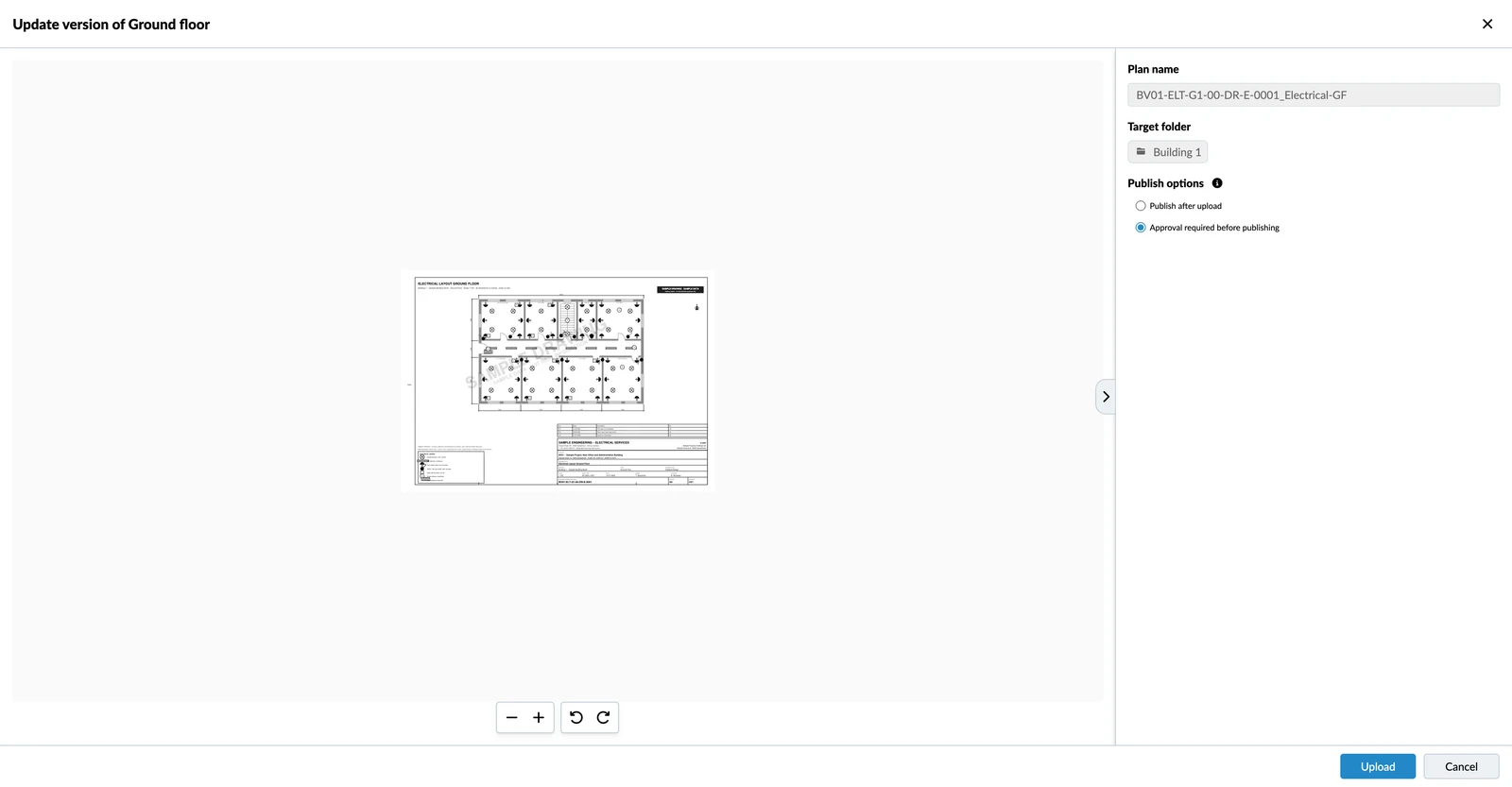
- Wait until the plans are processed. They stay unpublished as Approval required — the option alone does not send a request, and the plans can wait in this state as long as you need.
- Open the More menu on the plan and click Request approval.
You can also use the Approval requests section of the plan details, or Bulk actions > Request approval for several plans at once. - Fill in and send the request as described in Request Approval for Documents > Fill and Send an Approval Request.
Once the request is sent, the plan is Pending approval and every reviewer gets an email.
Approval States
The Approval State column and the plan viewer show where a plan stands:
| State | What it means |
|---|---|
| - | The plan never needed approval. |
| Approval required | Approval is needed, and no request has been sent yet. |
| Pending approval | A reviewer still has to decide. |
| Approved | The version is signed off and becomes the current version. |
| Approved with comments | Signed off, with remarks from the reviewer. |
| Rejected | The version was turned down. Upload a corrected one, or request approval again. |
The published version of a plan is always the latest approved one. A version that is pending or rejected never becomes current, so V2 stays live while V3 is with the reviewer. Once a plan has been through approval, every later version needs approval as well.
Cancel a Pending Request
To withdraw a request that has not been decided:
- Open the plan details.
- Open the Approval requests section.
- Click Cancel approval request.
- Click Confirm cancellation.
Plans that were still pending go back to Approval required, so you can send a new request. Plans a reviewer already decided on keep that decision.
What Is Locked While Approval Is Pending
While a plan waits for its decision you cannot delete it, send a second request, or upload a new version. Moving it to another folder still works.
Updated September 3, 2026