

 Deutsch
 Español
 Français
 Hrvatski
 Italiano
 Polski
 Português (BR)
Share SiteView Runs Externally in the Webapp
Overview
Share SiteView runs with clients, consultants, authorities and other people outside PlanRadar. You create a public link, and anyone who opens it can view the run in their browser. They don't need a PlanRadar account and don't have to log in.
You can share:
- a single run
- all runs of a location, with one link
- the single images of one day
Shared links are read-only. Recipients see the plan, the run path and the 360° images, but no tickets, documents or attachments.
Access & Permissions
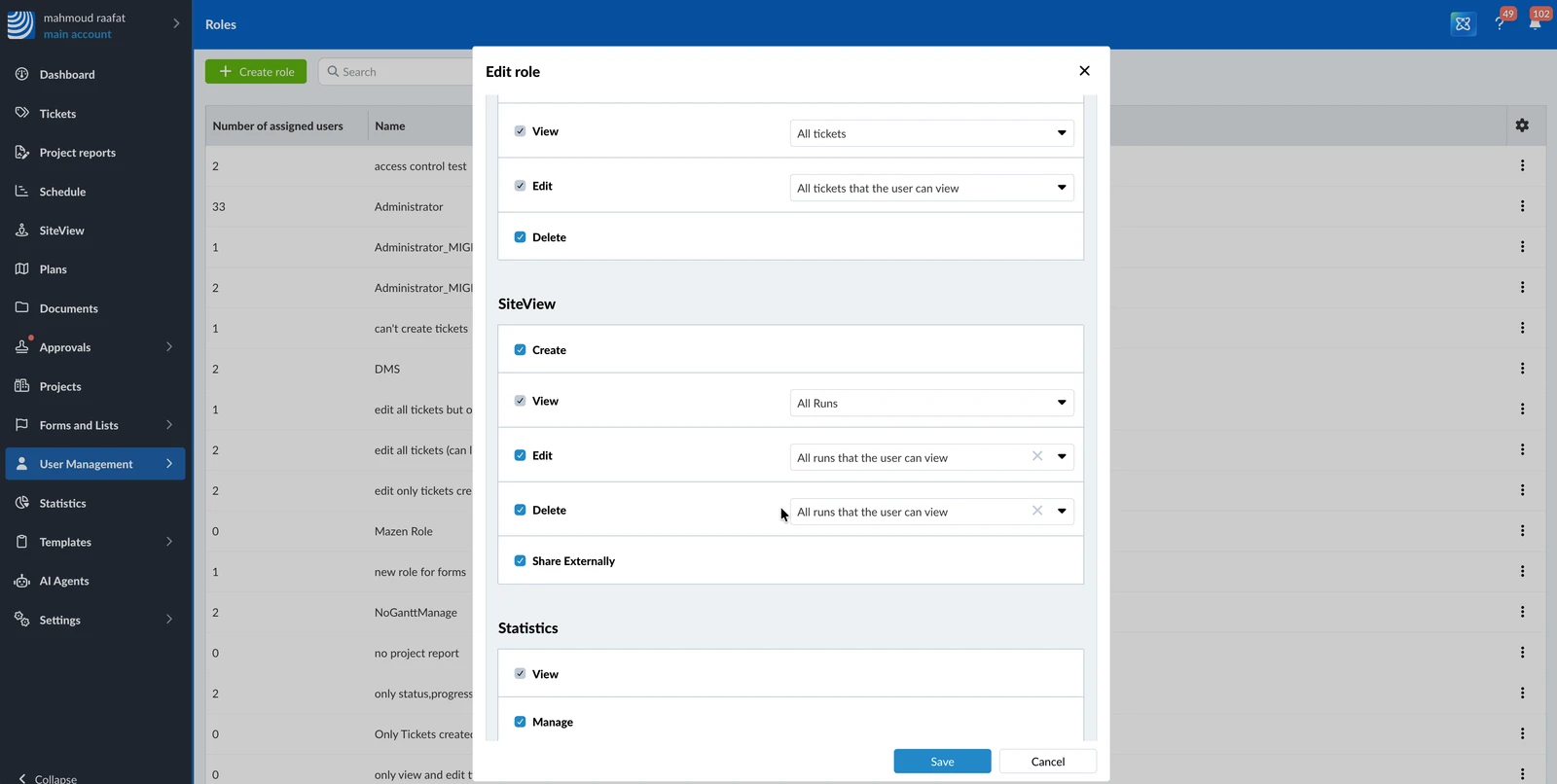
Turn On External Sharing for Your Account
External sharing is off by default. Before anyone can share a run, an account administrator turns it on in the account settings.
To turn on external sharing:
- Click Settings
- Click Account
- Click Account Settings
- Select Enable external sharing of SiteView runs for this account
- Click Turn on to confirm
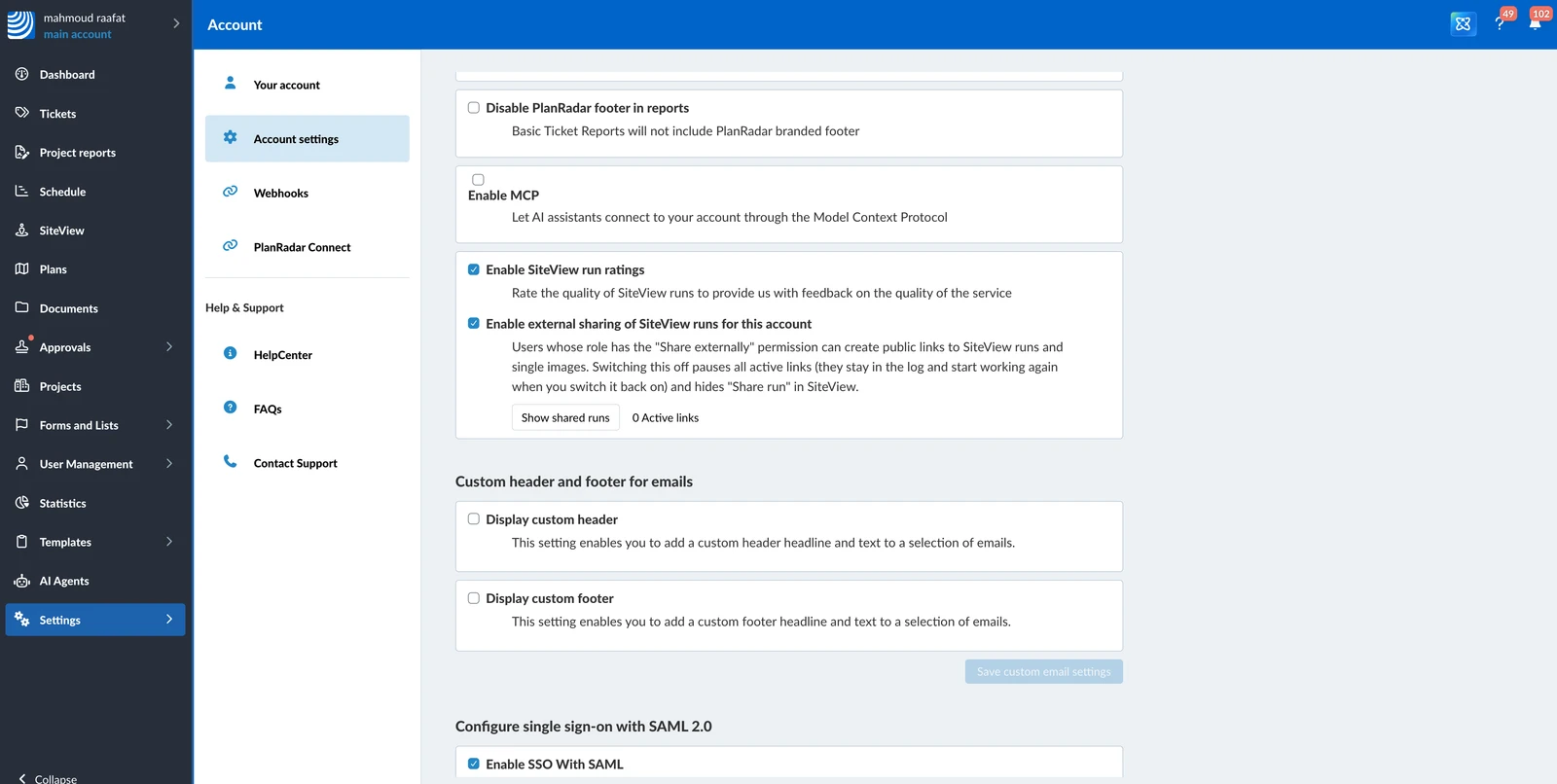
If you turn external sharing off again, all active links are paused and Share run is hidden in SiteView. When you turn it back on, the paused links work again.
Share a Run
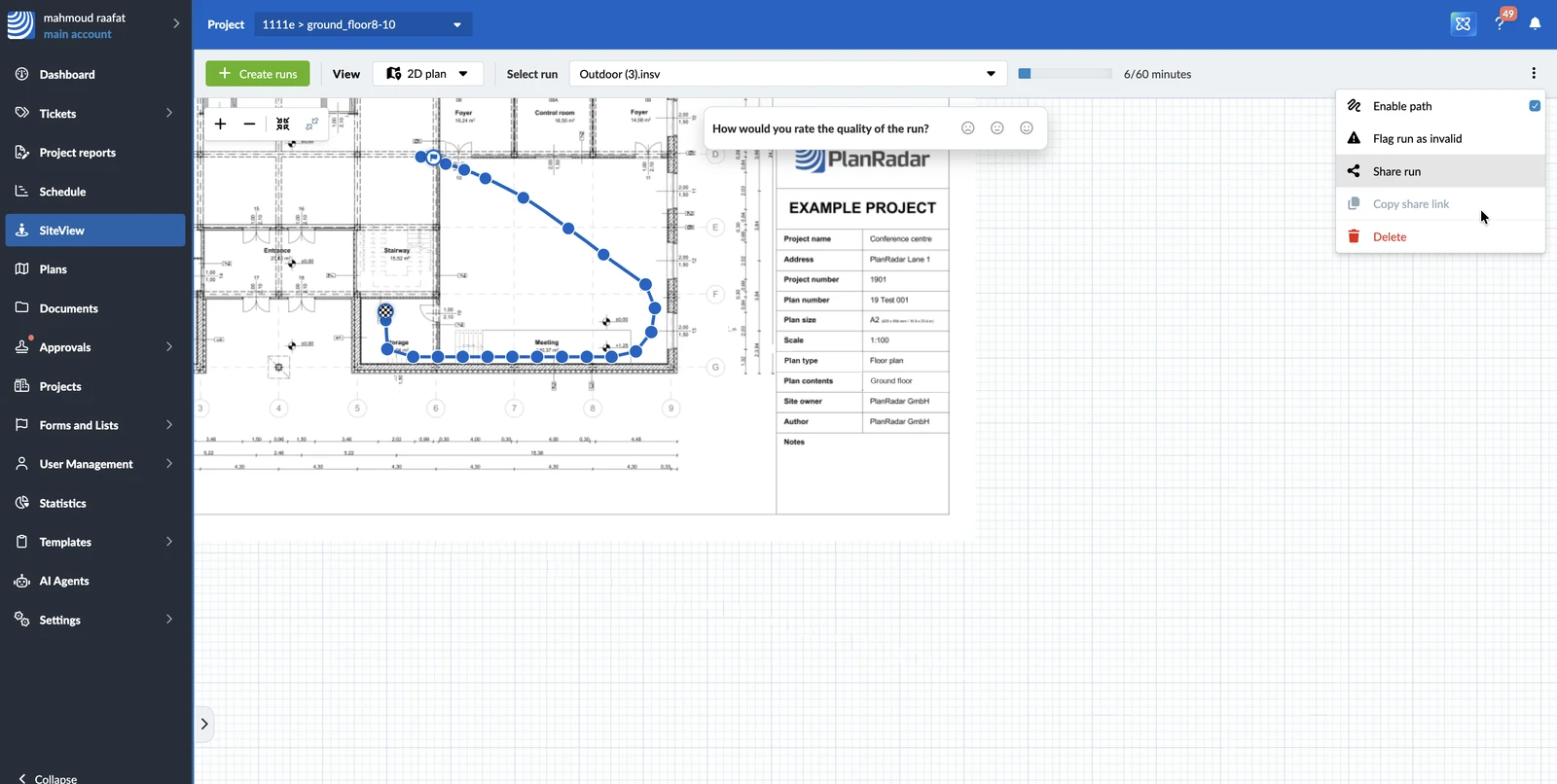
To share a single run:
-
In SiteView, select the run in the Select run drop-down
-
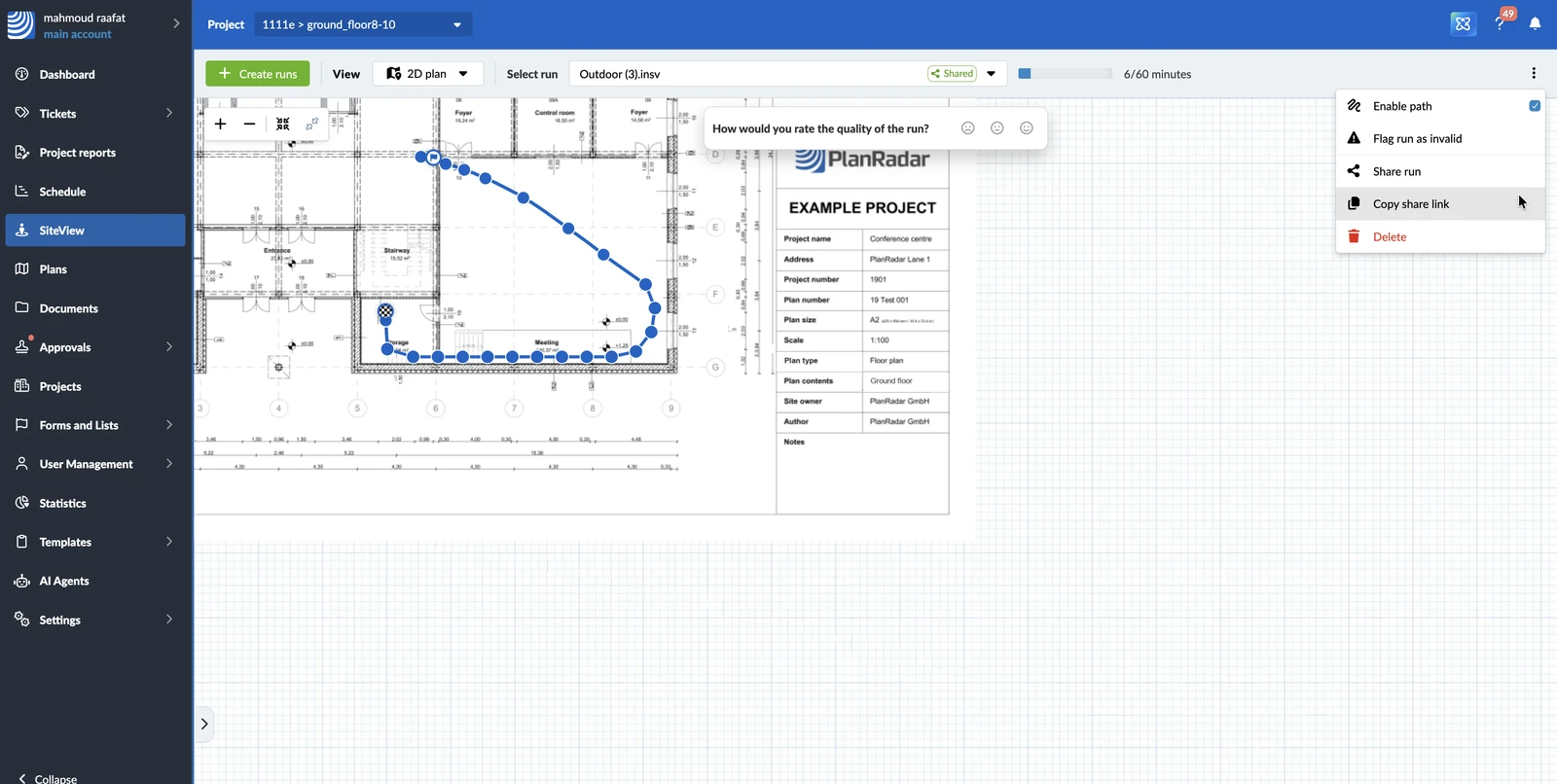
Open the More menu, then click Share run
-
Turn on Share this run
-
Optional: select Expires on and choose the date the link stops working
-
Optional: select Protect with a password and enter a password with at least 7 characters
-
Click Save
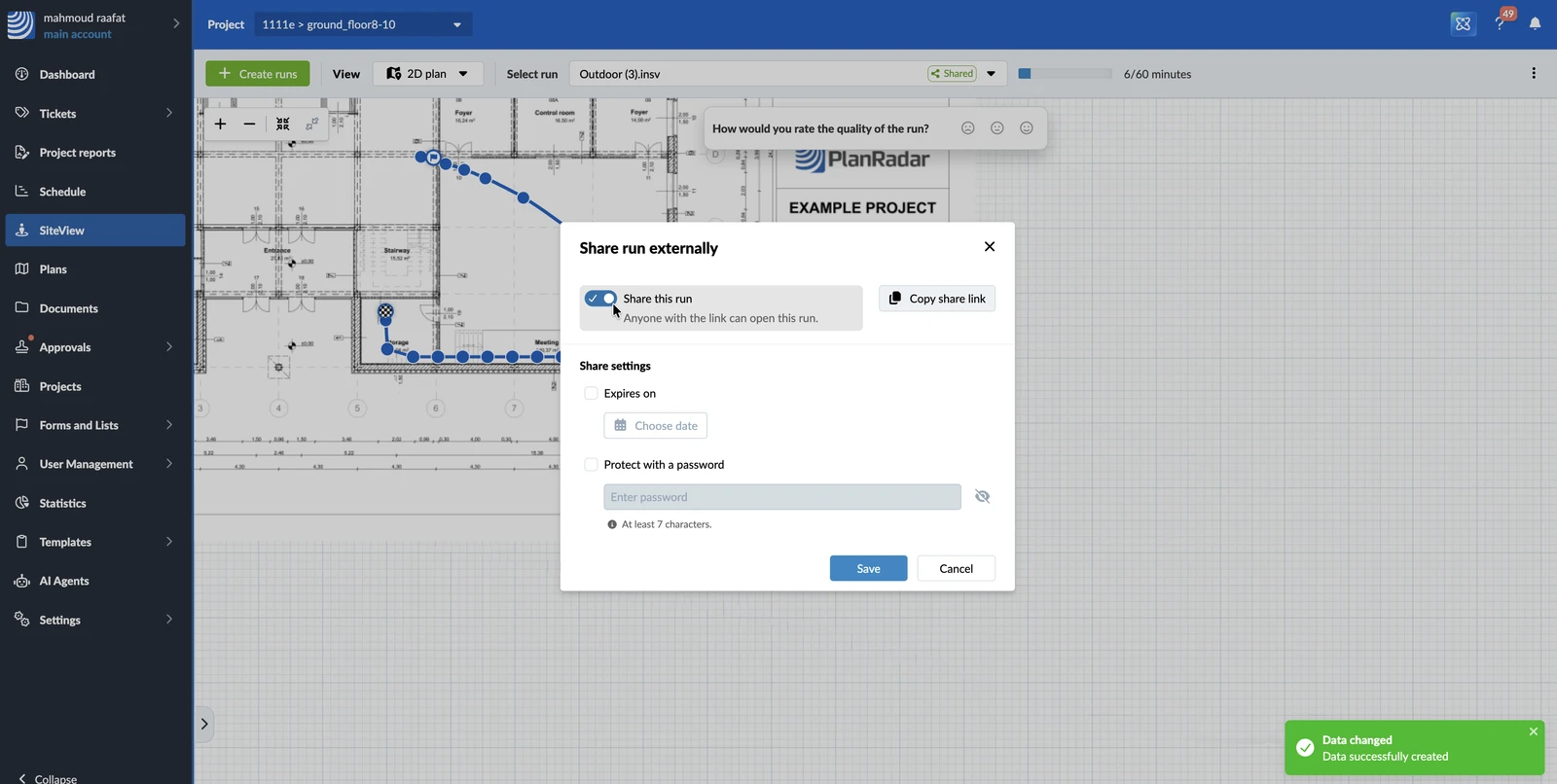
To copy the link and send it to your recipients, click Copy share link in the share dialog.
You can also copy the link of a shared run later: open the More menu, then click Copy share link.
Share All Runs of a Location
One link can cover all runs and single images of a location. Recipients can then switch between the runs and compare 360° images from different dates.
To share all runs of a location:
- In SiteView, select Show all runs in the Select run drop-down
- Open the More menu, then click Share all runs
- Turn on Share all runs
- Optional: set an expiry date and a password
- Click Save
If all runs of a location are already shared, sharing a single run creates a separate link for that run.
See Which Runs Are Shared
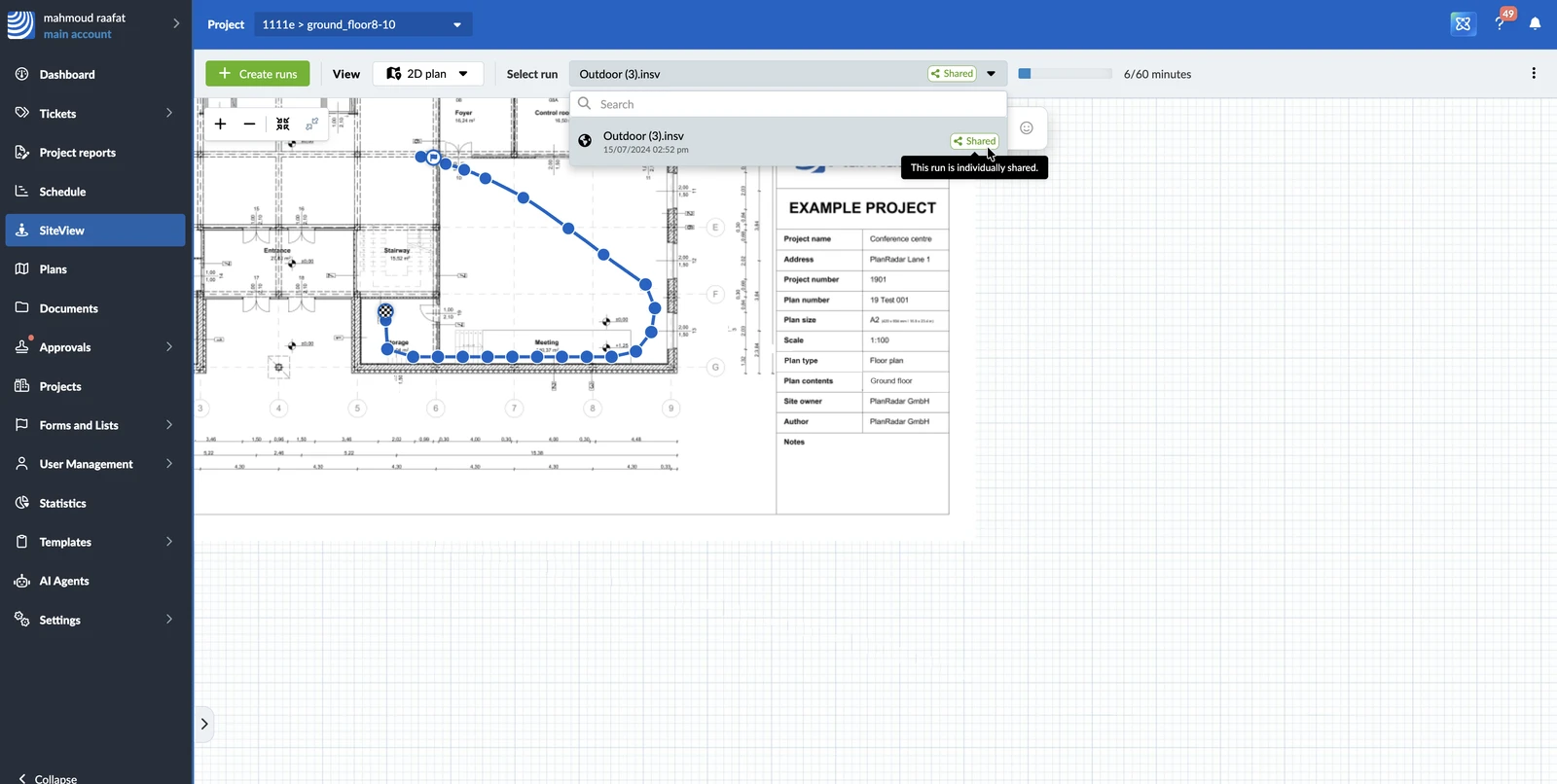
In the Select run drop-down, shared runs are marked Shared. If all runs of the location are shared, the drop-down shows All runs shared.
Change or Stop Sharing a Run
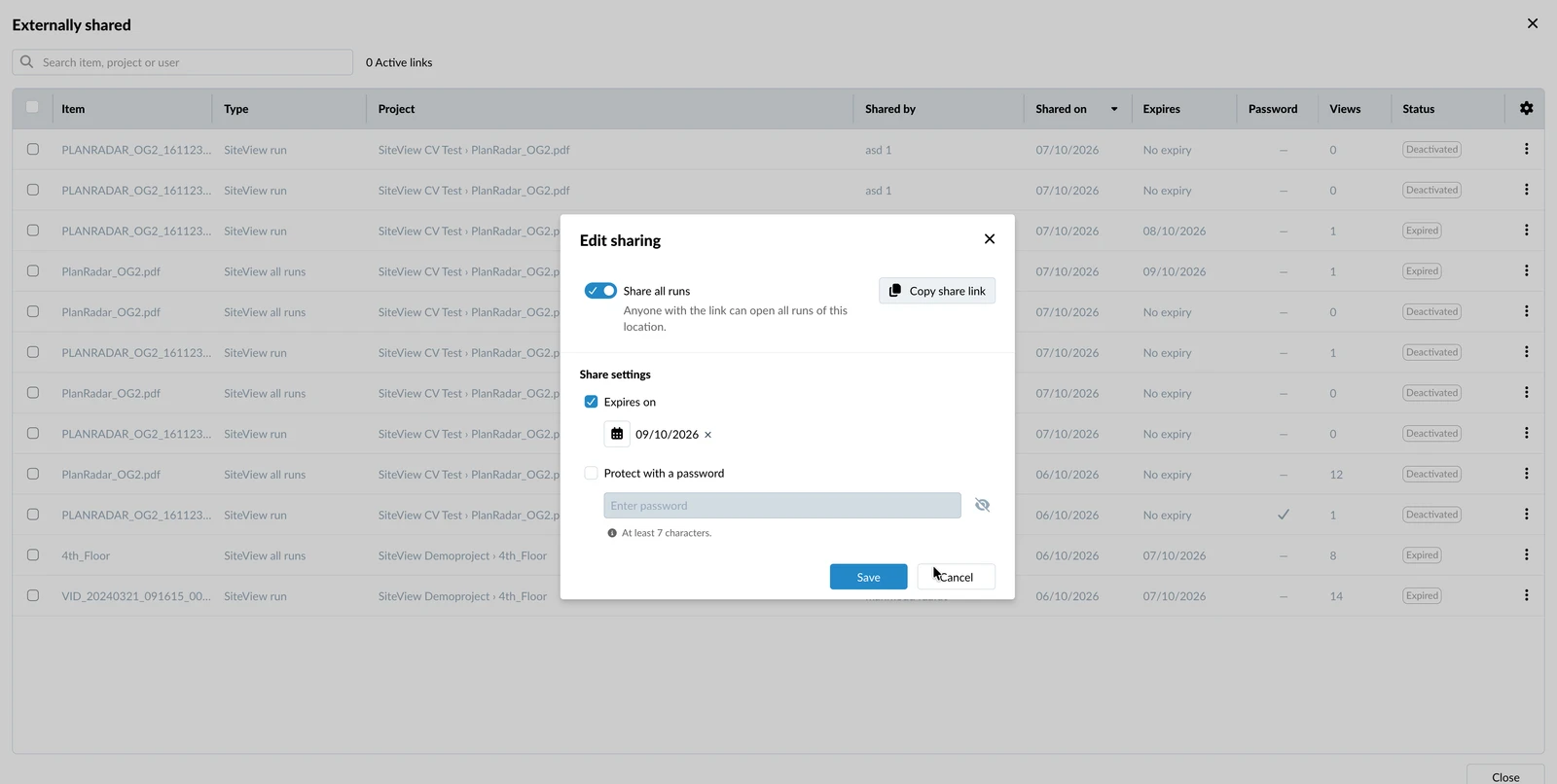
You can change the expiry date or the password of a link at any time, or stop sharing.
To change the settings of a link:
- Select the shared run (or Show all runs) in the Select run drop-down
- Open the More menu, then click Share run (or Share all runs)
- Change the expiry date or the password
- Click Save
To stop sharing:
-
Open the share dialog as described above
-
Turn off Share this run (or Share all runs)
-
Click Stop sharing to confirm
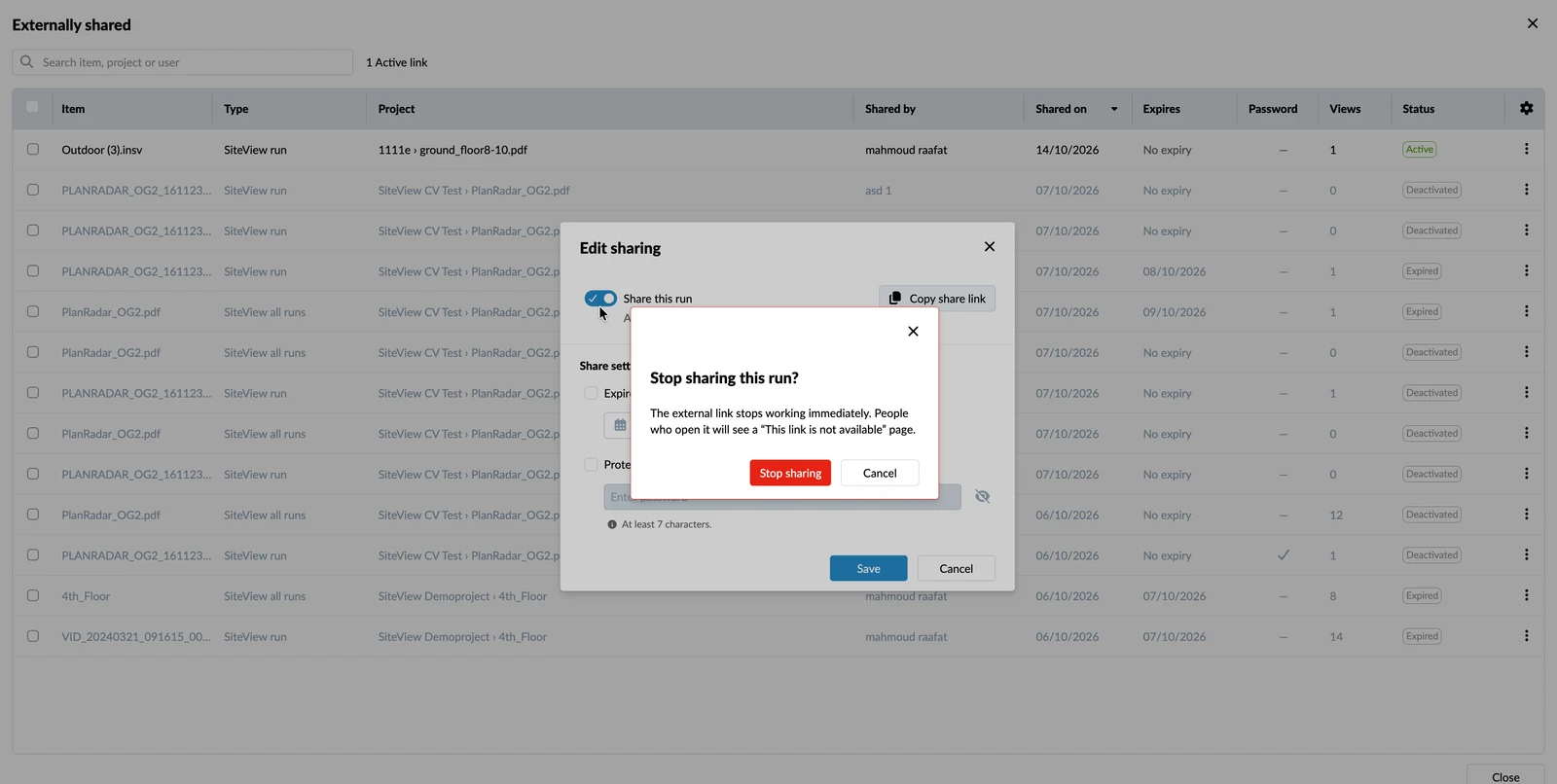
The link stops working immediately. Anyone who opens it sees a page saying that the link is not available.
Manage All Shared Runs of Your Account
The Externally shared list shows every link that was created in your account: active, expired and deactivated ones. For each link, you see the project, who shared it and when, the expiry date, whether it has a password, how often it was opened, and its status.
To open the list:
- Click Settings
- Click Account
- Click Account Settings
- Click Show shared runs
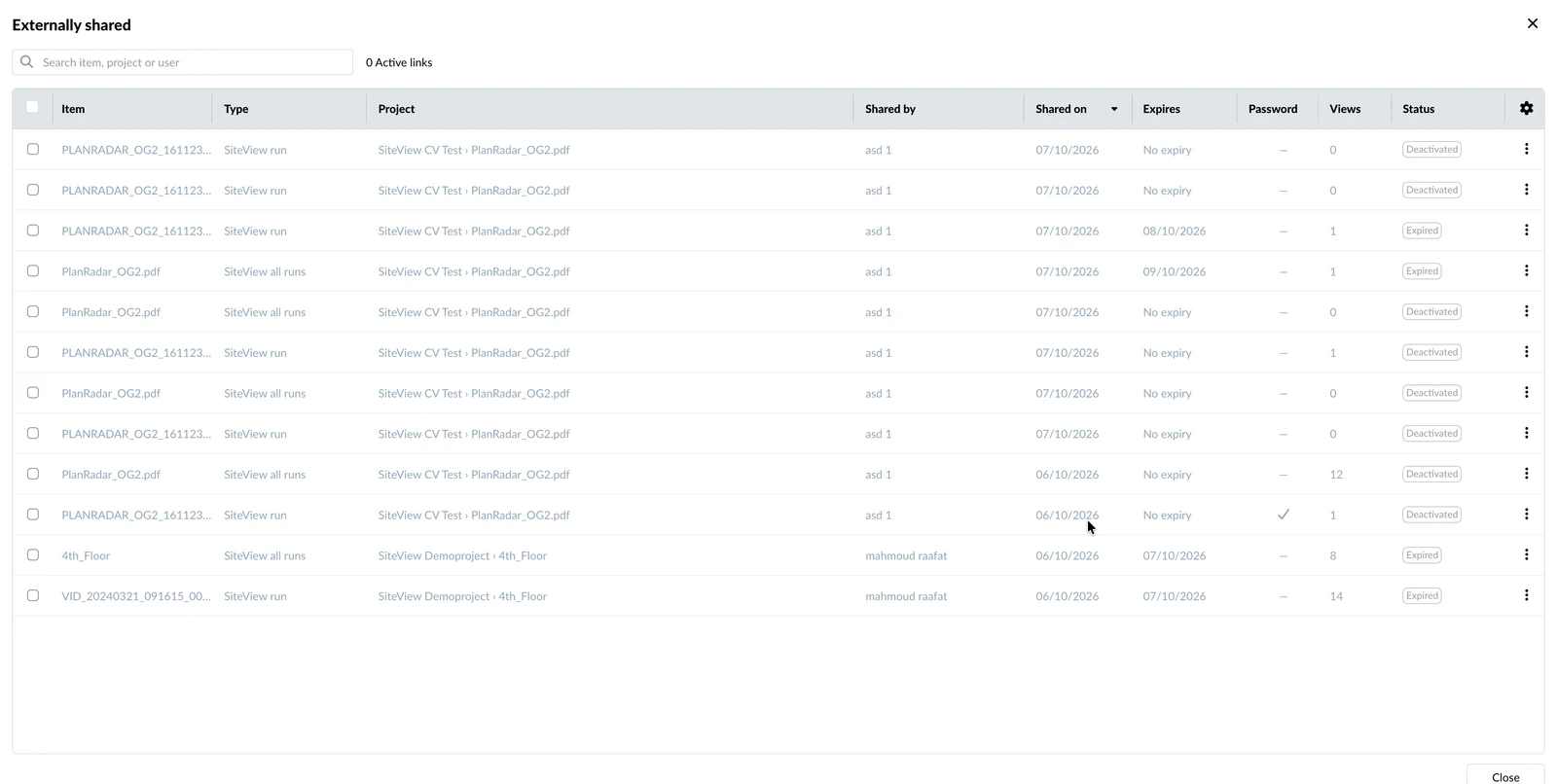
To change one link, open the More menu of the link, then click Edit sharing.
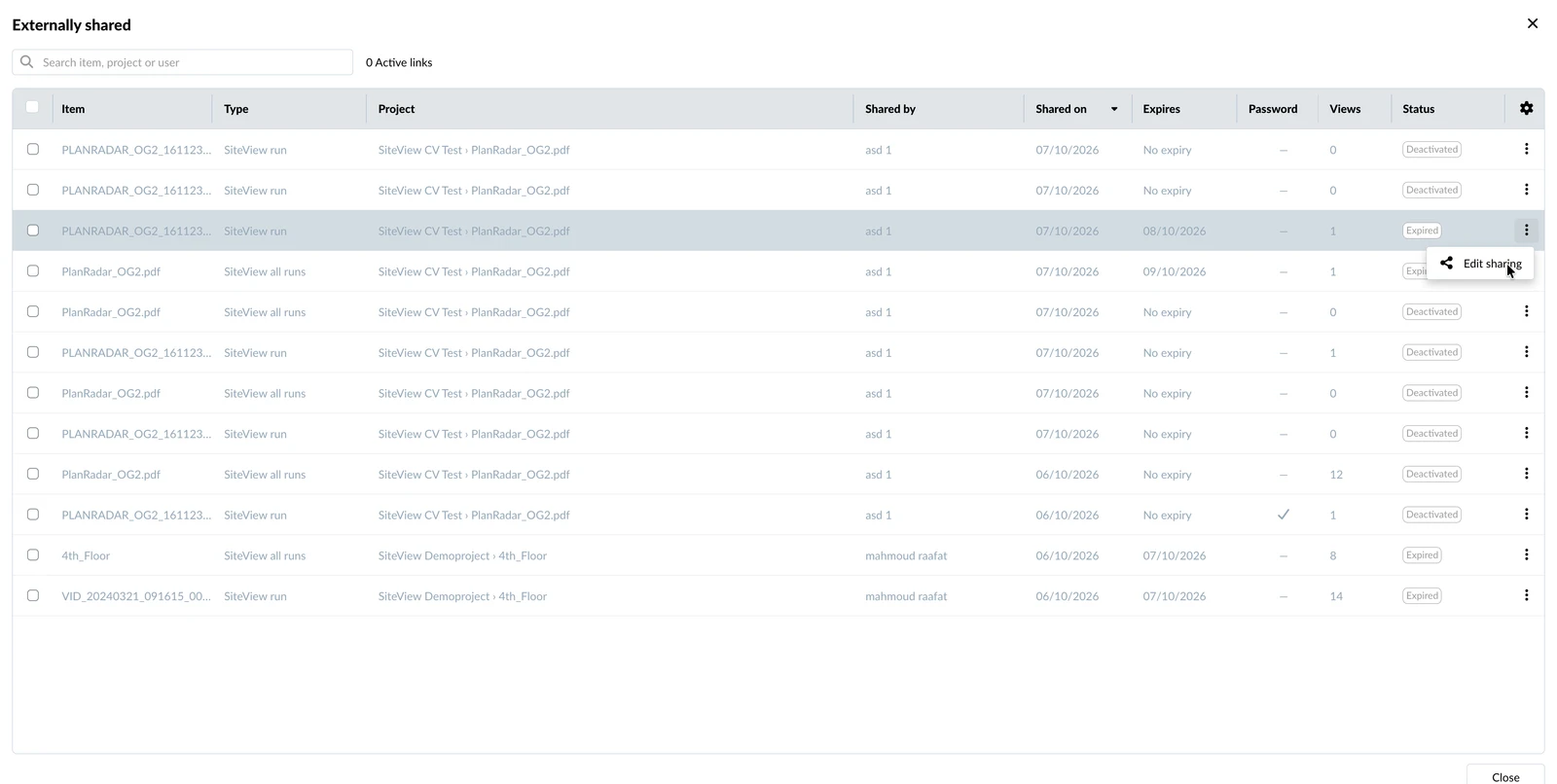
To stop or resume several links at once:
- Select the links
- Click Bulk actions
- Click Stop sharing or Resume sharing
What Recipients See
Recipients open the link in any web browser. If the link has a password, they enter it and click Access link.
The shared view is read-only and shows:
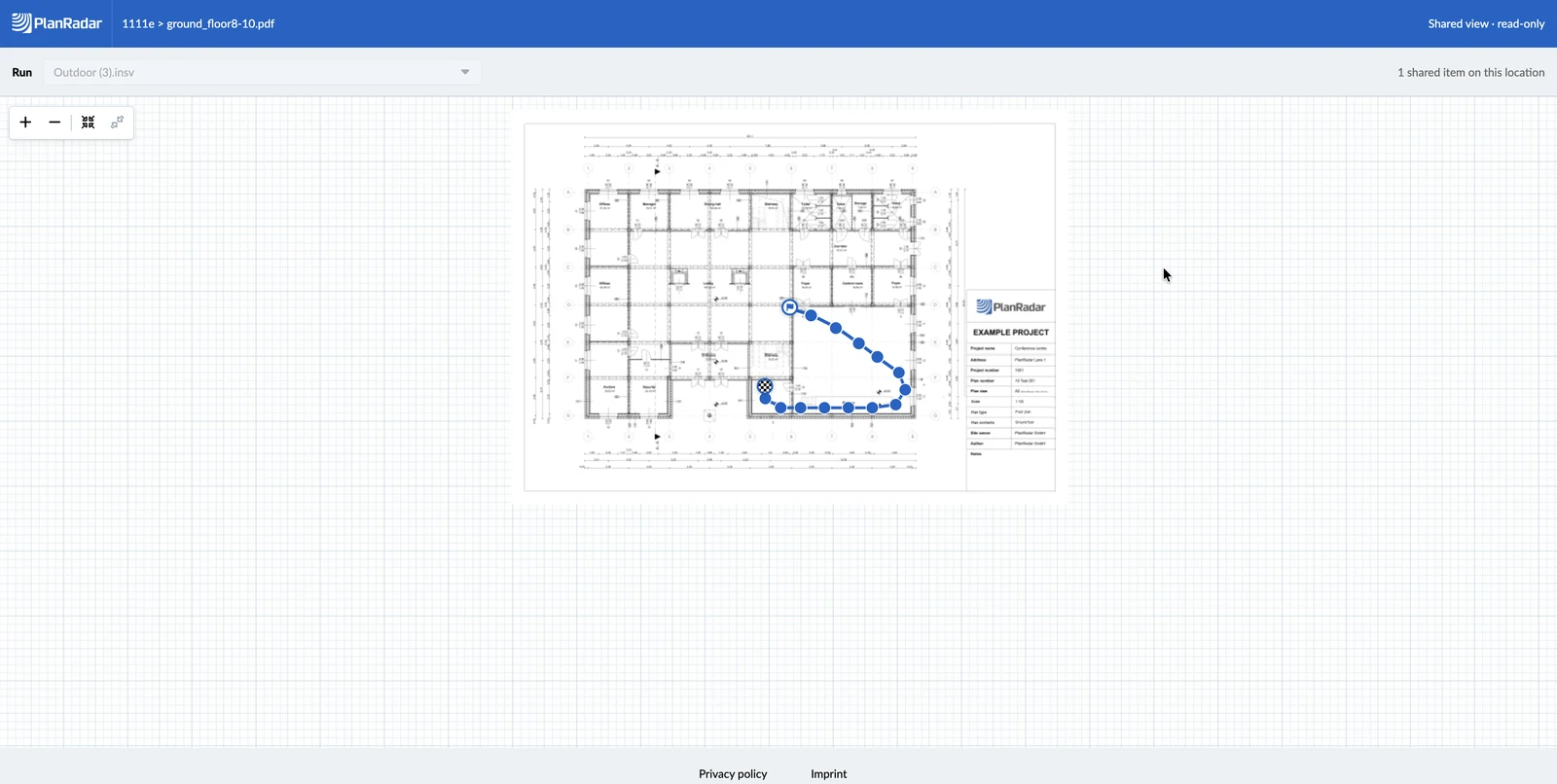
- the project and location
- the plan with the run path and image points
- the 360° images with their date
- Compare 360° images, only for links that share all runs of a location
Tickets, documents and attachments are not shared. The person who recorded a run is shown with their initials only.
If a link has expired, was stopped or is incorrect, recipients see a page saying that the link is not available.
Updated October 13, 2026