

 Deutsch
 Español
 Français
 Hrvatski
 Italiano
 Polski
 Português (BR)

View Generated Ticket Reports
Overview
When you Create a Ticket Report the PDF is generated by a PlanRadar server. As soon as it is ready you get notified and can download the PDF to share it with stakeholders outside of PlanRadar.
Access & Permissions
Only the user who created the ticket report can access the generated PDF file to download it.
View Generated Ticket Reports
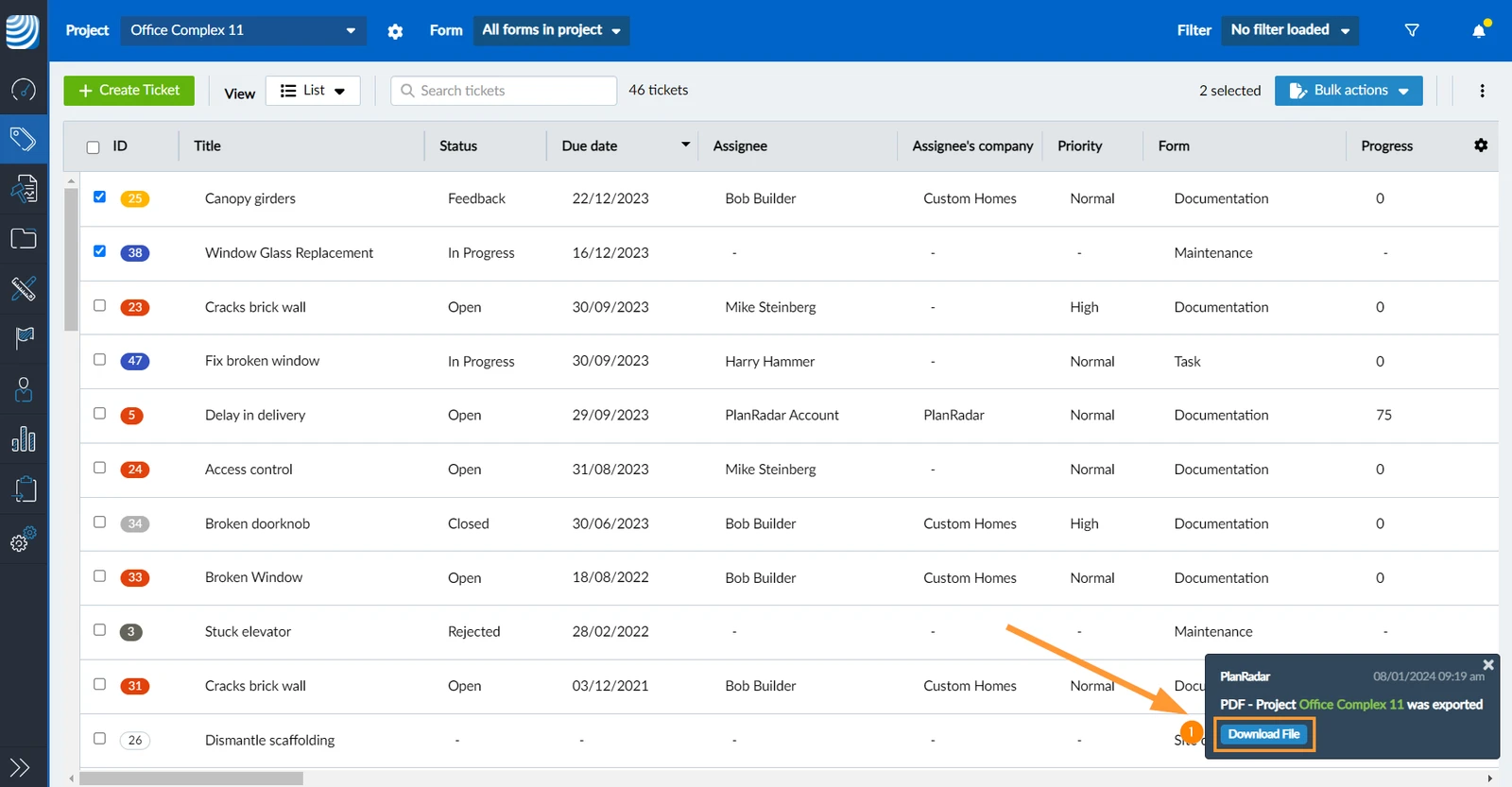
When the generated PDF ticket report is ready for download you get this notification message:
- Click Download File to save the PDF in your browser's download folder
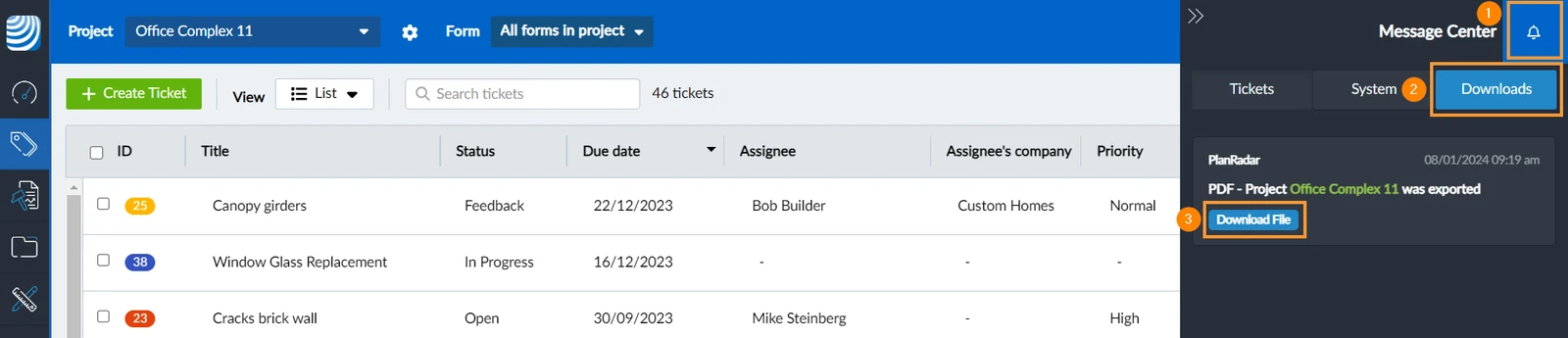
The message will is also be accessible in the Message Center:
- Click Message Center
- Click Downloads
- Click Download File
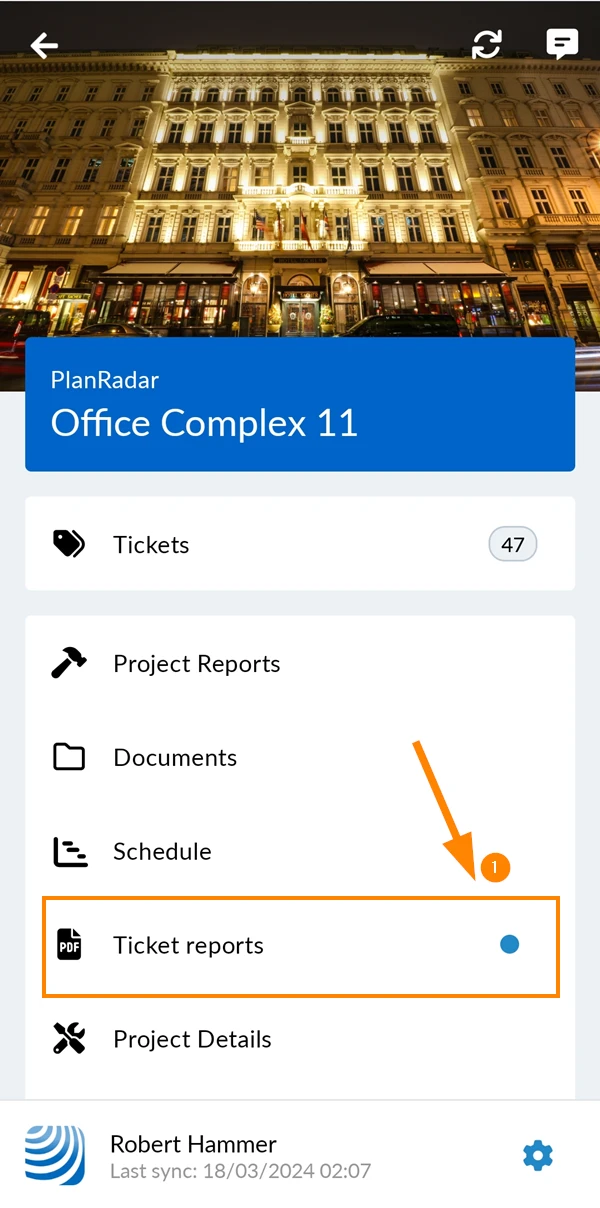
To view generated ticket reports:
- Tap Ticket reports in the main menu.
See the indicator when there are new generated ticket reports.
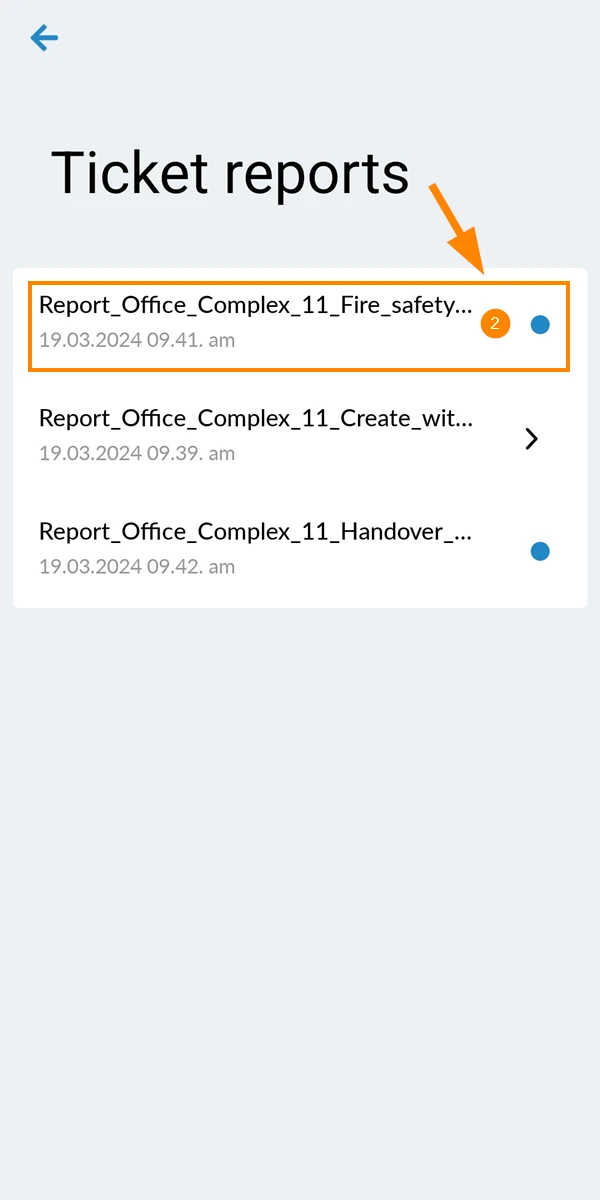
- Tap on the ticket report to open it
Find, Rename and Delete Ticket Reports in the iOS App
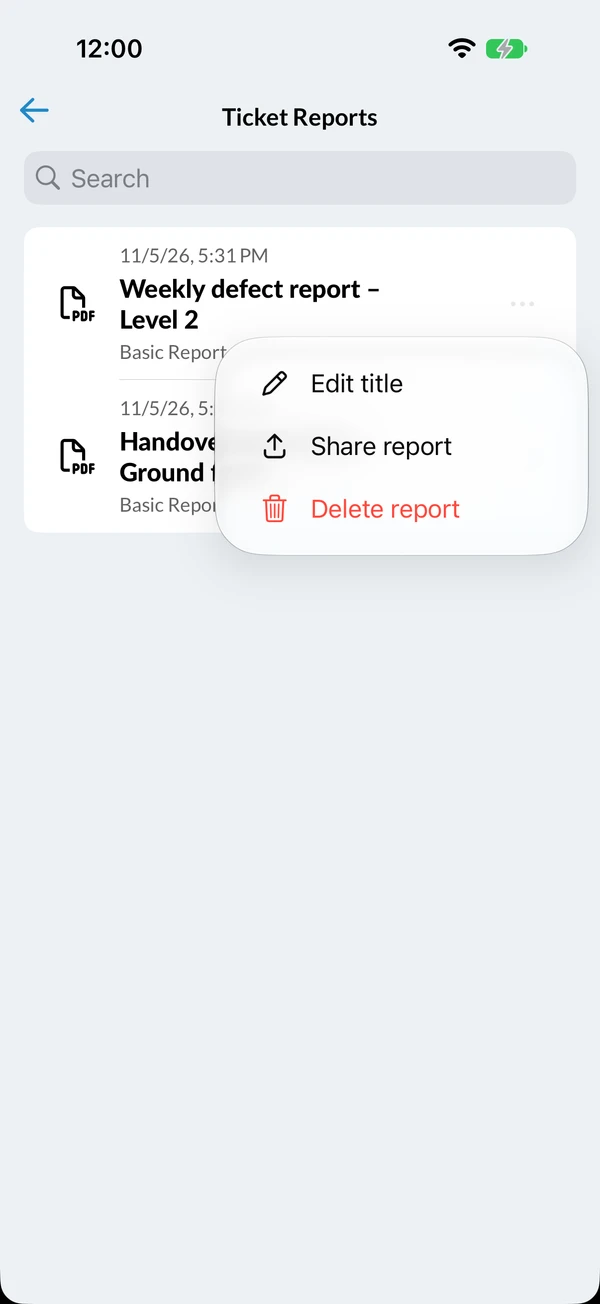
In the iOS app, each report in the list shows its title and the template it was made from. The icon on the left shows its state: a spinner while the report is being generated, a download icon when it is ready, and a PDF icon once it is on your device. Tap a ready report to download it, and a downloaded one to open it.
To find a report, pull the list down and type in the search field. It finds reports by their title or by the template name.
To rename a downloaded report:
- Tap … next to the report.
- Tap Edit title.
- Type the new title.
- Tap Save.
The template name is then shown under the new title. When you share the report or attach it to a ticket or project, the new title is used as its name. To go back to the template name, clear the title and save.
To share a downloaded report straight from the list:
- Tap … next to the report.
- Tap Share report.
To delete a downloaded report from your device:
- Tap … next to the report.
- Tap Delete report.
Updated June 11, 2026