

 Deutsch
 Español
 Français
 Hrvatski
 Italiano
 Polski
 Português (BR)
Use the AI Assistant
Overview
The AI Assistant helps you find information, search your project data, and get answers faster using natural language.
| What you can do | How it helps | Example query |
| PlanRadar help | Answers how-to questions based on Help Center content and links to relevant articles | "How do I export tickets as PDF?" |
| Search for tickets | Finds tickets by topic, metadata, or both | "Find open plumbing tickets assigned to me" |
| Create ticket filters | Creates a reusable filter for your ticket list | "Create a filter for overdue high-priority tickets" |
| Document insights | Summarises and answers questions about documents (files in Documents or uploaded files), with the page for PDFs | "Summarise this report and list key action items" |
| Search for documents | Finds documents in Document Management by topic, author, or date | "HVAC reports uploaded by Sarah last month" |
Other AI features that are not in the AI Assistant:
- Fill Ticket Fields with Voice
- Generate an AI Project Summary
- Create and Edit Forms with AI
- Create & Edit Ticket Report Templates with AI
Access & permissions
Keep in mind
- The AI Assistant searches, summarises, and answers. It does not create, edit, or delete tickets or documents.
- Results depend on your project data and permissions. You only see what you have access to.
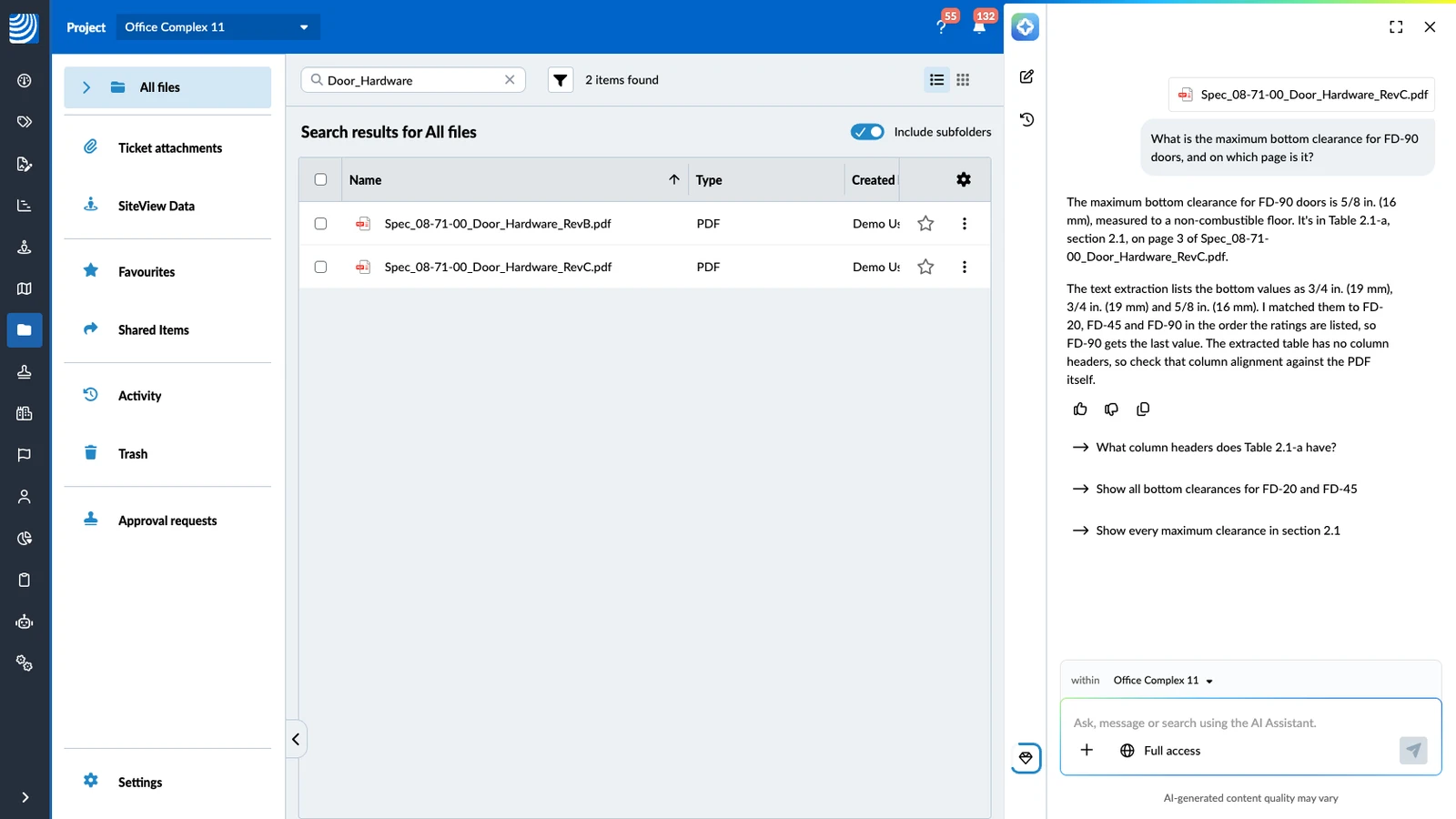
- It answers within one project at a time. You see the project above the chat input field. In the Webapp, you can change it there.
- Use your project's terminology (for example, location names and form names). The AI Assistant recognises terms configured in your project.
- It works with text-based files only. It cannot analyse images or photos. Drawing PDFs are supported for text extraction only (for example notes and legends).
How to access the AI Assistant
To open the AI Assistant:
- Click AI Assistant
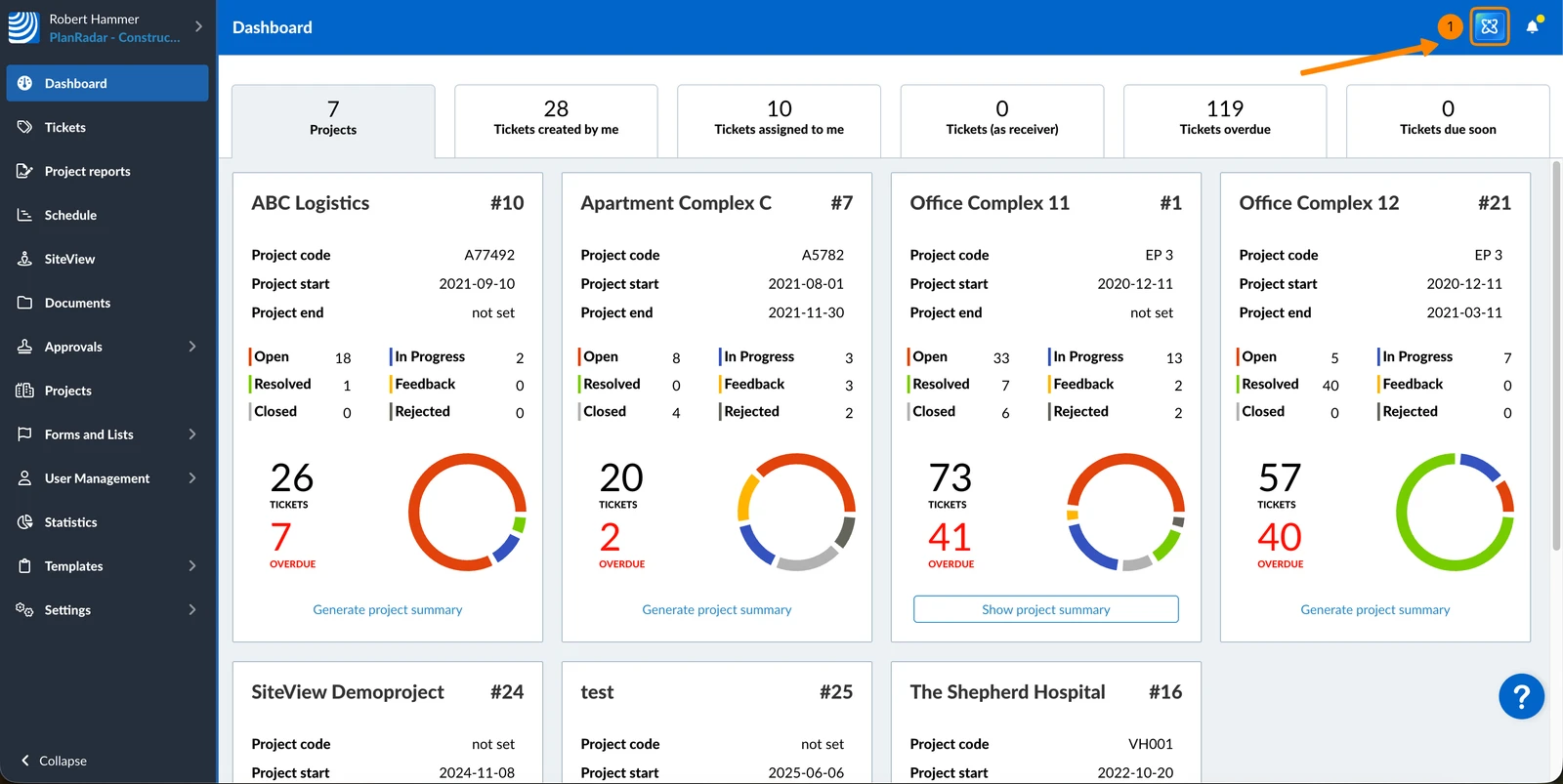
The AI Assistant opens beside the page. The page gets narrower, so you can keep working next to the chat.
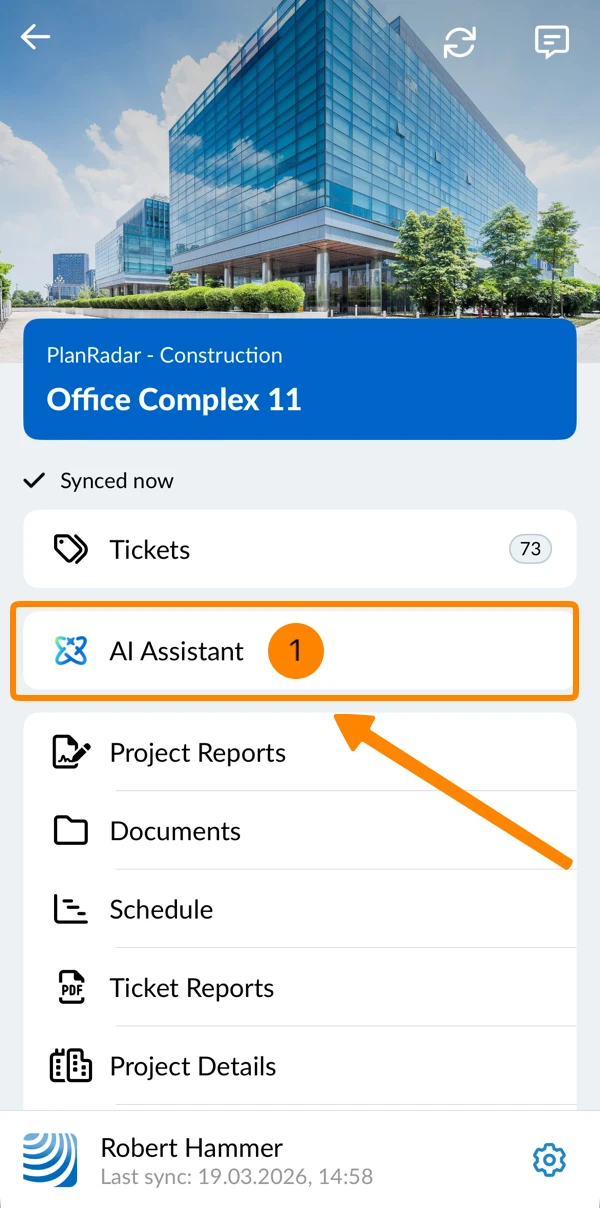
- Tap AI Assistant in the main menu
- You see the AI Assistant chat window
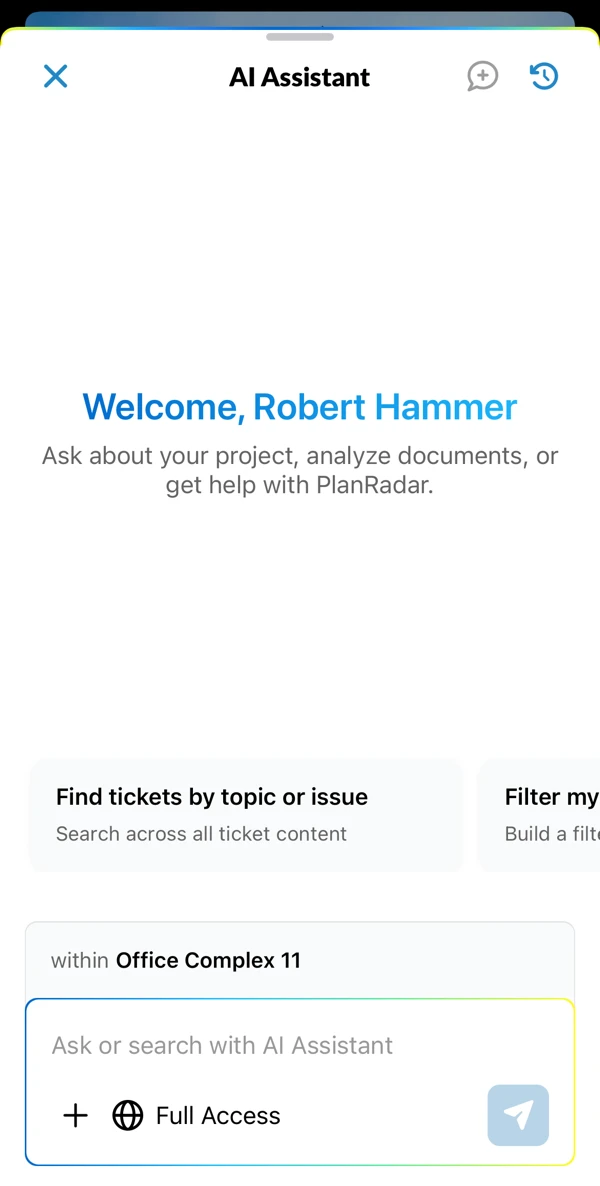
Use the AI Assistant
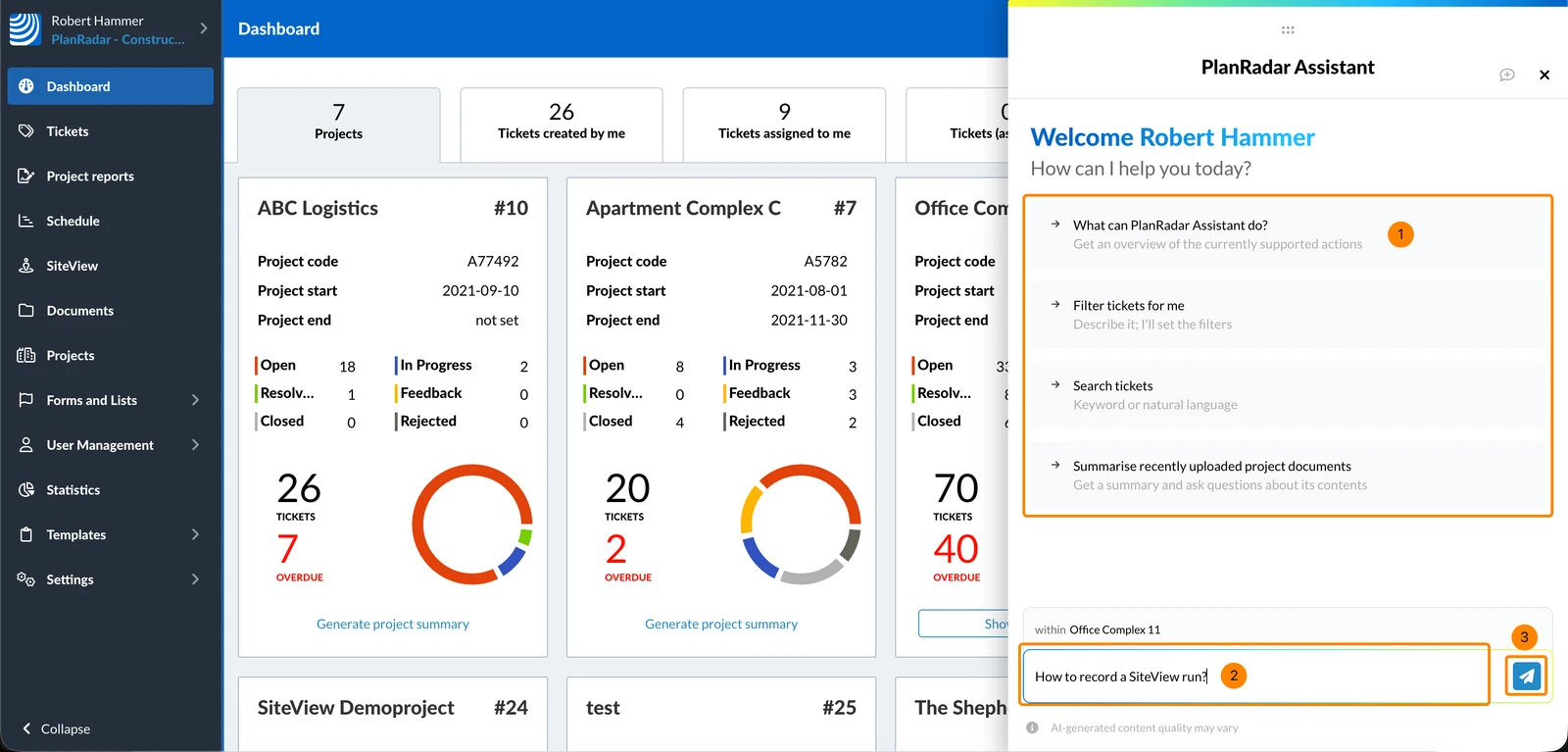
To use the AI Assistant:
- Click one of the suggestions
- OR enter your question or request
- Click the send icon or press Enter
Change the Project
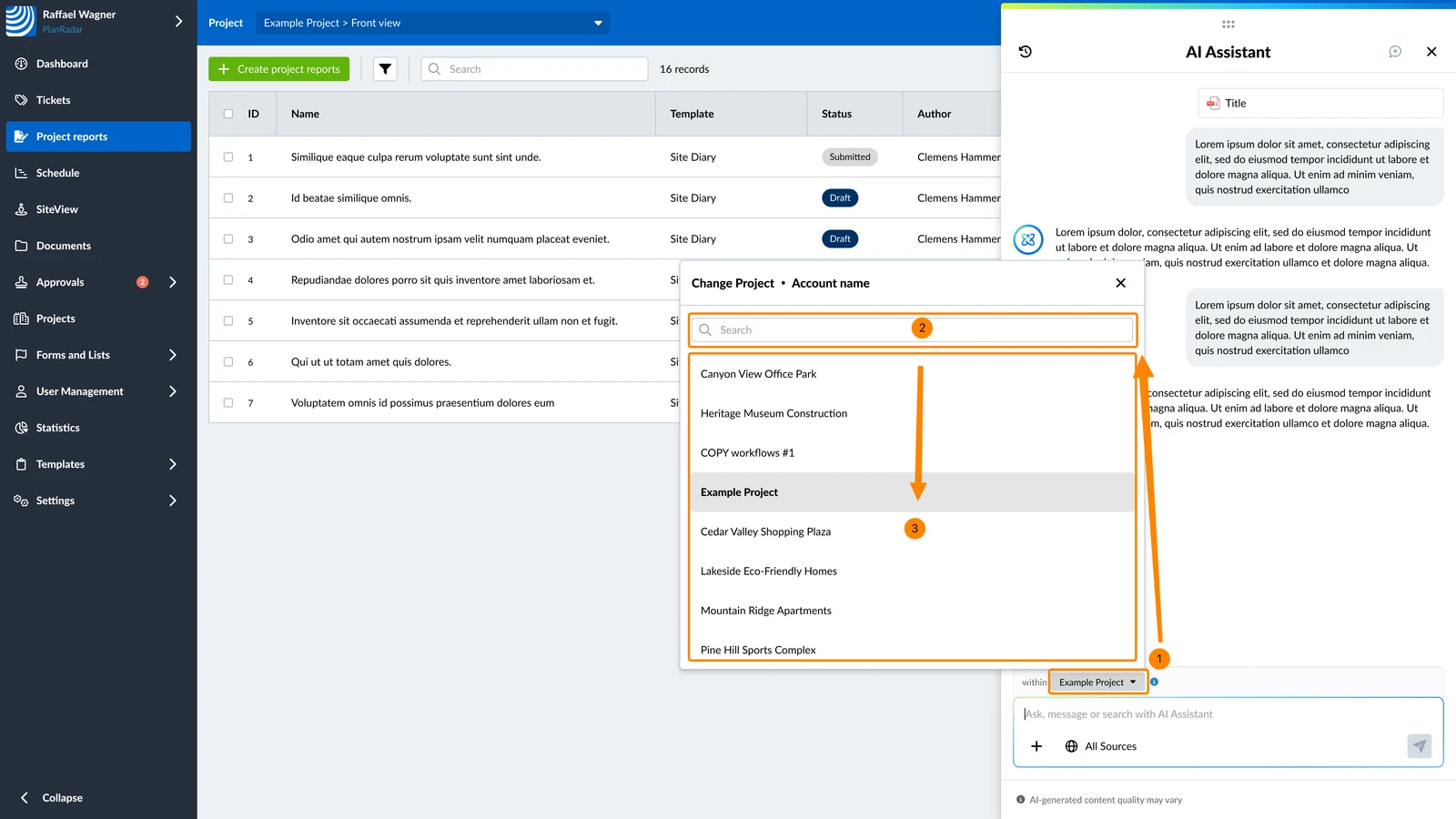
The AI Assistant answers within one project at a time. You see the project above the chat input field. The project the AI Assistant uses is independent of the project you have open in PlanRadar — changing one does not change the other.
To change the project:
- Click the project name
- Optional: enter a search term
- Click the project
Resize the Chat Window
- Drag the edge of the AI Assistant
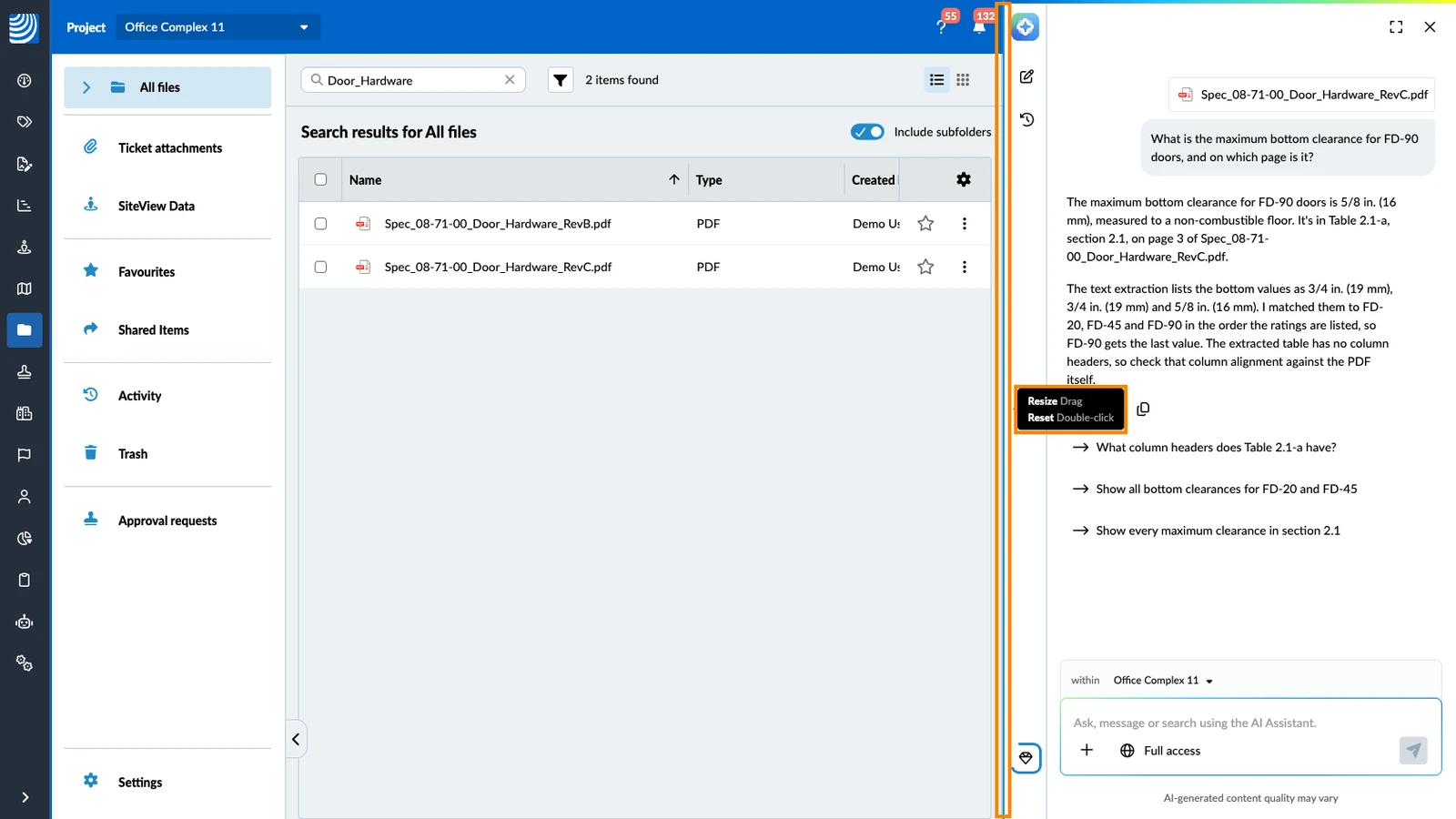
The AI Assistant opens with this width next time in the same browser. To go back to the standard width, double-click the edge.
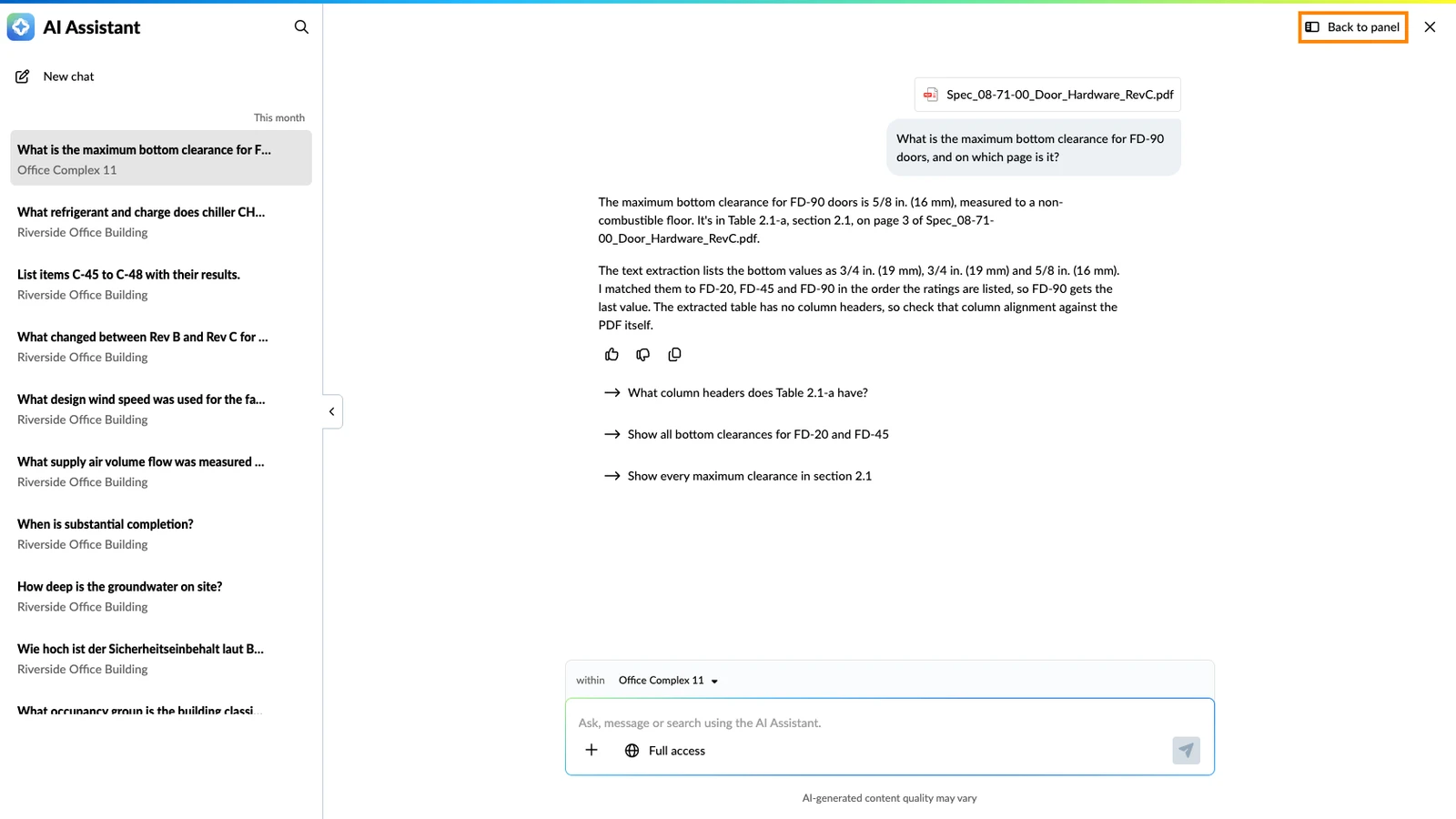
Open the Chat in Full Screen
In full screen, you see your chat history on the left and the chat in the middle. Your current chat continues.
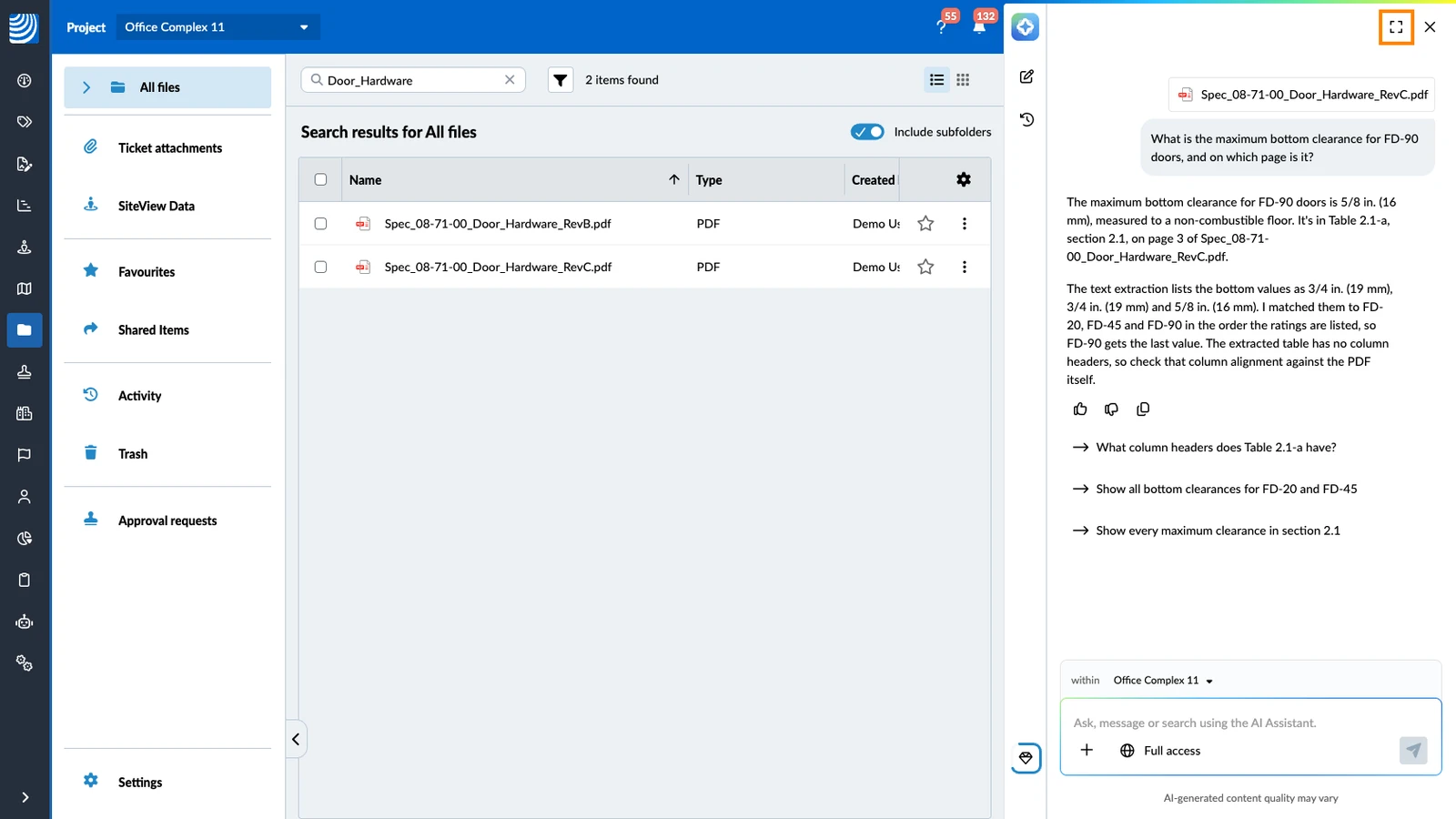
To open the AI Assistant in full screen:
- Click the full screen icon
To go back to the chat beside the page:
- Click Back to panel or press Esc
Switch to Form Builder or Template Builder
The AI Assistant can also build ticket forms and report templates with you. Each of them works on its own page.
- Click +
- Hover over Spaces
- Click Form builder or Template builder
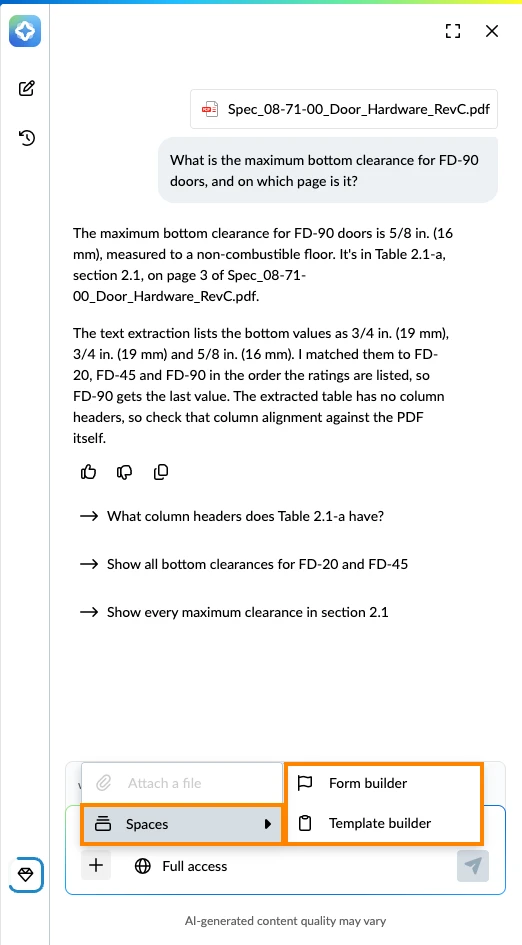
- Click Go to Forms or Go to Report templates
PlanRadar opens the page and starts a new chat there. Your previous chat stays in your history.
Read more in Create and Edit Forms with AI and Create & Edit Ticket Report Templates with AI.
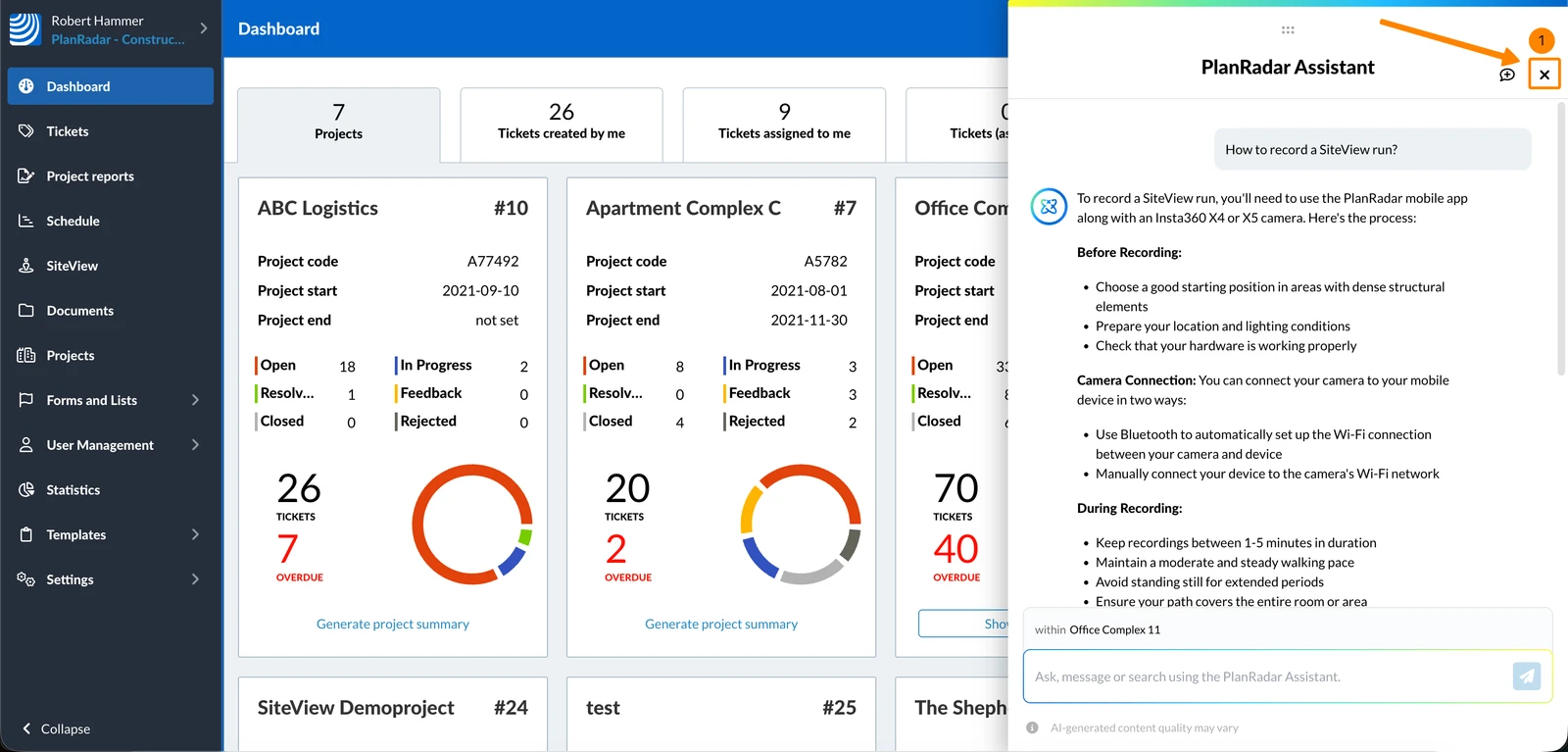
Close the Chat Window
Closing the chat window will not delete its content.
To close the chat window:
- Click X
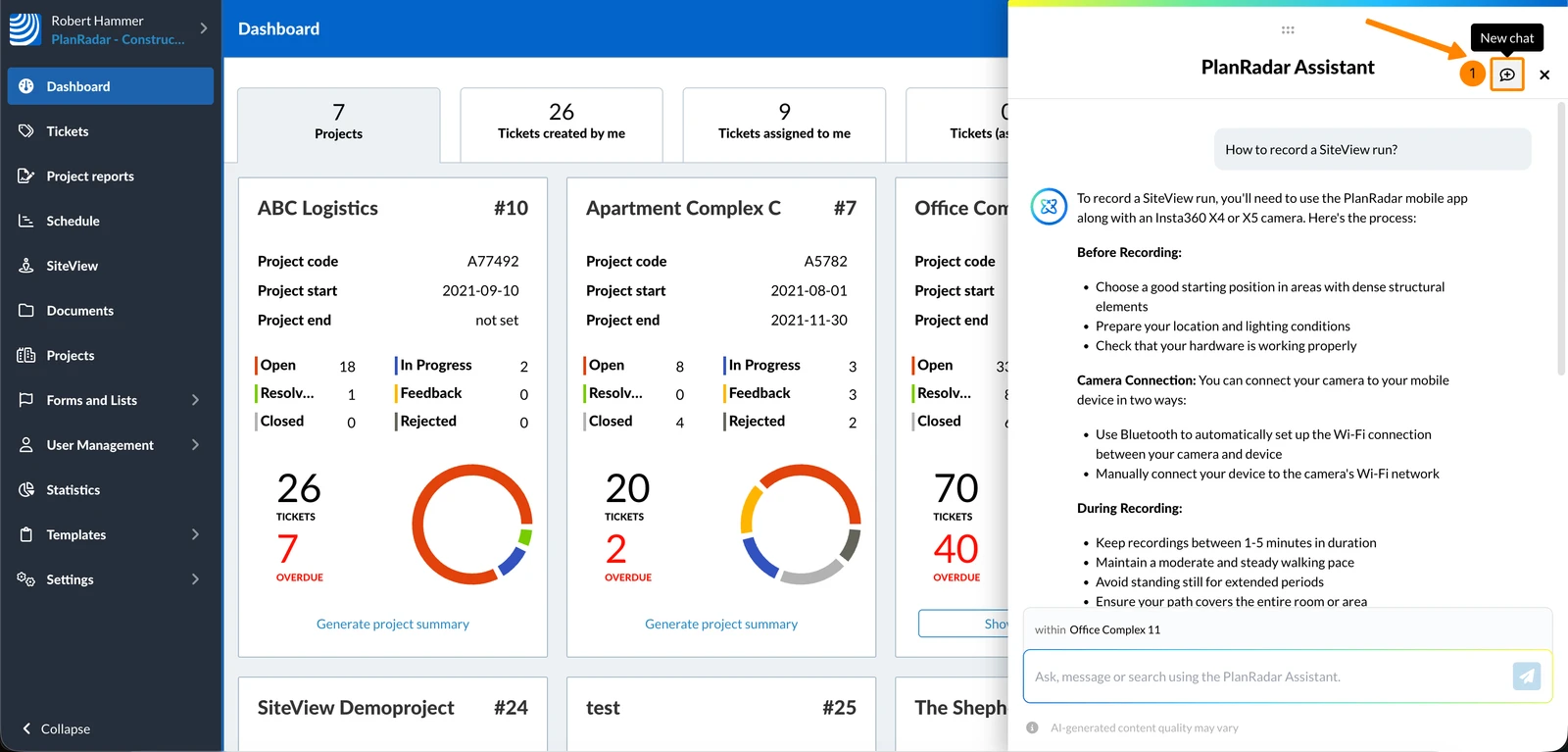
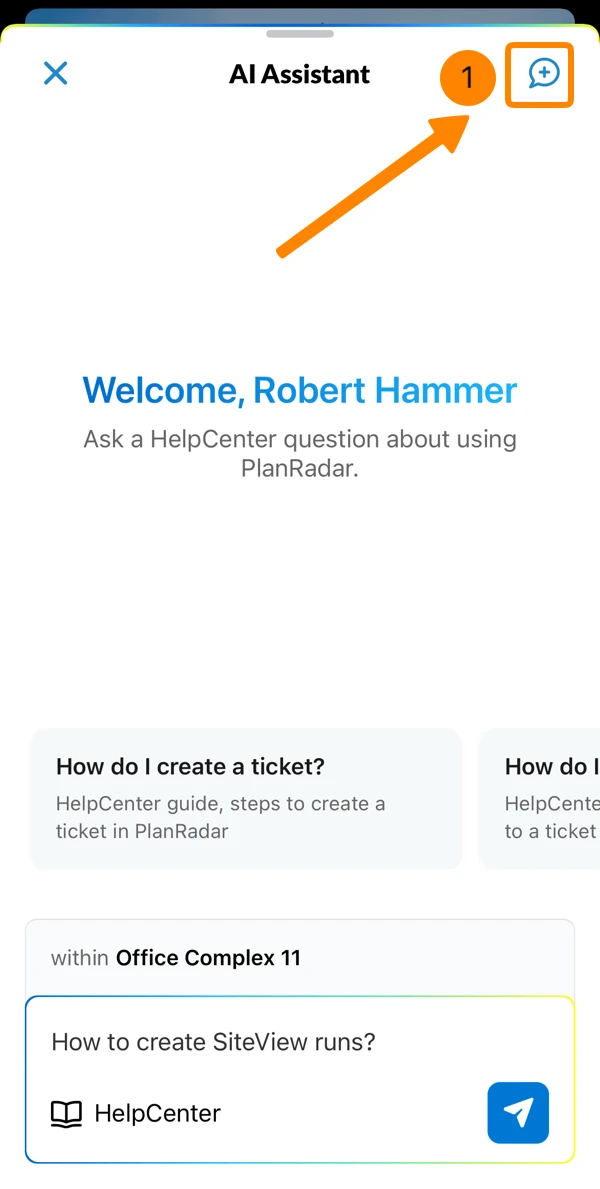
New Chat
To save the current chat to your history and start a new session:
- Click the New chat icon
- Tap one of the suggestions
- OR enter your question or request
- Optional: tap + to attach a file for analysis
- Tap the send icon
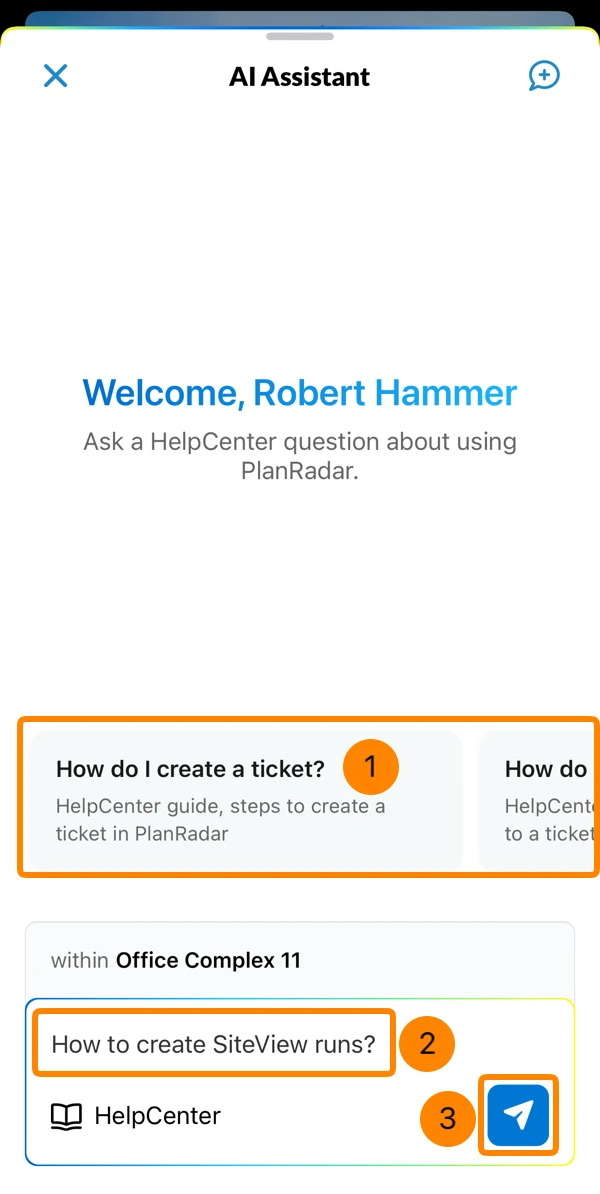
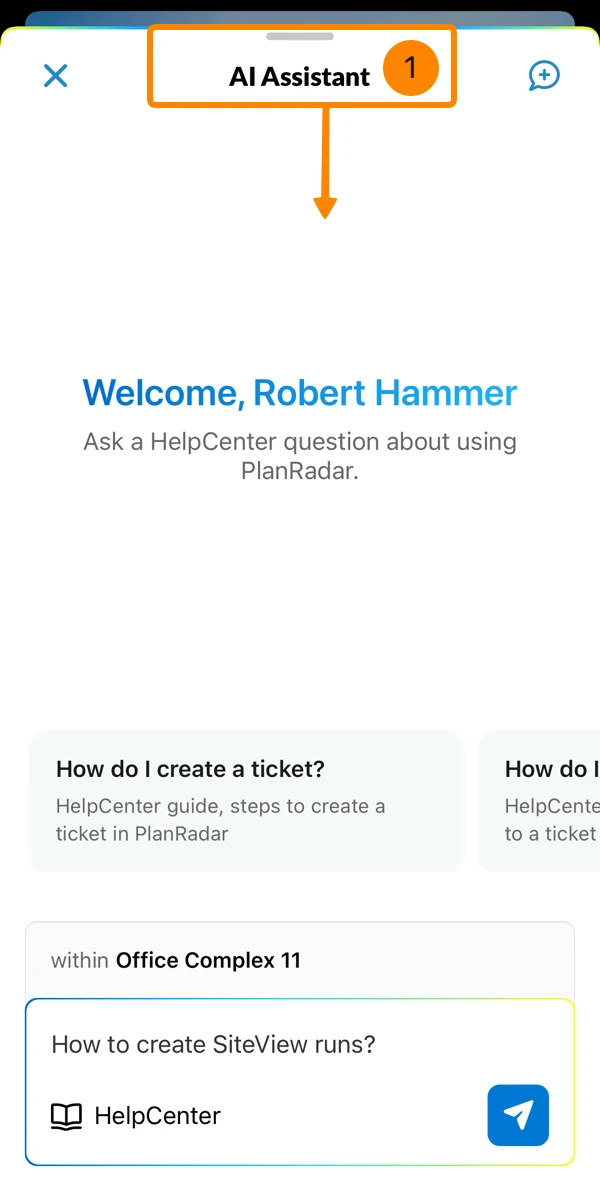
Minimize/Maximise the Chat Window
To minimize the chat window:
- Swipe down from top
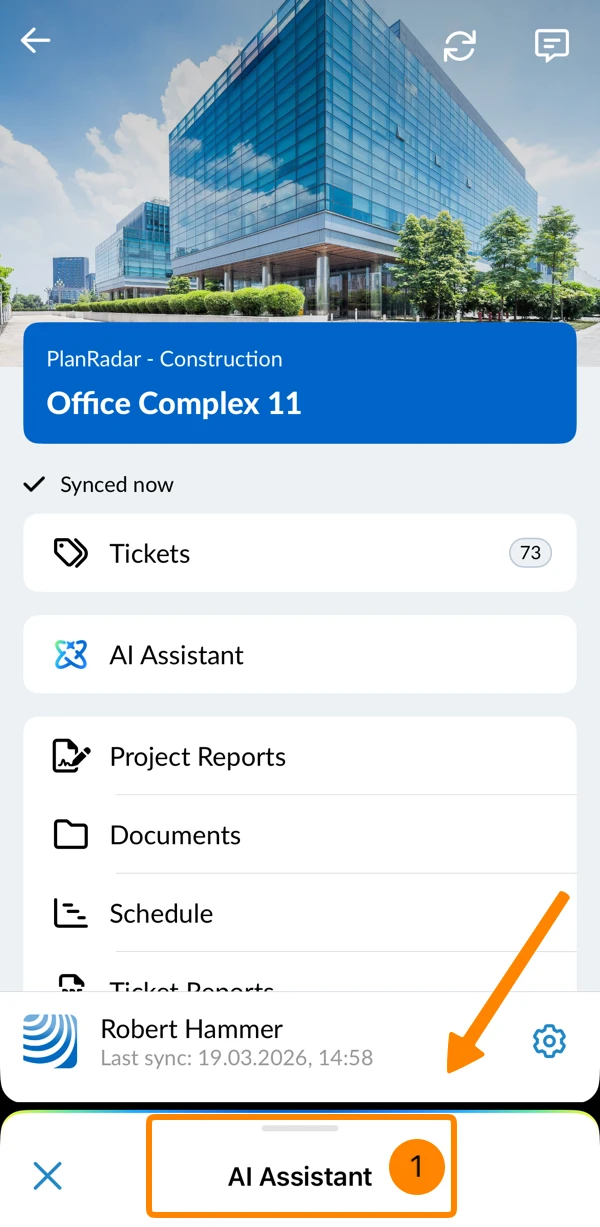
To maximize the chat window:
- Tap on the minimized AI Assistant
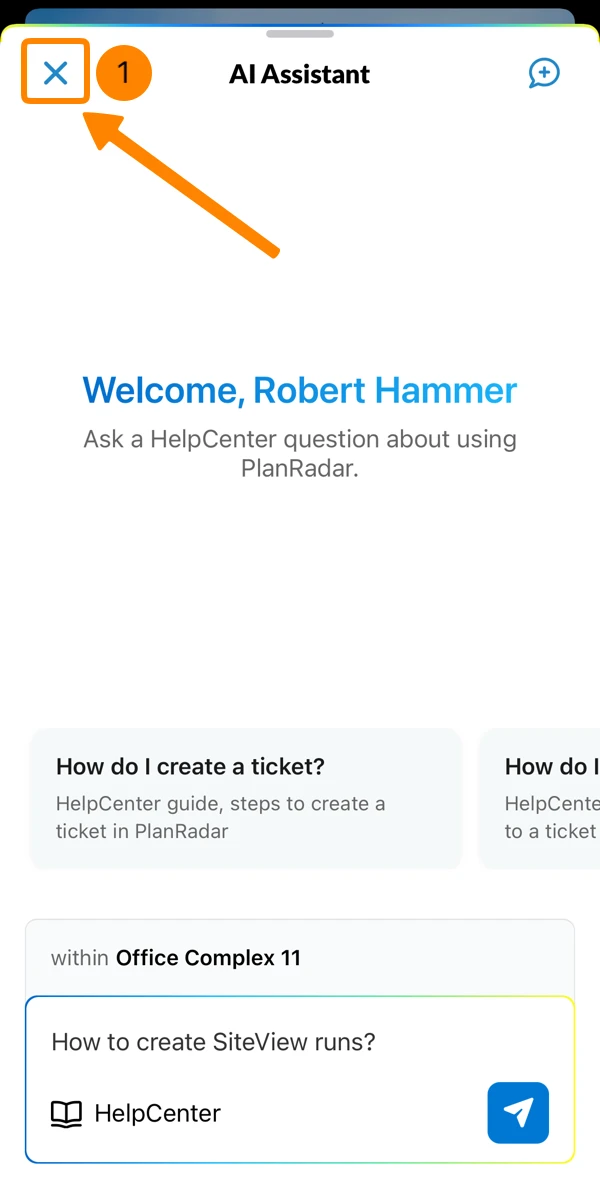
Close the Chat Window
Closing the chat window saves the current chat to your history.
To close the chat window:
- Tap the X button
New Chat
To save the current chat and start a new session:
- Tap the New chat icon
Chat History
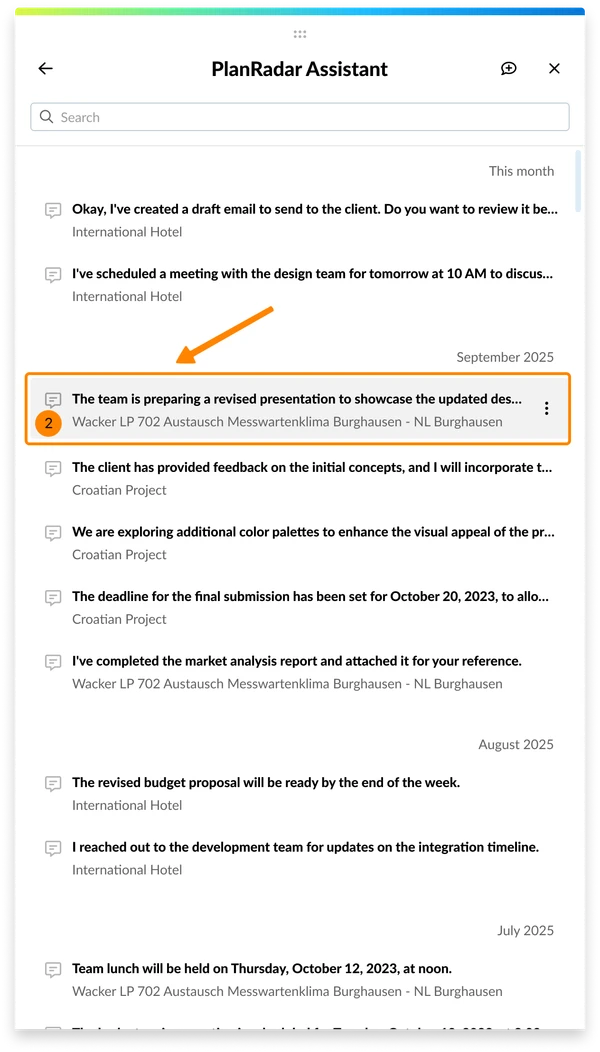
You can view the chat history of your conversations with the AI Assistant. You can also search for, open, rename, or delete chats.
The history displays your 100 most recent chats; older ones are automatically removed from the list. The Webapp shows only chats started in the Webapp. The mobile app shows only chats started in the mobile app.
Your history includes chats from all your projects. Each chat shows which project it belongs to. In full screen, your chat history is always on the left.
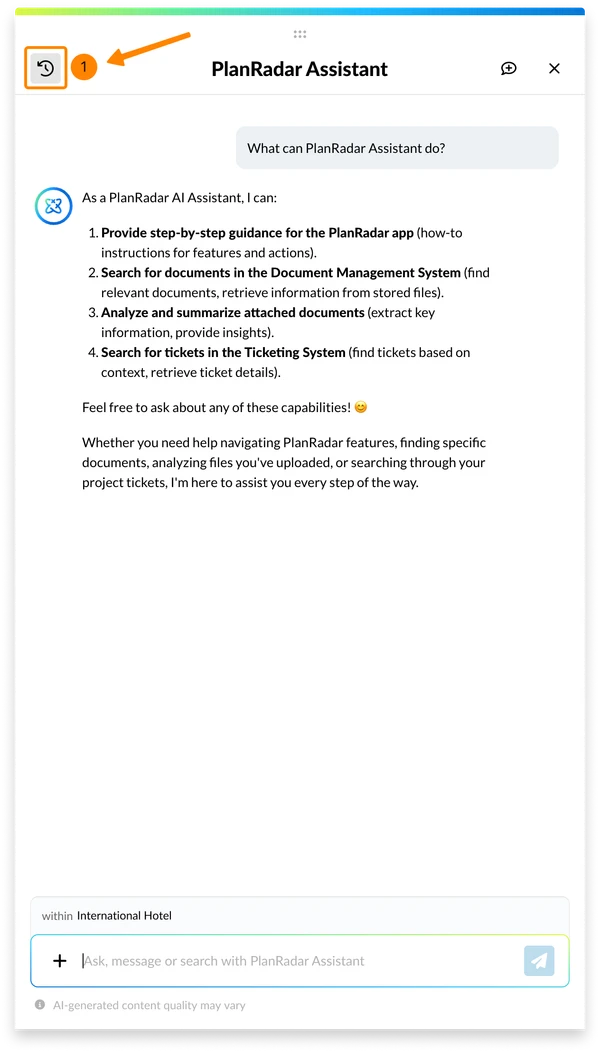
To view your previous chats and open one:
- Click the Chat history icon
- Click on a chat
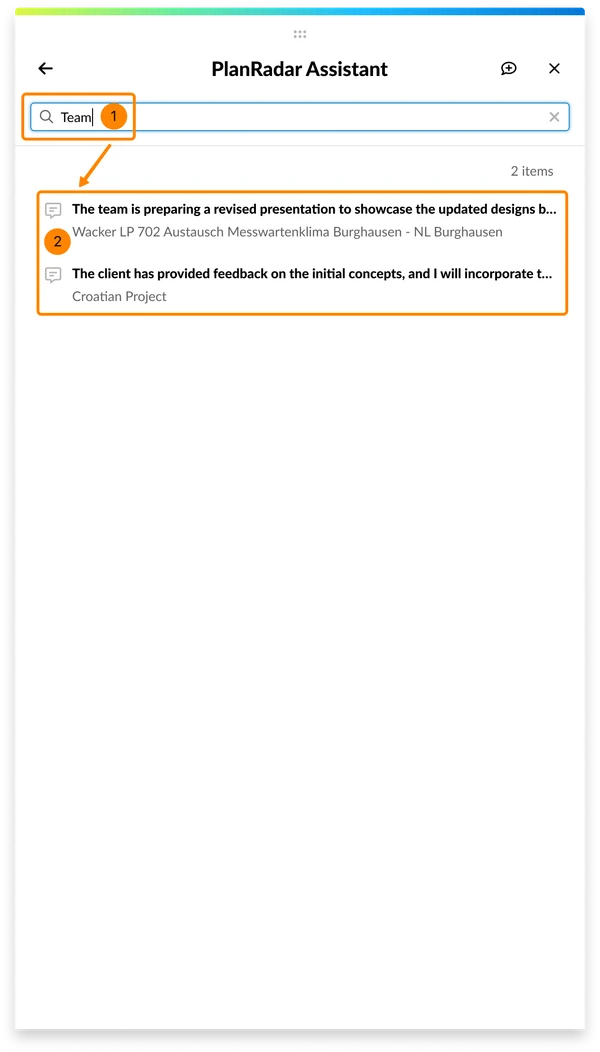
To search for a chat by title or first message:
- Click the search icon
- Enter your search term
- The chat list only shows matching chats
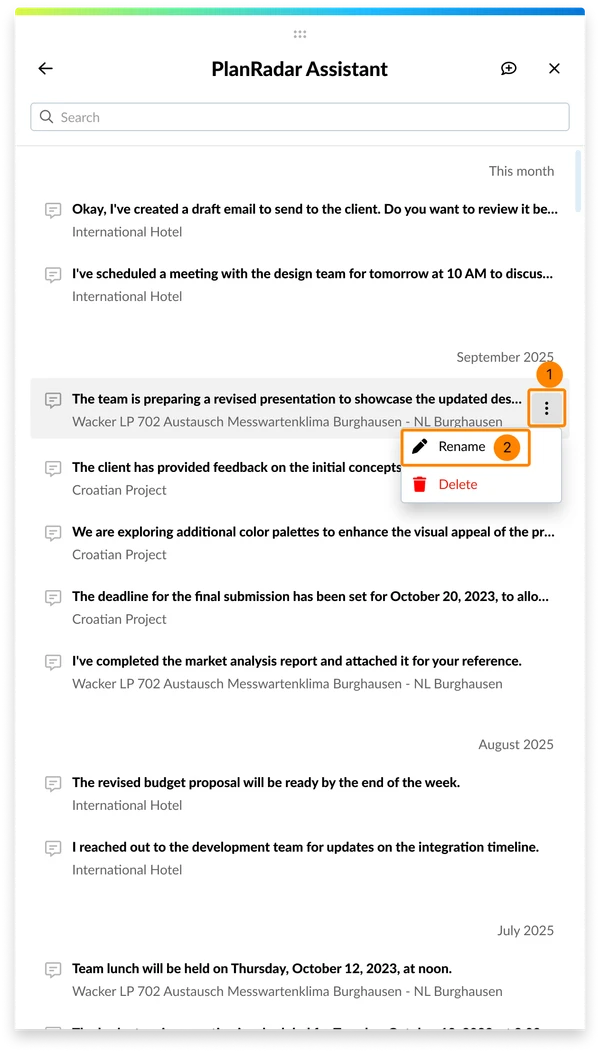
To rename a chat:
- Hover over a chat and open the More menu
- Click Rename
- Enter a new chat title
- Click ✔
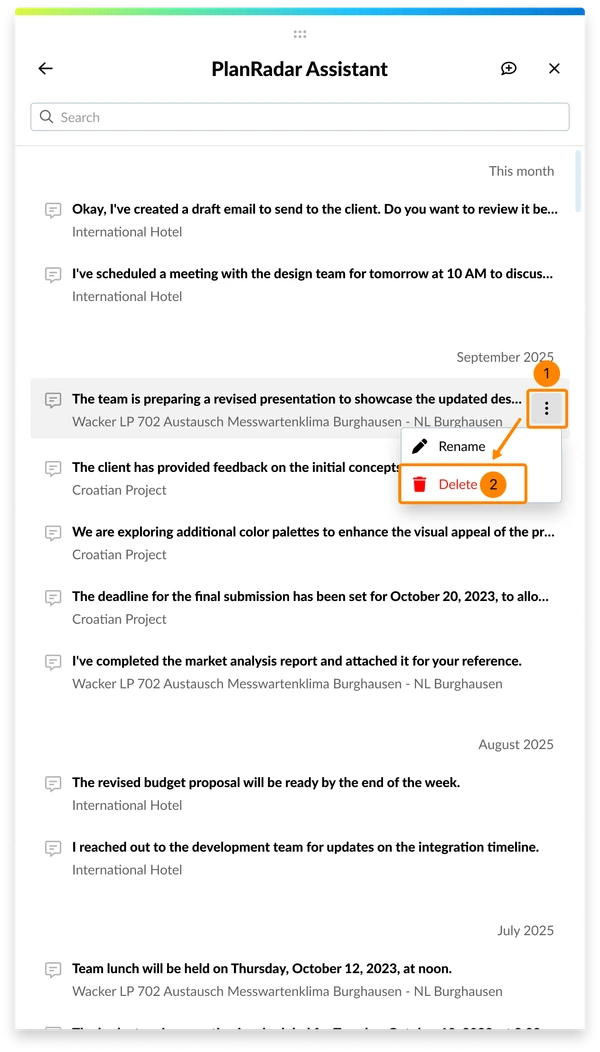
To delete a chat:
- Hover over a chat and open the More menu
- Click Delete
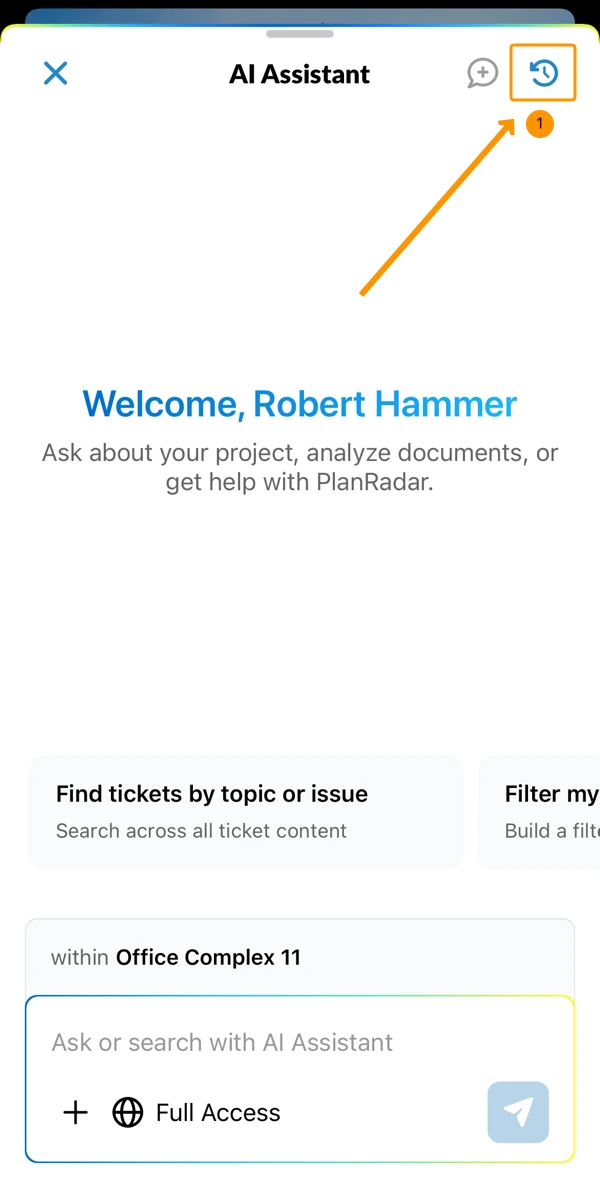
To view chat history and resume a chat:
- Tap the Chat history icon in the chat header
- Tap a chat to resume it
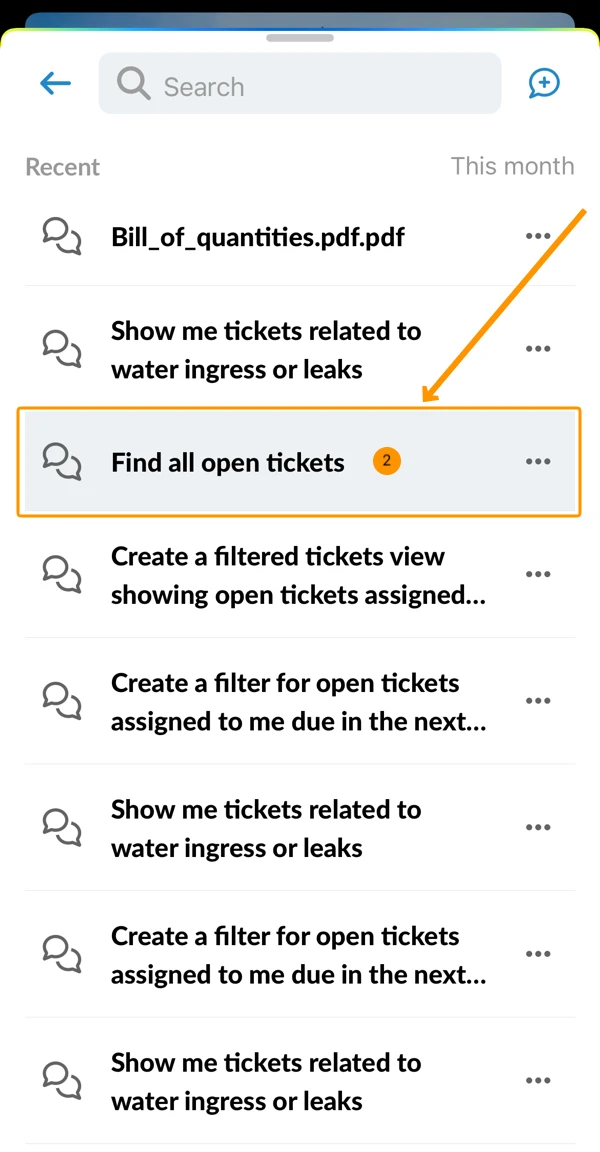
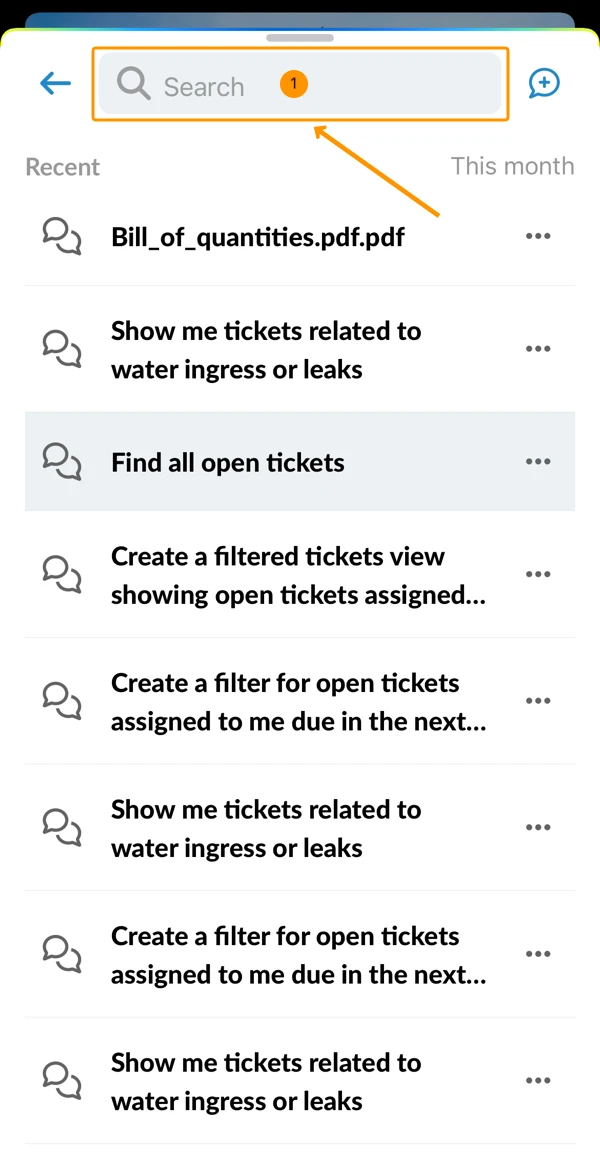
To search for a chat:
- Enter a search term in the search bar — the list shows only matching chats
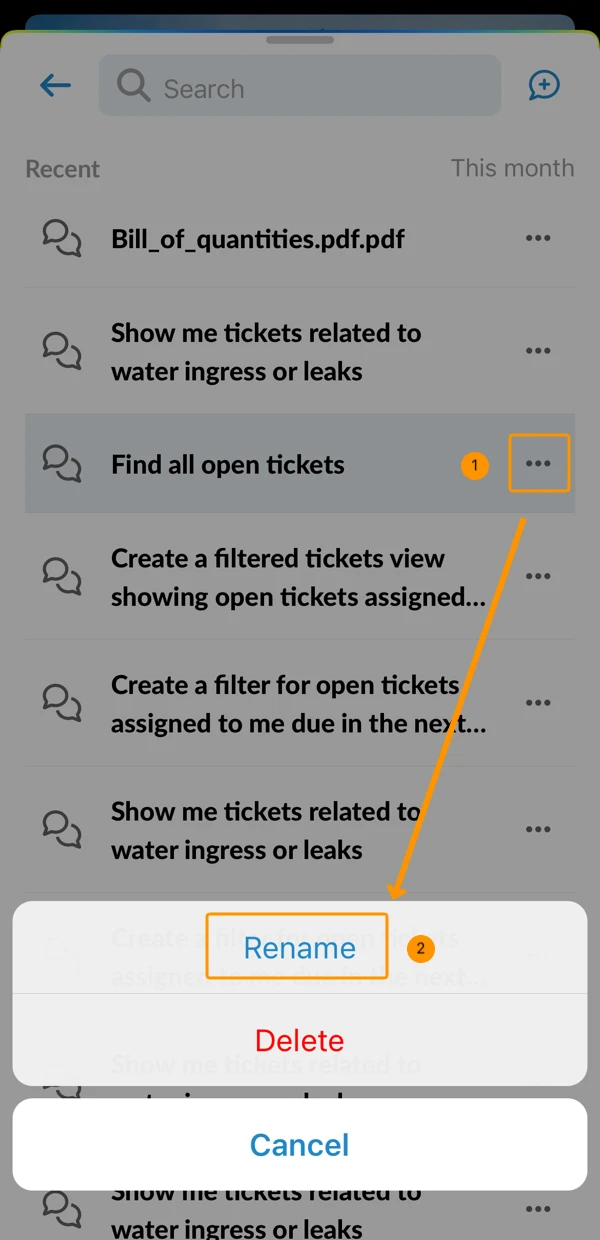
To rename a chat:
- Open the More menu
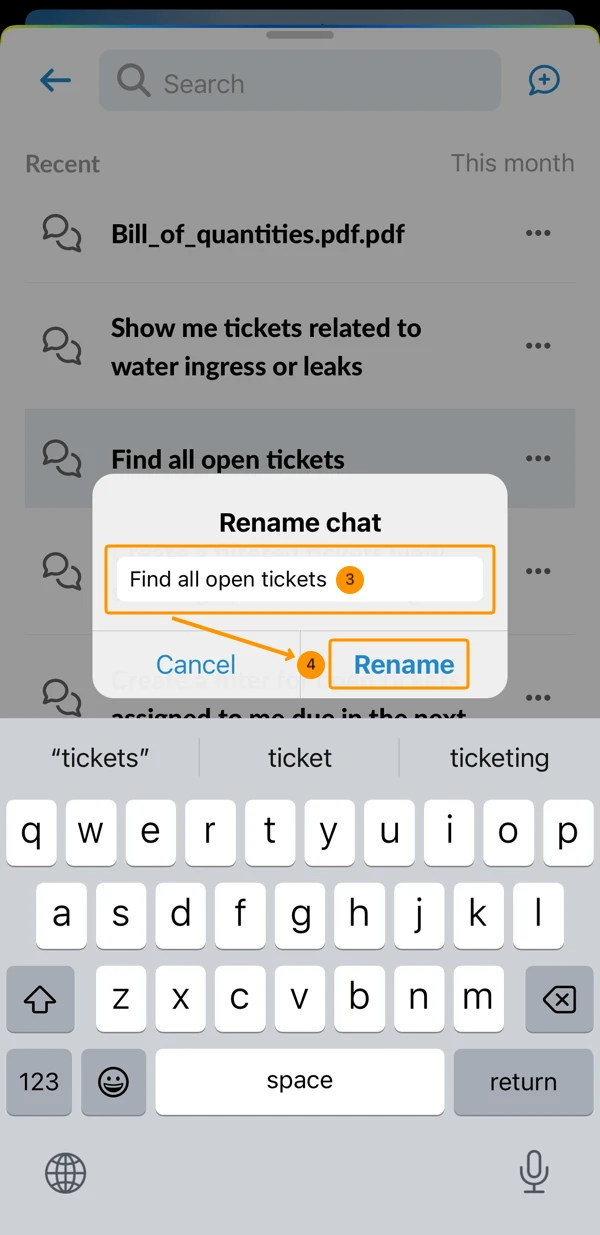
- Tap Rename
- Enter a new name
- Tap Rename
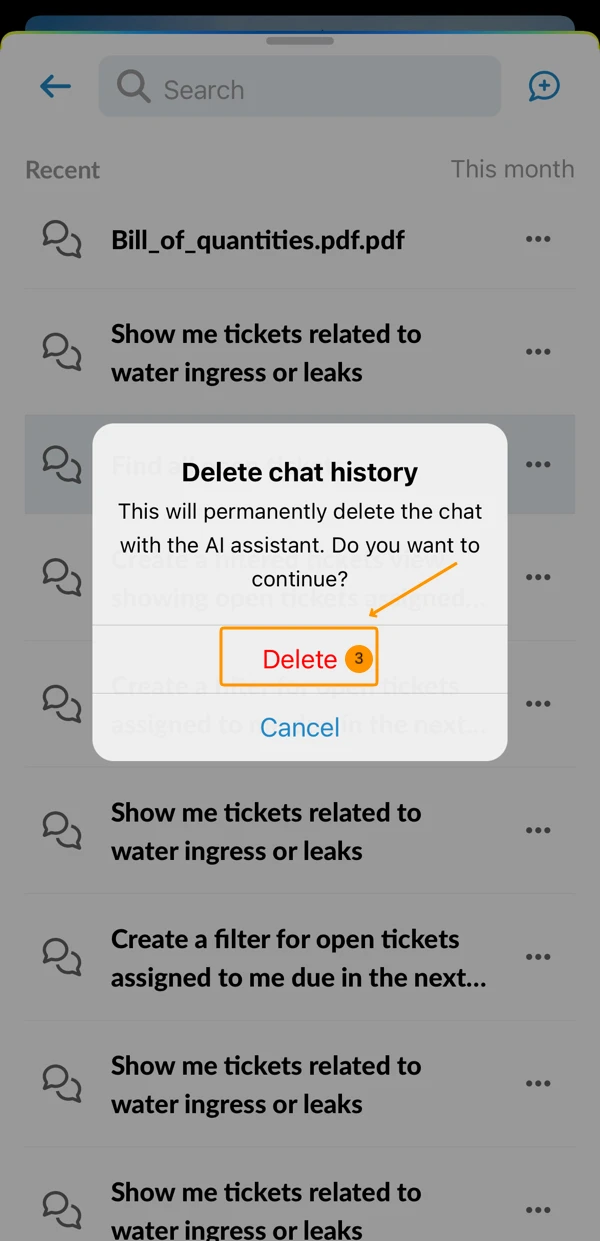
To delete a chat:
- Open the More menu
- Tap Delete
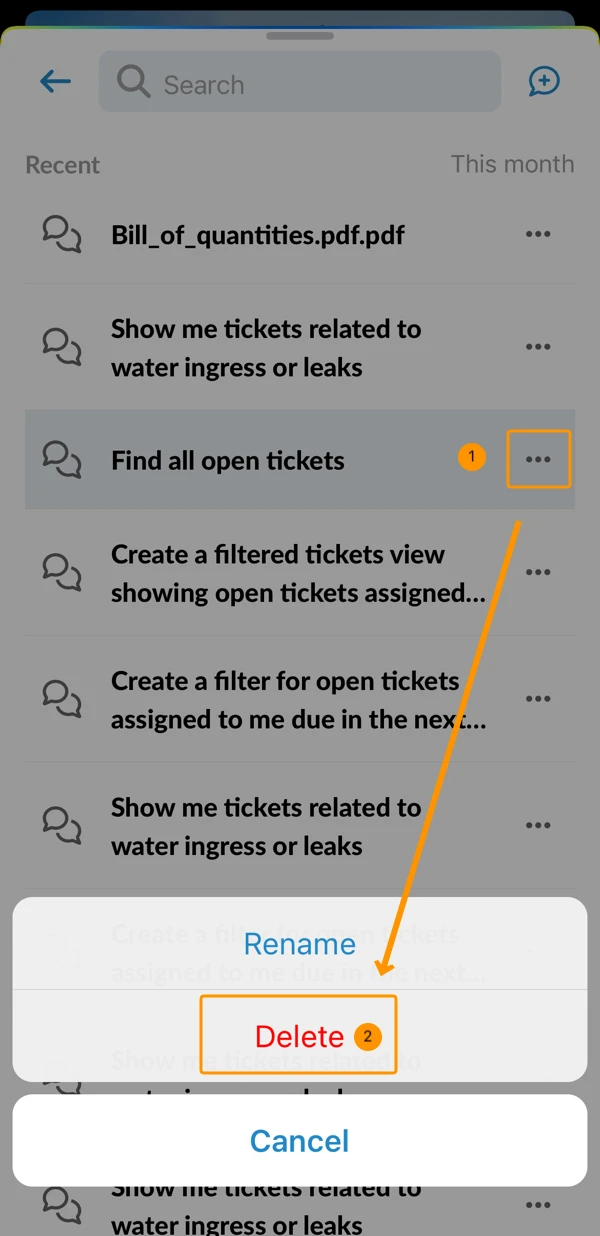
- Tap Delete to confirm
Updated September 21, 2026