

 Deutsch
 Español
 Français
 Hrvatski
 Italiano
 Polski
 Português (BR)
Detect Rooms on Plans with AI
Overview
AI Room Detection finds the rooms on a plan for you. For every room it detects the name, the area and the text written inside it, such as door numbers or ceiling heights. Tickets placed inside a room are tagged with that room automatically, so you can see and filter the tickets of each room without extra work.
You start detection in the webapp. The detected rooms are then available in the webapp and in the mobile app.
Access & Permissions
Detect Rooms on a Plan
You run detection once per plan. The plan must have finished processing after the upload.
To detect the rooms on a plan:
- Open the plan in Plans, or in the Tickets Plan View.
- Click AI Room Detection at the top right of the plan.
- Click Start detection on this plan.
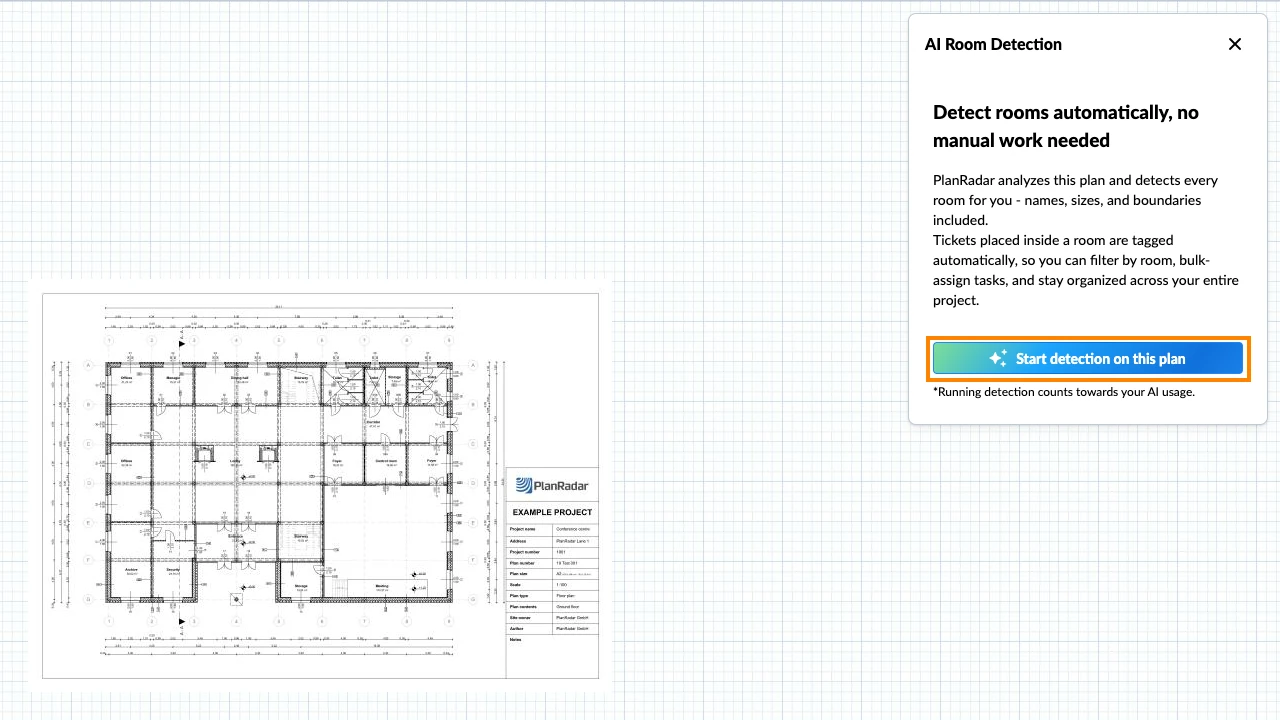
Detection can take up to several minutes. You can keep working in the meantime. A notification in your Message Center tells you when the rooms are ready, and the button on the plan changes to AI Room list.
If detection fails, the button shows Failed, click to retry. Click it, then click Start detection on this plan again.
View Rooms and Room Details
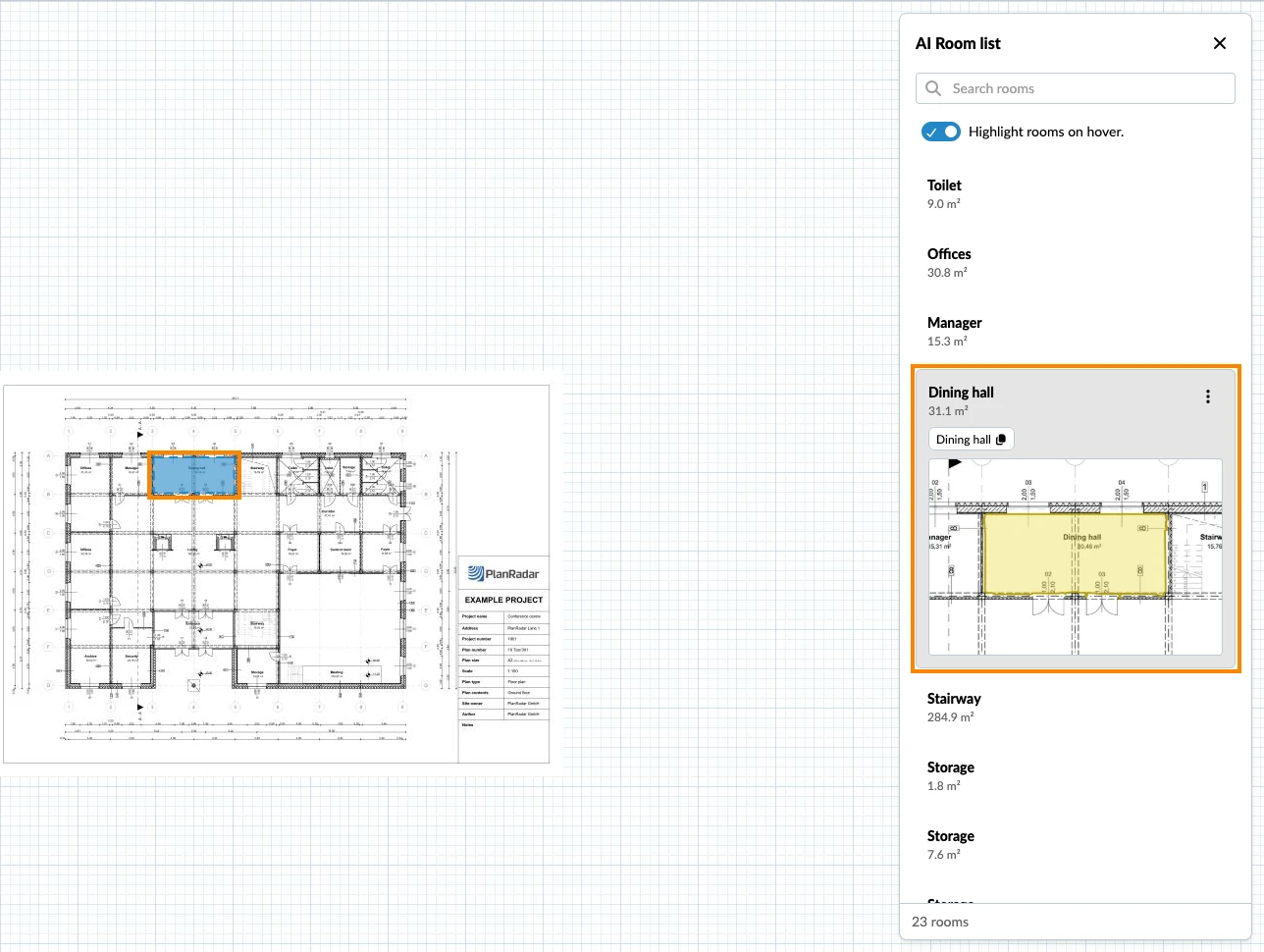
The room list shows every detected room of the plan with its name and area.
To view the rooms of a plan:
- Open the plan.
- Click AI Room list at the top right of the plan.
- Click a room to see its details. The plan zooms to the room and highlights it.
To view the rooms of a plan:
- Open the plan.
- Tap AI room list.
- Tap a room to see its details.
To view the rooms of a plan:
- Open the plan.
- Tap Room list.
- Tap a room to see its details.
The details of a room show:
- The area in m²
- The text detected inside the room. Click a text to copy it.
- A preview of where the room is on the plan
- Show tickets in room (in the webapp, only in the Tickets Plan View)
In the webapp, use Search rooms to find a room by name. With Highlight rooms on hover switched on, a room is highlighted on the plan when you point at it in the list.
Rename a Room
AI takes the room names from the text on the plan. You can change a name in the webapp, on the current version of the plan. The More menu appears when the room is selected.
To rename a room:
- Click AI Room list at the top right of the plan.
- Click the room.
- Open the More menu, then click Edit room title.
- Type the new name.
- Click Save.
The new name appears everywhere the room is shown, including the AI Room field of its tickets.
See the Tickets of a Room
A ticket whose position on the plan lies inside a detected room shows that room in the read-only AI Room field of its details. The field is filled in and updated automatically, also when the plan gets a new version. In the Android app, the field is called Room.
To see the tickets of a room:
- Open the plan in the Tickets Plan View.
- Click AI Room list.
- Click the room.
- Click Show tickets in room.
The ticket list and the plan now show only the tickets inside that room. An AI Room filter is added to the filter bar, and you can remove it like any other filter.
You can also filter by AI Room yourself: it is listed under AI fields when you add filter criteria. Read more in Filter Tickets.
Limits
- Room detection works on plans, not on BIM models.
- Detection fails on plans with more than 2,000 rooms.
Updated October 14, 2026