

 Deutsch
 Español
 Français
 Hrvatski
 Italiano
 Polski
 Português (BR)
Attach PDFs to Project Reports in the Webapp
Overview
Attach PDF files to a project report in the Webapp to provide supporting documentation alongside the report content. When the submitted project report is shared as a PDF or printed, the attached PDFs are included after the photos. You can attach up to 50 PDFs per report.
Access & Permissions
Attach PDFs to Project Reports
You can attach PDFs while the project report is a draft. Once you submit the report, its attachments can no longer be changed.
To attach PDFs to a project report:
- Create or edit a project report as described in Create & Edit Project Reports
- Click Show Attachments
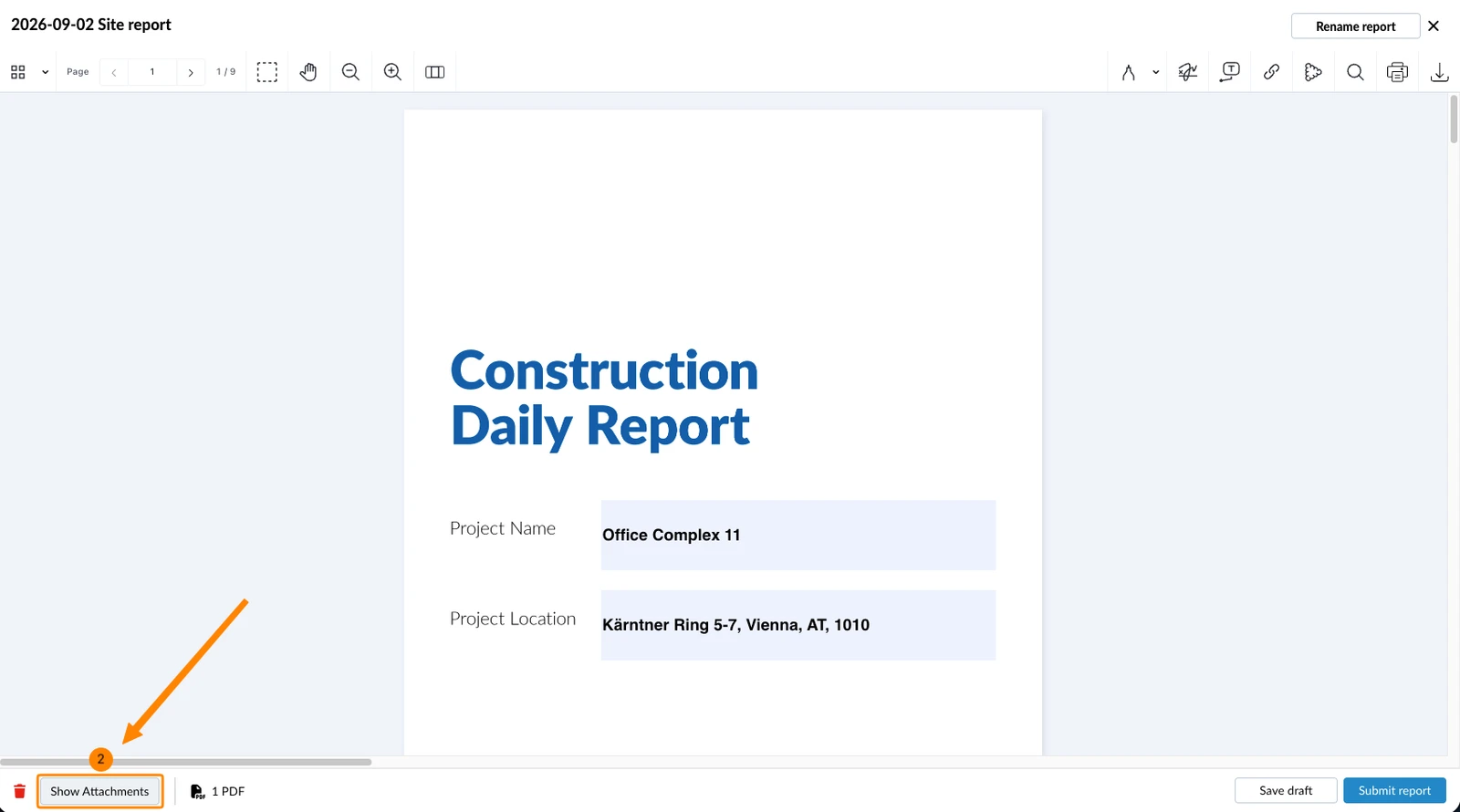
- Click Add Attachments
- Click Attach PDFs
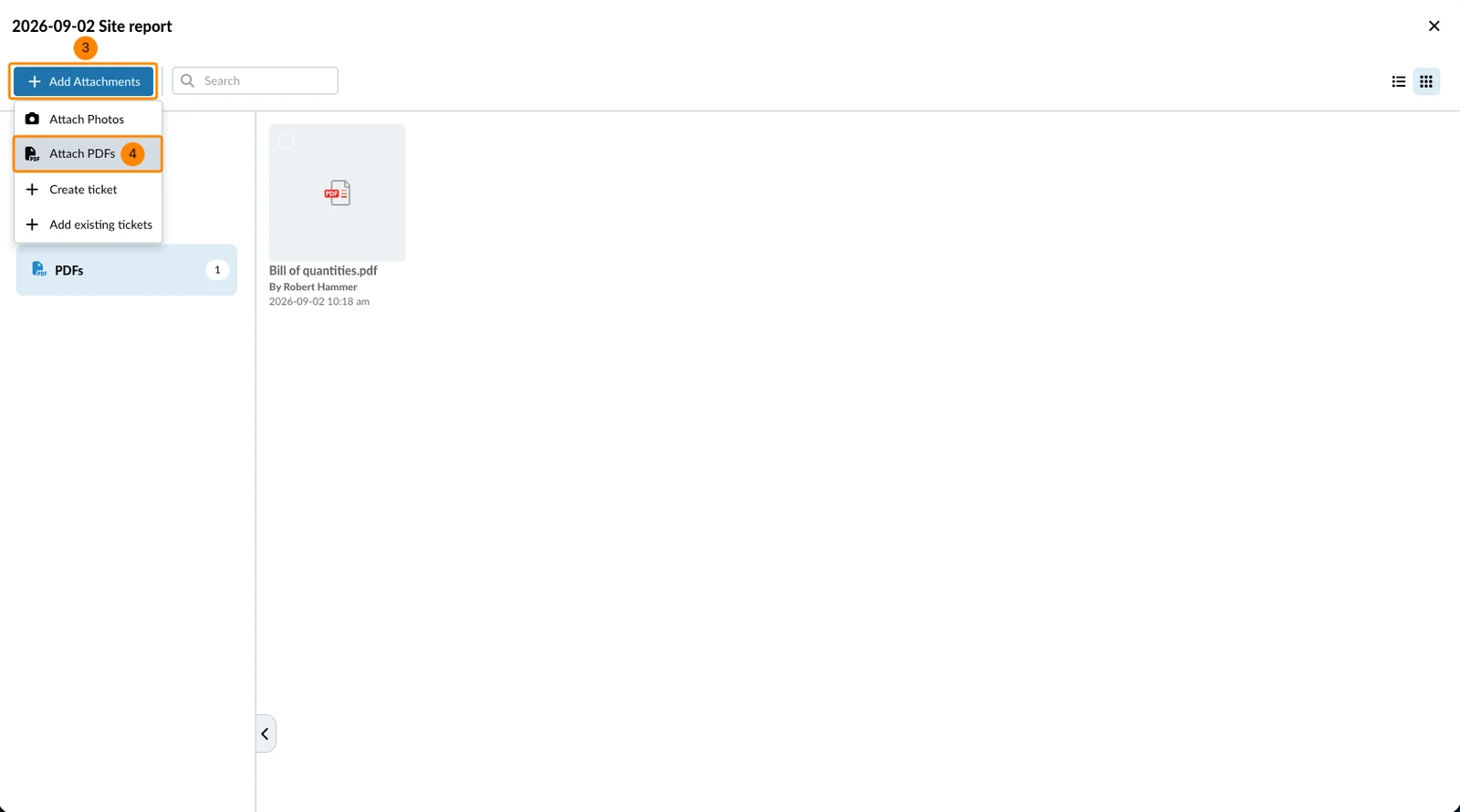
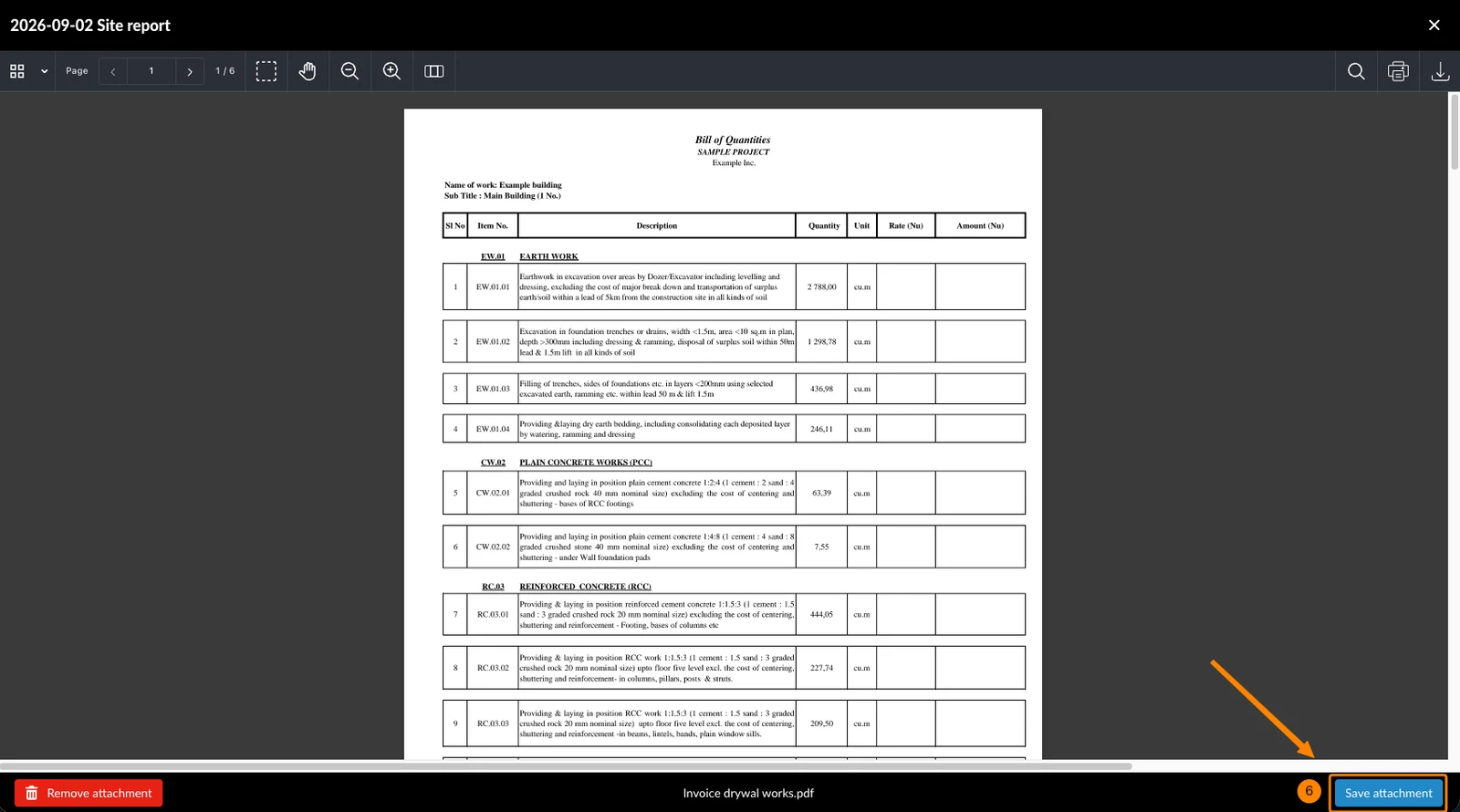
- Select one or more PDF files from your device
- Click Save attachment to attach a single file, or Save all to attach several files at once
View PDFs Attached to Project Reports
To view PDFs attached to a project report:
- View a report as described in View & Browse Project Reports
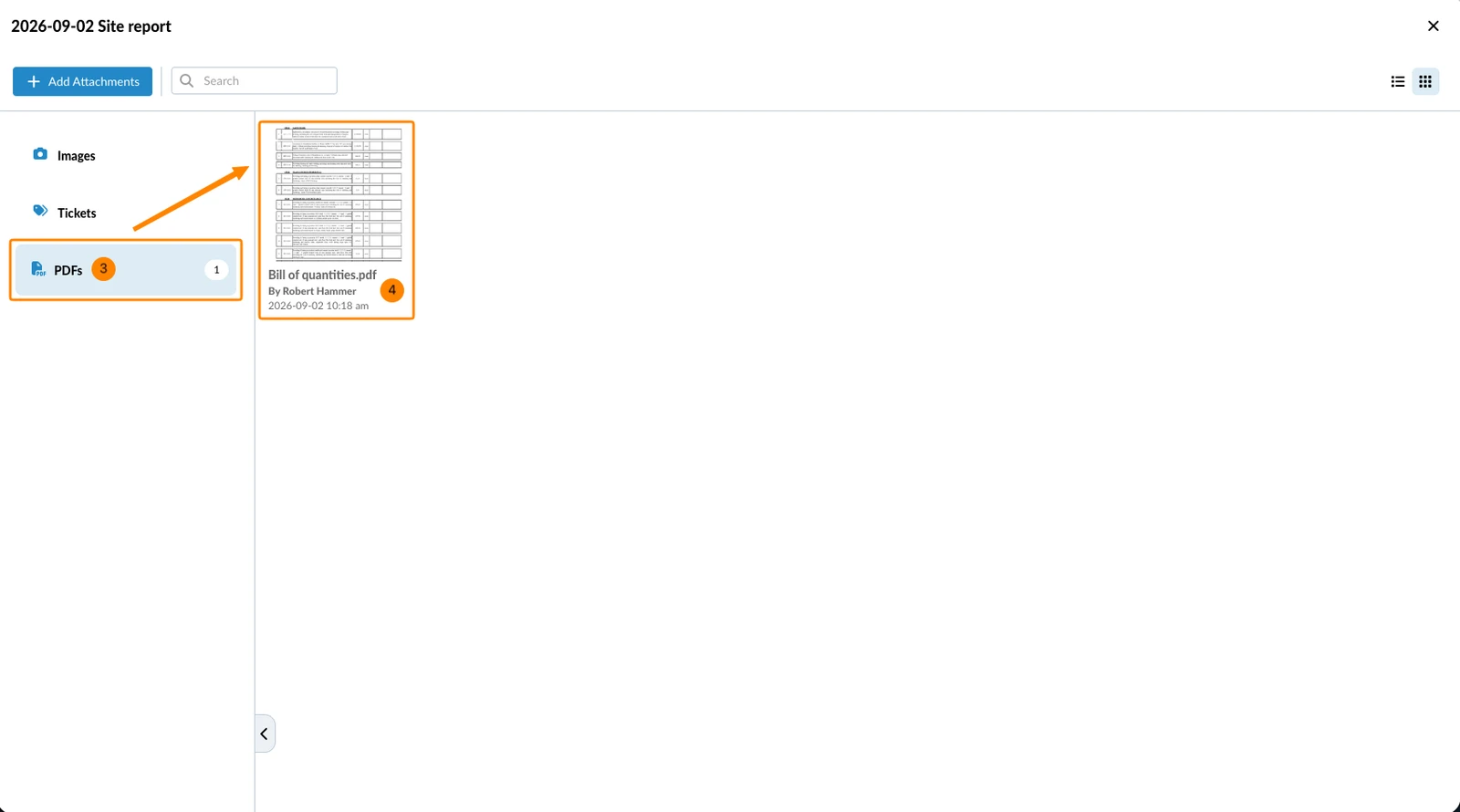
- Click Show Attachments
- Click PDFs
- Click a PDF to open it
Delete PDFs from Project Reports
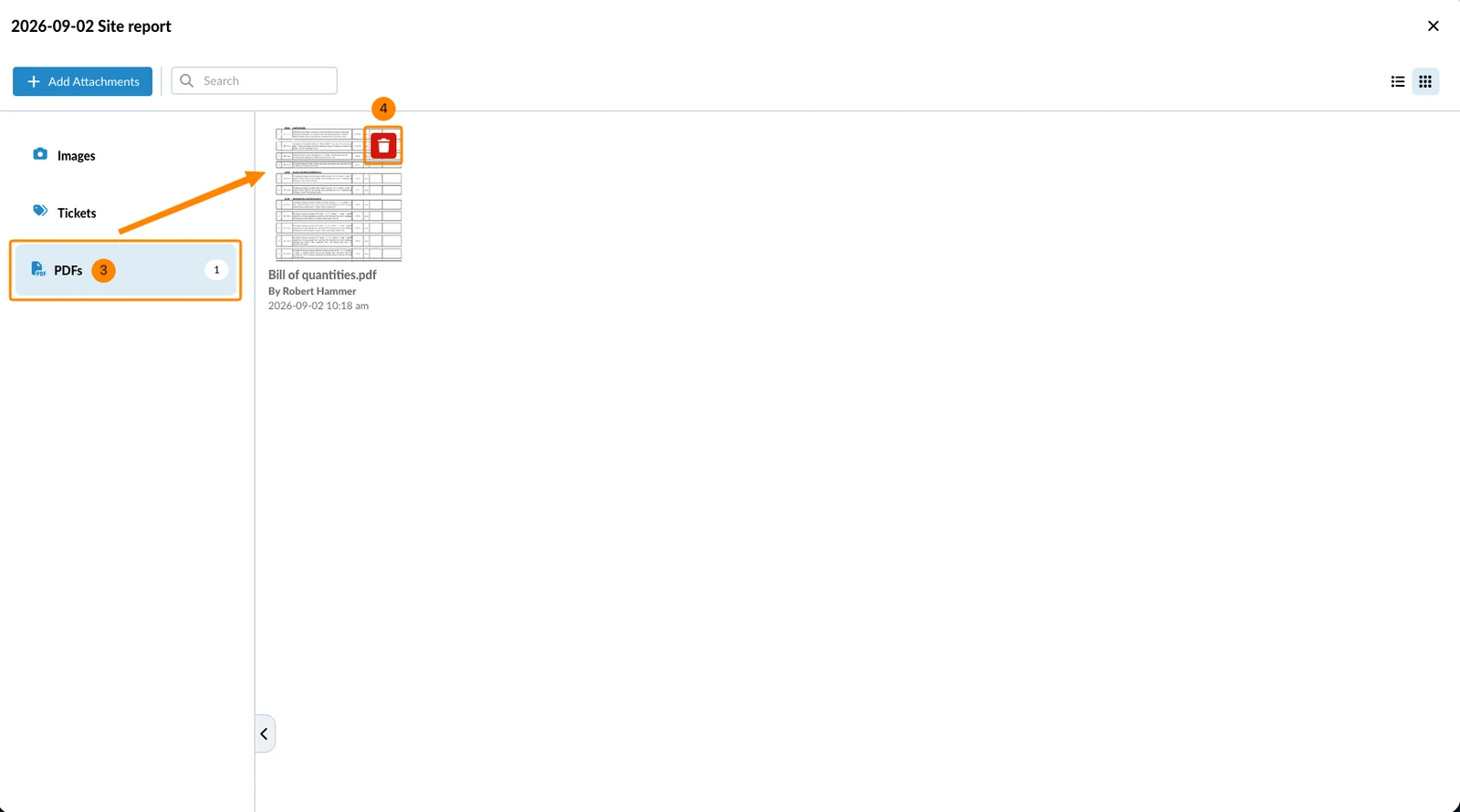
To delete a PDF from a project report that is not yet submitted:
- Open a project report draft
- Click Show Attachments
- Click PDFs
- Hover over the PDF and click the Delete icon
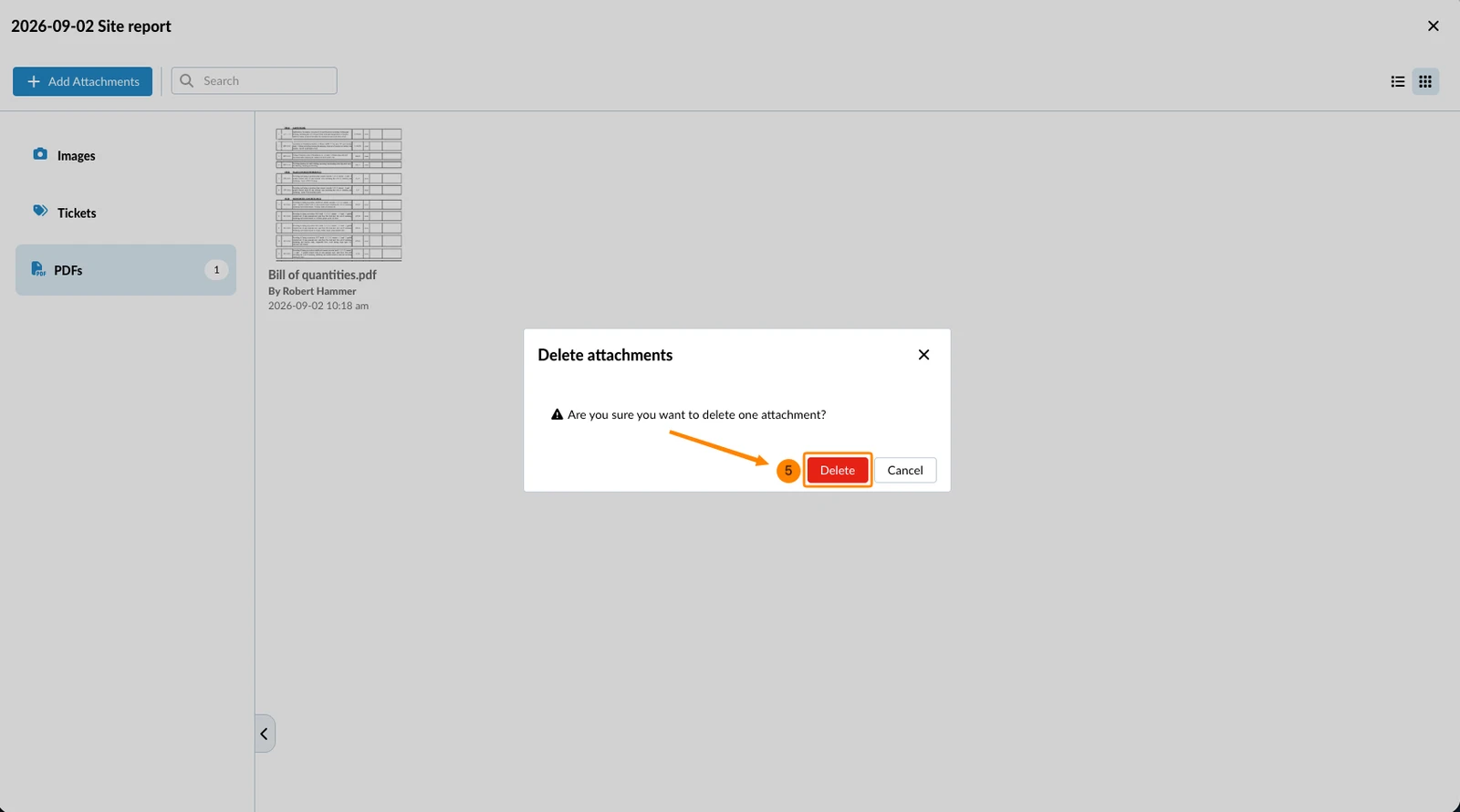
- Click Delete to confirm
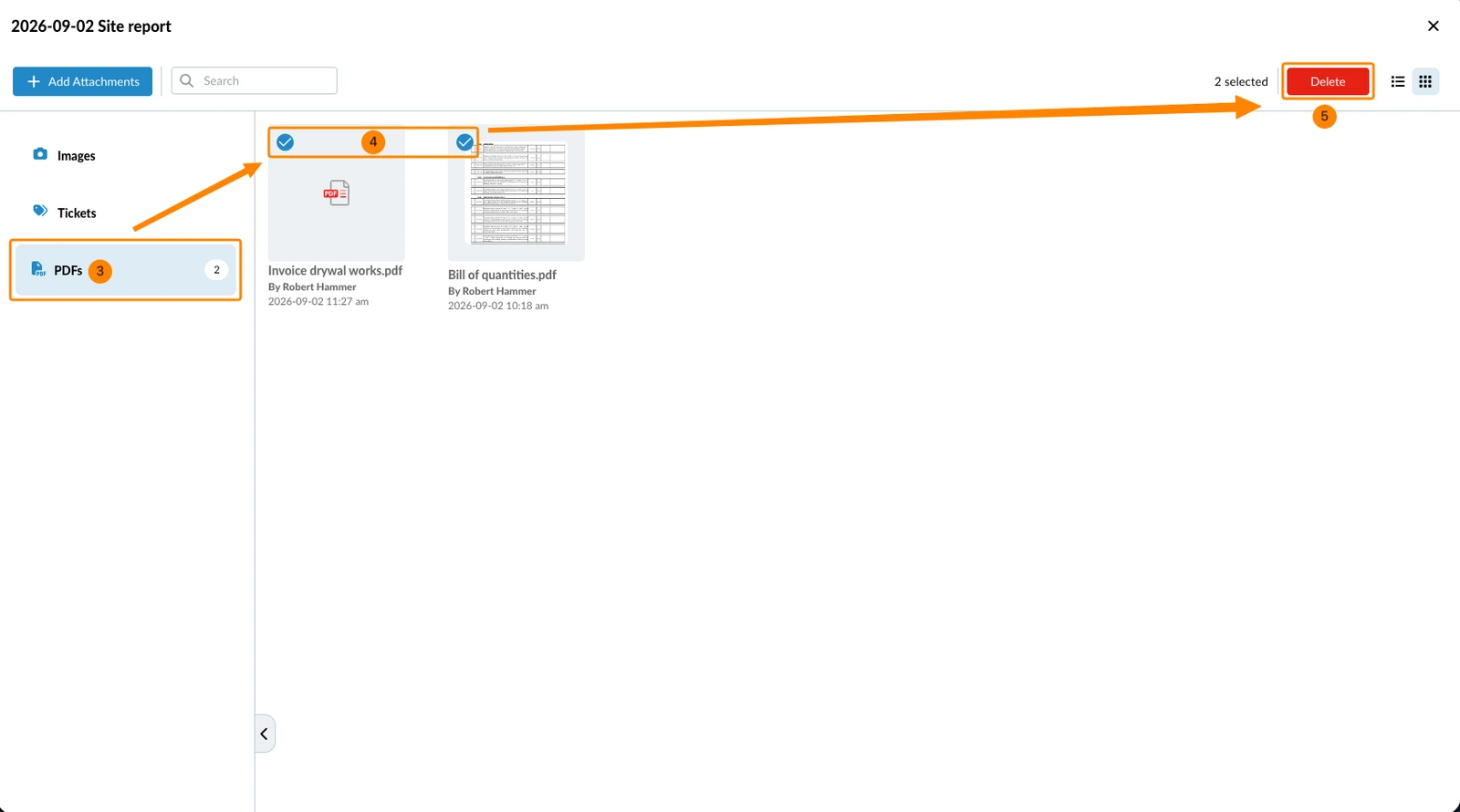
To delete multiple PDFs from a project report that is not yet submitted:
- Open a project report draft
- Click Show Attachments
- Click PDFs
- Select the PDFs
- Click Delete
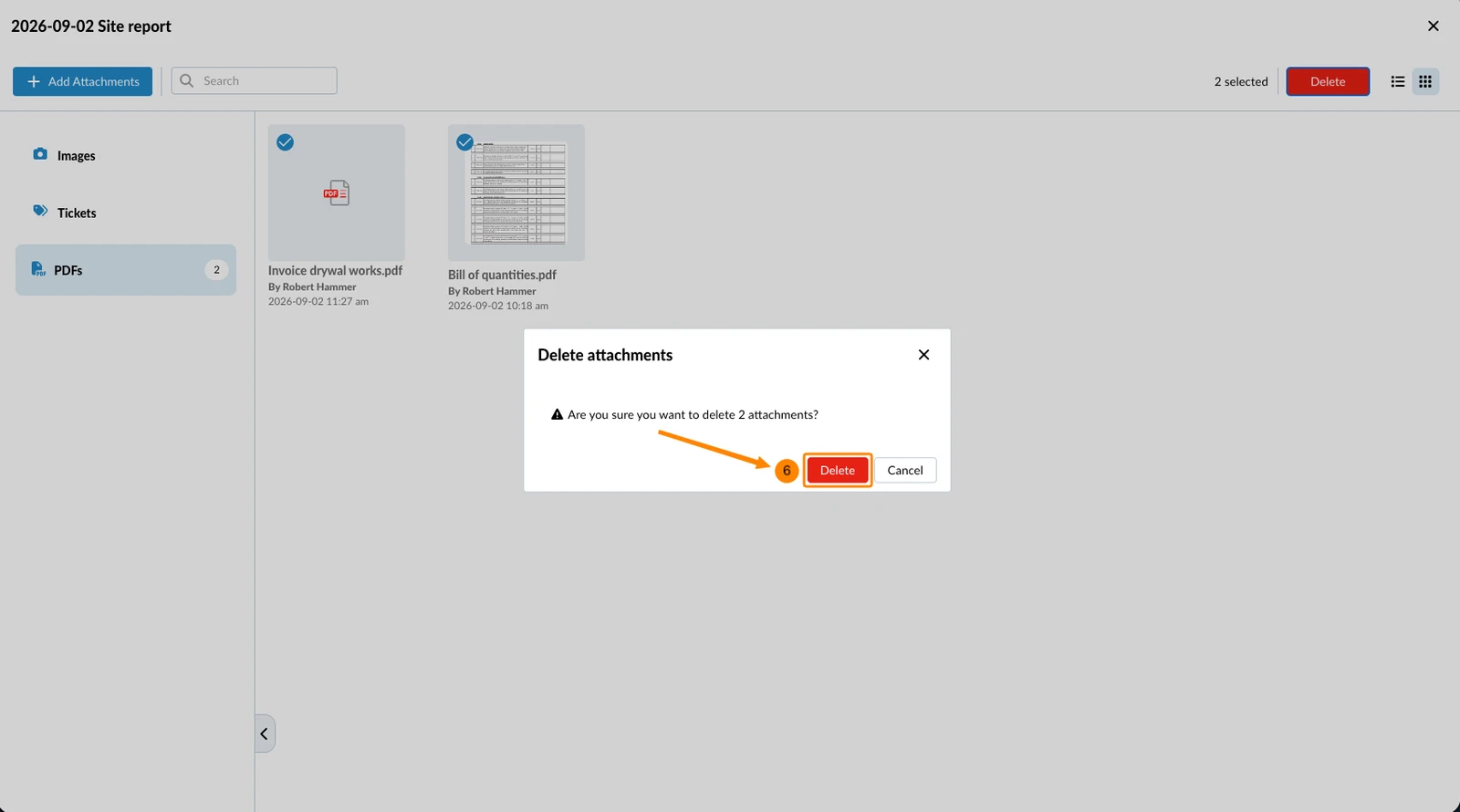
- Click Delete to confirm
Updated September 2, 2026