

 Deutsch
 Español
 Français
 Hrvatski
 Italiano
 Polski
 Português (BR)
View & Browse Project Reports
Overview
There are several view, filter and sort options to support you in quickly finding a specific project report and keep the overview.
Access & Permissions
How to Access Project Reports
- Click Project reports
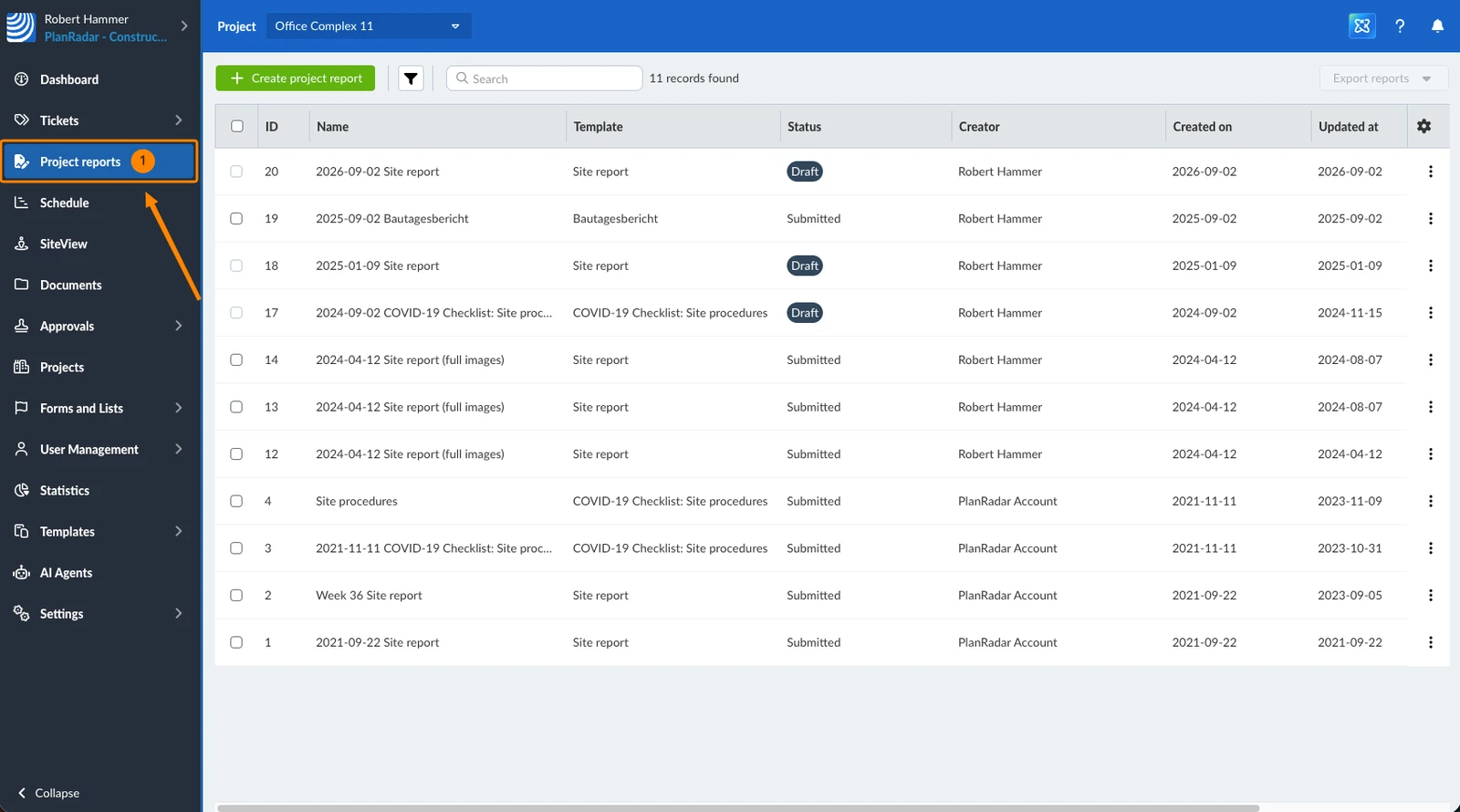
View a Project Report
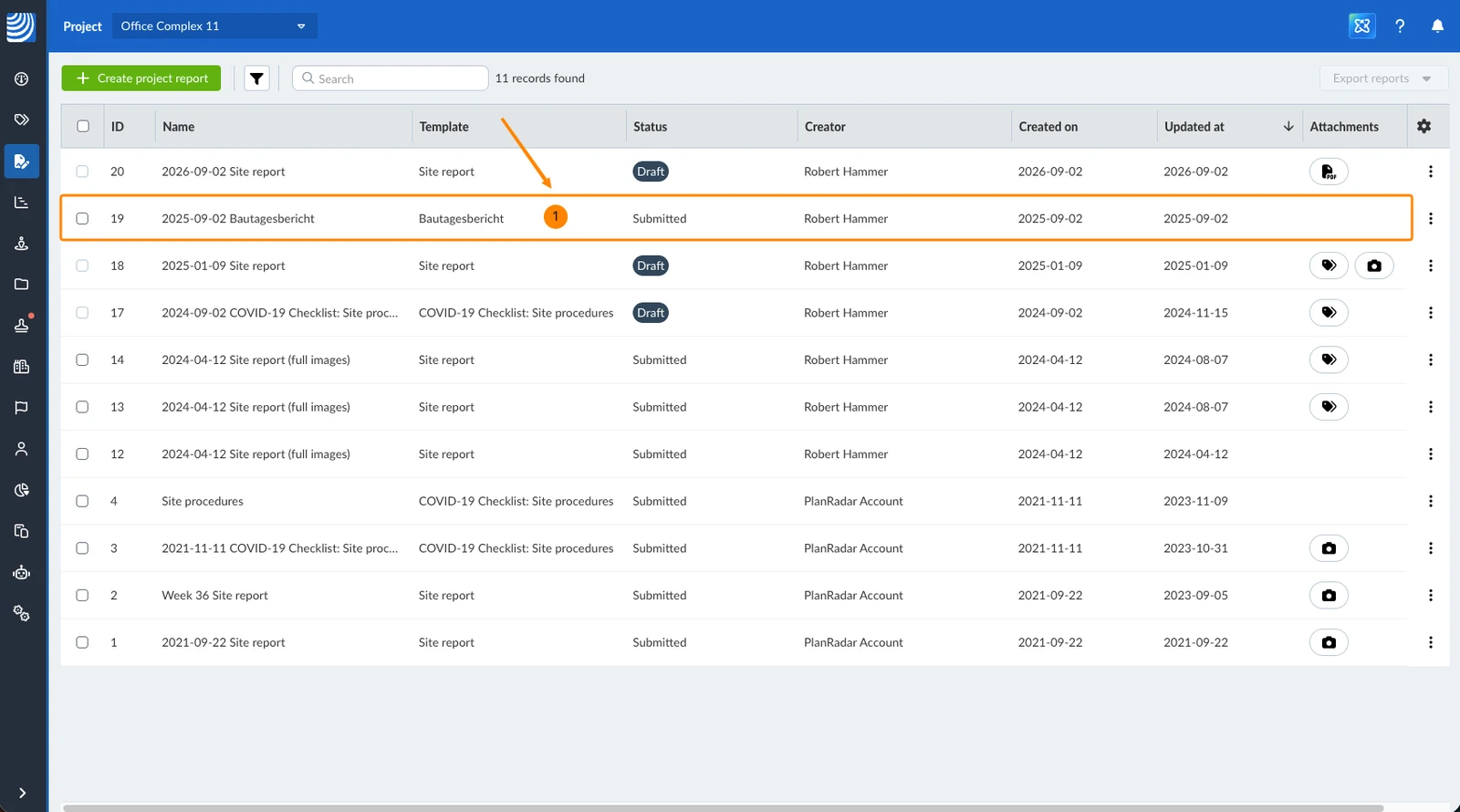
To view a project report:
- Click on the project report
Attachments
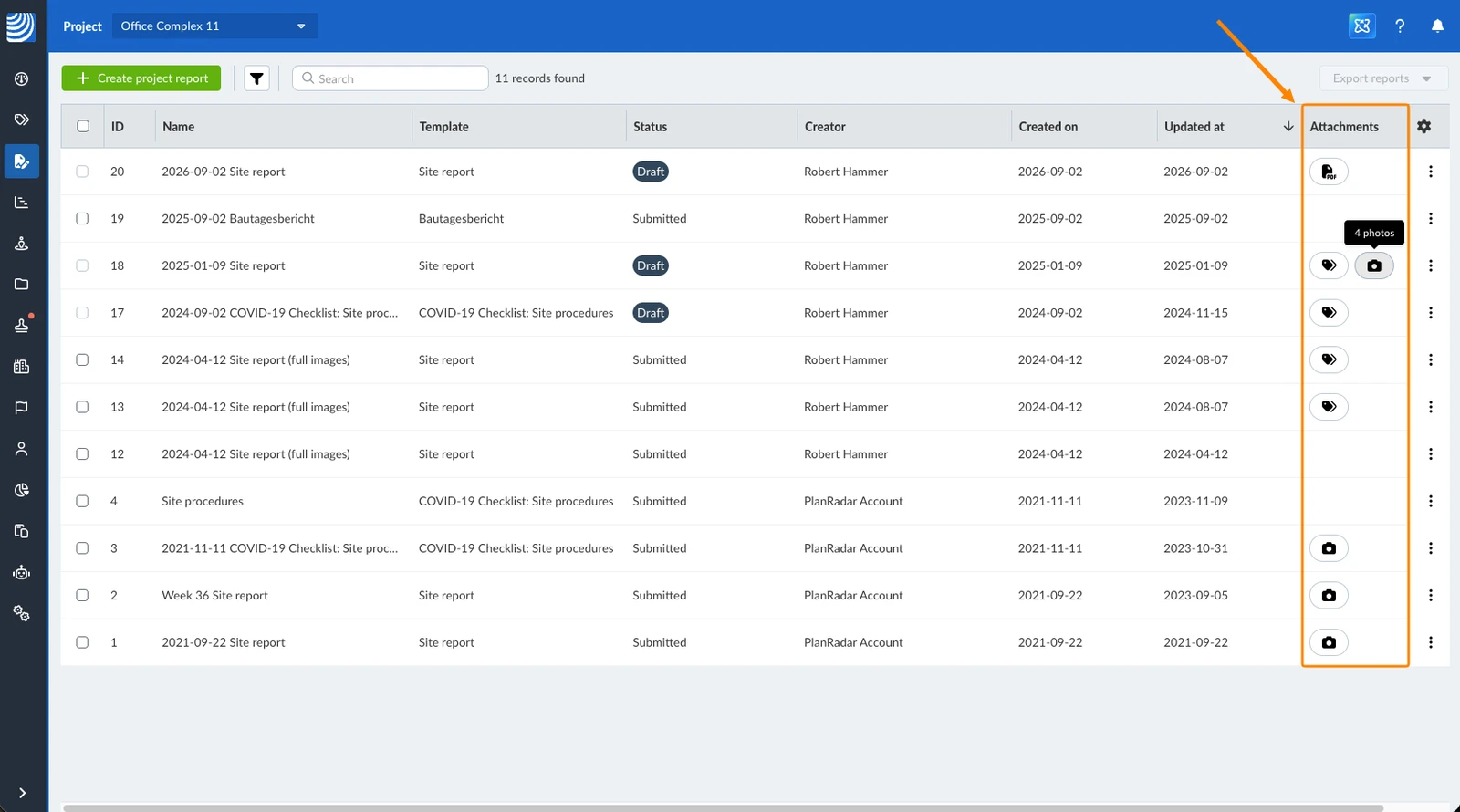
The Attachments column shows what is attached to a project report. A chip is shown for each attachment type the report contains: tickets, photos and PDFs.
Hover over a chip to see how many attachments of that type the report has. Click a chip to open the report directly on that attachment type.
Attachment chips in the project reports list:
Filter
Filters work in the same way as described in Filter Tickets.
The following filter criteria are available for the project reports table:
-
Added by default:
- Name
- Template
- Status
- Creator
-
Not added by default:
- ID
- Created on
- Updated at
- Attachments count
- Has photos
- Has tickets
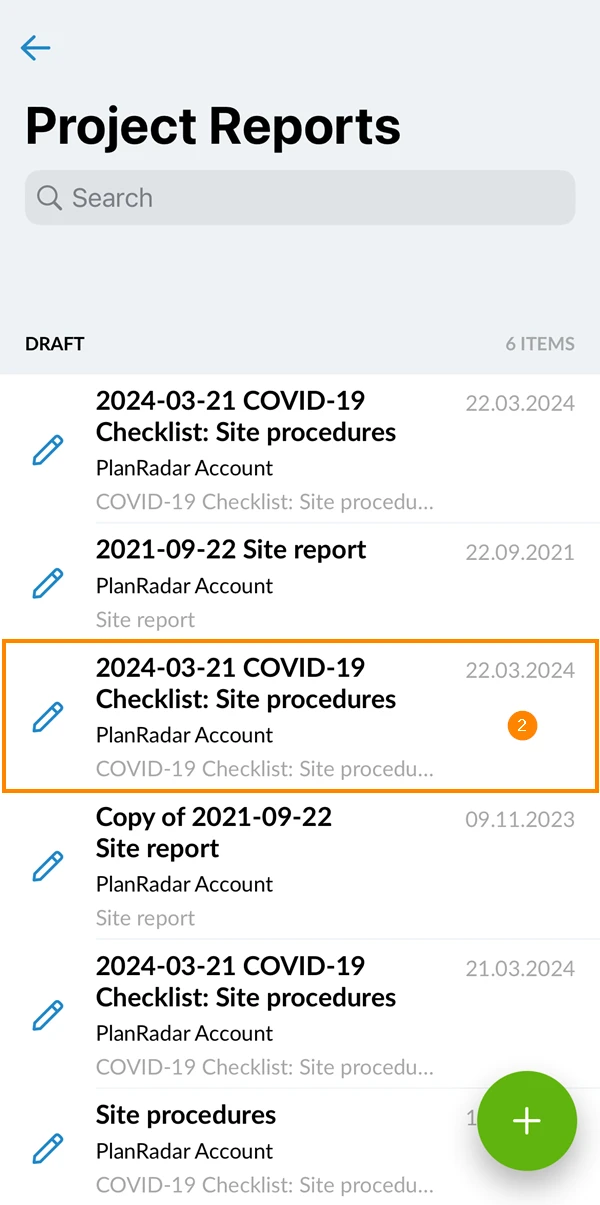
- Open Project Reports
- Tap the project report you want to view
Search Project Reports
Use the search bar to quickly find the project reports you are looking for:
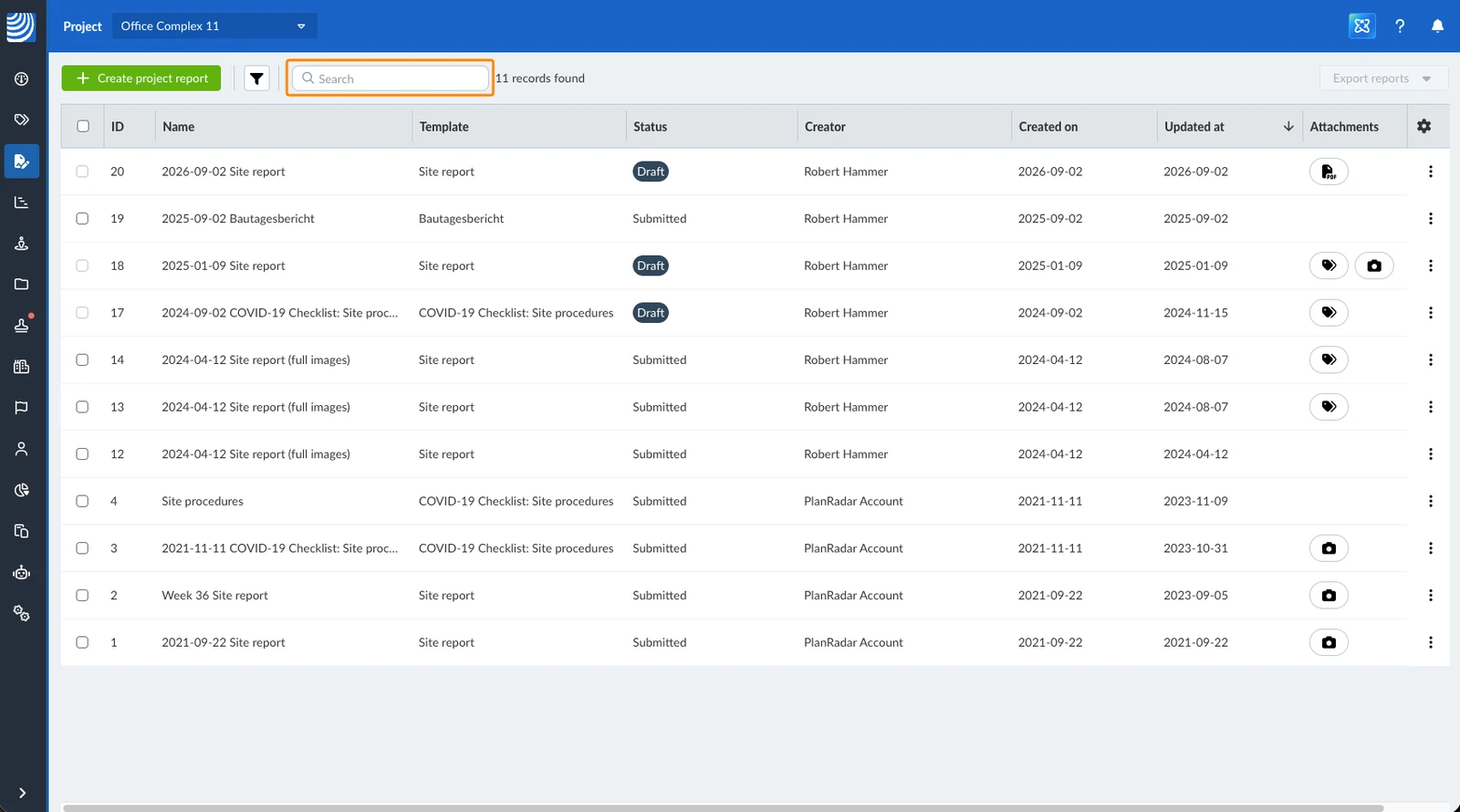
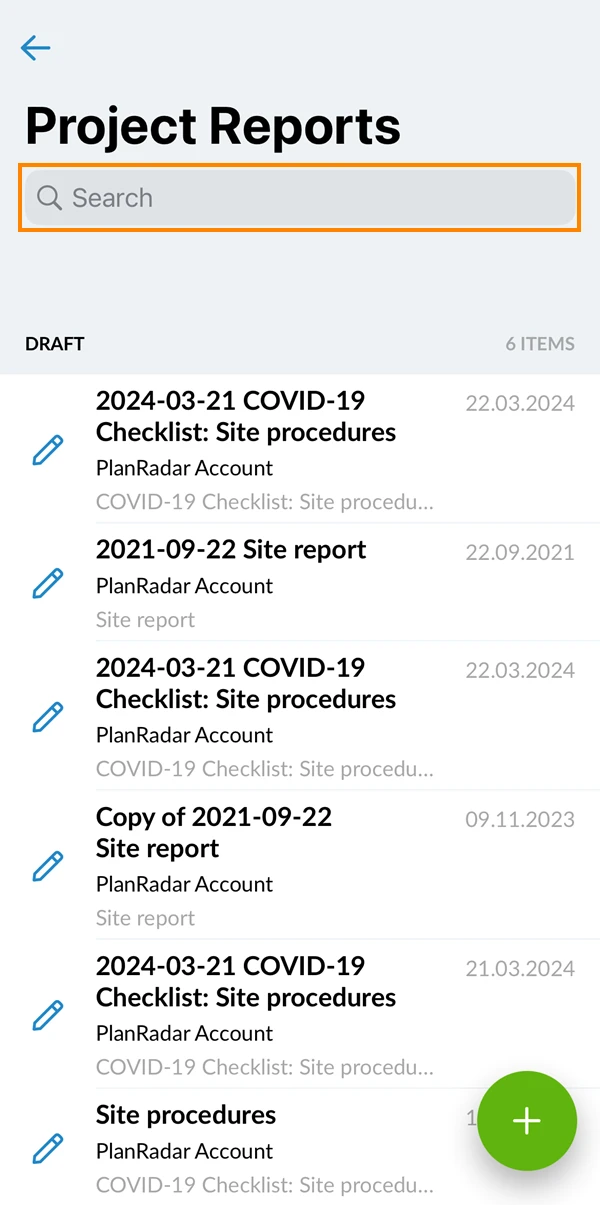
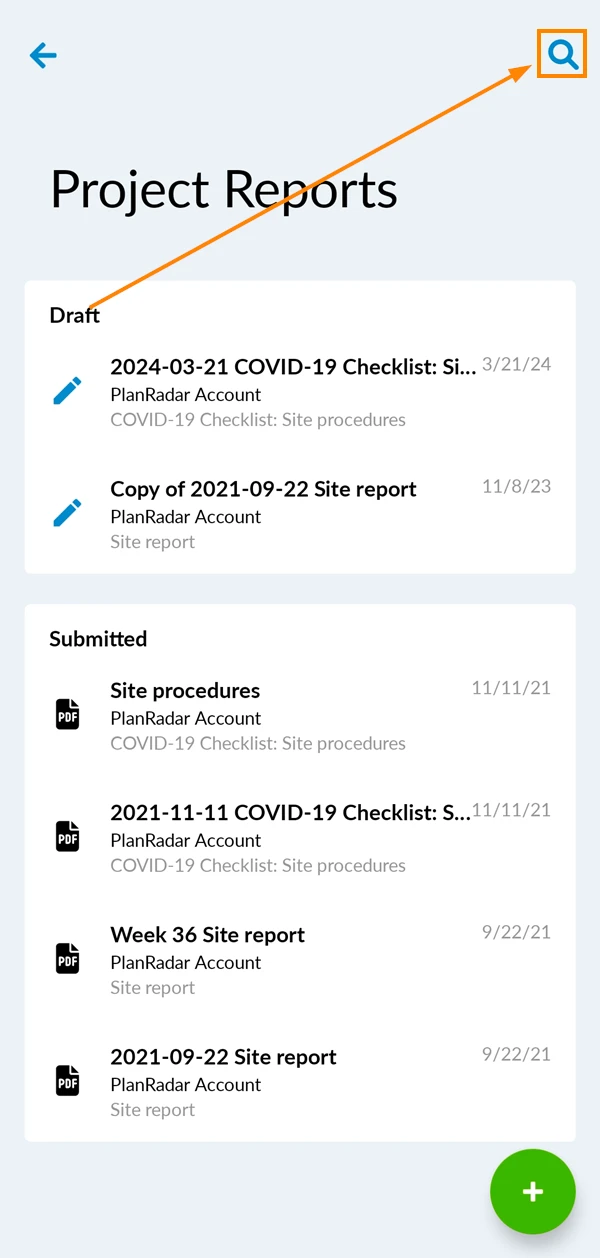
Search results will also consider any active filters applied.
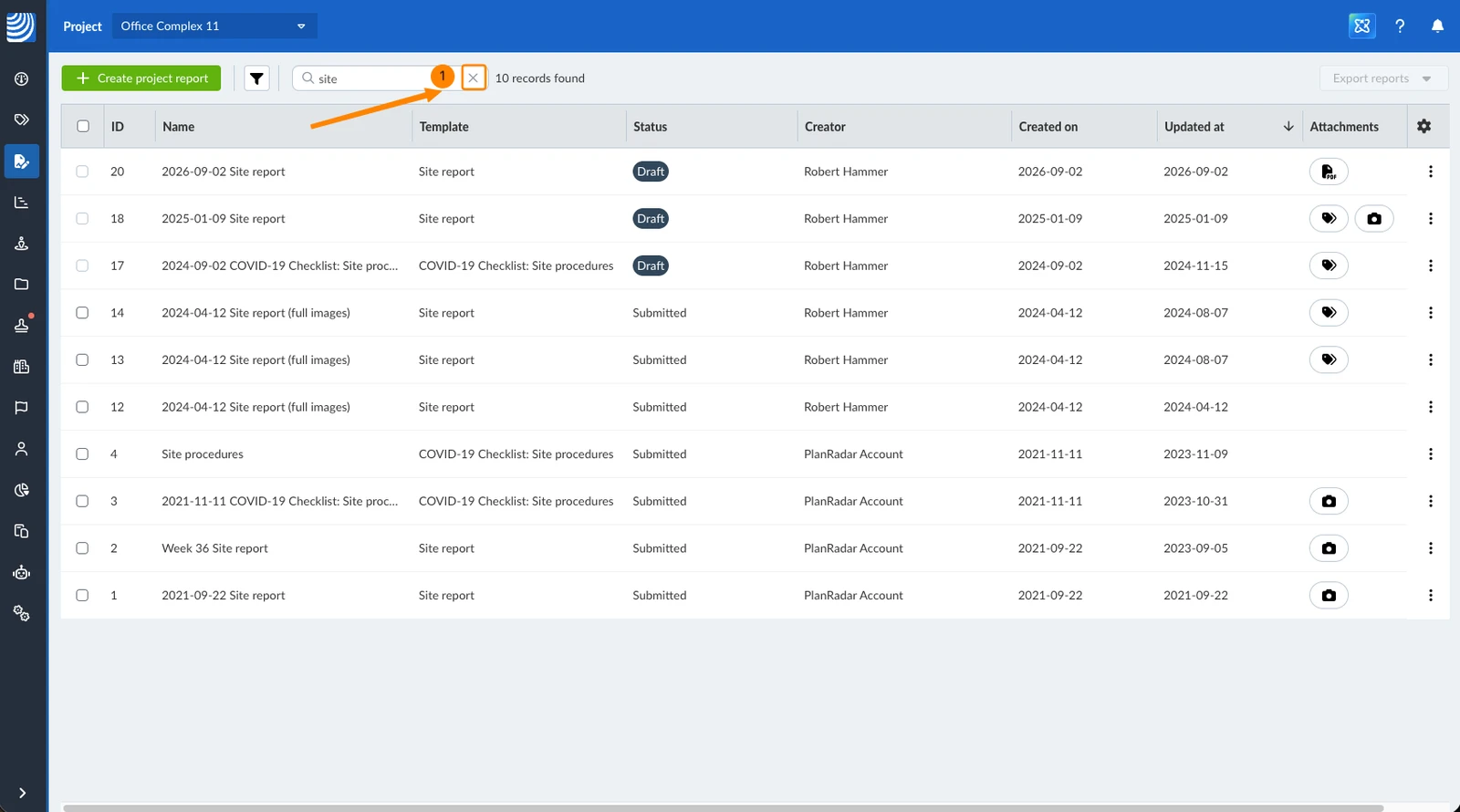
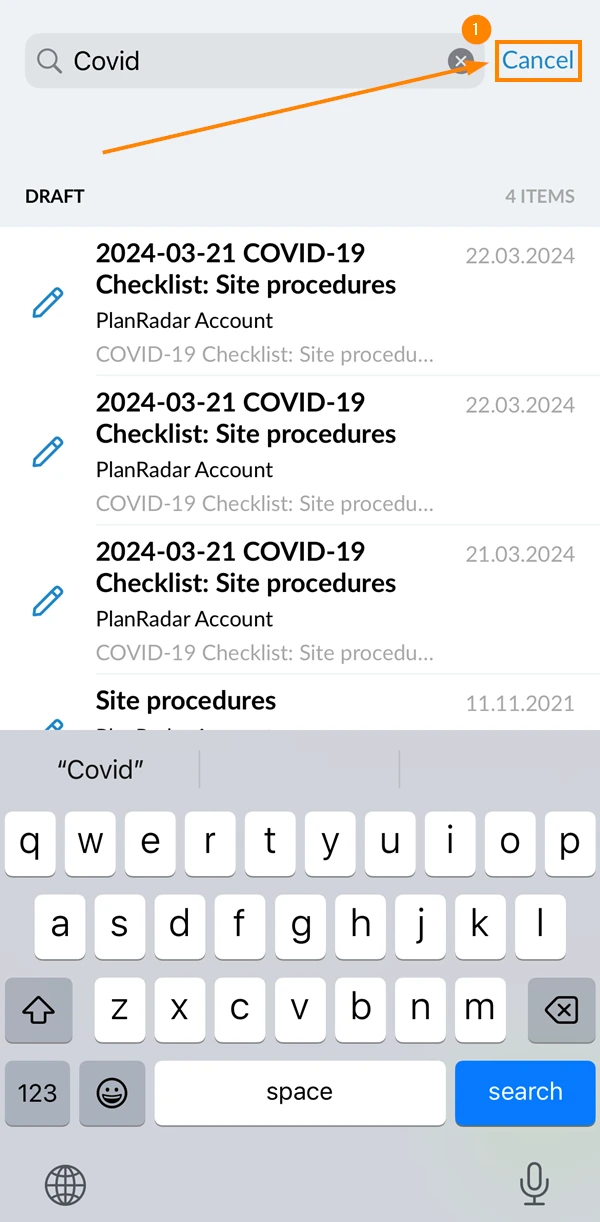
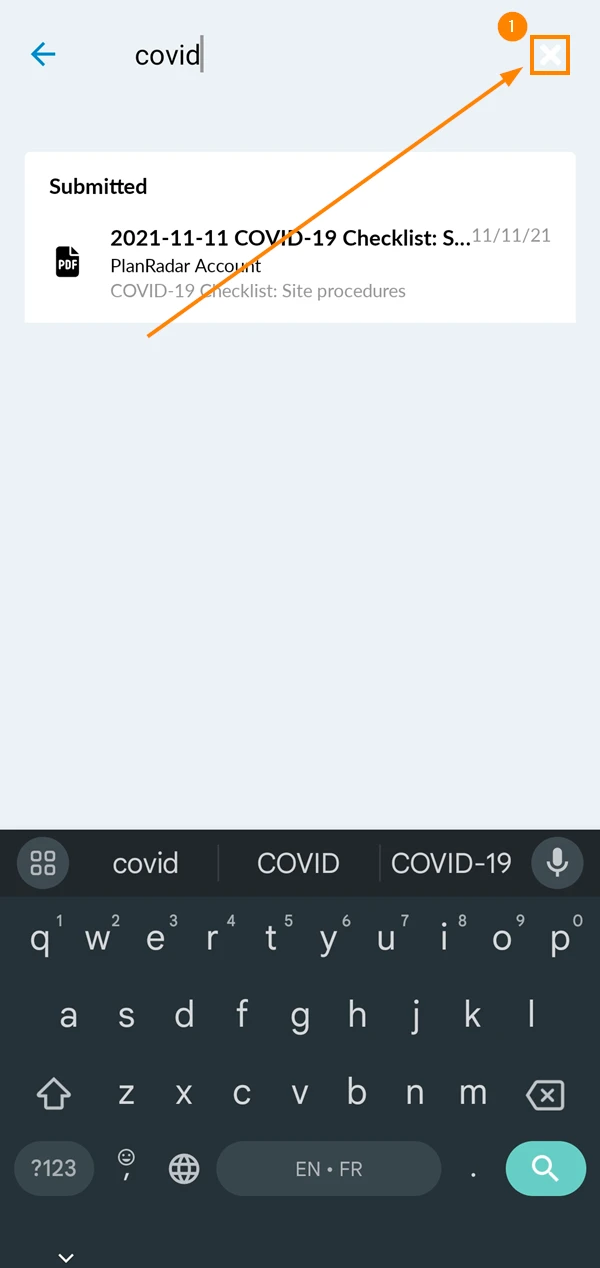
To clear the search:
- Click on the X icon
- Tap Cancel
- Tap the X icon
Related Articles
Updated September 2, 2026