

 Deutsch
 Español
 Français
 Hrvatski
 Italiano
 Polski
 Português (BR)

Edit Multiple Tickets at once in the Webapp
Overview
Use bulk edit to apply the same changes to multiple tickets. You can edit ticket fields or give all selected tickets the same recurring reminder.
Access & Permissions
Available only in Webapp.
Edit Multiple Tickets
To edit multiple tickets at once:
-
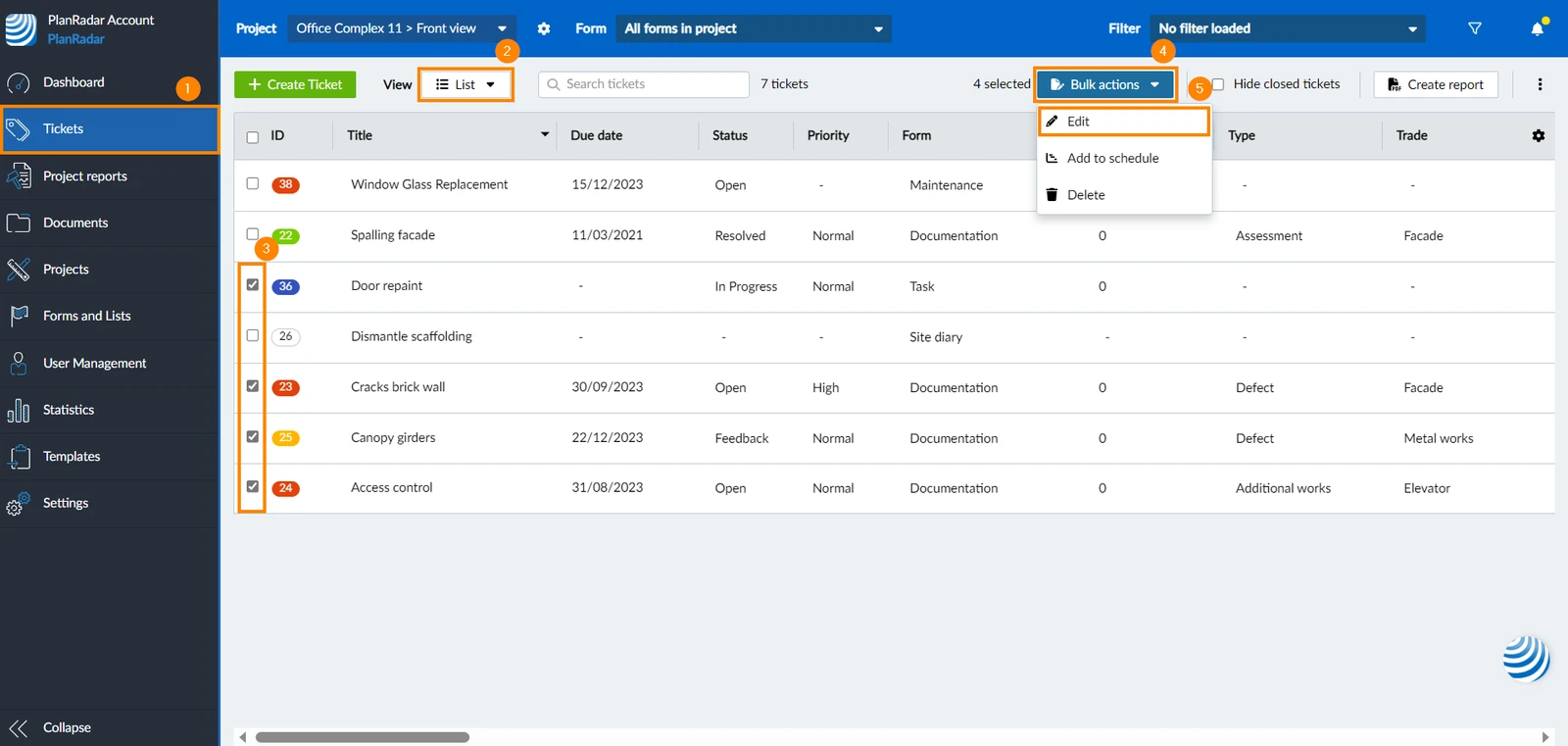
Click Tickets
-
From the view drop-down menu, click List
-
Select the checkboxes of the tickets you want to edit
-
Click Bulk actions
-
Click Edit ticket fields
-
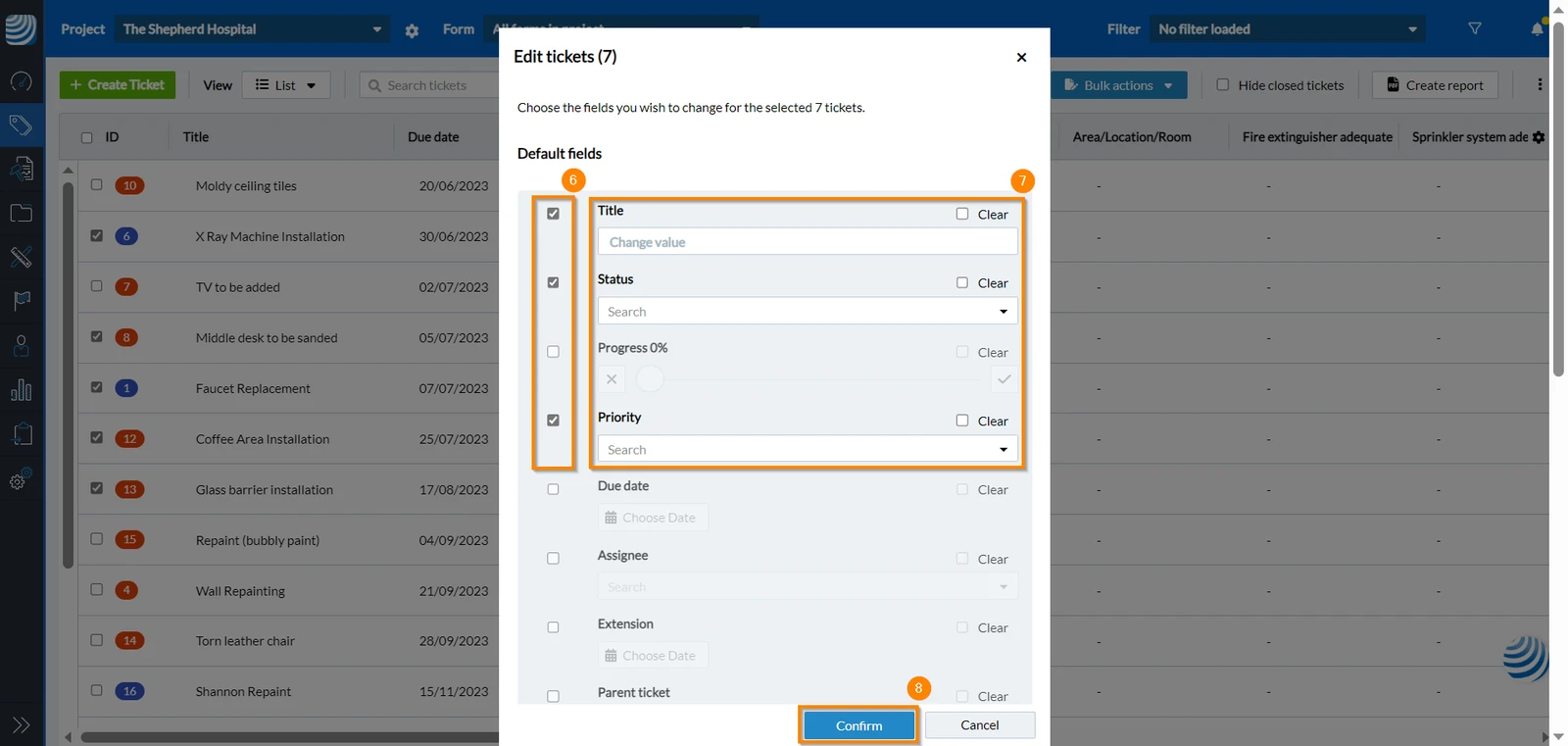
Select the check box of the field/s you would like to edit
-
Make your edits
-
Click Confirm
Clear Certain Fields of Multiple Tickets
To clear the same fields of multiple tickets:
- Click Tickets
- From the view drop-down menu, click List
- Select the checkboxes of the tickets in which you want to clear some fields
- Click Bulk actions
- Click Edit ticket fields
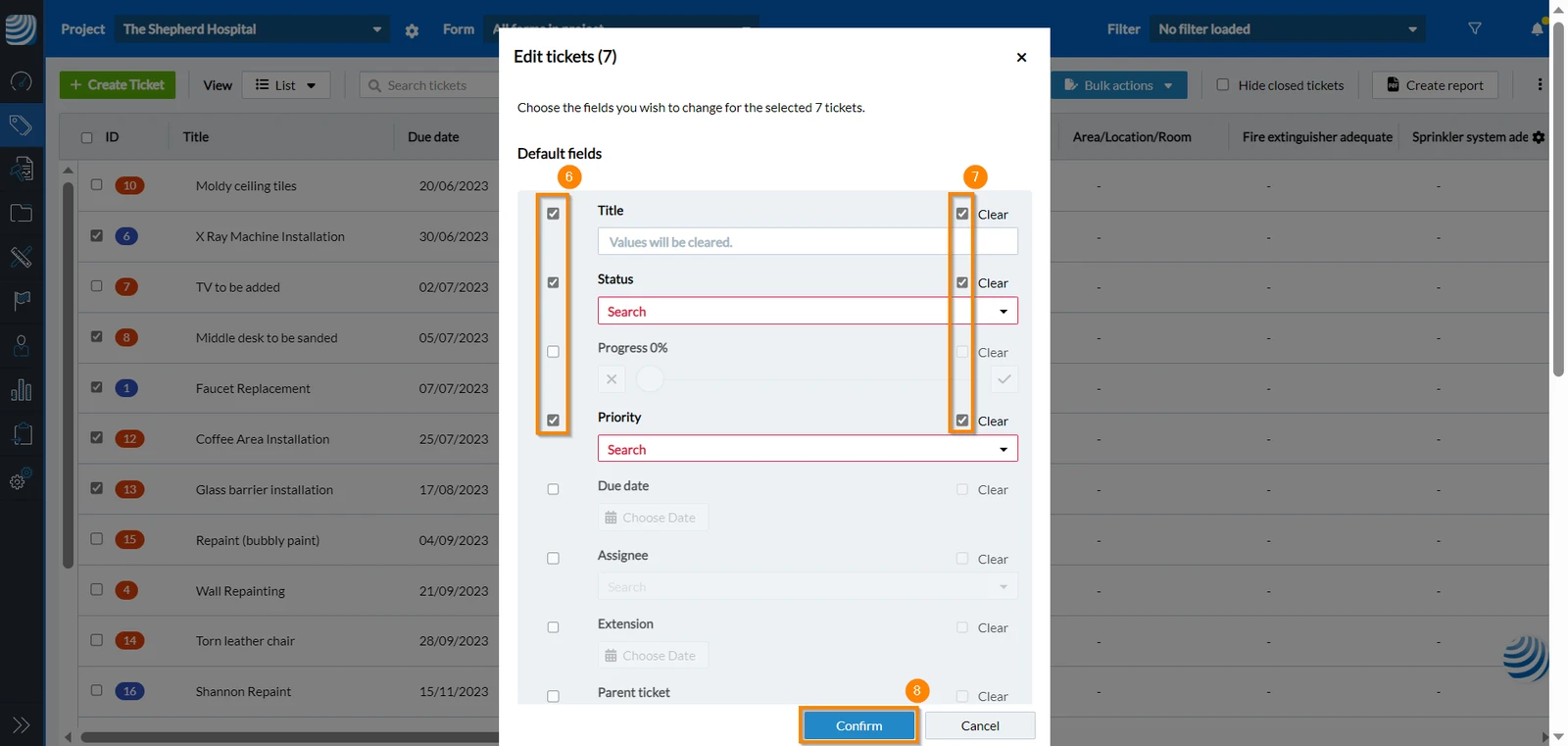
- Select the checkboxes of the field/s you want to clear
- Select the Clear checkbox
- Click Confirm
Set a Recurring Reminder for Multiple Tickets
Give multiple tickets the same repetition at once, instead of setting it in each ticket. Read more about repetitions in Set a Repetition Date for Tickets.
To set a recurring reminder for multiple tickets:
- Click Tickets
- From the view drop-down menu, click List
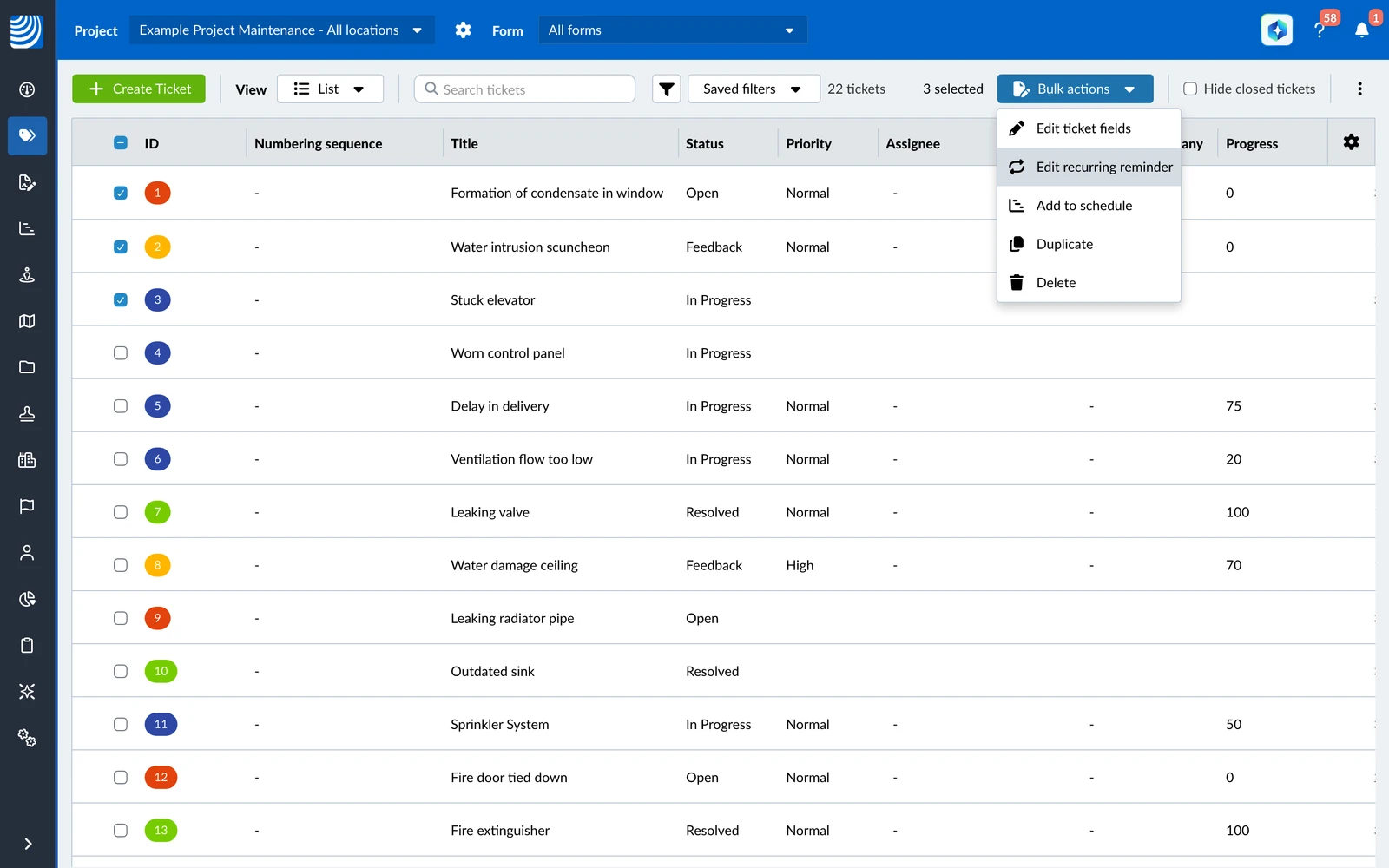
- Select the checkboxes of the tickets
- Click Bulk actions
- Click Edit recurring reminder
- Select the Enable repetition checkbox
- Configure the repetition timing as for a single ticket
- Click Save
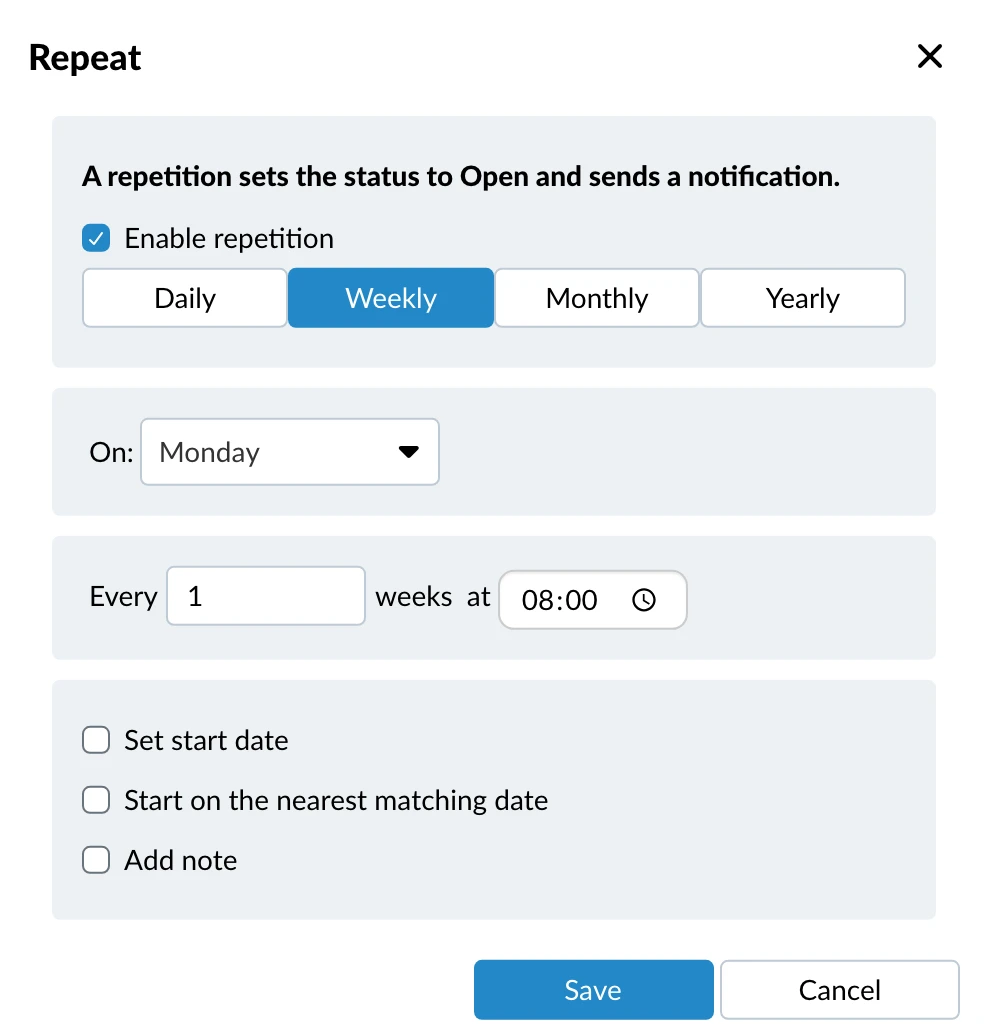
All selected tickets get the same repetition:
- If a ticket already has a repetition, it is replaced by the new one and turned on, even if it was turned off.
- Tickets whose form does not have the Recurring activity option turned on are skipped. Read more in Edit Form Settings.
- Locked tickets and tickets you are not allowed to edit are skipped.
Skipped tickets stay unchanged and are not reported as failed.
Related Articles
Updated May 19, 2026