

 Deutsch
 Español
 Français
 Hrvatski
 Italiano
 Polski
 Português (BR)

Calculate Values with Formula Fields
Overview
A formula field calculates its value automatically from the Number and Decimal fields on the same form — for example an area from a length and a width, or a cost from a quantity and a unit price. Nobody types into a formula field: the result updates as soon as its inputs change, so it is always up to date and never miscalculated.
This article explains how to add a formula field to a form, build its equation, format the result, and where the result appears.
Access & Permissions
Add a Formula Field
To add a formula field to a form:
- Click Forms and Lists, then Forms, and open the form.
- Under Create a field, click Formula — or drag it to the position you want in the form.
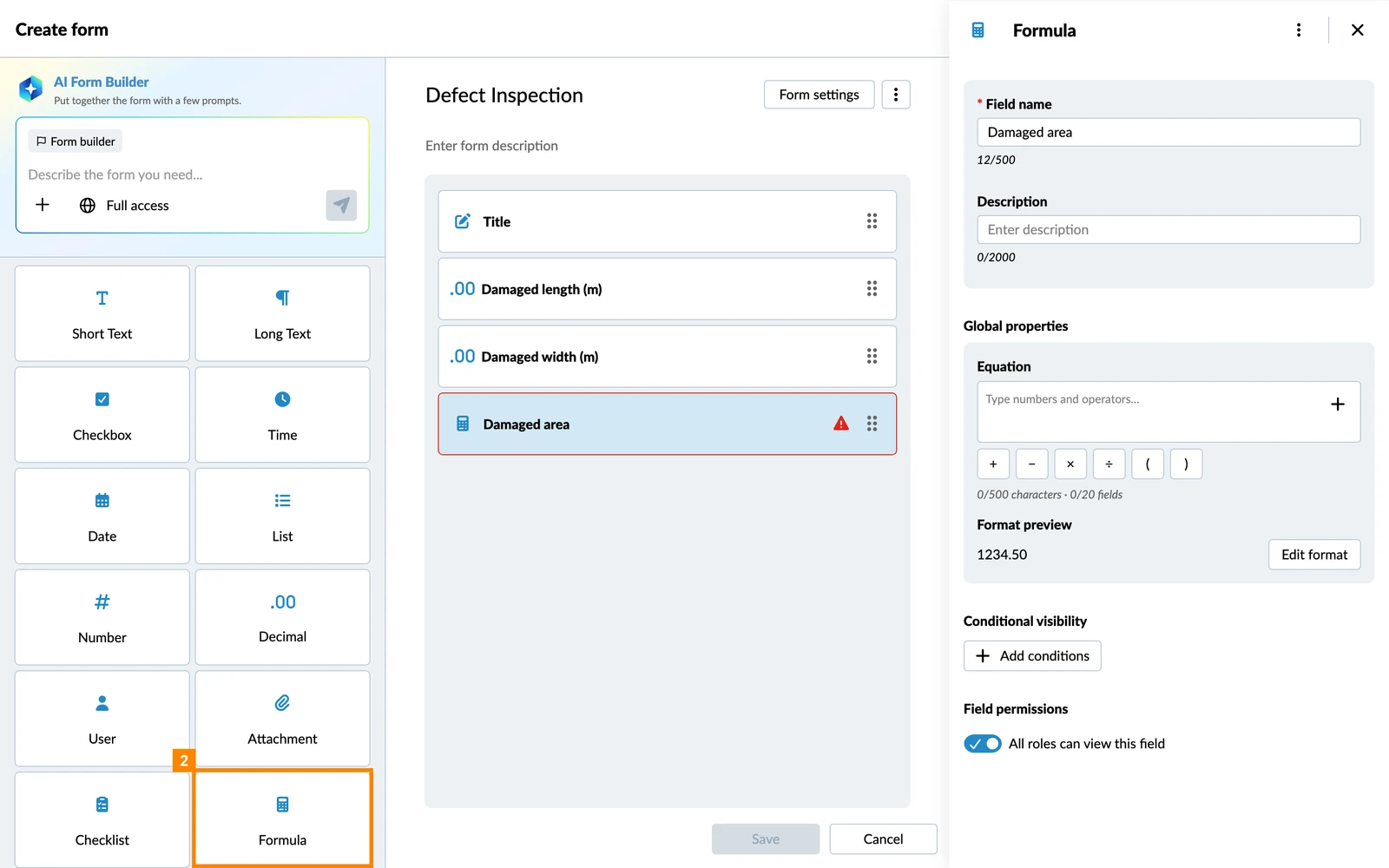
- Enter a field name, for example Damaged area.
The new field opens with an empty equation. Build the equation next, as described below. The form cannot be saved while an equation is incomplete or invalid.
Build the Equation
The equation defines how the value is calculated. It can contain:
- Number and Decimal fields of the same form
- fixed numbers, such as
12or48.5— always with a dot as the decimal separator - the operators + − × ÷ and parentheses ( )
Multiplication and division are calculated before addition and subtraction; use parentheses to change the order. Negative values are allowed, for example −(Budget − Costs).
To build the equation:
- Click + (Insert field) and select a Number or Decimal field, for example Damaged length (m). The field is added to the equation as a chip.
- Click an operator button, for example × — or type it on your keyboard.
- Click + again and select the next field, for example Damaged width (m).
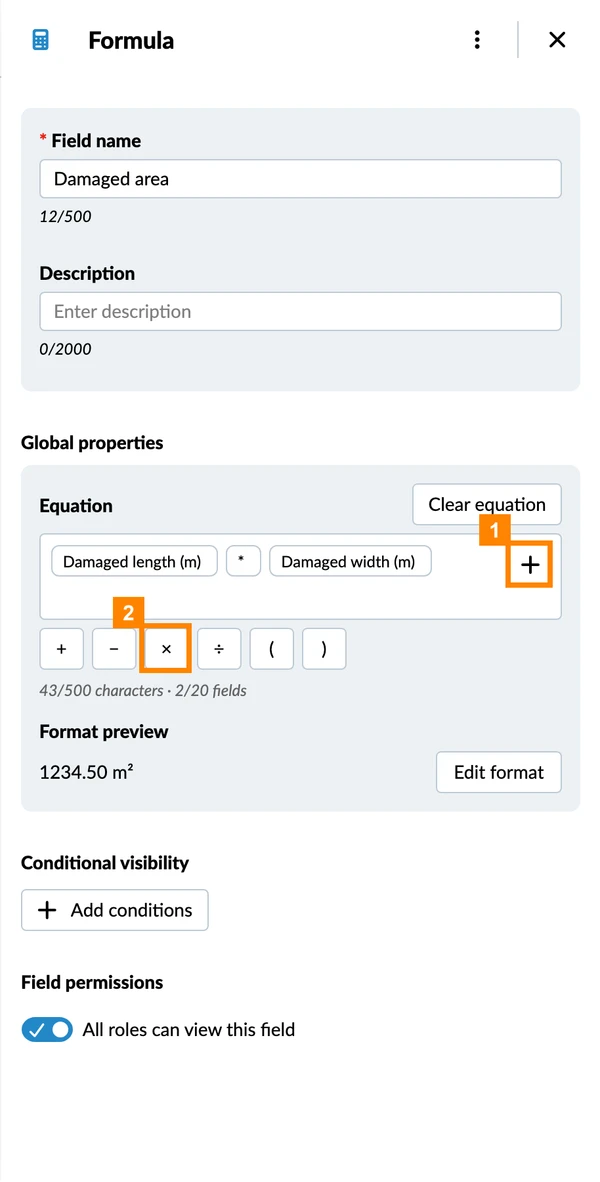
- Type fixed numbers directly into the Equation box where you need them.
To change the equation:
- Drag a chip to move it to another position.
- Click the x on a chip to remove it.
- Click Clear equation to start over.
The counters below the box show how much of the limit you have used: an equation can have up to 500 characters and up to 20 field references. Each field reference counts as 20 characters, however long the field's name is.
Format the Result
The number format defines how the result is shown: the number of decimal places and an optional unit. Format preview in the field properties shows how a value will look, using the fixed example 1234.50 — not the actual result of your equation.
To change the number format:
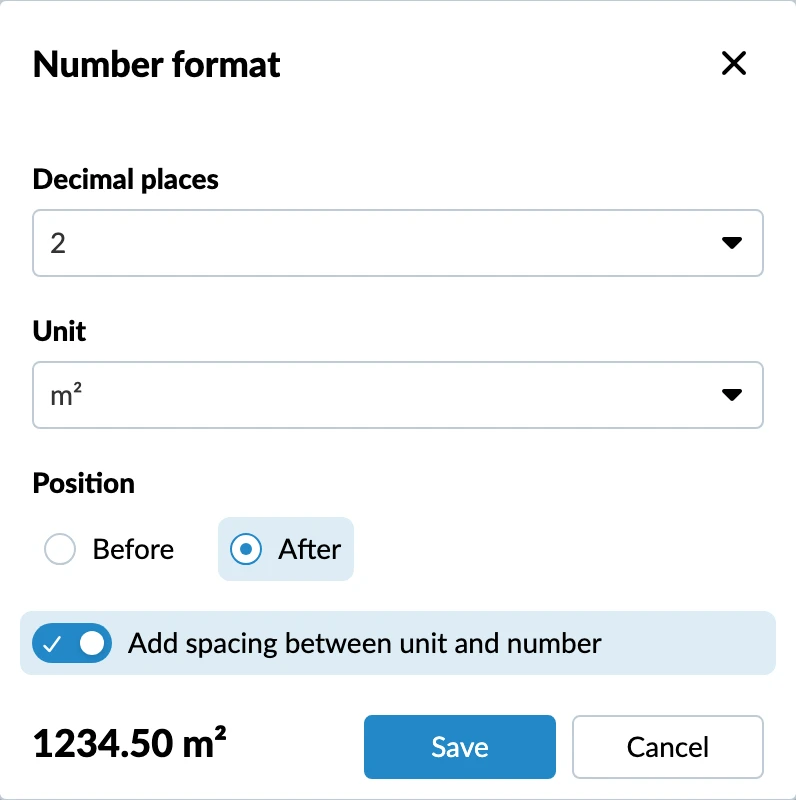
- Click Edit format.
- Select the number of Decimal places (0 to 4). The default is 2.
- Select a Unit — for example m², € or pcs — or None. For a unit that is not in the list, click Custom and type it (up to 10 characters), for example €/m².
- Under Position, select whether the unit appears Before or After the value.
- Turn Add spacing between unit and number on or off. It is on by default.
- Click Save.
Results are rounded to the selected decimal places (a 5 is rounded away from zero, so 1.005 becomes 1.01). They are shown without thousands separators, and the decimal separator is always a dot.
Choose Who Can See the Field
As for other fields, you choose which roles can see a formula field under field permissions. There is no edit permission: no role can change a calculated value.
Test the Formula
Use the form preview to check your equation before you save the form. When you fill in the input fields in the preview, the formula field calculates its value the same way as on a real ticket. Switch the role in the preview to check which roles can see the field.
Where the Result Appears
PlanRadar calculates the result each time it is shown, from the current values of the input fields. If you change an equation or its number format, all existing tickets show the new result straight away.
- Ticket details: the formula field is read-only and shows a calculator icon. The value updates live while the input fields are filled in, before the ticket is saved. Read more in Fill in the Form of a Ticket.
- Ticket list (Web App): the formula field can be shown as a column. The column displays values only — it cannot be sorted or edited.
- PDF reports: the value is shown with its unit, as on the ticket.
- Excel export: the value is a number cell, so you can add it up or use it in a pivot table. The unit is shown in the column header, for example Damaged area (m²).
- Mobile apps: the value is shown read-only in the iOS app version 16.7.0 or later and the Android app version 14.6.0 or later. Older app versions do not show formula fields; the rest of the form works as usual.
The field shows – instead of a value when:
- one of the input fields is empty,
- the equation divides by zero, or
- the user is not allowed to see one of the input fields.
Delete Fields Used in a Formula
A Number or Decimal field that is used in an equation cannot be removed from the form. To remove it, first delete it from the equation of every formula field that uses it, then remove the field.
When you duplicate a form, the formula fields of the copy calculate from the copied fields.
Updated November 23, 2026