

 Deutsch
 Español
 Français
 Hrvatski
 Italiano
 Polski
 Português (BR)
Create & Manage Global Attributes for Plans
Overview
Attributes add structured information to your plans — for example the discipline, the floor, the plan type or the revision status. With hundreds of plans in a project, they let your team sort, filter and find the right ones instead of relying on folder names alone.
You define attributes once for the whole account, in the Global attributes library. Each project then adds the attributes it needs. This article covers the library. To use attributes in a project, see Manage Attributes of a Project. To fill in values on plans, see Fill In & Edit Plan Attributes in the Webapp.
Access & Permissions
How to Access Global Attributes
- Click Settings.
- Click Account.
- Click Global attributes.
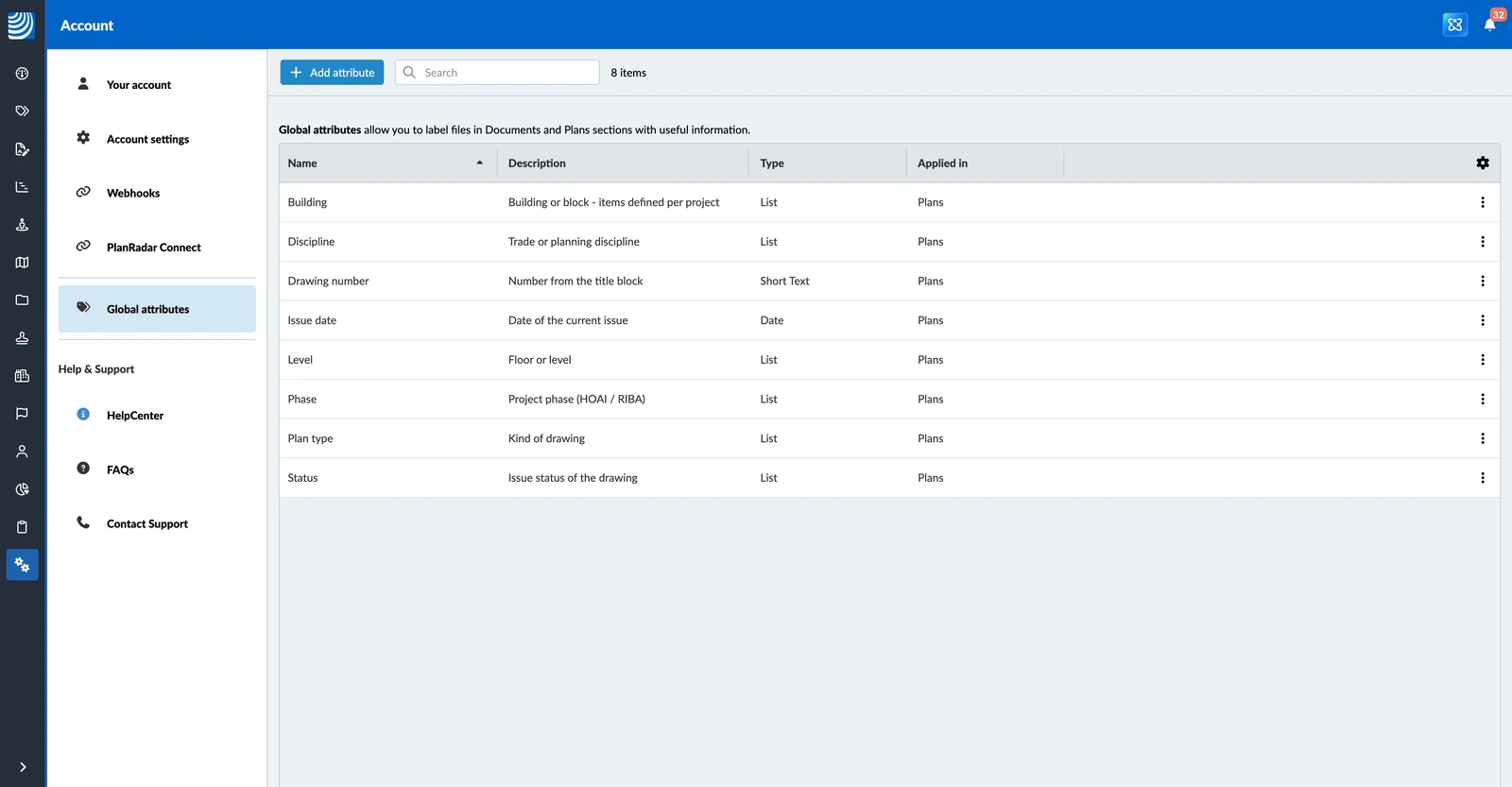
The library lists every attribute of your account with its Name, Description, Type and where it is Applied in.
Create an Attribute
To create an attribute:
- Click Add attribute.
- Enter a Name.
- Optional: Enter a Description. It is shown next to the attribute on every plan, so use it to explain what to fill in.
- Select a Type.
- Optional: Enter a Default value. For a List attribute, you mark the default item in the list instead, as described in Set Up the List of a List Attribute below.
- Under Applied in, make sure Plans is selected.
- Click Create.
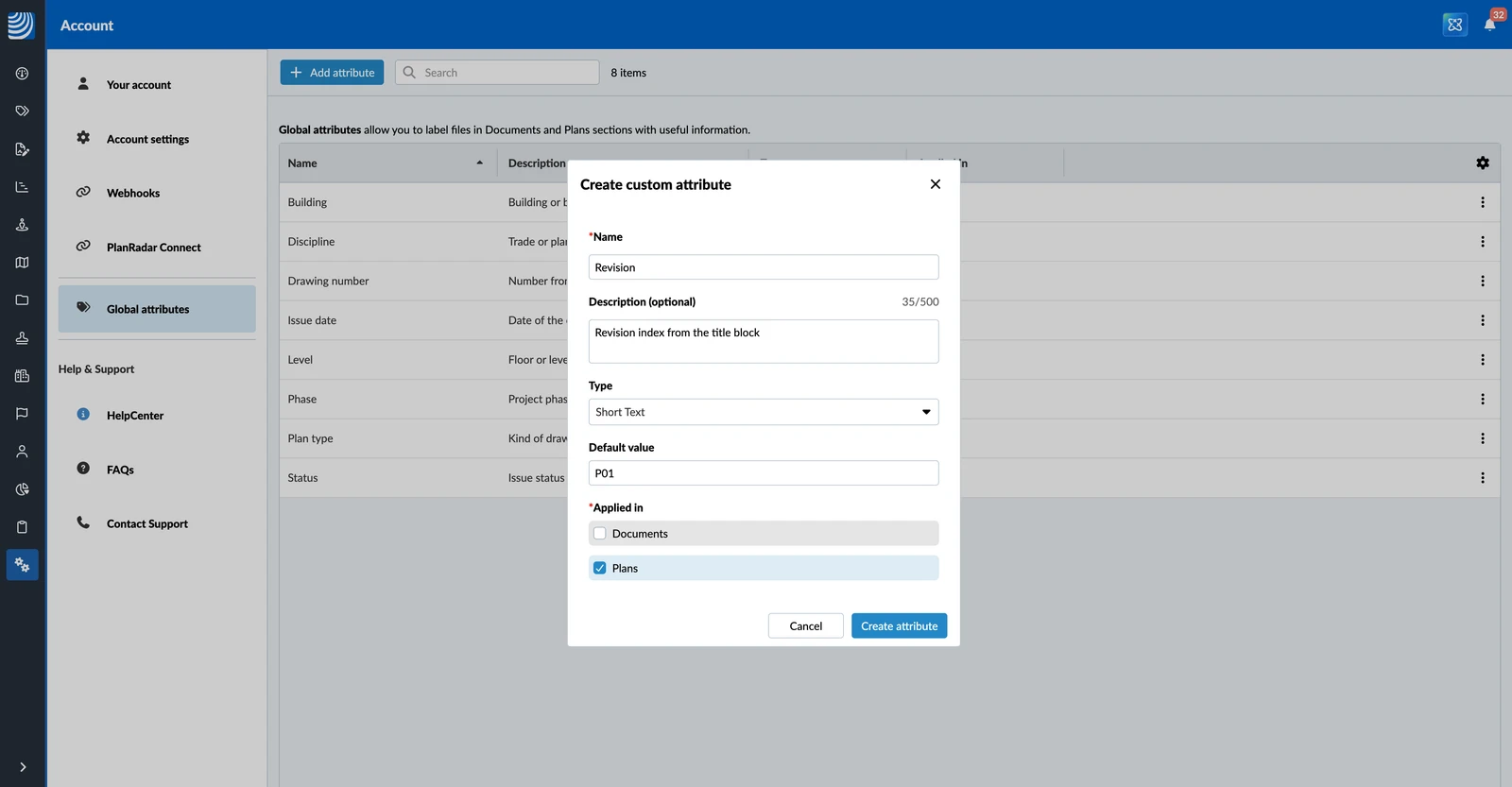
The name can be up to 100 characters and must be unique in your account. The description can be up to 500 characters.
The default value is filled in for every new plan that is uploaded. Users can change or clear it. Plans that already exist keep their values.
Attribute Types
The following types are available:
- Short Text — up to 255 characters
- Long Text — up to 10,000 characters
- Checkbox
- Time
- Date
- List — one item from a list you define
- Number — a whole number
- Decimal — a number with decimals
A List attribute holds one list item per plan. To let users pick several items, select Allow multi-selection.
Set Up the List of a List Attribute
A List attribute can have a list for the whole account. Every project uses it, unless the project defines its own list. If you leave the account list empty, each project defines its own items. Read more in Manage Attributes of a Project.
To set up the account list:
- Open the More menu on the attribute, then click Configure list.
- Click Add item.
- Enter the value.
- Optional: Enter a description.
- Repeat steps 2–4 for every item.
- Optional: Select the radio button of the item that new plans should get by default.
- Click Save.
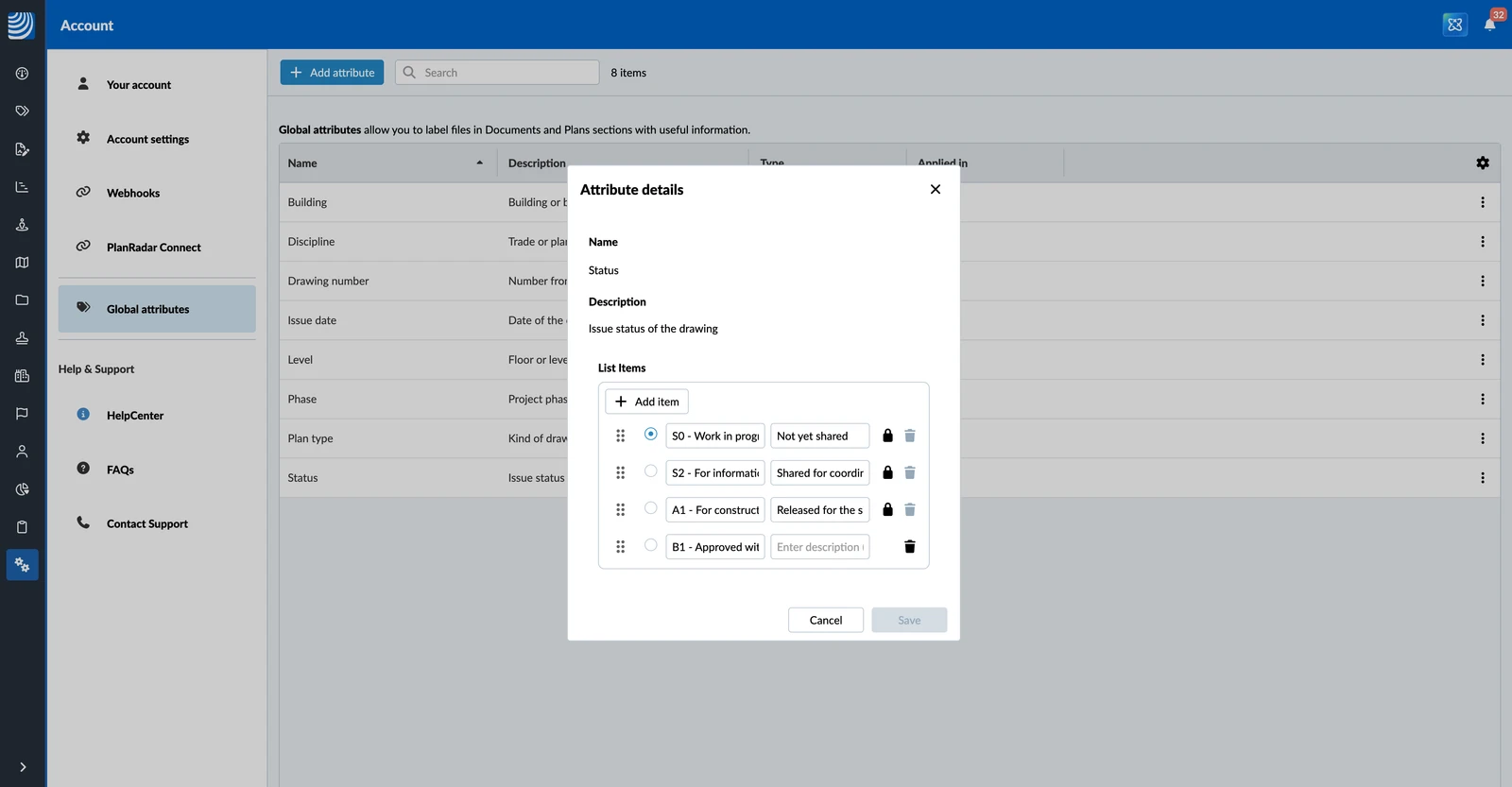
You can also click Configure list items while you create or edit the attribute.
Drag the items into the order you want. Lists and sorting in the plan list follow this order. A list can hold up to 500 items.
You can rename an item at any time — the new name shows on every plan that uses it. You can only remove an item that no plan uses.
Edit an Attribute
To edit an attribute:
- Open the More menu on the attribute, then click Edit.
- Make your changes.
- Click Save changes.
Changes apply to every project that uses the attribute.
Delete an Attribute
To delete an attribute:
- Open the More menu on the attribute, then click Delete.
- Click Delete to confirm.
You can only delete an attribute that no project uses. If projects still use it, the dialog lists them. Remove the attribute from those projects first, as described in Manage Attributes of a Project.
Updated October 21, 2026