

 Deutsch
 Español
 Français
 Hrvatski
 Italiano
 Polski
 Português (BR)
Fill In & Edit Plan Attributes in the Webapp
Overview
Attributes add structured information to your plans — for example the discipline, the floor, the plan type or the revision status. You see them as columns in the plan list and in the plan details, and you can sort and filter the list by them to find the right plans quickly.
Plans and BIM models carry attributes; folders do not. Which attributes a plan has depends on its project. Read more in Manage Attributes of a Project.
Access & Permissions
See the Attributes of a Plan
Each attribute is a column in the plan list, with the attribute name as its header. Click the gear icon above the list to show or hide the columns. An empty value shows as -.
To sort the list by an attribute, click its column header. Text sorts alphabetically, numbers and dates in order, and list items in the order of the list. Plans without a value always come last.
To see all attributes of one plan, including the ones hidden in the list:
- Open the More menu on the plan.
- Click Details.
- Open the Attributes section.
Each attribute shows its value and its description, if it has one.
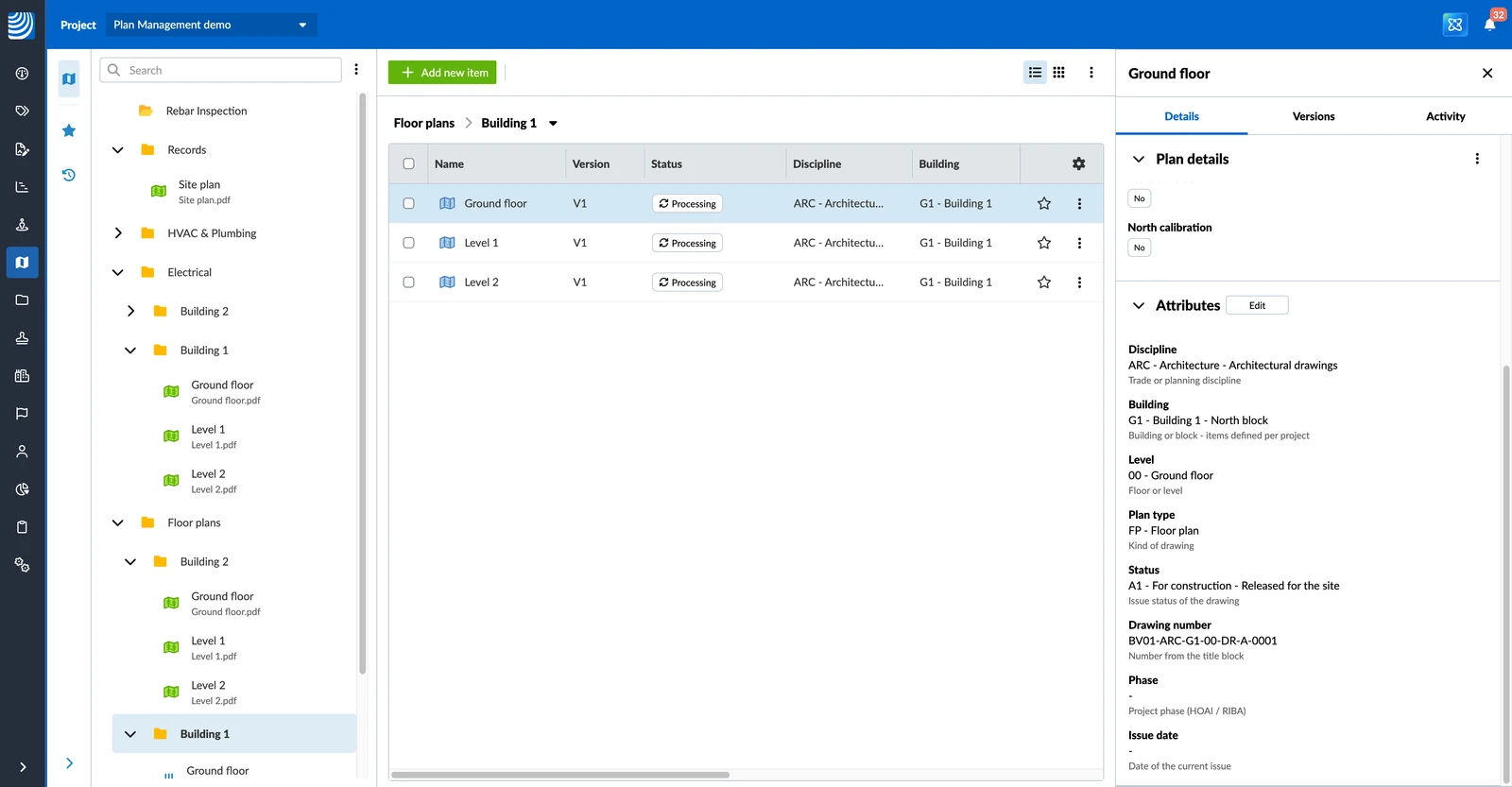
Edit the Attributes of a Plan
To edit the attributes of a plan:
- Open the plan details as described above.
- Click Edit in the Attributes section.
- Enter or change the values.
- Click Confirm.
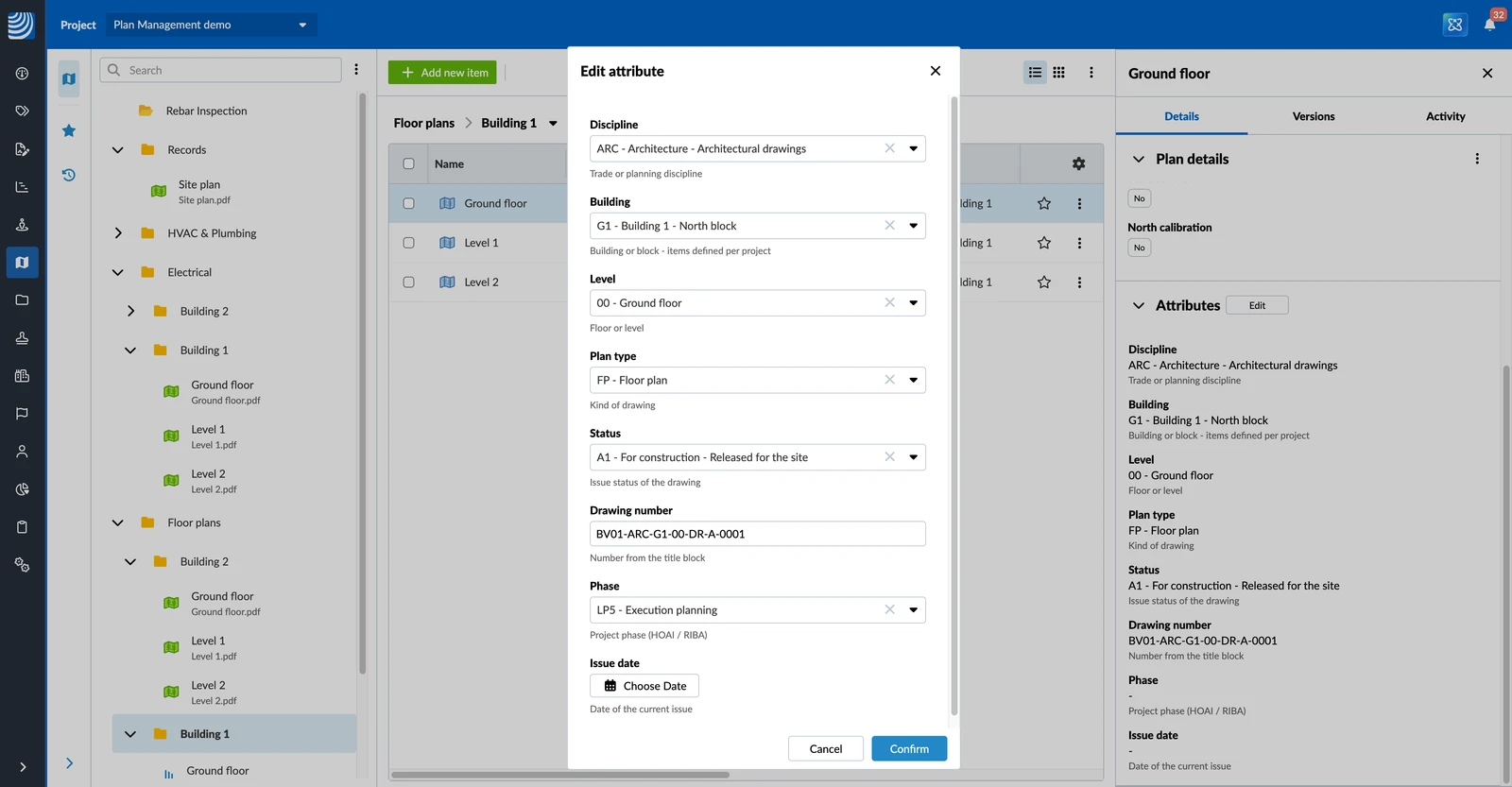
Every change is recorded in the plan's activity log. Read more in View the Activity Log of Plans & Folders in the Webapp.
Filter Plans by Attributes
Attributes are filters in the plan filter bar, next to the standard filters. Read more in Manage Plans & Folders in the Webapp.
To show only the plans with certain values:
- Select the folder you want to filter.
- Click the filter icon.
- Click Add and select the attribute.
- Enter the value you are looking for, or select one or more list items.
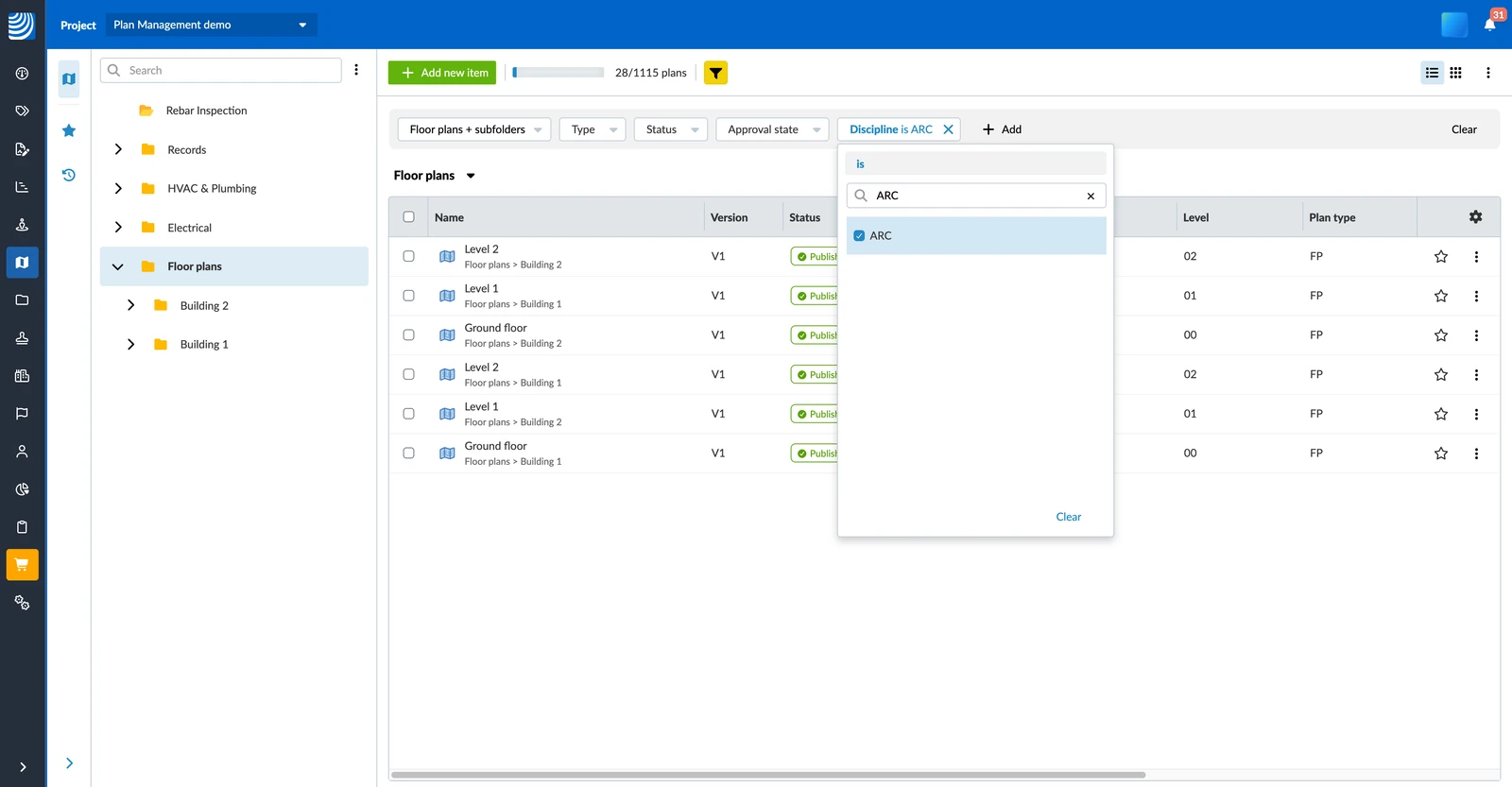
Depending on the type, you can filter for text that a value contains or equals, for numbers and dates in a range, or for one or more list items. You can also show only the plans where an attribute is empty or filled in. If you filter by several attributes, only the plans that match all of them are shown.
The filter applies to the plans of the selected folder. You can filter by an attribute even when its column is hidden.
Updated October 21, 2026