

 Deutsch
 Español
 Français
 Hrvatski
 Italiano
 Polski
 Português (BR)
Add GPS Position to Tickets in the Mobile App
Overview
Add GPS position when creating or editing tickets to track geographic locations.
A ticket's GPS position can be viewed in the webapp and in the mobile app, and all tickets with a GPS position can be seen together on a map. Read more in Tickets Map View.
Access & Permissions
Allow Adding GPS Position
To be able to add GPS position to a ticket:
-
Allow adding GPS positions in the PlanRadar app.
-
Make sure that the ticket form has the option to store Geographical Location activated.
Add GPS Position to Tickets
Continue here after you Create a Ticket or View & Edit a Ticket.
To add GPS position to a ticket:
- Tap Add GPS position
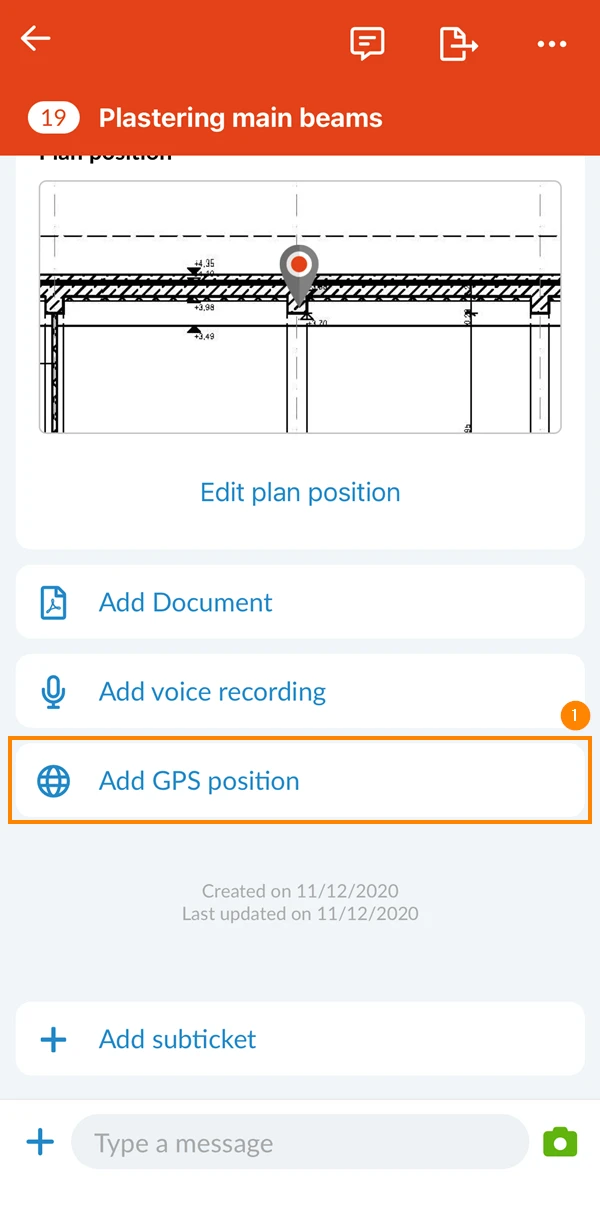
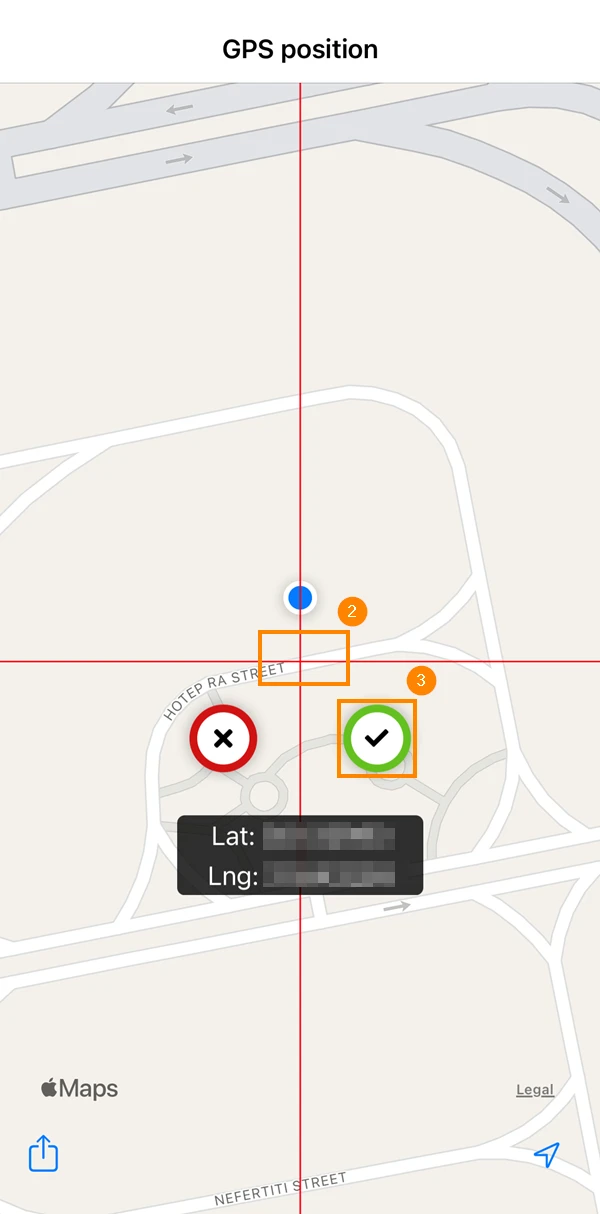
- Optional: To correct the position, pull with one finger in any direction to move the map.
- Tap ✔ to add the location
View the GPS Position of a Ticket
A ticket with a GPS position shows it on a card with a small map, right after the plan position card.
The Geolocation card shows the coordinates, e.g. Lat/Lng: 48.20849, 16.37208. You can select the coordinates and copy them, for example into another map app. The card is shown on saved tickets, not while you create a ticket.
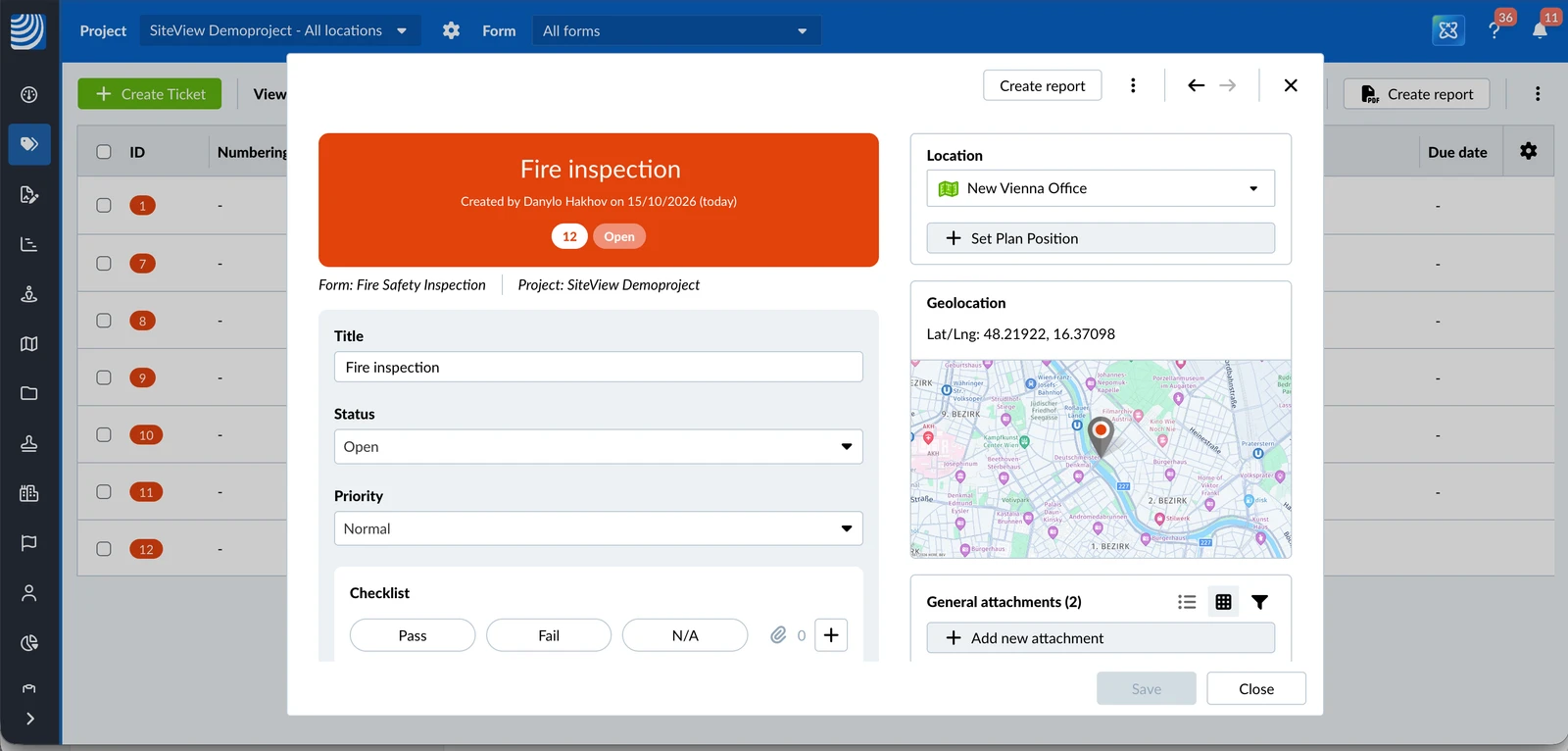
To view the position on a full-screen map:
- Click the Geolocation card
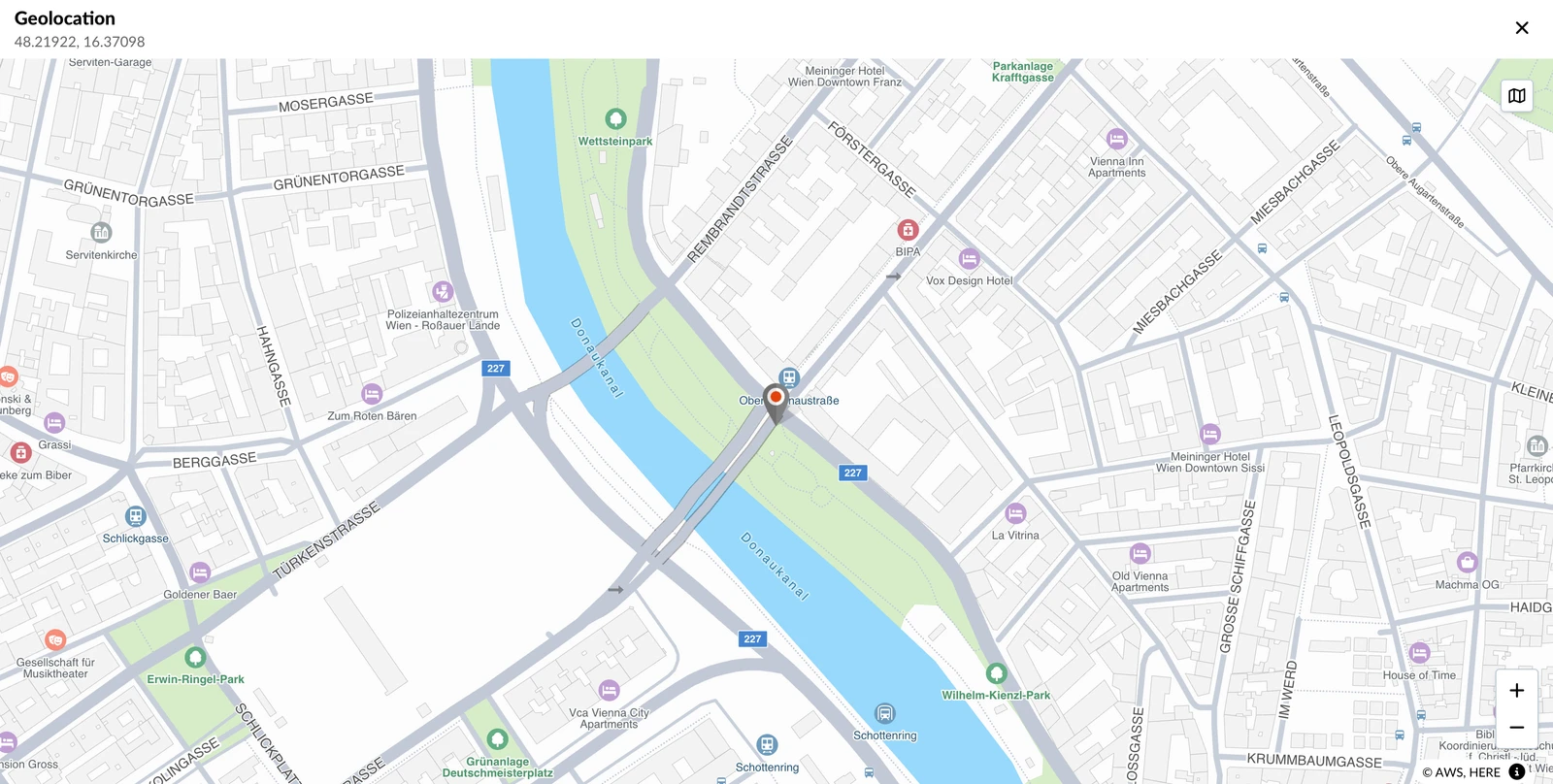
- Close the map when you are done
The GPS position card shows the coordinates, e.g. 48.2082° N, 16.3738° E.
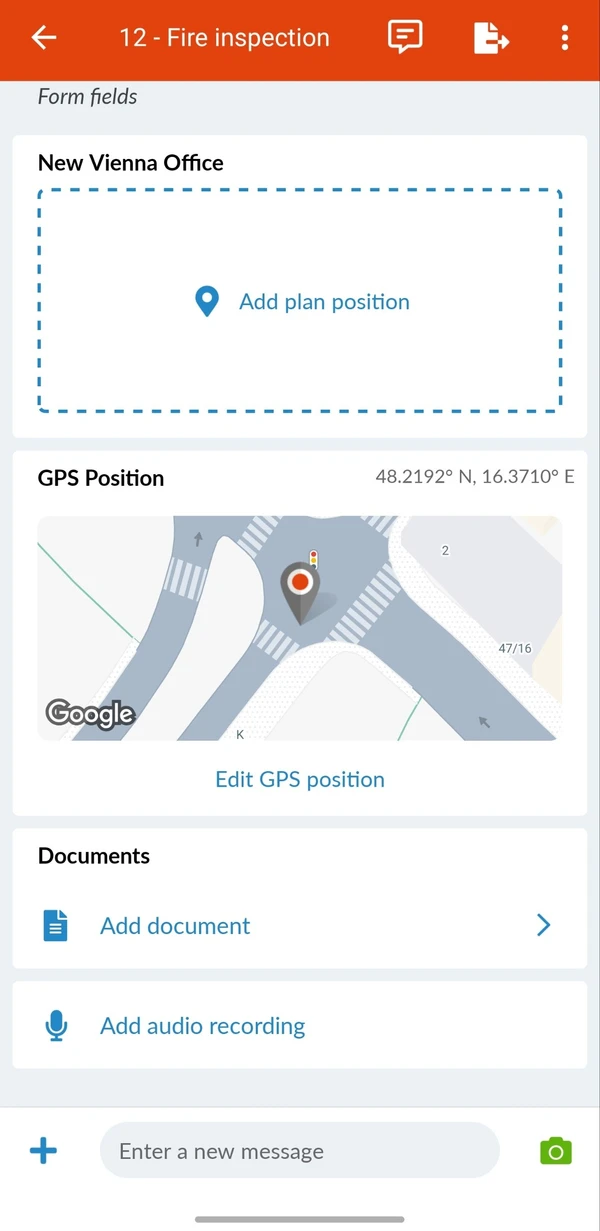
To view the position on a full-screen map:
- Tap the GPS position card
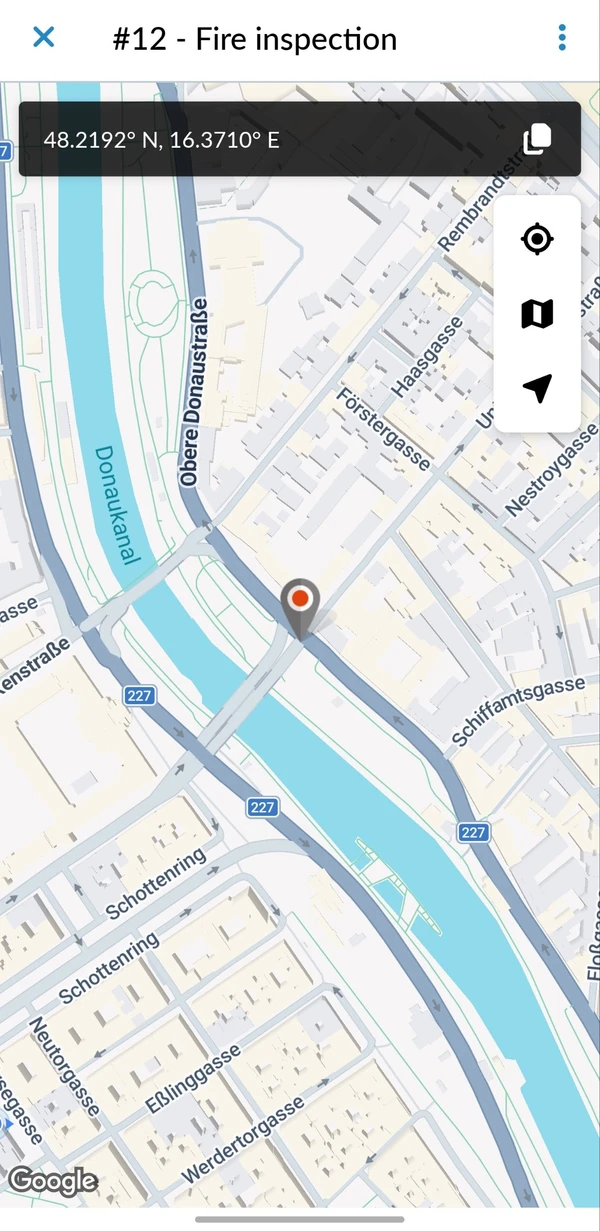
- Optional: Tap the coordinates to copy them
- Tap Done (iOS) or X (Android) to close the map
The full-screen map has the same map styles as the Tickets Map View.
Edit or Remove the GPS Position
To change the GPS position of a ticket:
- Tap Edit GPS position on the GPS position card
- Move the map until the position is right
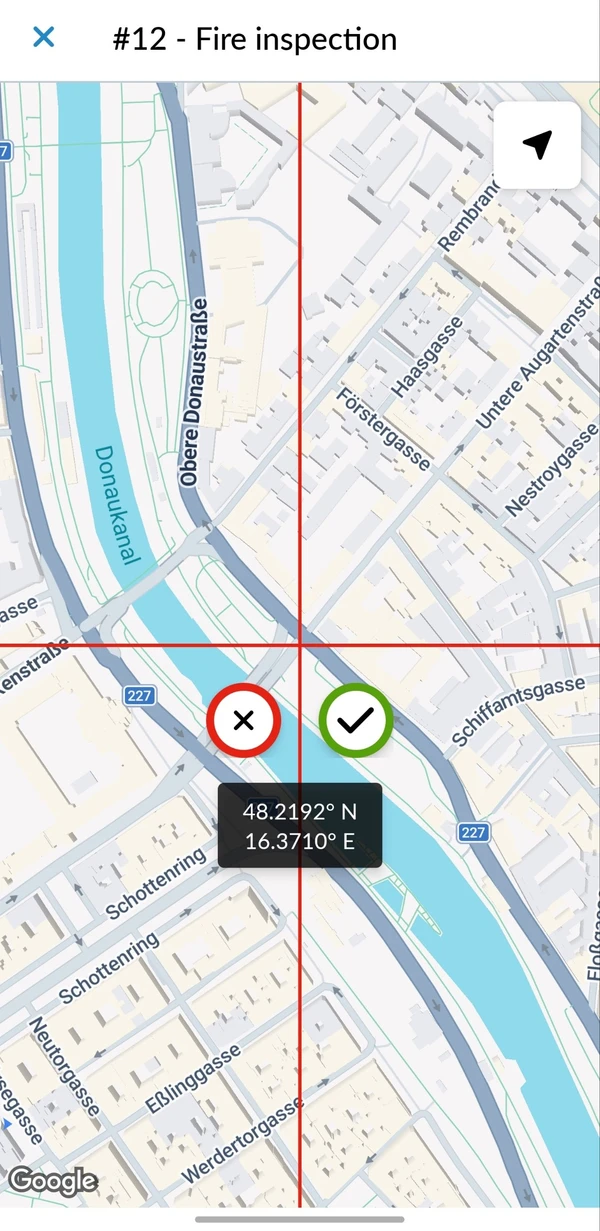
- Confirm the new position
To remove the GPS position of a ticket:
- Tap the GPS position card
- Open the More menu
- Tap Remove position
Updated October 29, 2025