

 Deutsch
 Español
 Français
 Hrvatski
 Italiano
 Polski
 Português (BR)

Schedule Your AI Agents
Overview
A scheduled AI agent runs at times you set, for example every weekday at 8:00 am, instead of waiting for something to happen in the project. On every run it works through the tickets its instructions describe, for example overdue tickets, and adds a comment or creates a ticket where needed.
A scheduled agent has exactly one schedule and no event triggers. Everything else works the same as for any other agent: instructions, project, actions, test run and activation.
These are the actions a scheduled agent can be allowed to take:
- Create ticket
- Add comment (in a ticket)
Send email is not yet available on scheduled agents. It comes in a later update.
Access & Permissions
Add a Schedule
An agent runs either on events or on a schedule, not both. Once an agent has a schedule, Add trigger is disabled. An agent that has event triggers cannot get a schedule until you remove them.
To add a schedule:
- Open the agent and click Edit agent, or click Create new agent
- Under Triggers, click Add, or Edit if the agent already has triggers
- Click Add trigger, then choose Schedule
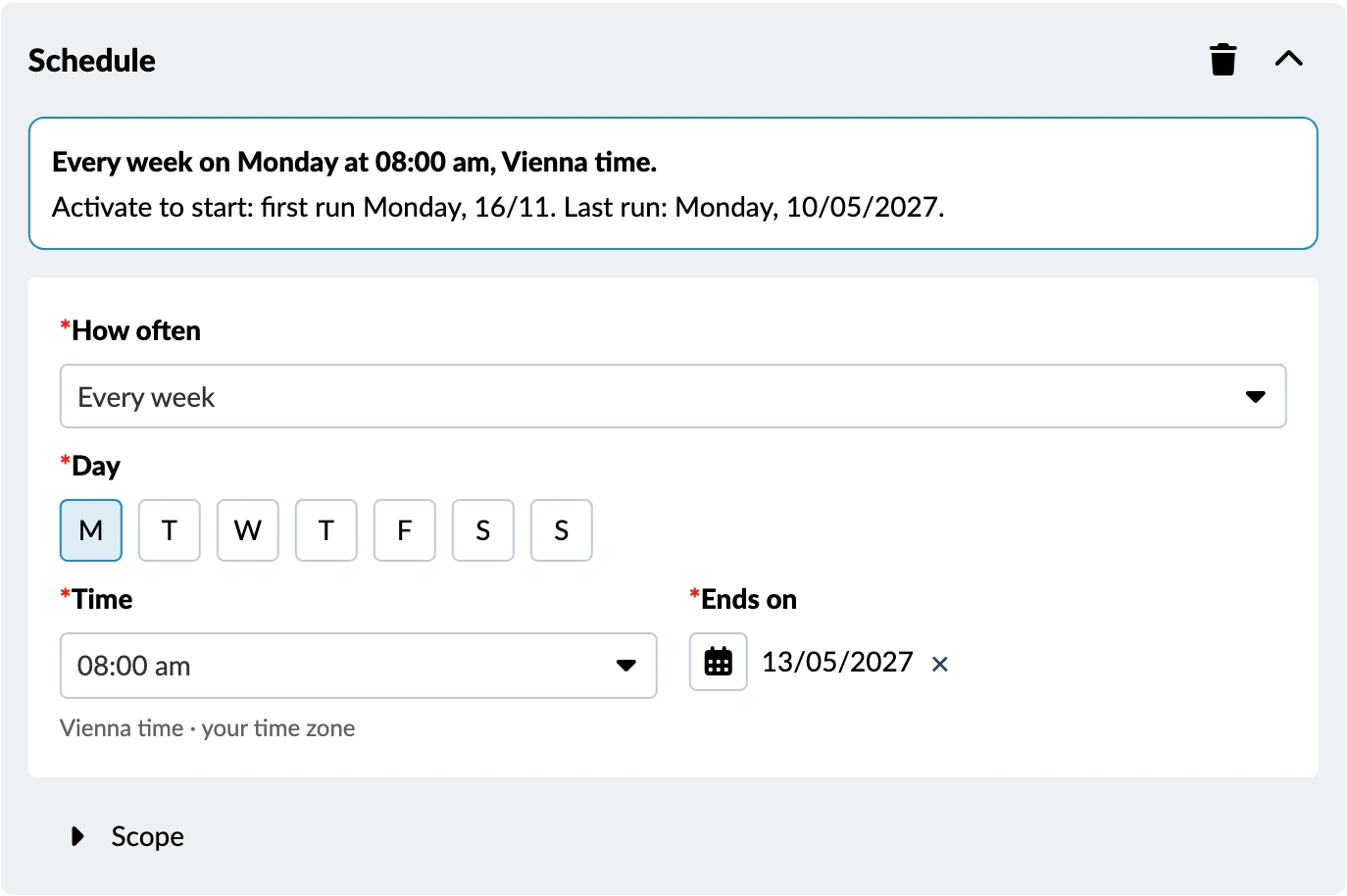
- Under How often, choose how often the agent runs
- Under Time, choose the time of the run
- Under Ends on, check the end date and change it if you want
- Click Save
- For an existing agent, click Save changes to apply the schedule
How Often
These are the How often options:
- Every day
- Every weekday
- Every week: choose one or more weekdays.
- Every 2 weeks: choose one or more weekdays.
- Every month: choose a Day of the month from 1 to 31, or Last day of the month. If a month is shorter than the day you chose, the agent runs on the last day of that month.
Time
You can set the time in steps of 15 minutes. The time is in the time zone of the person who owns the agent, and the field shows which one, for example Vienna time · your time zone.
End Date
Every schedule needs an end date. It can be at most 12 months ahead, and it is set to 12 months ahead by default.
On the end date the agent pauses, and its owner gets a notification. The agents list shows Ended under Next run. To keep the agent running, set a new end date, click Save, then click Save changes. This activates the agent again. Only the owner of the agent can do this.
Check the Schedule
Below the schedule, the agent screen sums it up in one sentence, with the first and the last run. For example:
"Every day at 11:30 am, Vienna time. Activate to start: first run Friday, 06/11. Last run: Saturday, 06/11/2027."
Set the Scope
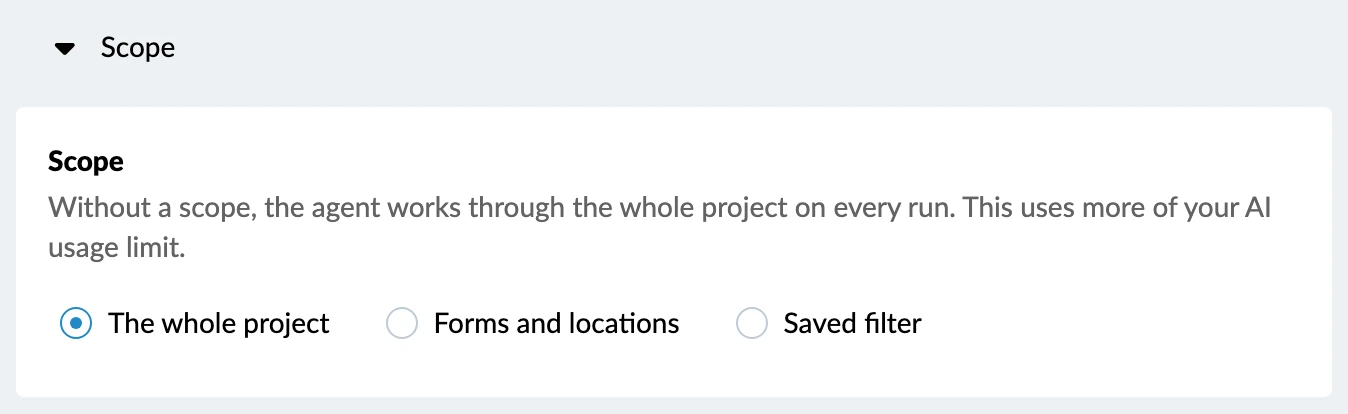
The scope decides which part of the project the agent looks at on each run. It is optional. These are the options:
- The whole project (default)
- Forms and locations
- Saved filter
Without a scope, the agent works through the whole project on every run. This uses more of your AI usage limit.
To set the scope:
- Click Scope to open the scope options
- Choose The whole project, Forms and locations or Saved filter
- For Forms and locations, select the forms and locations. For Saved filter, choose the saved filter.
- Click Save
- For an existing agent, click Save changes to apply the scope
Write Instructions for a Scheduled Agent
On every run, the agent finds the tickets its instructions describe and acts on them. Describe the tickets in your own words. For example:
- "Find overdue tickets and ask the assignee for a status update and a new due date."
- "Find open tickets without a photo and ask the assignee to add one."
When the instructions ask the assignee for something, the agent skips tickets that have no assignee. The run shows which tickets were skipped and why.
The agent does not repeat itself. It leaves out tickets it already acted on in an earlier run, unless the instructions say it should act on them again.
Test and Activate a Scheduled Agent
You can test a scheduled agent before you activate it. The test run shows the schedule and the scope, and previews the comments and tickets the agent would create. Nothing is created or changed in your project.
To test and activate a scheduled agent:
- In the Testing panel, click Test run
- Read what the agent would have done
- Click Activate agent
The agent runs from then on at the times set in its schedule, until the end date.
Scheduled Runs
- Comments a scheduled agent adds show in the ticket journal as [agent name] on behalf of [owner name], the same as for any other agent. Read more in Recognise Work Done by AI Agents.
- A run makes at most 50 changes. After that, or after the most steps one run may take, it stops and shows Stopped at limit. The agent stays active and continues on its next run with the tickets that are left.
- The agents list shows the Next run of every scheduled agent.
- Every run is recorded in the Activity log, with one line per ticket saying what the agent did or skipped, and why. Read more in Monitor AI Agents in the Activity Log.
Updated November 6, 2026