

 Deutsch
 Español
 Français
 Hrvatski
 Italiano
 Polski
 Português (BR)
View Tickets of a Project, Location or Form in the Webapp
Overview
You can view the tickets of a single location — a folder or a plan — or of the entire project. Similarly, you can choose to display tickets related to a specific form or all forms.
Ticket Views
In the plan view, the plan you selected is shown along with pins indicating where its tickets are.
The list view allows you to show all tickets of a project (including all folders and plans) or even to showcase tickets from all projects in your account, presented in a table format with each ticket represented by a row and columns for all required ticket fields.
The Calendar view gives an overview of your tickets based on the date fields that are relevant to you.
View Tickets in a Project
Whenever you come back to Tickets from a different main menu item, your previous selection of project, location, form and filter is still active.
The Project drop-down menu opens in a different state depending on your active selection.
Select a Project when none is selected
- Open the Project drop-down menu
- Select a project
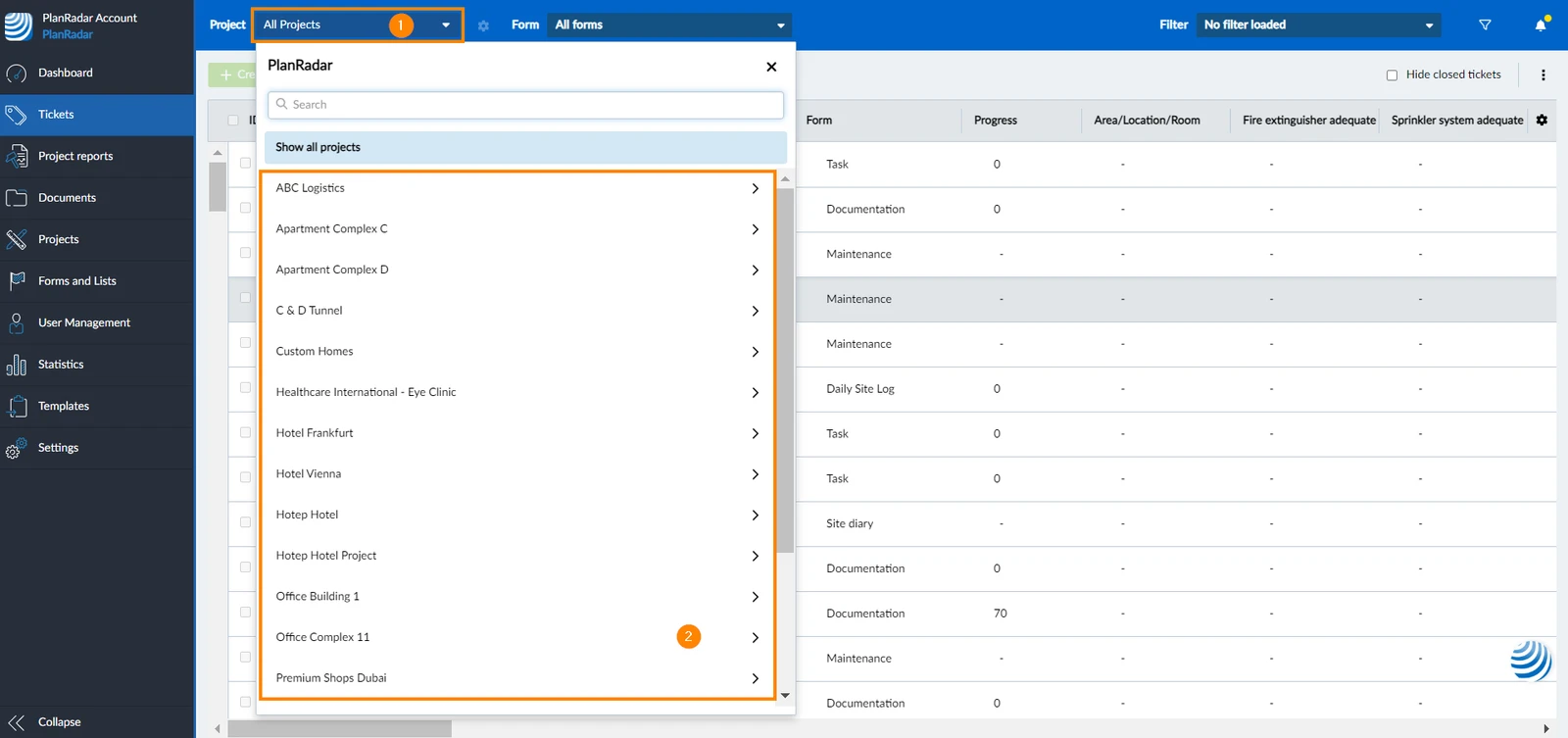
Select a different Project
If you already selected a project before, the Project drop-down menu will open in the location selector.
- Open the Project drop-down menu
- Click Change project
- Select a project
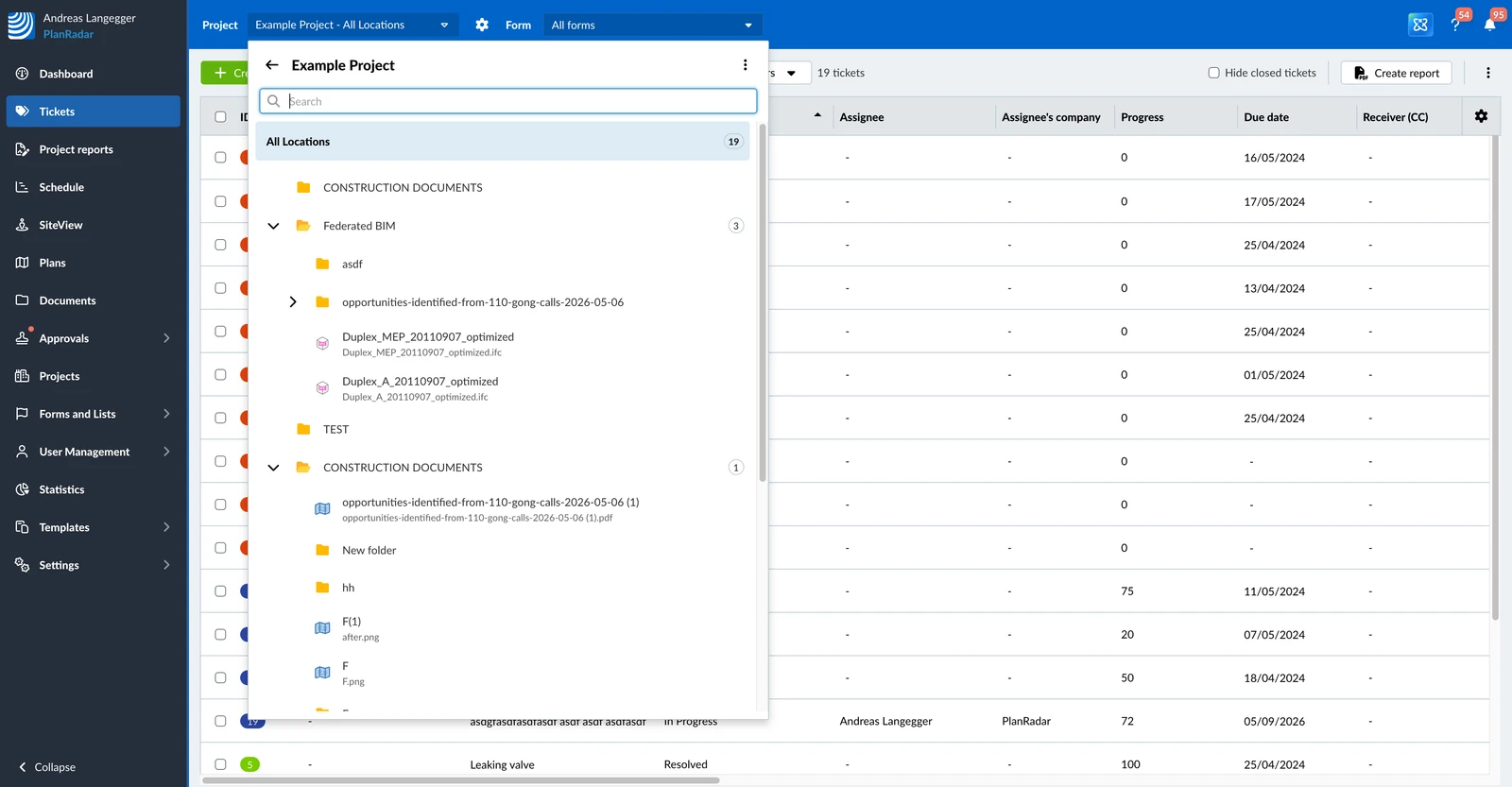
Show Tickets in All Projects
- Open the Project drop-down menu
- Click Change project
- Click Show all projects
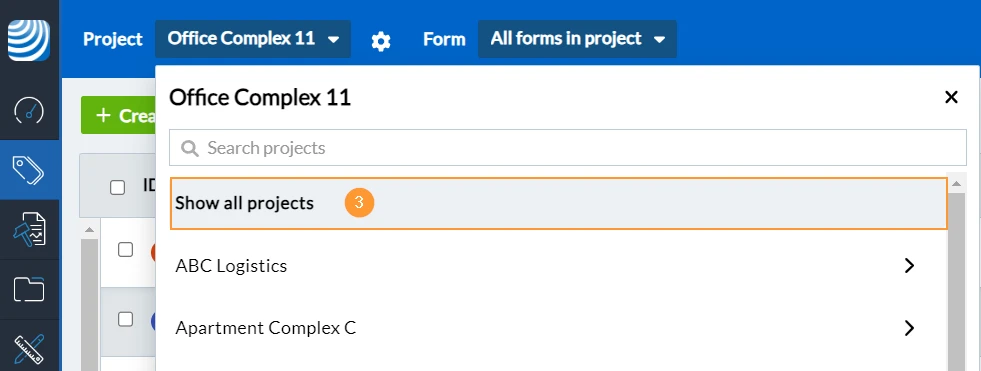
Select a Location
Show Tickets of All Locations
- Open the Project drop-down menu
- Click All Locations
Show Tickets of a Location in current view
- Open the Project drop-down menu
- Select a folder or plan
Show Tickets of a Location in Plan View or List View
- Open the Project drop-down menu
- Hover over a plan
- Click the list view or plan view icon at the end of the row
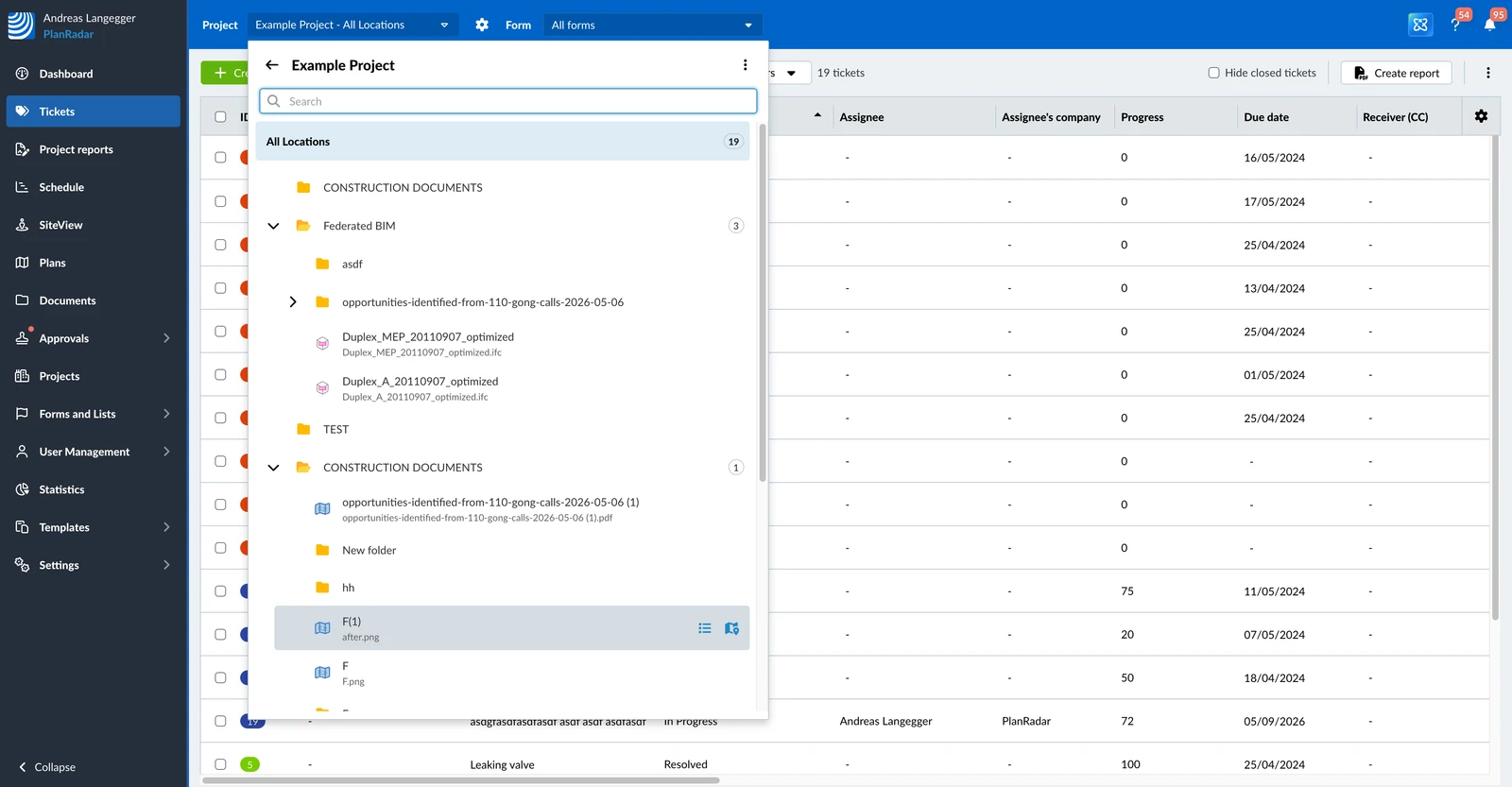
Each item in the list contains the following information:
- The name of the folder or plan
- The name of the current plan version
- The number of its tickets that are currently displayed (depending on the selected form and active filter)
A folder always opens in list view, because it has no plan of its own. Only published plans are listed.
View Tickets of a Certain Form
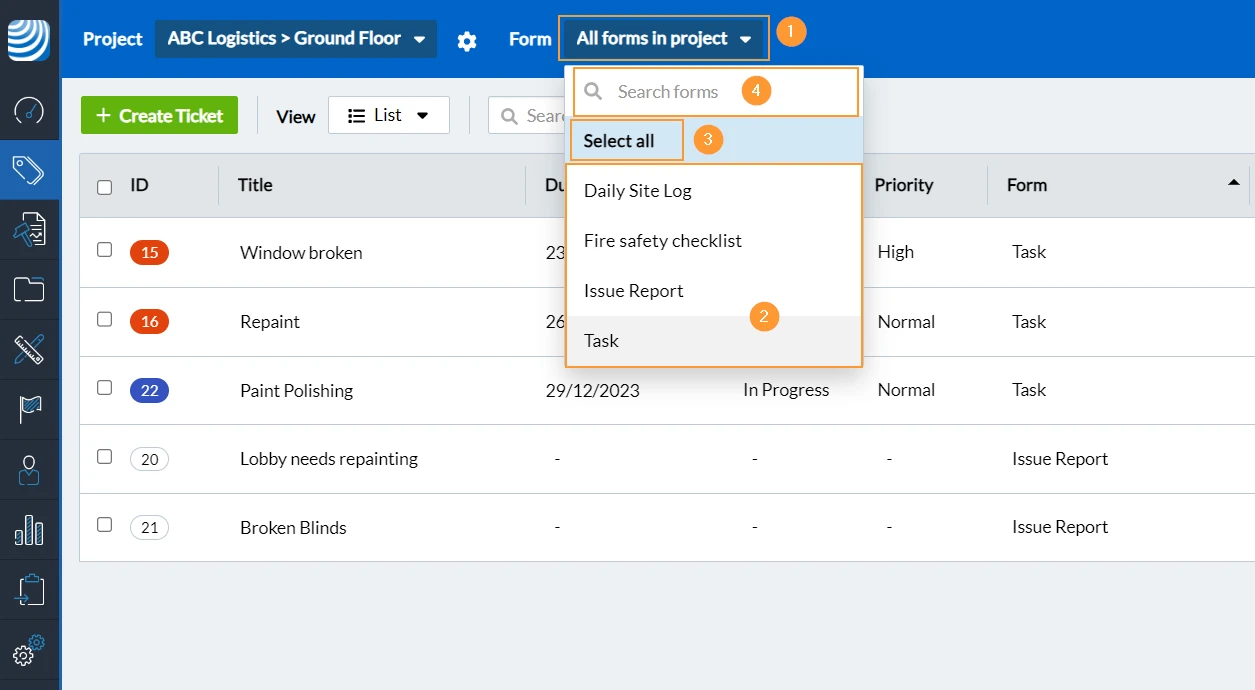
Selecting a Form is basically a quick filter to show only tickets of the selected form.
- Click Form drop-down to get the following options:
- Select a form
- Or click Select all to show tickets of all forms
- Optional: Search forms to filter the list of displayed forms to match the text input
Show or Hide Deactivated Forms and Their Tickets
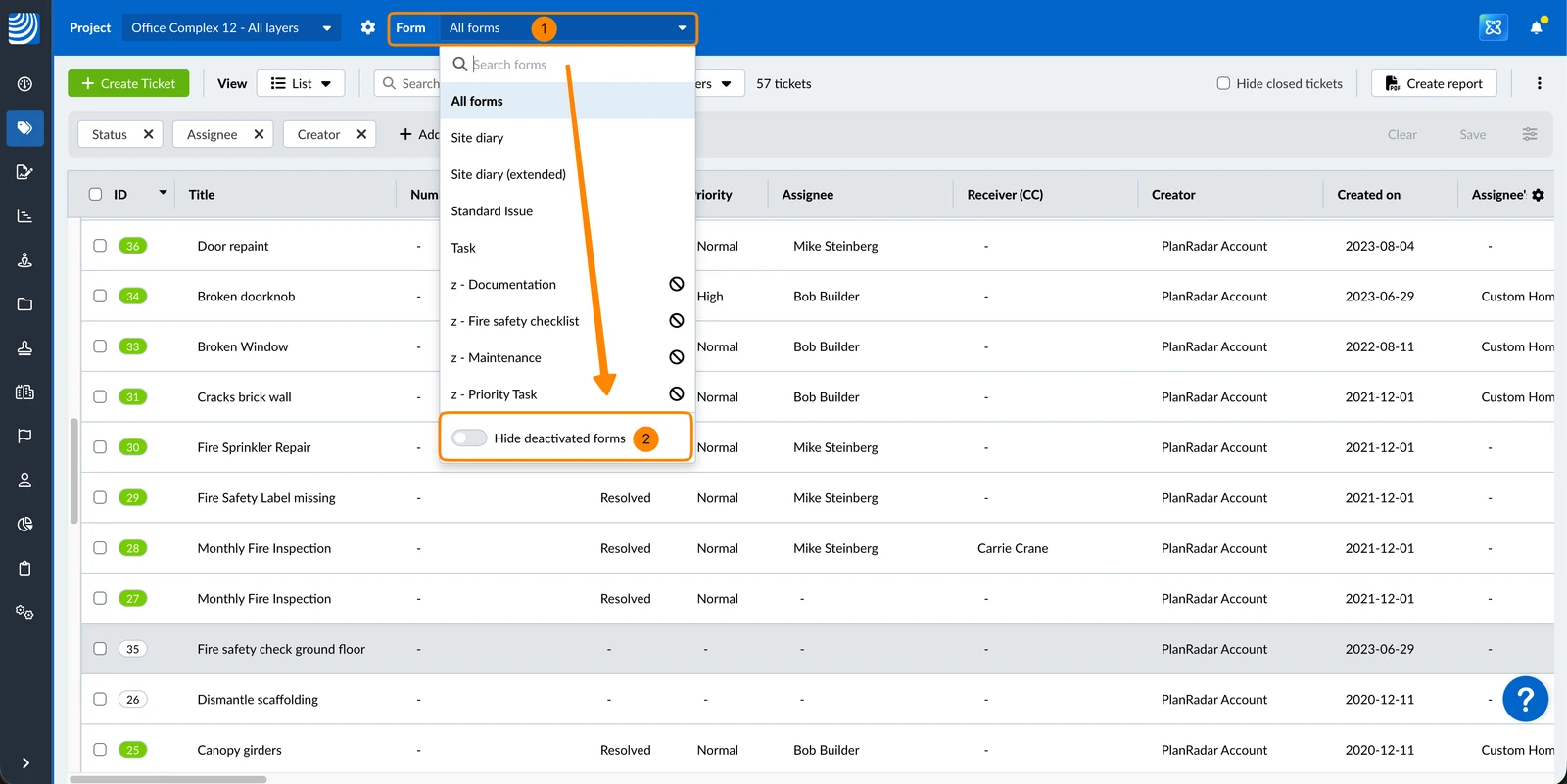
By default, tickets created from deactivated forms are visible. You can choose to hide deactivated forms from the Form drop-down list and hide their tickets from the ticket list when Select all is selected in the Form drop-down. This setting remains active until you turn it off.
To hide deactivated forms and their tickets:
- Click the Form drop-down.
- Enable the Hide deactivated forms toggle.
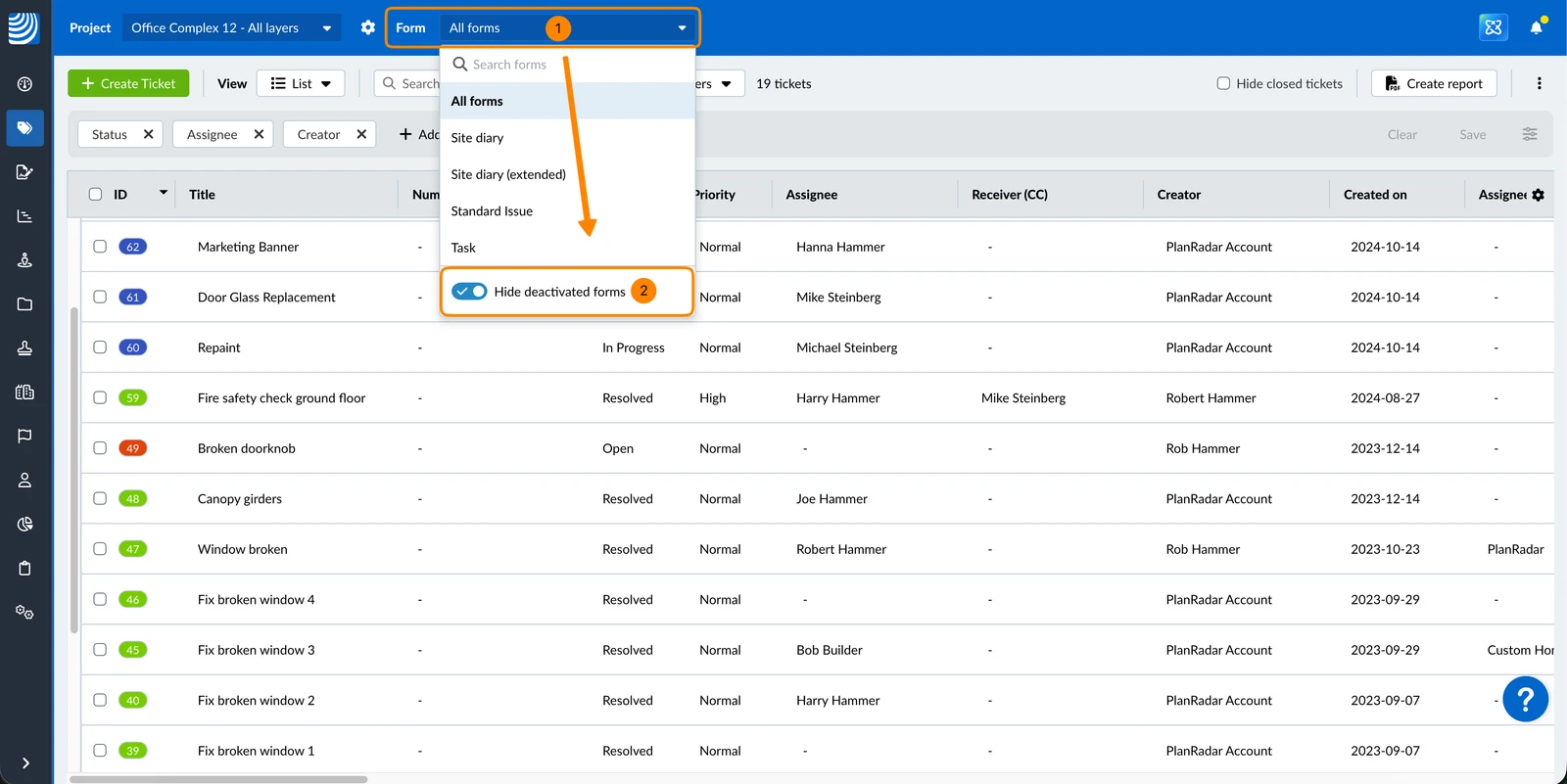
To show deactivated forms and their tickets:
- Click the Form drop-down.
- Disable the Hide deactivated forms toggle.
Updated September 3, 2026