

 Deutsch
 Español
 Français
 Hrvatski
 Italiano
 Polski
 Português (BR)
Tickets Plan View
Overview
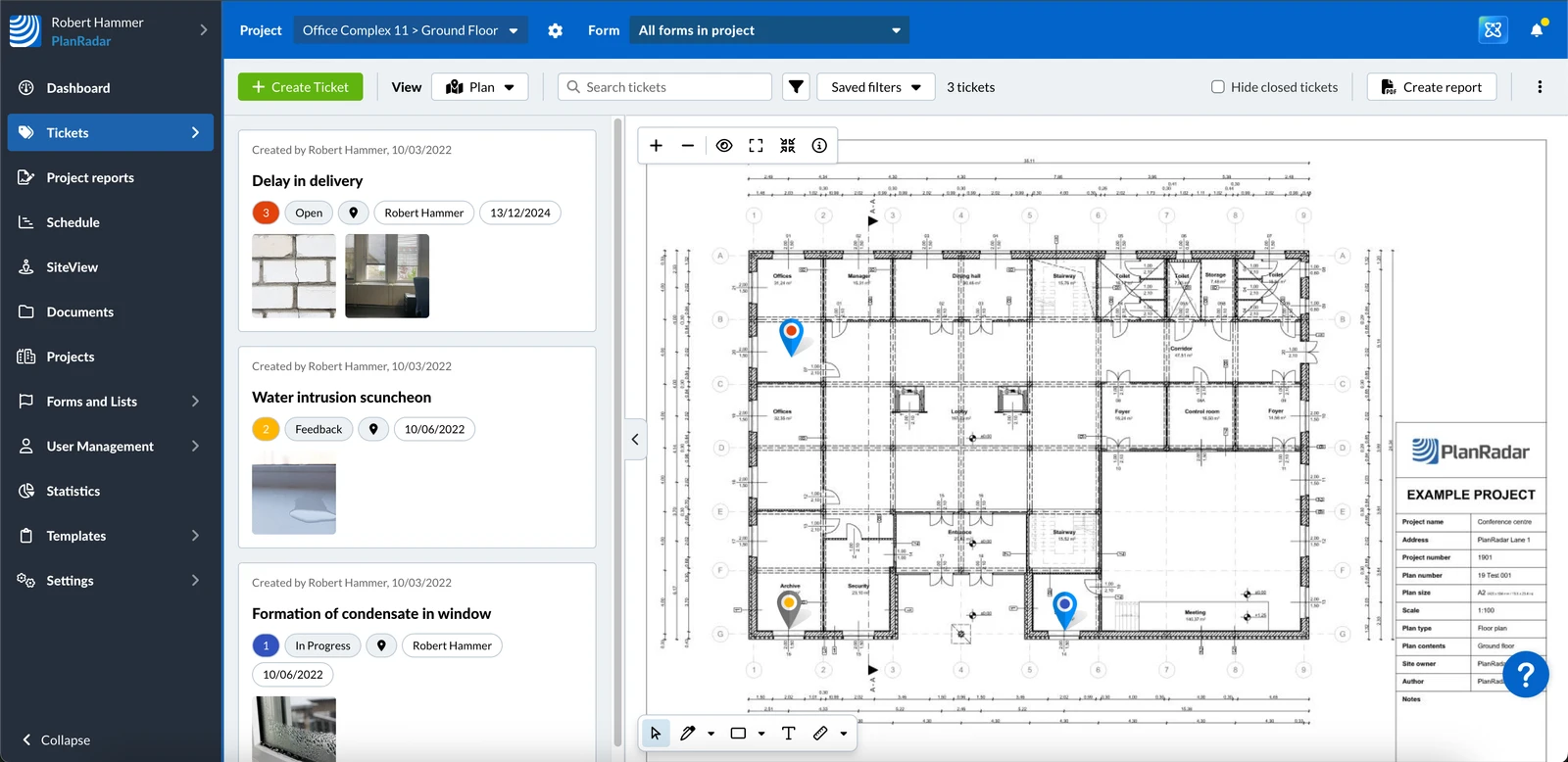
Use the tickets plan view to see where tickets are located on the plan.
Access & Permissions
How to access Tickets Plan View
-
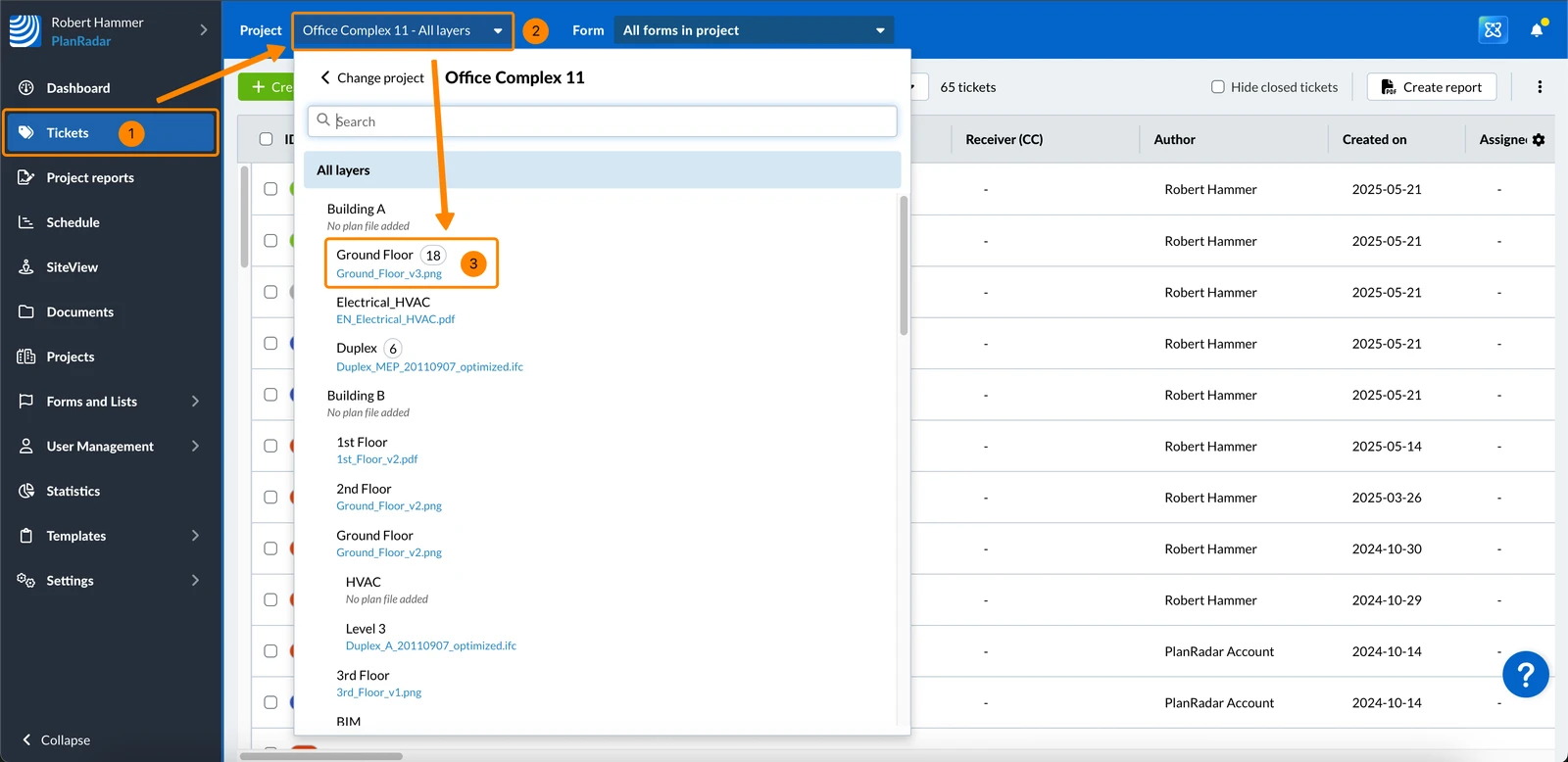
Click Tickets
-
Open the Project menu
-
Click a plan e.g. Ground Floor
-
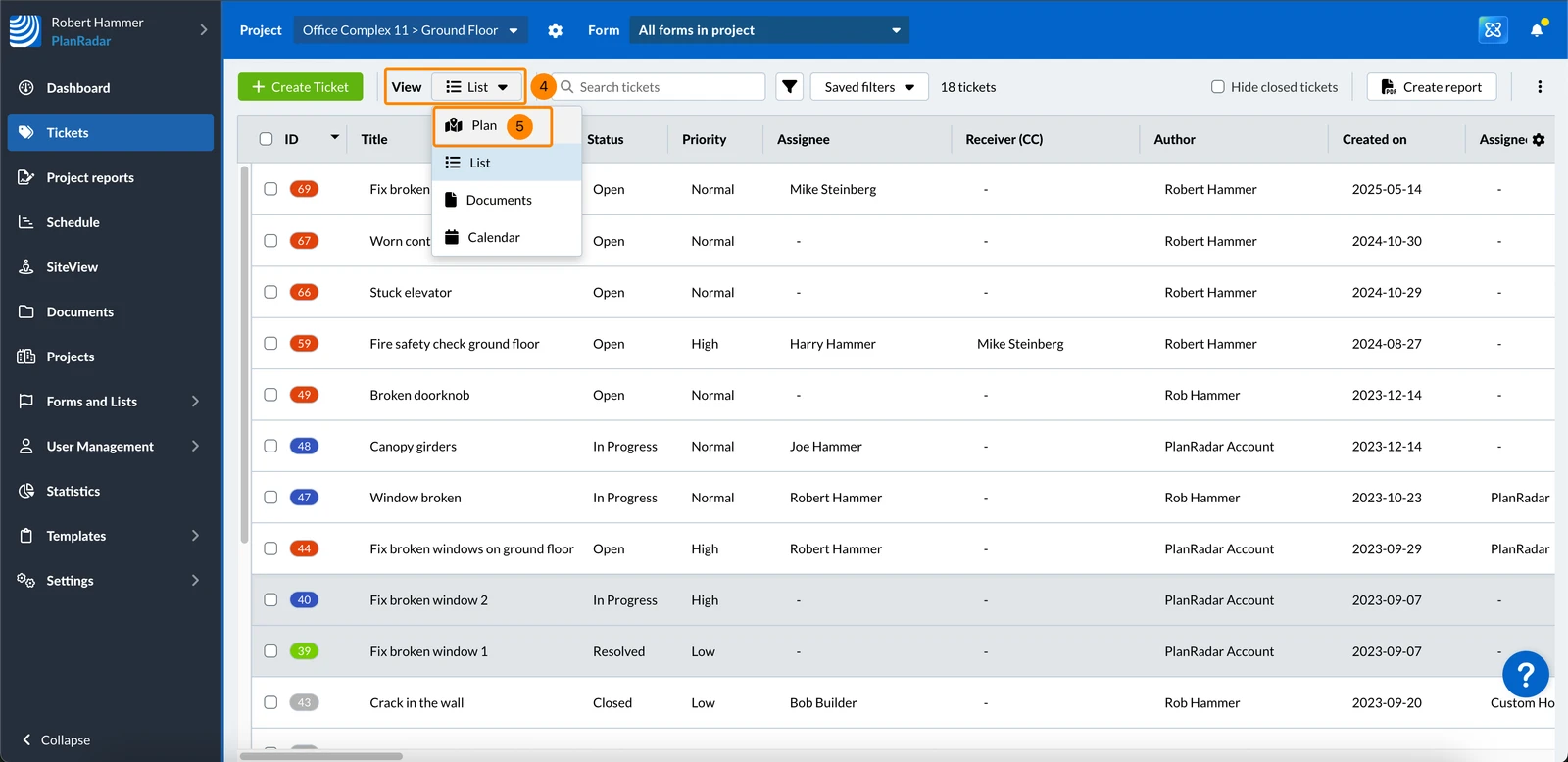
Open the View drop-down menu
-
Click Plan
-
You see the tickets plan view
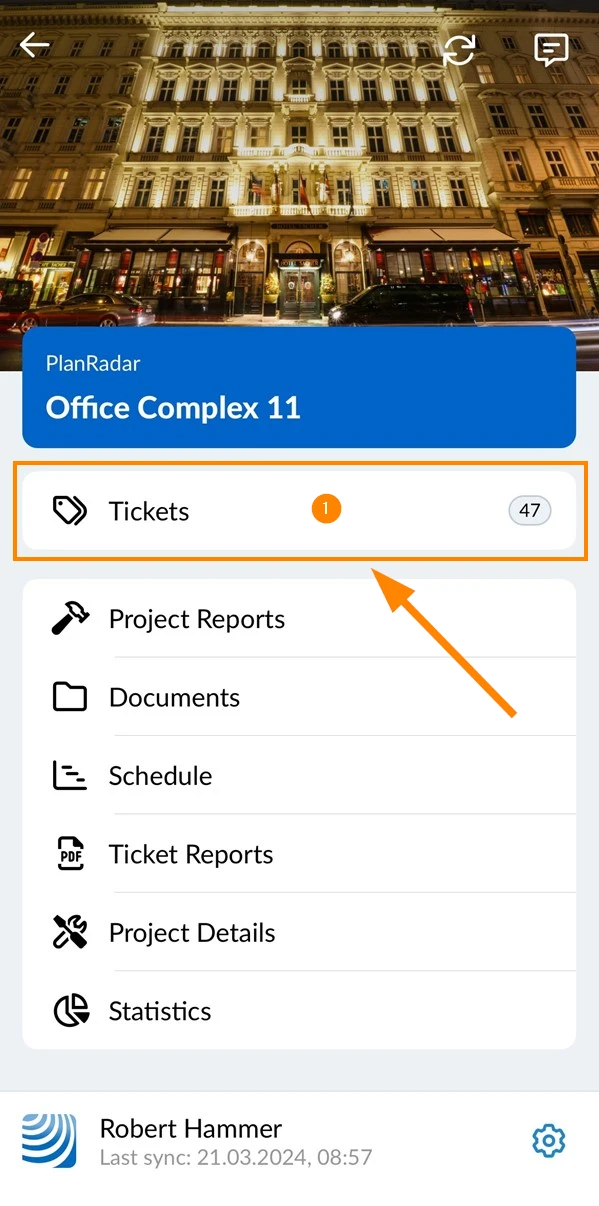
- Tap Tickets in the main menu
- Select a plan e.g. Ground Floor
The Plan view needs a plan. It is not available while a folder is selected. - Tap Plan
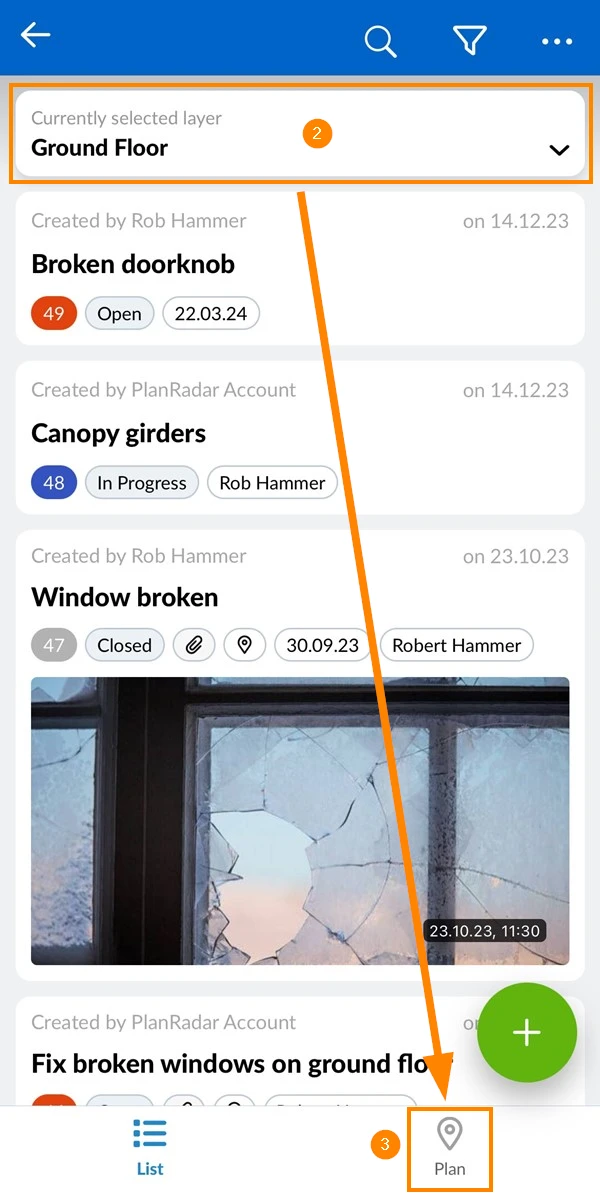
Tickets Plan View
Only published plans can be shown in the plan view. A plan that is waiting for approval or was rejected appears once it goes live, and its approval state is shown in the viewer toolbar.
In the toolbar you select the project, location, form, and filter to define which tickets are displayed in the tickets plan view.
If you select a BIM model instead of a plan, the plan view is replaced by the BIM viewer.
Show/Hide Ticket List
The ticket list is shown by default. To hide it:
- Click the Arrow button
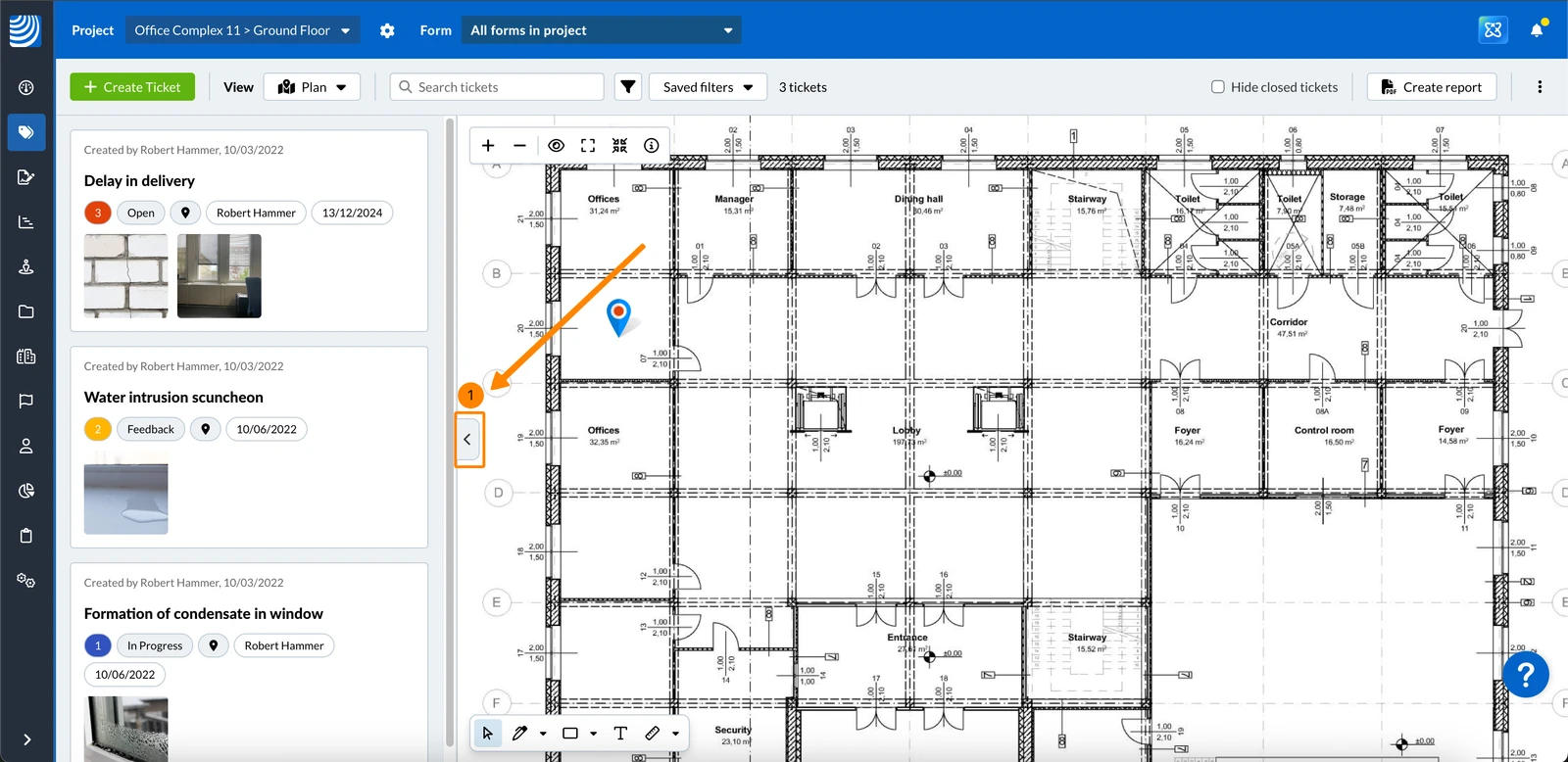
To show the ticket list:
- Click the Arrow button
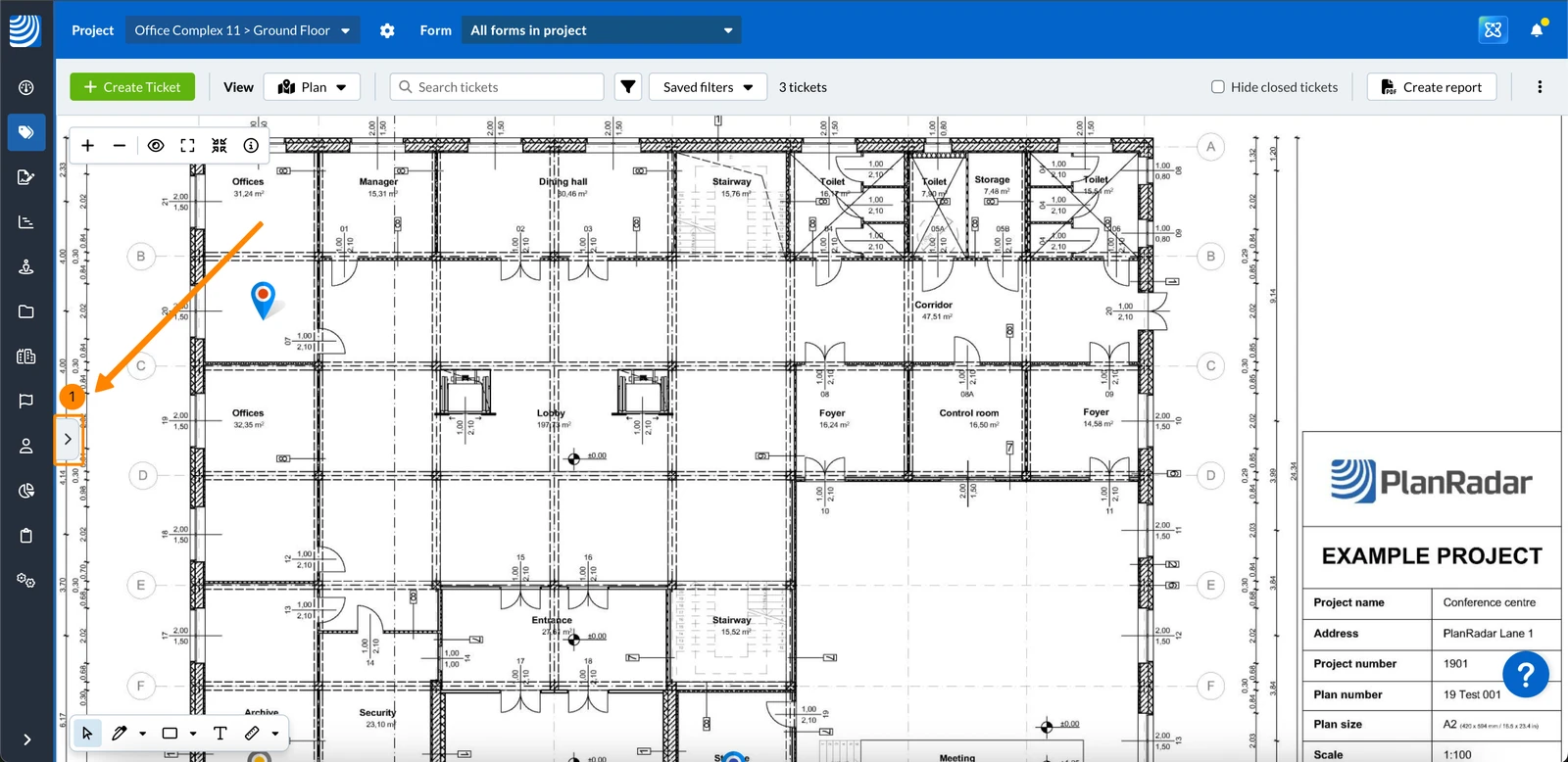
Sort the Ticket List
- The ticket list is sorted by ID, Highest first by default.
- If you sort by a different field, it is remembered the next time you open the plan view.
- Sub-tickets stay grouped under their parent ticket when you sort. Read more in Use Sub-Tickets.
To sort the ticket list:
- Open the Sort drop-down menu
- Under Sort by, select a field e.g. Status
- Optional: Under Order, change the sort order. The available options depend on the selected field.
- You see the tickets sorted accordingly.
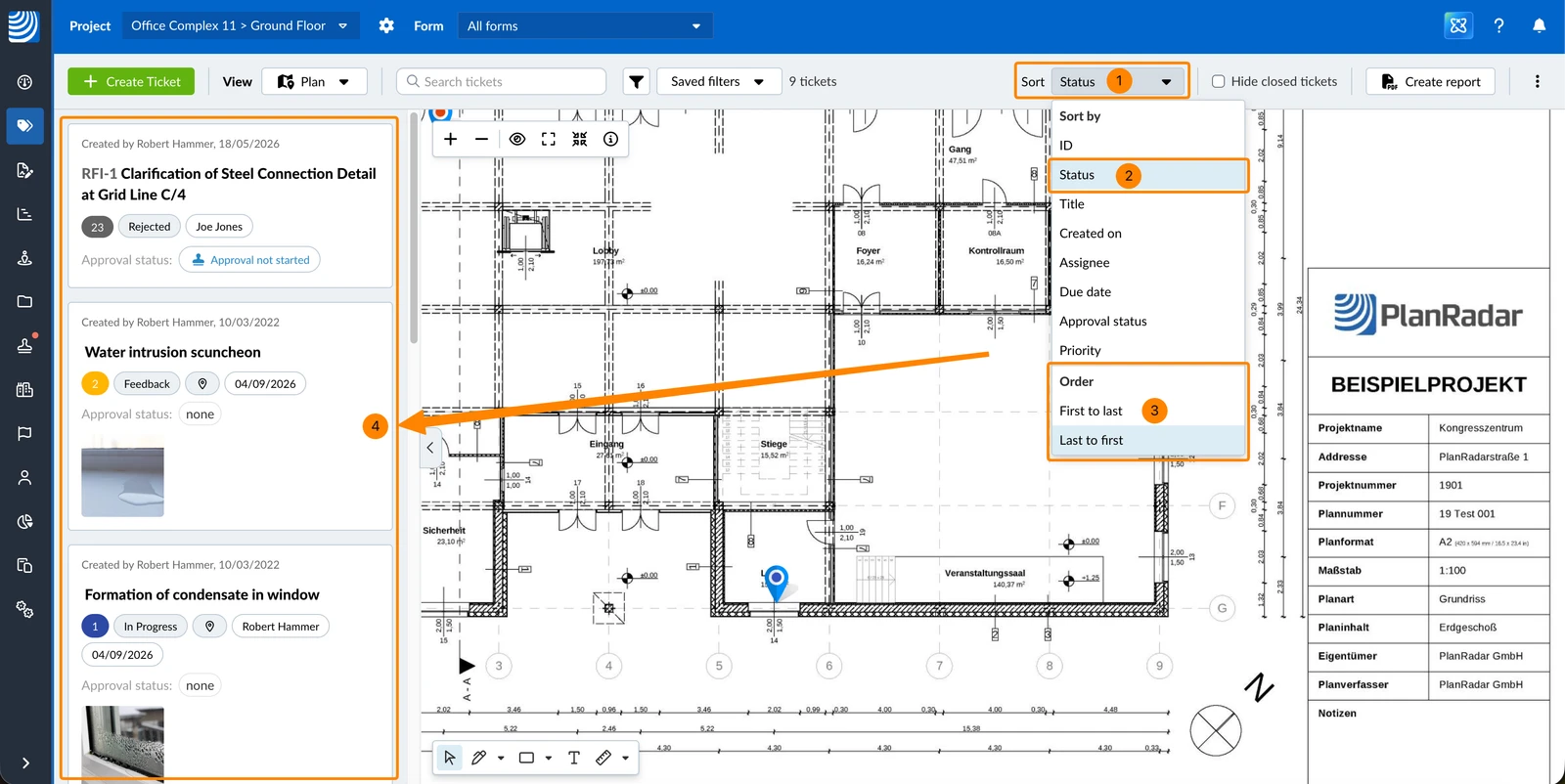
You can sort the ticket list by the following fields:
| Sort by | Order options |
| ID | Lowest first / Highest first |
| Status | First to last / Last to first |
| Title | A to Z / Z to A |
| Created on | Oldest first / Newest first |
| Assignee | A to Z / Z to A |
| Due date | Soonest first / Latest first |
| Approval status | First to last / Last to first |
| Priority | Lowest priority first / Highest priority first |
Selecting a location works the same for plan view and list view.
If you select a BIM model instead of a plan, the plan view gets replaced by the BIM viewer.
Open a Ticket
Open a ticket to view it's details or edit it:
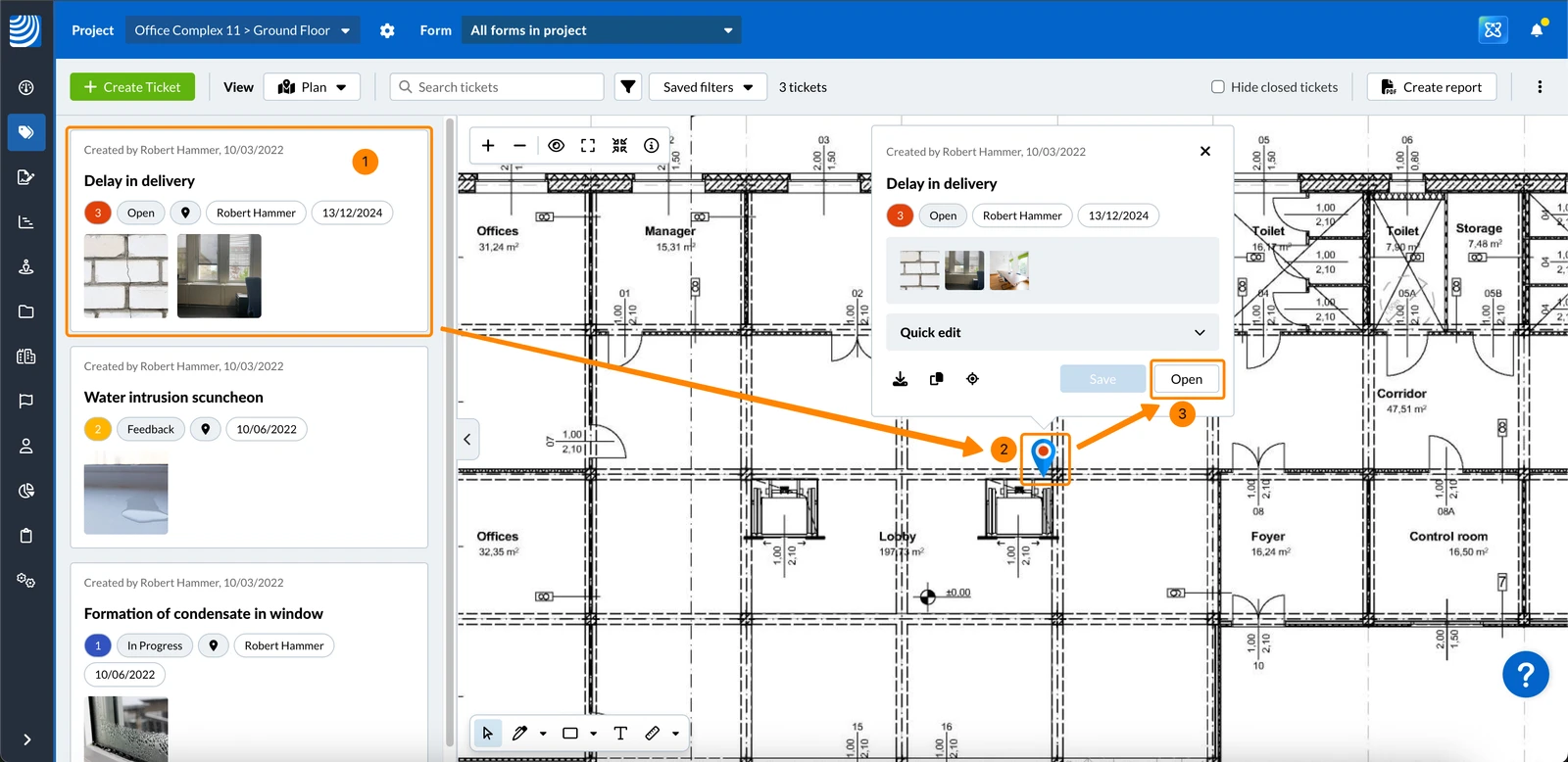
- Click on the ticket in the ticket list to automatically show the ticket pin on the plan and open the ticket preview.
- OR click on the ticket pin on the plan to open the ticket preview.
- Click Open to view all details of the ticket.
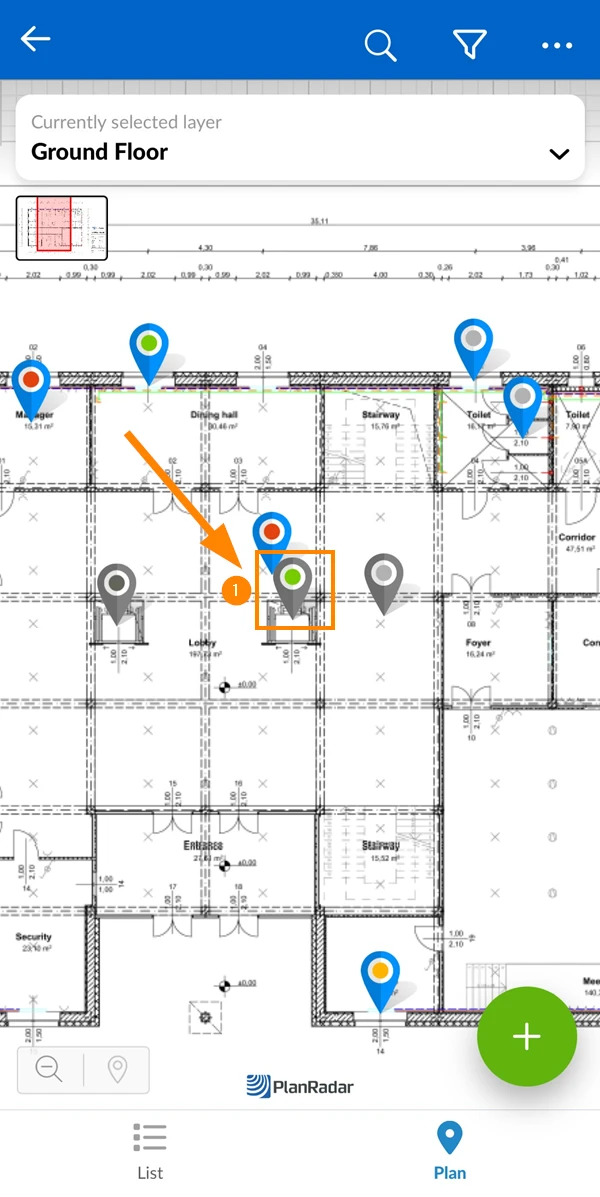
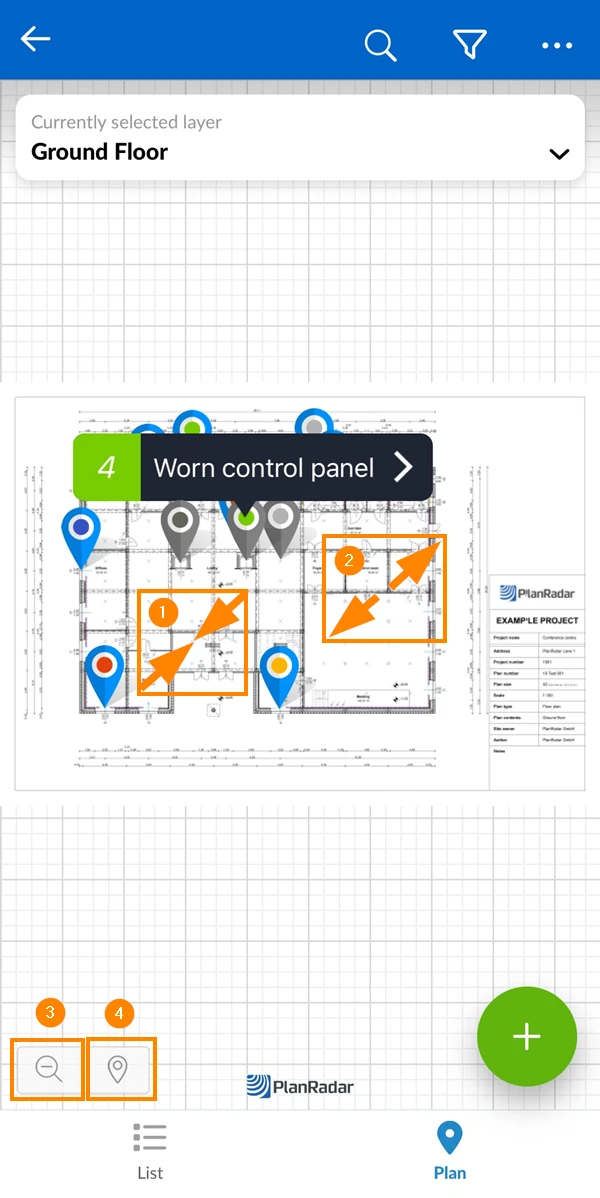
- Tap on a ticket pin
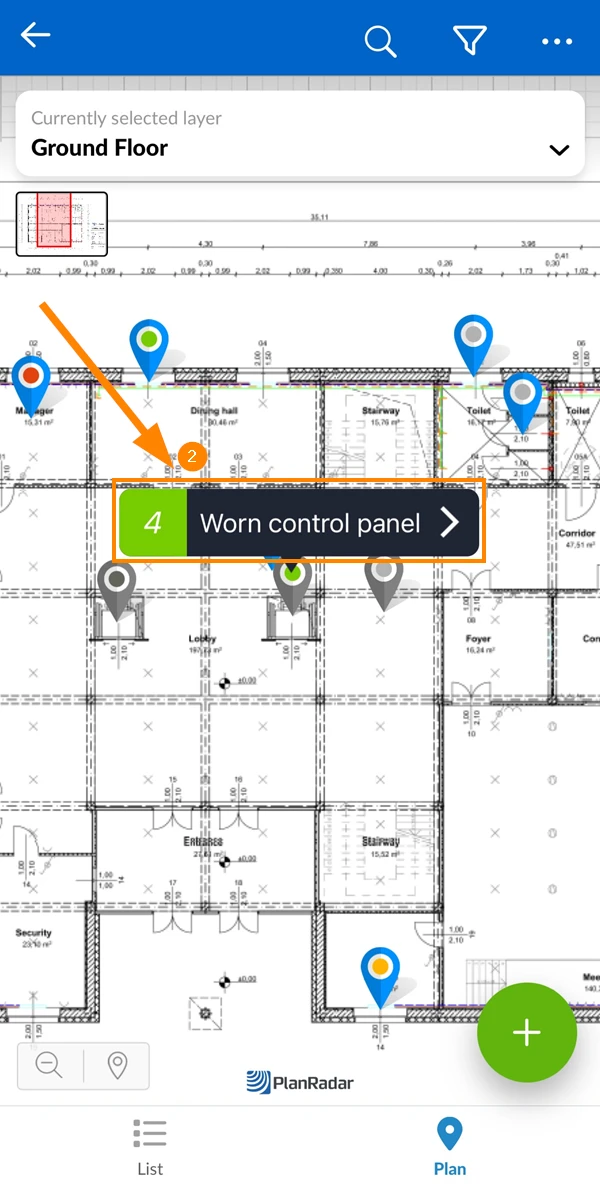
- Tap on the ticket ID / title
Navigate through the Plan
Panning
To move the displayed part of the plan:
- Use drag & drop
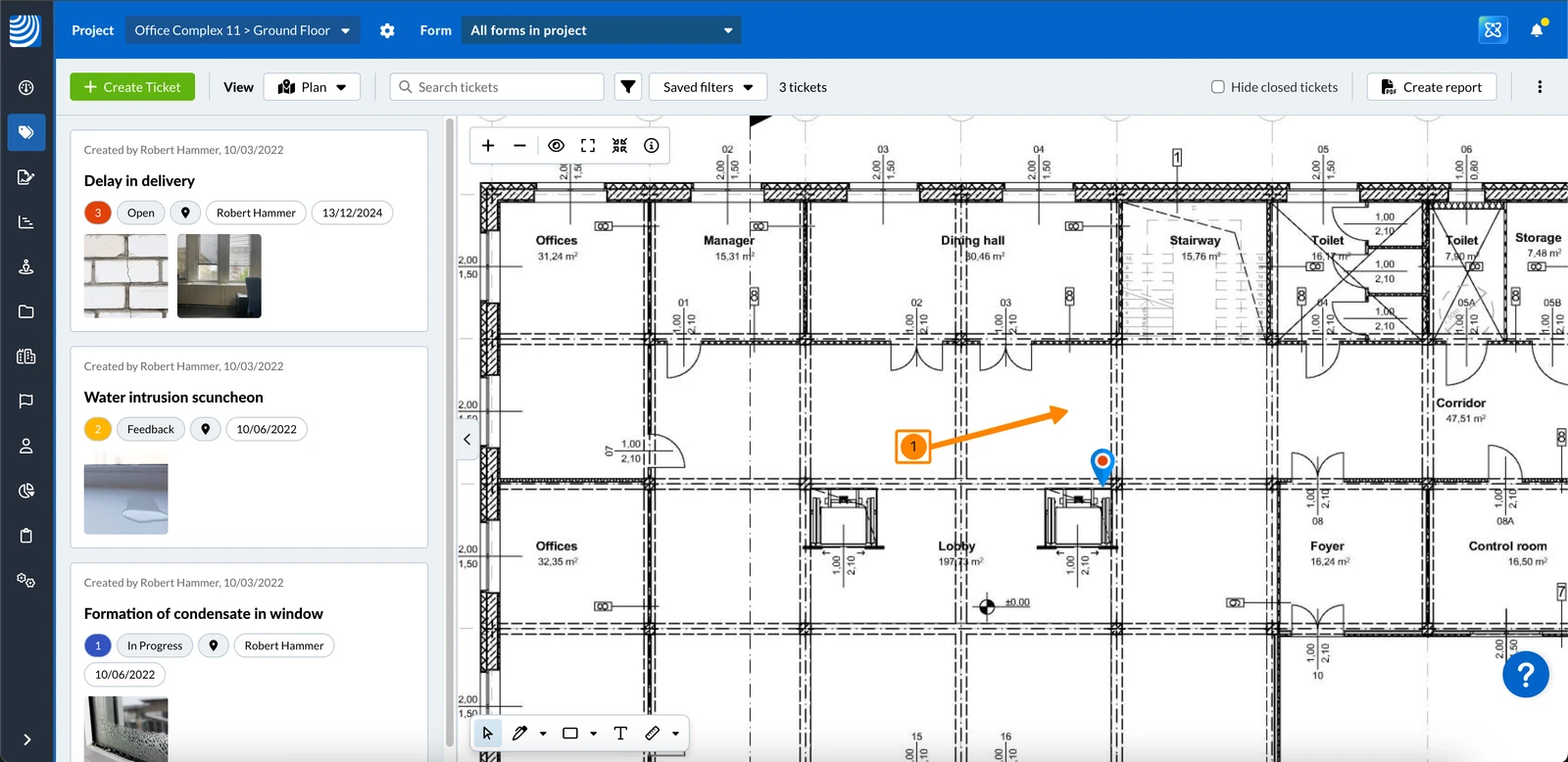
- Use one-finger drag
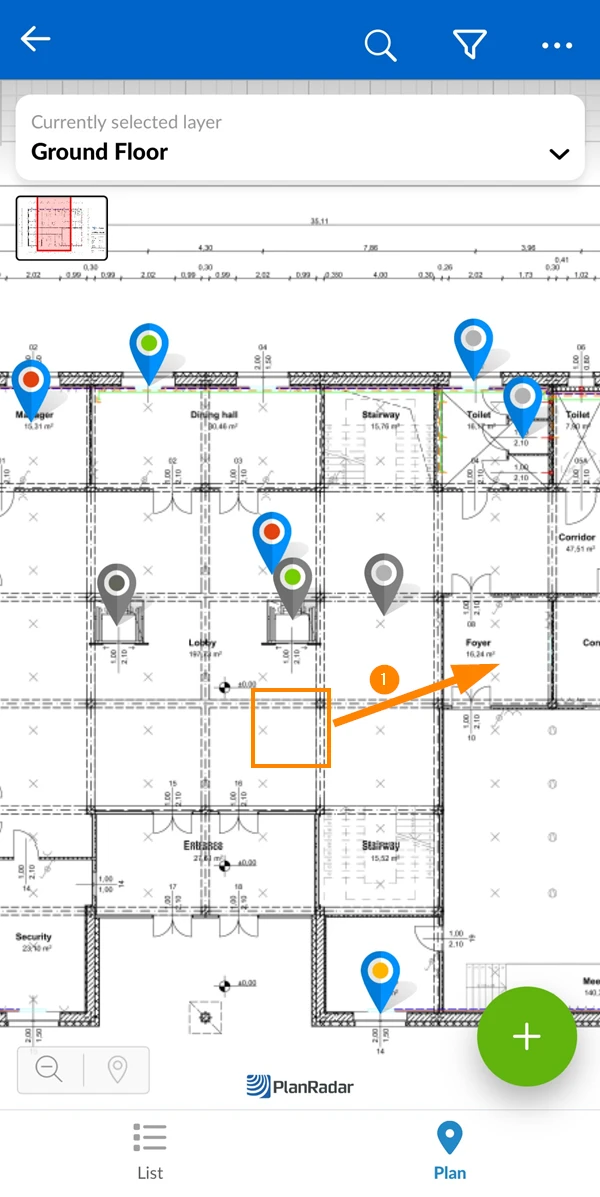
Zooming
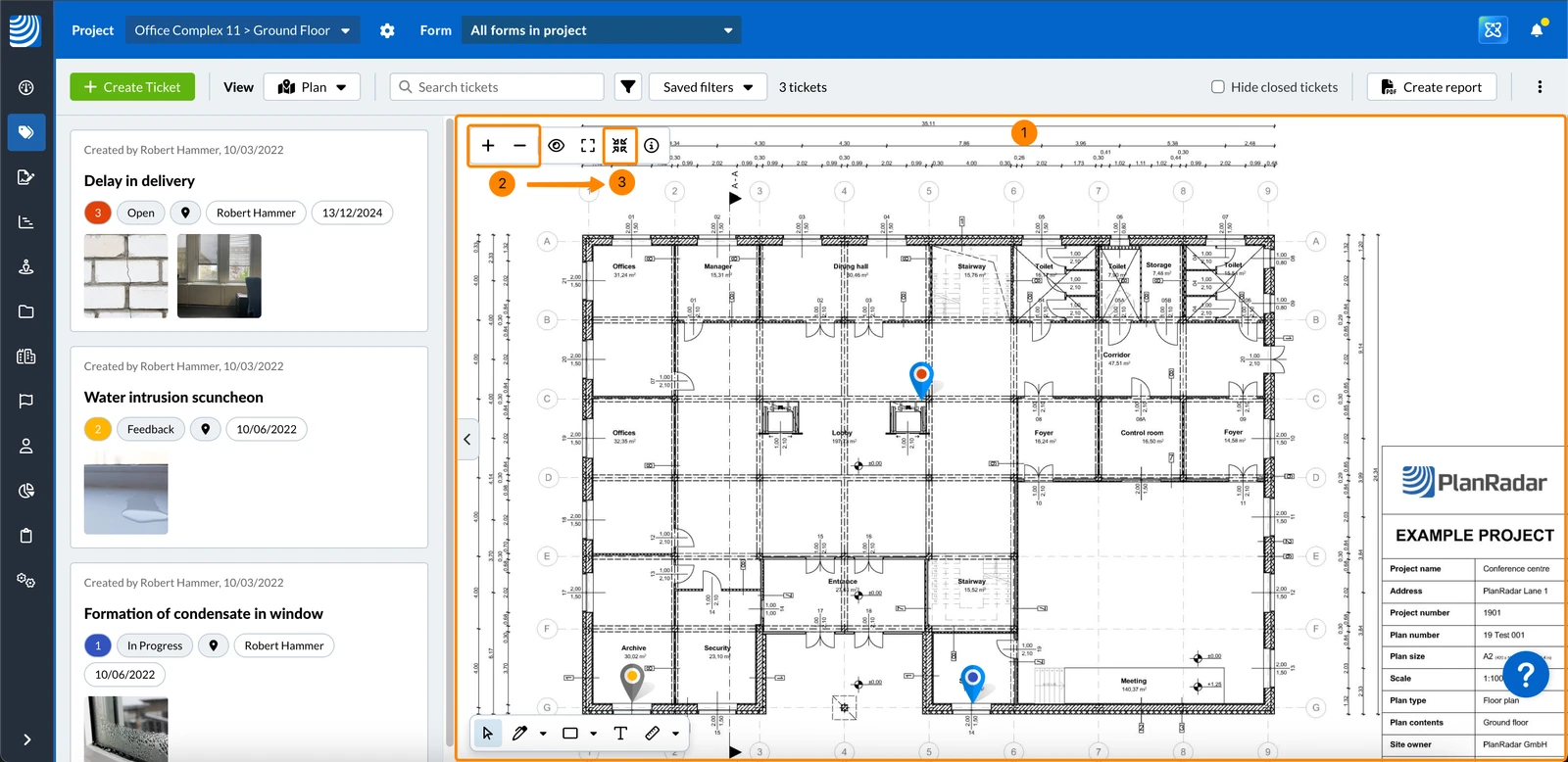
There are different ways to zoom in and out on the plan:
- Use your mouse wheel anywhere on the plan
- OR Click the + or - buttons
- OR Click the Zoom plan to fit screen button to view the whole plan at once:
Full-screen mode
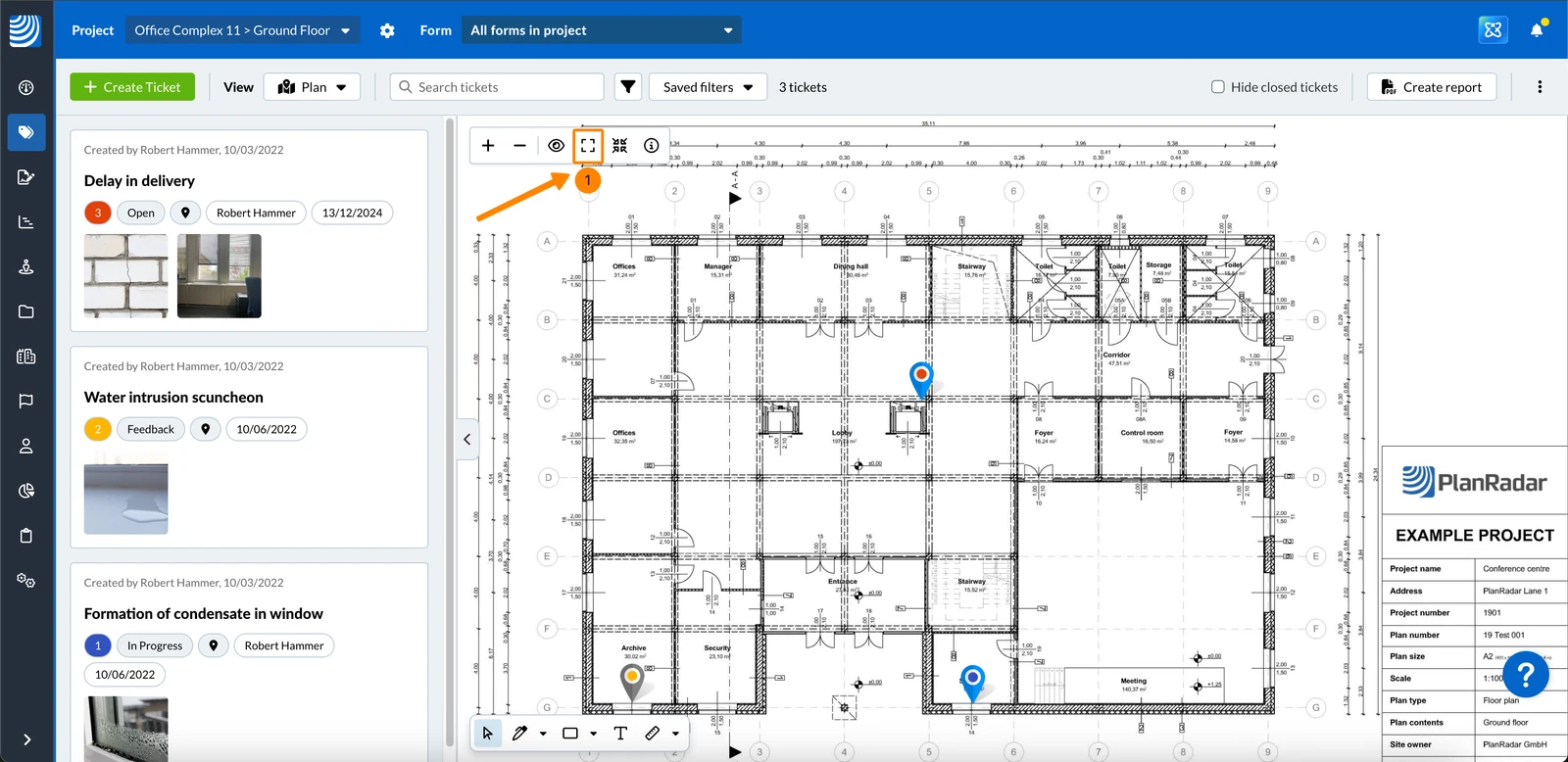
To open the plan in full screen in the Webapp:
- Click Fullscreen button
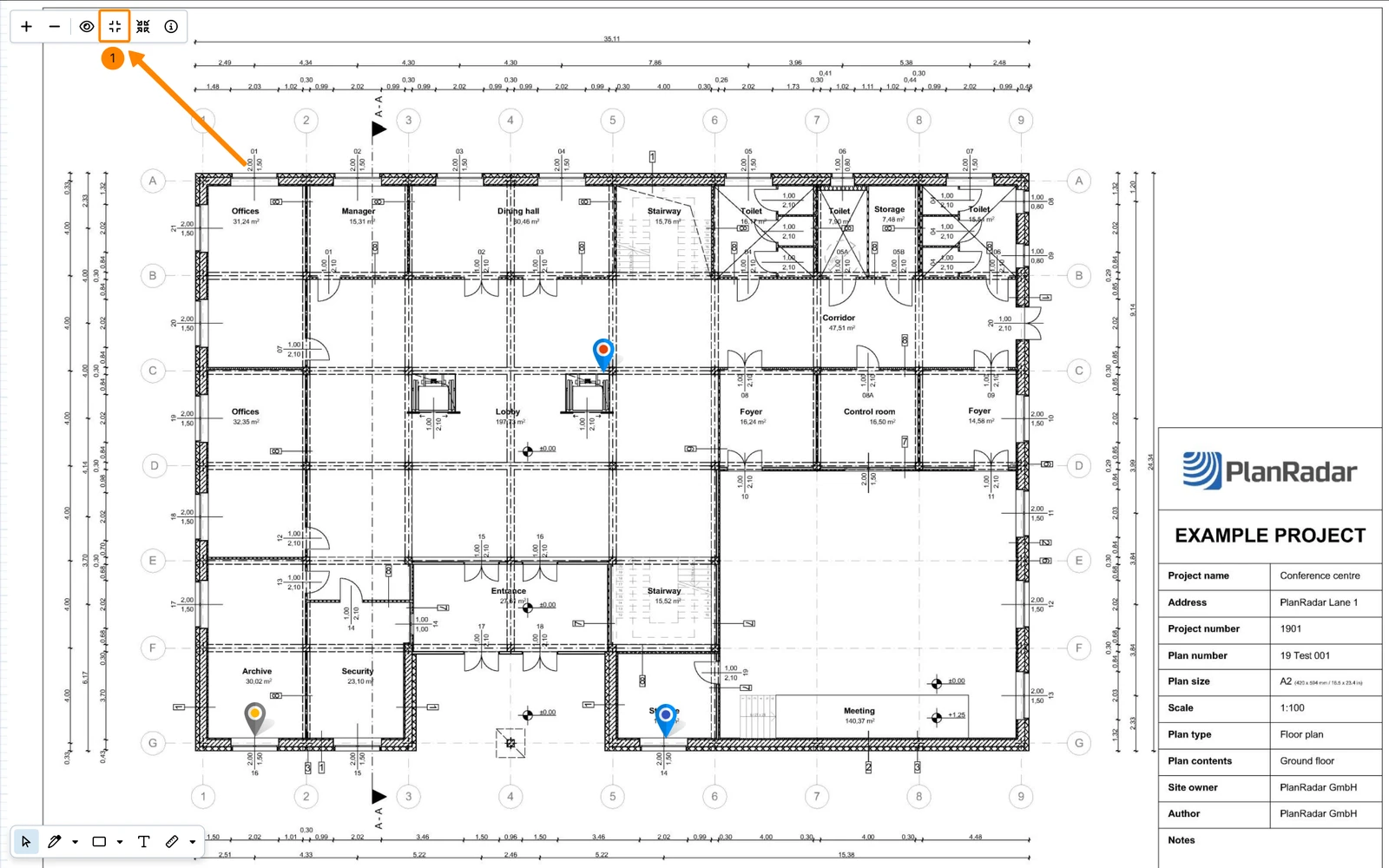
To exit full screen:
- Click Toggle full screen mode button
- OR press Esc on your keyboard
- Pinch two fingers to zoom in
- Spread two fingers to zoom out
- Tap the magnifying glass to zoom out until the whole plan is visible
- On iOS: Tap the pin button to zoom in on the selected ticket pin
Plan Versions
It is possible to upload new versions of a plan. The version your team works with is shown as the current version — once a plan has been through approval, that is the latest approved version, not necessarily the newest upload.
If a plan has only one version, the plan version button is disabled.
To view all versions of a plan:
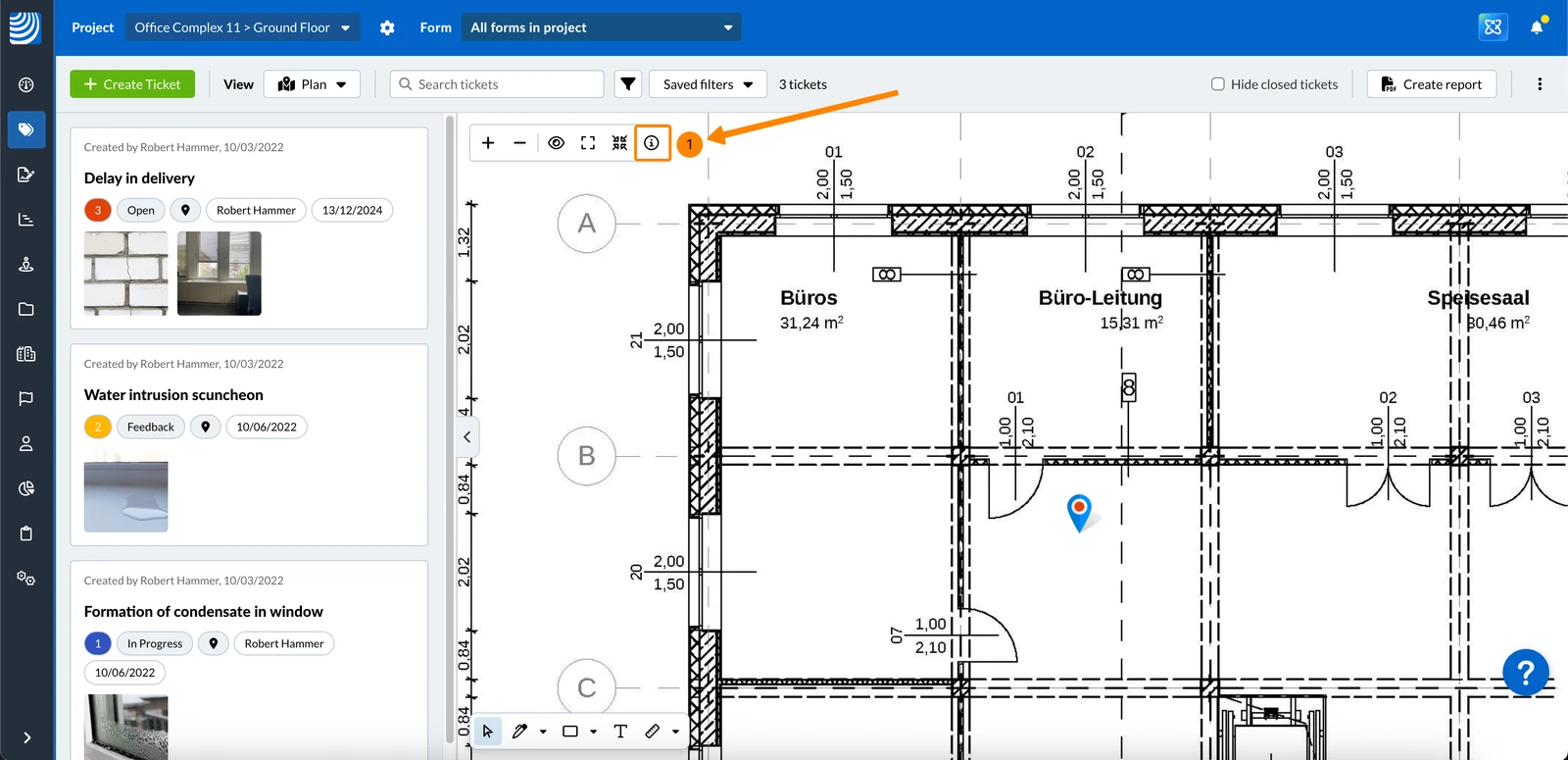
- Click the Show details and options button
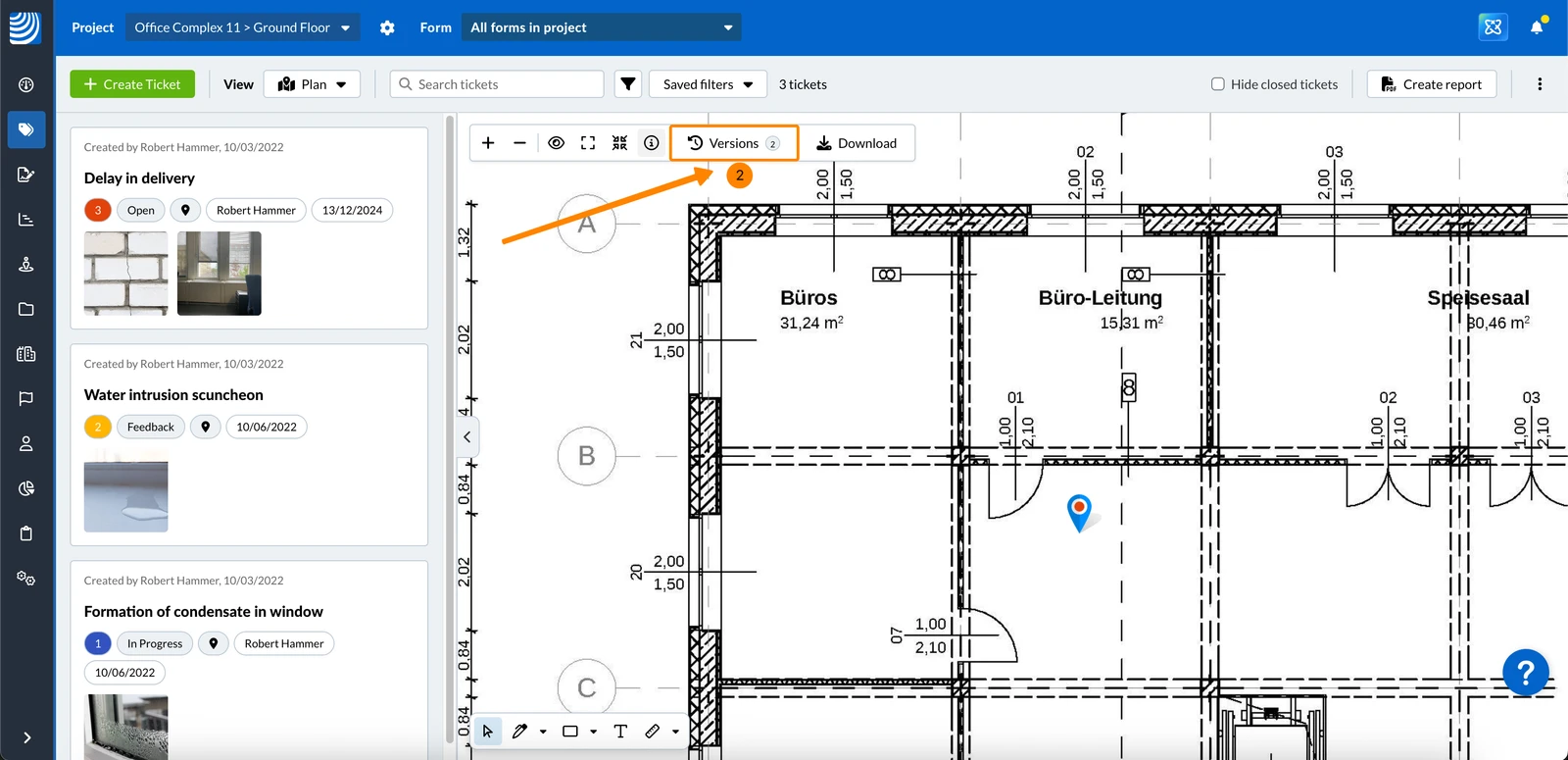
- Click View versions
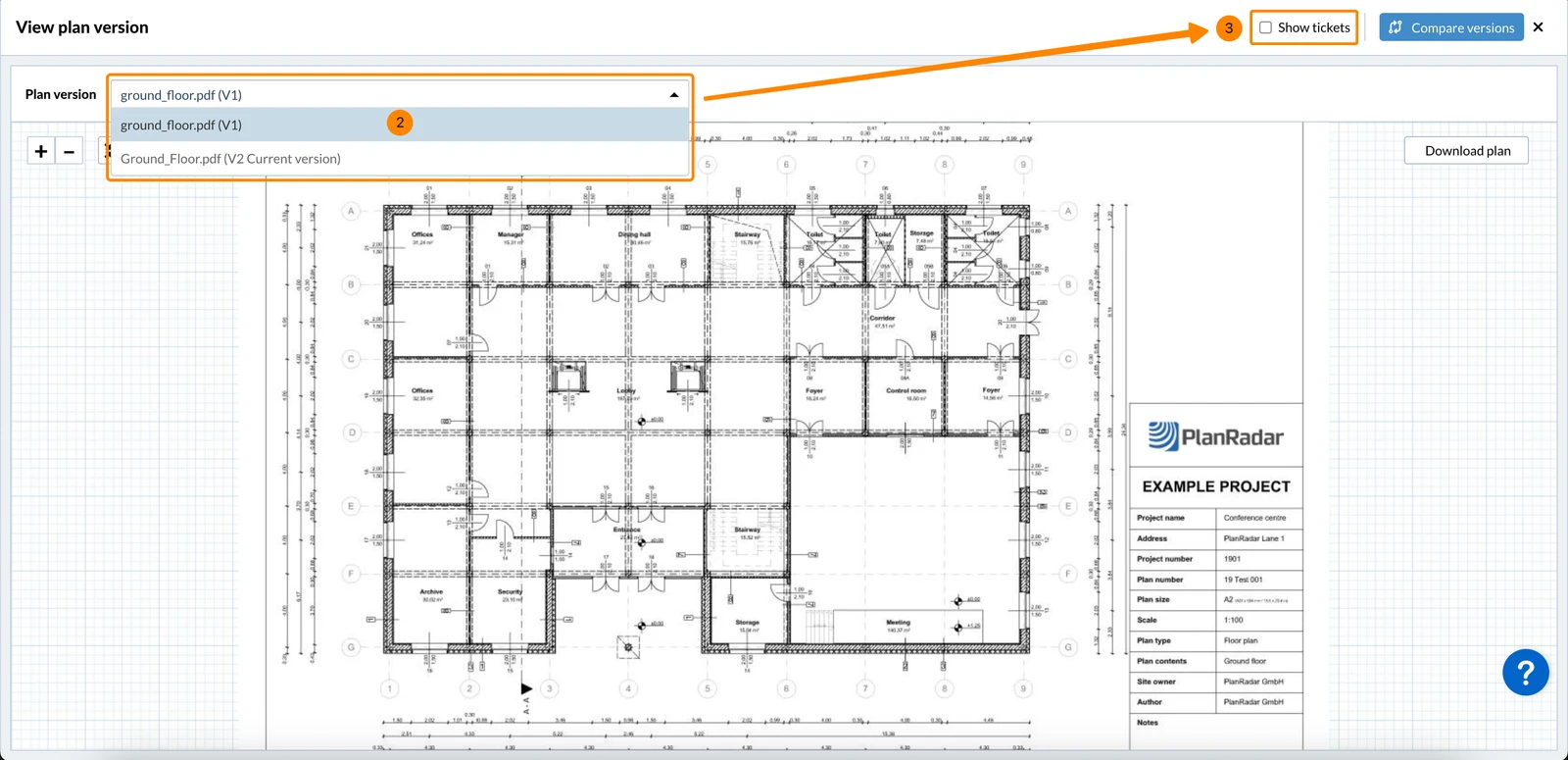
- Select a plan version in the drop-down.
- Optional: Select the Show tickets checkbox to show the ticket pins on the plan.
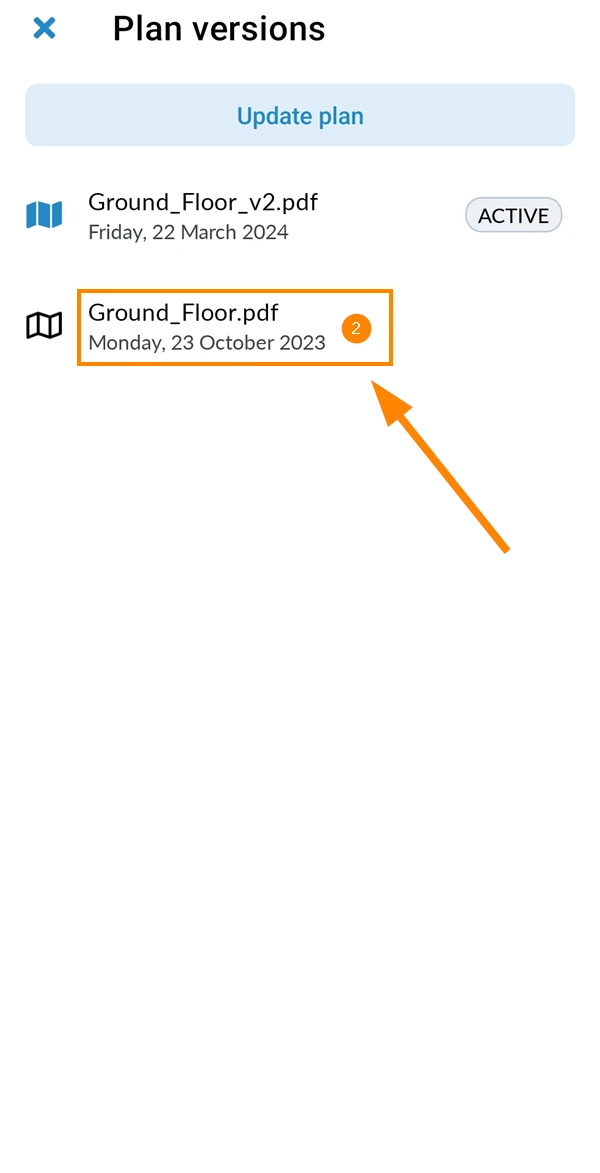
- Tap Plan versions
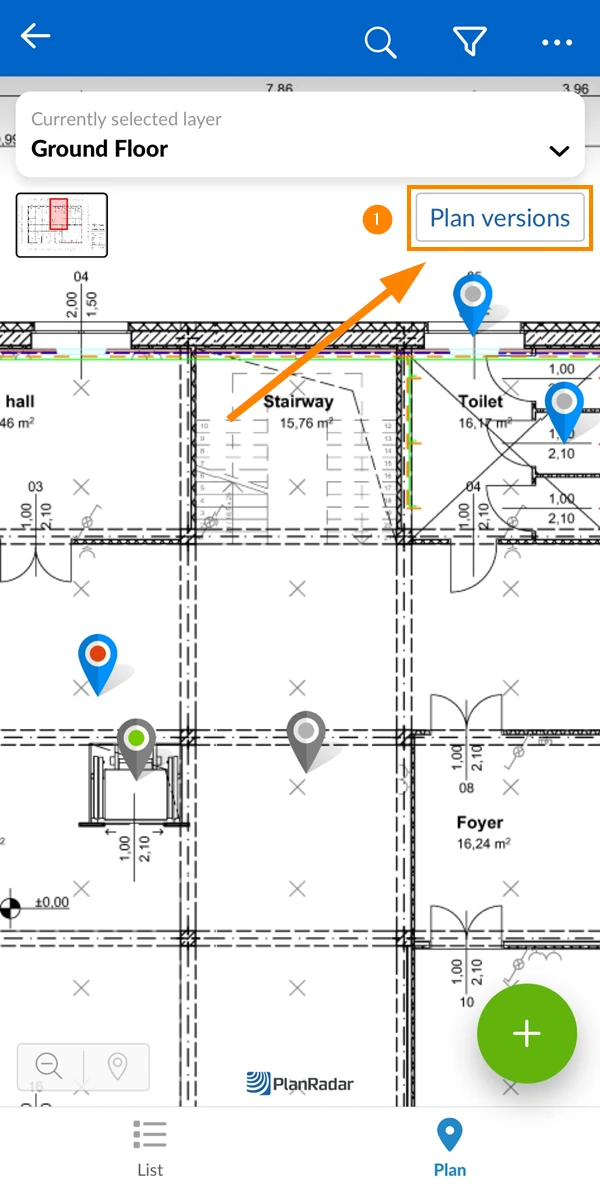
- Tap on the plan version e.g. Ground_Floor.pdf
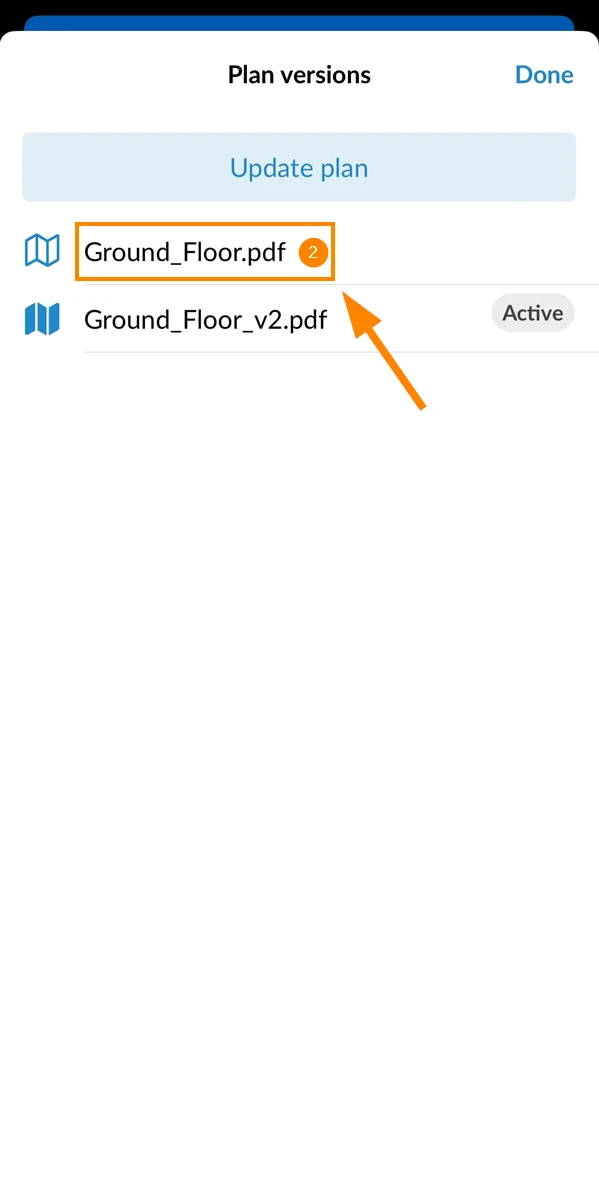
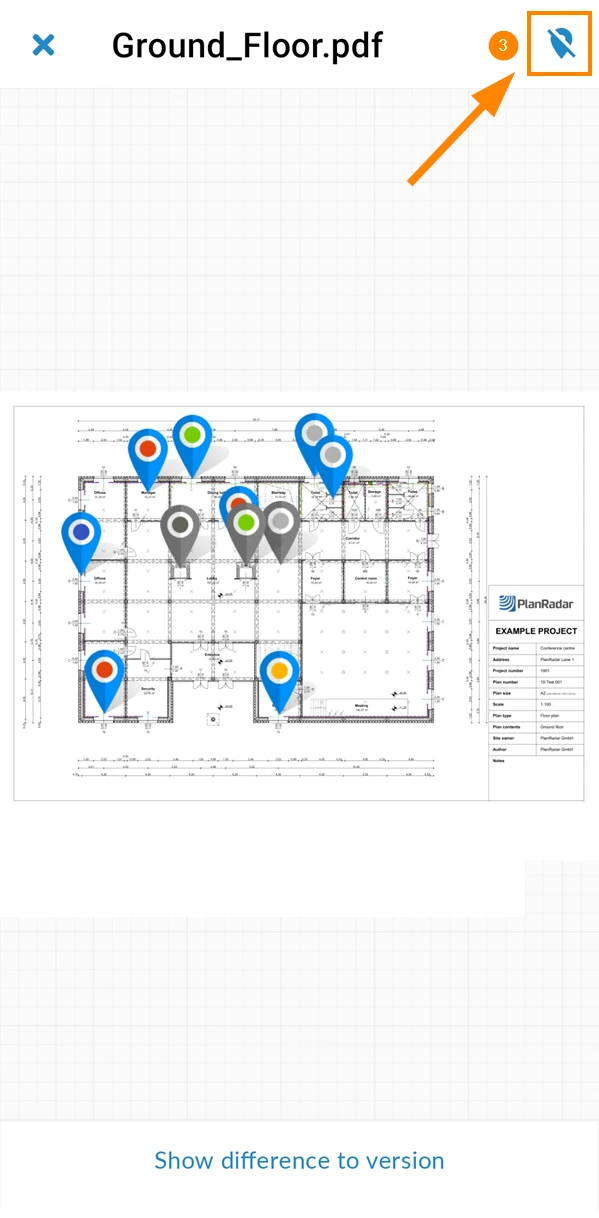
- Optional: Tap the pin button to show/hide ticket pins
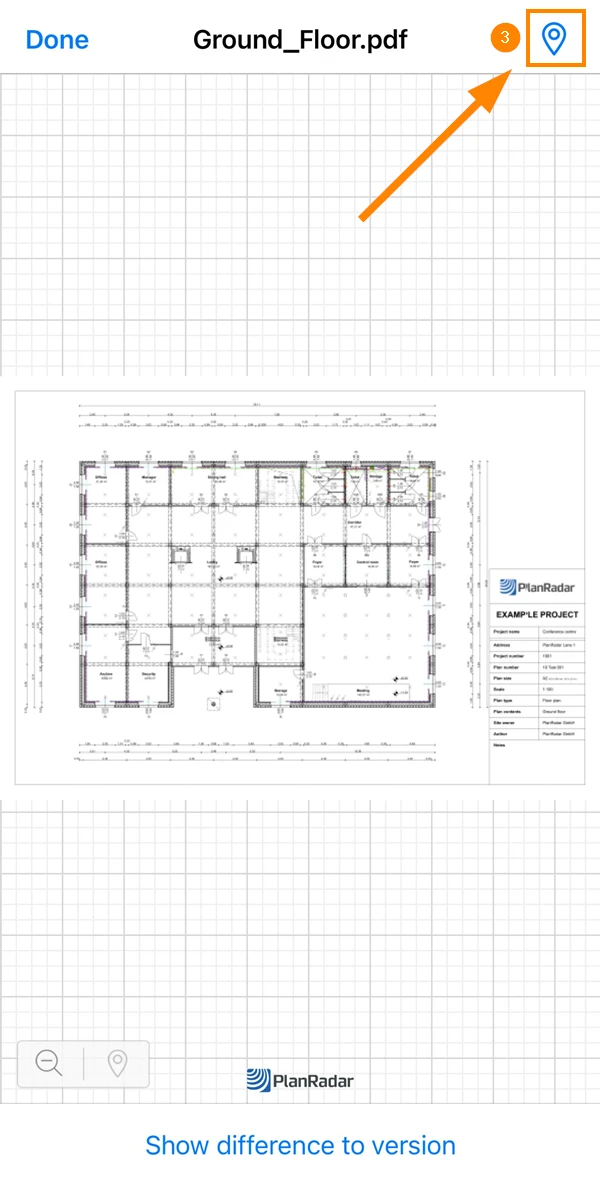
- Tap Plan versions
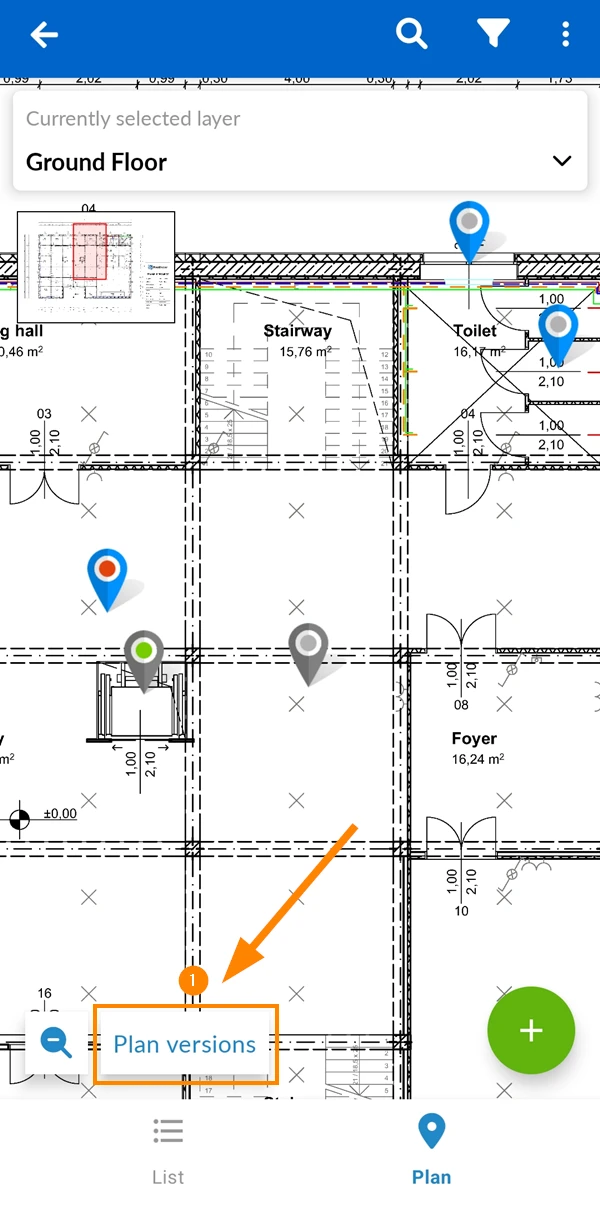
- Tap on the plan version e.g. Ground_Floor.pdf
- Optional: Tap the pin button to hide/show ticket pins
Compare Plan Versions
Compare plan versions to highlight the differences between versions.
Download Plan
Download a plan as PDF file with or without ticket pins.
Updated July 31, 2026