

 Deutsch
 Español
 Français
 Hrvatski
 Italiano
 Polski
 Português (BR)
What's Changing: The New Plan Management
What's New
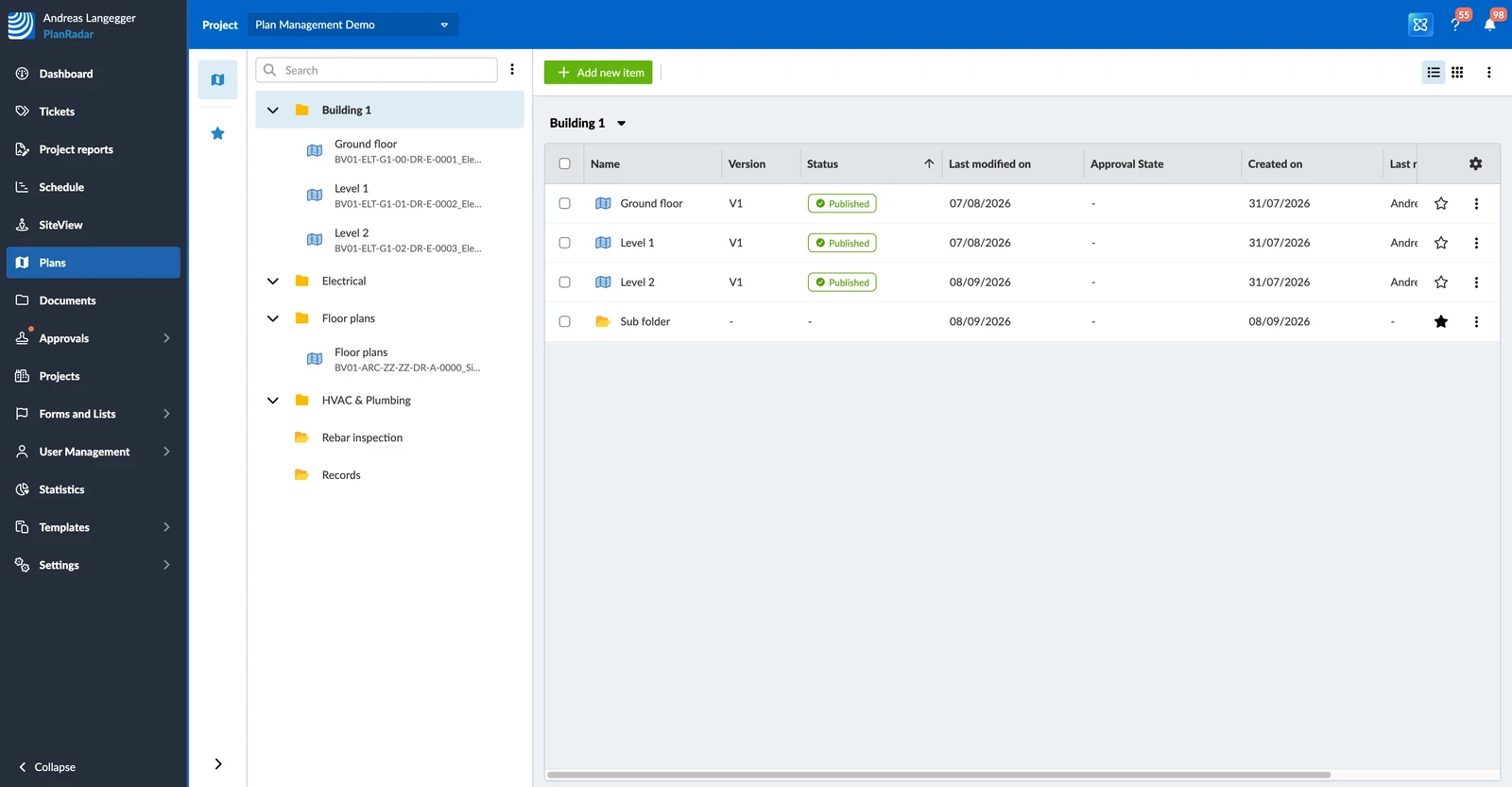
Plans have their own section in PlanRadar. Instead of managing them inside the project administration, you open Plans from the main menu and work with the project's drawings there.
The structure behind it changed as well:
- Folders replace layers. A folder is a container and can hold as many plans, BIM models and subfolders as you need — the one-plan-per-layer limit is gone.
- A new uploader. Upload many files at once, hand over a whole folder from your computer, or take the drawings from Dropbox, Google Drive or OneDrive, and check each file before it goes in.
- List and grid views with columns you choose yourself, sorting, search across the whole project, and favourites for the plans you use most.
- Versions stay with the plan, and you can see what changed between two of them.
- Approvals let a reviewer sign off a plan before anyone works with it, on Pro and Enterprise accounts created after February 2022.
What Happens to Your Data
Your projects are moved to the new structure automatically. There is nothing for you to prepare and nothing to do afterwards.
- Layers become folders, and the order they were in is kept.
- A layer that held a single plan becomes that plan.
- A layer that held a plan and sublayers becomes a folder with the plan inside it.
- Tickets that had a plan position stay on the plan. Tickets without one move to the folder.
- All plan versions and all ticket pins are kept. Folders and plans may share a name, just as layers could before — nothing breaks.
Watch the short demo for an overview of what is changing.
Where to Find Things Now
- Plans in the main menu is where your plans and folders live now. Upload, organise and open them there.
- The ticket attribute and the ticket filter that used to be called Layer are now called Location, because a ticket can sit on a folder or on a plan.
- Links and bookmarks to the old plan pages still work — they take you to the new section.
If You Don't Use Plans
Nothing breaks if your team never uploaded a plan. The layers you used to organise tickets are now folders, your tickets stay where they were, and you keep working exactly as before.
You manage that structure in the Plans section, despite its name — folders live there with or without plans in them.
What Mobile App Users Should Expect
After you update the app, it does a one-off internal update of its own data before your projects open. A screen explains what is happening. Depending on how large your projects are, this takes from a few seconds to a few minutes, and it may appear once more before it clears.
Questions
Do I have to do anything?

No. The change happens for you, and your tickets, plans and pins come along.
If you work with the mobile app, stay connected to the internet for a few minutes after you update it. The app needs that connection to bring its own data up to date before your projects open.
Are my links and bookmarks still valid?
Yes. Old links to plan pages take you to the new Plans section.
Does anything change for subcontractors and watchers?
They see Location where they used to see Layer. Everything else about their tickets stays the same.
Watchers can also open the Plans section. They can look at plans, their versions and details, and download them, but not change anything. Subcontractors still have no access to the section.
Do my reports and templates still work?
Yes. Report templates that use the Layer attribute keep working — the attribute is the same, it is only called Location now.
Can I still work with layers?
The word is gone, but the structure is not: every layer is now a folder, and folders work without plans just as layers did.
Updated September 3, 2026