

 Deutsch
 Español
 Français
 Hrvatski
 Italiano
 Polski
 Português (BR)
View & Compare Plan Versions in the Webapp
Overview
Every plan keeps its earlier versions. You can open an older version, download it, and compare two versions side by side to see what the revision changed.
Access & Permissions
How to Access Plan Versions and Comparison
Via the Plans Section
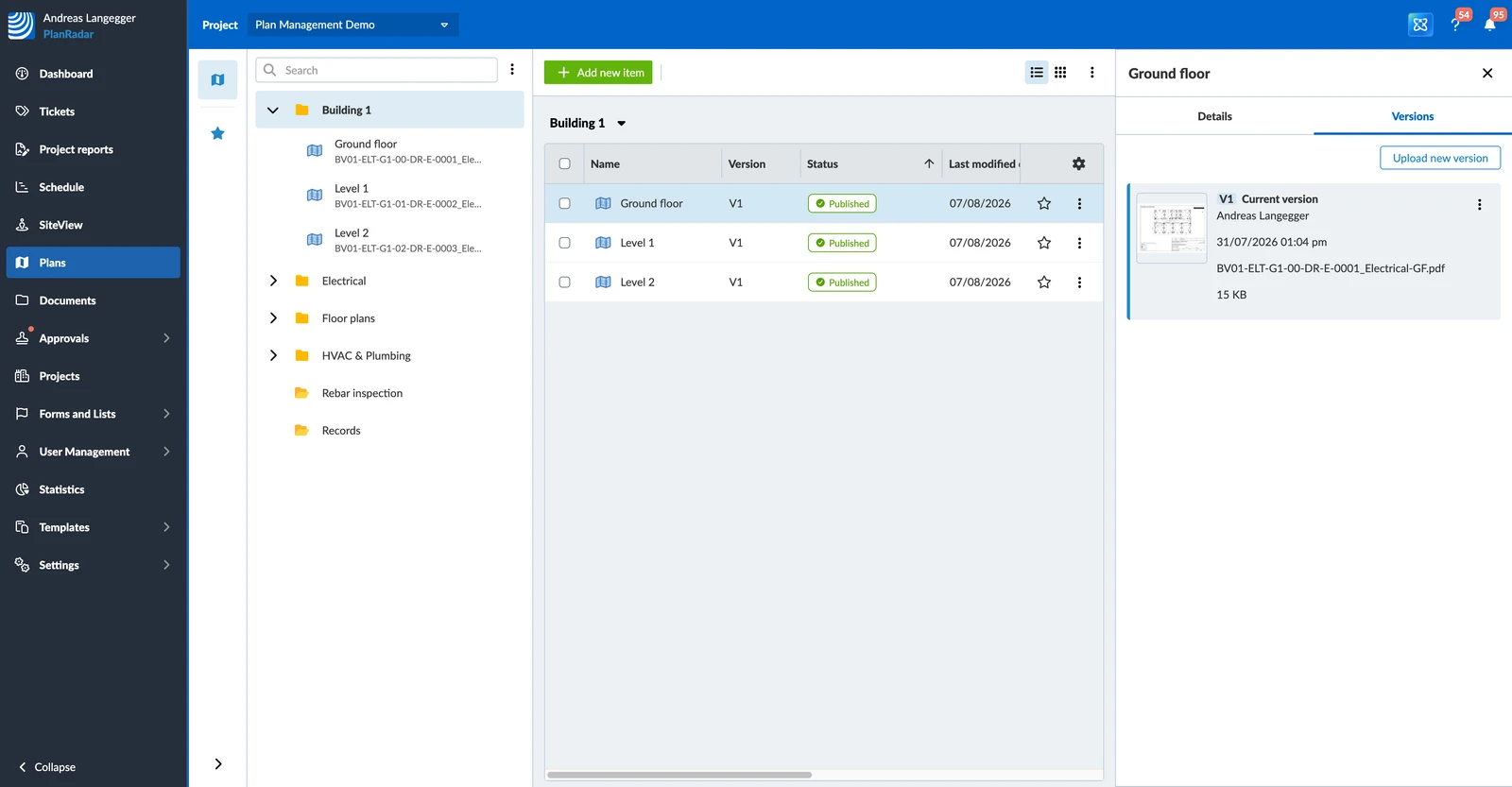
To open the version history of a plan:
- Click Plans in the main menu.
- Select the project in the project drop-down.
- Open the More menu on the plan and click Versions.
Via Tickets Plan View
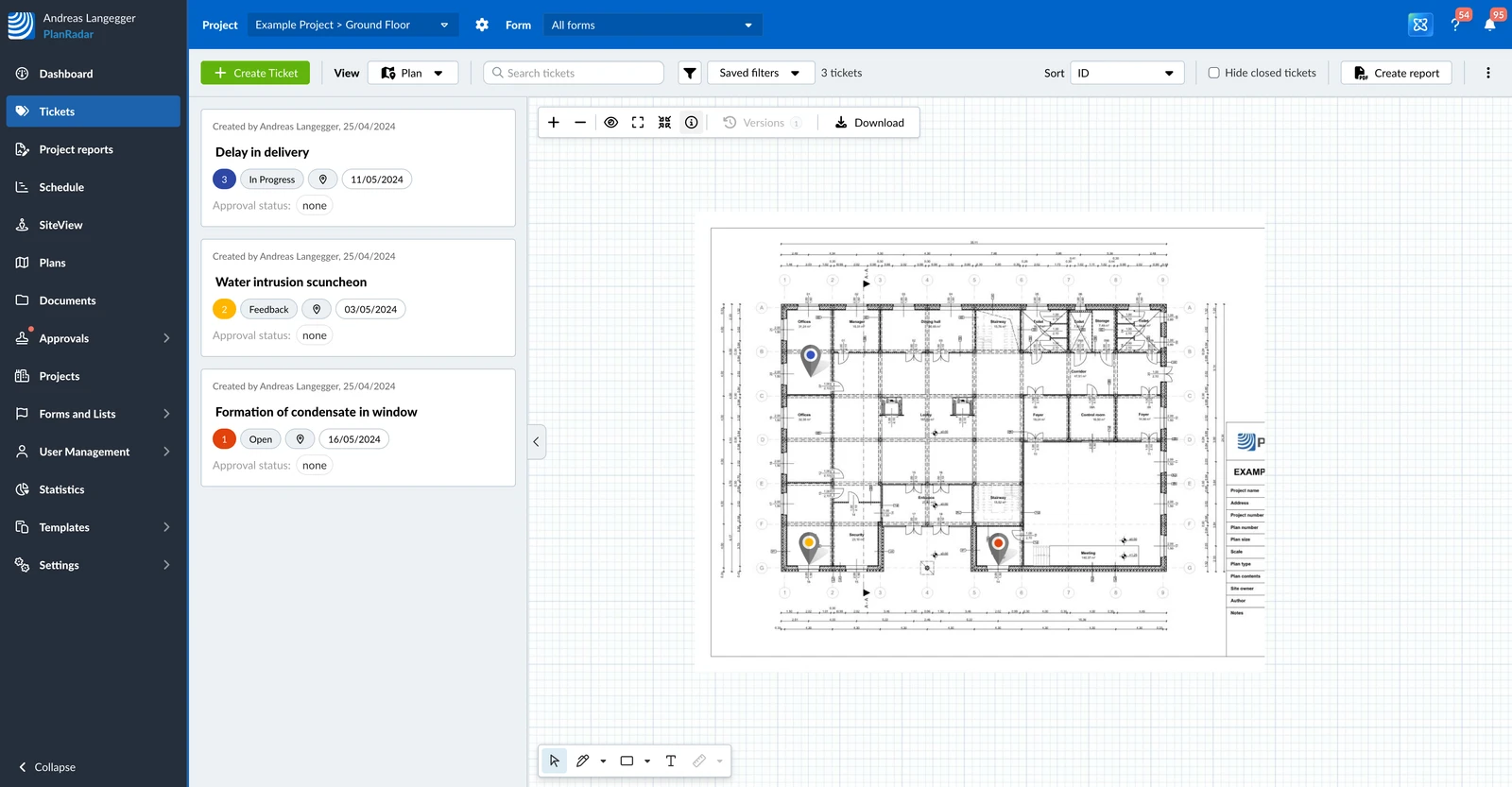
To view plan versions in the Tickets plan view:
- Click Tickets.
- Select the plan.
- Select Plan in the View drop-down.
- Click the information icon in the plan toolbar.
- Click Versions.
View Plan Versions
The list shows every version of the plan, newest first, with its number and the date it was uploaded. The version your team works with is marked Current, and a version that is waiting for a decision carries its approval state next to its number, for example V1 Pending approval.
To view a plan version:
- Click the version.
Select Plan Versions
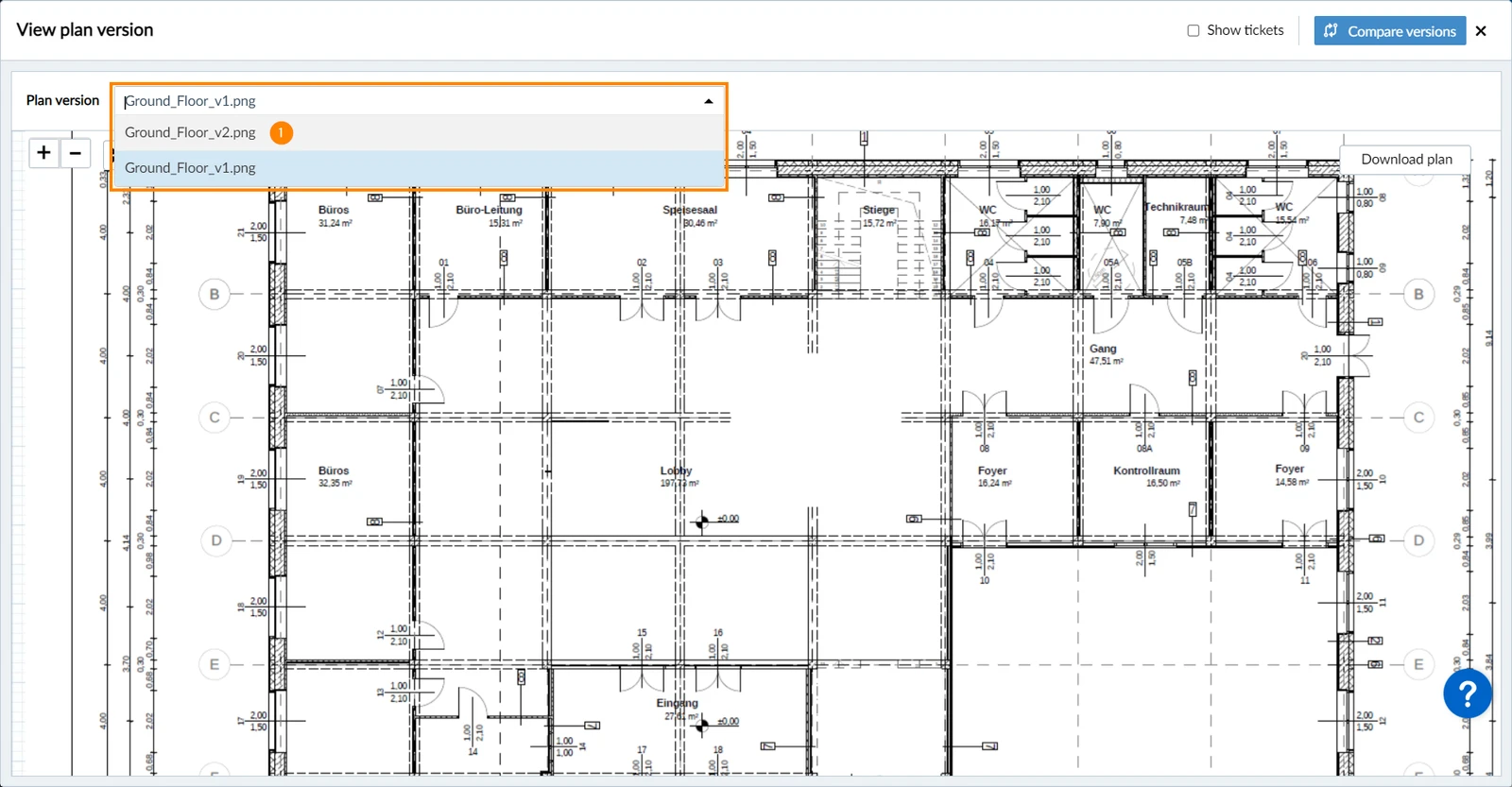
To view a different plan version:
- Select a version in the plan version drop-down
Navigate on the Plan
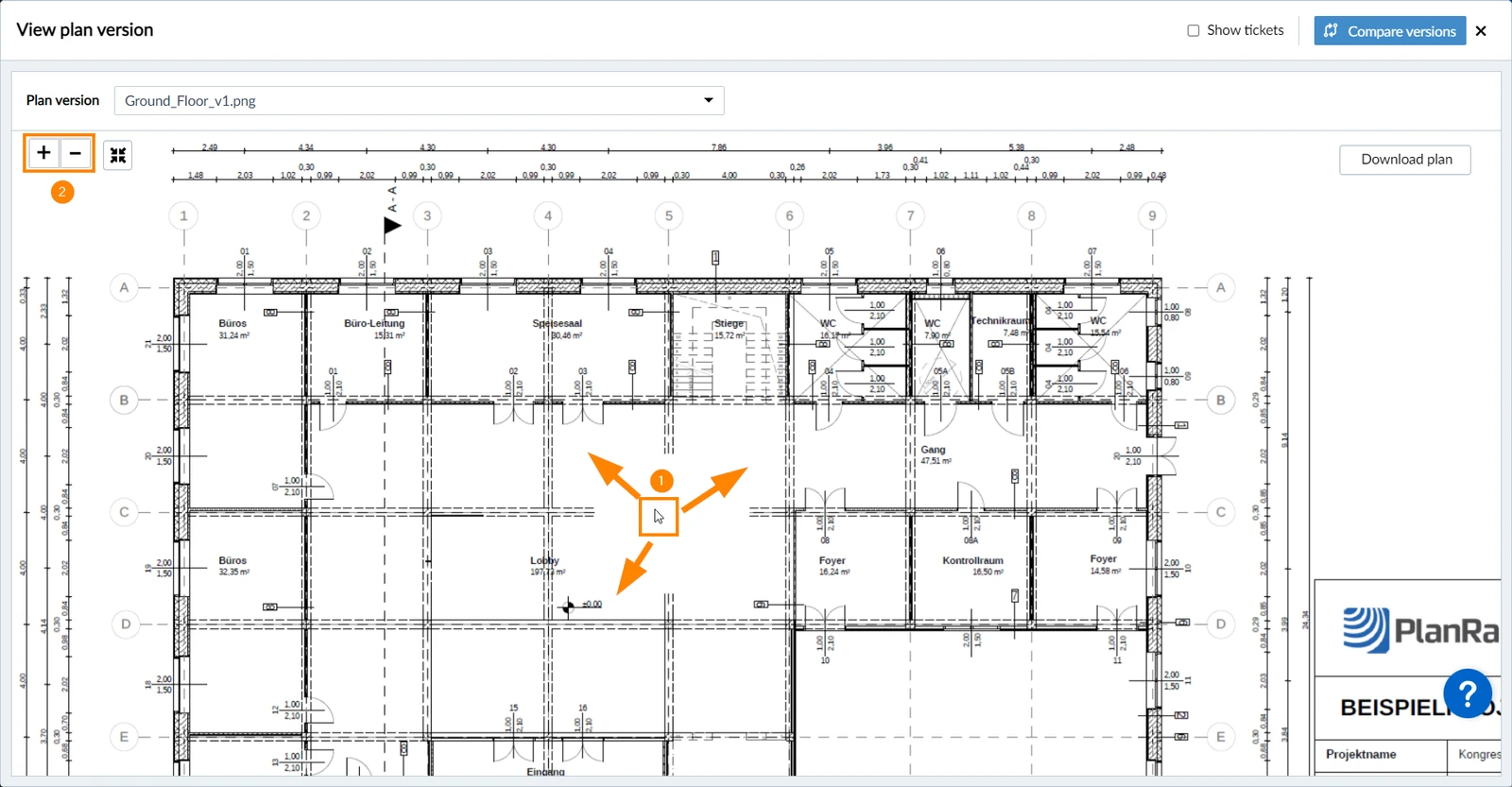
To navigate on the plan:
- Use drag and drop to move the visible section of the plan
- Use the mouse wheel or click the + and - buttons to zoom in and out
Show Ticket Pins
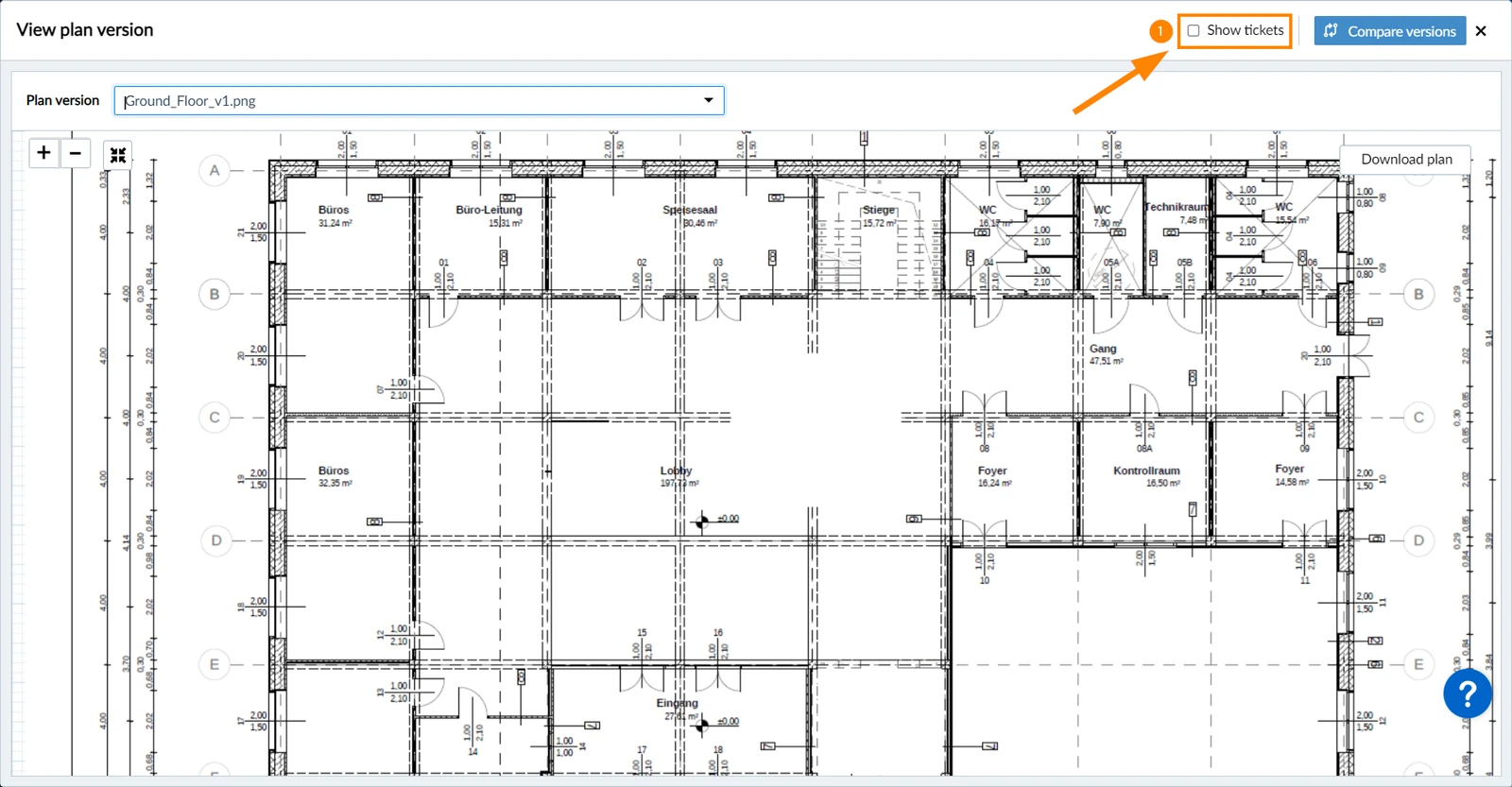
To show or hide ticket pins on the plan:
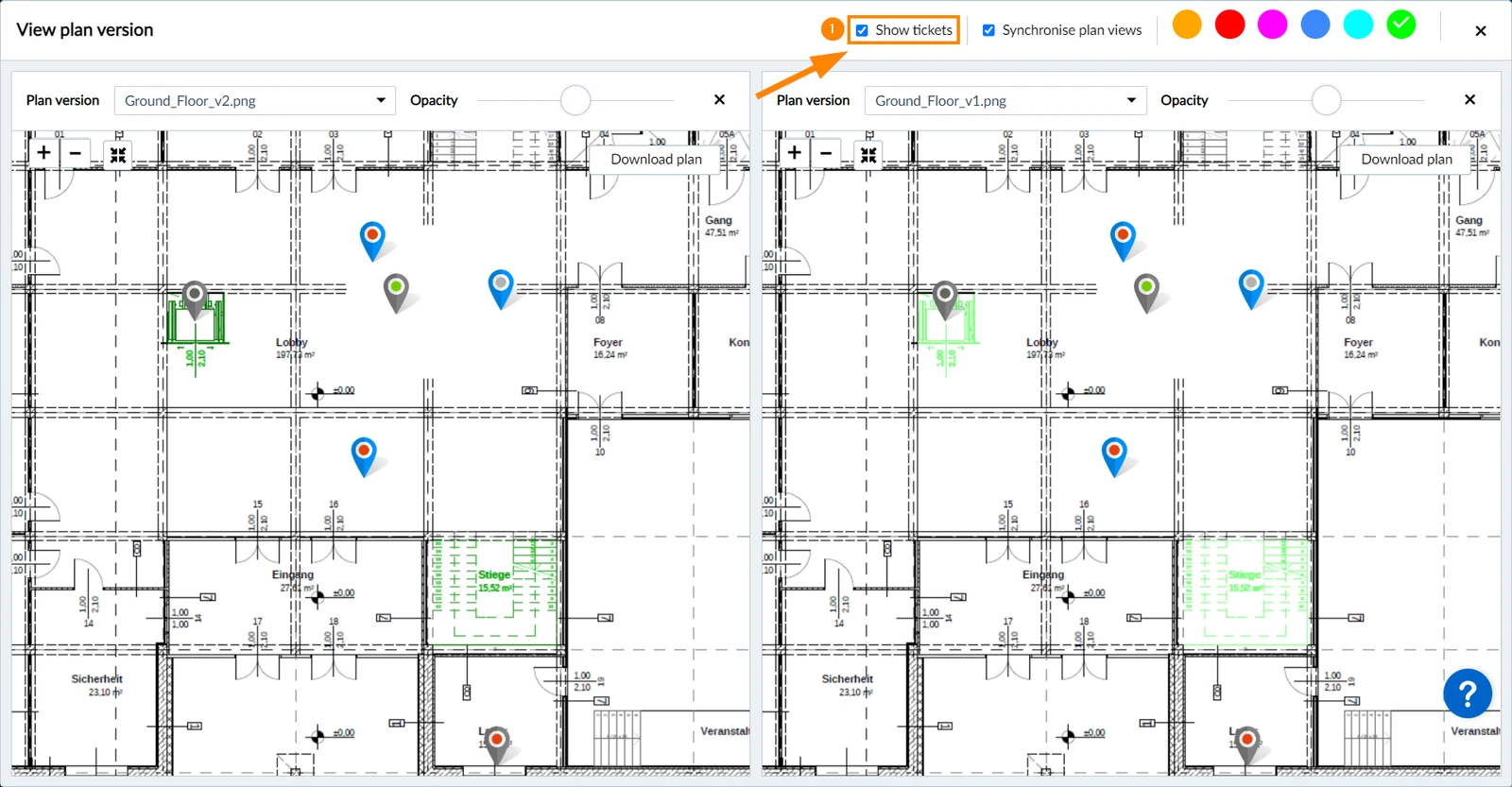
- Select or clear the Show tickets checkbox (cleared by default)
Delete an Old Version
You can remove versions you no longer need and free up plan quota.
To delete a version:
- Open the version history of the plan.
- Open the More menu on the version.
- Click Delete.
- Click Delete to confirm.
The current version cannot be deleted, and neither can a version that is waiting for approval. A deleted version stays in the list so the history stays readable, but it can no longer be opened or compared.
Which Version Is Current
As long as a plan has never needed approval, the newest version becomes the current one as soon as it is processed.
Once a plan has been through approval, the current version is the latest approved one. A version that is pending or rejected never becomes current — so if V2 was approved and V3 is still with the reviewer, your team keeps working with V2.
Compare Plan Versions
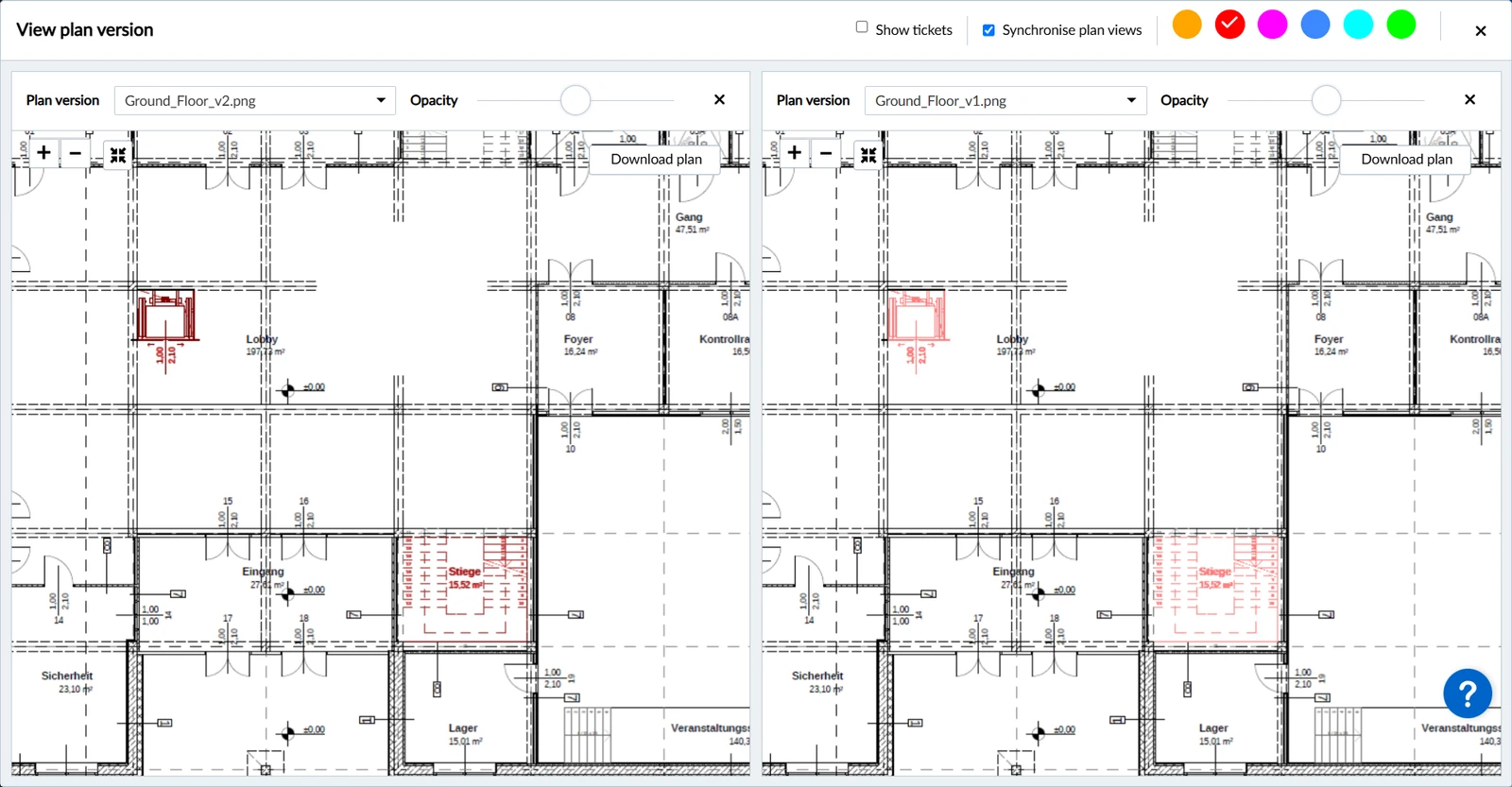
The comparison shows two plan versions side by side and highlights what changed. You can set the colour and opacity of the highlights, and both views are synchronised so you always look at the same area at the same zoom level.
To compare two plan versions:
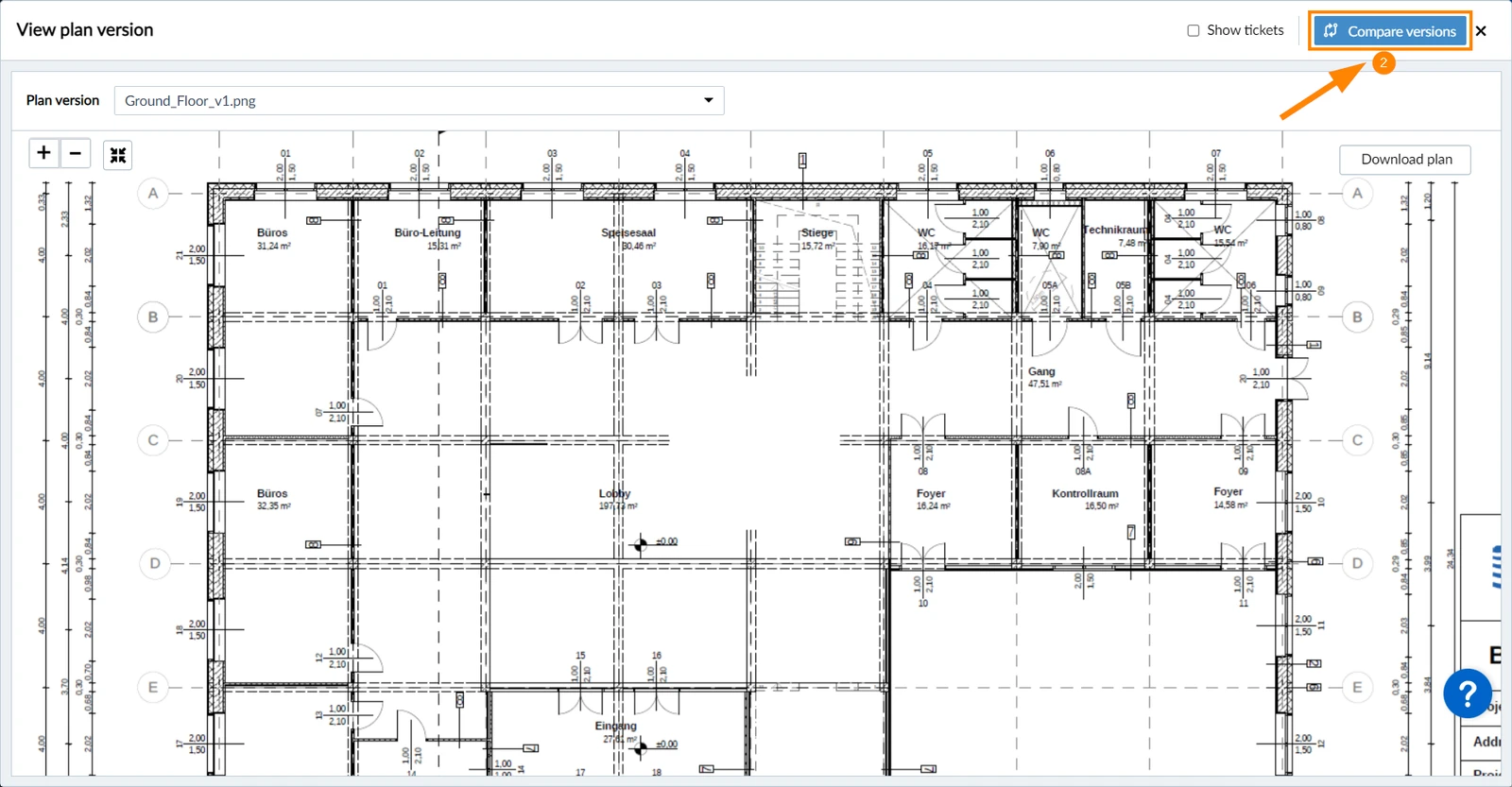
- View a plan version (as described above)
- Click Compare versions
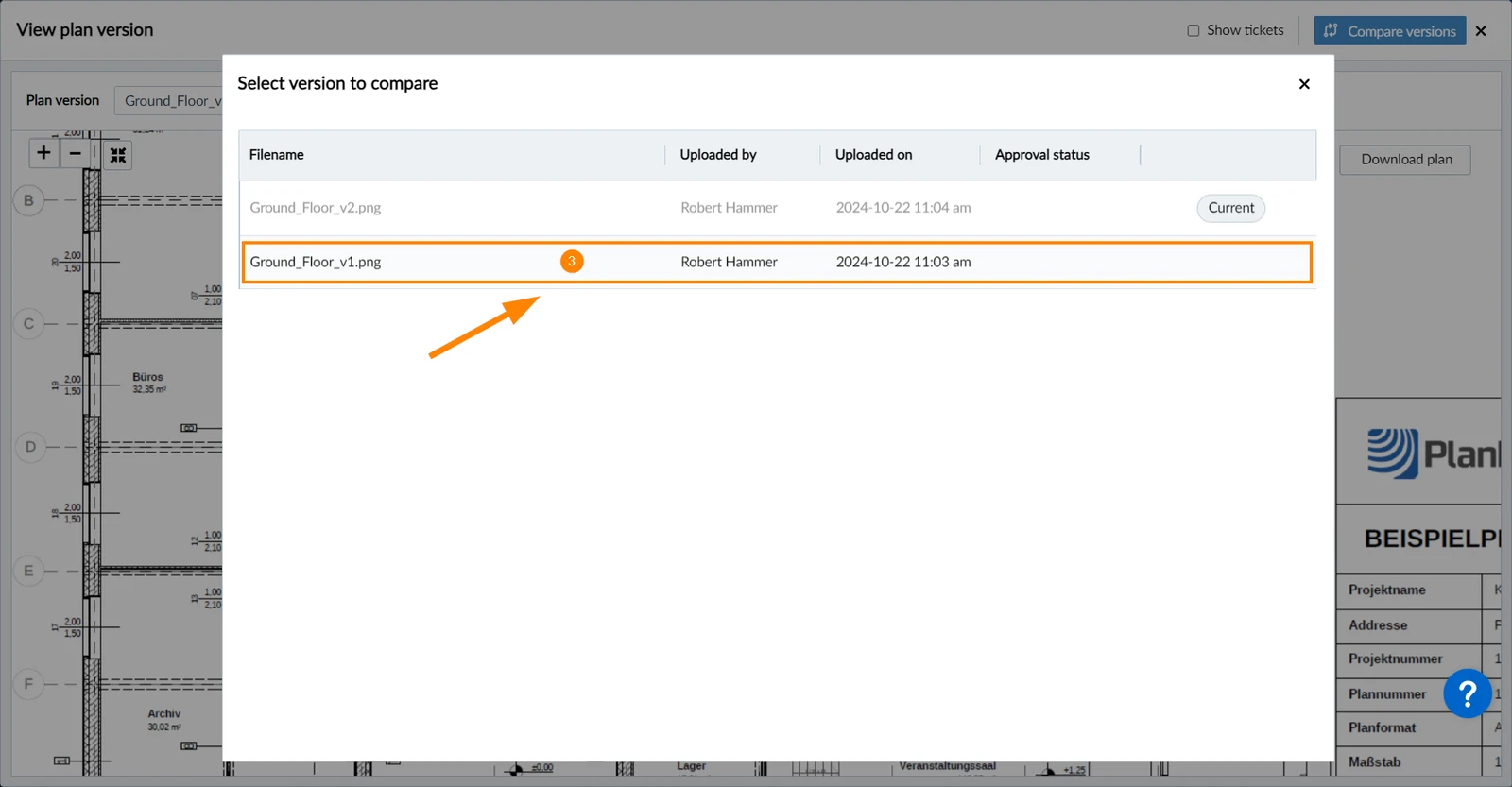
- Select the version that you want to compare with.
The version selected in the viewer is greyed out as you will be comparing with this version.
Synchronised Navigation
By default, both plan views are synchronised when you Navigate on the Plan (as described above).
To allow separate navigation on both plan views:
- Clear the Synchronise plan views checkbox
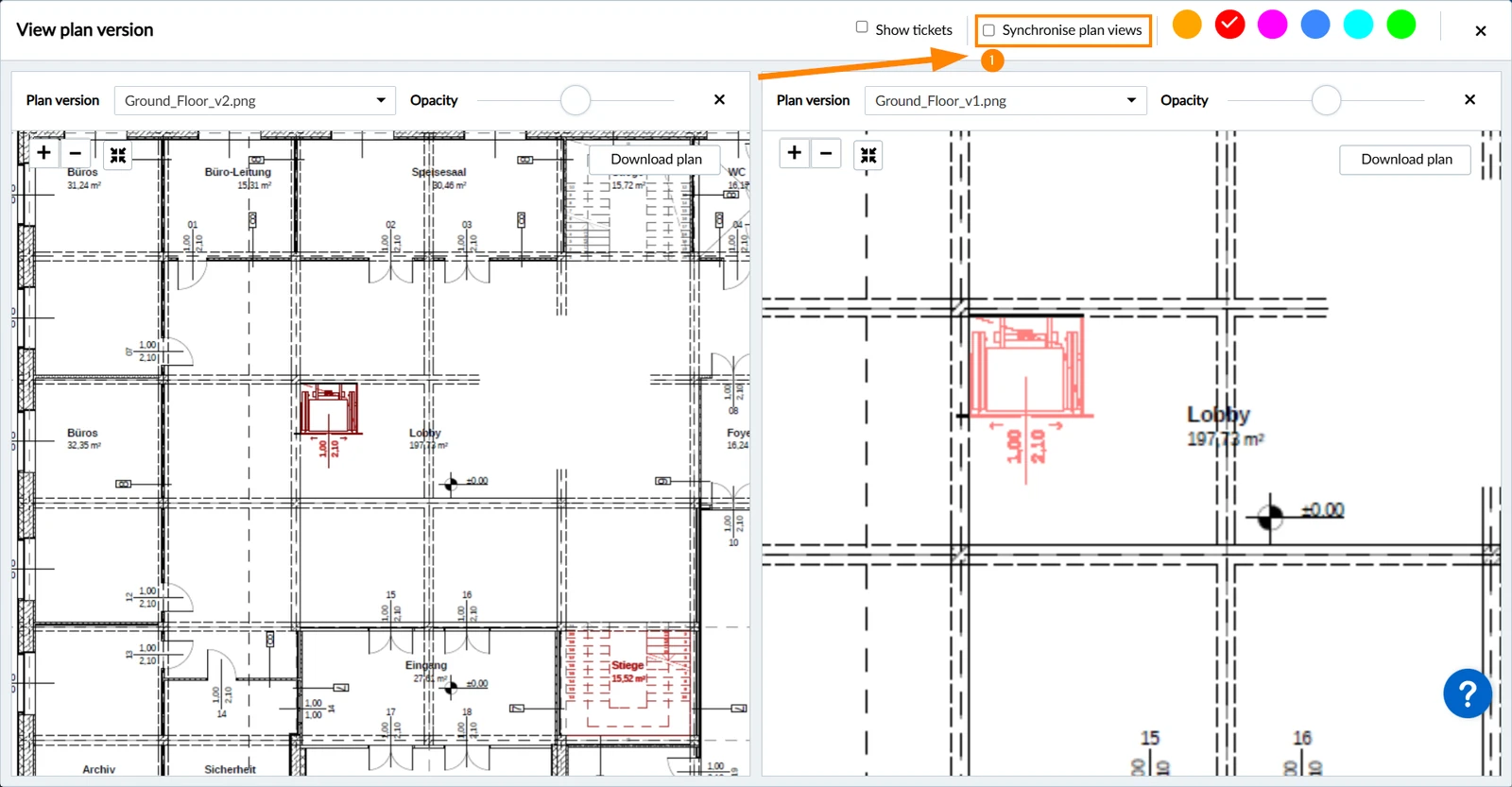
Select Plan Versions
View and compare different plan versions:
- Select another version in the Plan version drop-downs
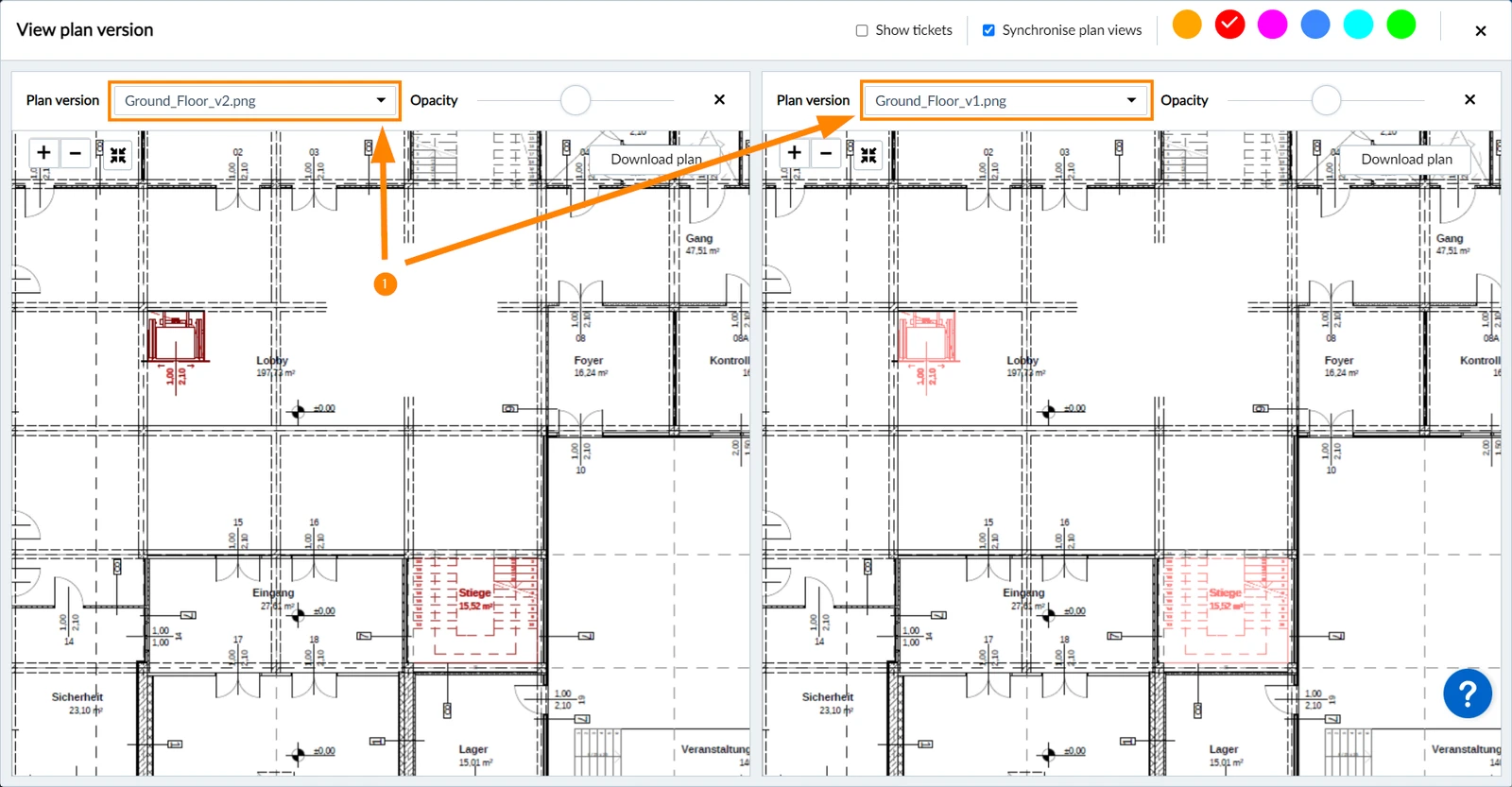
Highlight Differences
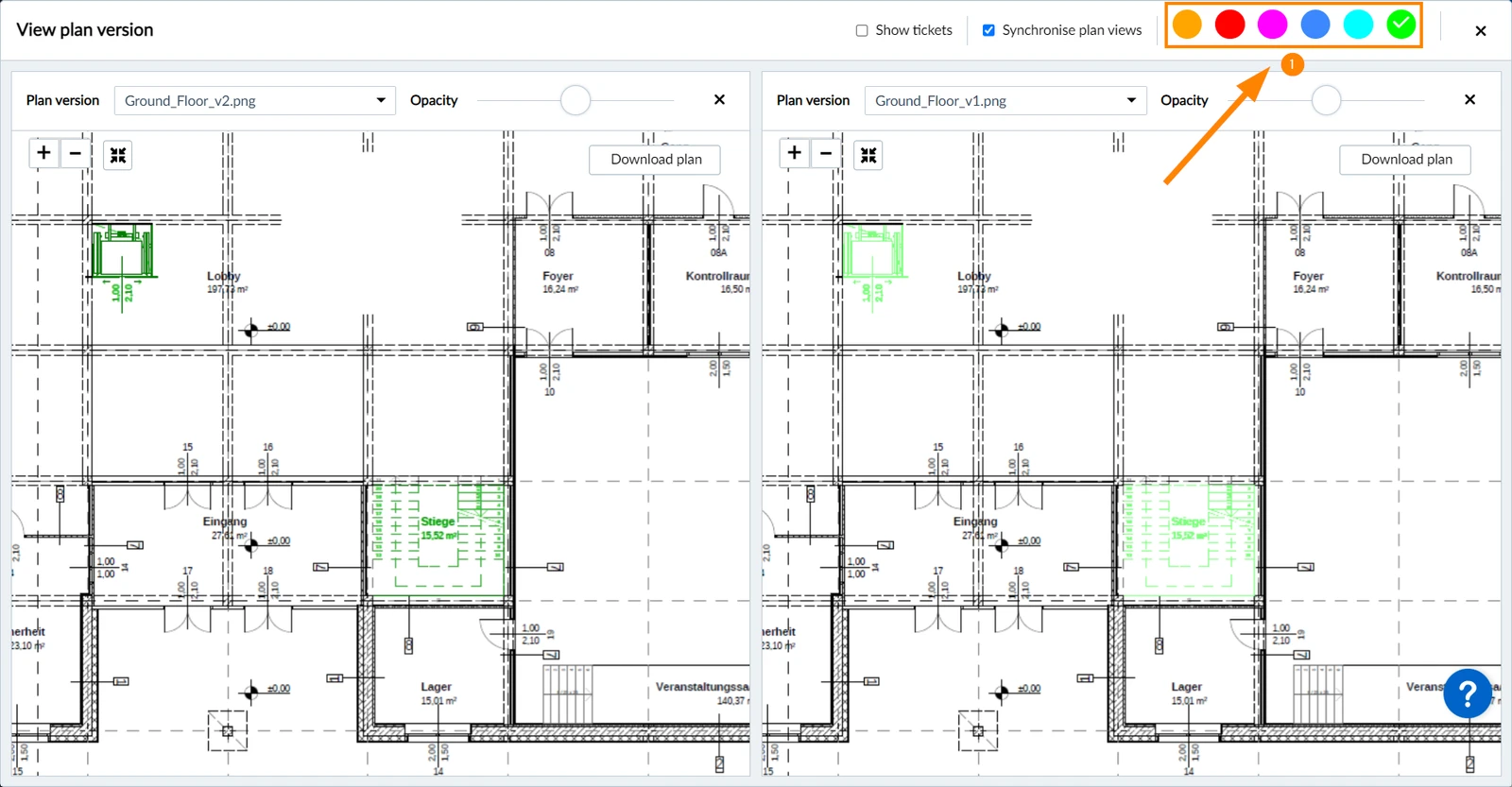
To change the colour of highlighted differences:
- Click on a different coloured circle
The active colour shows a ✔
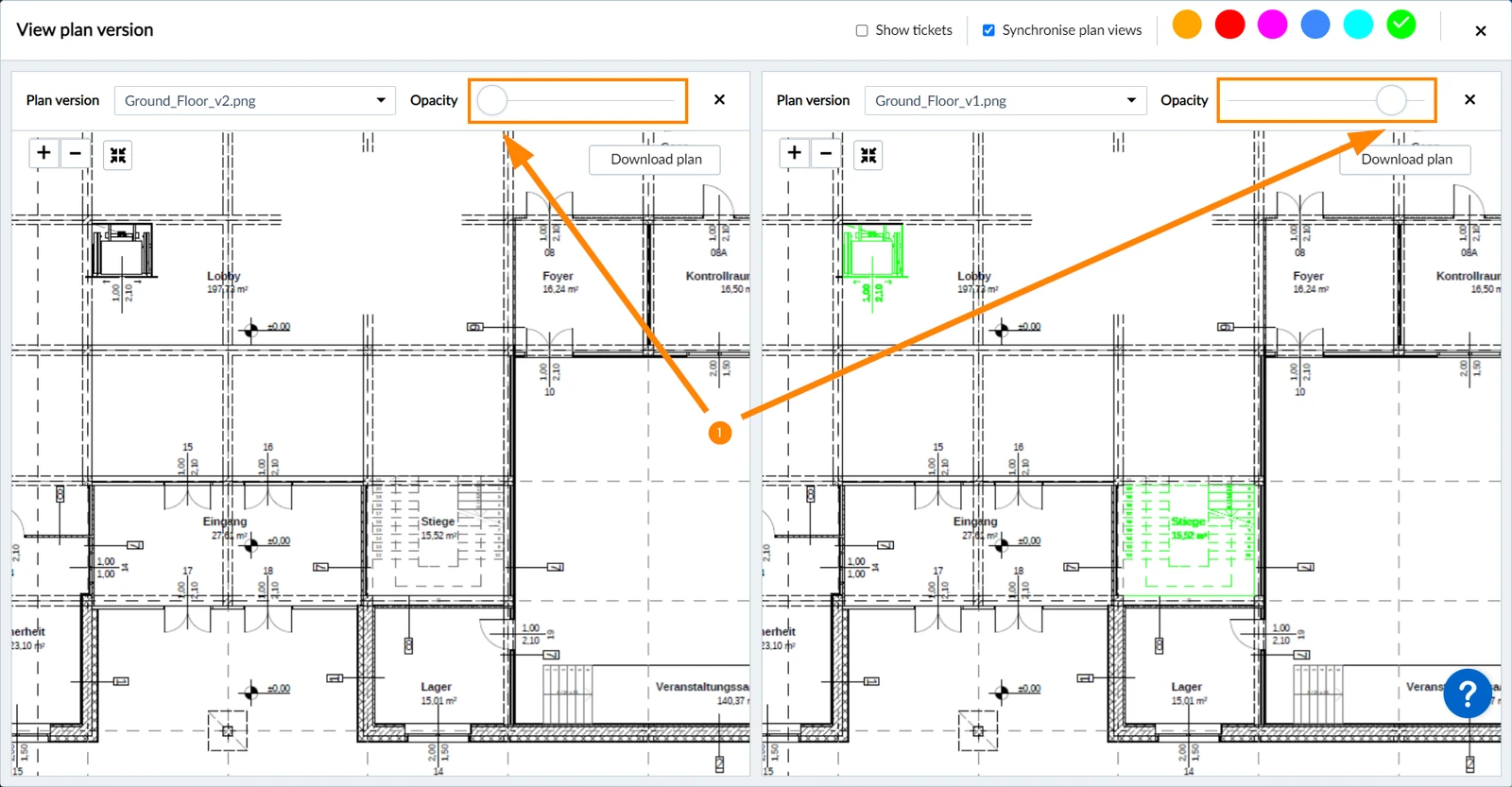
To change the opacity of highlighted differences:
- Use the Opacity sliders above the left or right plan view.
Move the slider further to the left for less opacity or further to the right for more opacity.
0% opacity on the far left will hide the highlights.
Show Ticket Pins
To show or hide ticket pins:
- Select or clear the Show tickets checkbox (cleared by default)
Download Plan Versions
Any version can be downloaded, including the older ones.
To download a plan version:
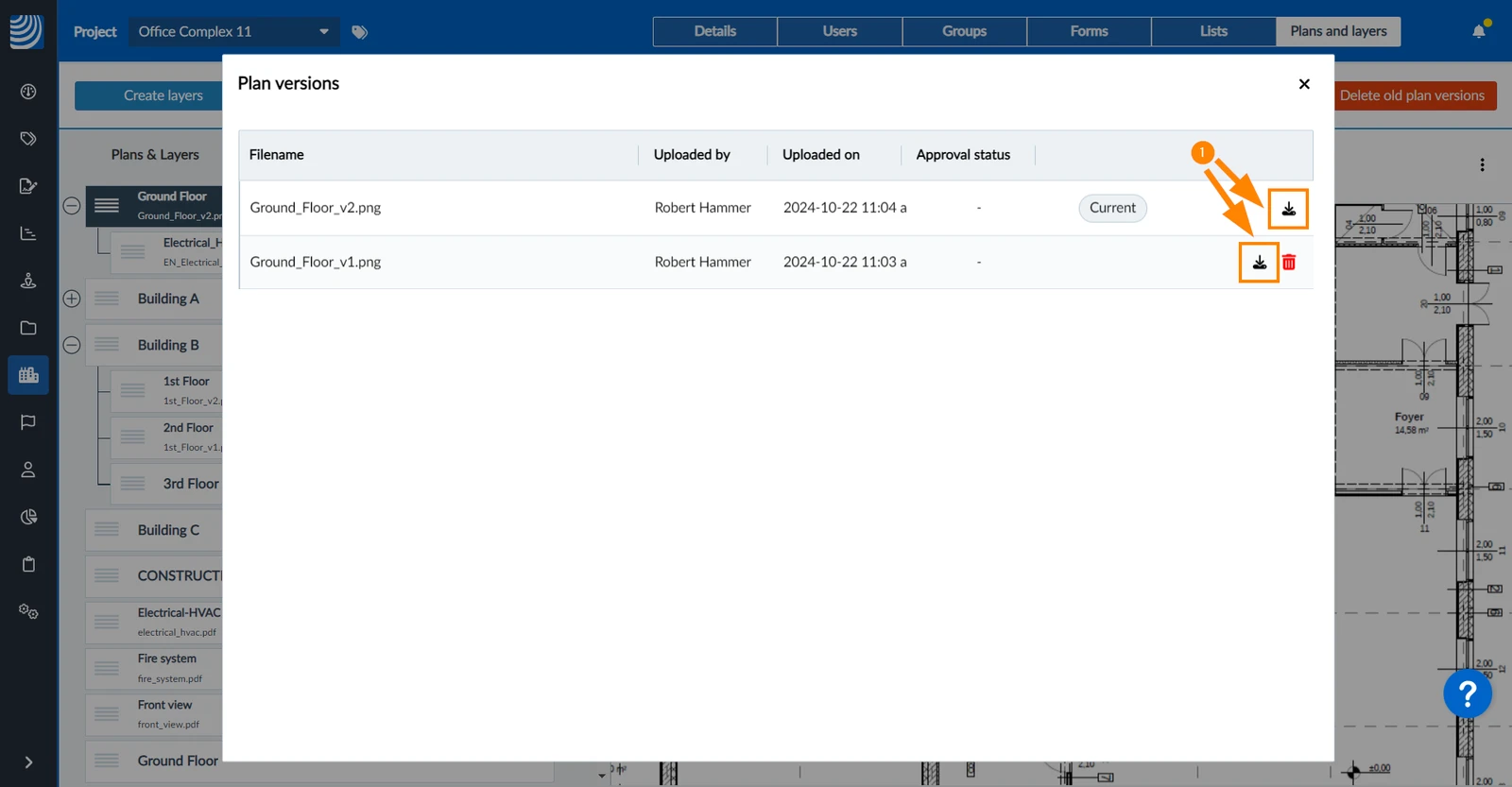
- Click the Download icon next to the version in the list
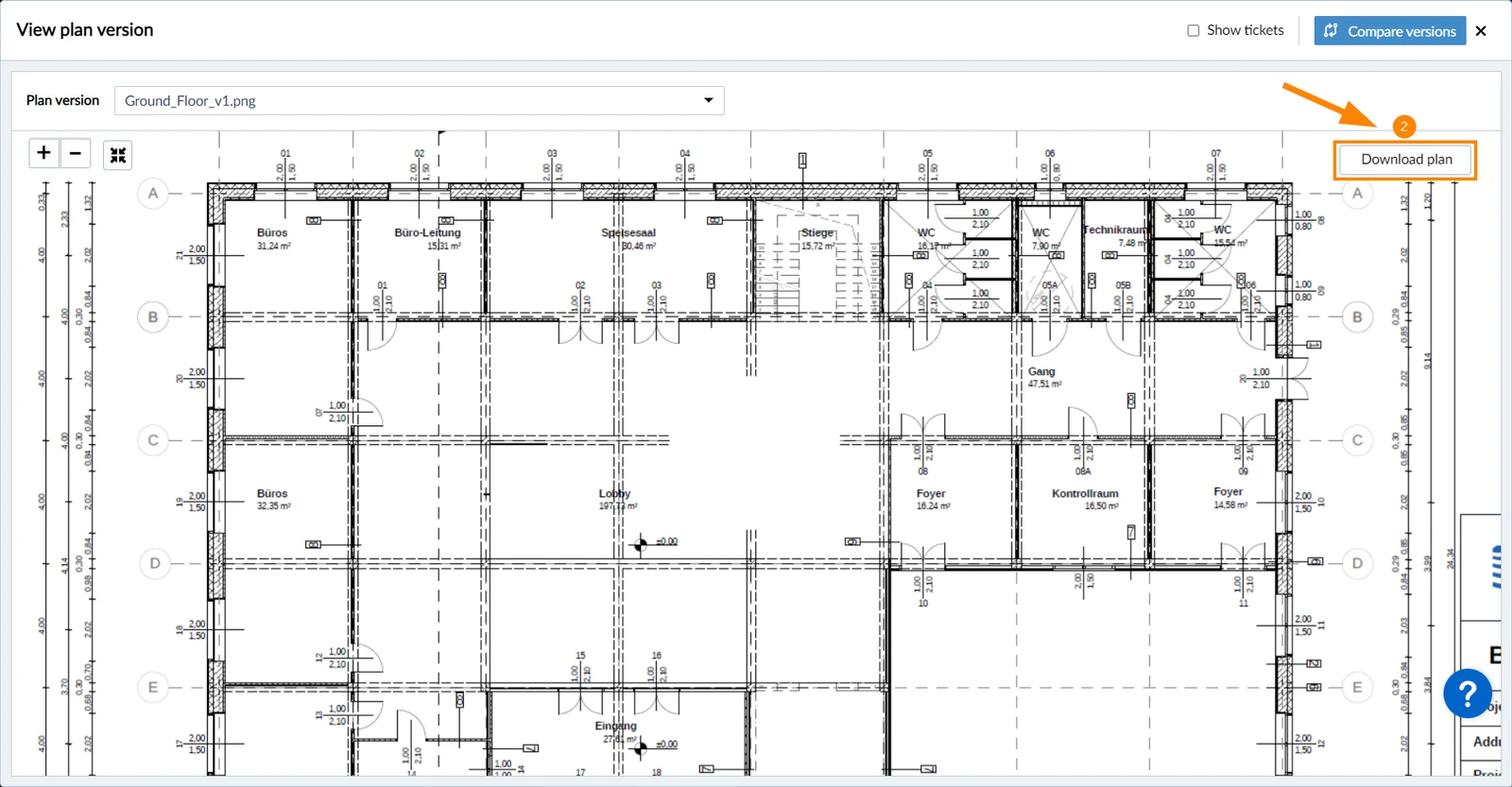
- OR Click Download plan in the plan viewer
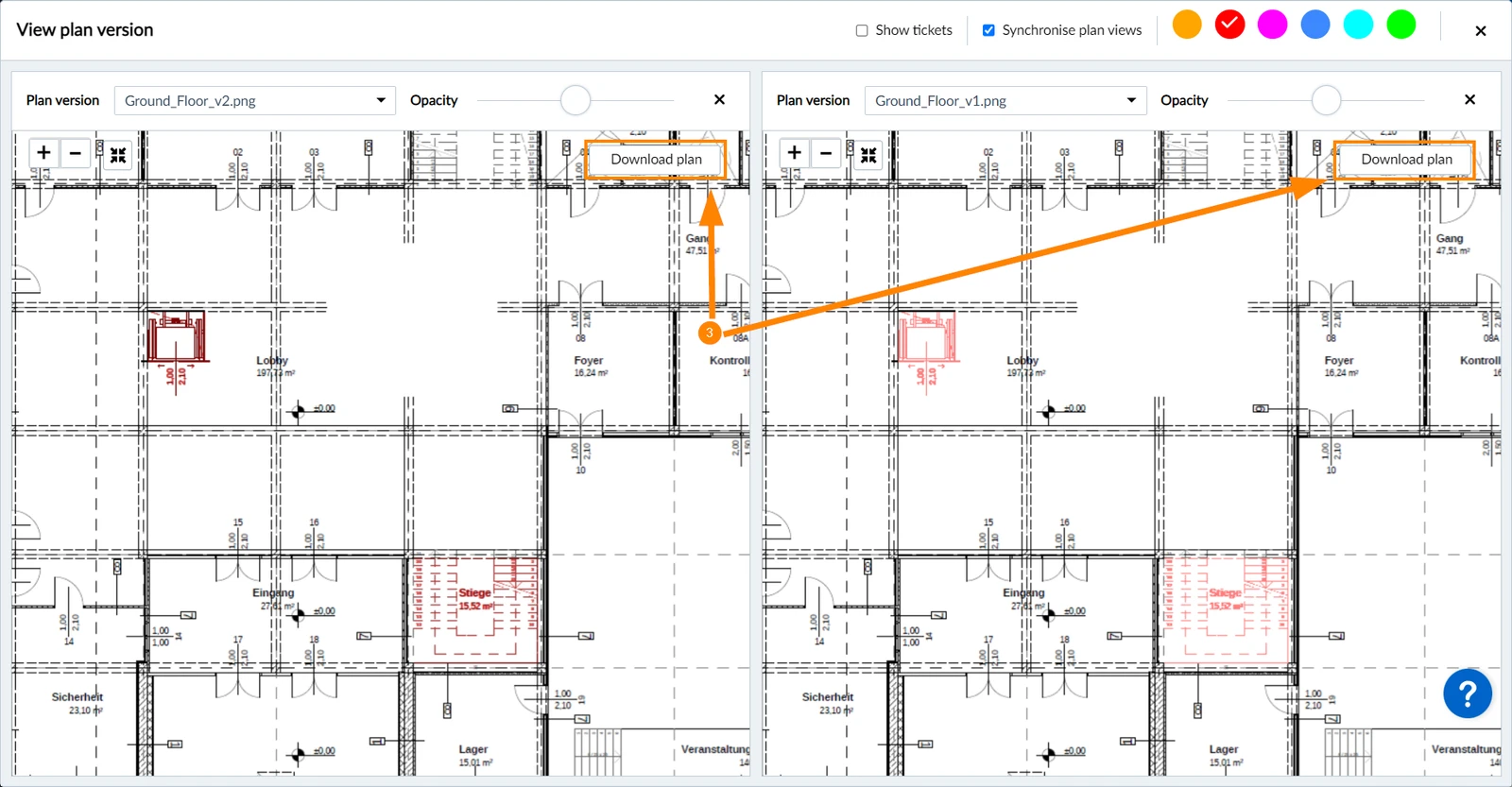
- OR Click Download plan in the plan comparison viewer
Updated September 3, 2026