

 Deutsch
 Español
 Français
 Hrvatski
 Italiano
 Polski
 Português (BR)
View & Compare Plan Versions in the Mobile App
Overview
On site you can check which revision of a plan you are looking at, open an older one, and see what changed between two versions — all from the plan viewer, without going back to a desk.
How to Access the Version History
To open the version history:
- Open the plan in the plan viewer.
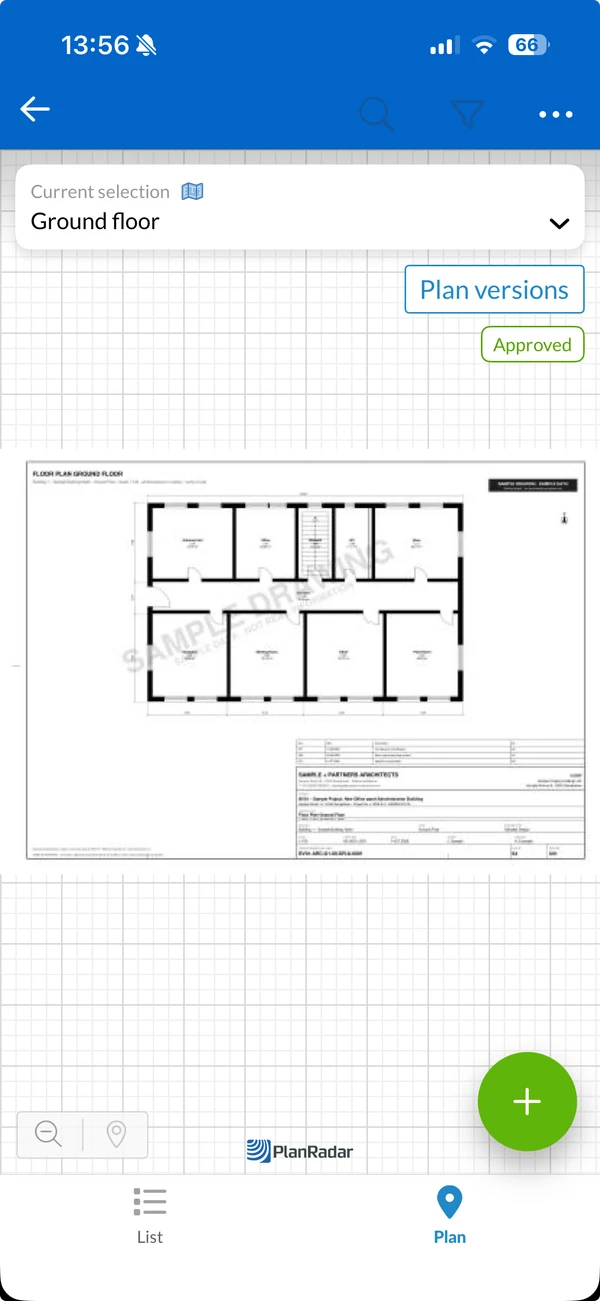
- Tap Plan versions. The button appears only when the plan has more than one version.
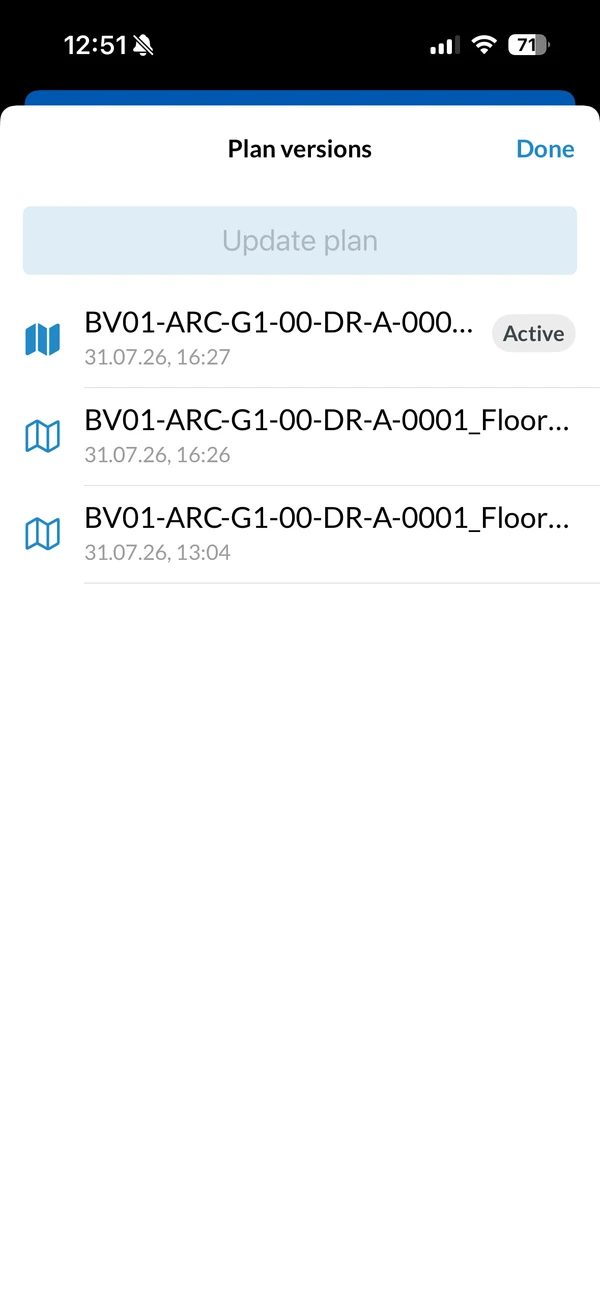
Plan versions opens with the newest version first. Each entry shows the file name and when it was uploaded, and the version in use is marked Active.
View an Older Version
To open an older version:
- Open the version history.
- Tap the version you want.
The version opens read-only, with its number and date in the title. Ticket pins and markups are not drawn, so you see the drawing as it was delivered.
Compare Two Versions
To see what changed between two versions:
- Open the version history.
- Tap Show changes to version.
- Select the version to compare with.
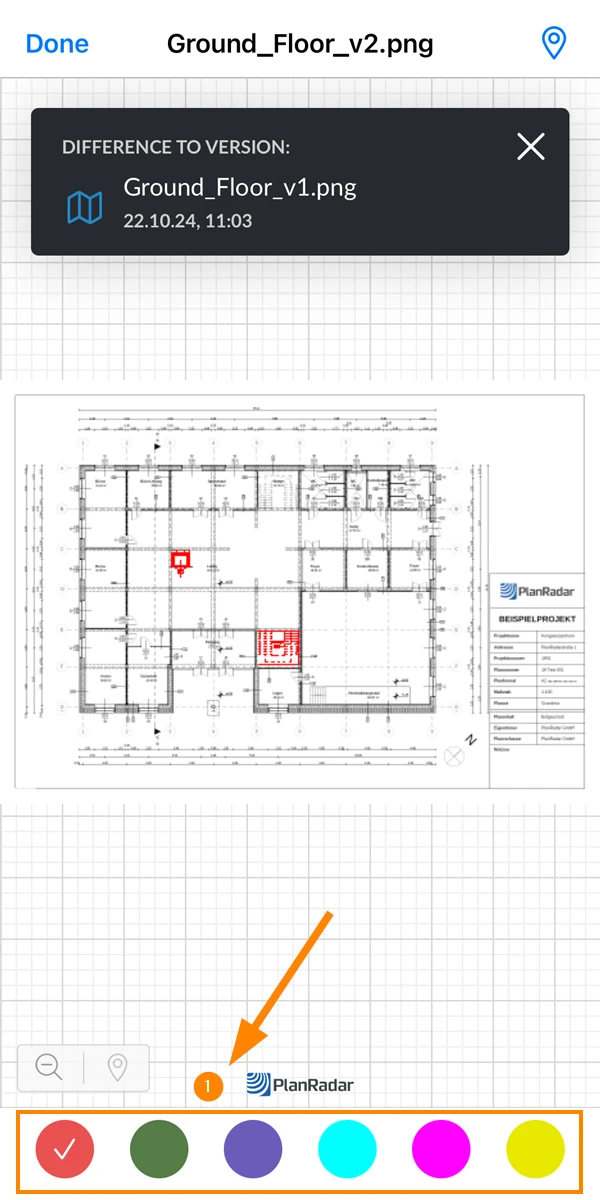
The two versions are laid over each other and the differences are picked out in colour. The header names the versions you are comparing, and you can change the colour of the overlay to make the changes stand out against the drawing.
Update the Plan From the History
If you have edit rights on the project, tap Update plan at the top of the version history to upload a new version of this plan. The file goes into the plan's own folder — there is nothing else to choose.
Update plan is not available once a version of the plan has been approved. The new version would need approval too, which means it is unpublished, and unpublished plans are hidden on mobile. Read more in Update Plans in the Webapp.
Updated September 3, 2026