

 Deutsch
 Español
 Français
 Hrvatski
 Italiano
 Polski
 Português (BR)

Import Tickets with AI
Overview
Import tickets from an Excel or CSV file without setting up a form first. AI reads your file and prepares the import:
- It uses one of the project's forms, adds missing fields to it, or creates a new form if none fits
- It creates lists from repeating values in your file, or adds new entries to existing lists
- It maps each column of your file to a ticket field
You review everything before any ticket, form or list is created. You also pick the location the tickets go to.
AI import creates new tickets only. To update tickets that already exist, use the manual import.
Access & Permissions
Before You Start
Check that your file and project are ready:
- The file is a CSV, XLS or XLSX file of up to 10 MB
- The file has up to 5,000 rows, one row per ticket
- The column names are in the first row
- The project has at least one location, a plan or a folder. Read more in Manage Plans & Folders in the Webapp.
Import Tickets with AI
To start an AI import:
- Click Tickets
- Select the project you want to import tickets to from the Project drop-down
- Open the More menu, then click Import tickets
- Click Try AI import
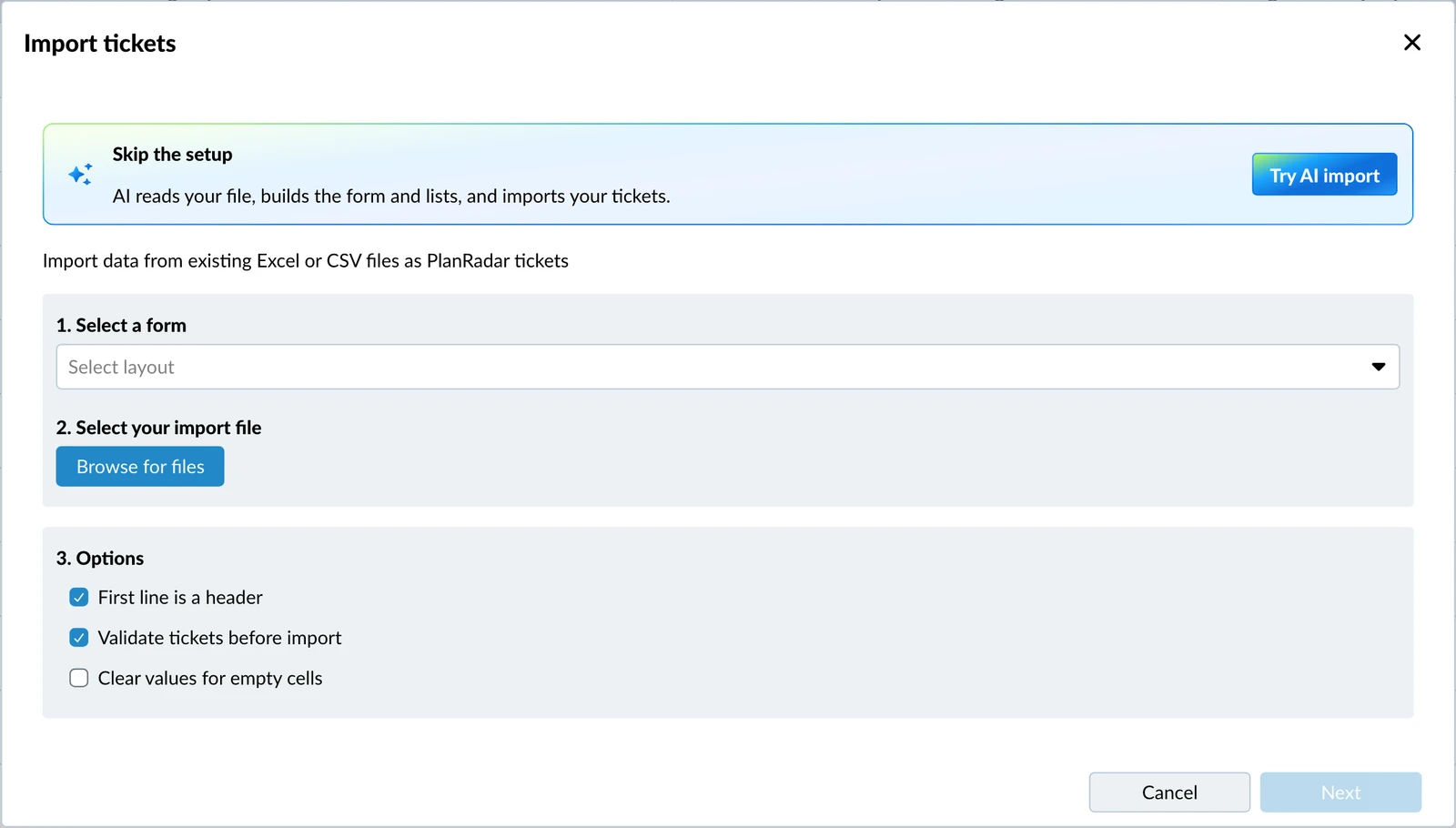
- Drop your file on the upload area, or click it to browse for the file
- Click Analyze file
The window closes and a panel in the bottom right corner shows Analyzing file. You can keep working in PlanRadar or leave the page. When the analysis is ready, you get a notification.
To open the review:
- Click Review in the panel once it shows Ready to review
- OR click Review in the notification
Review the Import
The review shows what the import will do. Nothing is created until you click Import.
Depending on your file, the review has these parts:
- Column mapping: each column under Your file next to the ticket field it goes into under PlanRadar ticket field
- Columns that will be skipped unless you map them: columns the AI could not match to a field
- Columns skipped: columns that are left out, each with the reason
- Dropdown lists: the lists the import creates or adds entries to
- Things adjusted automatically: changes the AI made to fit your data into PlanRadar
- Summary: how many tickets are imported, which form they use, and which new fields are added
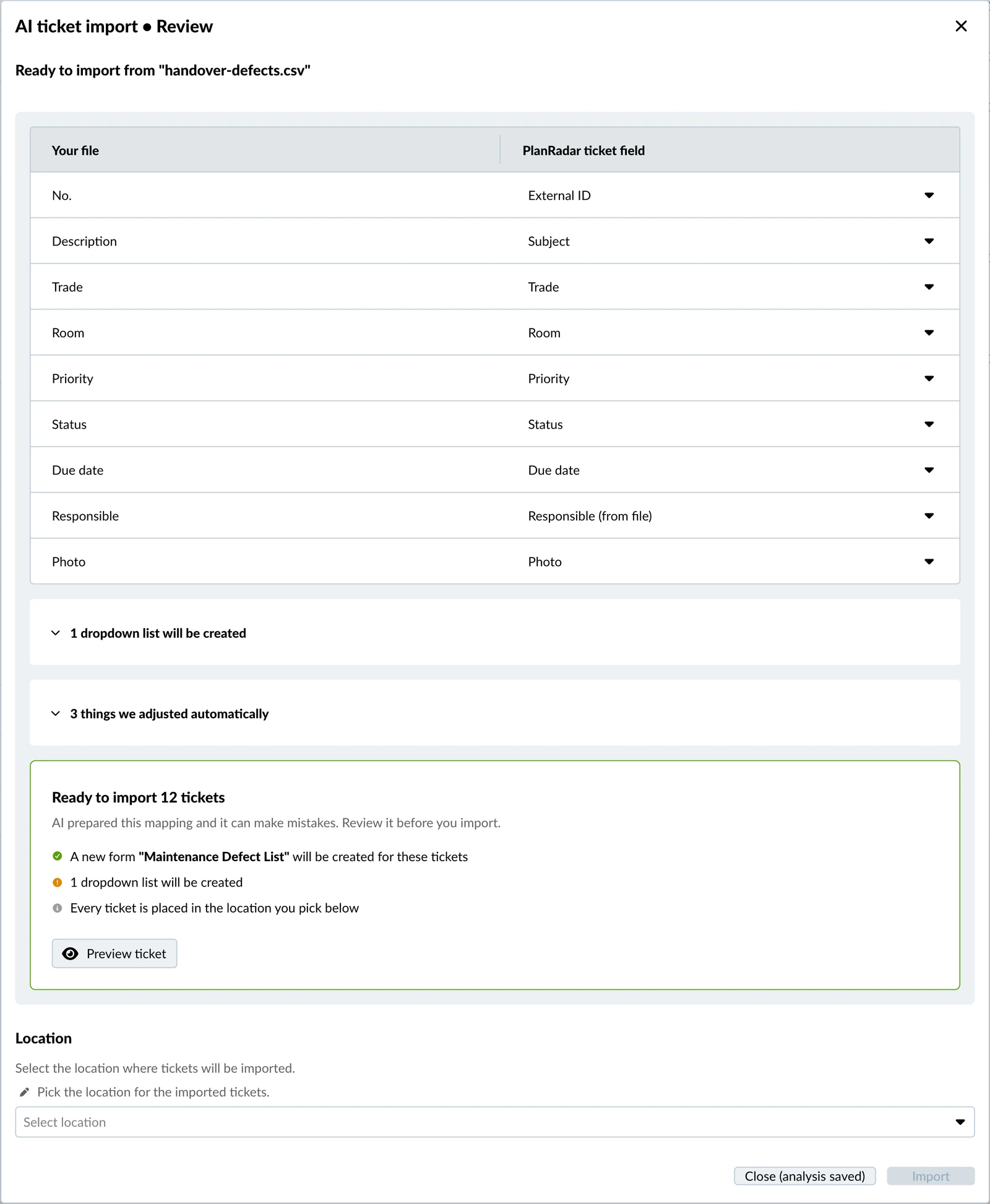
To import the tickets:
- Check the mapping and change any column that is wrong. Read more below in Change a Column Mapping.
- Select the location for the tickets from the Location drop-down
- Optional: Click Preview ticket to see the first row of your file as a ticket
- Click Import
Change a Column Mapping
You can point any column at a different field, skip it, or bring back a column the AI skipped.
To change a column mapping:
- Click the field next to the column
- Select one of these:
- another field of the form
- Skip this column
- Create a new field for this column
Import Several Kinds of Tickets from One File
A file can hold several kinds of tickets, for example quality checks and handover checks. When the AI finds them, the review starts with "We identified N types of tickets in your file" and imports each kind into its own form.
- Up to 5 kinds of tickets per file
- Each kind needs at least 5 rows
- Each kind has its own mapping and its own preview
- A list that several kinds need is created once and shared
One button imports all of them, for example Import 120 tickets into 2 forms.
Names That Don't Match Project Users
The assignee and CC columns of your file are matched against the users of the project. When names don't match:
- If no name in the column matches, the names are imported as text into a new field called "column name (from file)"
- If some names match, the matching users are assigned and the tickets are imported without the other names
Things adjusted automatically tells you which of these applied. To change it, map the column to another field or skip it.
Follow the Import
After you click Import, the window shows the progress for forms, lists and tickets. You can close it, the import keeps running.
When the import is done, click Go to tickets to see the new tickets.
Come Back to an Import Later
You can close the review without importing. Click Close (analysis saved) and the analysis stays available for 24 hours.
To continue a saved import:
- Open the More menu, then click Import tickets
- Click Review
To discard it and start with another file, click New file instead. A new file uses another AI analysis.
Troubleshooting
| Message | What to do |
|---|---|
| We could not analyze your file | Something went wrong on our side. Click Try again. If the message says the column names were not found, put them in the first row of the file and upload it again. |
| This file does not look like a ticket list | Check that the file has one row per ticket and a column name for each column, then upload it again. |
| No locations in this project | Add a plan or folder to the project, then start the import again. Read more in Manage Plans & Folders in the Webapp. |
| AI usage limit reached | Click Use manual import to import the file without AI. Read more in AI Usage Limits and Upgrades. |
| A form can get up to 5 new fields in one import | Map the extra columns to existing fields or skip them. |
| This file has more than 5,000 rows | Split the file into smaller files and import them one by one. |
| This file is larger than 10 MB | Upload a smaller file, for example by splitting it. |
| Try AI import is unavailable | The reason is shown with the button. Subcontractors and watchers cannot use AI import. Without the AI access or Forms and Lists user permission, use the manual import or ask an account administrator. |
Updated November 13, 2026