

 Deutsch
 Español
 Français
 Hrvatski
 Italiano
 Polski
 Português (BR)

Restrict Location Visibility in the Webapp
Overview
On a project with several companies or trades, not everyone needs to see everything. Location visibility lets you choose who sees a plan, folder or BIM model in Tickets and SiteView — and with it, who sees the tickets on it. Each party then works only with the areas that belong to them.
Everyone you do not select:
- no longer finds the location when they pick one in Tickets or SiteView;
- no longer sees any ticket on it.
The Plans section does not change: everyone who can open it still sees the plan, folder or BIM model there.
Access & Permissions
How Location Visibility Works
- Selected means visible. A user sees a restricted location and its tickets only if they are in its list — directly, through a group or through their role. Subcontractors and watchers are included only through a user or group entry. A role entry does not include them.
- Ticket permissions still apply. Location visibility only hides more. A user whose role shows only the tickets assigned to them still sees only those tickets on a location they are selected for.
- There are no exceptions. Project admins and the account owner do not see a restricted location's tickets unless they are selected. The same applies to the people who created a ticket or are assigned to it.
- Folders pass it on. A restriction on a folder applies to everything in it at every level: subfolders, plans, BIM models and tickets placed directly on the folder. New plans, BIM models and subfolders added to the folder are included at once.
- Unrestricted tickets stay as they are. Tickets without a location, and tickets on locations without a restriction, are not affected.
How to Access Location Visibility
- Click Plans in the main menu.
- Select the project in the project drop-down.
- Open the More menu on a plan, folder or BIM model, then click Details.
- Open the Location visibility section on the Details tab.
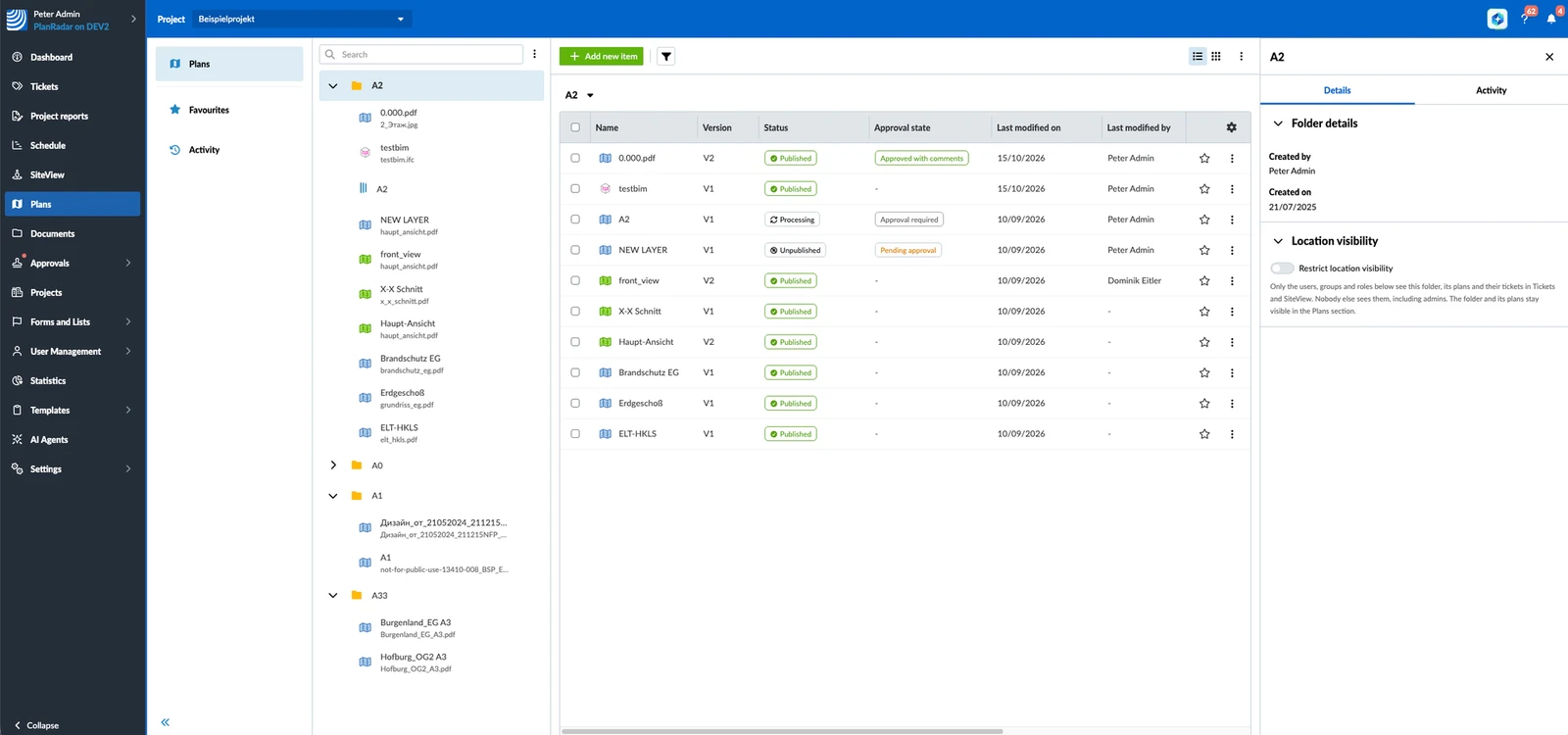
Restrict a Location
To restrict a plan, folder or BIM model:
- Open the Location visibility section as described in How to Access Location Visibility above.
- Switch on Restrict location visibility.
The restriction applies at once. You are added to the list Who sees this plan (or Who sees this folder or Who sees this BIM model). At this point, nobody else in the project sees the location in Tickets and SiteView until you add them.
Choose Who Sees a Location
Add users, groups or roles to the list. Everyone in it sees the location and its tickets; there are no permission levels.
To add a group, role or user:
- Click Add groups, roles or users.
- Select the groups, roles or users you want to add.
- Click Confirm.
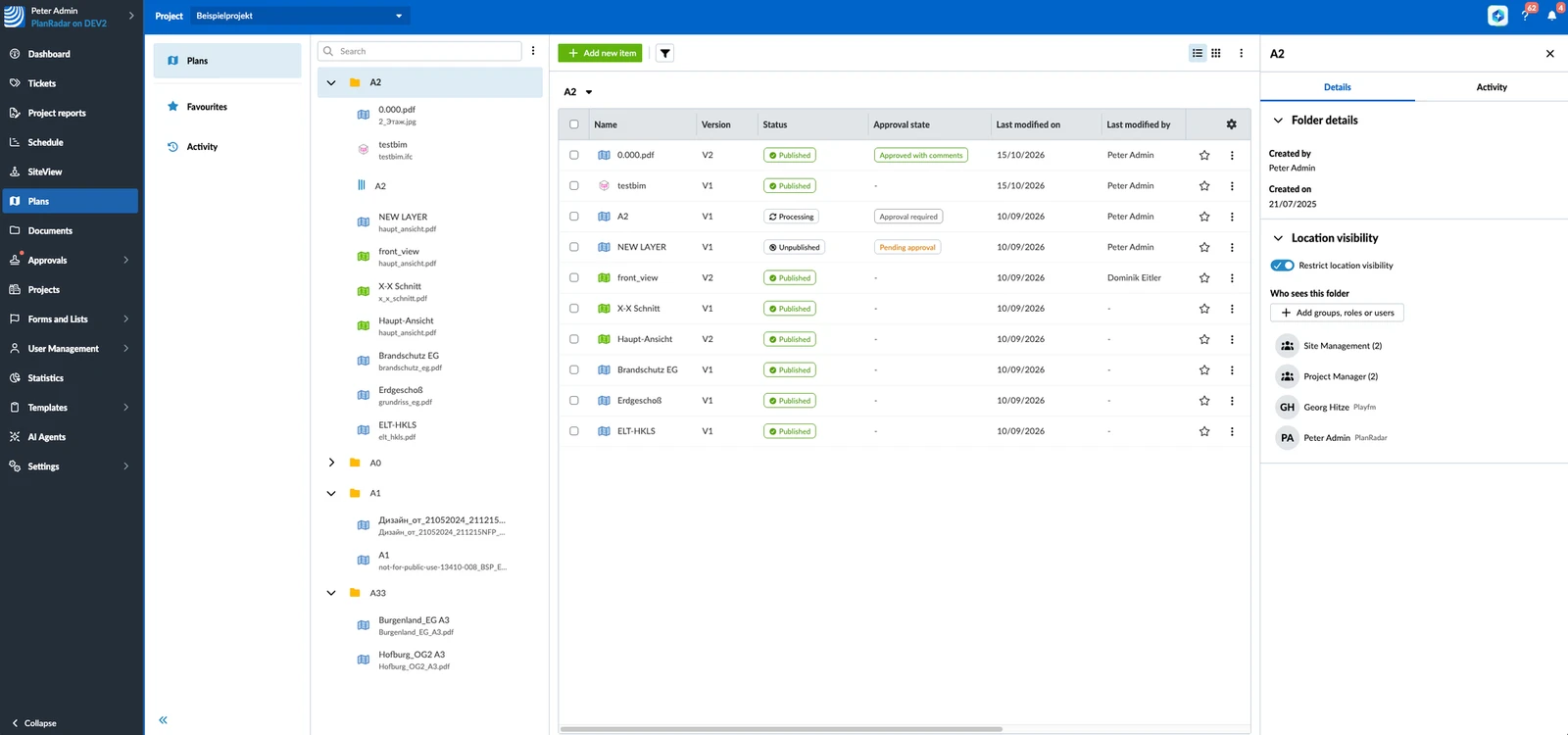
To remove someone from the list:
- Hover over the user, group or role.
- Click the remove button at the end of it.
You cannot remove yourself — the remove button on your own entry is disabled (You cannot remove yourself). Another project admin can remove you. You can also remove other project admins.
Inherited Restrictions
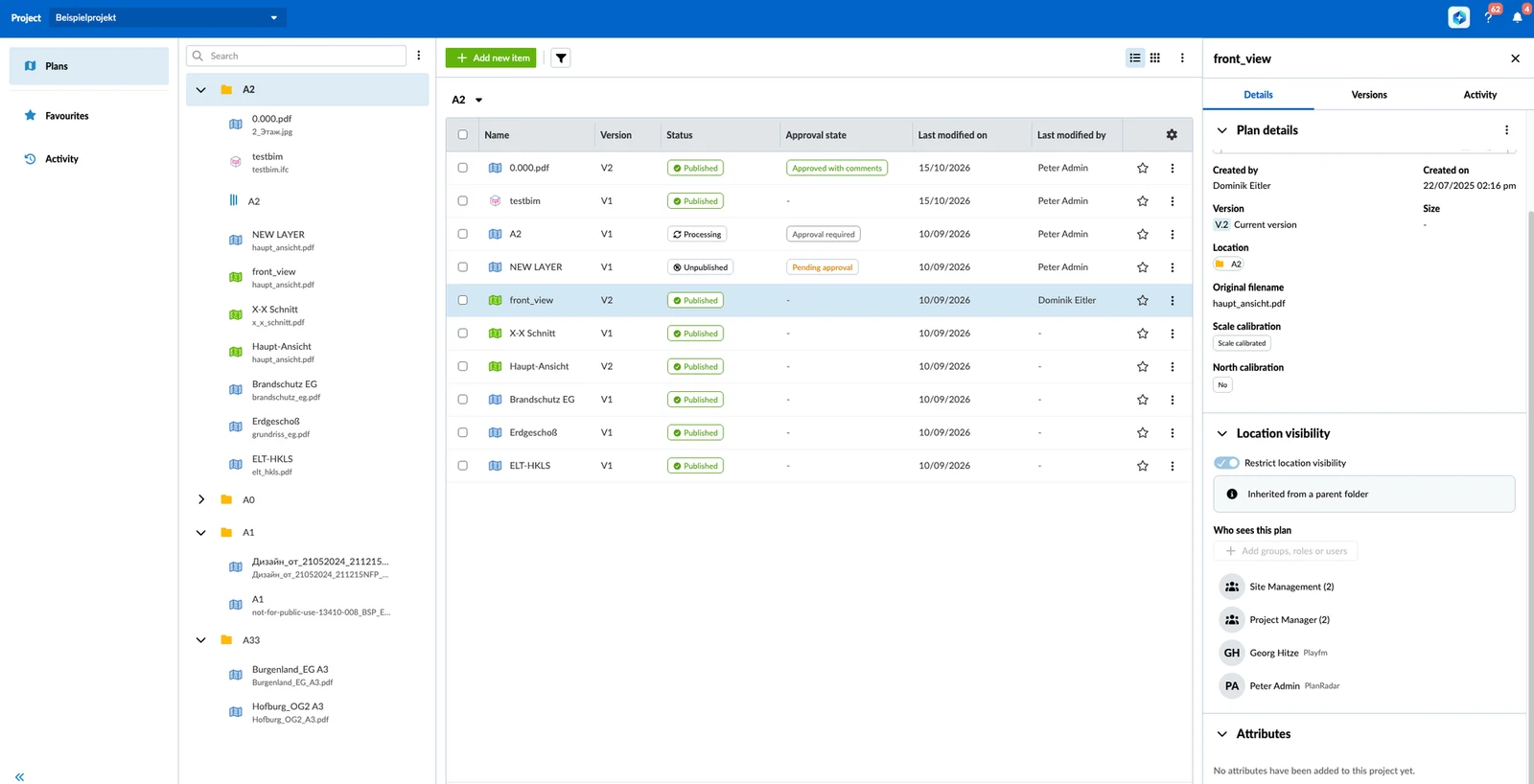
Plans, BIM models and subfolders inside a restricted folder take its restriction. Their Location visibility section shows Inherited from a parent folder and the folder's list. You cannot change it there: the toggle, Add groups, roles or users and the remove buttons are disabled. Change the list on the folder where the restriction was switched on.
If a plan or subfolder has its own restriction and you restrict a folder above it, its own list is deleted. It then takes the folder's restriction.
Move a Restricted Plan or Folder
A plan, folder or BIM model takes the restriction of the folder you move it to:
- Into a restricted folder — it takes that folder's restriction. Its own list, if it had one, is deleted. For a folder, this applies to everything inside it too.
- Out of a restricted folder into one without a restriction, or to the top level of the project — it no longer has a restriction.
- With its own restriction into a folder without one, or to the top level of the project — it keeps its own restriction.
When a move changes who sees the item, the Location visibility modification warning appears before anything moves. Click Move anyway to move it, or Cancel to go back to the Move window.
Tickets always move with their plan or folder. Read more in Manage Plans & Folders in the Webapp.
Remove a Restriction
You can switch the restriction off only on the plan, folder or BIM model where it was switched on. On inherited items the toggle is disabled.
To remove a restriction:
- Open the Location visibility section of the item.
- Switch off Restrict location visibility.
The restriction is removed at once, also from everything that inherited it. Everyone sees the location and its tickets again, according to their ticket permissions.
What Users Who Are Not Selected See
For a user who is not in the list, the restricted location and its tickets are hidden in the Webapp and in the mobile apps:
- Tickets — the location is missing from the location selector: when creating a ticket, changing its location, filtering by Location and in the plan view. Its tickets are missing from the list, the plan view, the map view, the search and all counts.
- Sub-tickets and linked tickets — a parent ticket shows only the sub-tickets and linked tickets the user can see.
- Links — a link to a hidden ticket shows No ticket found. A link to the plan view or SiteView of a hidden plan opens a "not found" page.
- SiteView — the plan is not in the plan list, so its runs and 360° images cannot be opened.
- Reports and exports — ticket reports, project reports, the plan download with ticket pins, and Excel exports leave out hidden tickets.
- Notifications — no in-app notifications or emails about hidden tickets.
- AI Assistant, API and PlanRadar Connect — they work with the visibility of the user they run as, so hidden tickets are not in their results.
If the user can open the Plans section, they still see the plan, folder or BIM model there. The option Tickets plan viewer (BIM viewer for a BIM model) in the More menu and the Show tickets switch in the plan viewer are disabled, with the tooltip This plan is restricted, This folder is restricted or This BIM model is restricted.
Updated November 4, 2026